This step-by-step guide will make switching to Linux Mint from Windows easy, whether you want to retain your data or begin fresh.
This step-by-step guide will make switching to Linux Mint from Windows easy, whether you want to retain your data or begin fresh.
by Pallav Pathak
With Windows 10 support nearing its end, many users are seeking alternatives that offer better privacy and performance. Transitioning to Linux not only revitalizes older hardware but also provides a stable, secure, and customizable environment that respects user privacy. Here’s how to smoothly switch from Windows to Linux.
Select and download a Linux distribution
Linux comes in various distributions (distros), each with its own desktop environments, features, and applications. Before installing Linux, it’s essential to choose a distro that fits your needs. Popular options include Fedora, Debian, Arch, Ubuntu, and more.
Selecting a distro
To learn about a specific distro like Linux Mint, visit its official website for comprehensive information. You’ll find system requirements, features, included software, and installation instructions. Watching online videos can also give you a glimpse of how different distros look and function.
For this guide, we’ll use Linux Mint, but most distros offer similar options. Linux Mint is an excellent choice for both beginners and advanced users due to its ease of use and high customizability. It’s completely free and runs efficiently, even on older hardware.
Based on renowned distributions like Ubuntu and Debian, Linux Mint is known for its exceptional stability, minimizing crashes and freezes. Installation and daily use are straightforward and effortless.
Downloading Linux Mint
Linux Mint is relatively compact, so downloading it won’t consume much time or bandwidth.
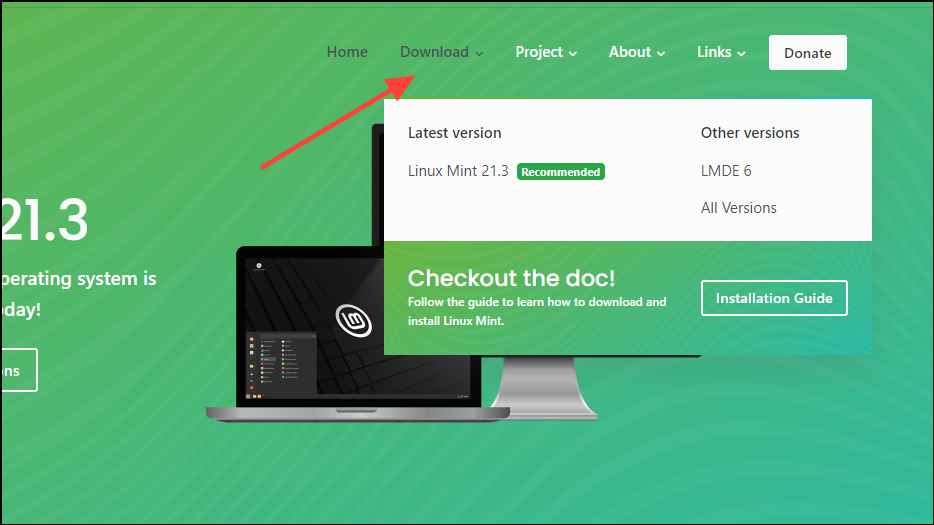
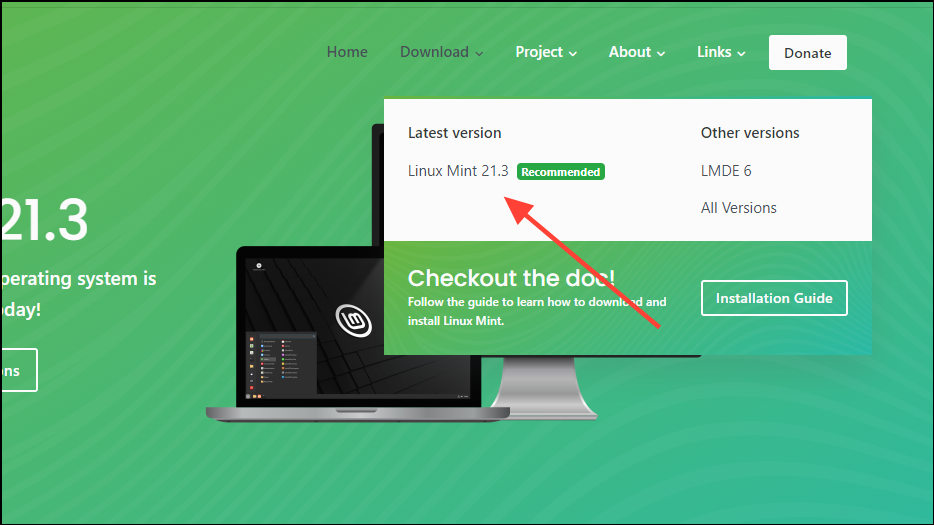
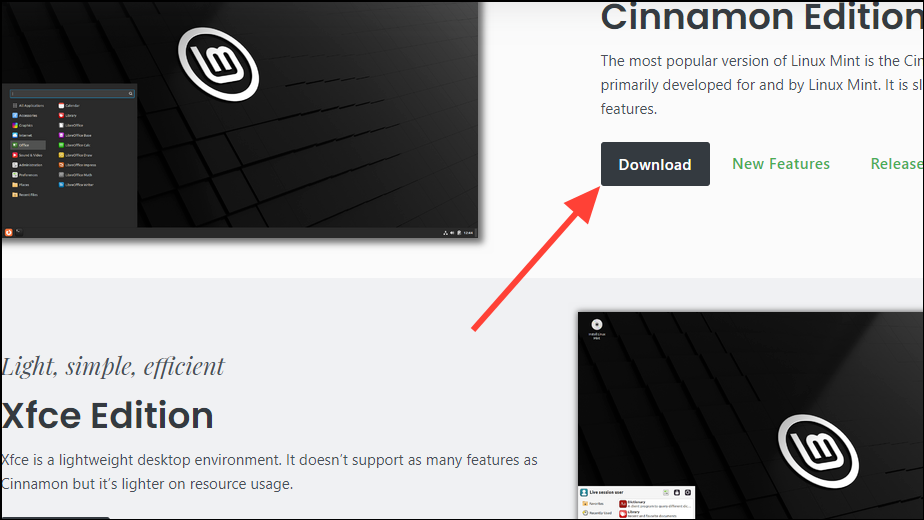
On the homepage, locate and click on the download link to access the available download options.
Note: Linux Mint requires just 2GB of RAM and 20GB of hard disk space, making it suitable for older computers. Ensure your machine meets the requirements for your chosen distro before proceeding.
On the following page, choose your preferred desktop environment. Linux Mint offers Cinnamon, Xfce, Mate, and Cinnamon Edge. Click on the download button corresponding to the desktop environment you want.
Note: To download the distro using a torrent, you’ll need a torrent client like BitTorrent, qBittorrent, or Deluge.
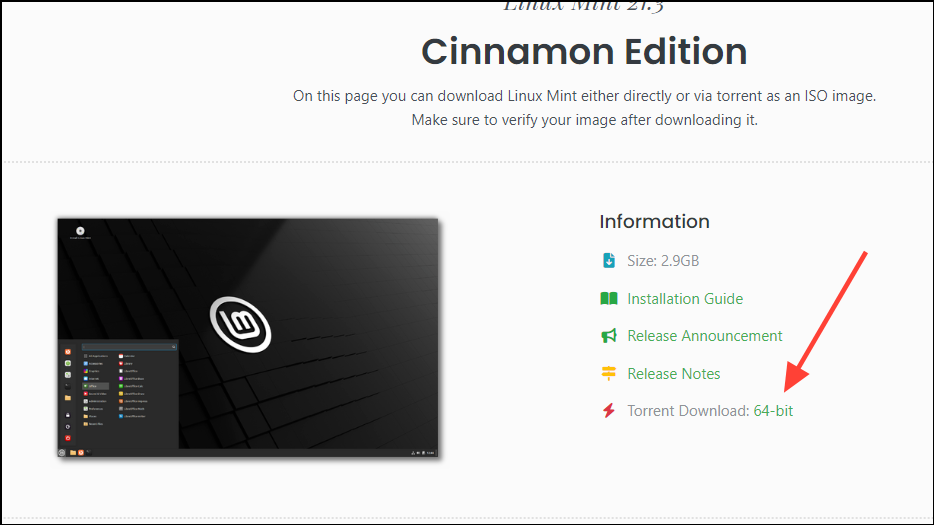
You will arrive at the download page where you can obtain the ISO file either directly or via torrent. To download using a torrent, click on the ‘Torrent Download’ link.
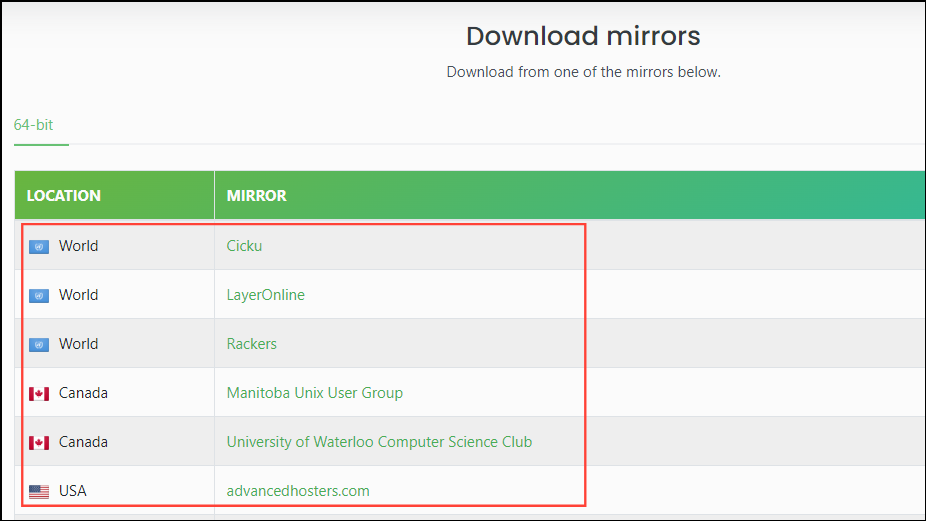
Download the torrent file, then use your torrent client to download the distro. Alternatively, you can download the ISO directly by selecting one of the mirror links provided on the page.
Verify your downloaded ISO
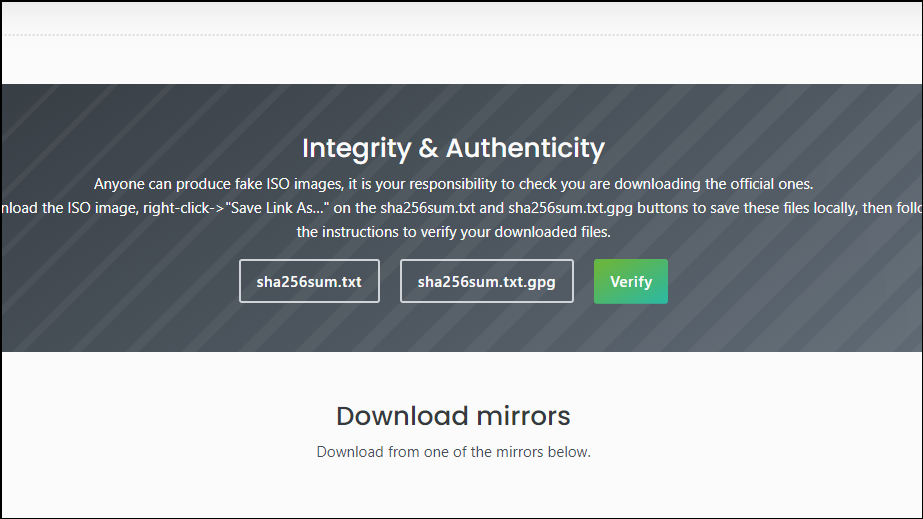
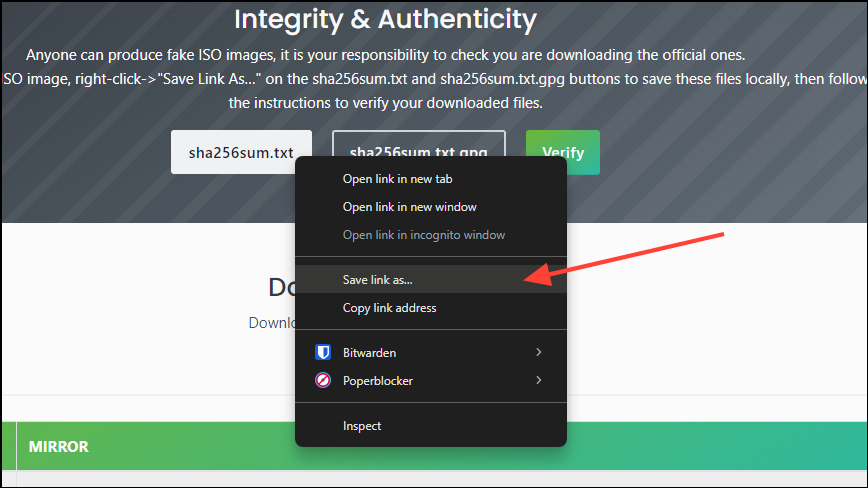
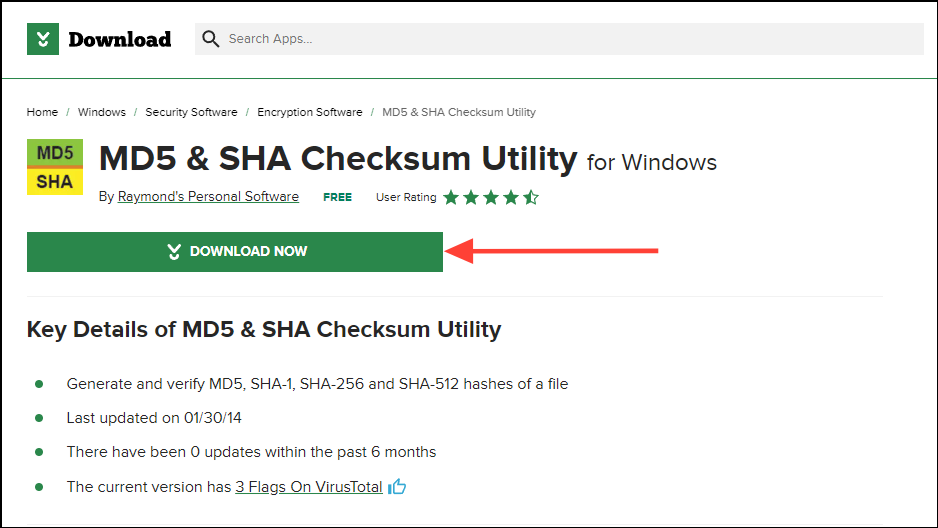
After downloading the ISO file, it’s crucial to verify its authenticity and integrity. This ensures the file you have matches the one provided online, preventing potential issues during installation due to file corruption.
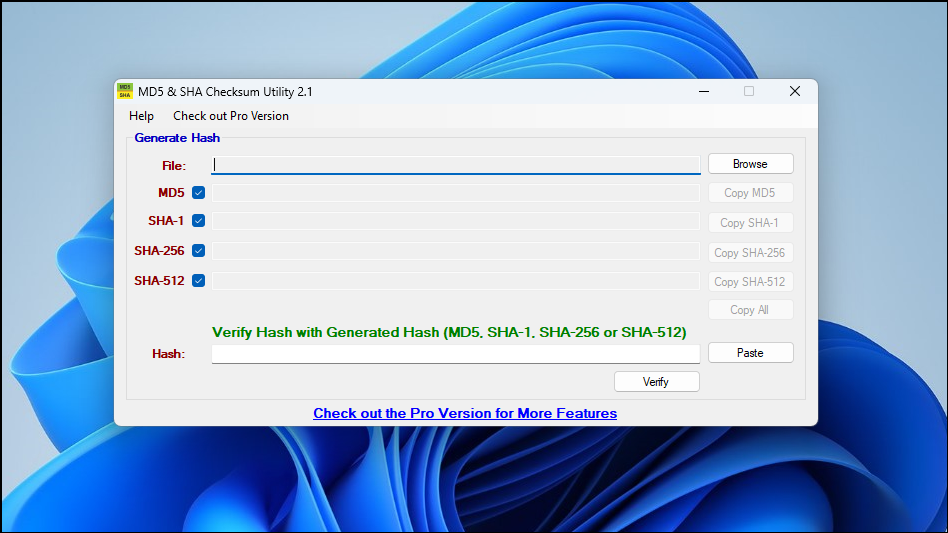
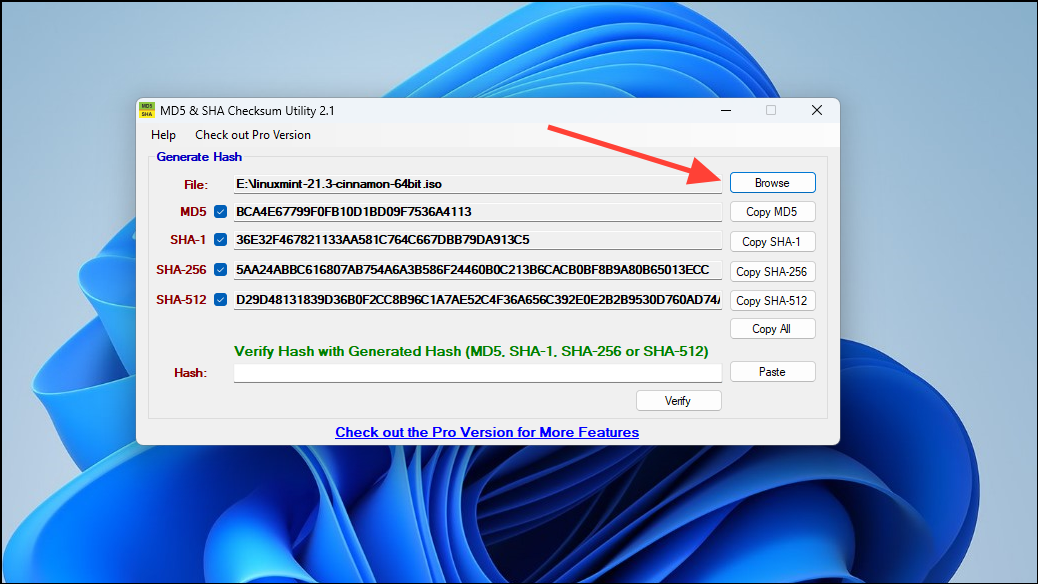
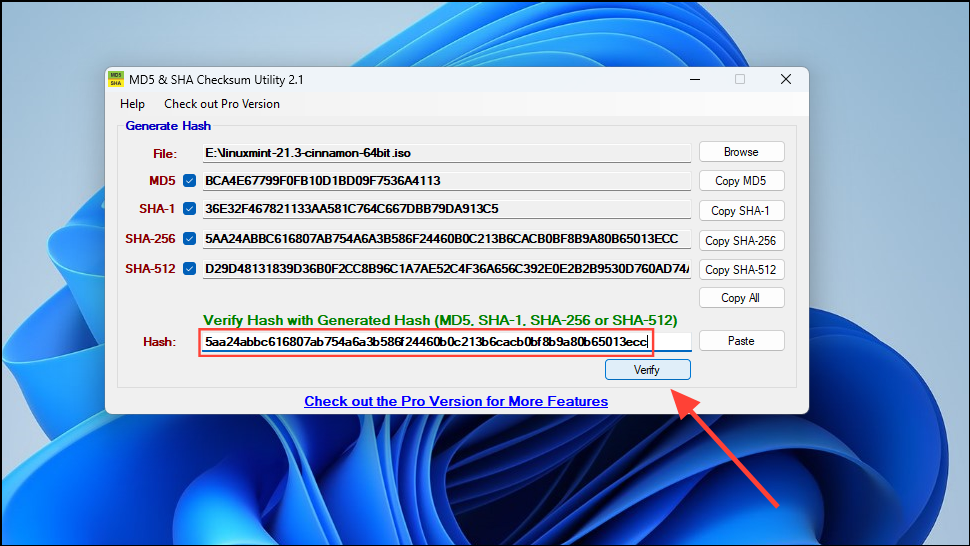
Click the ‘Browse’ button, navigate to the downloaded ISO file, and select it. The application will automatically generate the SHA-1, SHA-256, and SHA-512 hashes.
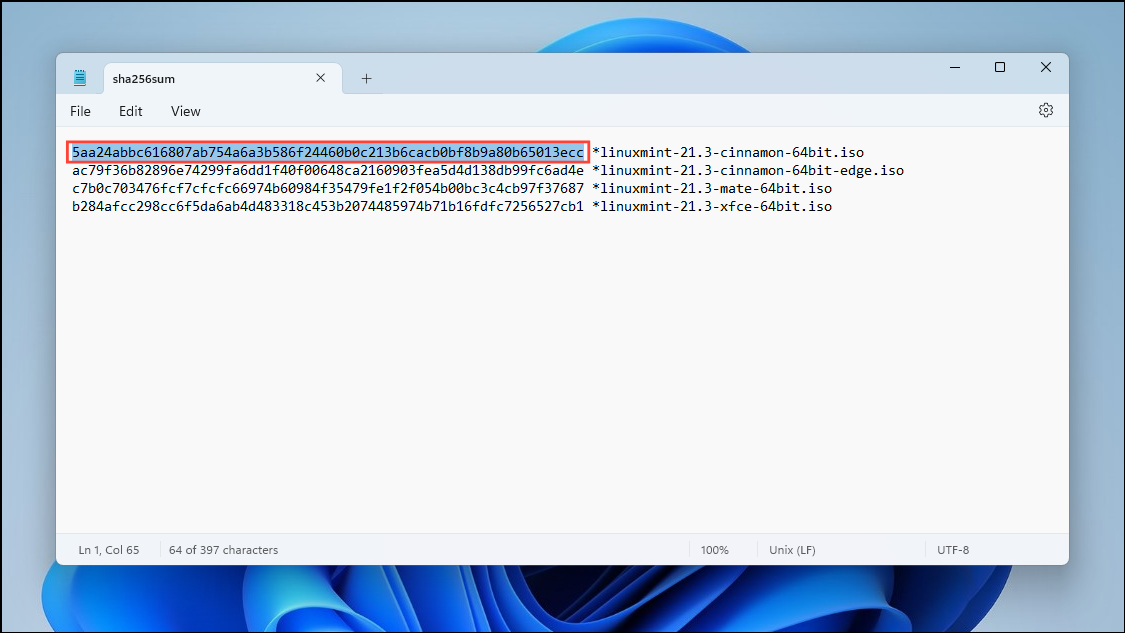
Open the ‘Sha256sum.txt’ file you saved earlier. It contains the hashes for all available versions. Copy the hash corresponding to the version you downloaded.
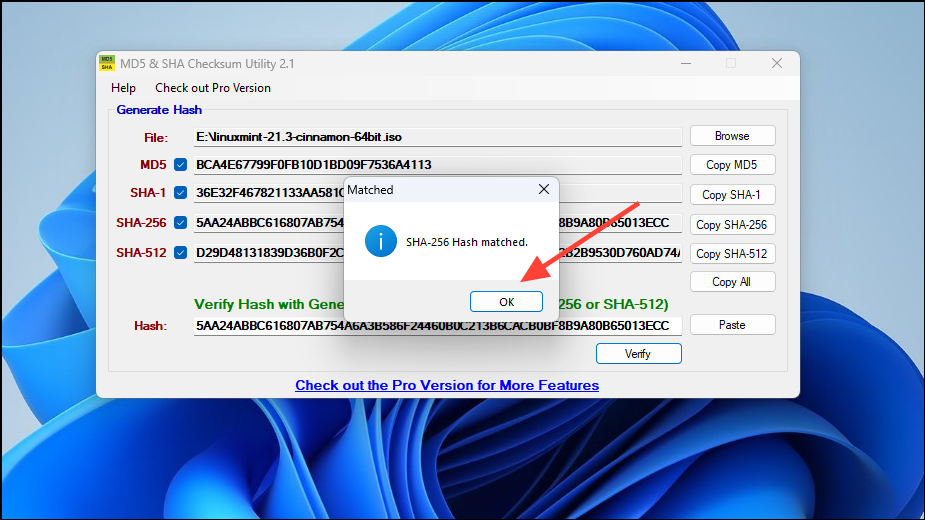
If the hash matches, a message will confirm the match, indicating your ISO is authentic and error-free. Click ‘OK’ and close the application.
Create a bootable USB
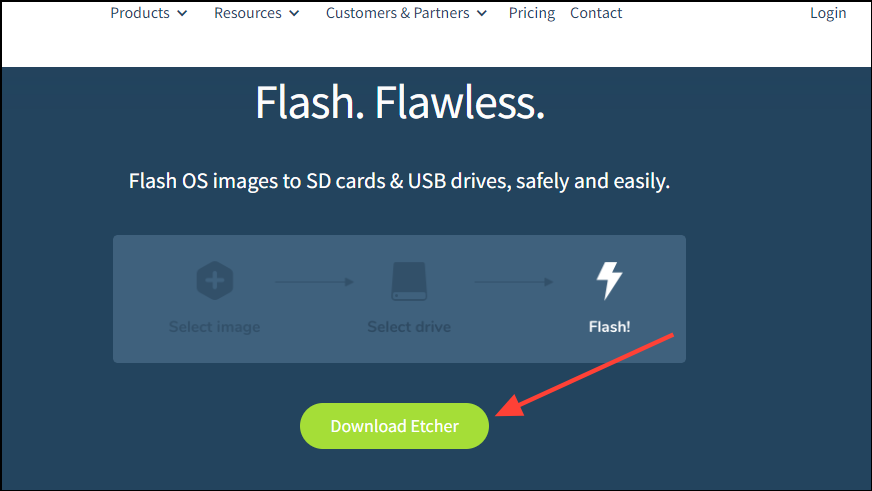
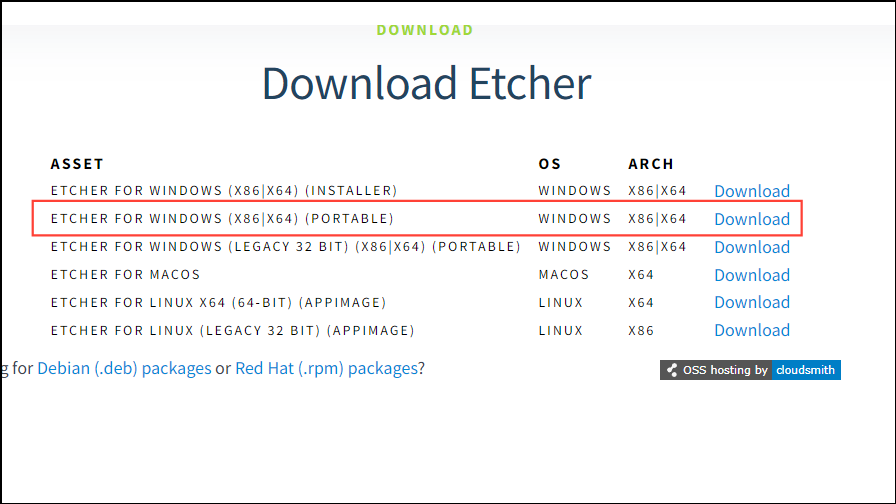
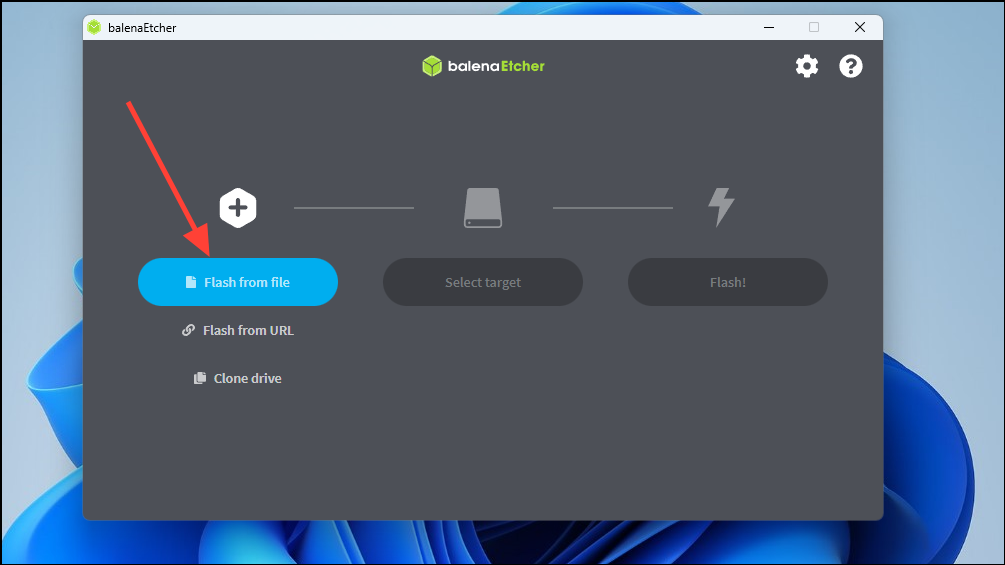
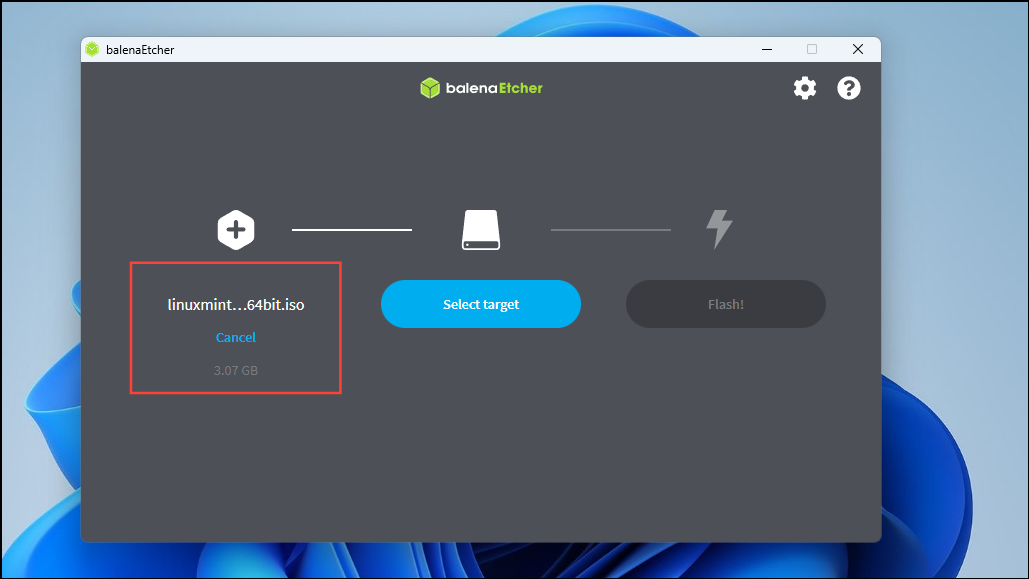
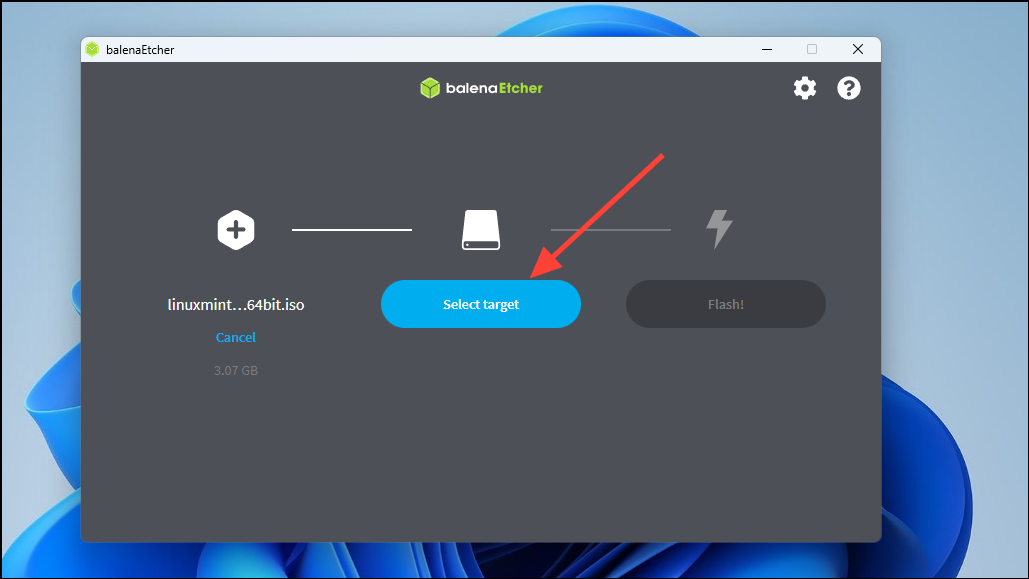
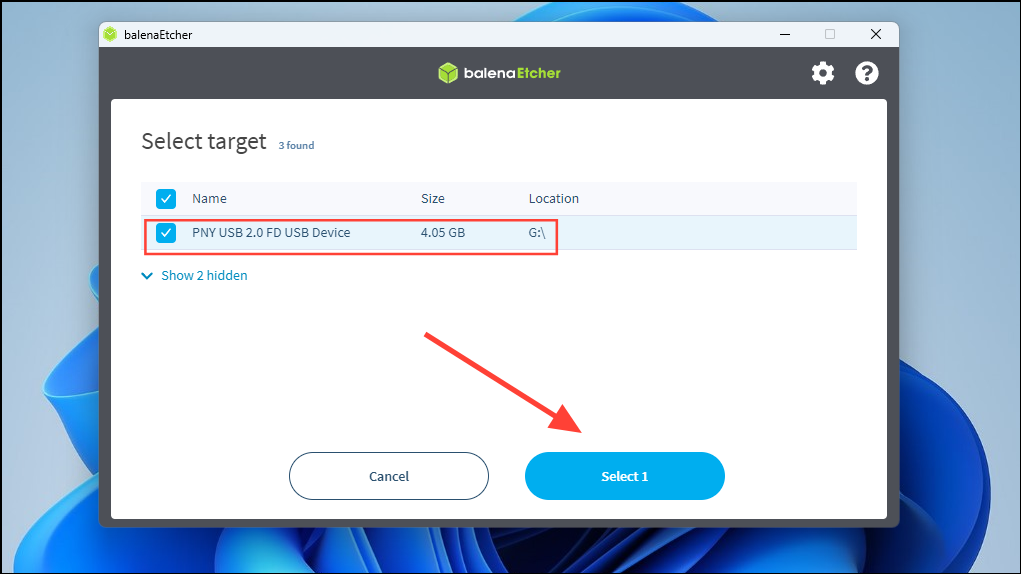
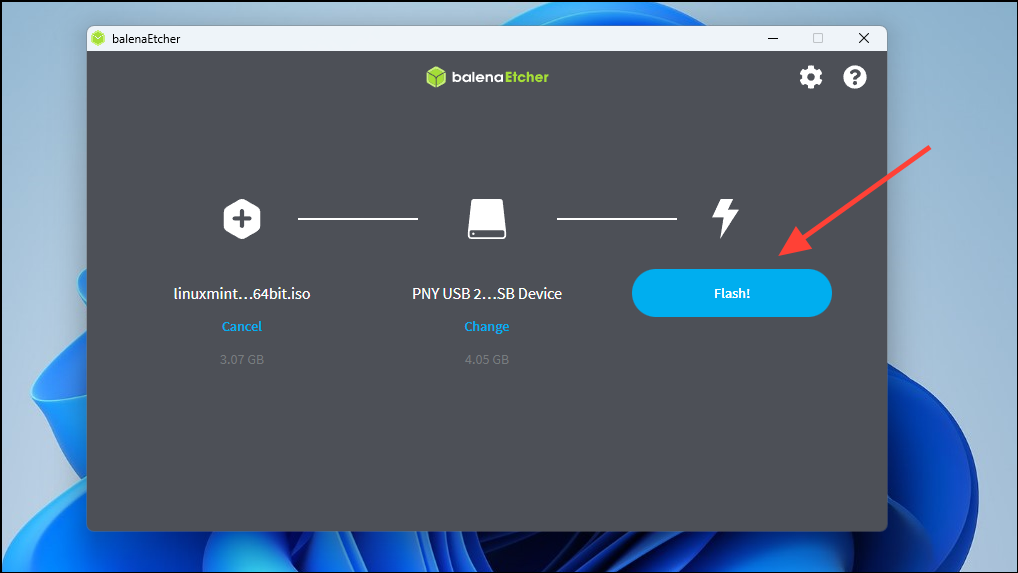
After confirming the ISO file is intact, the next step is to create a bootable USB. Windows users can utilize third-party applications like Etcher for this purpose.
After the flashing is complete, restart your computer with the USB drive still connected.
Boot the Linux Mint USB
One significant difference between Windows and Linux is the ability to test Linux features before installing it, or even during the installation process.
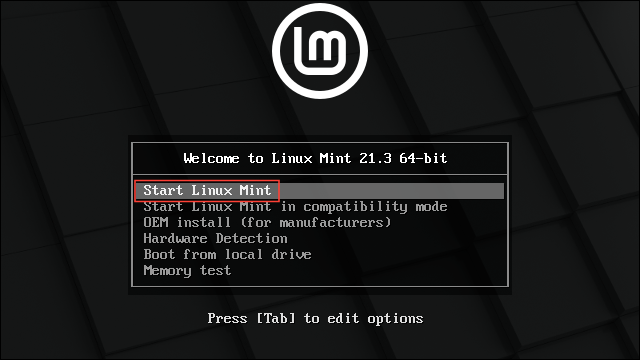
Upon restarting your PC, access the boot menu and select the USB device to boot from it.
Note: If your computer doesn’t display the boot menu during startup, you may need to press a specific key combination to access it. Common keys include Fn, Del, Esc, F11, and F12.
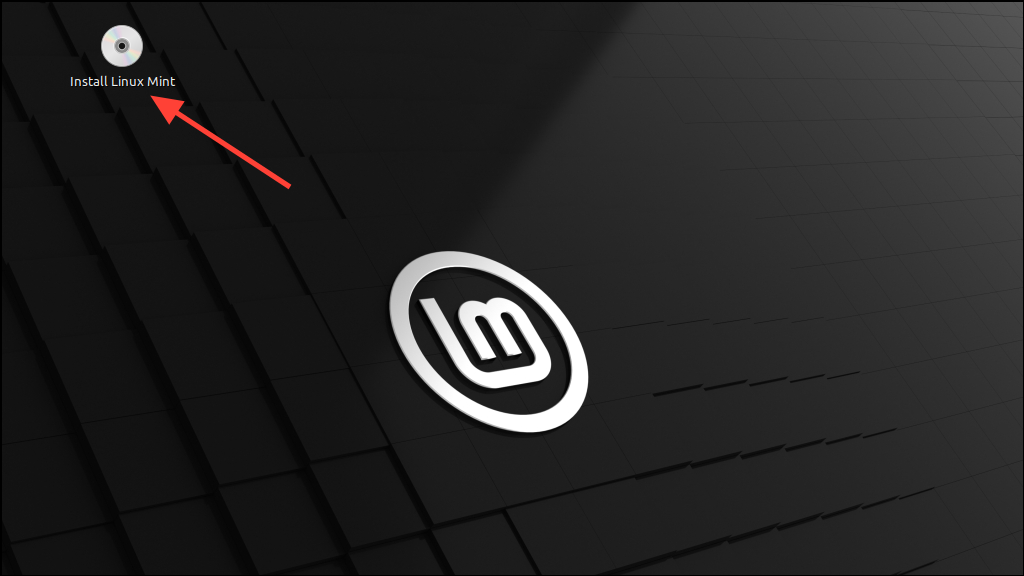
The Linux Mint desktop will load. You can explore its features or begin the installation. To install, double-click the ‘Install Linux Mint’ icon located on the top-left corner of the desktop.
Install Linux Mint
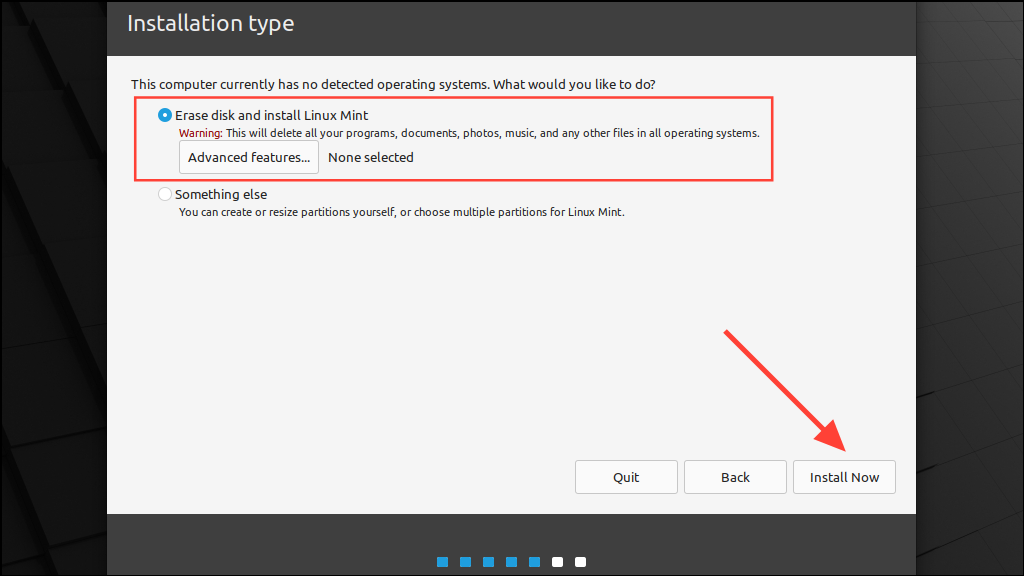
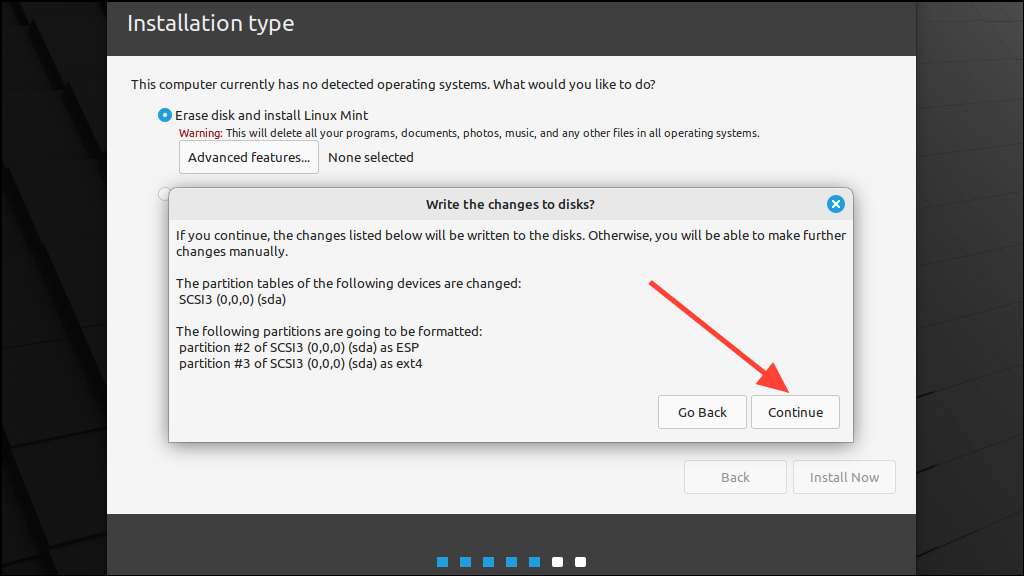
There are two methods to install Linux Mint. The first involves completely erasing your disk, so backing up your data is essential to prevent data loss. If you prefer to retain your data, the second method allows you to create a separate partition for Mint.
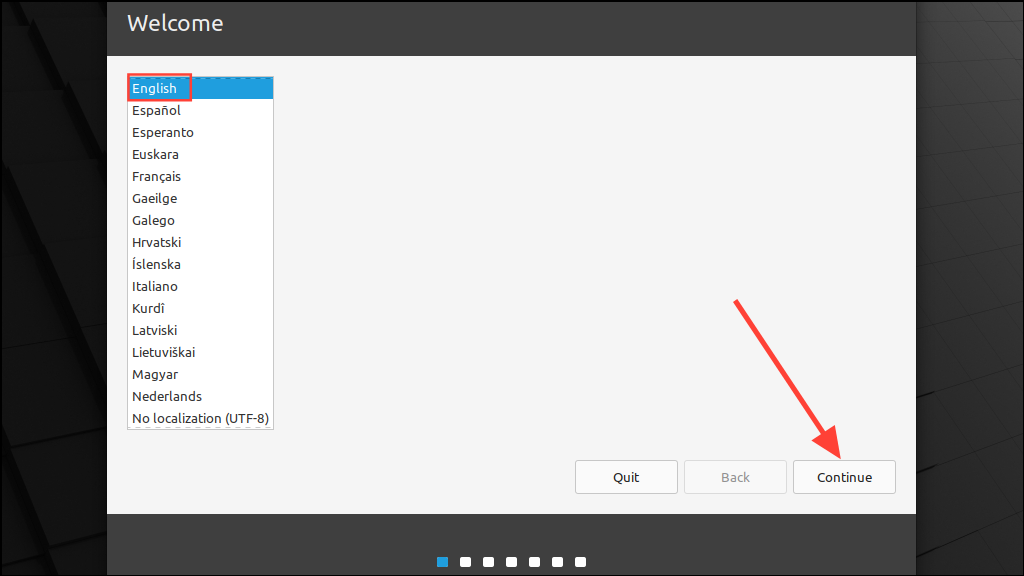
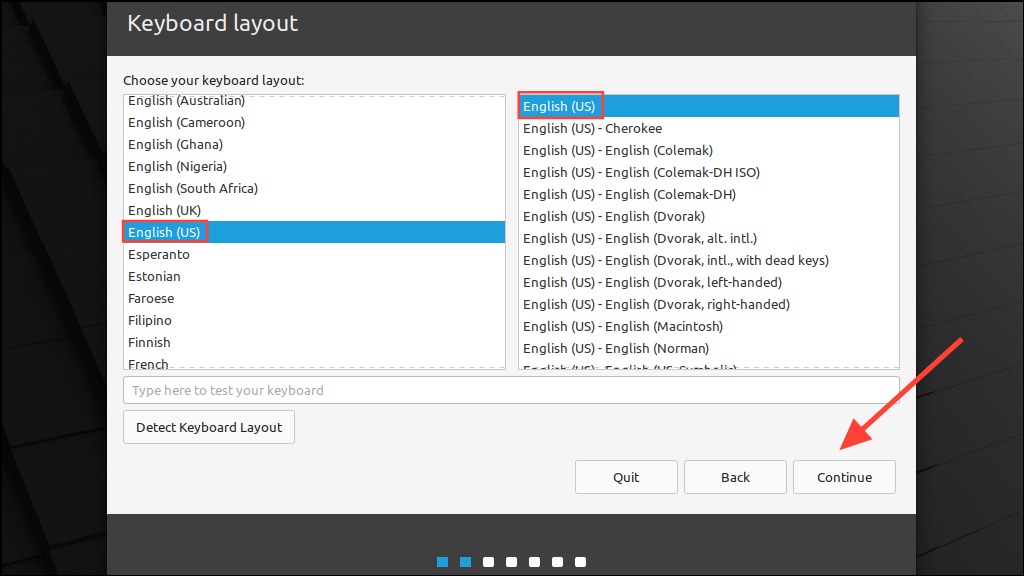
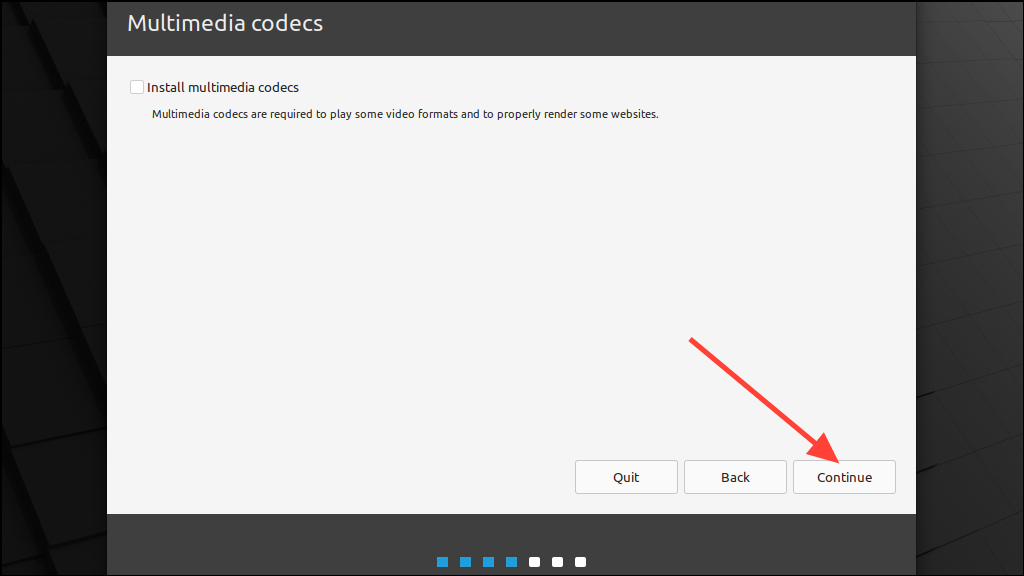
Regardless of your choice, double-clicking the ‘Install Linux Mint’ icon initiates the installation process.
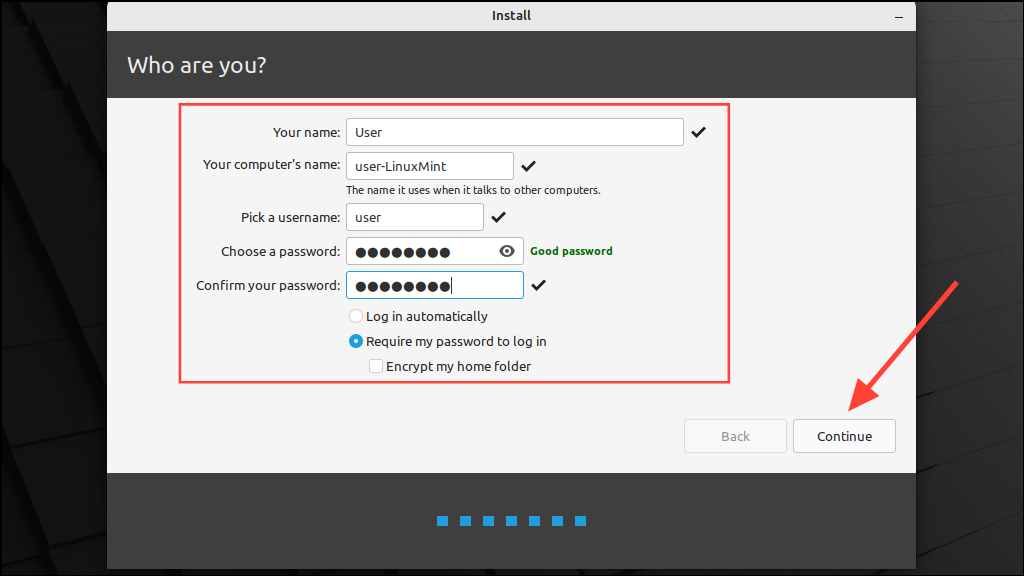
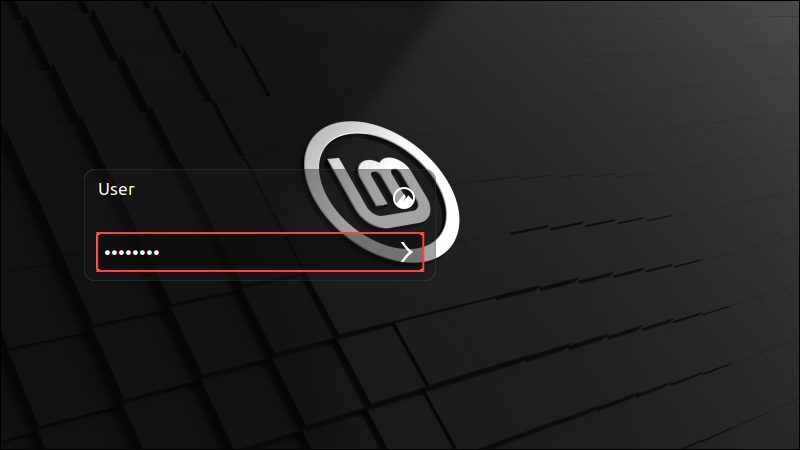
Enter your name, the name of your computer, and create a password. Ensure the ‘Require my password to log in’ option is selected, then click ‘Continue’.
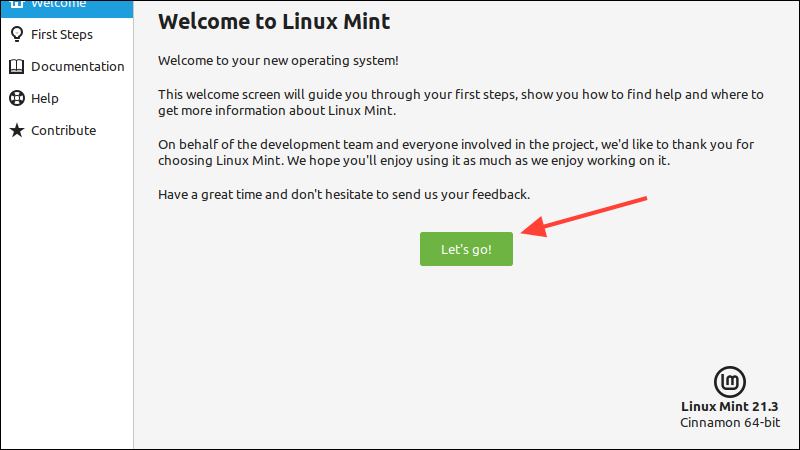
You’ll be greeted by the Mint Welcome Screen. Click ‘Let’s Go’ to start customizing your desktop, installing apps, and using Linux Mint.
Method Two: Retain your data
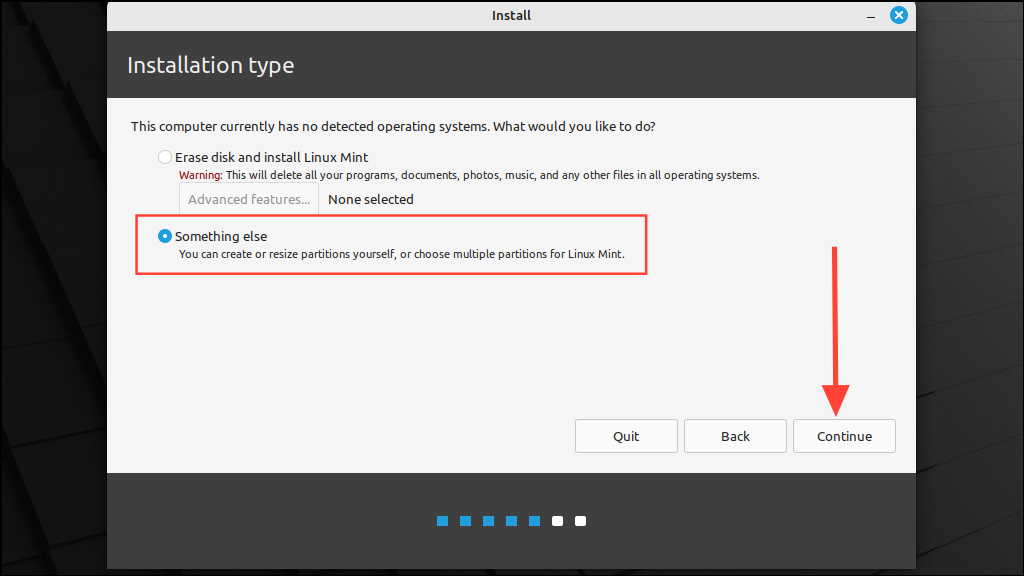
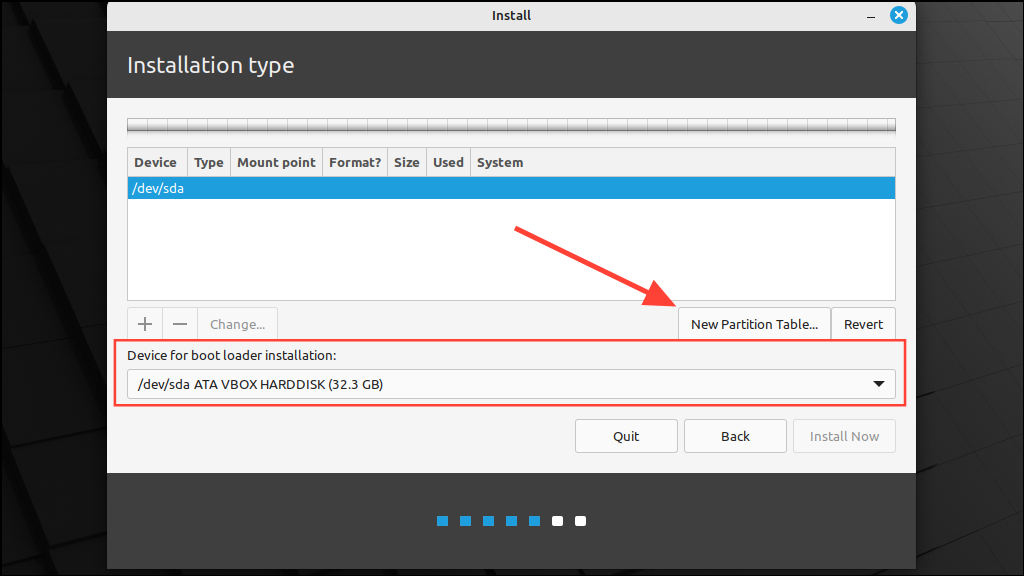
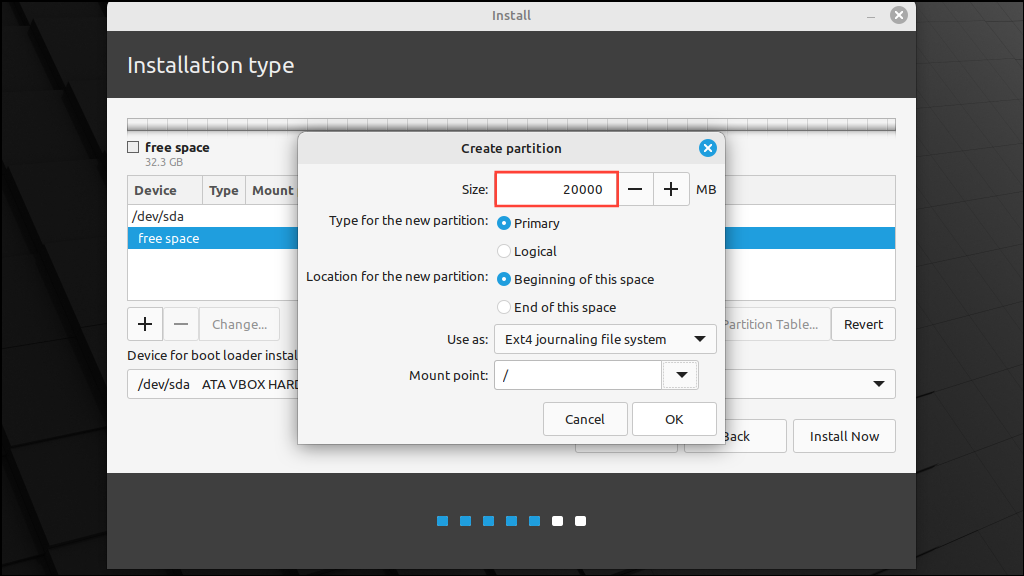
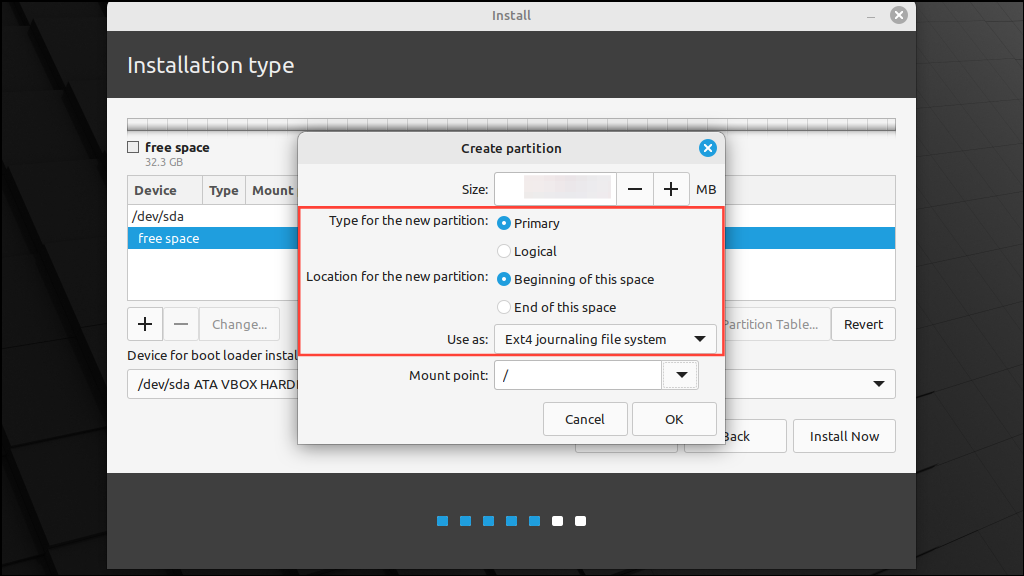
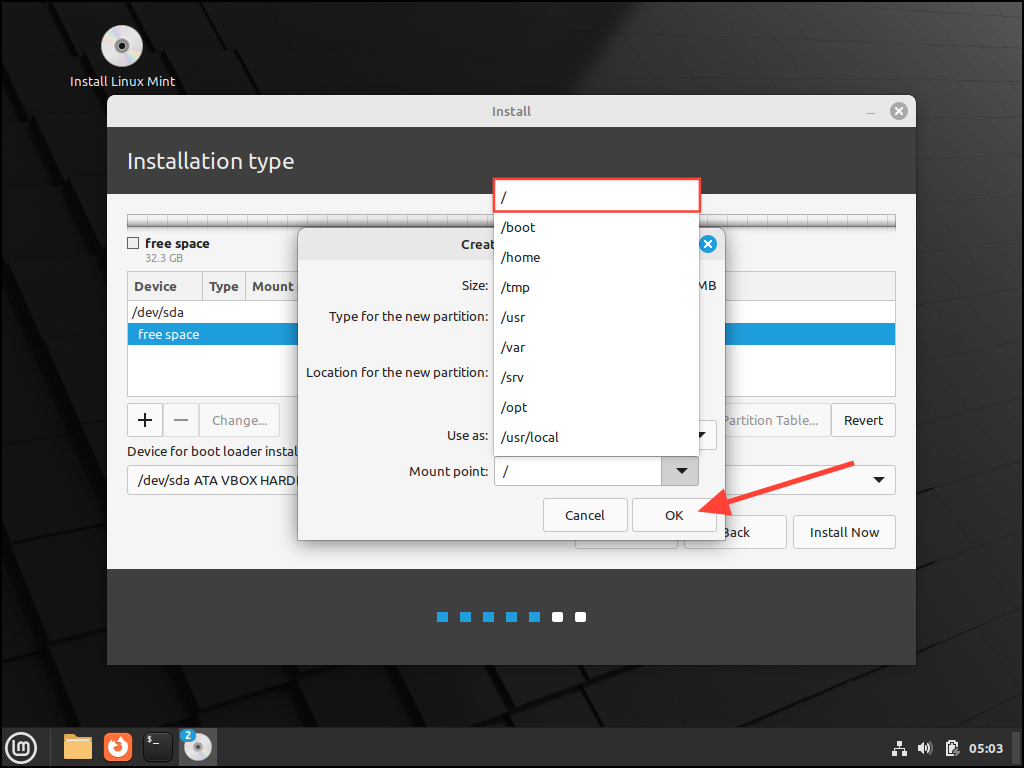
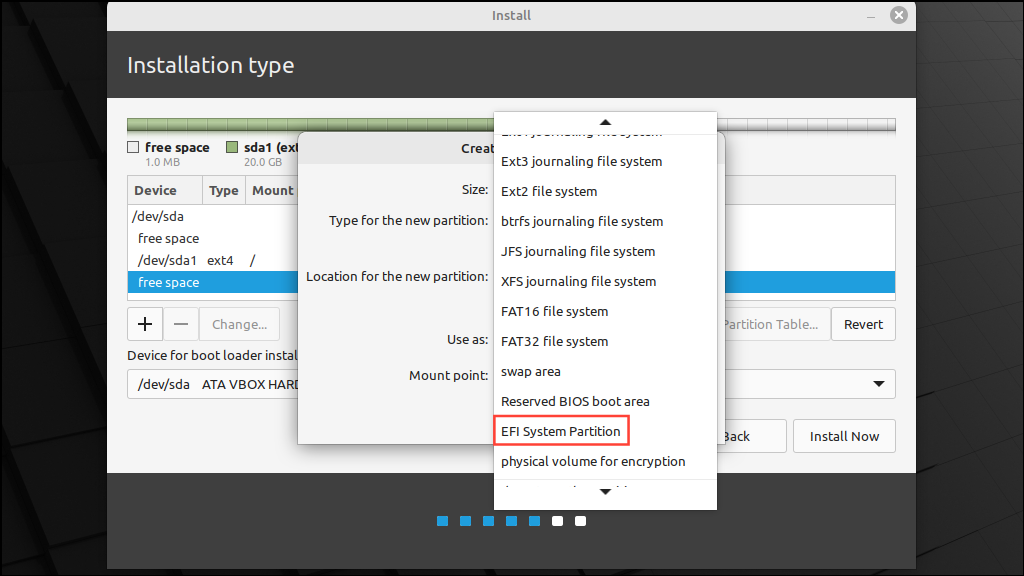
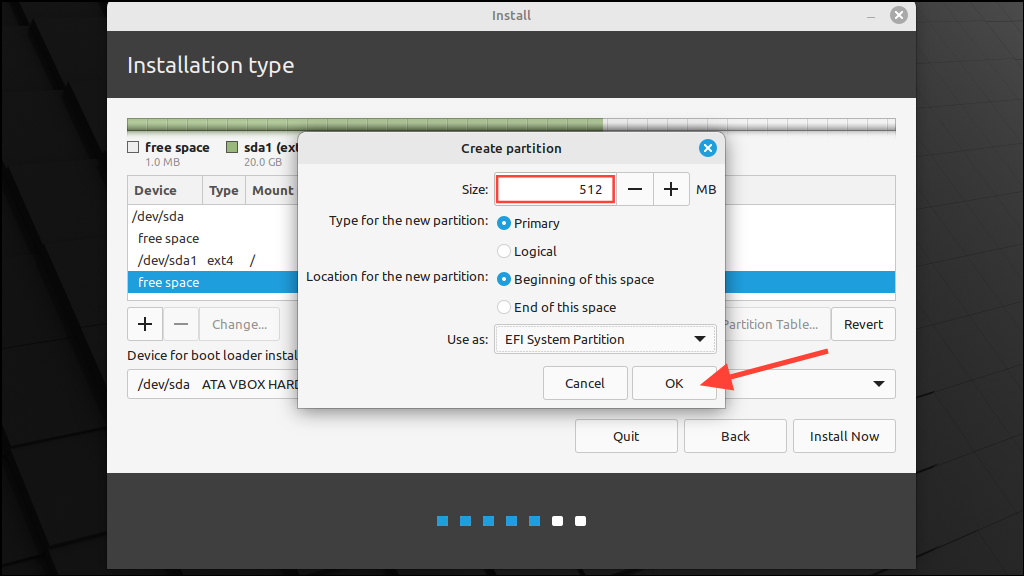
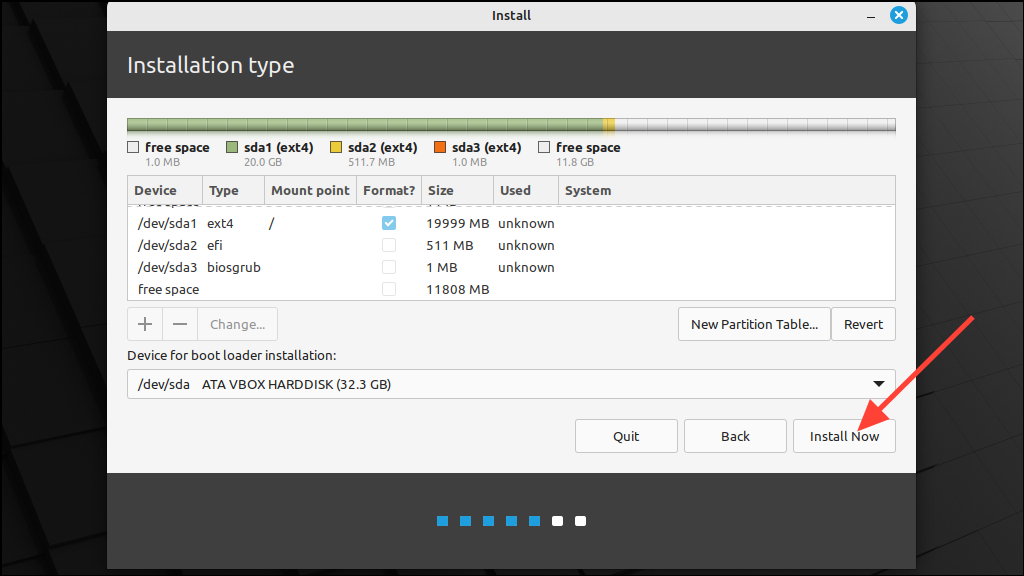
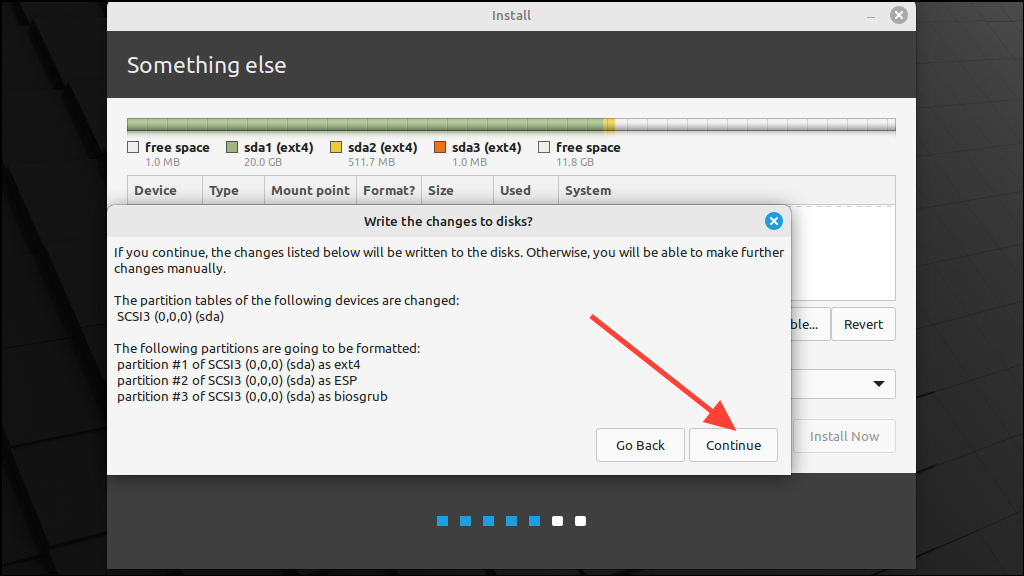
The second method allows you to install Linux Mint without deleting existing data by creating a new partition. Start by booting from the USB and following the initial steps as before. When you reach the ‘Installation Type’ screen, proceed with the following steps.
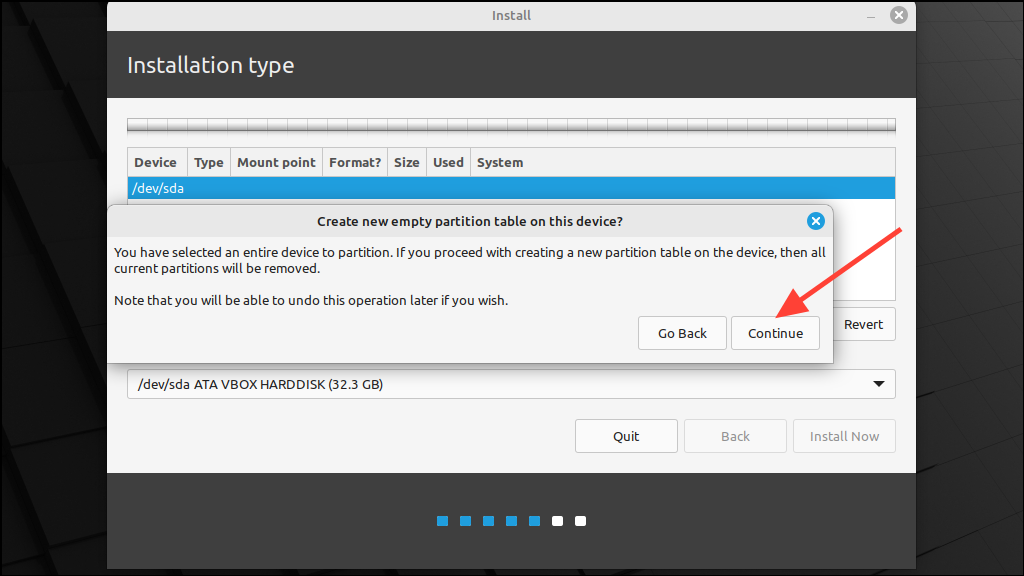
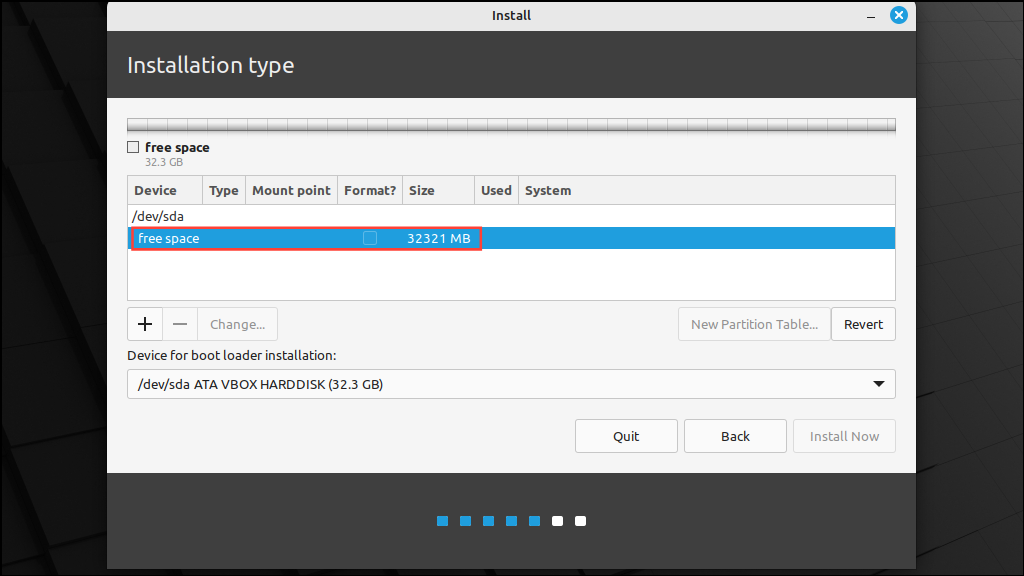
Click on the ‘New Partition Table’ button to create a partition table for your disk. If you have multiple disks, choose the one where you want to install Mint.
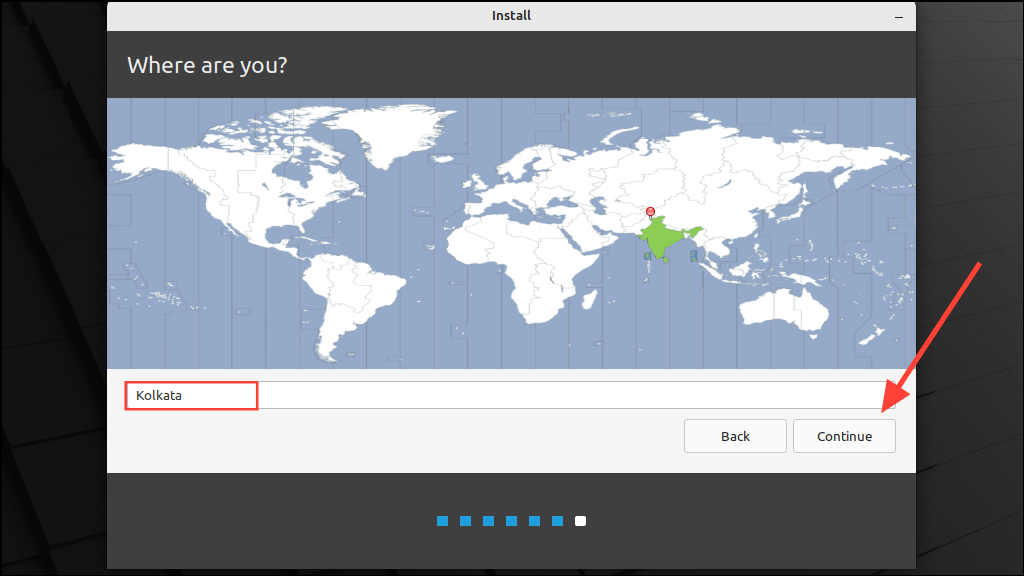
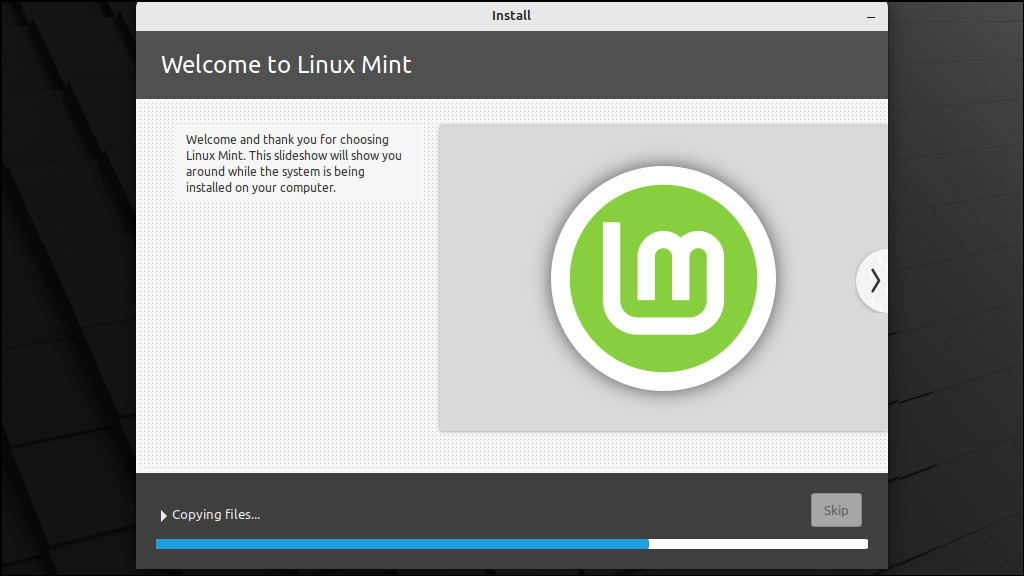
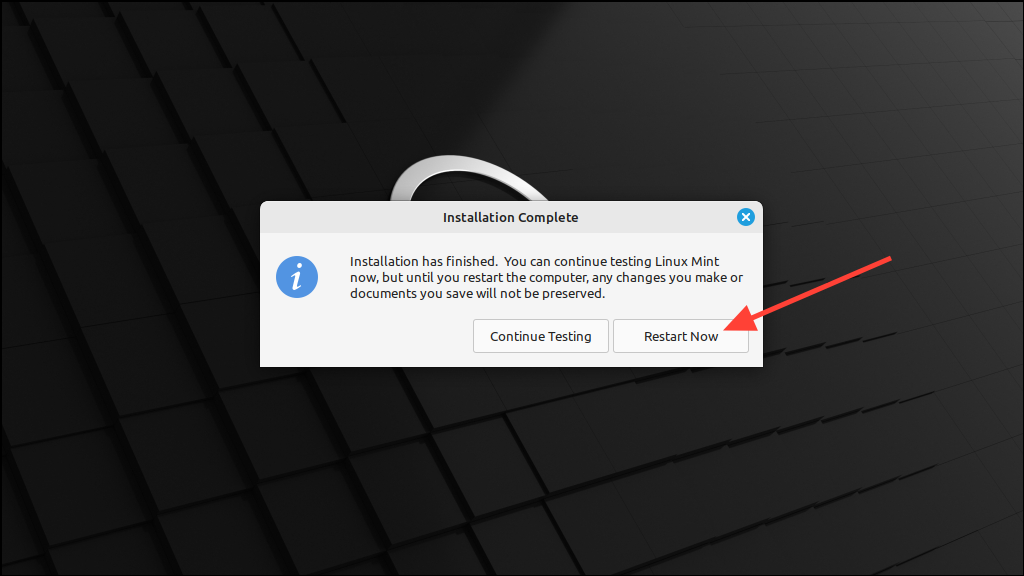
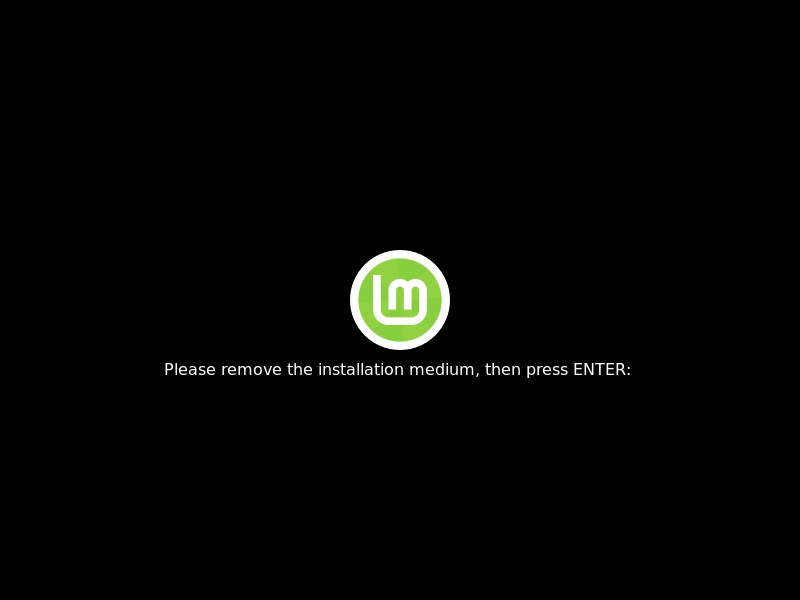
Proceed with the installation by selecting your location, entering your user details, and waiting for the process to complete, as in the previous method.
Switching from Windows to Linux is a great way to enhance performance, privacy, and control over your computing experience. Linux Mint is one of the most user-friendly and stable distros available, making it an excellent choice for both new and experienced users.
Once you’ve installed Linux Mint, you can learn how to install and update apps from the guide below.

 Pallav Pathak