macOS Sequoia (Version 15) introduces a dedicated Passwords app that simplifies password management by consolidating all your login credentials, Wi-Fi passwords, passkeys, and verification codes in one secure location. Previously, passwords were scattered across Safari, System Settings, and Keychain Access. The new Passwords app centralizes this information, making it easier to access, manage, and secure your digital accounts.
Opening and Setting Up the Passwords App
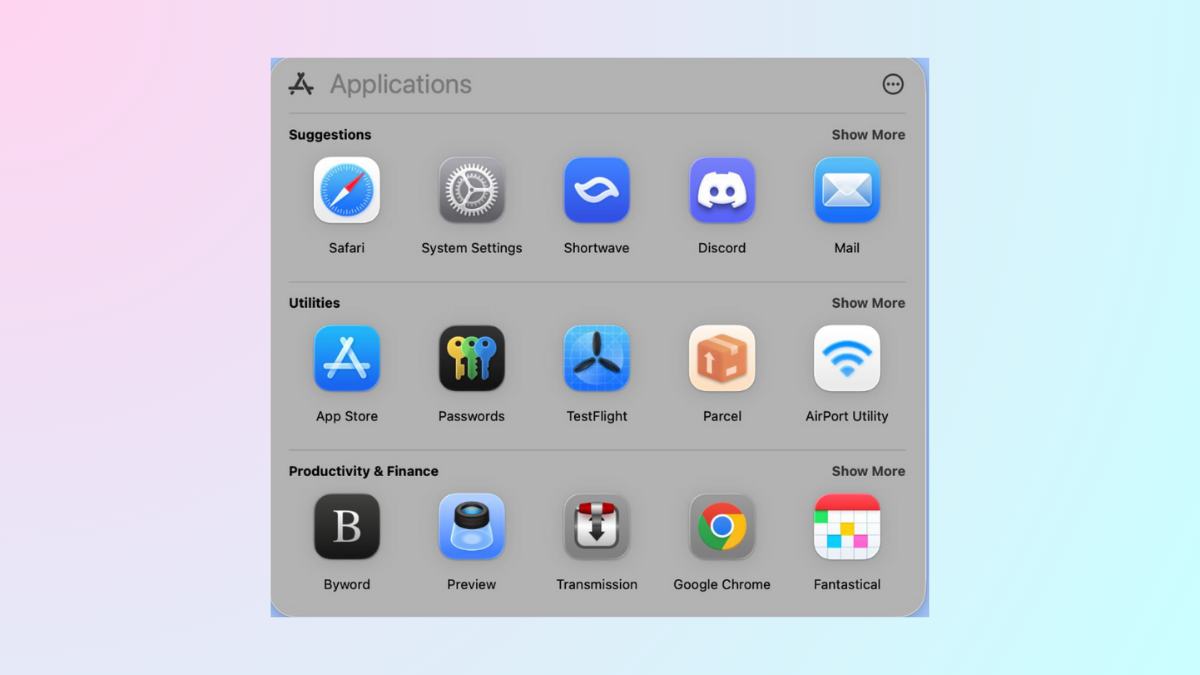
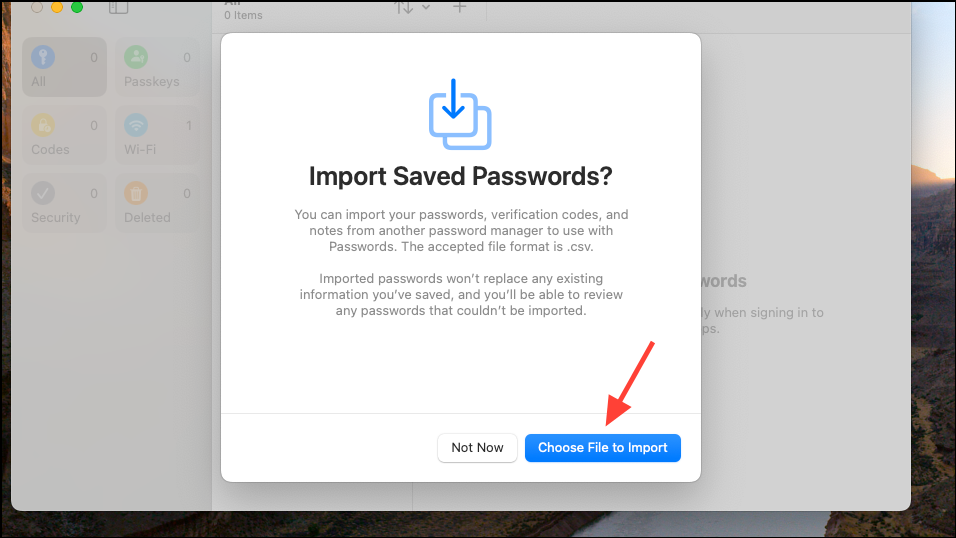
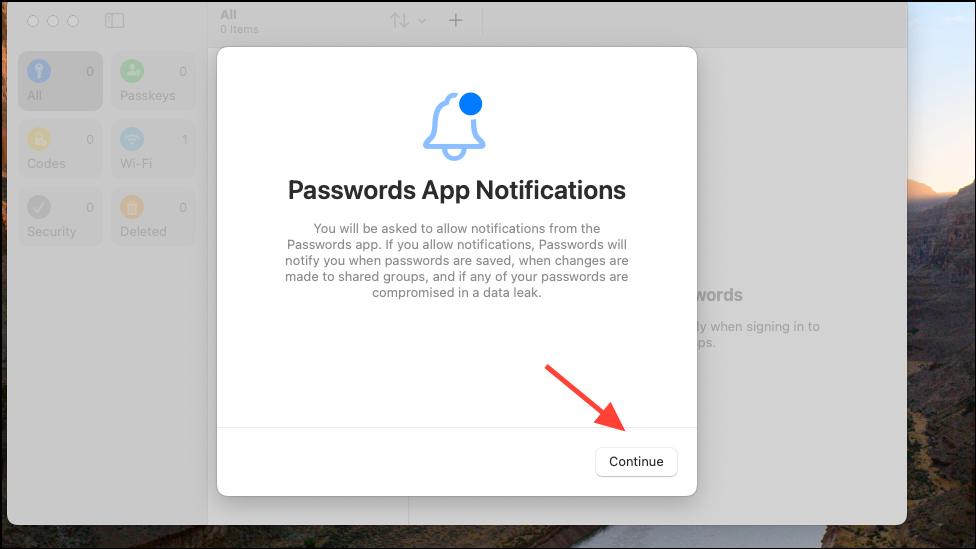
Command + Space, type “Passwords,” and press Enter. Alternatively, navigate to the Applications folder in Finder, locate the Passwords app, and double-click to open it.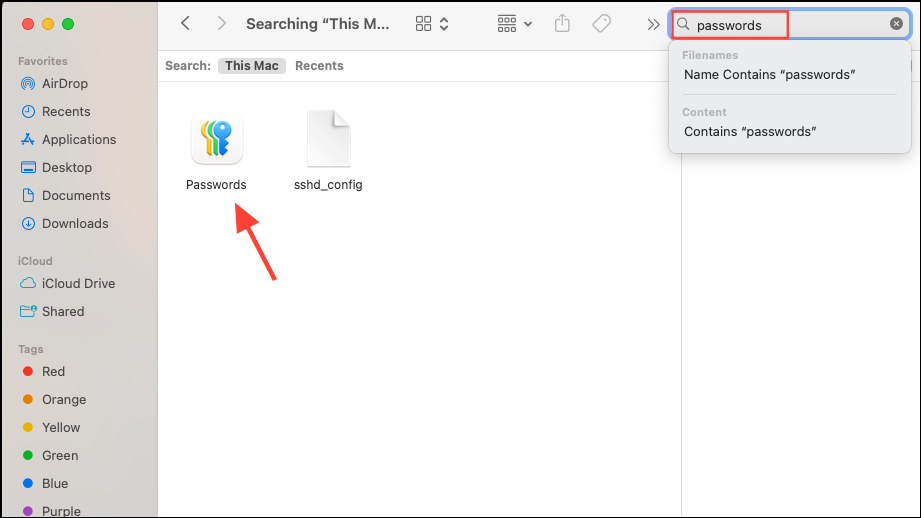
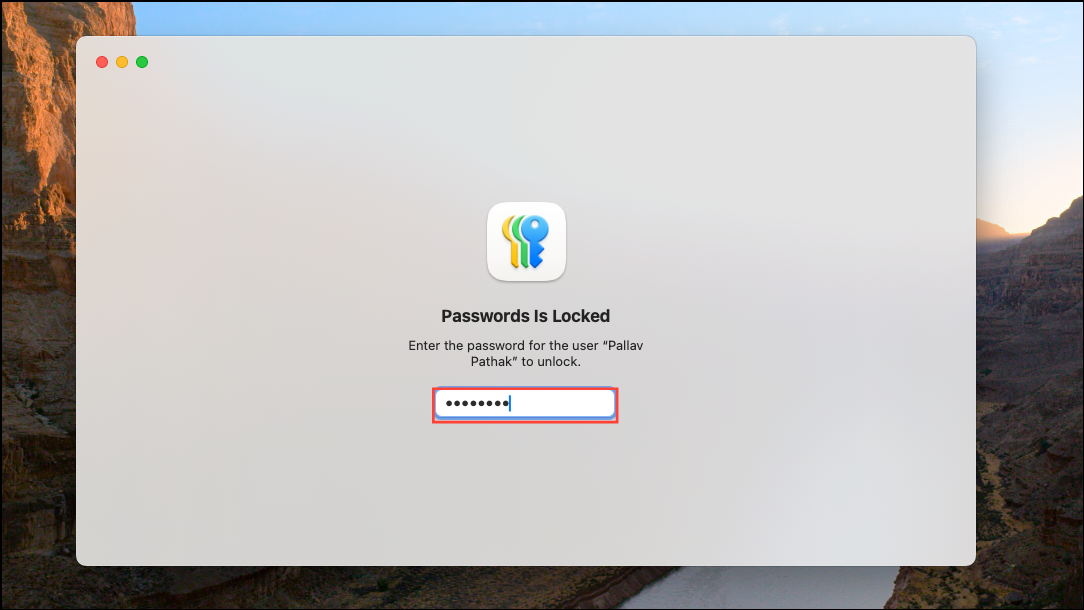
Saving and Auto-Filling Passwords
The Passwords app integrates directly with Safari, automatically prompting you to save login credentials when you sign into websites. After saving, Safari will automatically fill these credentials on future visits, streamlining your login process. To confirm auto-fill, simply authenticate using Touch ID or your admin password.
Manually Creating and Editing Passwords
File > New Password or use the shortcut Command + N. You can also click the “+” button at the top. Then enter the website URL, username, and password in the provided fields, then click “Save.”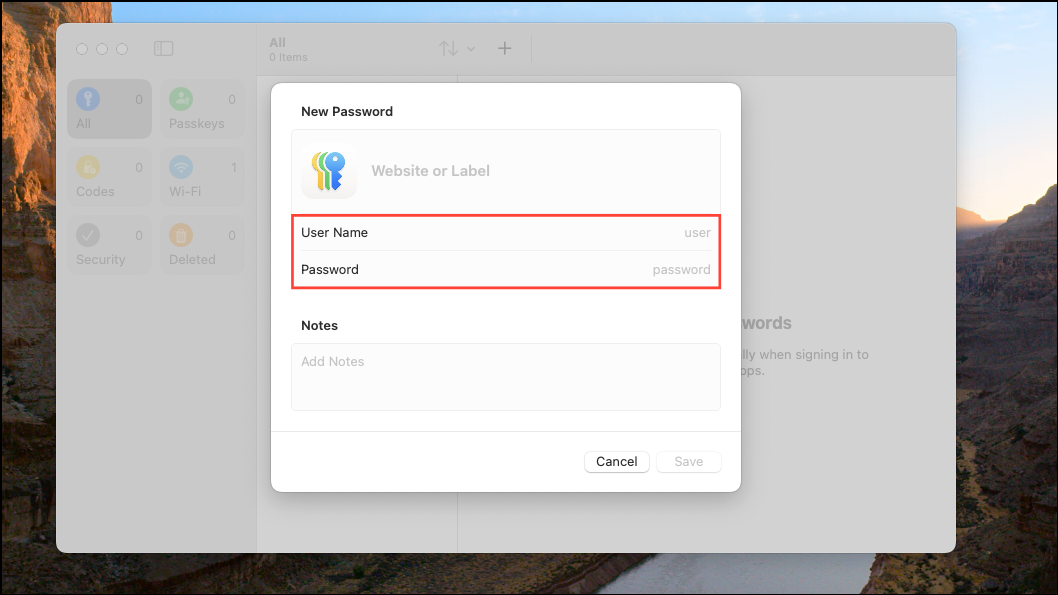
Sharing Passwords Securely
The Passwords app lets you securely share passwords with trusted contacts. To share passwords, create a Shared Group:
Alternatively, share individual passwords quickly via AirDrop by selecting the password entry and clicking the share icon.
Managing Security Alerts and Verification Codes
The Passwords app actively monitors your stored passwords for potential security risks, such as passwords compromised in data breaches or reused across multiple accounts. To view these alerts, select the “Security” tab within the app. For compromised passwords, the app will prompt you to change them immediately.
Additionally, the Passwords app supports automatic verification codes for two-factor authentication. To set this up, select a password entry, click on “Set Up Verification Code,” and follow the provided steps. This eliminates the need for separate authentication apps or SMS codes, simplifying secure logins.
Accessing Wi-Fi Passwords
Managing Wi-Fi passwords is simplified in the Passwords app. Under the Wi-Fi section, you can view, copy, or share stored Wi-Fi credentials with friends and family directly from your Mac, without needing to reveal the actual password.
Syncing Across Devices with iCloud Keychain
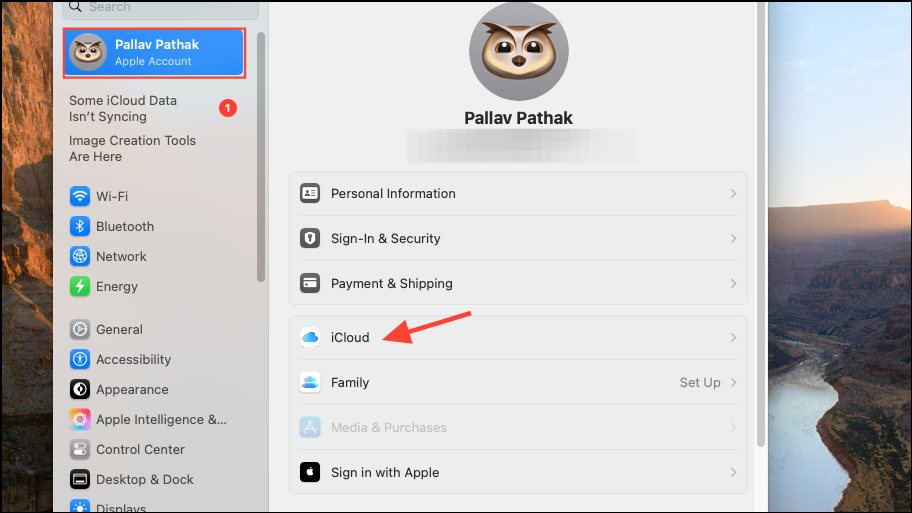
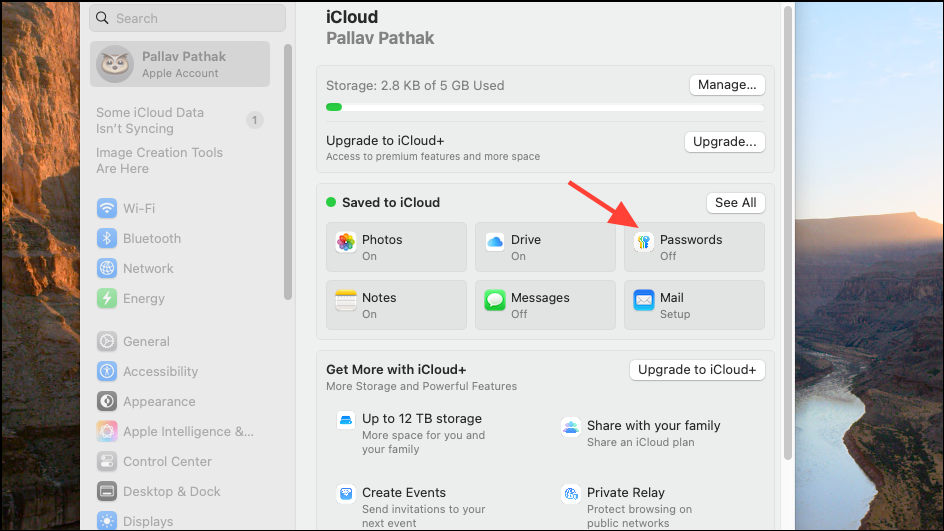
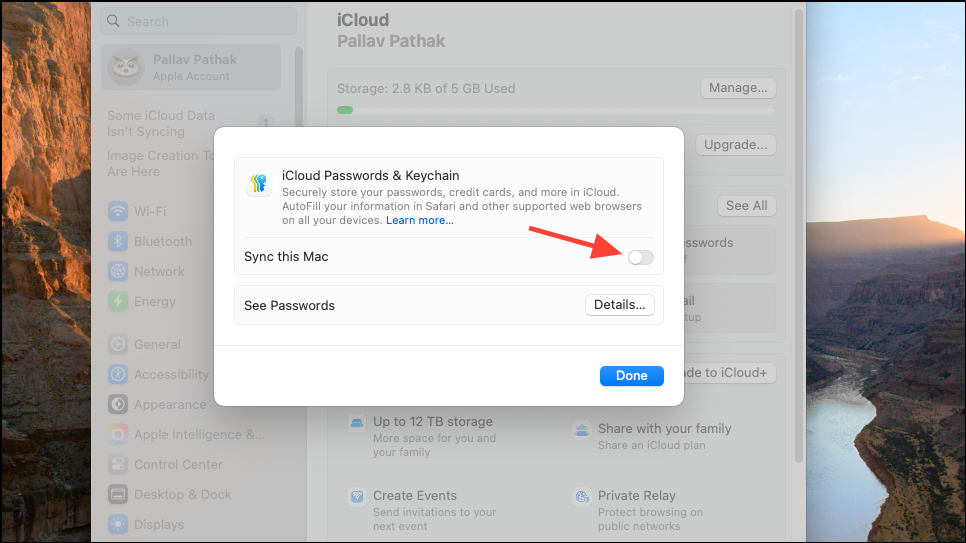
Passwords stored in the Passwords app automatically sync across your Apple devices via iCloud Keychain.
Troubleshooting Common Issues
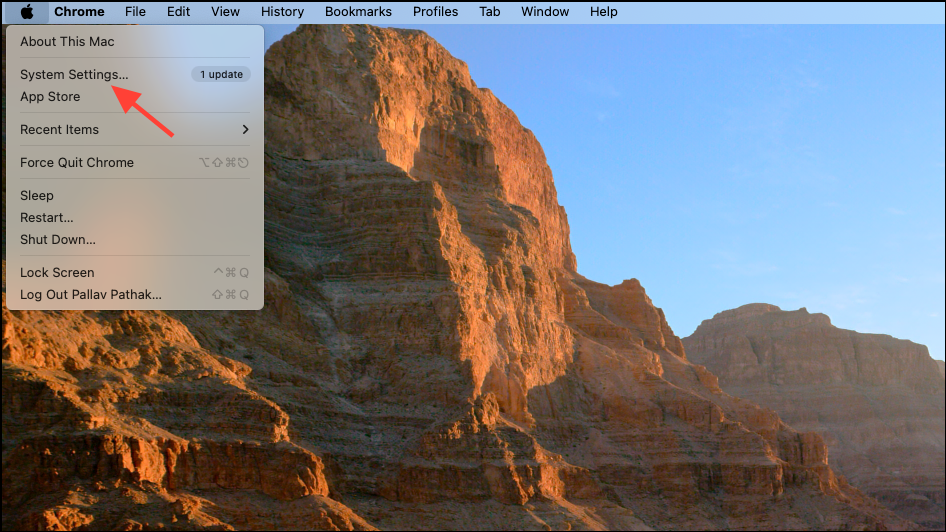
If passwords aren’t syncing between devices, first confirm you’re signed into the same iCloud account on all devices and that the Passwords and Keychain option is active. Restarting your devices can also resolve temporary syncing issues.
If the Passwords app crashes or behaves unexpectedly, consider reinstalling it from the Mac App Store or checking for macOS updates, as Apple frequently releases patches addressing known issues.
The Passwords app in macOS Sequoia centralizes and simplifies password management, making it easier than ever to secure your digital life. Regularly reviewing security alerts and updating weak passwords ensures your accounts remain protected, giving you peace of mind without the complexity of third-party password managers.