The Roblox error “Roblox encountered an unexpected error.” (sometimes followed by “Press OK to create a support file” or “Press OK to make a memory dump.”) typically shows up when the Windows client crashes at launch. The fixes that work tend to fall into a few buckets: a corrupted local install, a security/virtualization feature Roblox doesn’t like on a given build, or third-party antivirus interference.
Quick answer: Uninstall Roblox, reboot, reinstall Roblox, then test again; if it still crashes, test with Windows Security “Memory integrity” turned off or SVM/virtualization disabled (and check for third-party antivirus conflicts).
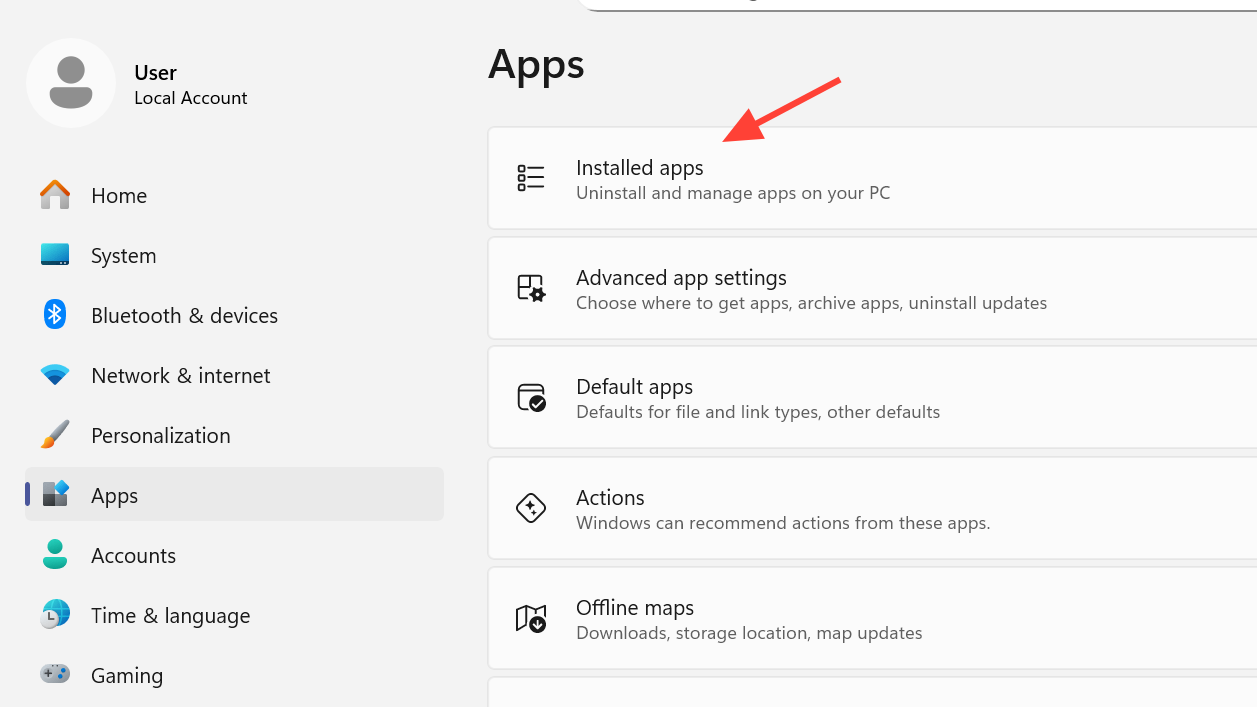
Fix 1: Clean reinstall (the fastest win)
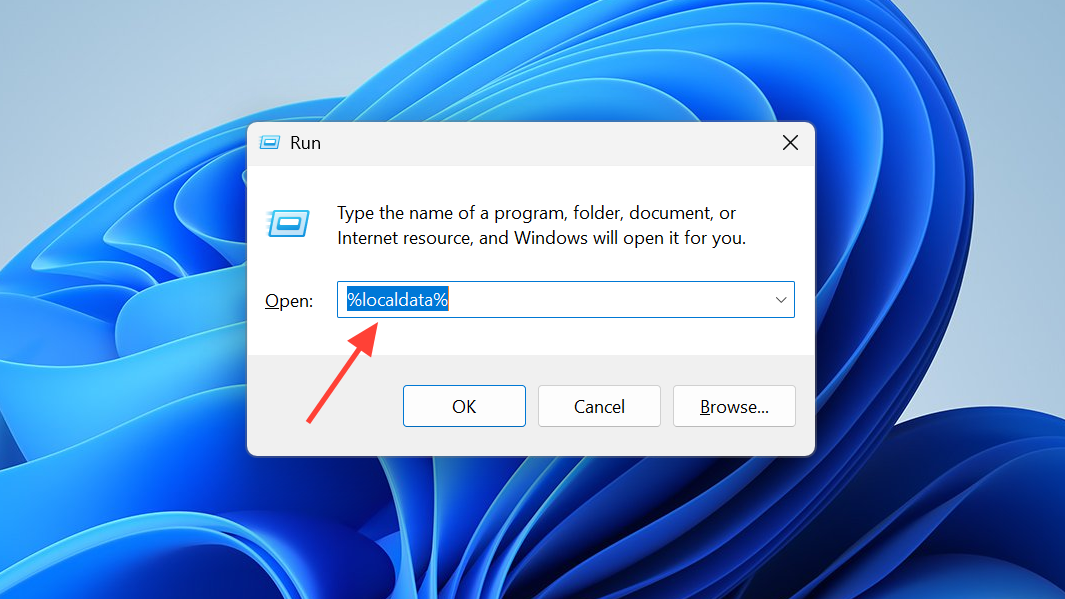
Fix 2: Remove the local Roblox folder after reboot (for stubborn installs)
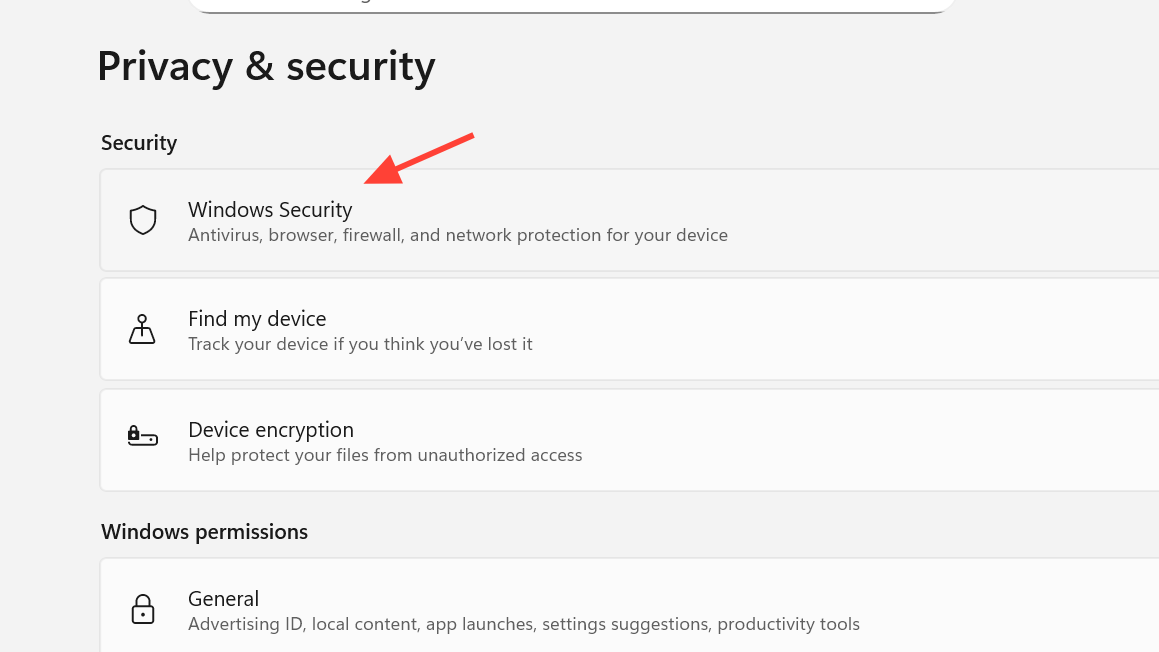
Fix 3: Turn off Windows Security “Memory integrity” (Core isolation)
Some Windows systems can launch Roblox only when “Memory integrity” is disabled under Core isolation. This is a security feature, so treat it like a test: if it fixes Roblox, you’ve narrowed down the cause.
How you know it worked: Roblox launches without showing the memory dump / support file prompt.
Fix 4: Disable SVM / virtualization in BIOS/UEFI (AMD systems hit by this crash)
On some AMD Ryzen systems, Roblox can crash at launch until SVM (Secure Virtual Machine / AMD-V) is disabled in firmware. This change is made in BIOS/UEFI and can also affect features like BitLocker.
How you know it worked: Roblox launches normally instead of crashing into the “unexpected error” dialog.
Fix 5: Check third-party antivirus (Norton 360 is a known conflict)
Some installs fail because a third-party antivirus product blocks or interferes with Roblox at launch. Norton is one example that has been linked to this specific crash behavior.
How you know it worked: Roblox launches, and the crash prompt stops appearing while the antivirus is disabled/uninstalled.
Where the memory dump/support file usually ends up (when you need it)
If Roblox prompts you to create a memory dump, it may land in Windows’ temp directory.
C:\Users\(your user)\AppData\Local\Temp and look for newly created dump/support files after reproducing the crash.When none of these fixes apply
Some memory dump crashes aren’t fixable locally. A notable case is ARM-based Windows devices, where Roblox can stop launching after an anti-cheat-related update; in that scenario, reinstalls and Windows-side tweaks may not change the outcome.