Enable screening, silencing, and filtering for unknown or spam callers, plus fixes if the option is missing.
Enable screening, silencing, and filtering for unknown or spam callers, plus fixes if the option is missing.
by Shivam Malani
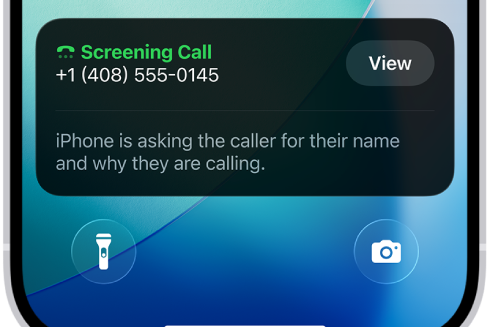
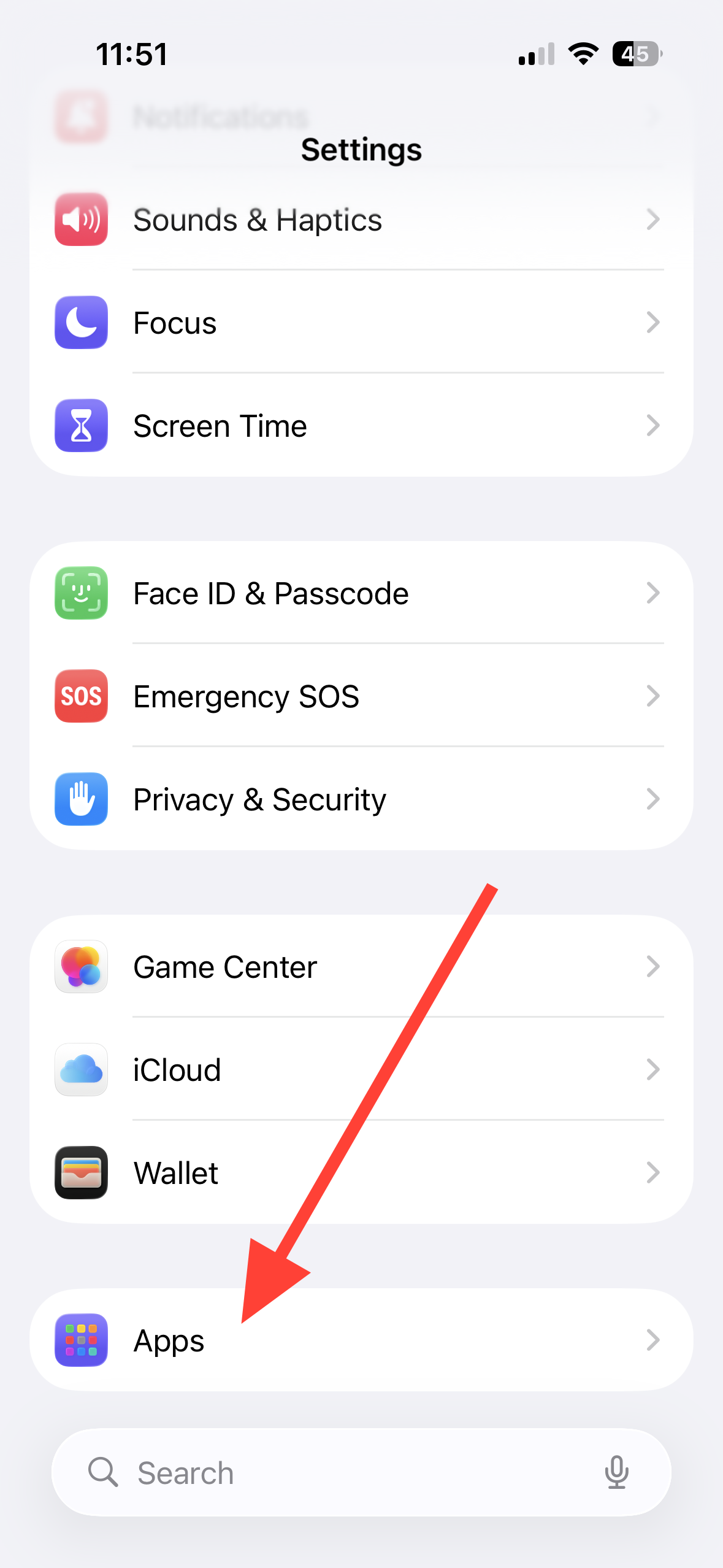
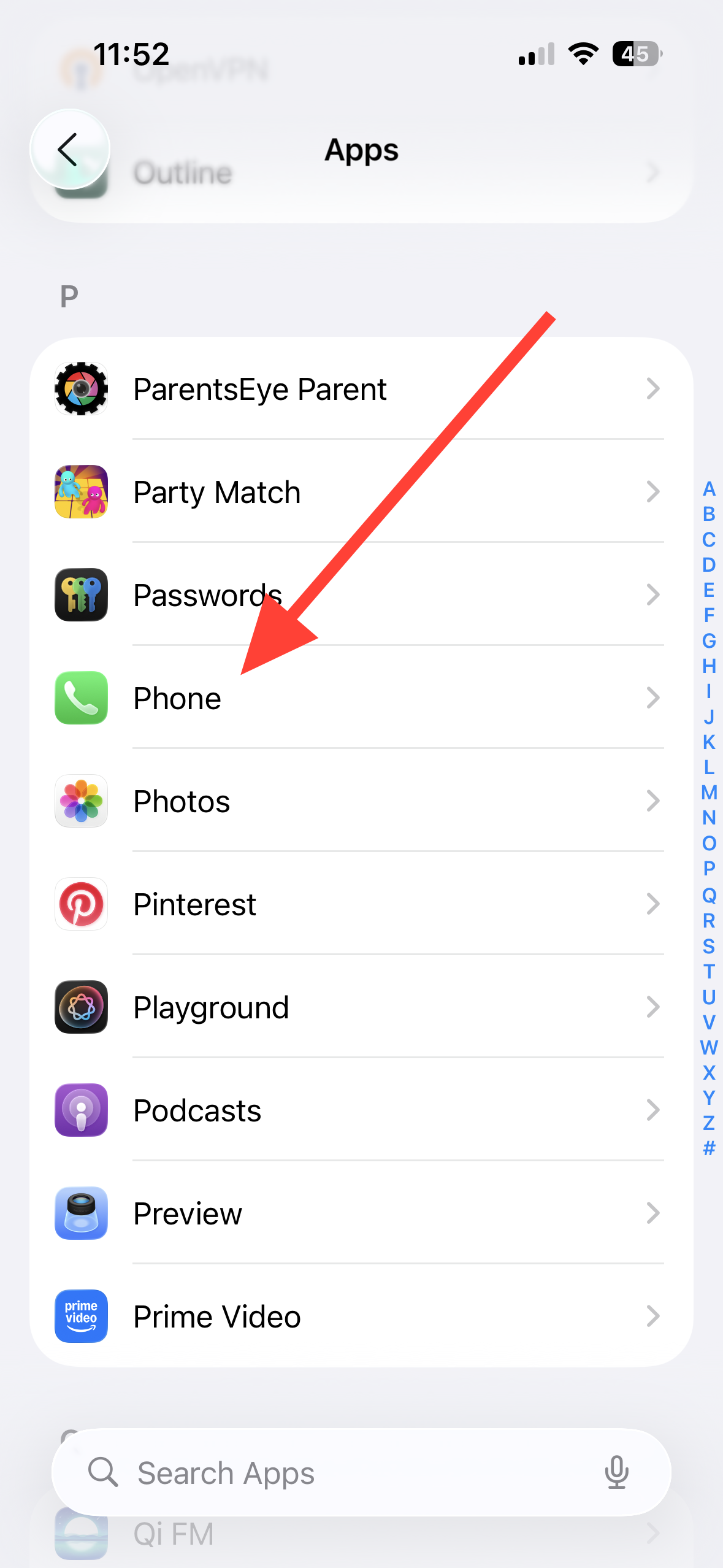
iOS 26 adds device‑side call screening so your iPhone can ask unknown callers to state their name and why they’re calling before the phone rings. The controls live in the Phone settings alongside options to silence unknown callers, filter unknown/spam calls, and use carrier and app‑based caller ID.
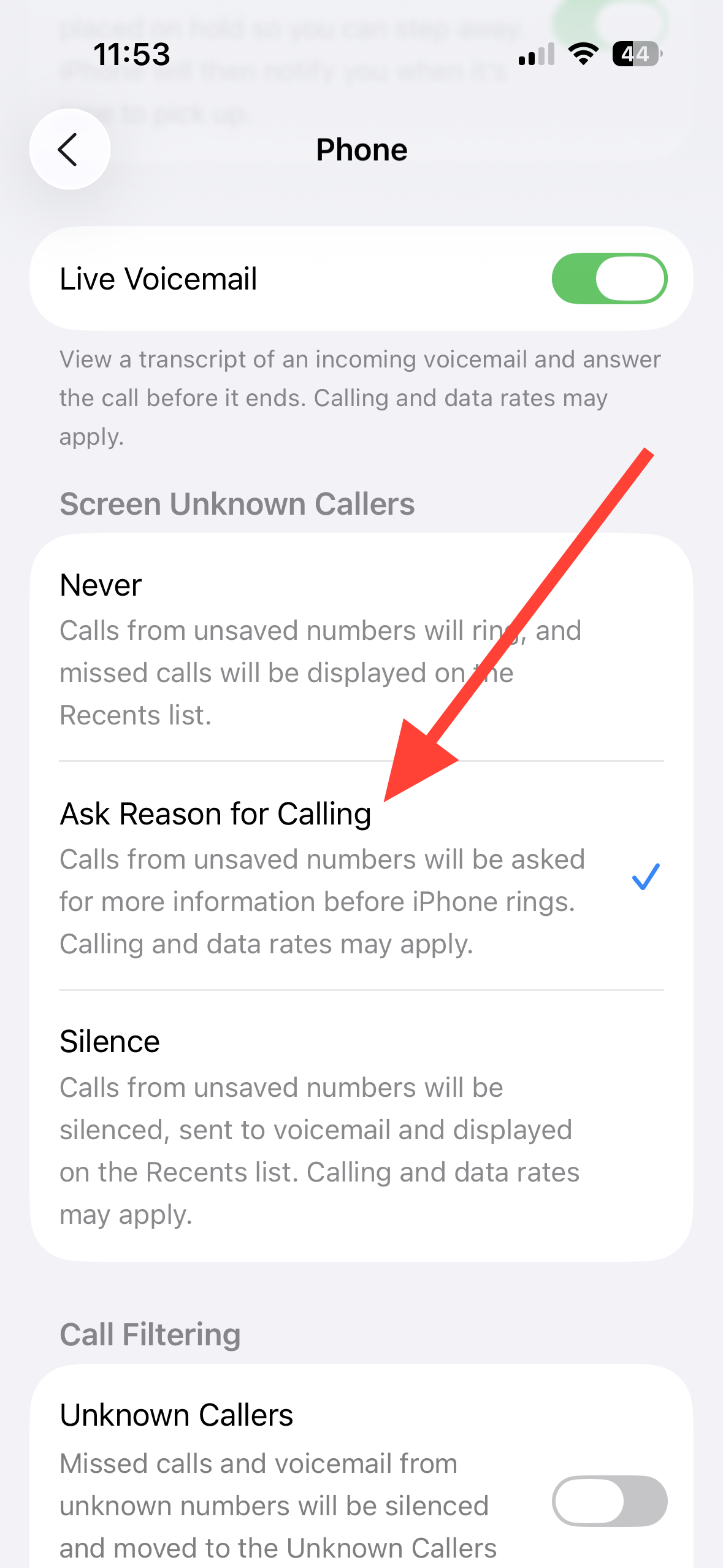
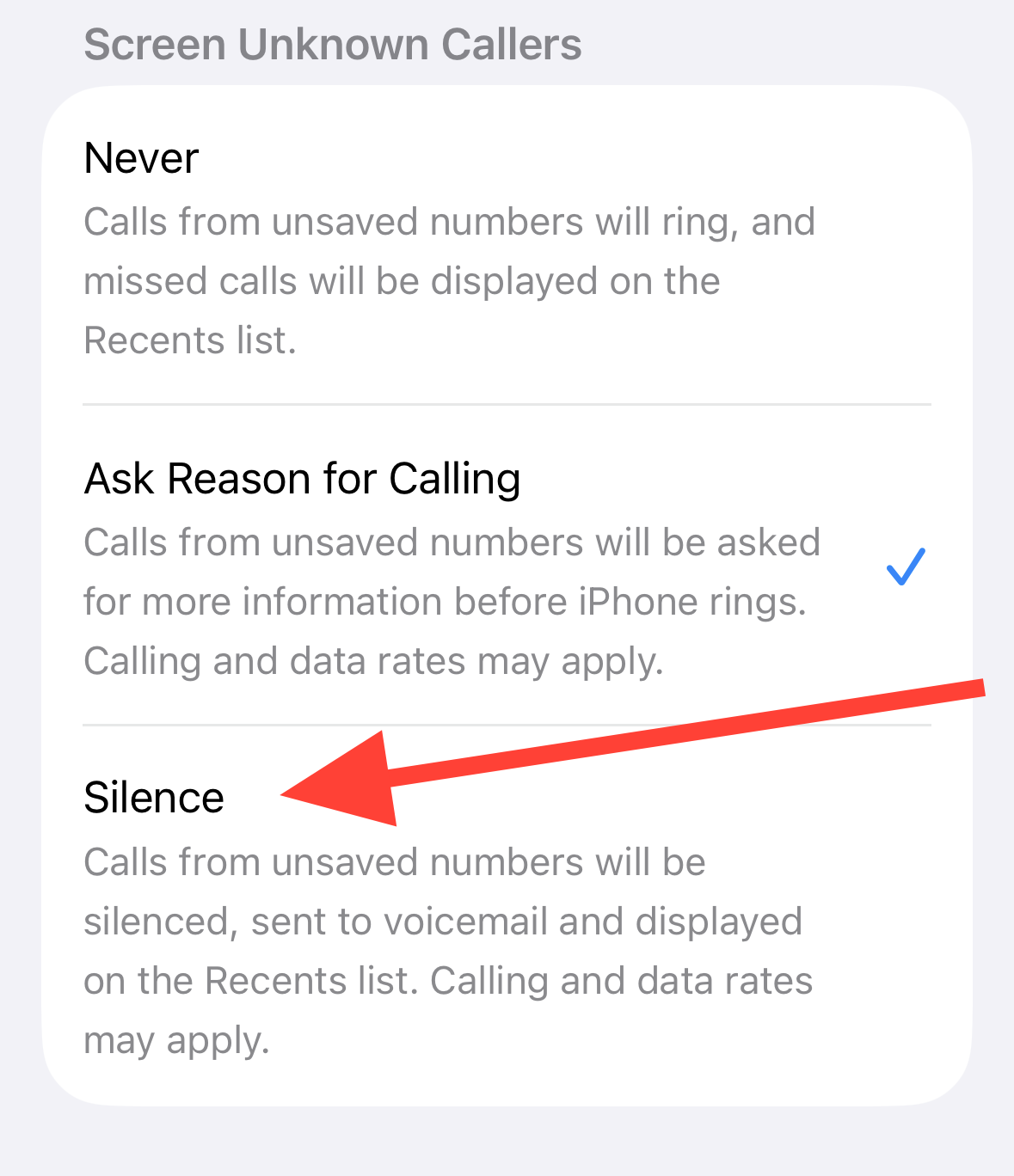
Under ‘Screen Unknown Callers’, select “Ask Reason for Calling.” Your iPhone will automatically pick up unknown numbers silently, ask the caller to state their name and reason, transcribe it, and then ring so you can decide whether to answer.
Note: When iPhone speaks to the caller, Siri uses your device’s default language. If needed, adjust the device language in Settings > General > Language & Region (see Apple’s guidance: Change the language and region on iPhone).
Under Screen Unknown Callers, choose “Silence.” Calls from numbers not in Contacts won’t ring; they’re sent to voicemail and appear in your call history.
Toggle “Unknown Callers” on. Missed calls and voicemails from numbers not saved in Contacts are removed from your main Recents and placed in an Unknown Callers list for easy review later.
Toggle “Spam” on. Calls your carrier flags as possible spam or fraud are silenced, sent to voicemail, and moved to the Spam list. Availability and accuracy depend on carrier labeling.
To mark a caller as known so future calls aren’t filtered as Unknown, open the Phone app, tap the Filter button, go to Unknown Callers, tap “Mark as Known” next to the call, then confirm.
Tap Call Blocking & Identification. You’ll see options provided by Apple Business Connect, your carrier, and any supported caller ID apps you’ve installed.
To unblock, go to Settings > Apps > Phone > Blocked Contacts, tap Edit, remove the entry, then tap Unblock. The number can reach you again immediately.
Find calls that were screened, filtered, or flagged as spam
Choose Unknown Callers or Spam. Review entries, play voicemails, and decide whether to mark numbers as known or block them.
Troubleshooting: Call Screening option missing or not working
Method 1 — Match device language and region. Call Screening relies on Siri to speak to the caller using your iPhone’s language. If the option doesn’t appear, set both iPhone Language and Region to a supported combination (for example, English (US) with United States, or Portuguese (Brasil) with Brazil) in Settings > General > Language & Region, then restart. This restores the toggle for many users.
Method 2 — Update to the latest iOS 26 build. Go to Settings > General > Software Update and install any available updates. Apple often issues minor releases that improve new features and fix early glitches.
Method 3 — Restart your iPhone. A simple restart reloads system services tied to the Phone app, which can restore missing toggles or bring screening back online after an update.
Method 4 — Confirm how screening applies. Screening and silencing settings apply to unknown/unsaved numbers. If a number is saved in Contacts, it won’t be screened. Remove temporary test numbers from Contacts when verifying behavior.
Method 5 — Review carrier‑dependent options. The “Spam” toggle uses carrier labeling. If your carrier doesn’t supply spam identification in your area, that specific toggle may be unavailable even though Call Screening is present.
Method 6 — Recheck Phone settings after major updates. iOS updates can reset feature states. Return to Settings > Apps > Phone to make sure “Ask Reason for Calling,” “Silence,” and filtering toggles are set the way you want.
Once set up, Call Screening in iOS 26 cuts interruptions from unknown numbers while keeping legitimate calls a tap away—tune the settings until the phone rings only when you want it to.