How to Use Quick Actions to Convert Files on macOS
Convert images and documents directly from Finder without opening apps on macOS
Convert images and documents directly from Finder without opening apps on macOS
by Pallav Pathak
Quick Actions in macOS allow you to convert files directly from Finder, significantly reducing the time spent on routine file conversions. This built-in macOS feature lets you quickly change file types and formats without launching additional applications, streamlining your workflow and saving valuable time.
Open Finder and locate the image file you want to convert. Select the file by clicking on it once. You can also select multiple files by holding down the Command key while clicking each file.
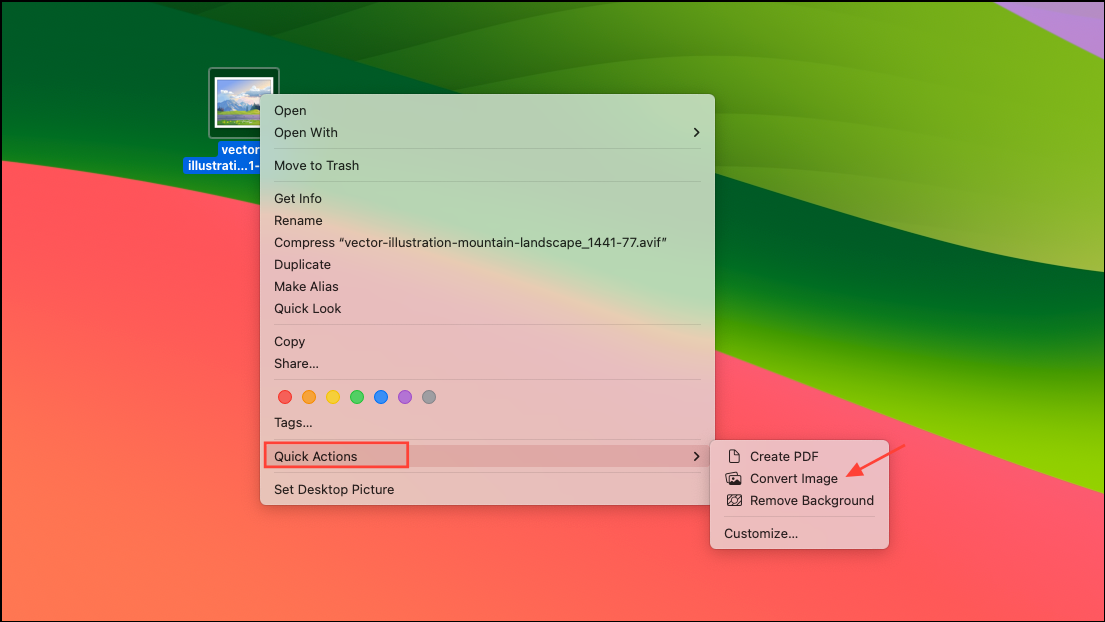
Right-click (or control-click) the selected file(s), navigate to the “Quick Actions” submenu, and then choose “Convert Image” from the list of available actions.
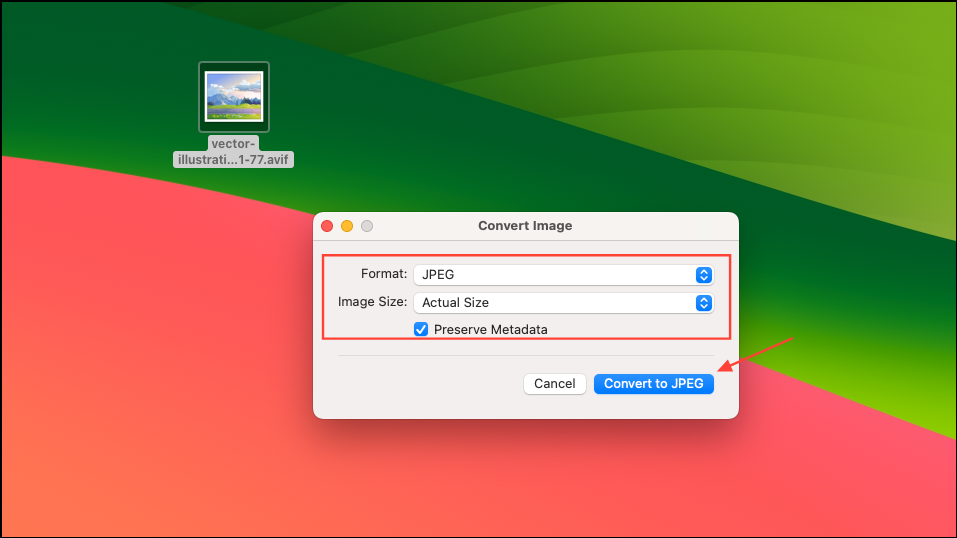
A small dialog box will appear, allowing you to select the desired output format—JPEG, PNG, or HEIF. You can also choose the image size or keep it at “Actual Size” if resizing is not necessary. Decide whether to preserve metadata by checking or unchecking the relevant box, then click “Convert”. The converted file will instantly appear in the same folder with the new format extension.
This method is ideal for quick conversions of common image formats directly from Finder, eliminating the need to open Preview or other image-editing software.
Creating Custom Quick Actions for Batch Image to PDF Conversion
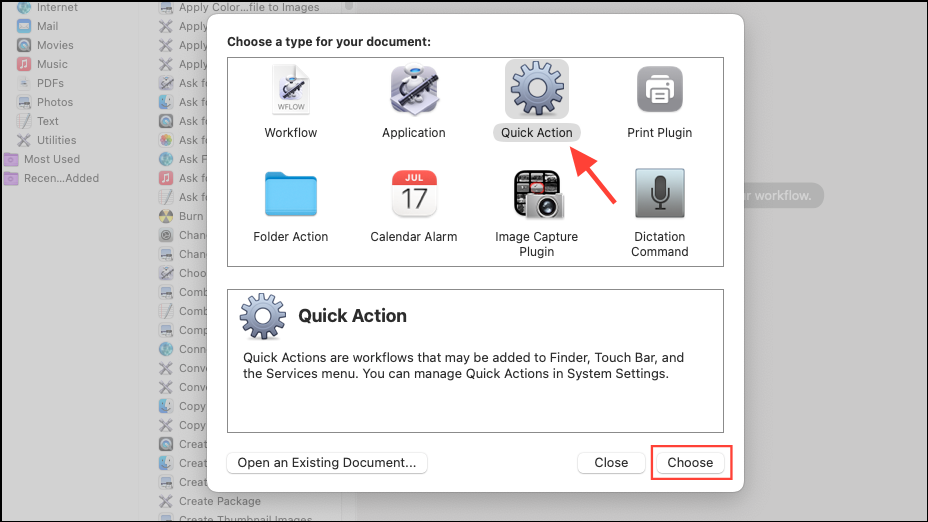
If you regularly convert multiple images (such as JPG files) into PDFs, creating a custom Quick Action using Automator is highly effective.
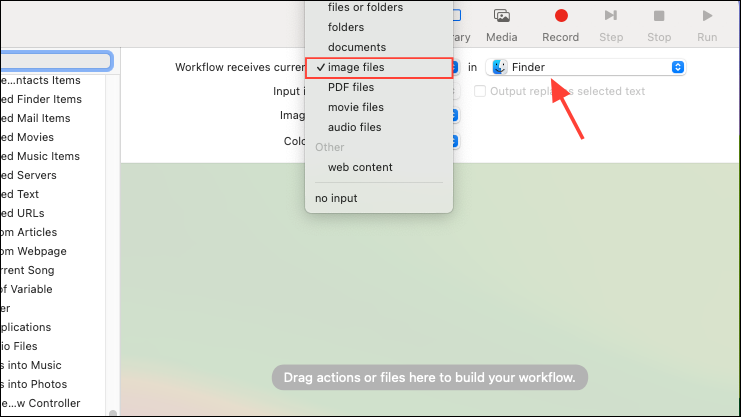
At the top of the Automator workflow window, set the workflow input to “Image files” and ensure it is available in “Finder.” This ensures your Quick Action appears whenever you select images in Finder.
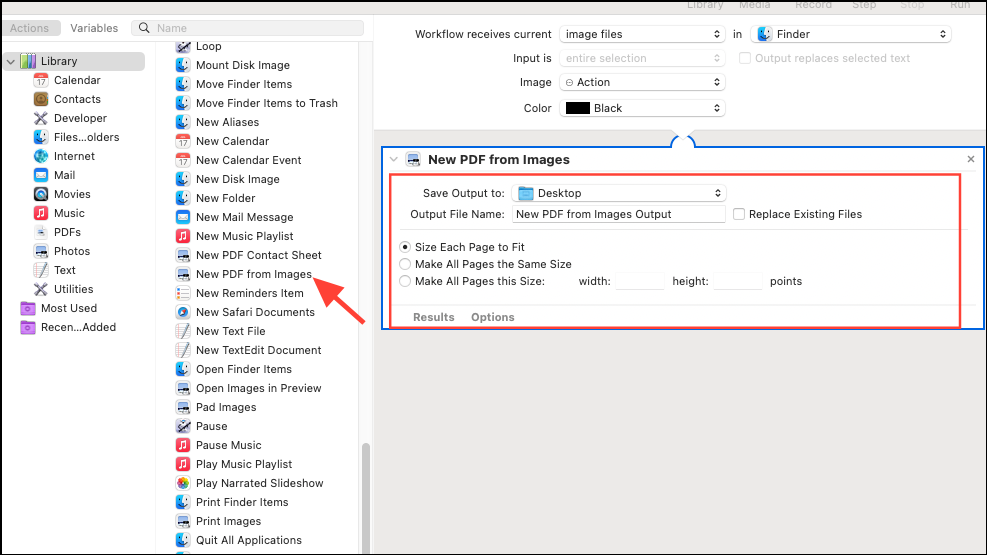
In the left sidebar, find and drag the “New PDF from Images” action into the workflow pane. Configure the action settings, such as output file name and save location, to fit your preferences.
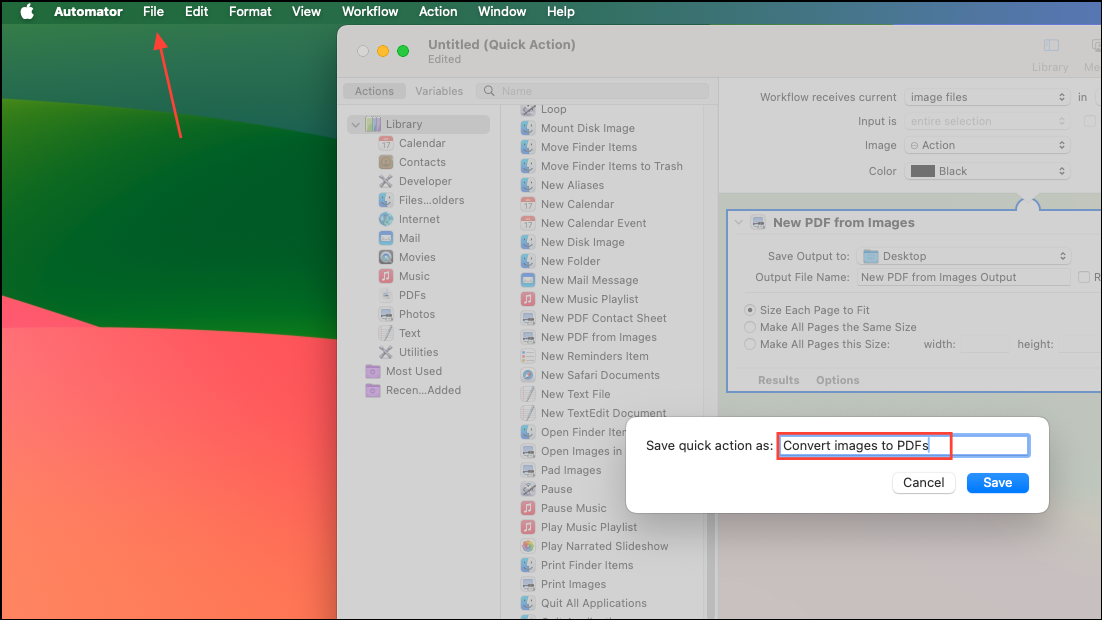
Save your Quick Action by selecting File > Save, and give it a descriptive name like “Convert Images to PDF.”
Now, whenever you select multiple images in Finder, you can right-click, choose your custom Quick Action, and macOS will automatically convert the selected images into a single PDF file. According to Apple’s Automator documentation, custom Quick Actions like these can significantly speed up repetitive tasks.
Adding Quick Actions to the Finder Preview Pane
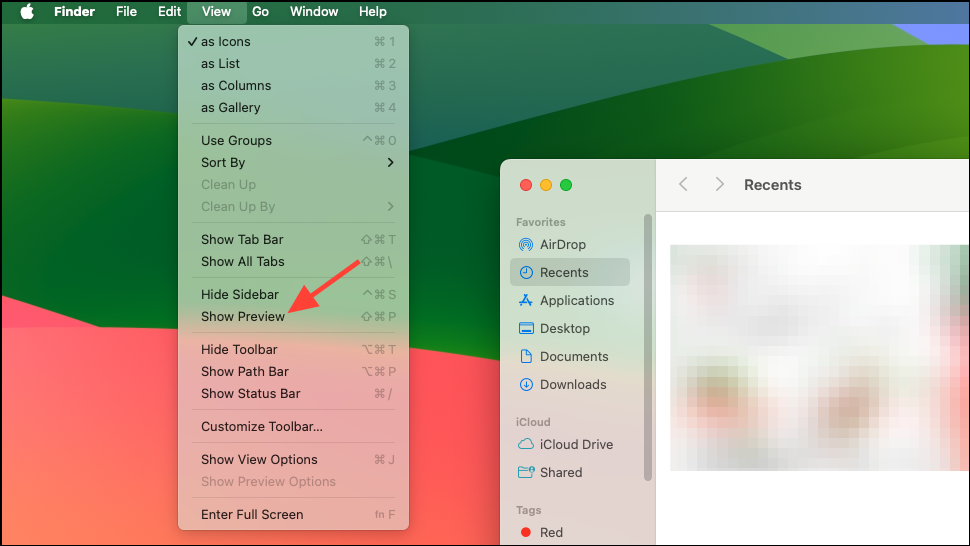
For even faster access, you can display Quick Actions directly in Finder’s Preview pane.
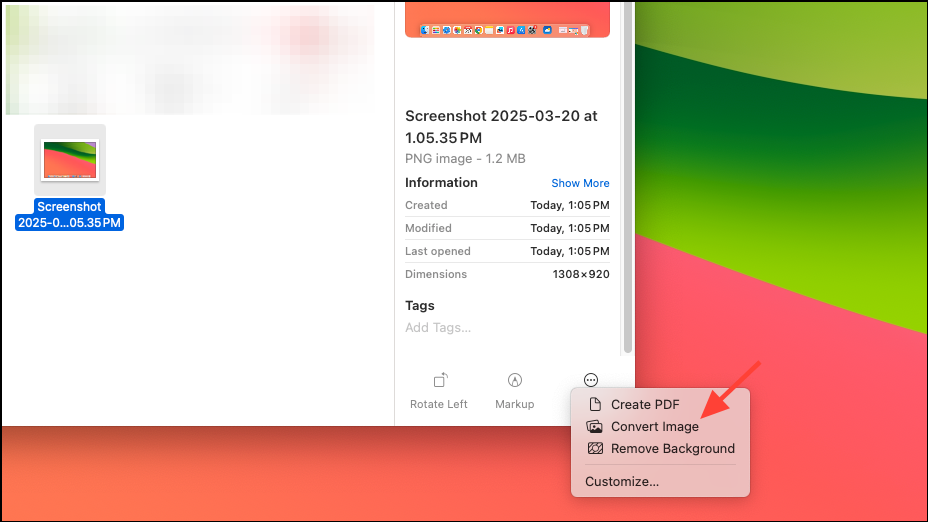
Select a file in Finder. At the bottom of the Preview pane, you will see Quick Action buttons relevant to the selected file type, such as “Create PDF” or “Rotate Image.” Click any Quick Action button to instantly apply the action.
If you don’t see the Quick Action you need, you may need to customize available Quick Actions by going to System Settings > Privacy & Security > Extensions and enabling or disabling Quick Actions as needed.
Creating Keyboard Shortcuts for Quick Actions
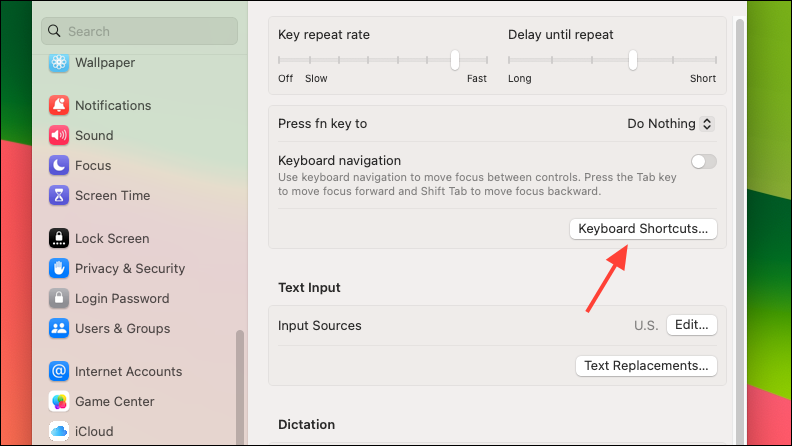
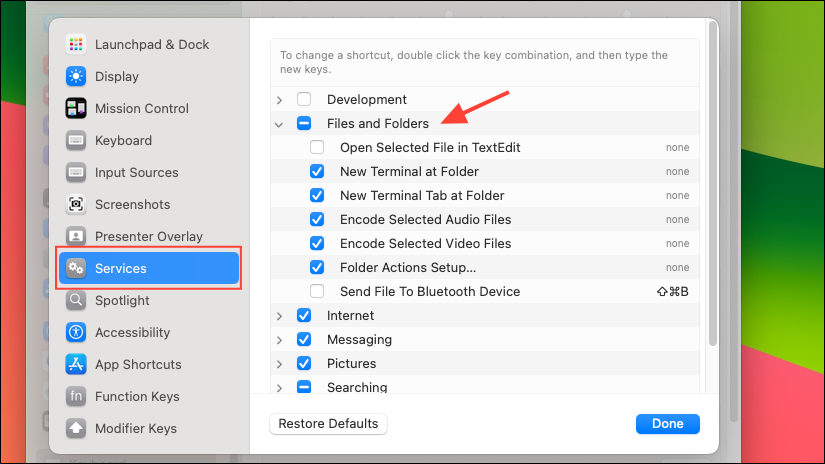
macOS does not assign keyboard shortcuts to Quick Actions by default, but you can create your own shortcuts easily.
Click next to the Quick Action you wish to assign a shortcut to, then press your desired key combination. For example, you might use Command + Shift + P for a PDF conversion Quick Action.
Once set, you can quickly trigger Quick Actions with a simple keyboard shortcut, further streamlining your workflow.
Using Quick Actions to convert files on macOS simplifies daily tasks and reduces clutter by eliminating the need for third-party apps. Try out these methods to optimize your file management workflow.