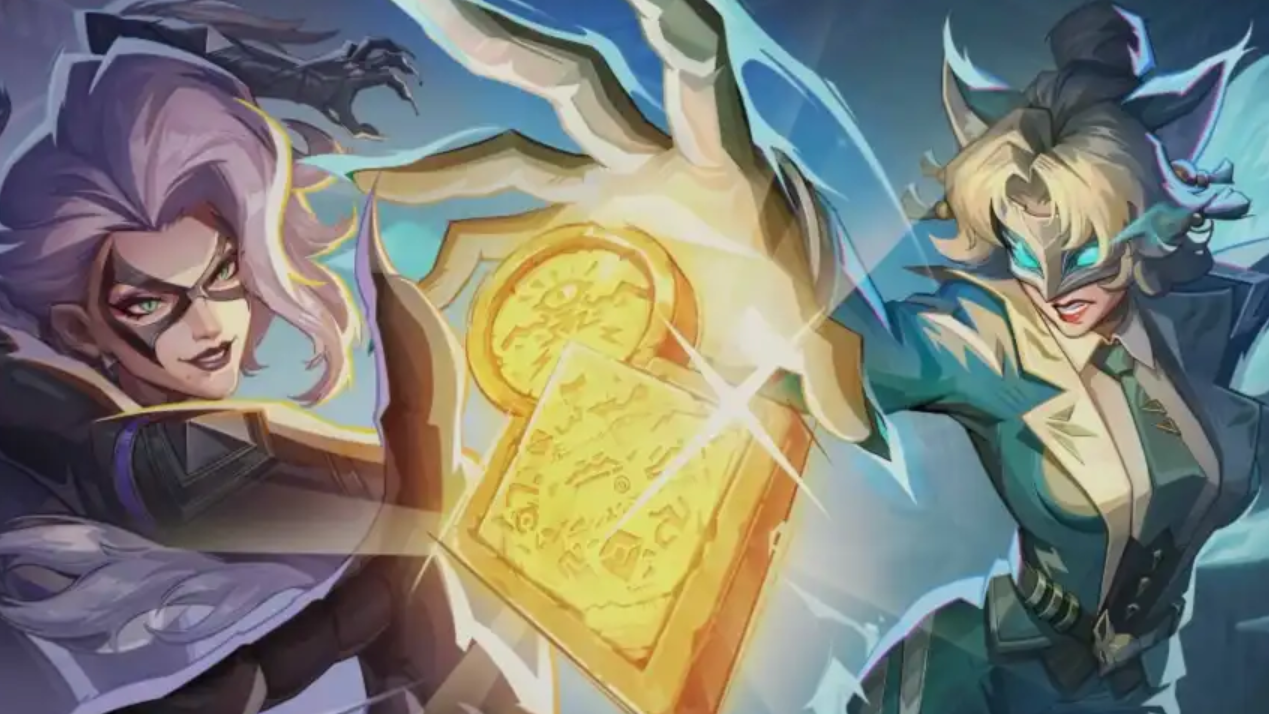
Error code 211 in Marvel Rivals blocks the Steam authentication handshake, leaving you stuck at the login screen with a “Failed to connect to Steam” message. It almost exclusively hits PC players launching through Steam, and the root cause is usually a broken session token, a Steam platform outage, or a firewall rule interfering with the game’s traffic.
When error 211 appears
The error surfaces at very specific moments, which helps narrow down the cause before you start troubleshooting. If you hit 211 right after a Steam password change or after a fresh install, the problem is almost certainly a stale authentication token. If it appears out of nowhere on a Tuesday afternoon, it’s Steam-wide maintenance.
| Trigger | Most likely cause |
|---|---|
| Immediately on launch | Stale Steam session token |
| After Steam password reset | Broken auth session |
| After a game patch | Outdated or corrupted files |
| Tuesday afternoon (US) | Steam weekly maintenance |
| Multiple PC users reporting | Regional Steam outage |
| Only on your machine | Firewall, antivirus, or DNS |
Rule out a Steam outage first
Before touching any settings, confirm the issue isn’t on Valve’s side. Steam runs short maintenance every Tuesday, and during that window login services drop for roughly 15 to 30 minutes across regions. Players already in a match usually stay connected, but anyone trying to launch a game will see authentication errors like 211.
Check the Steam status page and the Marvel Rivals X account to see if other players are hitting the same wall. If the outage is widespread, no amount of reinstalling will help — just wait it out.
Fix 1: Fully restart Steam
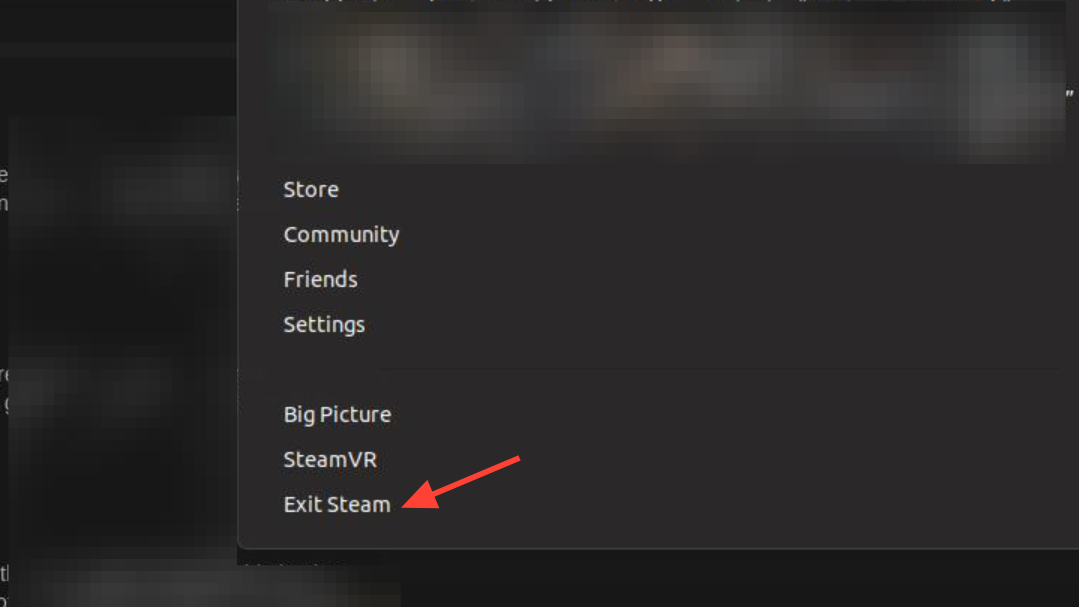
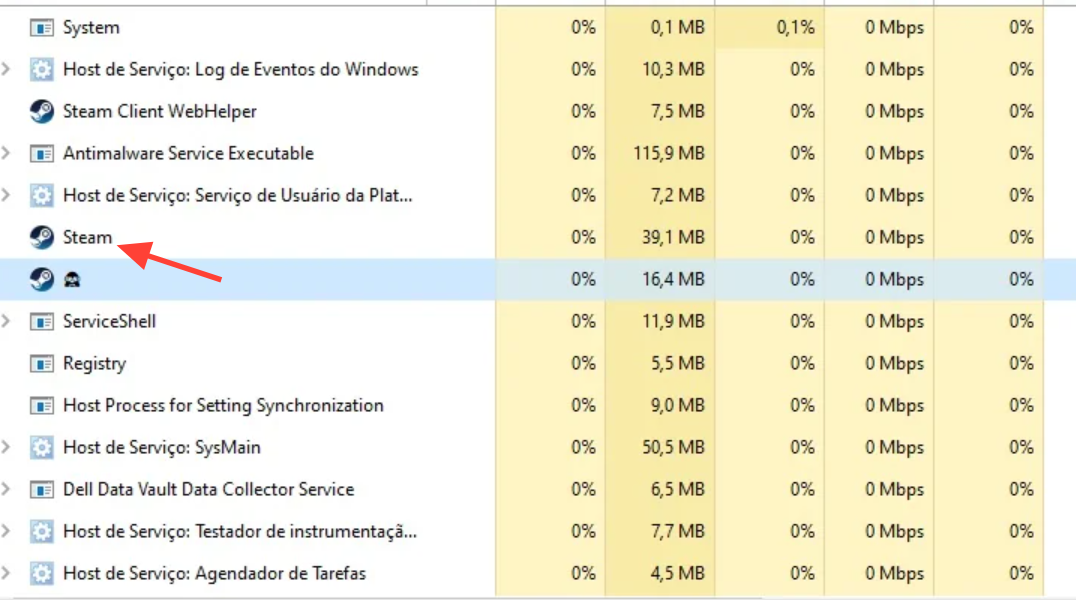
The single most effective fix is a clean Steam restart, because simply closing the window leaves background processes running that keep the broken session alive.
Fix 2: Verify the game files
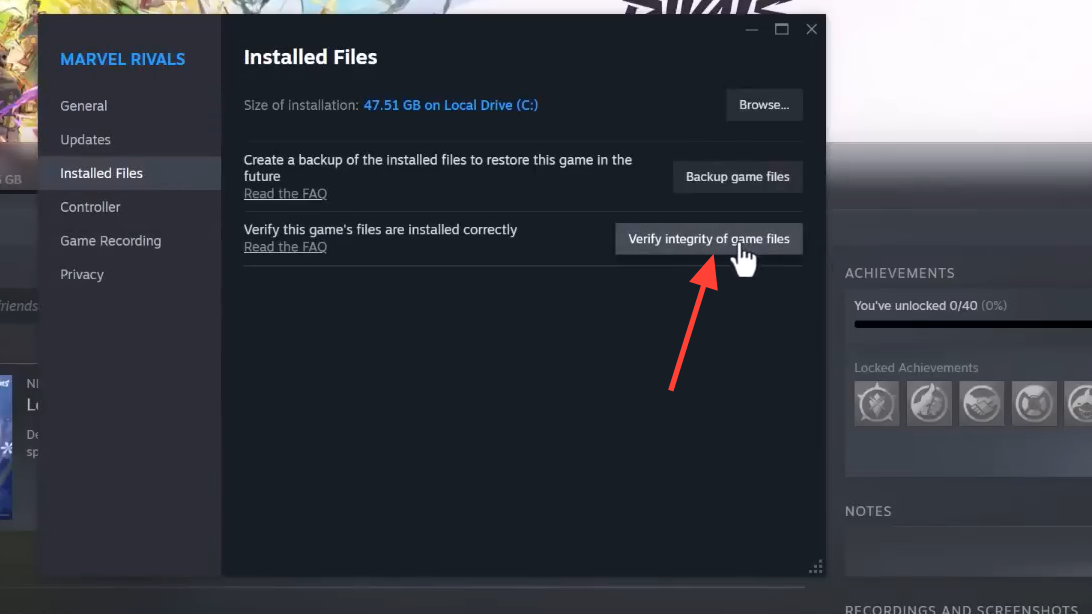
Corrupted files from an interrupted patch can break the authentication handshake. Steam’s built-in verifier replaces anything damaged without touching your progress.
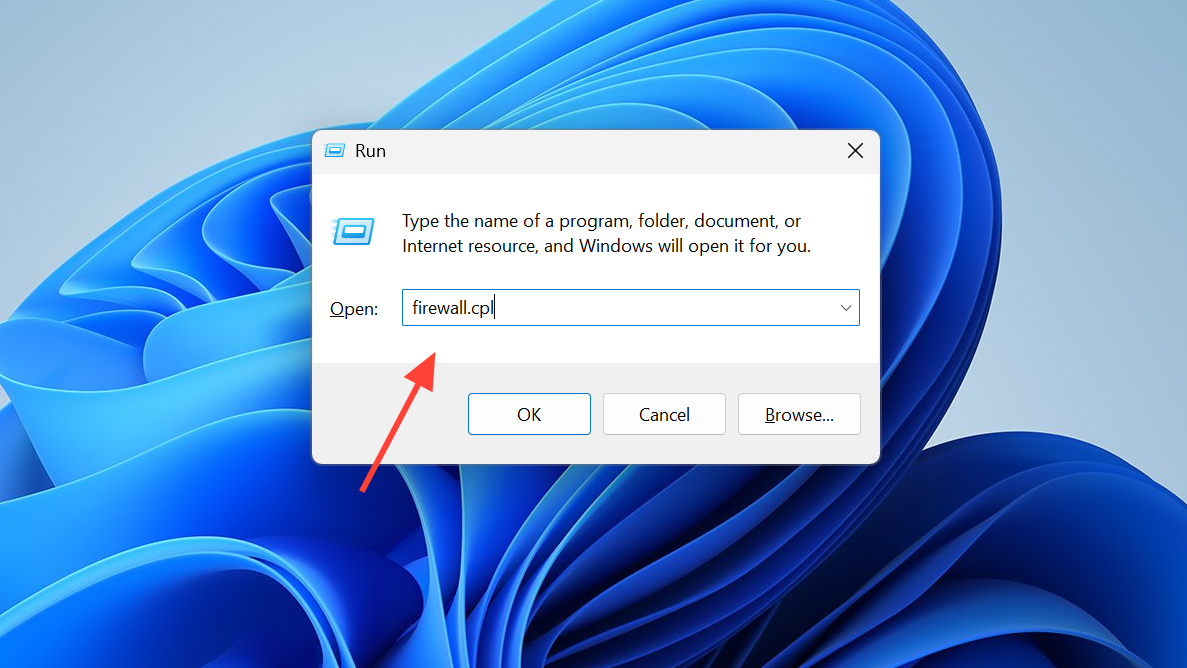
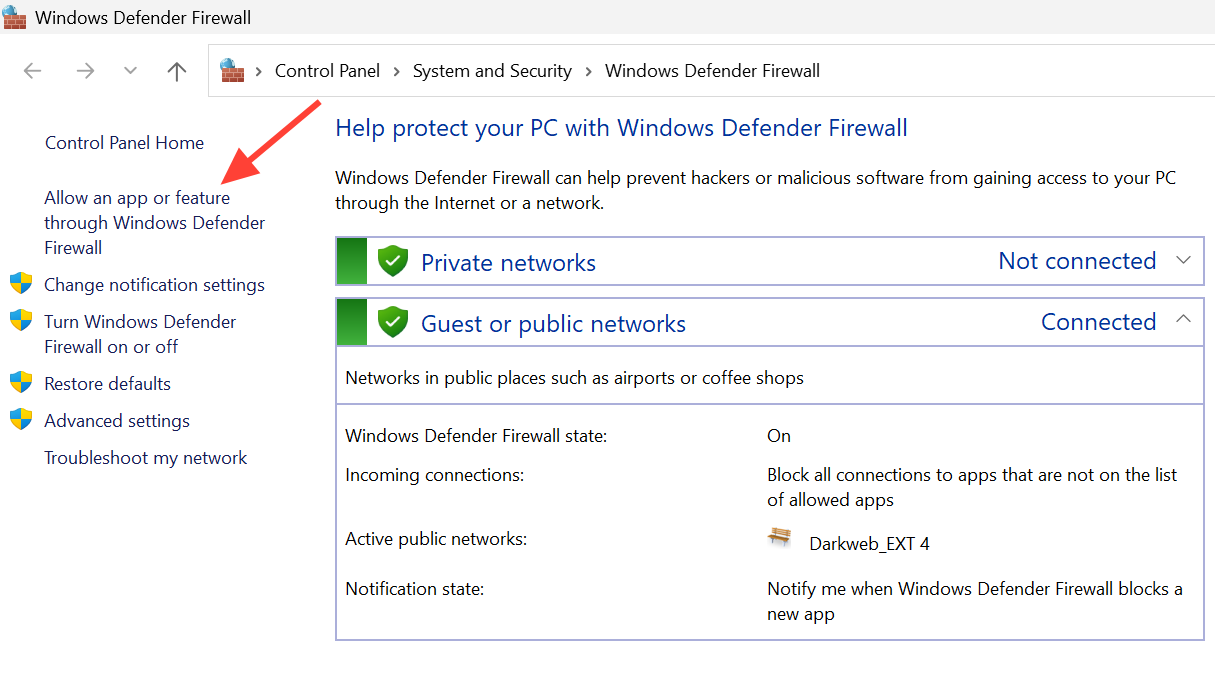
Fix 3: Allow Steam and Marvel Rivals through the firewall
Windows Defender Firewall or a third-party antivirus can silently block the outbound connection that Steam uses to authenticate the game. Whitelisting both executables is often the difference between a clean login and a 211 loop.
Fix 4: Switch DNS or reset your network stack
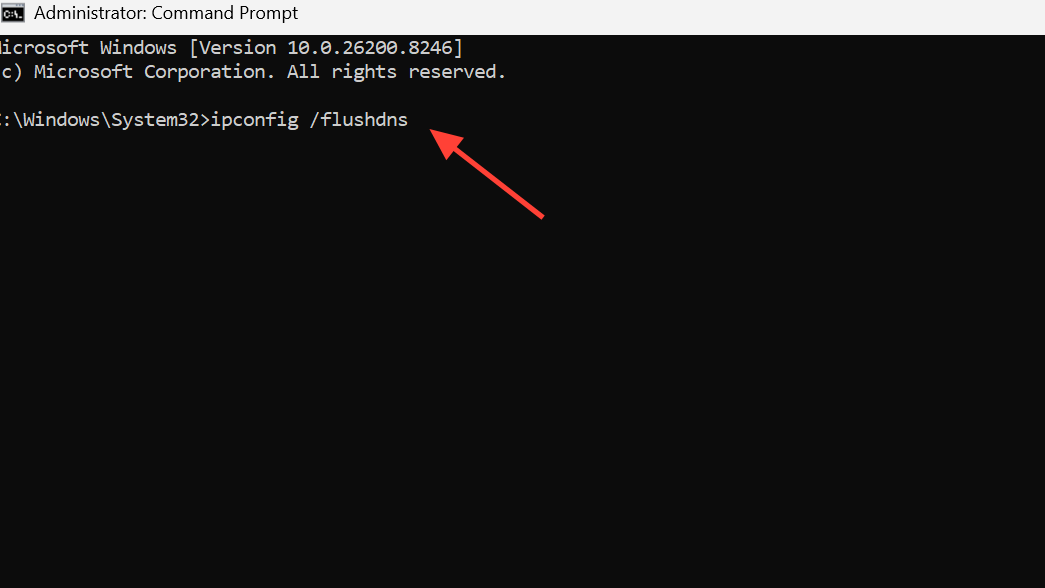
If your ISP’s DNS is flaky or your Winsock catalog is corrupted, the Steam handshake can time out mid-request and throw 211. Public DNS servers fix the first problem and a Winsock reset fixes the second.
8.8.8.8 and 8.8.4.4 (Google) or 1.1.1.1 (Cloudflare).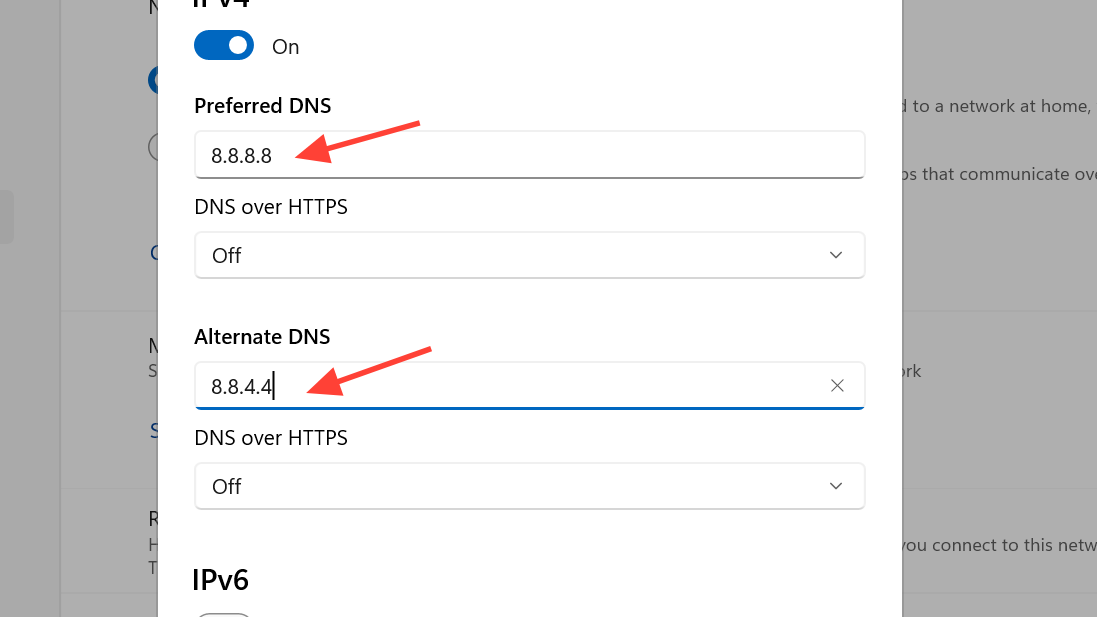
Fix 5: Disable VPN, proxy, or conflicting background apps
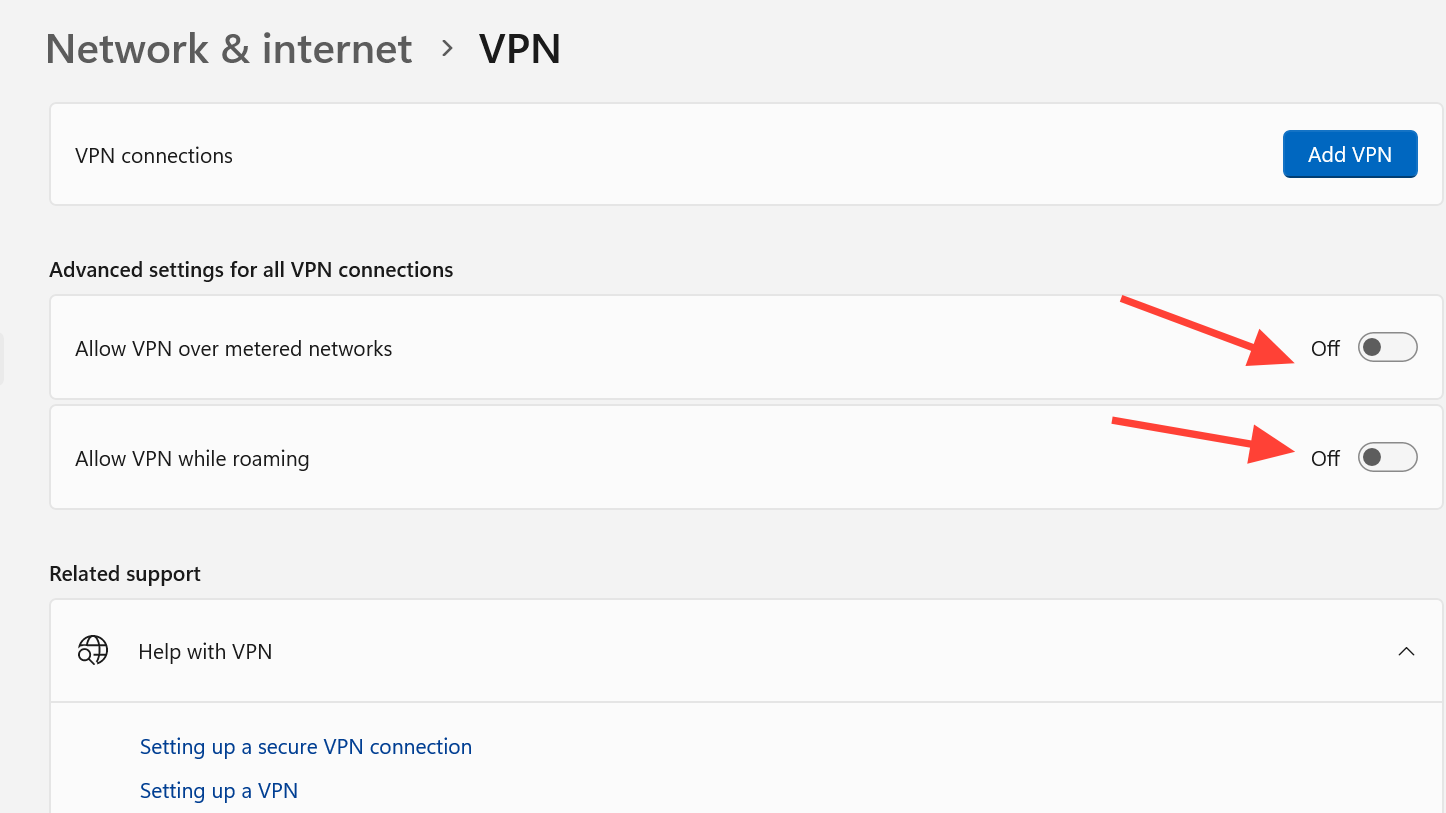
VPNs can route your traffic through a region Steam throttles or blocks, which shows up as a 211 at login. Tools like MSI Afterburner, Razer Synapse, and bandwidth limiters have also been flagged by players as triggers.
Turn off any active VPN or proxy and close background overlays before launching. If you only see 211 when using a VPN, try a different server closer to your actual location. If you see it without a VPN, a trusted VPN set to a nearby region occasionally reroutes around a bad ISP path — results vary.
If nothing else works
A full reinstall clears any lingering file or registry issue that verification misses. Uninstall Marvel Rivals from Steam, reboot, then reinstall. Some players have also reported that installing through the Epic Games Store sidesteps the Steam authentication layer entirely, though cross-store progress isn’t guaranteed in every region.
Still stuck? Grab your log files from AppData\LocalLow\Netease\MarvelRivals\Logs and Steam’s connection_log.txt, then submit them through Marvel Rivals support. Also, double-check that your system clock is set to sync automatically — token authentication fails when the time drifts, and it’s one of the easiest causes to miss.
You’ll know the fix worked when Steam authenticates cleanly, and Marvel Rivals boots past the login screen into the main menu without the 211 dialog reappearing.