Invites in Meccha Chameleon break in a few predictable ways. You click “Invite” and nothing happens, your friend never sees a notification, or the game loads and then drops you back to the main menu. The game routes its multiplayer through Steam and Epic Online Services, so most invite failures trace back to a mismatch between those two systems, your privacy status, or your version of the game.
Quick answer: Make sure every player is on the exact same Steam update, enable the Steam Overlay for the game, and join through the in-game “Find Server” browser instead of Steam invites. If invites still stall, the host should fully dissolve the lobby and rebuild a new room with a different name to force a fresh session.
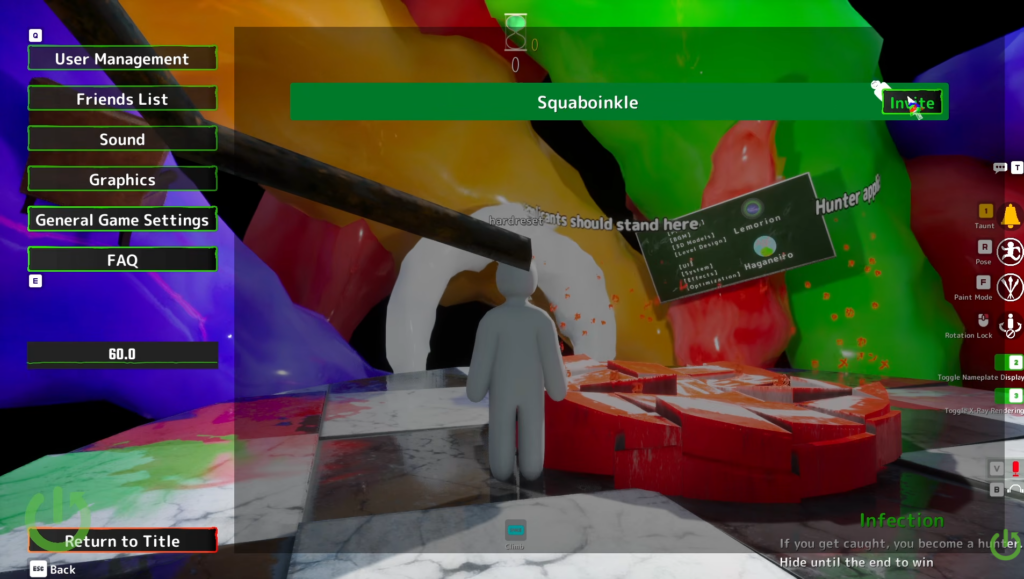
Match the invite symptom to the cause
Each invite failure looks different depending on where the connection breaks down. Identify your exact symptom first, then apply the matching fix below.
| Symptom | Main cause |
|---|---|
| Steam invite does nothing | Steam client cache conflicting with the Epic Online Services overlay |
| Friend never receives the invite | Friend set to “Offline” or “Invisible,” or a notification delay |
| Clicking invite kicks you to the menu | Strict NAT or host bandwidth blocking a direct connection |
| Overlay invite fails entirely | Steam Overlay disabled or corrupted overlay runtime files |
| Invites stop after a few rounds | Session token timeout or host IP change mid-session |
| Private room not visible | Region mismatch or a version difference between players |
Fix: Steam invite does nothing when clicked
When the invite button produces no response inside the game, the background network hooks usually failed to bind correctly. A clean restart of both Steam and the game with admin rights clears that.
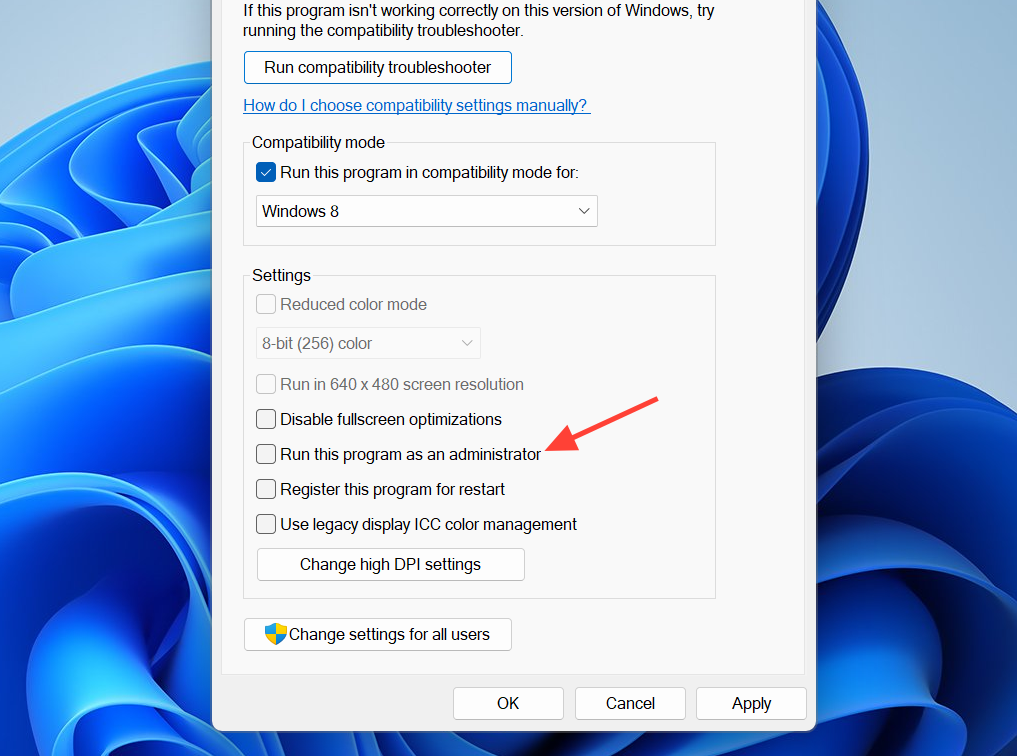
Fix: Friend never receives the invitation
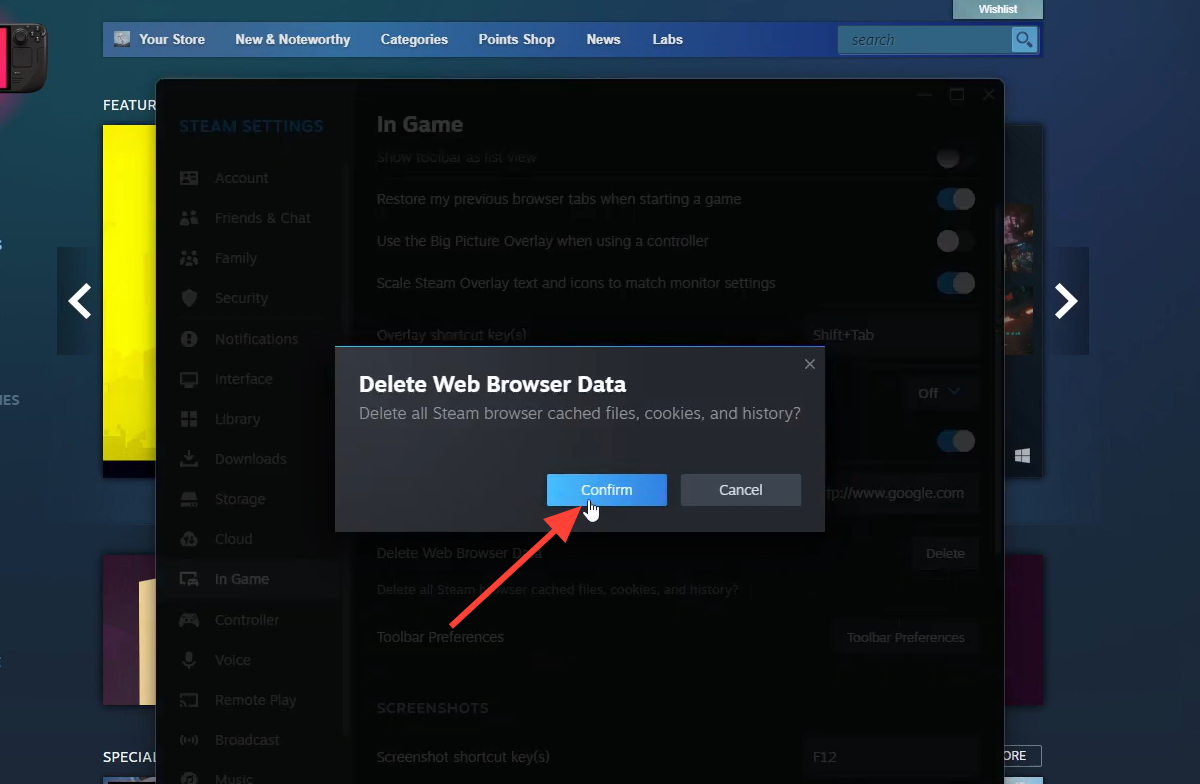
If your screen confirms the invite was sent but your friend’s notification tray stays empty, the problem is almost always a privacy flag or a stale security token on the host’s side.
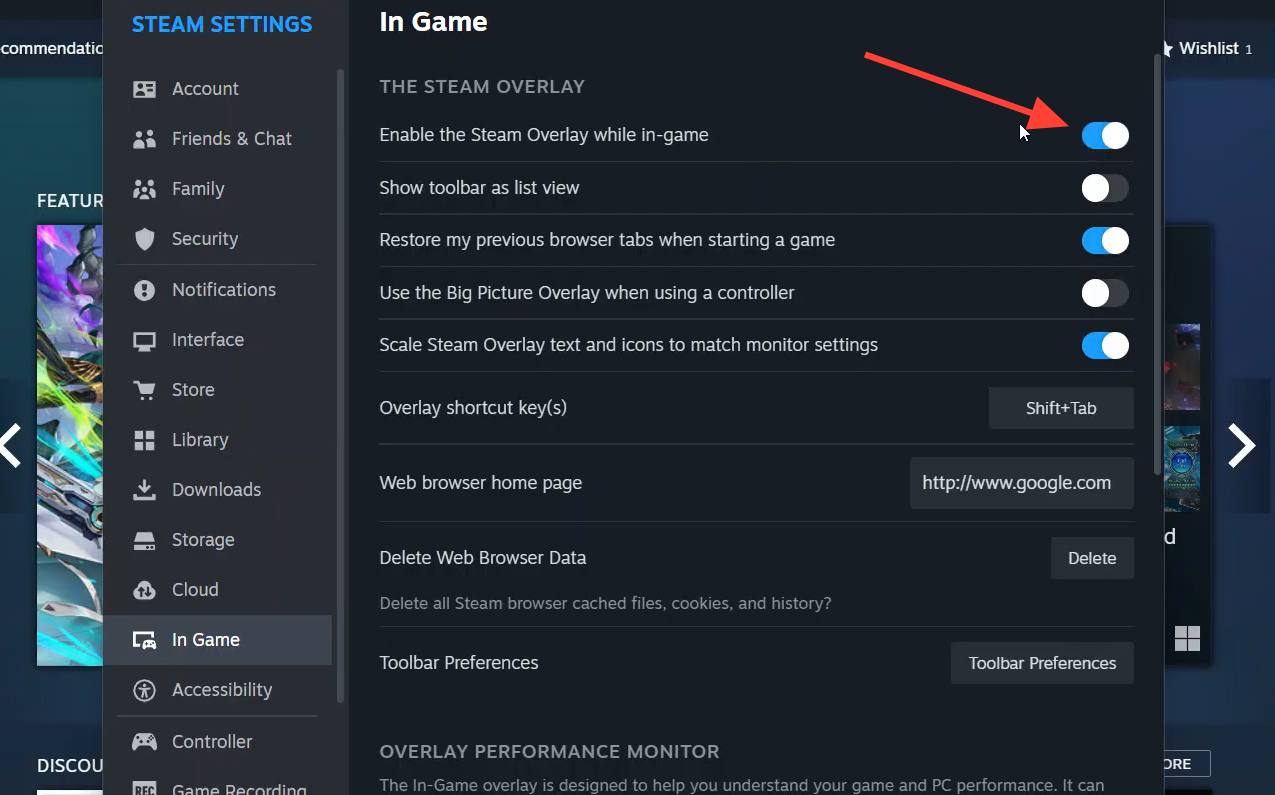
Fix: Steam Overlay invite fails completely
Because the game leans on Epic Online Services underneath, a disabled or broken Steam Overlay breaks the internal invite loop entirely. Re-toggling the overlay forces Steam to rewrite its hook configuration for the game folder.
Fix: Invite loads but kicks you back to the menu
When you accept an invite and the game spins endlessly or drops you to the main menu, the lobby is anchored to the host’s direct connection. A Strict NAT setup on either router stops the two devices from talking directly. Clearing your DNS cache removes outdated paths your system may be holding onto.
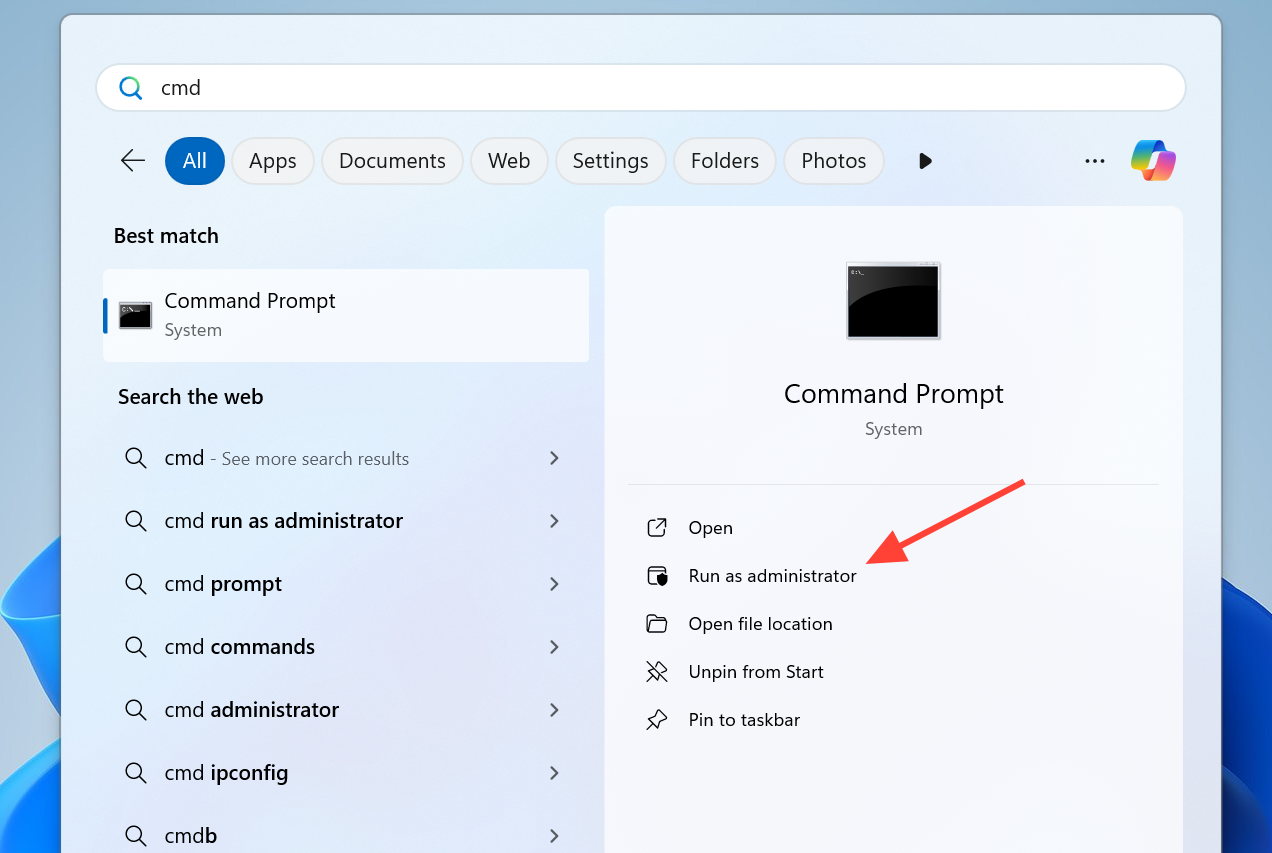
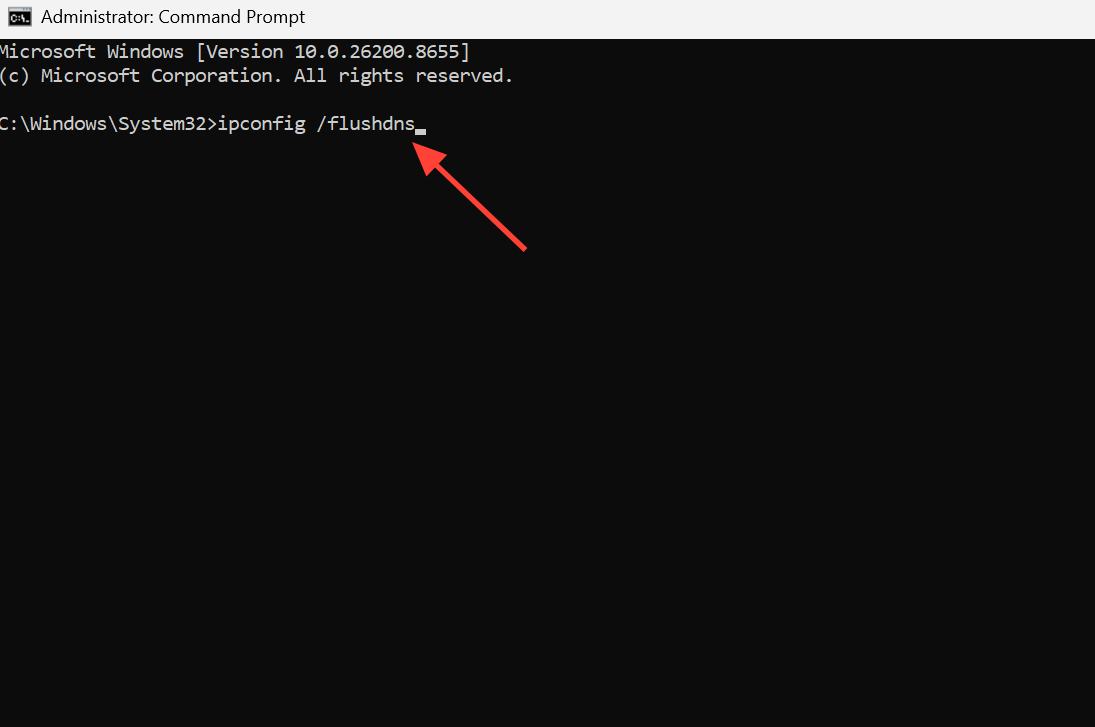
If only one specific person cannot be joined, also allow the game through Windows Defender Firewall on that machine and temporarily turn off any VPN or proxy, since both can block matchmaking routes.
Fix: Private room not showing in the server browser
Many groups skip invites and join through manual server discovery, but a private room can stay hidden if region settings or filters do not line up. The browser filters rooms strictly by your selected geographical region to keep latency playable.
- The host announces which region they chose at room creation (for example North America, Europe, or Asia).
- Every joining player sets the same search region in the multiplayer settings menu.
- Remove any player-count or ping filters, which can accidentally hide password-protected rooms.
- Refresh the server browser a few times, or join a public lobby first to force the list to reload.
If the room still will not appear, have the host switch the lobby from private to public and back, or recreate it under a new name to refresh its visibility.
Fix: Invites stop working after a few rounds
Playing several matches and then losing invite functionality points to a token timeout on the matchmaking backend. During heavy concurrent traffic, the authentication nodes drop idle or stale session instances to free capacity.
Fix: Multiplayer broken after an update
When invites and joins fail right after a patch, you are almost certainly hitting a version mismatch. The developers push frequent stability hotfixes, and Steam clients can fall out of sync. Even a player who is around 10 megabytes behind the host will be blocked by the server browser to prevent gameplay errors.
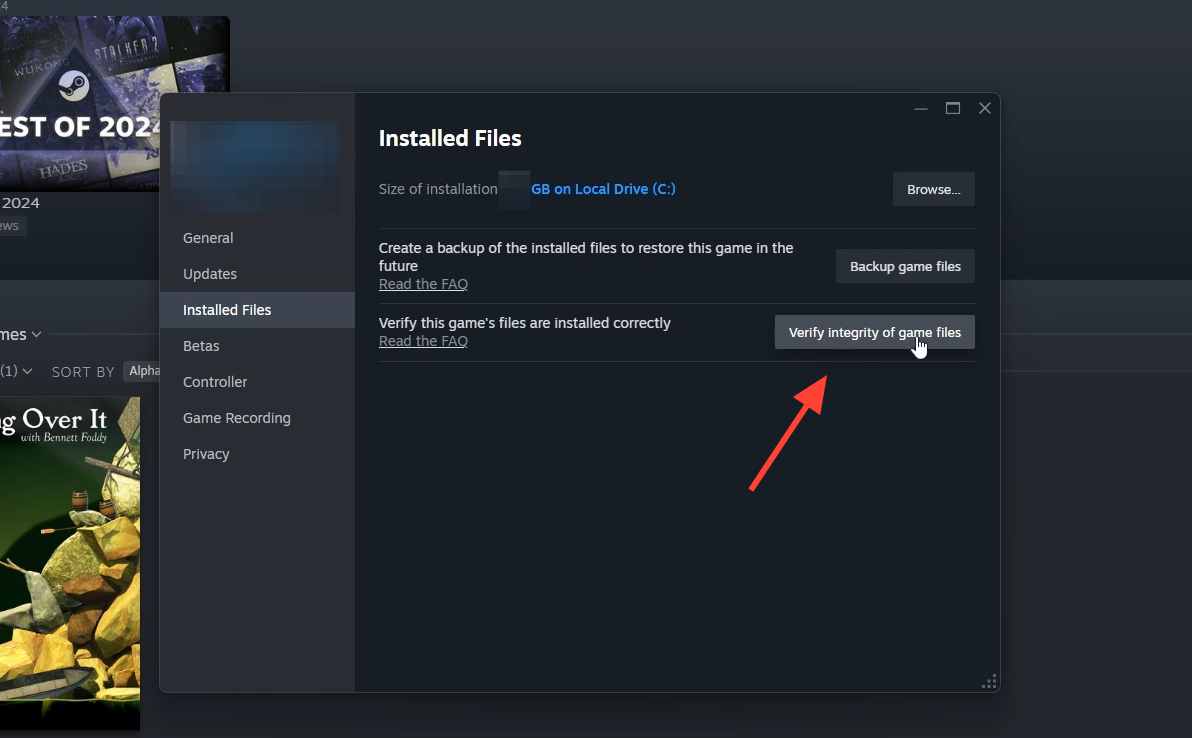
Have every player do this and fully restart Steam before retrying. If the same break affects everyone at once, the problem is server-side and the fix is to wait for the next hotfix rather than to keep troubleshooting locally.
How to tell if it is your end or the servers
Before reinstalling anything, check how the failure behaves across your group. The pattern usually reveals whether the issue is local or global.
| What you see | What it usually means |
|---|---|
| Only you can’t join friends | Your own network, firewall, or connection |
| Nobody can see the same room | Host-side lobby or visibility sync |
| Invites fail but the server browser works | The invite system only, core multiplayer is fine |
| Problems start right after a patch | Version mismatch or a temporary patch bug |
| All features fail for everyone at once | Server-side outage or matchmaking failure |
A setup that prevents invite failures
Most join problems come down to version mismatches, unstable connections, and unreliable invite routing. Setting up before you launch removes the majority of them.
- Confirm all players are on the same game version, especially after an update.
- Use a wired connection where possible to avoid lobby drops from unstable Wi-Fi.
- Restart Steam before a long session to refresh friend and invite syncing.
- Create lobbies with unique names so they are easy to spot in the server browser.
- Prefer the in-game “Find Server” list over Steam invites, which are less reliable in this game.
- Turn off VPNs or network filters unless your region requires them.
You will know the fix worked when the invited player loads directly into the host’s lobby and stays there past the loading screen instead of bouncing to the main menu. If invites keep failing for your whole group at the same moment, stop troubleshooting locally and retry after a short wait, since that pattern points to a backend issue rather than your setup.