Mistfall Hunter crashes with a “Fatal Error” or the message “UE-MistfallHunter Game Has Crashed and Will Close” at three points: the moment you press Play, during the Unreal Engine startup screen, or mid-raid. Bellring Games has confirmed the problem and pointed to a small set of system-level conflicts behind it. Most affected PCs recover after a single Windows Security change, and the remaining cases fall to a short list of driver and file fixes.
Quick answer: Open Windows Security, go to App & browser control, open Exploit protection settings, set Force randomization for images (Mandatory ASLR) to Off by default, click Apply, restart your PC, and relaunch through Steam. This clears the Fatal Error for most players hitting this exact crash.
What triggers the Fatal Error
This is almost never failing hardware. The crash comes from conflicts between Mistfall Hunter’s Unreal Engine 5 build and specific Windows settings, driver features, or background software. Knowing which one you hit tells you which fix to reach for first.
| When it crashes | Most likely cause | Go to |
|---|---|---|
| Instantly on pressing Play | Mandatory ASLR (Windows Security) | Disable Mandatory ASLR |
| Black screen, then crash | NVIDIA Smooth Motion conflict | Turn off Smooth Motion |
| Crash on Intel systems | Intel AI Boost interference | Disable Intel AI Boost |
| Freeze on “Compiling Shaders” | Corrupted shader cache | Clear the shader cache |
| Crash after a Windows update | Corrupted game files | Verify game files |
| No clear pattern | Outdated GPU driver | Update your driver |
The shader-specific version of the crash shows a log line referencing PipelineStateCache.cpp with the text “Shader compilation failures are Fatal.” If you see that string, treat it as a shader cache or DirectX problem rather than a general launch fault.
Disable Mandatory ASLR (the fix that works for most)
Mandatory ASLR forces random memory addresses on every executable, which clashes with how Unreal Engine 5 loads its modules at startup. This is the change Bellring Games recommended directly in its Steam response, and it resolves the crash for the largest share of affected players. Disabling it removes an aggressive security setting aimed at enterprise machines and does not meaningfully weaken a gaming PC.
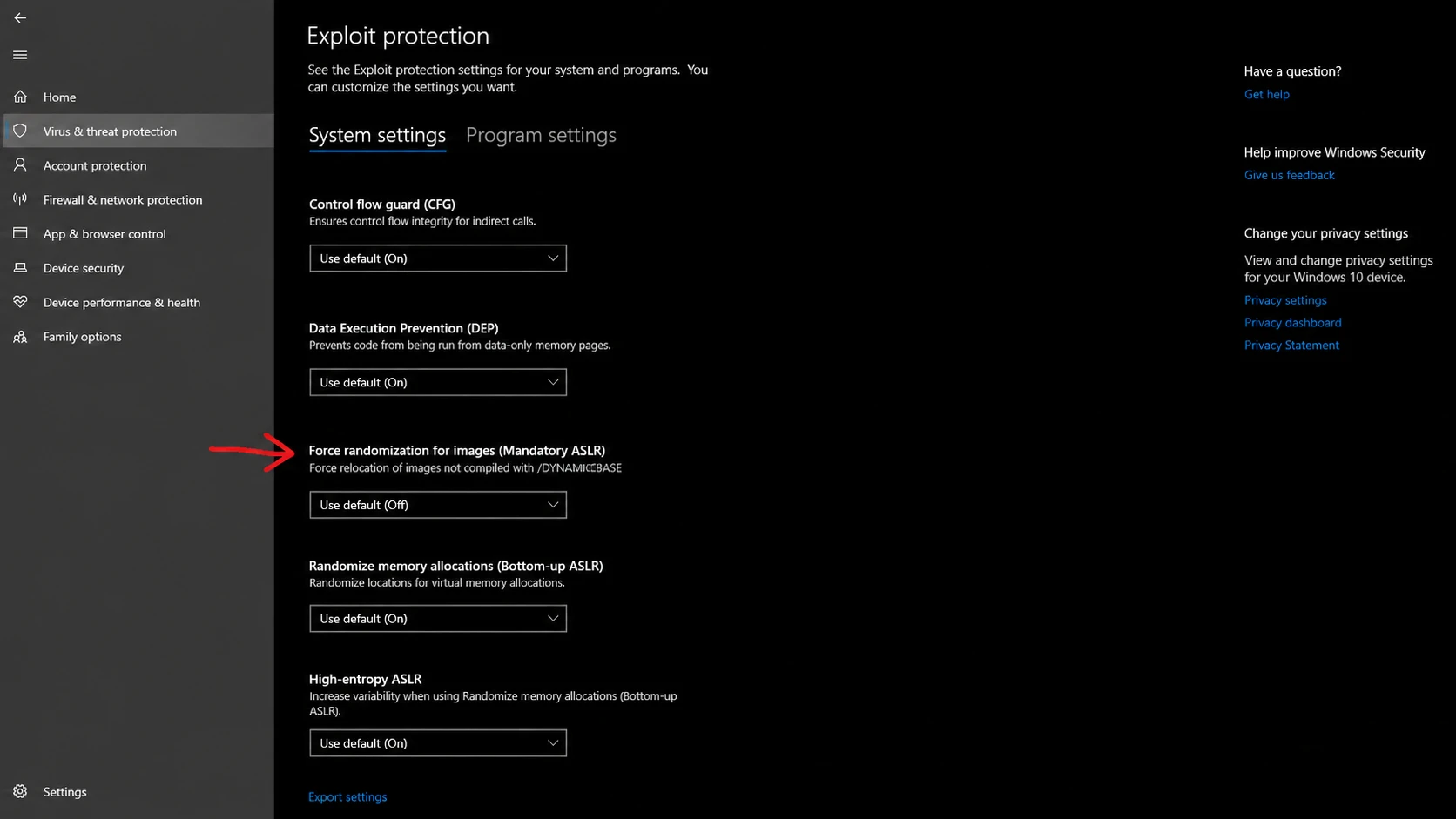
You know it worked when the game reaches the main menu without the crash window appearing. Note: Windows updates can reset Exploit Protection to its defaults, so re-check this toggle after any major update if the crash returns.
Turn off NVIDIA Smooth Motion and Intel AI Boost
The developer identified two hardware features that conflict with the game’s rendering and process scheduling. NVIDIA Smooth Motion inserts interpolated frames that interfere with rendering initialization, and Intel AI Boost reallocates processing resources in a way that disrupts the engine’s scheduling. Turn off whichever applies to your system.
Disable NVIDIA Smooth Motion
Disable Intel AI Boost
This applies to recent Intel CPUs (12th gen and later) that include a neural processing unit. It is safe to re-enable once a permanent patch ships.
Update your GPU driver
Outdated or mismatched graphics drivers are a common trigger for crashes during shader compilation and loading, especially right after a new UE5 launch. Pull the latest driver straight from the manufacturer rather than trusting whatever Windows Update installed months ago.

Tip: Day-one drivers occasionally introduce fresh conflicts with newly launched games. Waiting about 48 hours after a release lets the community surface any new issues before you install.
Fix shader compilation crashes
If the game dies on the “Compiling Shaders” screen or the log names PipelineStateCache.cpp, the shader cache is corrupted or incomplete. Clearing it forces a clean rebuild on the next launch.
C:\Users\[YourUsername]\AppData\Local\MistfallHunter\Saved\ and delete the ShaderCache folder.Force DirectX 11
When crashes persist and the DX12 shader pipeline is the culprit, running the game on DirectX 11 sidesteps the conflict. Several players resolved the Fatal Error with this launch option alone.
-dx11Adding -windowed can also bypass certain fullscreen initialization crashes at launch.
Verify game files and runtime libraries
Launch-day download rushes leave corrupted or missing files that look like system conflicts but are not. Verifying is fast and the most commonly skipped step, so run it before anything more involved.
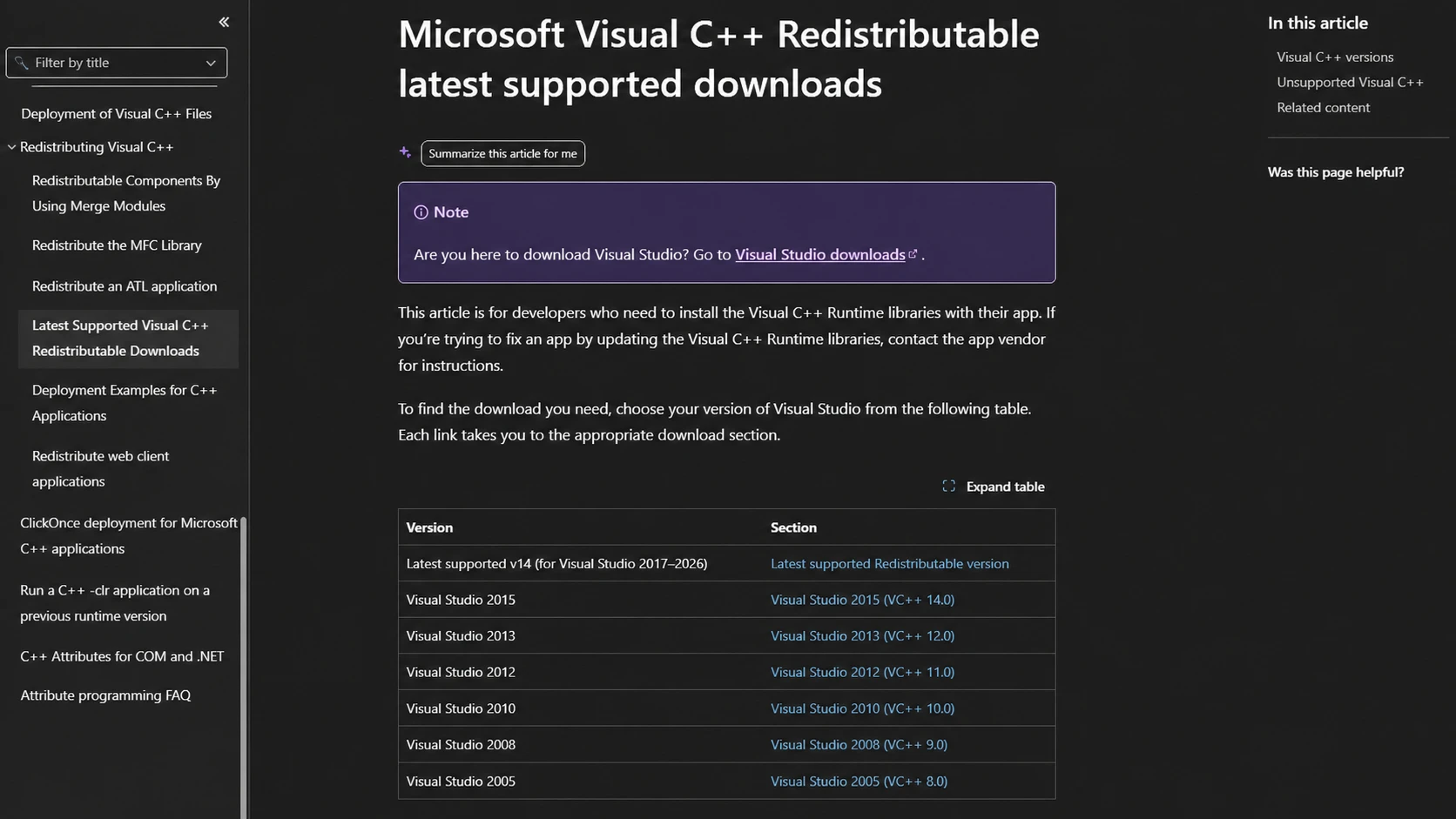
The game also relies on Microsoft Visual C++ redistributables. If those are missing or corrupted, it can crash before it even reports what went wrong. Install or repair both the x64 and x86 packages from the Microsoft Visual C++ redistributable page, then restart. The restart is not optional; skipping it is why people reinstall these packages and see no change.
Clear permission, overlay, and antivirus conflicts
Overlay and monitoring tools are the second most common cause of the crash. MSI Afterburner and RivaTuner Statistics Server hook into the game’s rendering process, which the anti-cheat reads as tampering and shuts the game down. Fully exit both from the system tray, confirm they are gone in Task Manager, then launch. The same applies to Discord, GeForce Experience, Razer Cortex, and OBS capture hooks.
Windows can also block permissions the game needs. Right-click MistfallHunter.exe or its shortcut and choose Run as administrator; if it launches cleanly, make it permanent under Properties > Compatibility by ticking Run this program as an administrator. Running Steam itself as administrator before launching helps in the same way.
Security software sometimes mistakes Unreal Engine modules for suspicious activity. Bellring Games specifically named Kaspersky as a possible source, though other antivirus programs can do the same. Add the entire Mistfall Hunter installation folder to your antivirus exclusions rather than just the executable. The default install path is C:\Program Files (x86)\Steam\steamapps\common\Mistfall Hunter\.
Less common triggers worth checking
A few setups run into the Fatal Error for reasons outside the main list. These are worth checking if the fixes above did not land.
- Non-ASCII Windows username: Accented characters (ä, é, and similar) in your Windows account name can break the engine’s user path. Creating a new local account with a plain ASCII username, then logging into Steam there, has fixed it for affected players.
- Dual GPU conflict: On systems with both a dedicated card and integrated graphics, some UE5 titles fail with both enabled. Disabling the integrated GPU under Display adapters in Device Manager can resolve it without affecting the dedicated card.
- CPU or GPU overclocks: Even an overclock that is stable elsewhere can destabilize shader compilation. Reset to stock clocks in your BIOS or overclocking software before testing.
- Windows updates: Out-of-date Windows installs cause more crashes than expected. Check for updates, install everything on offer including optional driver updates, and restart.
Mid-raid crashes and gear loss
A Fatal Error mid-raid carries a real cost. As an extraction game, Mistfall Hunter treats a crash like a disconnection. When the client closes and you cannot rejoin before the reconnect window ends, the server resolves your session as a failed extraction, and you lose the gear you were carrying. The Phantom Form recovery mechanic that applies after an in-game death does not cover disconnect scenarios.
Bellring Games has not announced a gear restoration policy for these losses, so stability matters more than a support ticket. Apply the fixes above before bringing valuable gear into a run, and load into a camp or practice area first to confirm the game is stable across a couple of clean sessions.
Bellring Games has acknowledged the Fatal Error and is working on permanent patches, with a fix for the Mandatory ASLR conflict expected in a future update. Until then, the ASLR toggle clears it for most players, and the driver, shader, file, and overlay steps cover nearly all of the rest. Restart your PC after each change so it actually takes effect; half-applied fixes are the usual reason a working solution appears to do nothing.