Paralives runs on Unity and leans hard on the CPU for its simulation logic, which is why the Early Access build hitches, drops frames, and occasionally crashes outright on machines that look fine on paper. The fix isn’t one setting. It’s a short stack of in-game choices, a couple of system-level changes, and knowing which features to leave off until the developers ship more optimization patches.
In-game graphics settings that matter most
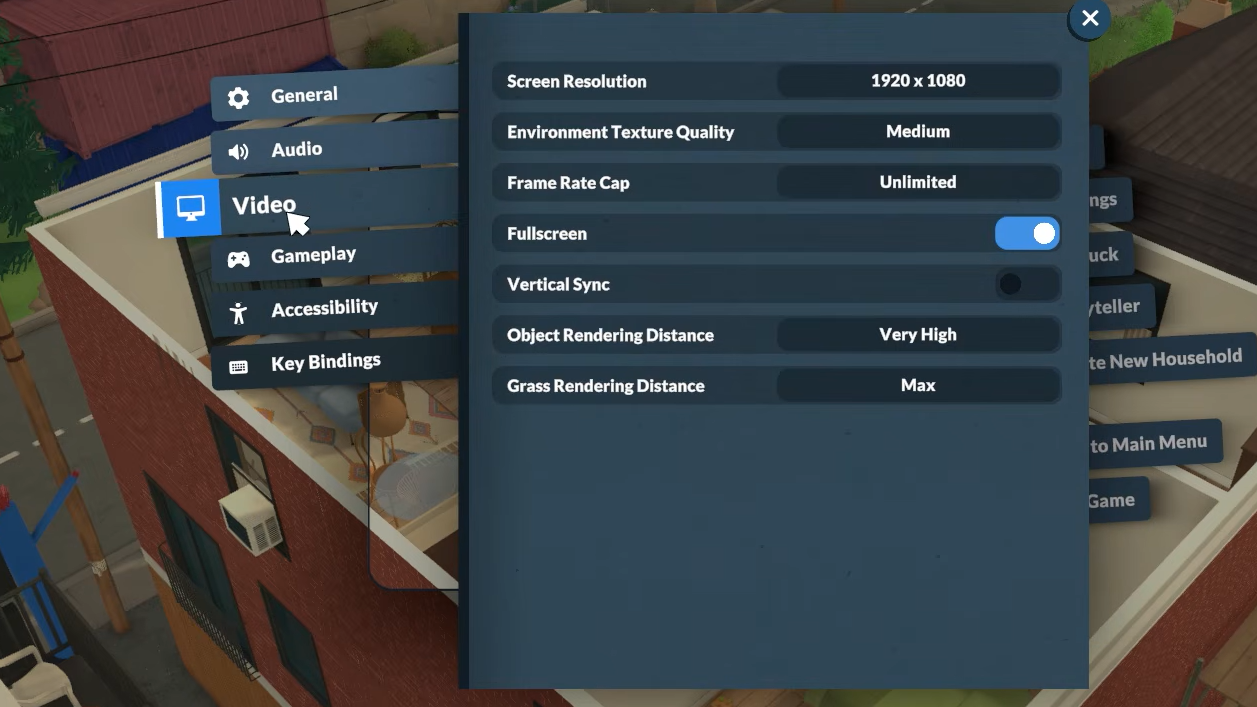
Most of the framerate cost in Paralives comes from a small group of options. Reflections and shadows hammer the GPU, while Para density and simulation complexity hit the CPU. Texture quality is mostly a VRAM concern rather than a raw FPS one, so tune it based on how much VRAM your card actually has.
These are the values that produce stable performance on mid-range and low-end hardware during the current build:
| Setting | Recommended | Why |
|---|---|---|
| Resolution | Native (or 80% scale on weak GPUs) | Scaling to 80% can recover roughly a third of lost frames on integrated graphics. |
| Display mode | Fullscreen | Reduces compositor overhead and helps with consistent frame pacing. |
| Frame rate cap | 60 | Uncapped framerates cause overheating and inconsistent pacing in the current build. |
| Vertical Sync | On | Smooths transitions and prevents tearing while the cap settles in. |
| Environment Texture Quality | Medium | Higher tiers can trigger lag spikes until further optimization patches arrive. |
| Real-time reflections | Off | Doubles GPU rendering load with little visible payoff on the stylized art. |
| Shadow quality | Low | Cuts VRAM use and reduces stutter when panning the camera. |
| Para density | Low | Fewer Paras on screen means less CPU pathfinding work. |
| Object / Grass rendering distance | High (drop to Medium if needed) | Safe on most systems; lower it only if lag persists after other tweaks. |
| Anti-aliasing | FXAA or Off | Cheapest AA option; leave off entirely on integrated GPUs. |
Character Detail is worth a separate mention. The Para Maker renders hair and skin shaders at close range, which puts a heavier load on the GPU than live gameplay does. If your laptop fans spool up the moment you open the creator, drop Character Detail to Medium before you spend an hour styling outfits.
Force DirectX 11 to reduce micro-stutter
Paralives uses Unity, and Unity titles sometimes pick a rendering API that doesn’t suit older drivers. Forcing DirectX 11 typically smooths out camera panning and reduces draw call hitching on GTX-era hardware.
Lower shadow resolution beyond the in-game minimum
The Low preset still allocates more VRAM to shadows than older cards can comfortably spare. Editing the config file pushes the shadow buffer below what the UI exposes.
settings.ini. Make a backup copy before editing.ShadowRes line. Change the value from 1024 to 512.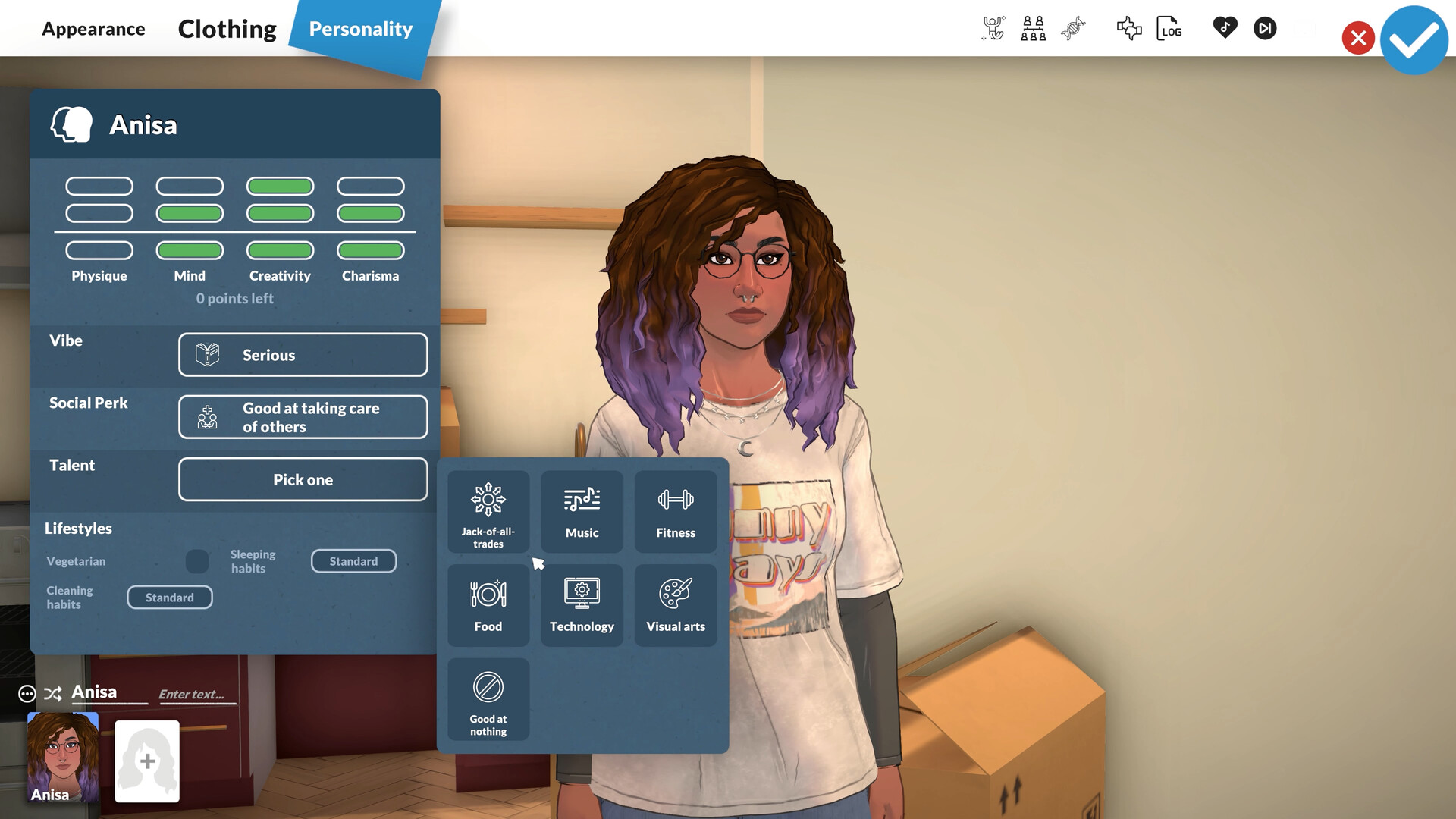
Fix the loading screen freeze
A common Early Access bug locks the game on the initial loading screen. Two things trigger it: clicking the window while assets are still loading, and leftover Paralives processes from a previous session.
System-level changes that stabilize performance
Paralives is sensitive to anything competing for CPU time or RAM. The Unity engine doesn’t recover gracefully when Windows starts paging memory to disk, and overlays from Discord or capture tools regularly cause hitches even on strong hardware.
Run through these adjustments once, and you generally won’t have to think about them again:
- Install Paralives on an SSD. Asset streaming from a mechanical drive produces hitches that no graphics setting can mask.
- Update GPU drivers, then check chipset and disk drivers in Device Manager. Outdated drivers are a common cause of startup crashes on new releases.
- Open Windows Settings, go to Gaming, turn off Game Bar and Captures, and enable Game Mode.
- Switch the power plan to High Performance or Ultimate Performance under Power Options.
- Disable overlays from Discord, MSI Afterburner, Steam (if needed), and any recording software.
- Close background apps like Chrome, especially if you’ve been multitasking. Heavy browsers can eat several gigabytes of RAM on their own.
- In Task Manager’s Details tab, right-click the Paralives process and set priority to High or Real Time for the session.
If you have an Nvidia or AMD card, open the control panel and check that DLSS, FSR, or frame generation is available for Paralives. When the in-game options expose them, turn them on. Upscaling recovers a meaningful chunk of frames without hurting the stylized look.
Why the game still stutters during fast-forward
Even with everything tuned, the simulation itself can outrun the CPU. Every Para has its own pathfinding and AI routine running in the background, and stacking interactions at 3x speed queues up calculations faster than the engine clears them.
Two habits help. Pause the game for five to ten seconds when you notice severe stutter at high speed, which lets the CPU drain its queue. And keep lot sizes small with fewer active objects when possible, especially on older quad-core processors.
If the laptop you’re playing on starts to overheat during long sessions, the CPU will throttle itself, and frames will collapse from 60 to 15 with no warning. Capping at 60 FPS with VSync on is the easiest way to prevent that thermal cliff. Restarting the game every couple of hours also helps clear minor memory leaks present in the launch build.
How to tell the fixes worked
You should see three things after applying the settings above: no more freeze on the initial loading screen, a stable 60 FPS in live simulation on lots with one or two Paras, and no audible fan ramp during the Para Maker. If crashes continue at launch, the most likely remaining culprits are an outdated GPU driver, an antivirus tool blocking the executable, or a Realtek audio driver conflict. Temporarily disabling Realtek Audio in Device Manager has resolved startup crashes for a number of players; re-enable it afterward if sound stops working.
Paralives Studio has acknowledged the optimization gaps and committed to dedicated performance patches in the months ahead. Until those land, the manual tuning above is the difference between a smooth, cozy build session and a slideshow with a crash log at the end.