Resolve Google Lens Stuck at “Uploading…” in Safari 15.6.1 on macOS 10.15.7
Address persistent upload issues with Google Lens in Safari on older macOS by applying targeted browser and system troubleshooting steps.
Address persistent upload issues with Google Lens in Safari on older macOS by applying targeted browser and system troubleshooting steps.
by Pallav Pathak
Google Lens may display a perpetual “Uploading…” message in Safari 15.6.1 on macOS 10.15.7, preventing images from being analyzed or processed. This upload hang disrupts workflows that depend on visual search and image recognition, especially on systems limited to older software versions. Addressing this issue involves checking browser compatibility, adjusting privacy settings, and trying alternative access methods.
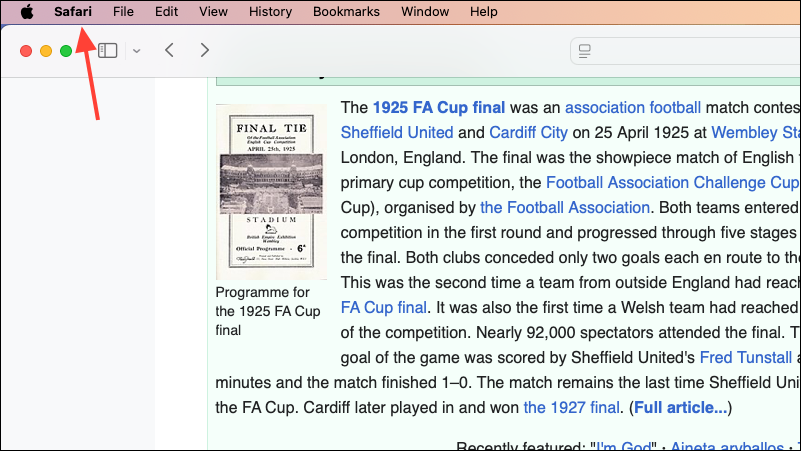
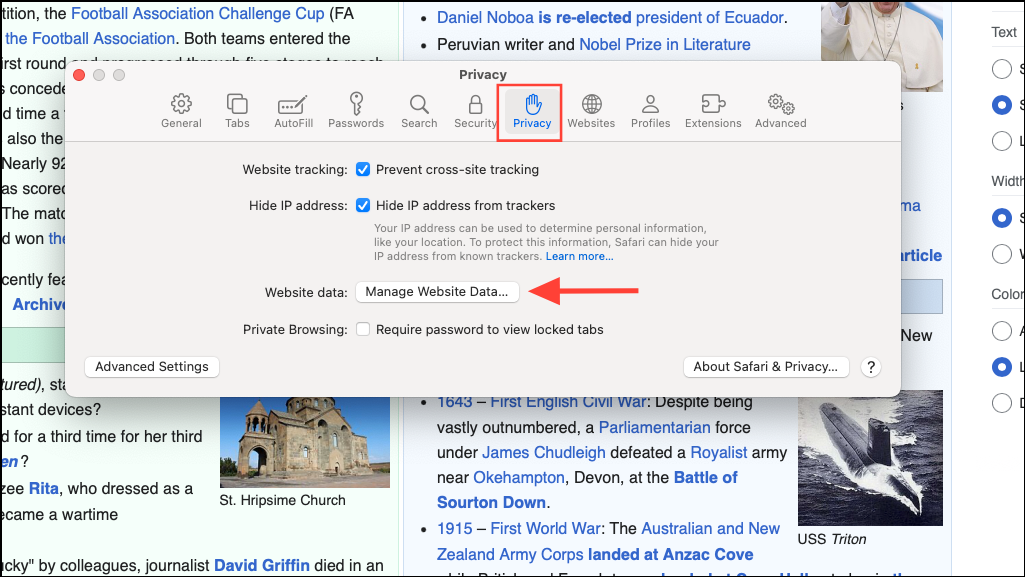
Open Safari and navigate to the Google Lens web interface or the Google Images site where Lens is integrated. Click the Safari menu at the top left, then select Preferences.
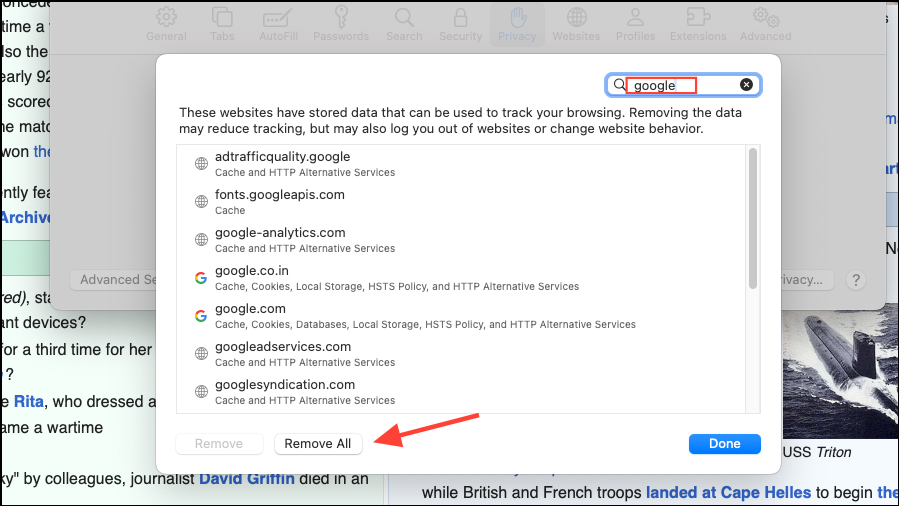
In the search bar, type “Google” and remove all related entries. This action clears cached data and cookies that may interfere with uploads. Close the dialog when finished.
Refresh the Google Lens page and attempt to upload an image again. If prompted, grant permission for the site to access files or the camera as required. This ensures Safari is not blocking resources essential for Lens to function.
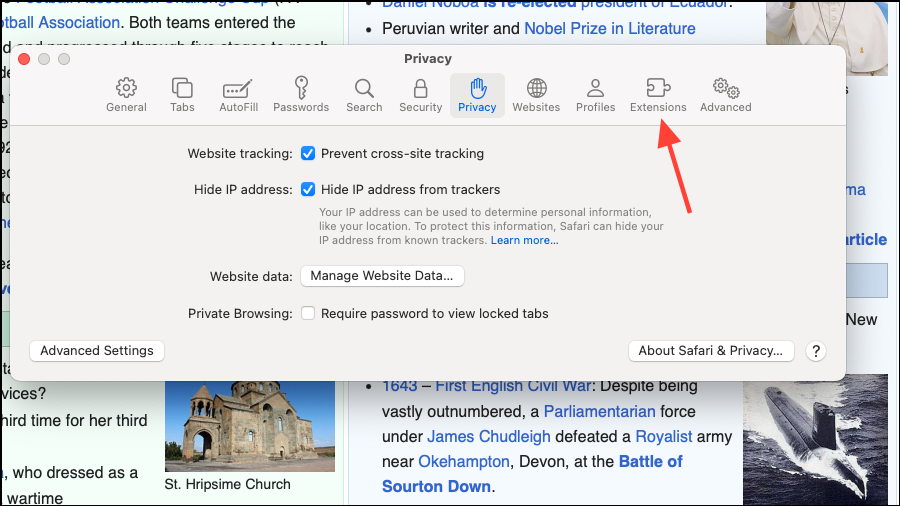
Some Safari extensions, especially privacy or ad-blocking tools, can disrupt upload processes. Open Safari > Preferences > Extensions and uncheck all enabled extensions.
Reload the Google Lens page and retry the upload. If the problem resolves, re-enable extensions one by one to identify the culprit. Consider keeping problematic extensions disabled when using Google Lens.
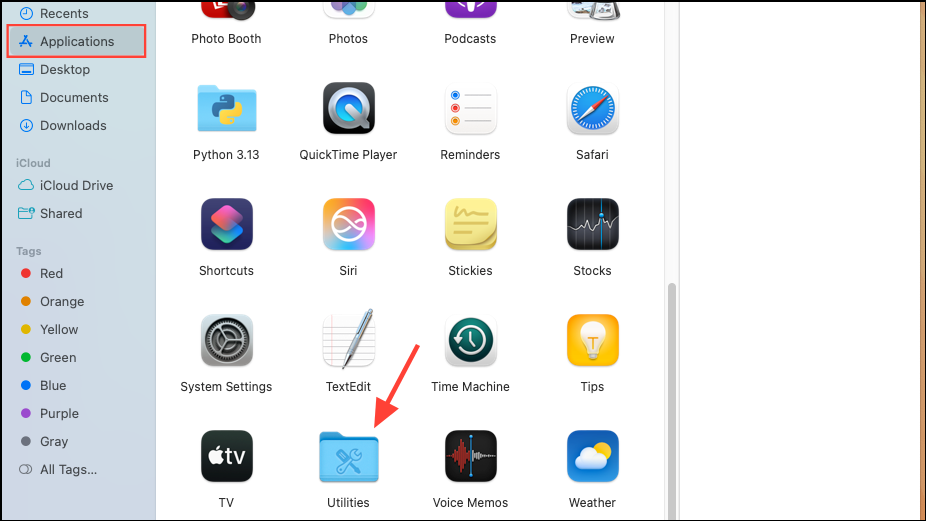
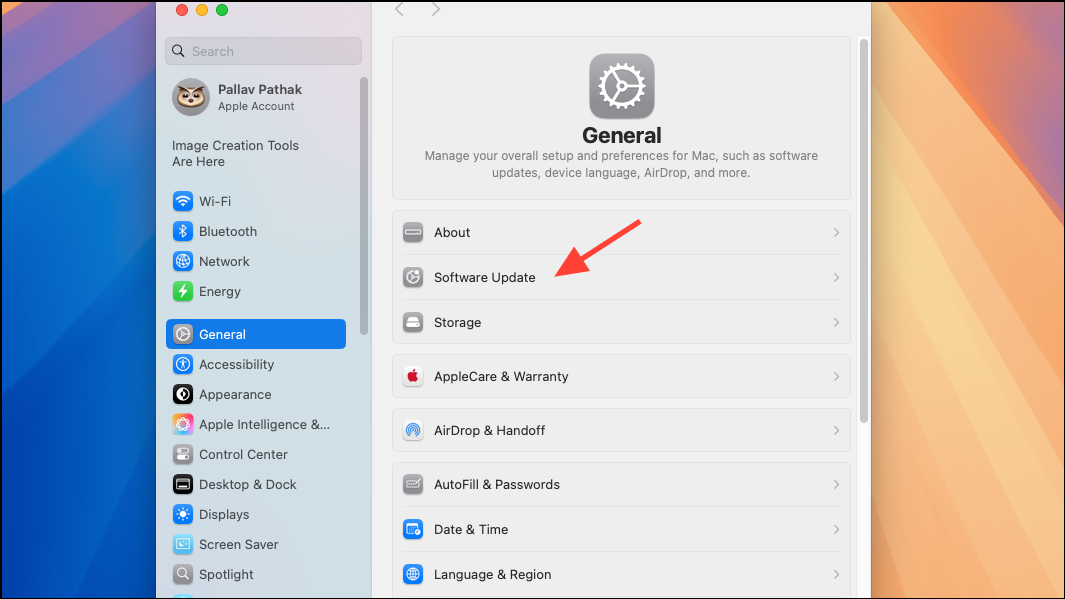
Safari 15.6.1 on macOS 10.15.7 is no longer supported by many modern web services. Download and install the latest available version of Chrome or Firefox for macOS 10.15.7 if possible.
Open Google Lens in the alternative browser and attempt the upload. Chrome and Firefox often support newer web technologies required by Google Lens, reducing the likelihood of upload stalls.
Update System Certificates and Check Network Security Settings
If your network uses a proxy, VPN, or strict firewall, temporarily disable these to test if uploads work. Some security software may block the upload endpoints used by Google Lens.
If uploads remain stuck on your Mac, use the Google Lens app on Android or the Google app on iOS. These apps are optimized for image processing and do not rely on browser compatibility.
Upload the image through the mobile app. If successful, this confirms the issue is specific to Safari or your macOS system, not your Google account or the image itself.
Applying these steps typically restores Google Lens upload functionality or confirms when a browser or system upgrade is necessary. Keeping browser software and system security settings current reduces the chance of similar upload issues in the future.