Beta releases of macOS often introduce instability, app incompatibilities, and unexpected bugs, especially in early developer builds. Returning to macOS 25 after trying the macOS 26 beta resets your system to a more reliable environment, restores compatibility with essential software, and prevents data loss from untested features. The process requires careful preparation, as downgrading involves erasing your Mac’s main drive and reinstalling the previous macOS version. Backups are critical, since files and settings created or changed in the beta may not transfer cleanly to the earlier system.
Downgrade Using a Bootable macOS 25 Installer
Creating and using a bootable installer is the most dependable way to revert from macOS 26 beta to macOS 25. This method completely removes the beta system, replaces it with the stable release, and allows you to restore your data from a compatible backup.
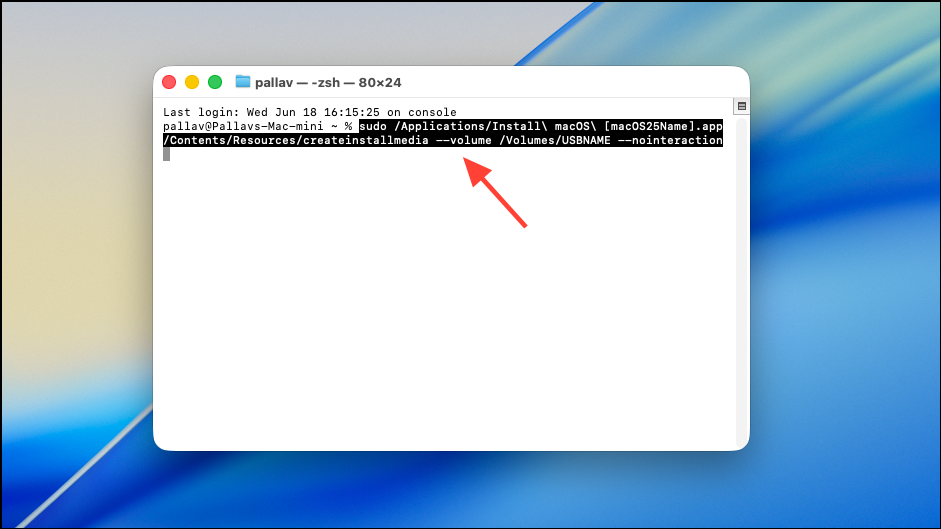
/Applications folder. Avoid launching the installer at this point.sudo /Applications/Install\ macOS\ [macOS25Name].app/Contents/Resources/createinstallmedia --volume /Volumes/USBNAME --nointeractionThis command copies the macOS 25 installer to your USB drive and makes it bootable.
Option while powering on to access boot options. For Apple Silicon Macs, hold the Power button until startup options appear. Select the USB installer from the menu.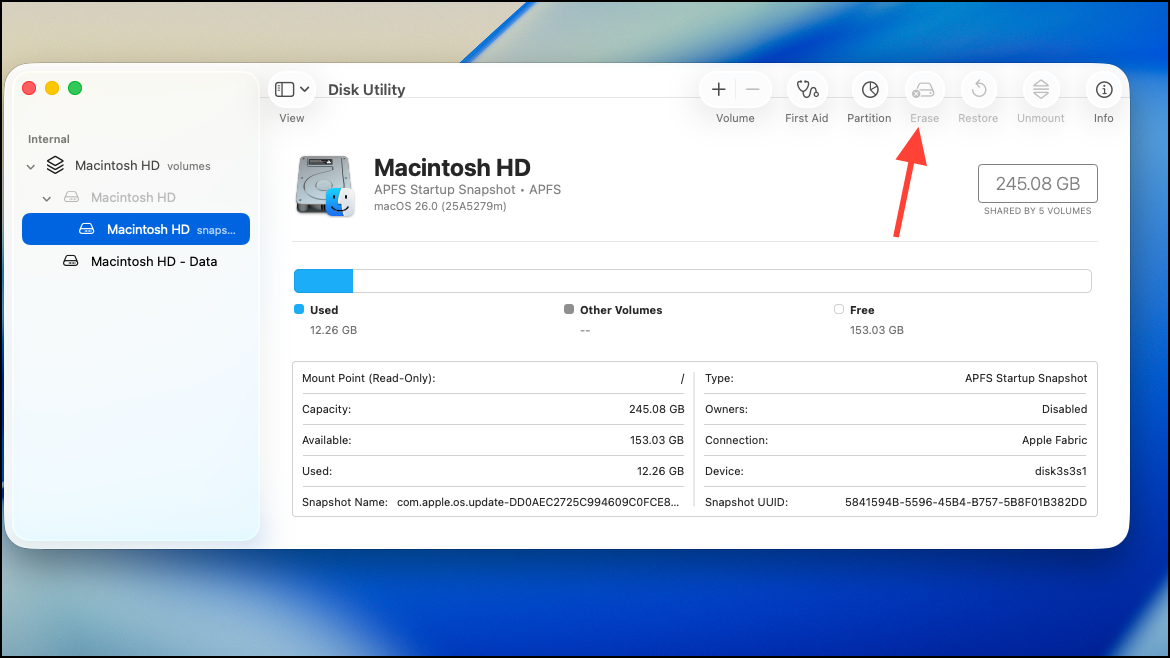
Restore macOS 25 Using Time Machine Backup
Time Machine allows you to revert your entire system to a pre-beta state, provided you have a backup from macOS 25 or earlier. This method returns your Mac to its exact previous configuration, including apps, settings, and user files.
Command + R until the Apple logo or spinning globe appears, launching Recovery Mode.Reinstall macOS 25 Using Recovery Mode
macOS Recovery Mode provides a way to reinstall the version of macOS that originally shipped with your Mac or the closest version still available. This method is useful if you do not have a Time Machine backup or bootable installer, but it may only offer the version that came with your hardware.
Shift + Option + Command + R while powering on. For Apple Silicon Macs, hold the Power button until startup options appear, then choose Options.Use DFU Mode and Apple Configurator (Apple Silicon Macs)
Device Firmware Update (DFU) mode can revive or restore Apple Silicon Macs that fail to boot or cannot be restored using standard methods. This approach requires a second Mac and a USB-C cable.
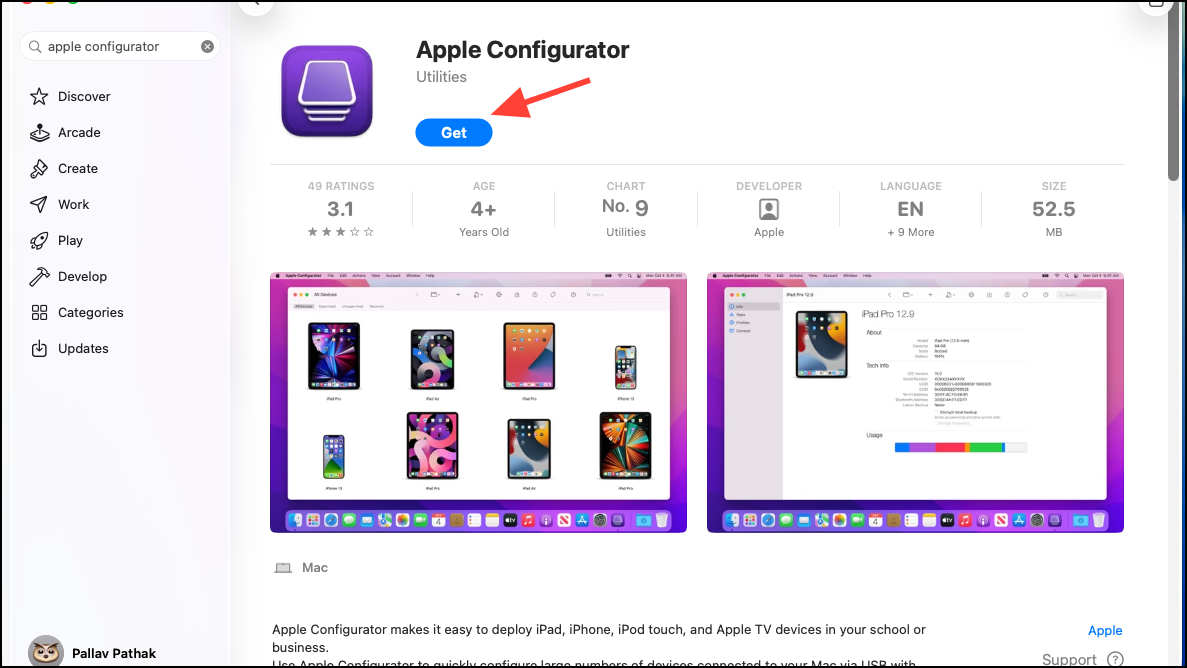
Power + Right Shift + Left Option + Left Control for 10 seconds, then release all but the Power button for another 10 seconds.DFU restores both the operating system and device firmware, which can resolve issues caused by incomplete or failed downgrades. Use this method if standard recovery fails or if firmware compatibility problems persist after downgrading.
Key Considerations and Cautions
- Always back up your data before downgrading. Erasing your drive is required for most downgrade methods and will delete all files.
- Backups created on macOS 26 beta cannot be restored to macOS 25 due to potential changes in data formats.
- Some system files, Photos, Music, or TV libraries created or modified on the beta may not be compatible with earlier macOS versions.
- Downgrade processes may require internet access to download installers or recovery files.
- For Macs enrolled in Apple’s beta program, unenroll the device at Apple Beta Software Program to avoid future beta updates.
Switching back to macOS 25 from the macOS 26 beta restores system stability and app compatibility. Careful preparation and the right downgrade method ensure a smooth transition and reliable Mac performance.