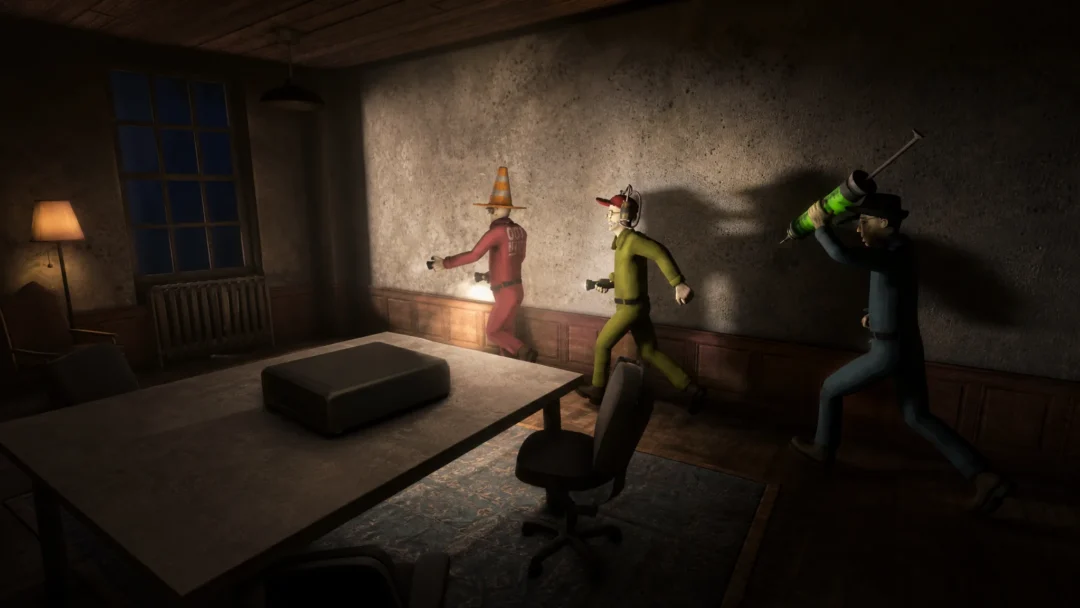
Shift At Midnight has no quicksave, no save slots, and no “Save Game” button hiding in the pause menu. It leans entirely on autosave, and that autosave only fires when a shift or major objective actually finishes. If you’re the type to save before every risky decision, that muscle memory will burn you here.
Quick answer: Finish the current shift and let every results, dialogue, and next-night transition screen play out fully, then quit through the in-game menu. Progress you made during an unfinished shift is not preserved, so never Alt+F4 or force-close mid-night.
When the game actually saves
The checkpoint lands once a full shift or a major progression milestone is complete. Stocking a shelf, serving one customer, catching a single Doppelganger, or surviving one attack does not lock in your progress on its own. Those are all still part of an active shift that hasn’t been written to disk yet.
The safest stopping point is a clean break between nights. Wait for the money summary, story scenes, emails, and the next-day setup to finish loading before you close the game. Bailing during that transition can interrupt the exact moment the autosave is being created.
Tip: Don’t start a new night unless you have time to finish it. Opening a shift just to peek at its first objective and then quitting is the fastest way to lose everything you did after the last transition.
What happens if you quit early or fail a shift
Quitting during an active shift drops you back to the most recent autosave, not to your exact spot behind the counter. Anything logged after that checkpoint can be wiped, including customer orders, store maintenance, cash earned during the unfinished night, and any encounters that happened after the last transition. The game doesn’t suspend a shift where you stand, so treat each night as one complete session.
Dying is less punishing than force-quitting. A full party wipe just ends the current shift, and you retry from the start of that same shift with your funds, store rating, and unlocks intact. The exception is Shift 13. Failing it sends you back to the beginning of Shift 13 with full resources, but it stamps a permanent rating penalty onto that save slot instead of erasing the whole 13-shift run.
| Situation | Result |
|---|---|
| Party wipe on Shifts 1–12 | Retry that shift from the start; funds, rating, and unlocks kept |
| Party wipe on Shift 13 | Restart Shift 13 with full resources plus a permanent rating penalty |
| Force-quit mid-shift (Alt+F4 or crash) | Reverts to the last completed shift; unsaved progress lost |
| Exit through the menu after a shift ends | Progress recorded normally |
Shift At Midnight save file location on PC
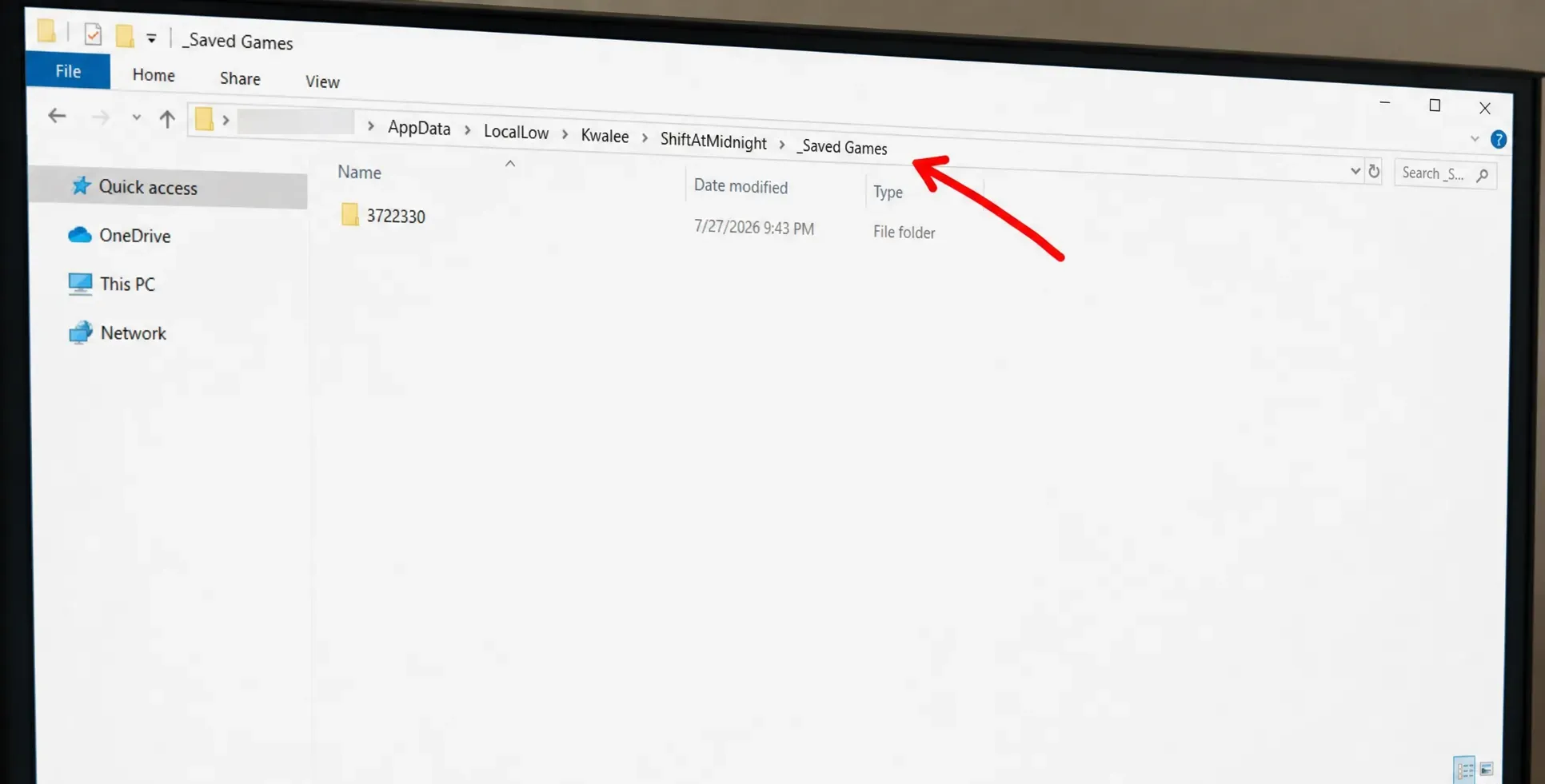
On Windows, the save data sits in the LocalLow AppData folder under the publisher’s name. The full path is:
C:\Users\[Your User Name]\AppData\LocalLow\Kwalee\ShiftAtMidnightInside that folder you’ll find a SaveGames (or “Saved Games”) folder, a Player text file, and a prefs JSON file. The save folder holds a subfolder named 3722330, which matches the game’s Steam app ID and contains files like achievements and playtime.
%appdata%, and click OK. This opens the Roaming folder in File Explorer.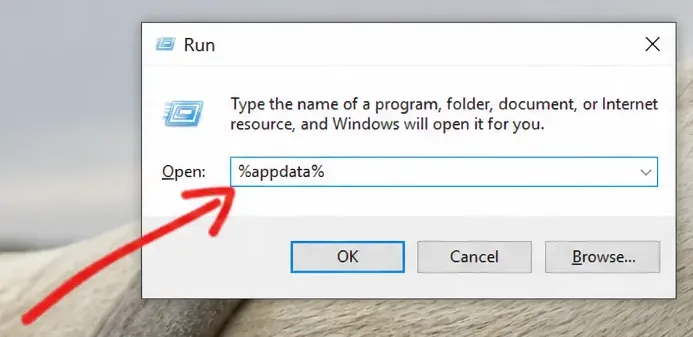
Steam users may also see save-related data under the userdata folder, following the pattern Steam\userdata\[Your Steam ID]\3722330. Always close the game completely before copying or replacing anything, since open files can produce corrupt or partial backups.
Back up your save and avoid corruption
The Night Transition loading screen is the danger zone. A crash there can corrupt your entire Story Mode save, so copy the SaveGames folder before you start a co-op session rather than after something breaks. Store the copy somewhere safe like a separate folder or an external drive, and label each backup with a date or shift number so you know which one to restore.
Backups also let you see all three endings without grinding the campaign again. Copy the save after Shift 10, 11, or 12, make your choice to trigger one ending, then restore the backup and pick differently for another. If a save does get corrupted, verify the game files first. On Steam, right-click the game, choose Properties → Installed Files → Verify integrity of game files. In the Xbox app, right-click the game, then Manage → Files → Verify and Repair.
Cloud saves and cross-platform progress
Xbox Play Anywhere keeps saves and achievements in sync between the Xbox Series X|S version and the Windows Microsoft Store version, so moving between those two carries your progress across. The Steam version stands apart. It does not sync with Xbox or Game Pass, so your run stays on whichever platform you started it. Steam Cloud support is listed for the game, but whether it’s enabled by default isn’t confirmed.
If you manage backups by hand, remember that cloud sync can overwrite local files. Consider temporarily turning off cloud saves in your launcher or platform settings when you’re swapping files, and confirm any save you import matches your current game version to avoid errors.
How to confirm your progress saved
When you load back in, check the current night number, your available cash, and your story progression. If any of those look rolled back, the game most likely restored the last completed shift instead of the point where you stopped. That’s the tell that your session ended before the autosave finished writing.
The reliable habit is simple. Finish every accepted order, resolve any nighttime attack, wait for the transition to complete, and leave through the menu. Replaying a few extra minutes to reach a clean break between nights beats closing during the final moments of a long shift and finding out the checkpoint never landed.