macOS 26 introduces the Journal app to Mac, finally addressing the long-standing gap for users who want to capture thoughts, memories, and daily events across all Apple devices. Previously limited to iPhone, Journal now supports the larger screens and typing comfort of Mac and iPad, making it easier to write longer entries, attach multimedia, and organize your notes efficiently. This upgrade streamlines daily reflection and documentation for students, professionals, and anyone seeking a private, integrated journaling solution.
Using the Journal App on macOS 26
Continue button to begin.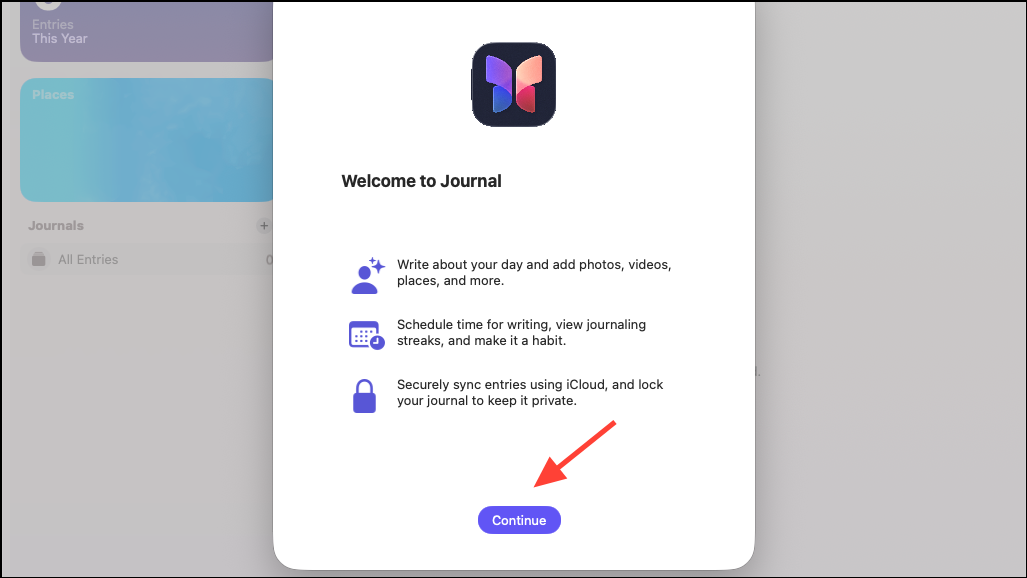
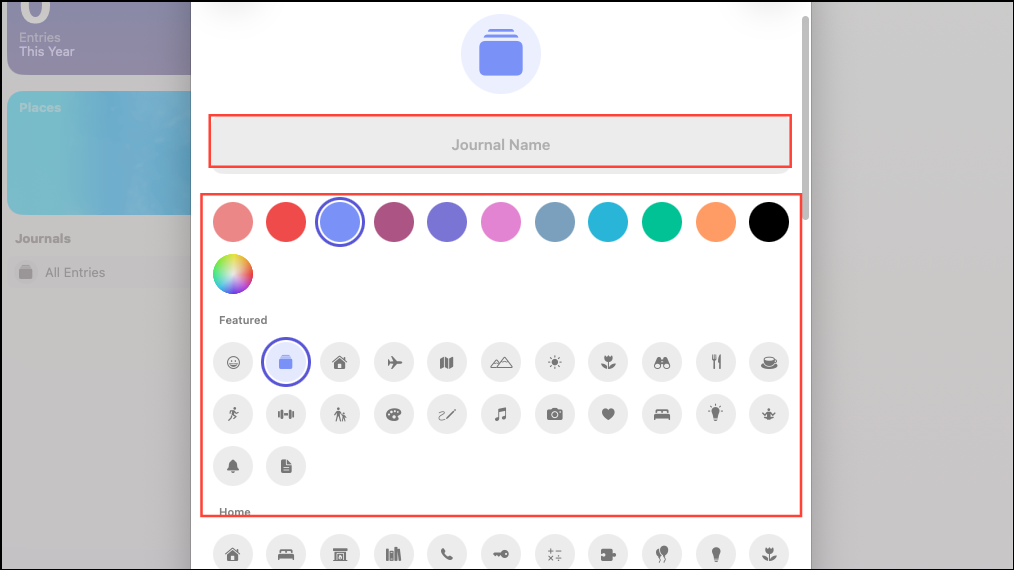
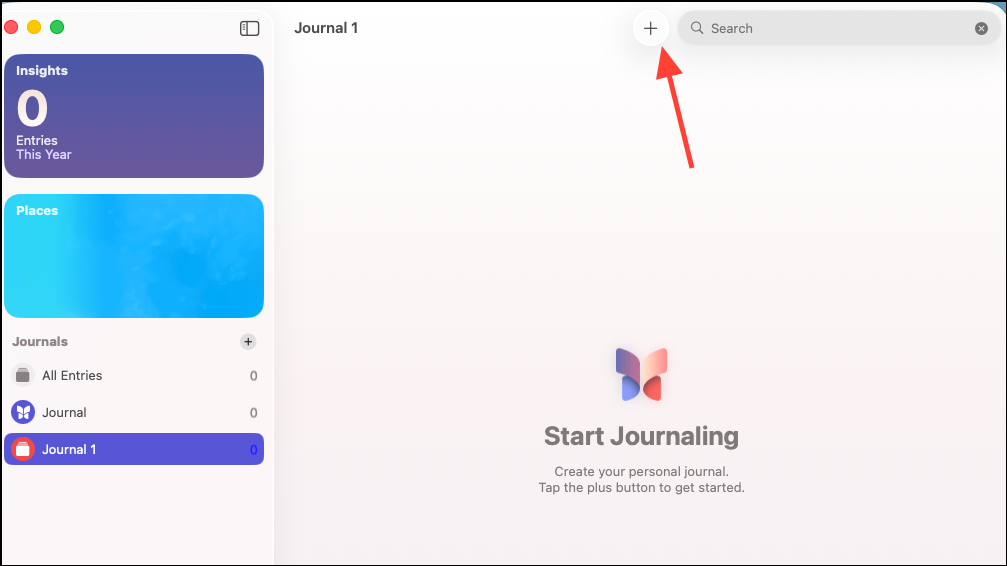
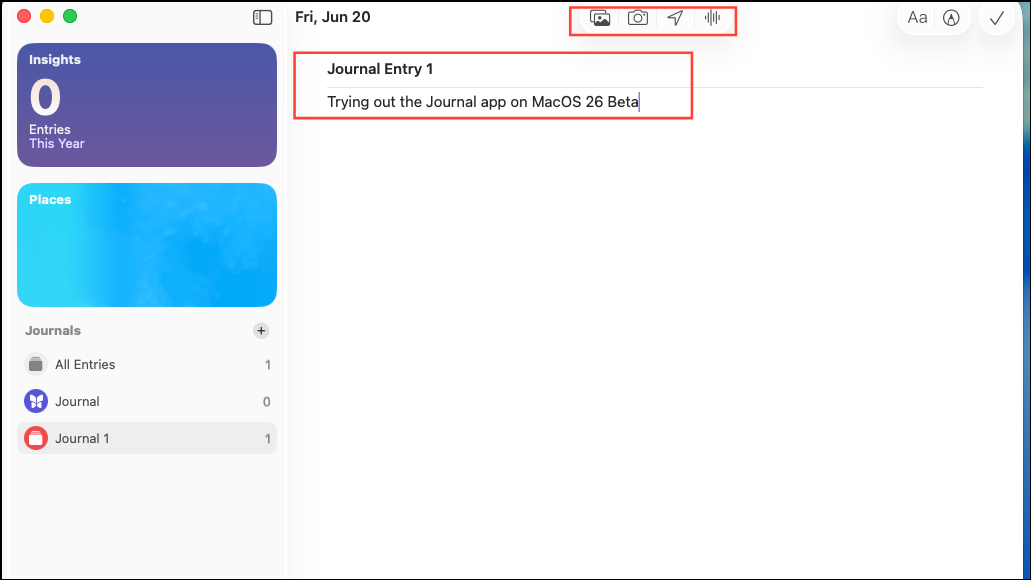
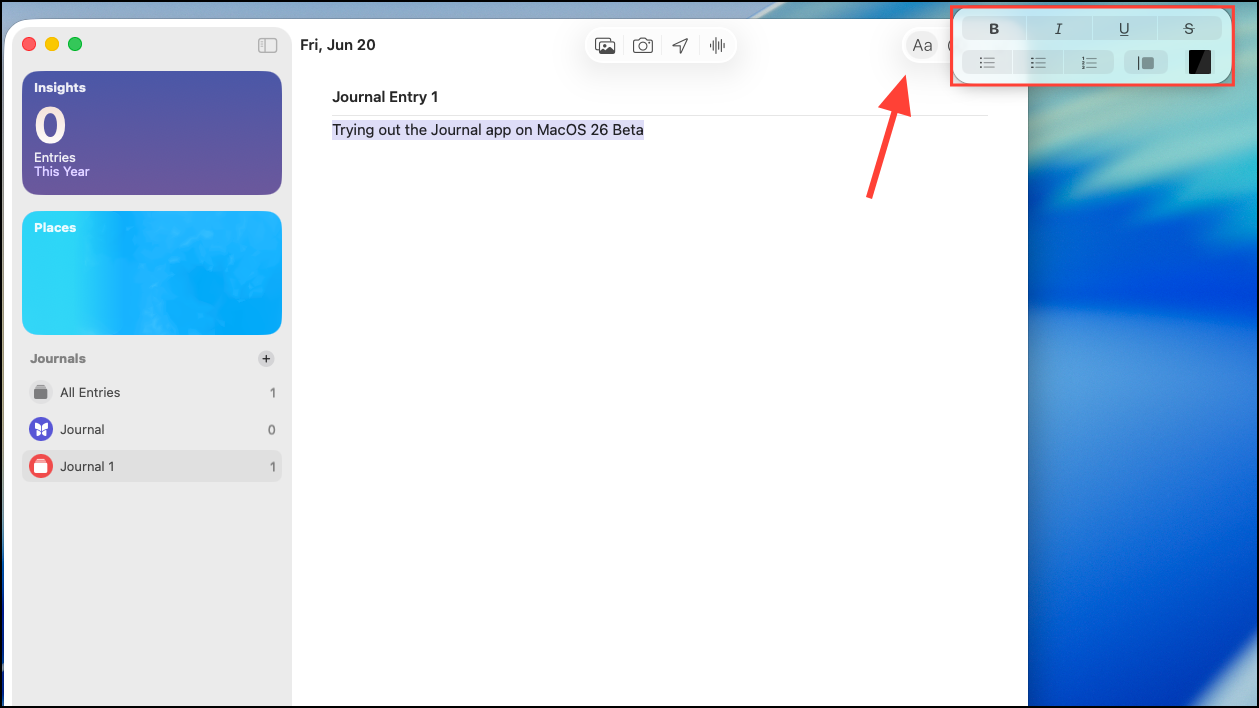
+ button on the left. You can write freely or select from suggested moments based on your recent photos, locations, music, and workouts. These suggestions use on-device processing, so your data remains private and never leaves your Mac without your permission.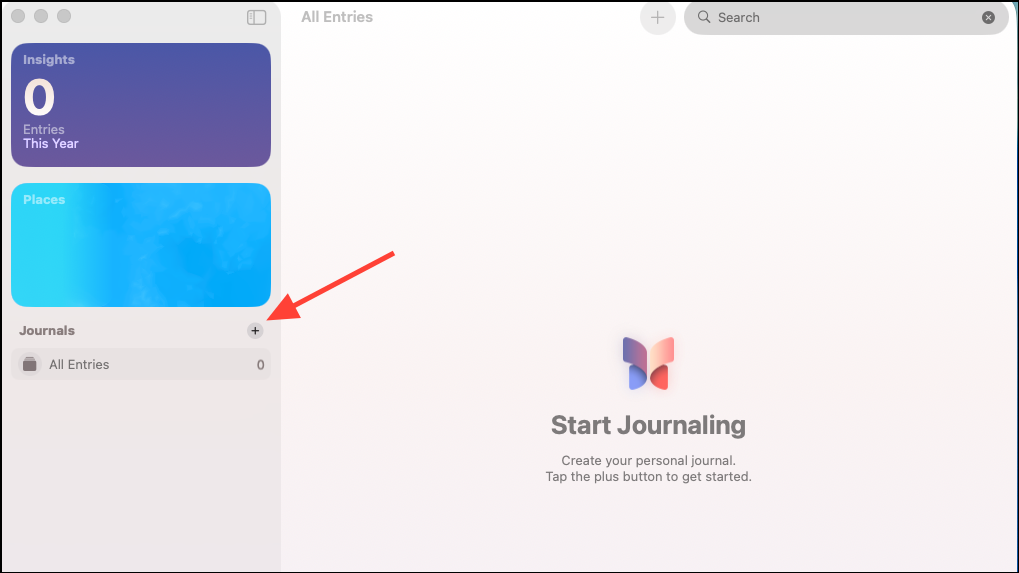
Note-Taking With Apple Pencil and iPad
For users who prefer handwriting or sketching, the Journal app on iPad with iPadOS 26 supports Apple Pencil. You can write, draw, or annotate directly in your journal entries. The larger iPad display and stylus support make it suitable for visual thinkers, students, or those who want to include diagrams and handwritten notes alongside typed text. Multiple journals can be created to separate different aspects of your life, such as work, personal, or travel logs.
Alternative Methods: iPhone Mirroring and Third-Party Apps
If you have not yet updated to macOS 26 or iPadOS 26, you can use iPhone Mirroring on a Mac running macOS Sequoia and iOS 18. This feature allows you to control your iPhone’s Journal app from your Mac, typing entries with your Mac’s keyboard. While this workaround is not as seamless as a native Mac app, it solves the limitation for users who value a physical keyboard and larger screen.
Alternatively, third-party note-taking apps like EasyNotes or Day One offer cross-platform support, customizable templates, and advanced organization features. These apps may suit users who need more robust formatting, subfolders, or collaborative options. However, they may store data in the cloud or require subscriptions, so consider your privacy and budget needs before switching.
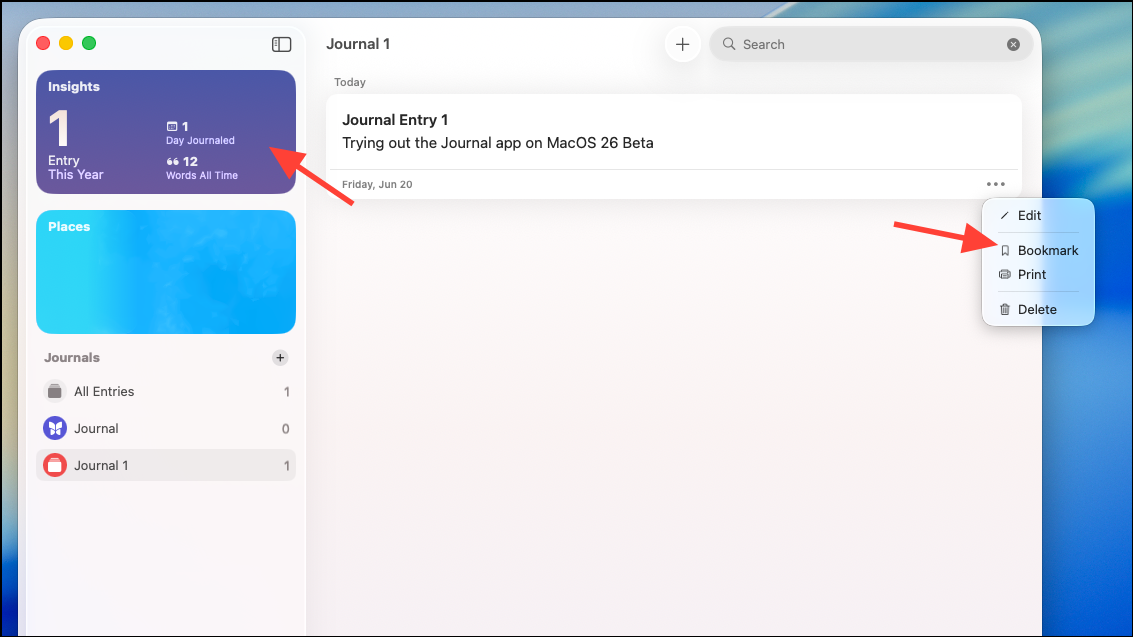
Exporting entries from Journal is possible via the Print function, allowing you to save notes as PDFs or copy them into other Apple apps like Notes or Pages for further editing. With the Journal app now available across iPhone, iPad, and Mac, you can finally build a unified, efficient note-taking workflow that adapts to your daily habits and device preferences.
Journaling on macOS 26 now feels natural and flexible, whether you’re typing on a Mac, drawing on an iPad, or jotting quick notes on your iPhone. Staying consistent and organized has never been this straightforward.