The Blood of Dawnwalker leans hard on Unreal Engine 5, and that shows up as stutter, uneven frame pacing, and sudden drops in dense towns and forests. Most of the trouble comes from shadows, lighting, foliage, and volumetric effects, plus shader compilation and asset streaming rather than raw GPU power. Tuning a handful of options and fixing a few system-level issues gives you a far steadier frame rate without gutting the game’s gothic look.
Quick answer: Set Shadows, Reflections, Effects, Foliage, and Volumetrics to Medium, keep Light and Shading on High, turn on DLSS, FSR, or XeSS at Balanced (Quality at 1080p), turn Motion Blur off, and cap your frame rate below your usual peak. Install the game on an SSD, update your GPU driver, and raise your shader cache to 10GB to stop hitching.
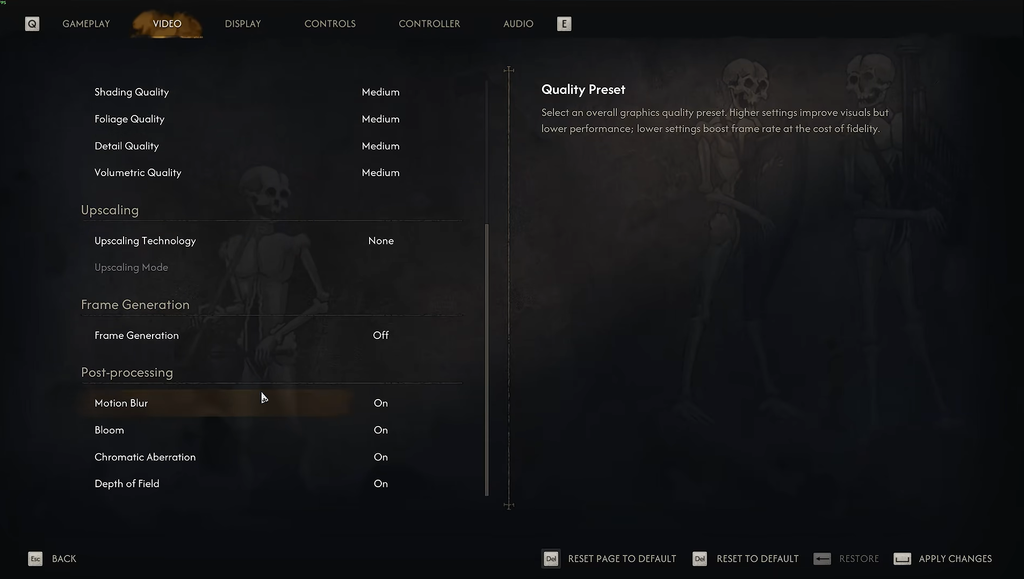
Best graphics settings for stable FPS
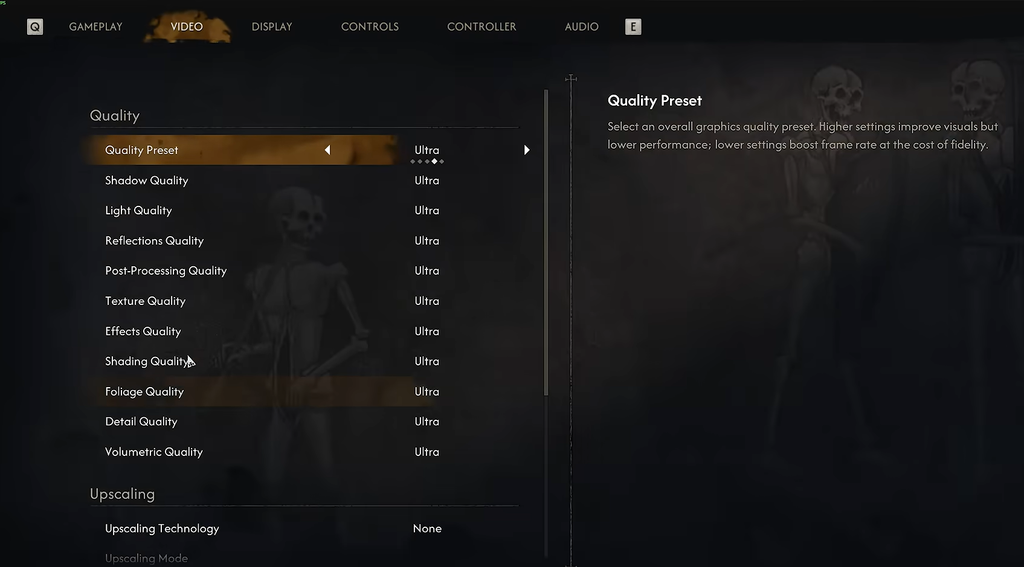
Shadows, Reflections, Effects, Foliage, and Volumetrics carry most of the performance cost, so drop those first. Light, Shading, and Post-Processing can stay high because they barely move the frame rate while keeping the dawn-and-dusk atmosphere intact. Match Texture quality to your graphics memory so you do not overflow the VRAM buffer, which causes freezes even when GPU usage looks normal.
| Setting | Recommended value | Why |
|---|---|---|
| Shadows | Medium | Heaviest performance hit on mid-range systems; the single largest FPS gain when lowered |
| Light | High | Preserves the gothic lighting mood without bottlenecking the GPU |
| Reflections | Medium | Screen-space reflections are demanding in rain; Medium keeps water believable |
| Post-Processing | Ultra | No measurable performance cost; retains light shafts and color grading |
| Texture | VRAM dependent | 6GB: Medium, 8GB: High, 12GB+: Ultra |
| Effects | Medium | Spell and blood effects tank frames in chaotic combat at higher levels |
| Shading | High | Adds armor and skin detail with almost no processing load |
| Foliage | Medium | Balances plant density and draw distance while cutting texture pop-in |
| Details | Medium | Keeps forests from looking flat; avoids distracting grass pop-in |
| Volumetrics | Medium | Prevents CPU bottlenecks in dense medieval towns |
| Motion Blur | Off | Removes smearing and makes hitches easier to spot |
| Bloom | On | Retains highlight glow at no meaningful cost |
| Chromatic Aberration | Off | Cleaner image with no performance change |
| Depth of Field | Off (preference) | Off keeps distant targets sharp during combat |
Upscaling and Frame Generation
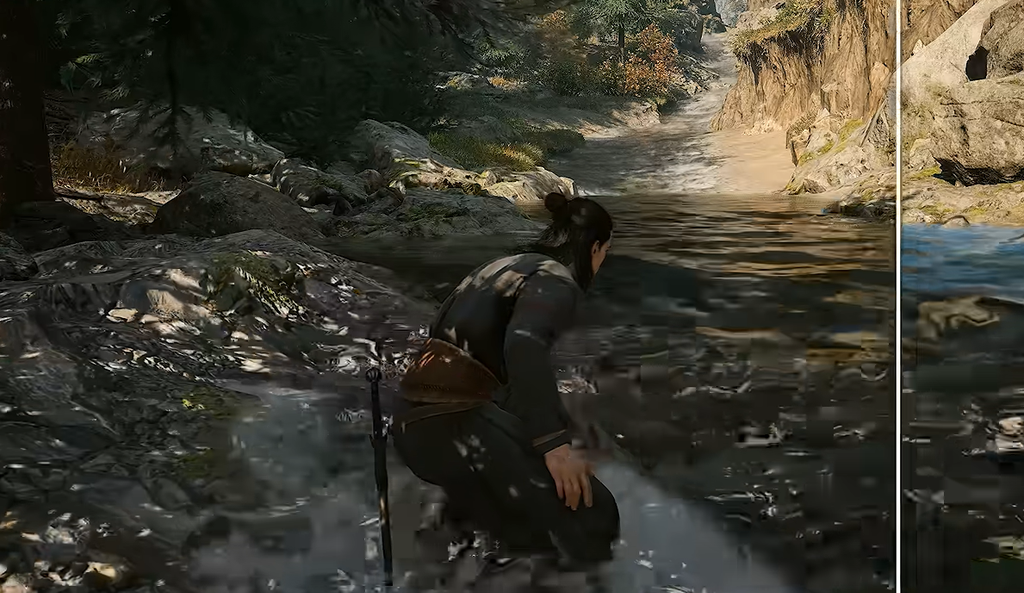
Upscaling is close to mandatory here because it cuts the internal rendering cost while keeping a sharp image. Pick the technology that matches your GPU. Use DLSS on Nvidia RTX cards, FSR on AMD, and XeSS on Intel Arc.
- Upscaling mode: Quality at 1080p, Balanced at 1440p. Performance mode introduces shimmer and noise around foliage during movement.
- Frame Generation: only enable it when your base frame rate already averages 50 to 60 FPS. Turning it on under a poor baseline adds input lag and stutter, and it cannot fix CPU-bound or traversal hitches.
On a system with an Intel i9-14900HX, an RTX 4080, and 32GB of RAM, this configuration held roughly 75 to 85 FPS with 1% lows around 65 FPS. Weaker rigs can push the Medium options down to Low for extra headroom at the cost of some visual detail.
Fix stuttering and shader hitching
Brief hitches when entering new zones or casting spells for the first time come from shader compilation. Letting the game finish its background compilation pass on the first launch clears most of it. If hitching persists, force the driver to keep compiled shaders instead of rebuilding them.
The first 10 to 15 minutes may feel uneven while shaders compile. Avoid changing settings during that window and judge performance only after it settles.
Windows and background load fixes
Dense NPC settlements strain CPU threads, and background apps make those frametime spikes worse. Trim the clutter and lock the frame rate for smoother pacing.
- Enable Windows Game Mode, close extra launchers, pause cloud sync, and disable overlays you do not use (Steam, Discord, Xbox Game Bar, capture tools).
- Cap your frame rate to a stable value below your typical maximum. A locked 60 or 72 FPS feels smoother than an uncapped rate that swings between 70 and 120.
- On laptops, confirm Windows and your vendor control panel assign the game to the dedicated GPU, not integrated graphics.
- Set a high-performance power plan and keep temperatures in check so the CPU and GPU do not throttle under sustained load.
- Enable Resizable BAR (ReBAR) in BIOS and NVIDIA Reflex Low Latency for steadier 1% lows and reduced input lag.
Hardware-Accelerated GPU Scheduling helps some systems and does nothing on others. Change one setting at a time, run the same test route, and keep it only if frametimes improve.
PC system requirements
These targets explain why Texture quality tracks your VRAM and why an SSD matters. A minimum of 6GB of VRAM is needed to run the game properly, with 8GB recommended.
| Component | Minimum | Recommended |
|---|---|---|
| OS | Windows 10 (64-bit) | Windows 10 (64-bit) |
| DirectX | Version 12 | Version 12 |
| CPU | Intel Core i5-11400F / AMD Ryzen 7 2700X | Intel Core i7-11700K / AMD Ryzen 7 5700X |
| RAM | 16 GB | 16 GB |
| GPU | NVIDIA GTX 1060 / Radeon RX 580 | NVIDIA RTX 4060 / Radeon RX 7600 XT / Intel Arc B580 |
| VRAM | 6 GB | 8 GB |
| Storage | 60 GB (SSD recommended) | 60 GB (SSD recommended) |
Console settings for PS5 and Xbox Series X|S
- Install the latest day-one update, then switch to Performance Mode under Settings, Video.
- Turn off Motion Blur, Film Grain, and Depth of Field to improve clarity and ease frame-pacing strain during fast combat.
- PS5 Pro users can use PSSR for cleaner image quality in Performance Mode with fewer dips in CPU-heavy areas.
How to confirm the fix worked
Pick one demanding location, such as a crowded town during daytime, and run the same route at the same resolution and settings each time. Record the average frame rate together with the 1% low or a frametime graph. A flat frametime line at 55 FPS feels smoother than a graph that jumps between 100 and 35, so treat consistency as the real goal.
If freezes return, lower Shadows, Reflections, Volumetrics, and Texture one step at a time and restart after major changes. Freezes that vanish after cutting visual memory use mean the previous setup was too close to your card’s practical VRAM limit. If a single quest area still misbehaves after all of this, the problem is likely content-specific and outside what general settings can resolve.