

Windows 11’s April 2026 cumulative update, KB5083769, is breaking startup on a subset of machines. Affected users report a mosaic of distorted pixels on screen, a blue screen telling them Windows needs to be recovered, and then an automatic repair loop that never actually repairs anything. The update targets Windows 11 version 24H2 and 25H2, landing the systems on OS builds 26200.8246 and 26100.8246.
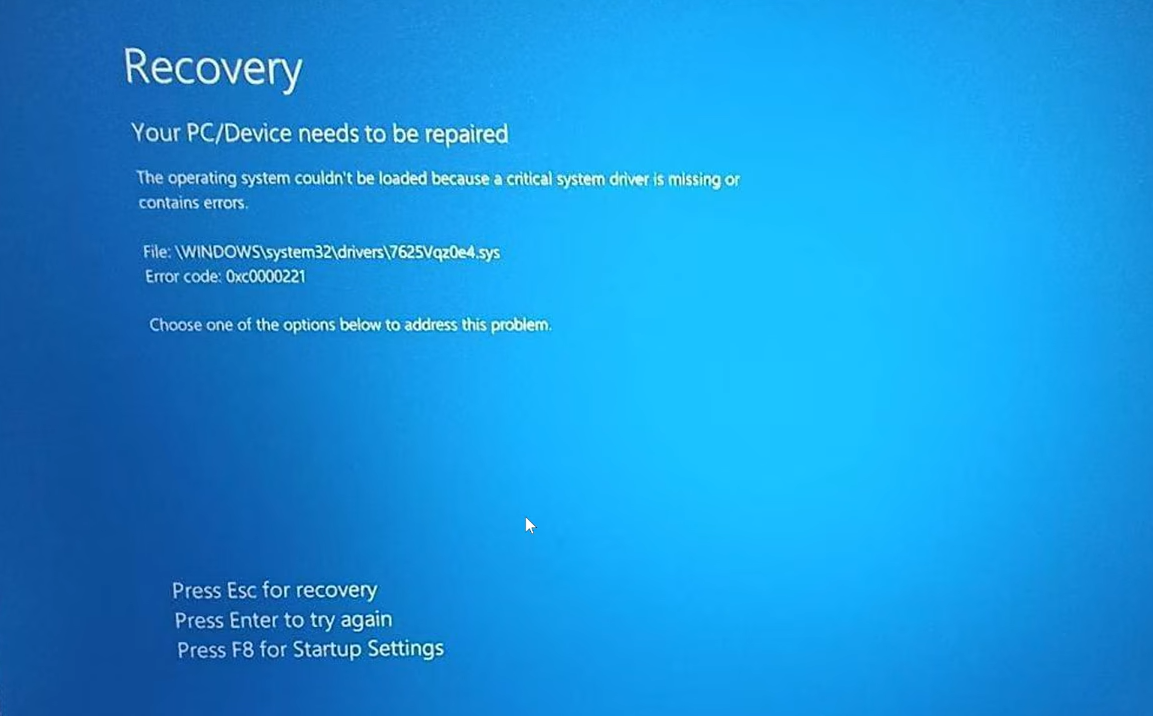
What KB5083769 is and who is affected
KB5083769 is the April 14, 2026, Patch Tuesday release for Windows 11 version 25H2 and 24H2. It ships as the month’s standard security rollup, not an optional preview, so most eligible Windows 11 systems are being offered it automatically. The official update page lists the builds as 26200.8246 and 26100.8246.
The failure does not appear to hit every machine. Reports cluster around prebuilt HP and Dell desktops, but a common thread running through user accounts is the NVIDIA GTX 1080 Ti. One user on an Intel i7-8700K with an ASUS ROG STRIX Z370-E and a 1080 Ti described the same sequence of symptoms as an HP Pavilion owner running a Ryzen 5 2600 and a 1080 Ti. That pattern points more toward a graphics driver or boot-path interaction with older hardware than to any one OEM at fault.
There is also a separate, confirmed issue with the same update that wrongly triggers BitLocker recovery prompts. That one only affects systems meeting a specific Group Policy and Secure Boot configuration, and it is distinct from the boot loop symptom described above.
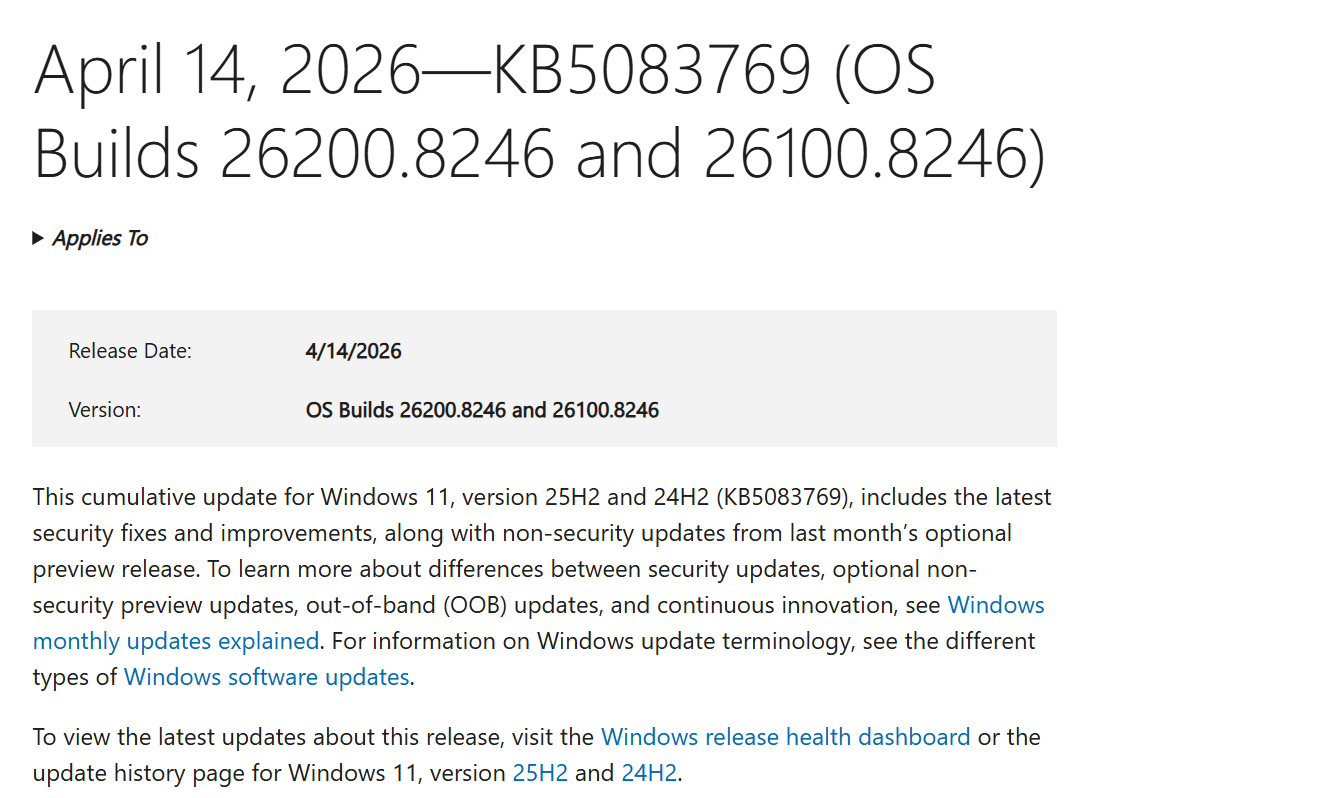
The symptoms to look for
The reported failure has a recognizable shape. It does not look like a normal update install error, and it does not produce a clean error code that you can search for directly.
| Stage | What you see |
|---|---|
| Initial reboot | Update appears to install, then reboots to finalize |
| Post-install boot | Mosaic of distorted or pixelated graphics on screen |
| Crash | Blue screen stating Windows needs to be recovered |
| Recovery attempt | “Attempting to repair” message, followed by another pixelated crash |
| Loop | Cycle repeats instead of returning to the desktop |
Some users report the update install itself failing at around 30 percent, after which Windows rolls back to the prior state and tries to offer the same update again. Others get the update fully applied, at which point the boot loop kicks in on the next restart.
How to recover a stuck PC
The goal is to reach the Windows Recovery Environment (WinRE), remove the update, and then block it from reinstalling until a fix is available. If the machine is looping through “Preparing Automatic Repair” on its own, you may already land in WinRE without doing anything. If not, you need to force it.
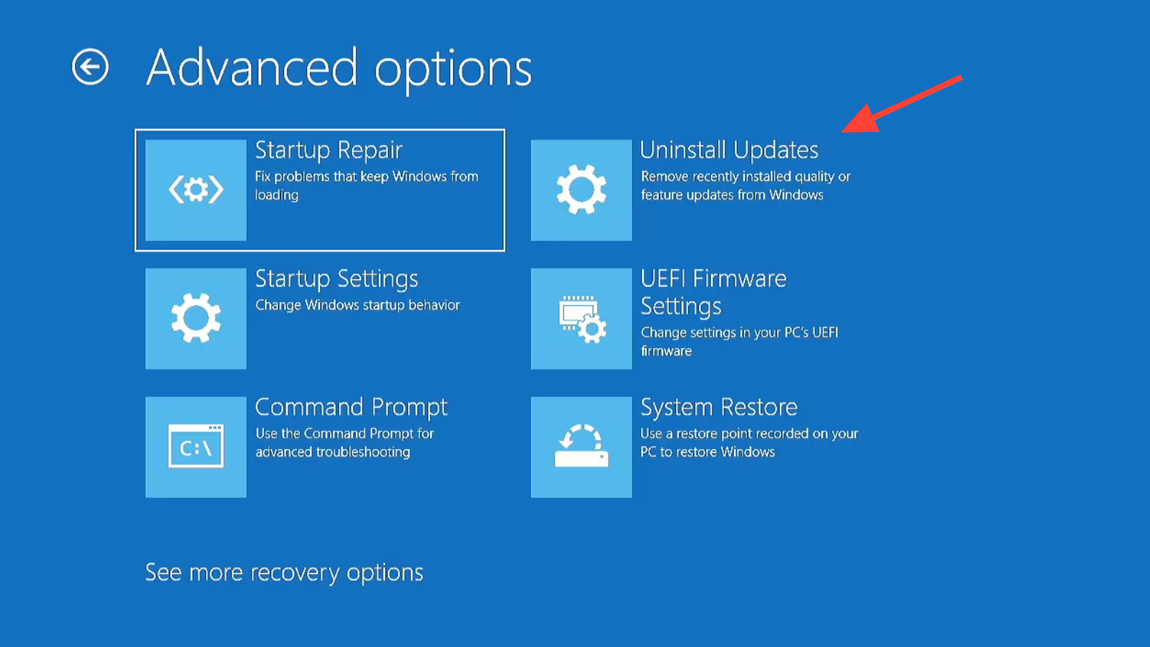
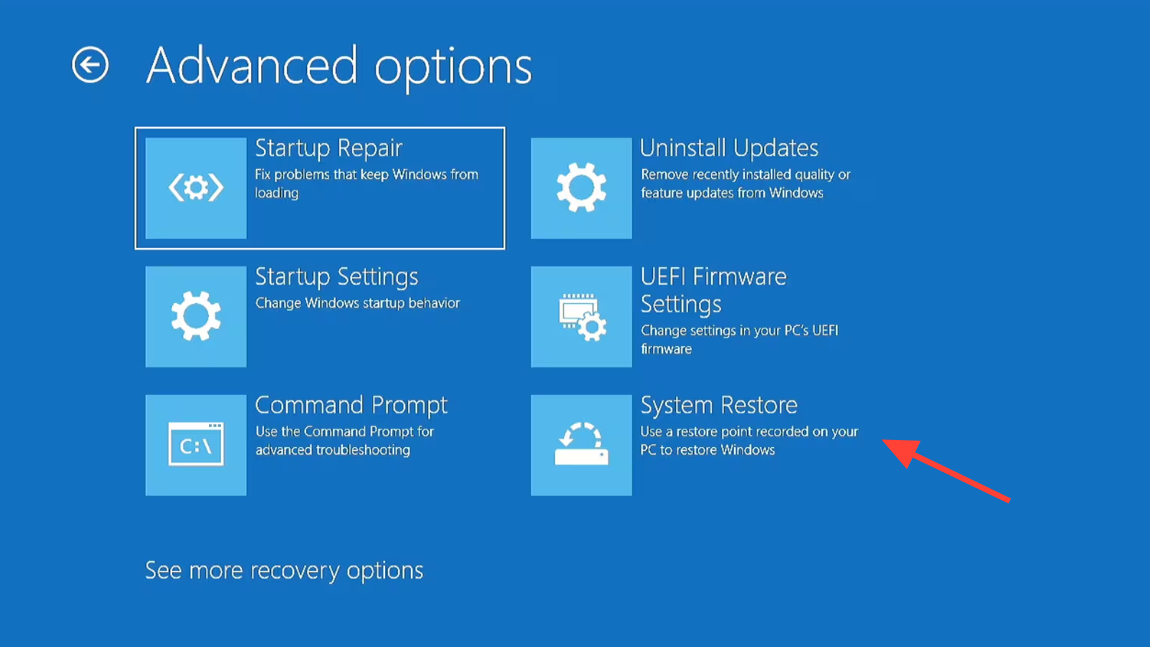
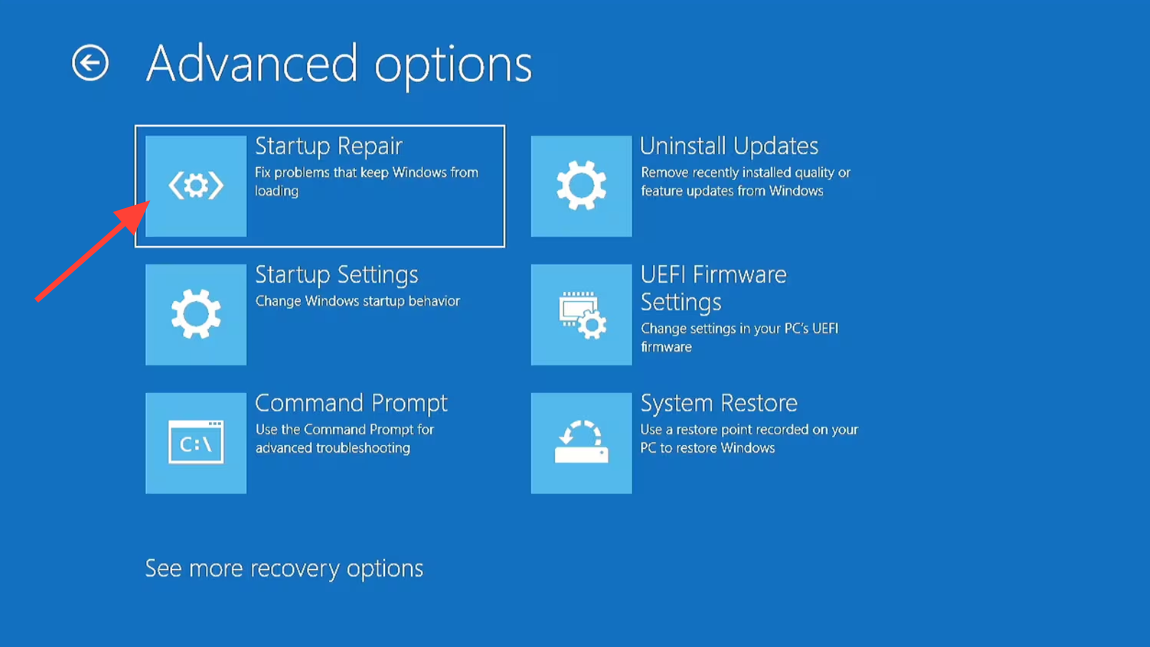
You will know it worked when the PC boots all the way to the sign-in screen without the pixelated artifacts and without the blue recovery prompt appearing mid-boot.
Stopping the update from reinstalling
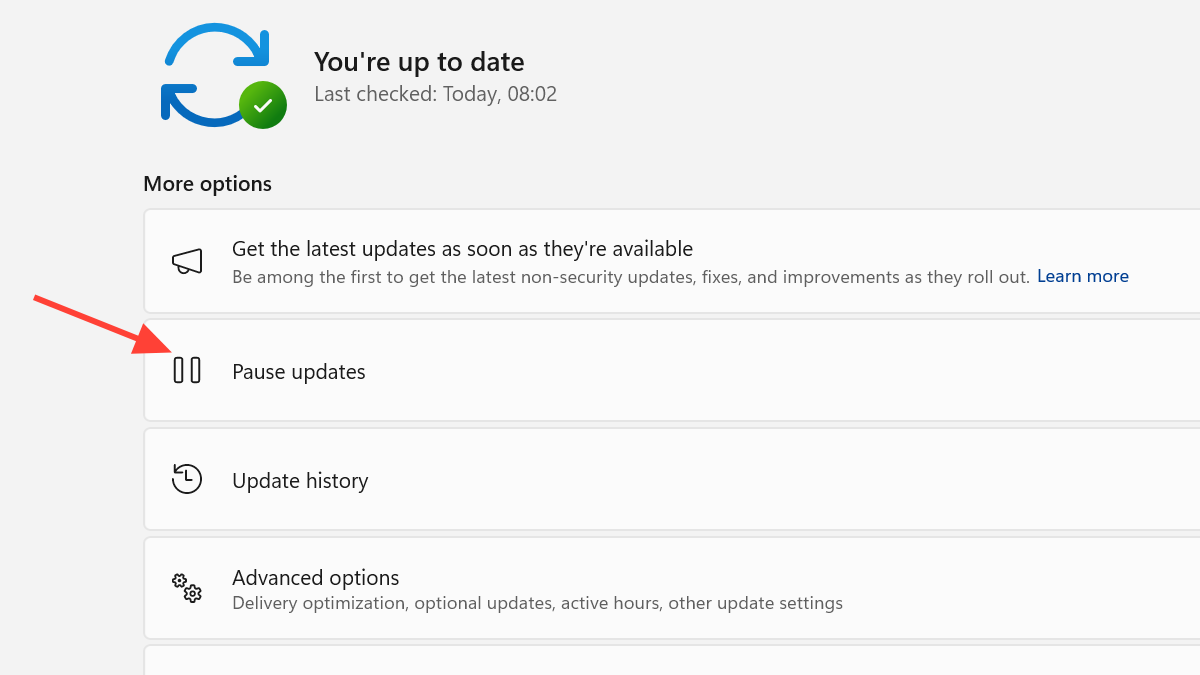
Several users have reported that after uninstalling KB5083769, Windows Update immediately tries to reinstall it, and in some cases, the update history shows it as already installed again within the same day. Pausing updates is currently the only reliable way to hold it off.
Open Settings > Windows Update and choose Pause updates for the longest available window, typically five weeks. The wushowhide.diagcab tool and DISM-based blocking have both been reported as ineffective against this specific update on some systems, so do not rely on them as a substitute.
The separate BitLocker issue on the same update
Microsoft has acknowledged that KB5083769, along with KB5082052 for Windows 11 23H2 and equivalent updates for Windows 10 and Windows Server 2022 and 2025, can wrongly force a BitLocker recovery key prompt at boot. This is a different failure mode from the pixelated boot loop and has a defined trigger.
A device is affected only if all of these are true:
- BitLocker is enabled on the OS drive.
- The Group Policy “Configure TPM platform validation profile for native UEFI firmware configurations” is configured with PCR7 in the validation profile.
- msinfo32 reports Secure Boot State PCR7 Binding as “Not Possible”.
- The Windows UEFI CA 2023 certificate is present in the Secure Boot Signature Database.
- The device is not already running the 2023-signed Windows Boot Manager.
The recovery key prompt only appears once, and the recommended workaround is to set that Group Policy to Not Configured before installing the update, then suspend and resume BitLocker with manage-bde -protectors -disable C: followed by manage-bde -protectors -enable C: to rebind the protectors. If BitLocker is not enabled on your OS drive, you are not exposed to this particular issue.
Why this kind of bug is hard to escape
A post-login crash can be worked around by booting into safe mode or rolling back a driver. A failure that happens before the desktop loads is harder to fix because the tools you would normally use to fix it are not reachable. When automatic repair itself triggers the same crash, the machine gets trapped: every attempt to diagnose the problem reproduces it.
That is why the recovery path for this update leans so heavily on forcing WinRE through repeated hard shutdowns or booting from external installation media. Neither is elegant, but both are currently the most reliable way to get an affected system back to a state where you can uninstall the update and pause further installs until Microsoft pushes a corrected build.



