007 First Light landed on PC, PS5, and Xbox Series X|S on May 27, 2026, and a chunk of early players are hitting the same wall: the game won’t launch, crashes at the title screen, or hangs when starting a new mission. The dominant cause on PC is straightforward — Windows is handing the game to an integrated GPU instead of the dedicated one, and IO Interactive’s engine doesn’t tolerate that gracefully.
Why 007 First Light crashes at launch on PC
Most reports trace back to four causes, and they stack. The game silently picks the integrated GPU on laptops and some desktops, ignoring the discrete card entirely. Beyond that, outdated drivers, corrupted Steam files, and missing Visual C++ or DirectX runtimes account for the remaining failure modes.
A smaller cluster of crashes ties to Resizable BAR (ReBar) being enabled in BIOS, and a separate batch of in-gameplay stutters comes from NVIDIA’s frame generation override behaving oddly with the game’s own DLSS settings.
Force the dedicated GPU through Windows Graphics Settings
This is the fix that’s resolved the most launch-day crashes. Windows defaults the executable to “Let Windows decide,” and on systems with both integrated and discrete graphics, that decision is often wrong.
\007 First Light\Retail. Keep this window open so you can copy the path.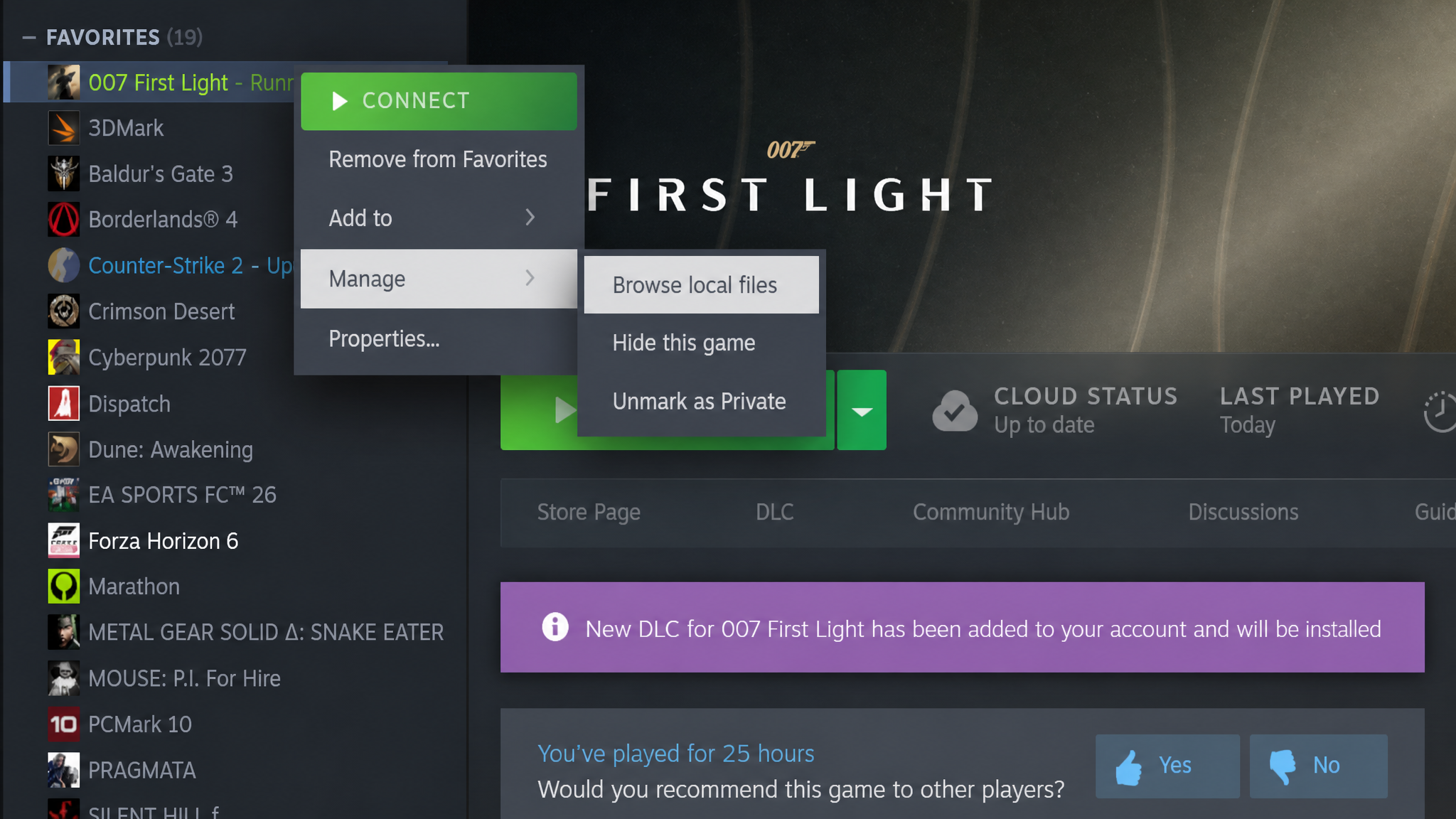
Graphics Settings into the Windows search bar and open the result. You can also reach it through Settings → System → Display → Graphics.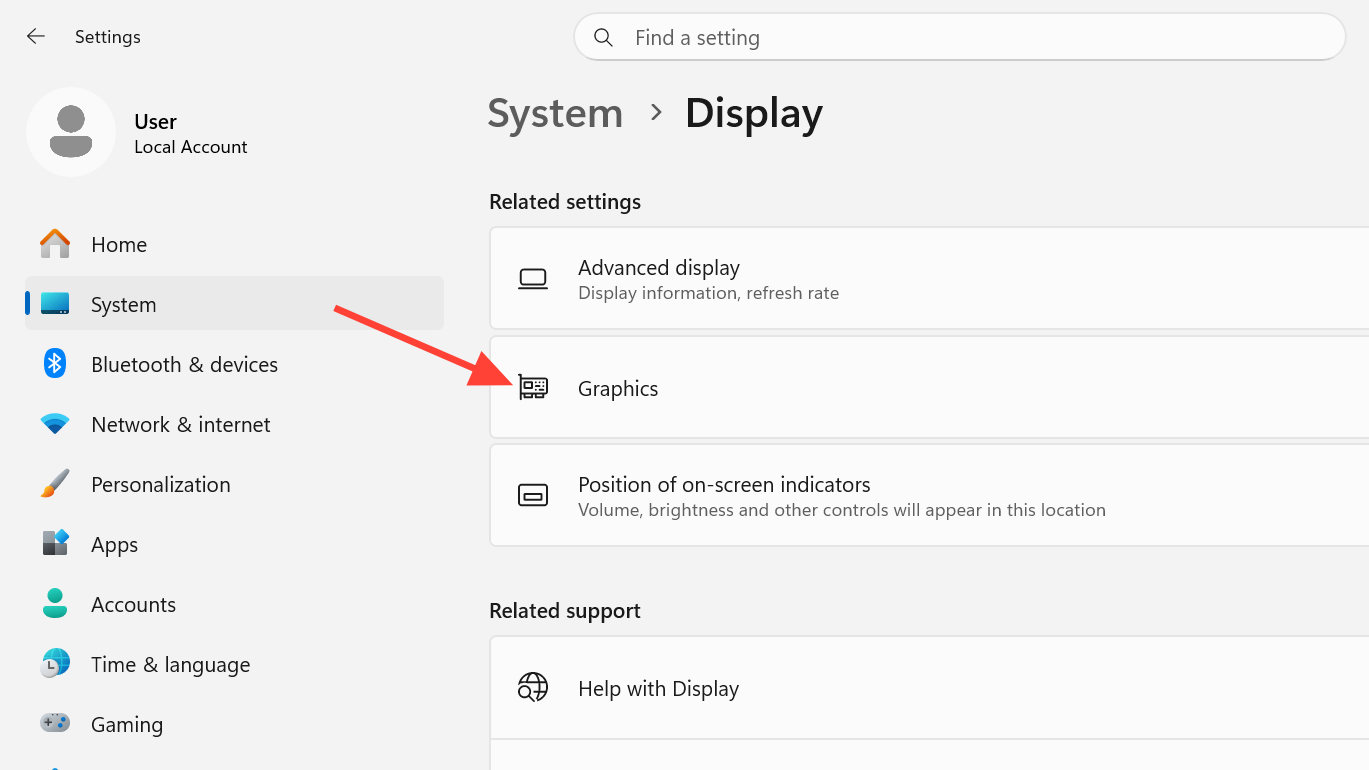
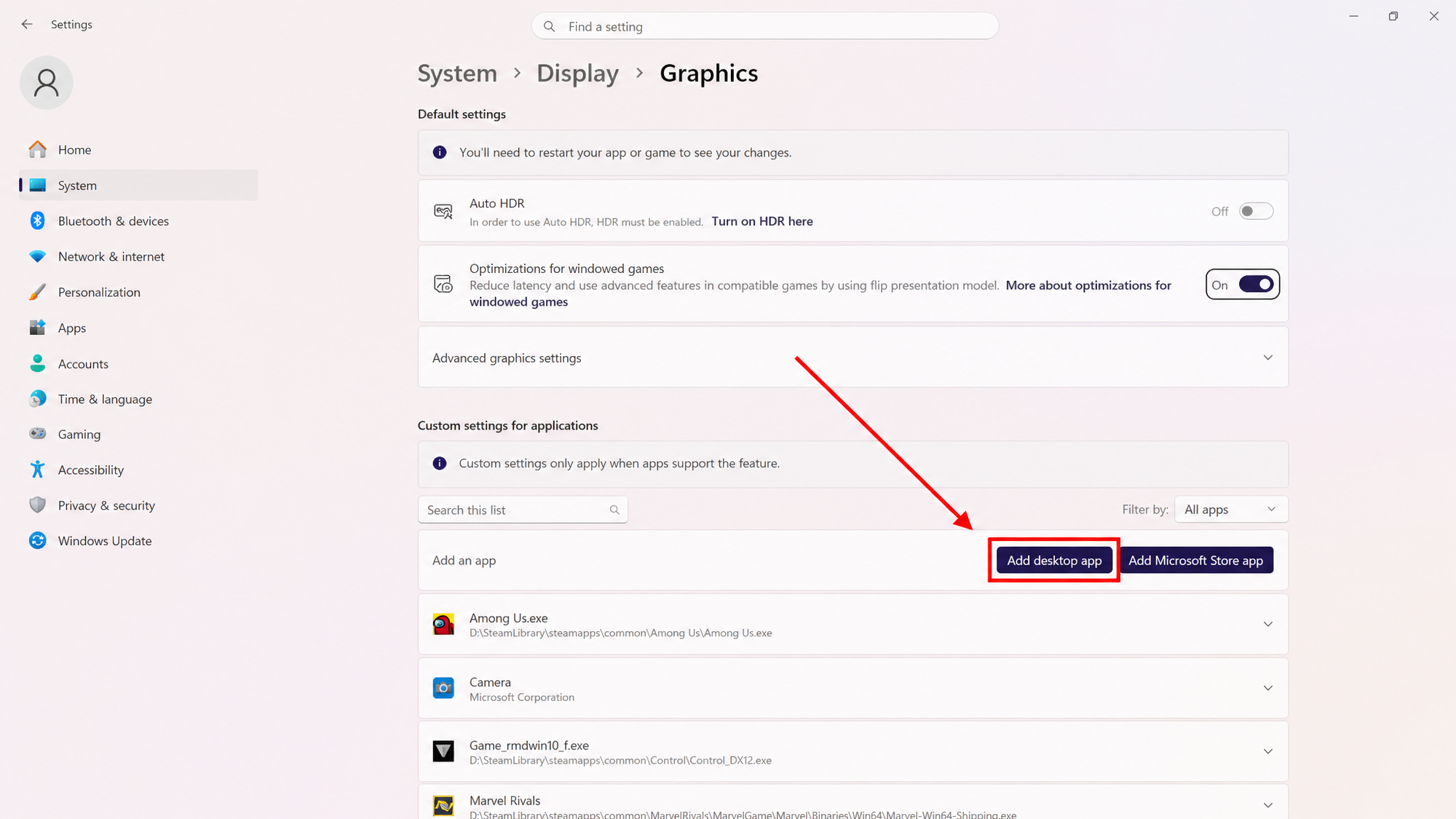
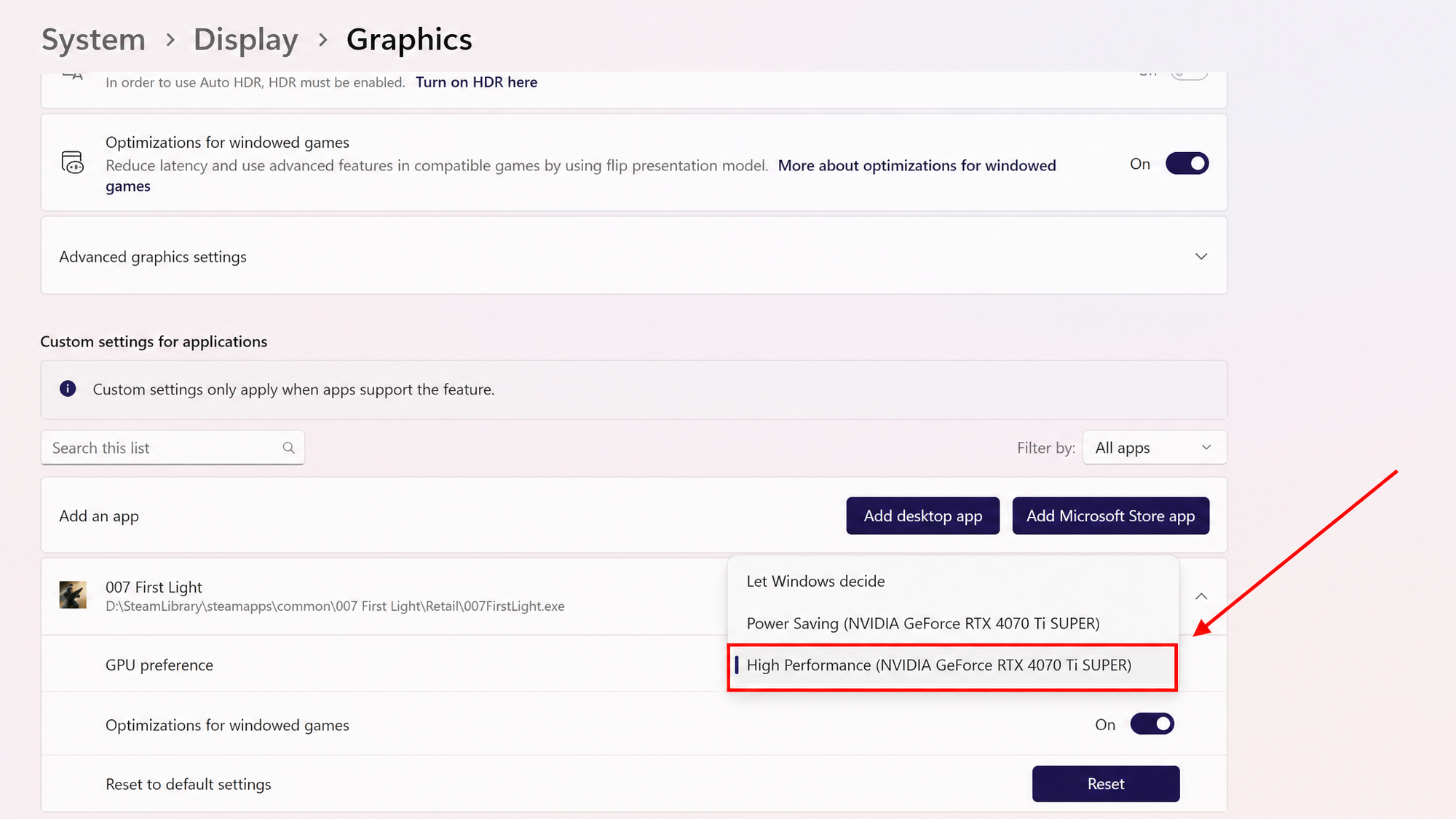
You’ll know it worked when the game reaches the IO Interactive splash without closing, and the in-game settings menu shows your discrete GPU under graphics options.
Disable the integrated GPU if Windows still ignores the preference
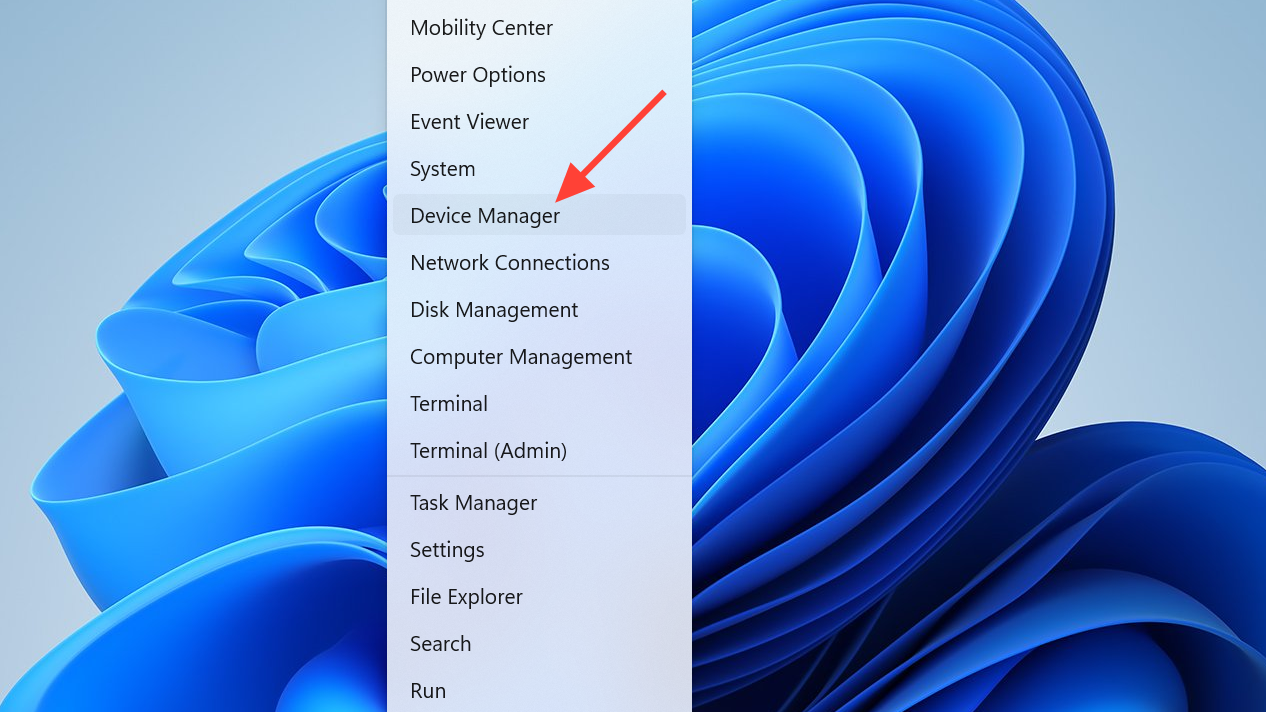
If Windows keeps falling back to integrated graphics even after the preference is set, disable the iGPU outright. The game will then have only one option.
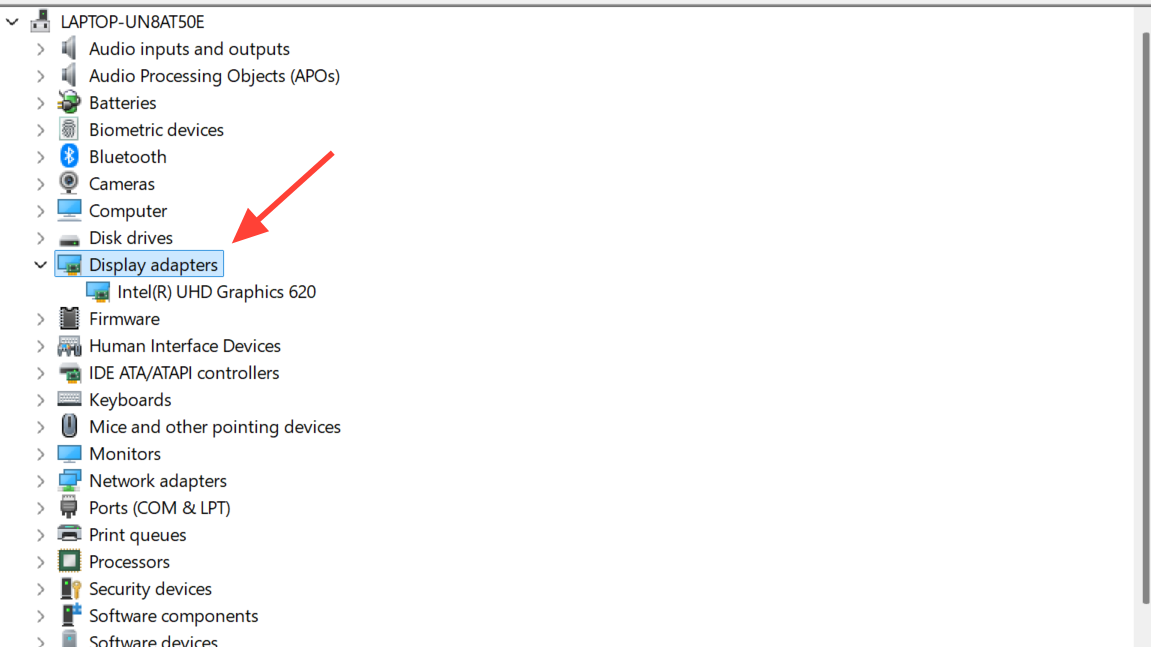
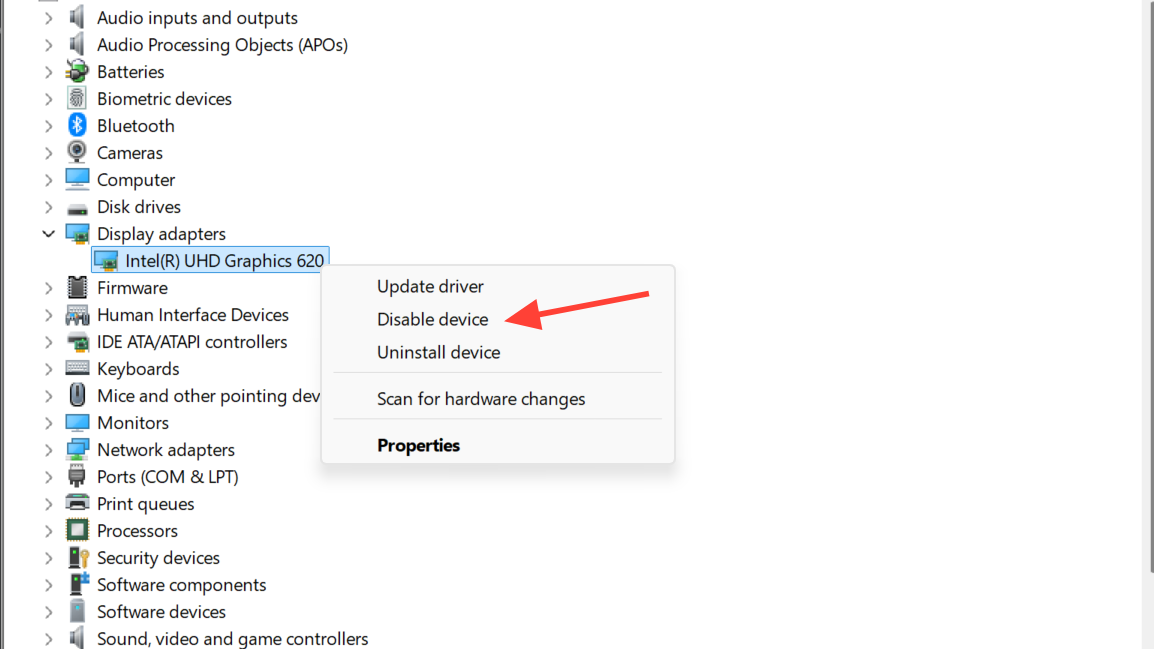
Update to the game-ready GPU driver
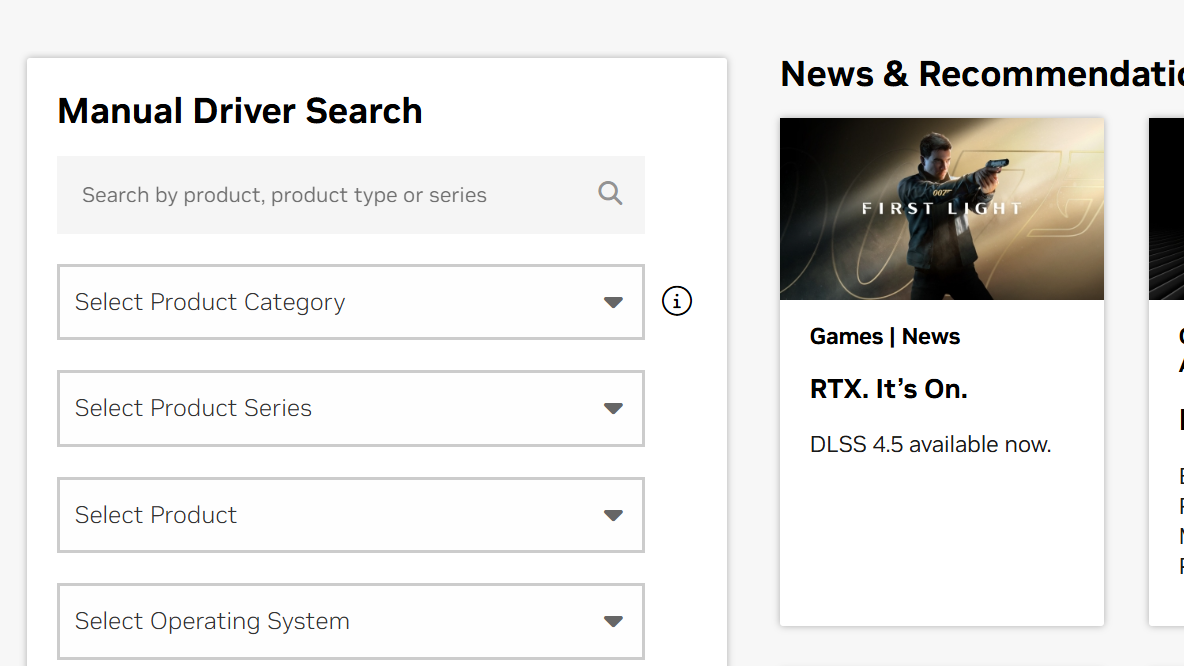
Both NVIDIA and AMD shipped drivers specifically tuned for 007 First Light around launch. Running anything older is asking for trouble with a Denuvo-protected, ray-tracing-enabled title.
Pull the latest directly from your vendor:
After installing, reboot. A clean reboot, not just signing out, clears the old driver state.
Verify game files through Steam
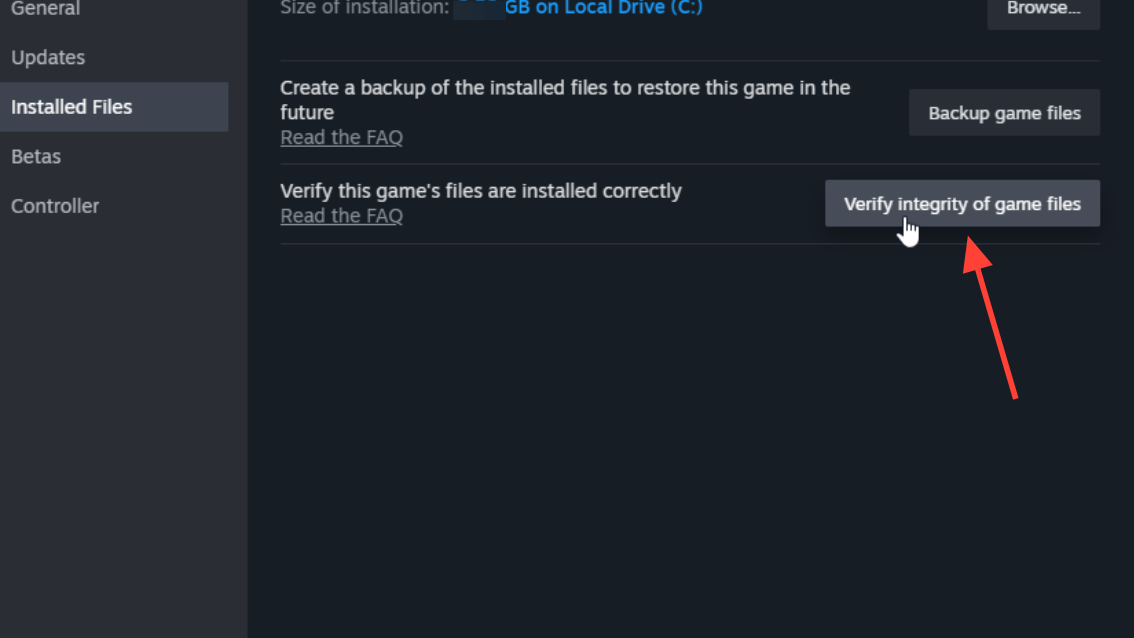
Interrupted downloads or partially applied day-one patches leave behind corrupted shaders or executable chunks. Steam’s verification rebuilds the bad files.
Install Visual C++ and DirectX runtimes
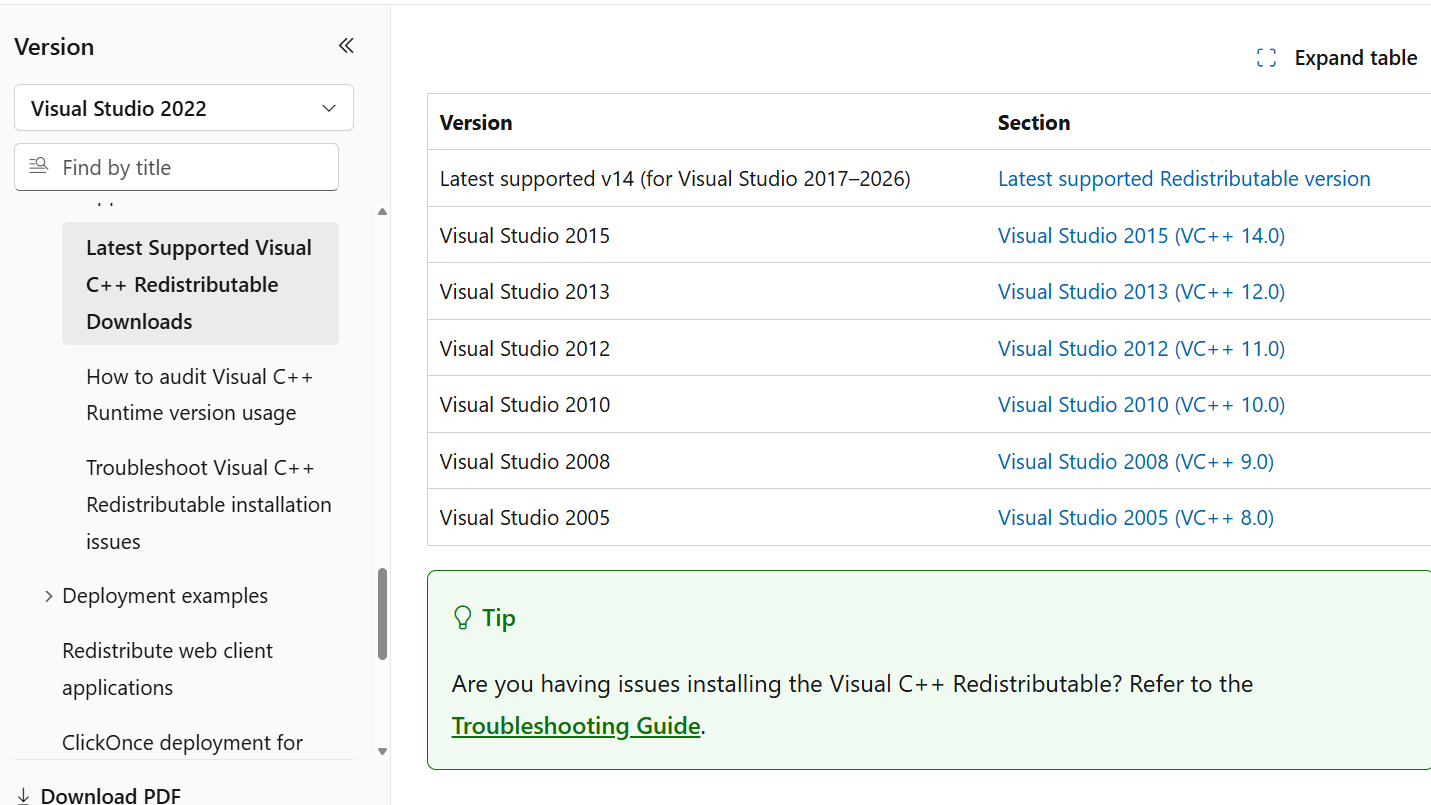
Steam normally installs these dependencies during setup, but permission issues or a stalled install can skip them. Pull them manually from Microsoft.
Grab the latest Visual C++ Redistributable for x64, then the DirectX End-User Runtime Web Installer. Run both, reboot, and try the game again.
Kill leftover game processes before relaunching
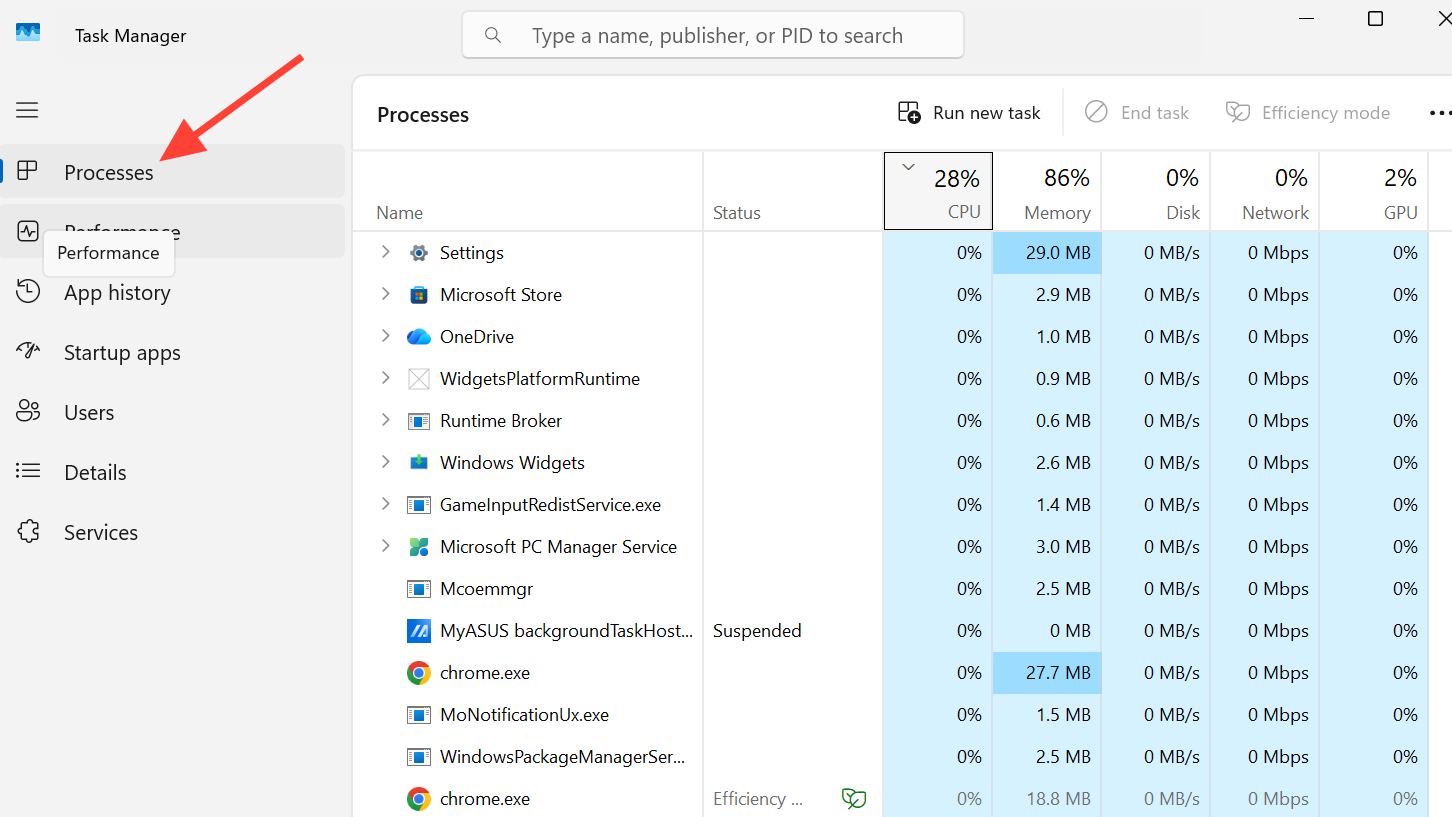
After a crash, the 007 First Light executable can stick around in memory. Steam thinks the game is still running and refuses to launch it again — or worse, the new instance fights the old one and crashes immediately.
Open Task Manager with Ctrl + Shift + Esc, scroll the Processes tab for anything containing “007” or “First Light,” right-click, and choose End task. Then launch normally.
Disable Resizable BAR if crashes persist
ReBar improves performance in most modern titles, but a handful of games crash with it enabled. If you’ve worked through every other fix and the game still won’t stay open, toggle ReBar off in BIOS as a diagnostic step.
The exact menu varies by motherboard — look under PCIe configuration or Advanced settings for “Re-Size BAR Support” or “Above 4G Decoding.” Disable it, save, boot, and test. If ReBar wasn’t the issue, turn it back on; you don’t want to lose its benefits in other titles.
Other PC fixes worth trying in order
| Fix | When to try it |
|---|---|
| Close Discord, MSI Afterburner, RivaTuner, capture software | Crashes happen at launch or during cutscenes |
| Lower ray tracing, shadows, reflections; cap FPS | You reach the menu but crash during gameplay |
| Remove CPU, GPU, or RAM overclocks | Frequent freezes under load |
| Switch NVIDIA App “DLSS Override – Frame Generation Mode” to “Use 3D App Setting” | Stuttering with frame generation enabled |
| Add the game folder to antivirus exclusions | Crashes happen mid-load with no error message |
| Run the executable as administrator | Game launches then closes silently |
| Clean reinstall on SSD with plenty of free space | Verification keeps finding corrupted files |
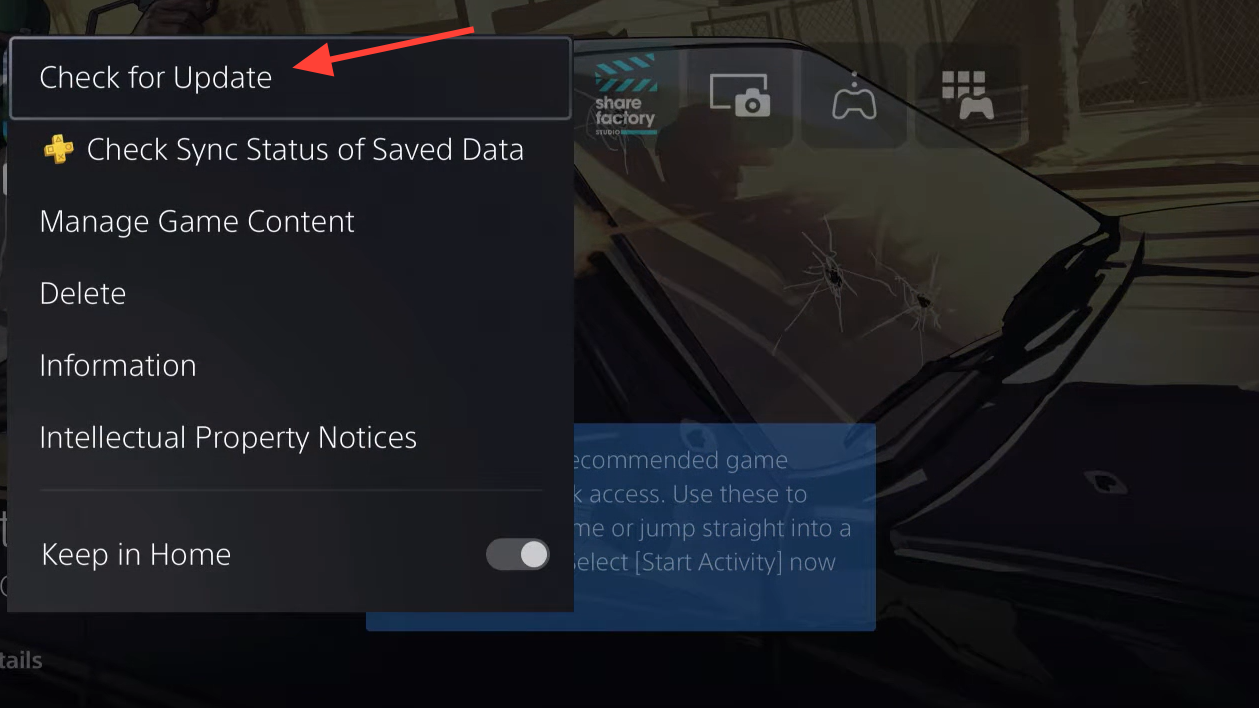
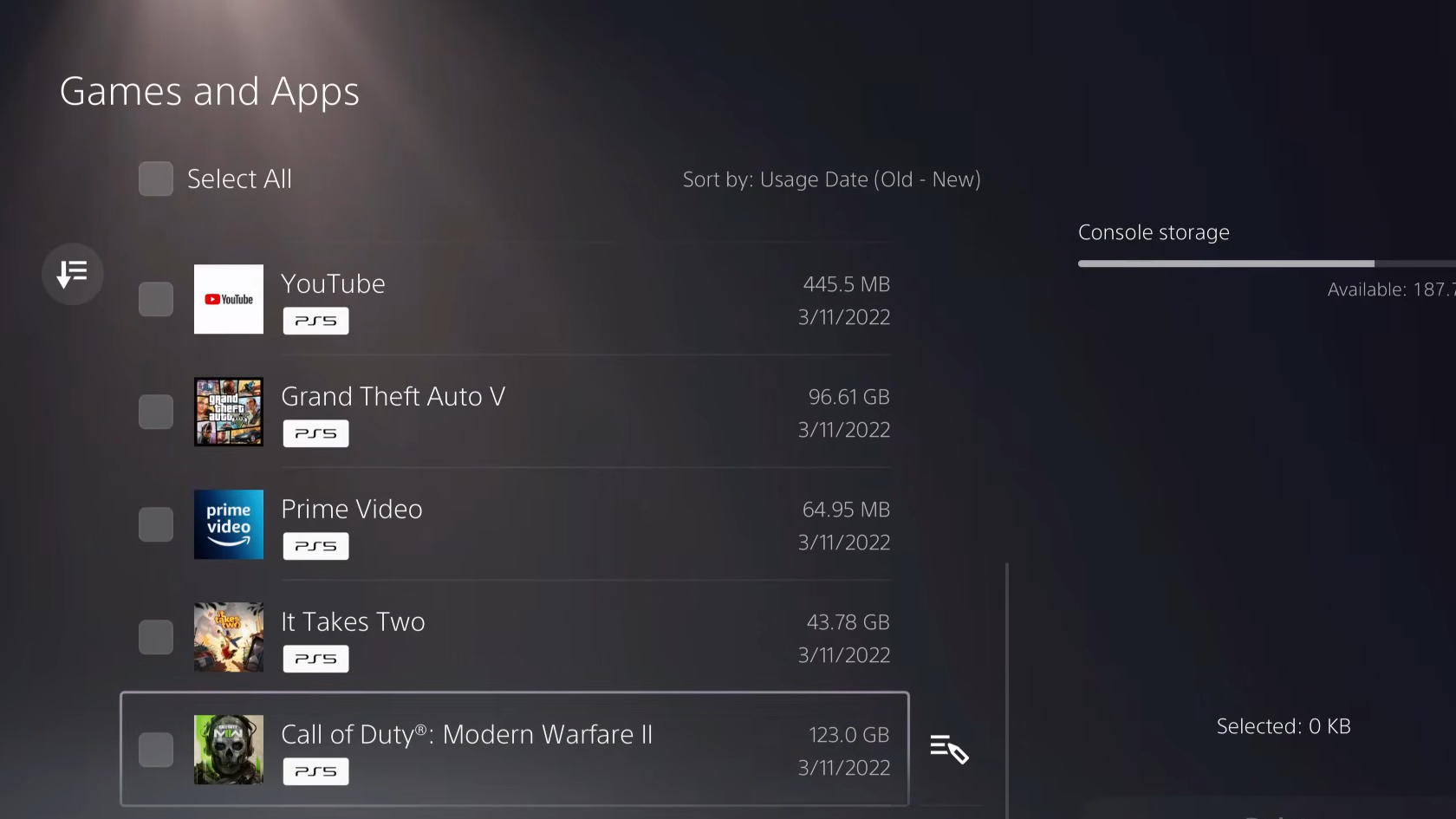
PS5 crashes and freezes
Console troubleshooting is shorter because there are fewer variables. Work through this order.
Xbox Series X|S crashes
The Xbox path mirrors PS5. Confirm the latest update has finished installing, then do a full power cycle by holding the Xbox button on the console for 10 seconds until it shuts off completely. Unplug for a minute, then boot.
If freezes continue at the same point, uninstall and reinstall the game to internal storage. External drives can introduce read-speed issues with a title this large.
When it’s not your setup
If the game still freezes at the same scene after a clean reinstall and a fully updated system on any platform, it’s a game-side bug. Ray Reconstruction and Path Tracing are intentionally absent at launch and will arrive in a later patch, so their omission isn’t a malfunction. IO Interactive’s support channel is the right escalation path for reproducible crashes that survive every fix above.