Adjusting the margins in Google Docs can greatly improve the appearance and readability of your documents. Margins create space between the content and the edges of the page, giving your text a clean and well-organized look.
Changing Margins in Google Docs
There are two primary methods to modify margins in Google Docs: using the Page Setup option in the File menu or adjusting them directly with the ruler tool.
Using the Page Setup Option
To change the margins through the Page Setup:
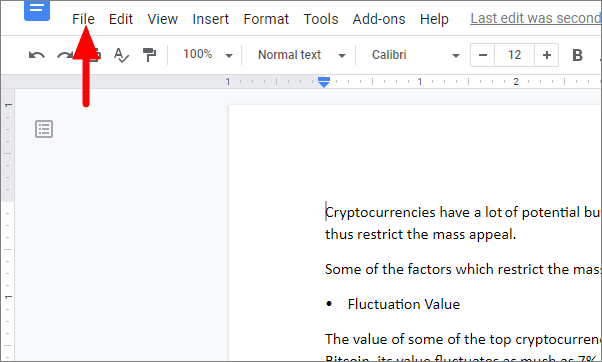
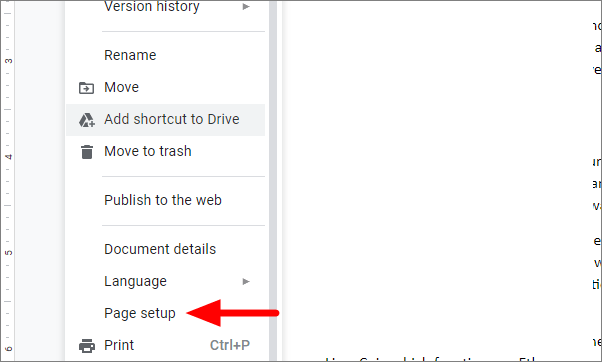
Page setup window, you can adjust the margins for the top, bottom, left, and right sides of the page by entering new values (in inches) into the respective fields.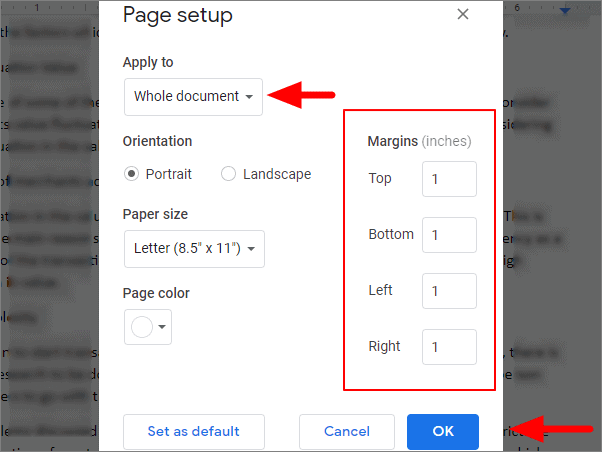
Page setup window. At the bottom of the window, under Apply to, choose Selected content. Otherwise, the changes will apply to the whole document.Additionally, in the Page setup window, you can modify other settings such as page orientation, paper size, and page color.
Adjusting Margins with the Ruler
The ruler tool allows you to quickly modify the margins by dragging them to the desired position.
View in the menu bar and ensure that Show ruler is checked.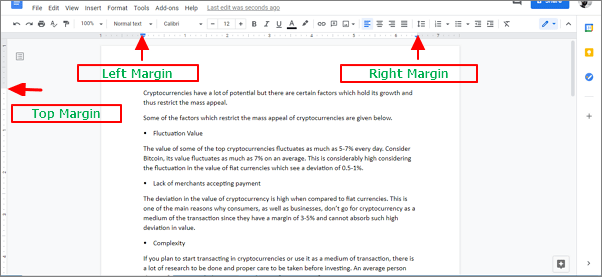
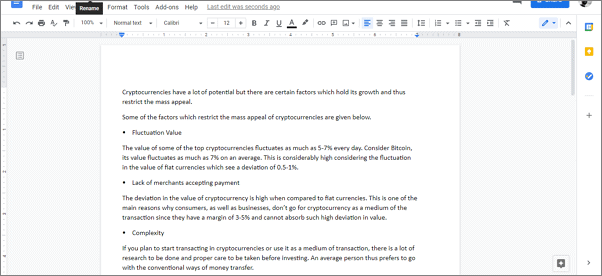
Using the ruler provides a quick way to make adjustments, but it might be less precise than entering exact measurements in the Page setup window.
By customizing the margins in your Google Docs, you can enhance the overall presentation of your document, ensuring it meets specific formatting requirements or personal preferences.