Easily add a text box in Google Docs using either drawing tools or a cell table using these simple steps.
Easily add a text box in Google Docs using either drawing tools or a cell table using these simple steps.
by Kazim Ali Alvi
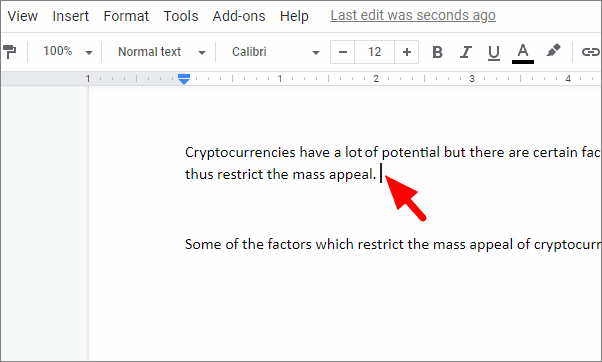
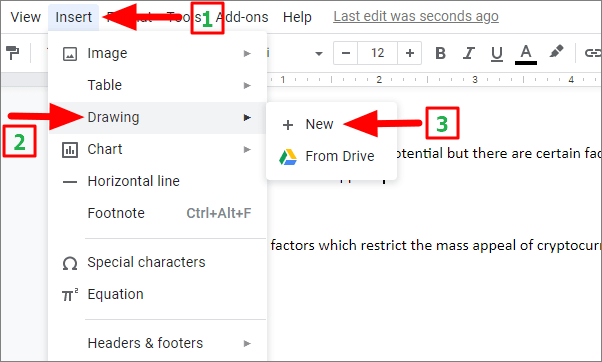
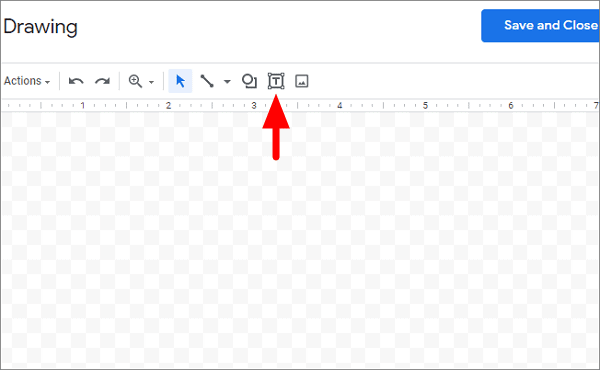
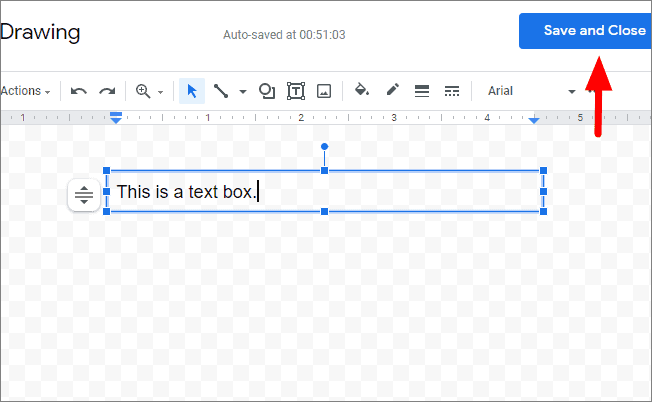
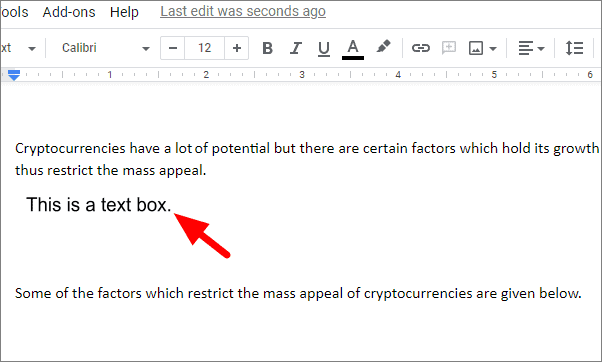
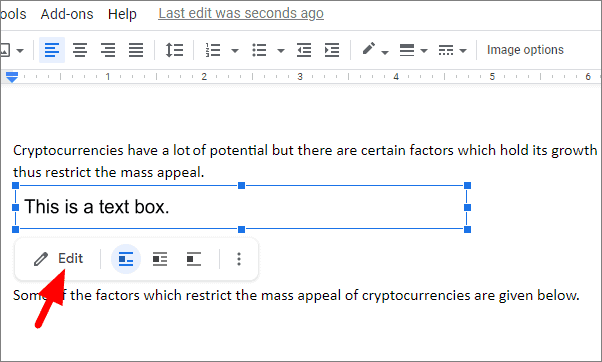
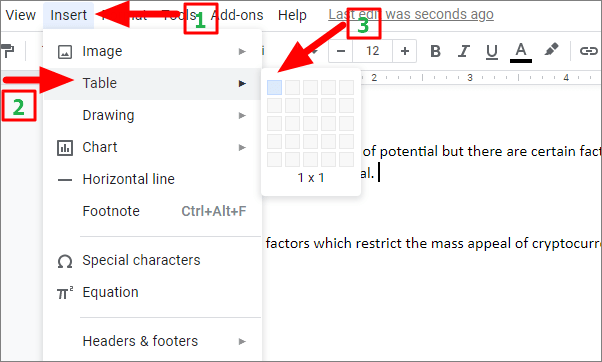
Adding a text box in Google Docs enhances your document’s visual appeal and allows you to highlight or organize specific information effectively. Although Google Docs doesn’t have a direct ‘Insert Text Box’ feature like some other word processors, there are several methods you can use to insert text boxes, giving you flexibility in arranging content within your document.
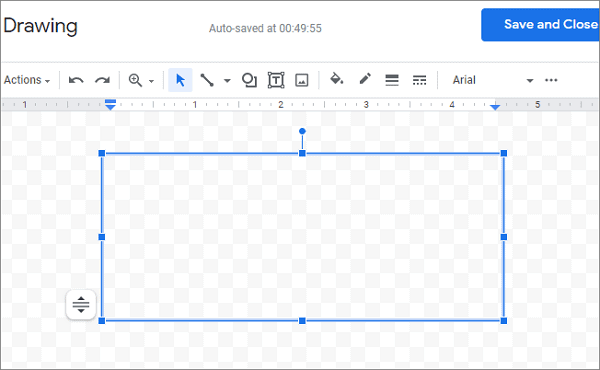
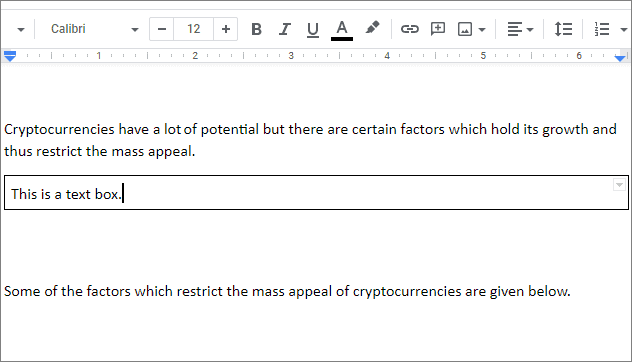
Adjust the size of the text box by clicking and dragging the edges of the table cell to resize it.
By using these methods, you can effectively insert and customize text boxes in Google Docs to organize your content and enhance the overall appearance of your documents.