Hell Let Loose: Vietnam rewards steady, deliberate input on keyboard and mouse. Fights stretch out at range and through thick jungle, so low sensitivity and a clean set of binds matter more than fast flicks. You can change every control from the in-game menu, and a handful of default keys are worth remapping before you deploy.
Quick answer: Press ESC in a match or the practice range, open OPTIONS, then use the KEYBINDINGS tab to rebind keys per role and the CONTROLS tab to set mouse sensitivity. Confirm with APPLY SETTINGS.
Where to change keybindings and mouse settings
All controls live in the Options menu. The fastest way to reach it without leaving a session is from the practice range, which lets you test changes immediately.
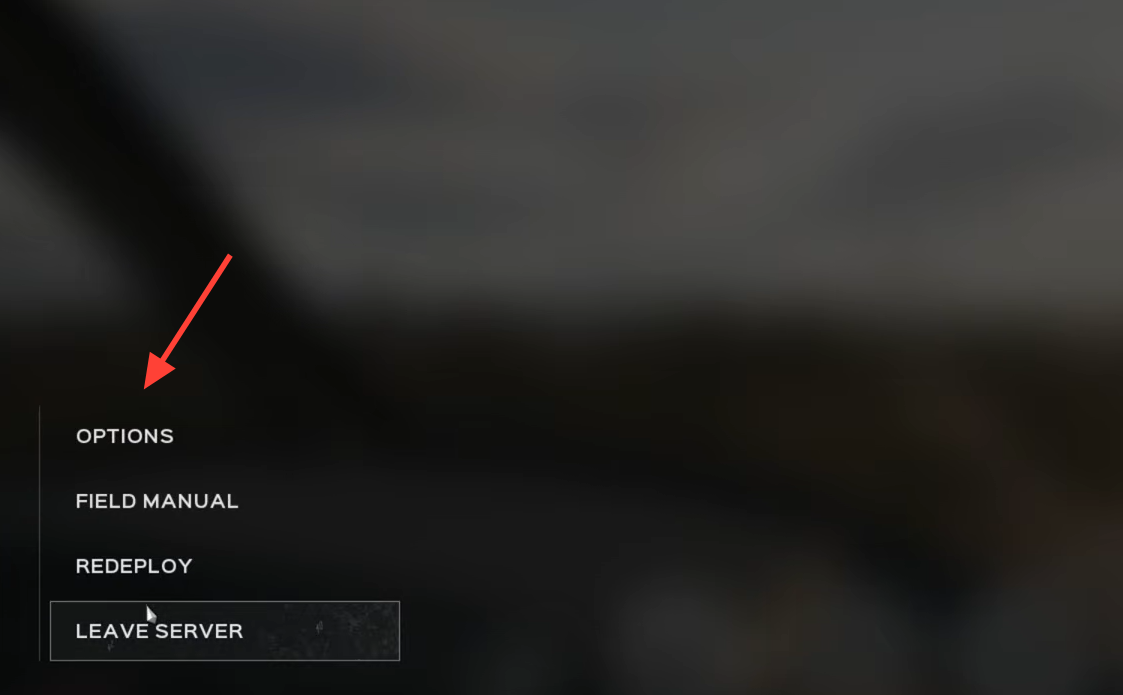
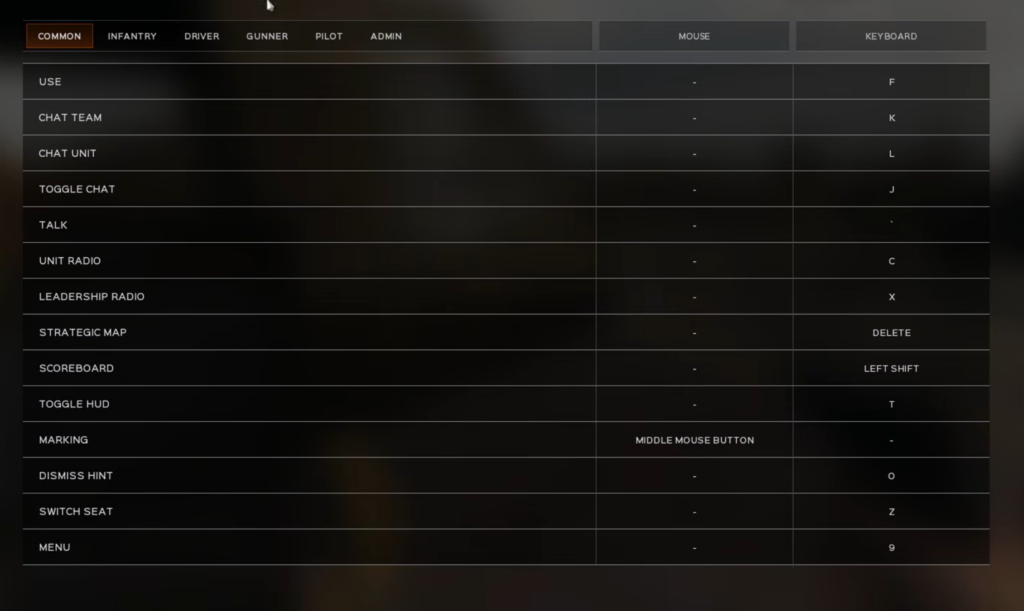
KEYBINDINGS tab. Binds are split by role, so use the sub-tabs to move between the common set, infantry, driver, gunner, and pilot layouts. Each action shows a separate mouse and keyboard binding.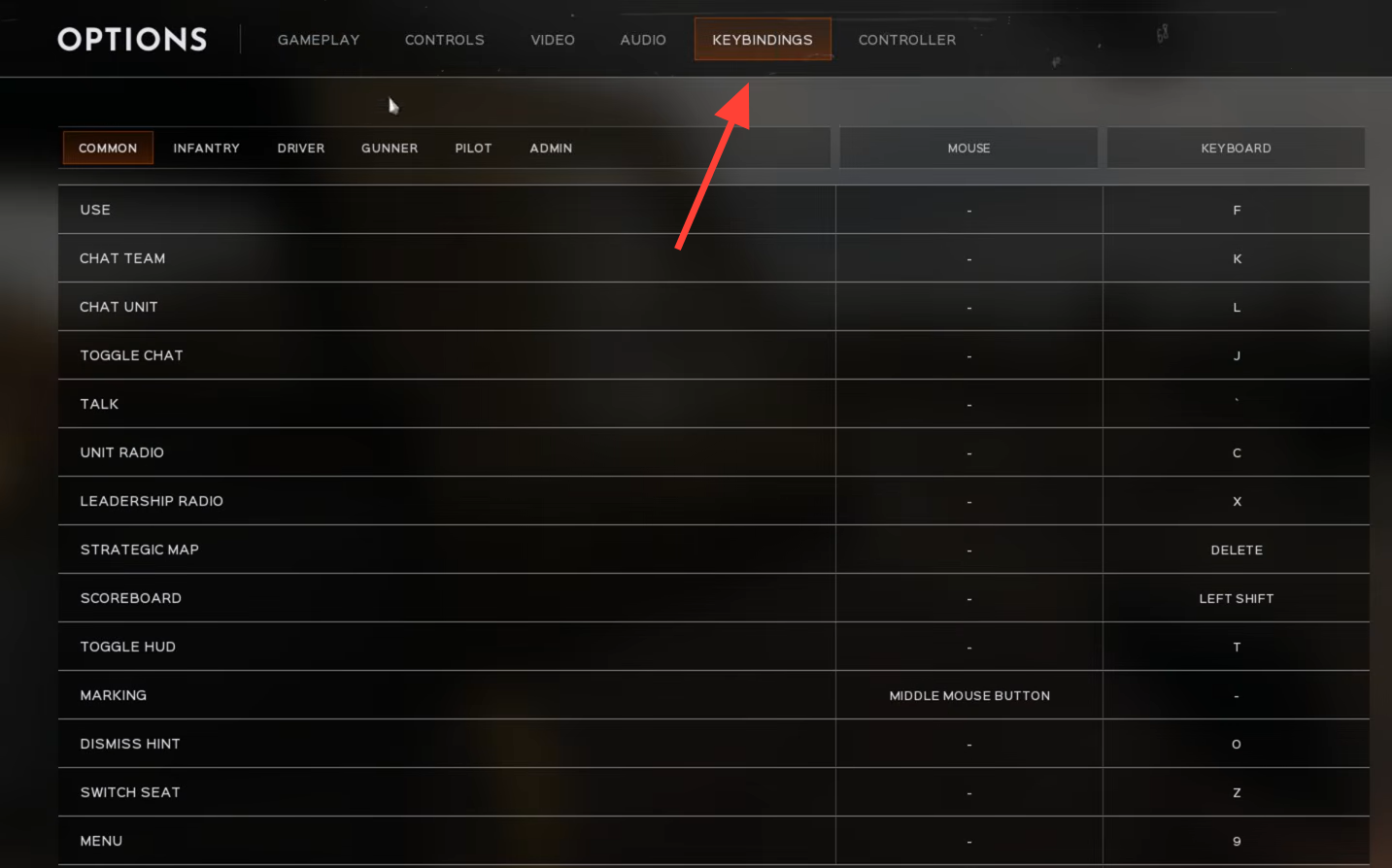
CONTROLS tab and scroll to the KEYBOARD & MOUSE section to set sensitivity and toggles. This is also where you enable CONTROL HELICOPTER WITH MOUSE.APPLY SETTINGS to save. Your changes take effect on the next respawn or when you enter the relevant vehicle seat.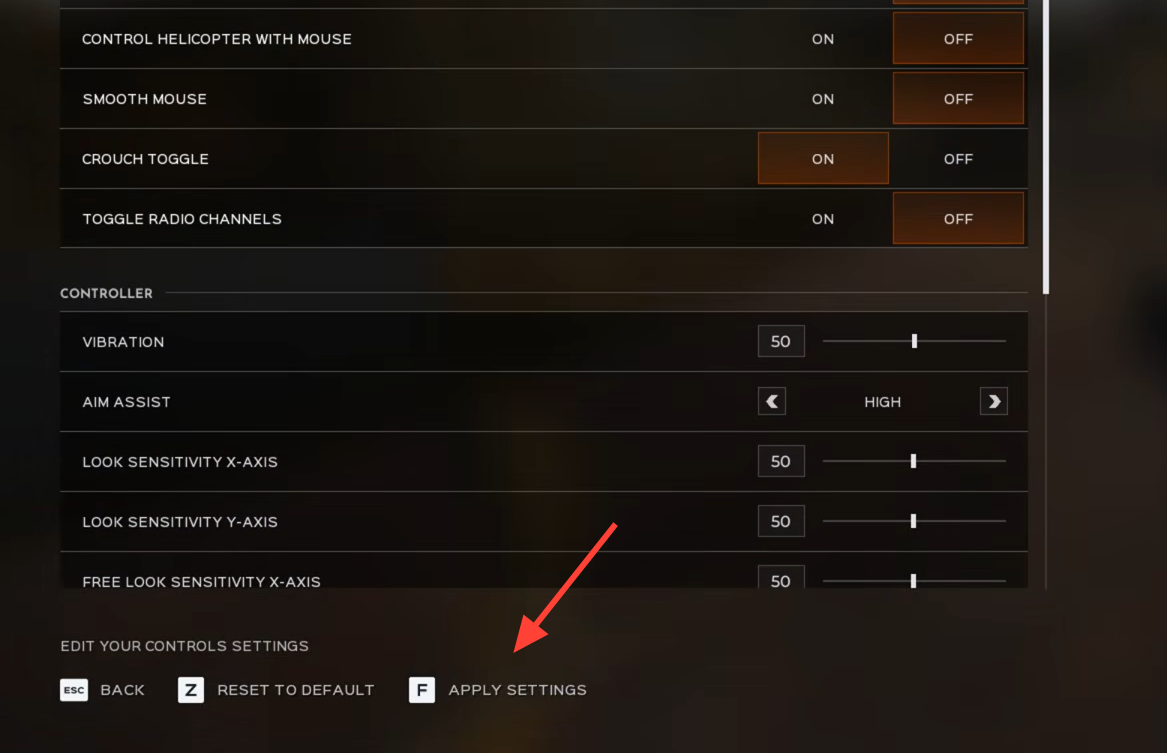
Recommended mouse sensitivity and toggles
Long-range engagements punish any twitchy movement. A low base sensitivity keeps your aim stable and lets you settle a shot through foliage without overcorrecting. Turning off smooth mouse removes input lag so your crosshair tracks exactly with your hand.
| Setting | Value |
|---|---|
| Look Sensitivity | 15 |
| Free Look Sensitivity | 20 |
| ADS Sensitivity | 10 |
| Scoped Sensitivity | 7 |
| Smooth Mouse | Off |
| Crouch Toggle | On |
Common keybindings
These binds apply across every role and cover communication, the map, and squad tools. Moving voice actions to spare mouse buttons frees your left hand to keep moving while you talk.
| Action | Default | Recommended |
|---|---|---|
| Use | F | Keep |
| Chat Team | K | Keep |
| Chat Unit | L | Keep |
| Toggle Chat | J | Keep |
| Talk | V | Mouse Button 4 or 5 |
| Unit Radio | C | Mouse Button 4 or 5 |
| Leadership Radio | X | Keep |
| Strategic Map | M | Keep |
| Scoreboard | Tab | Keep |
| Toggle HUD | T | Keep |
| Marking | Middle Mouse Button | Keep |
| Dismiss Hint | O | Keep |
| Switch Seat | Z | Keep |
| Menu | P | Keep |
Infantry keybindings
The infantry layout is where the most useful remaps live. Moving Crouch to C and Prone to X keeps both actions under easy reach and avoids conflicts with sprint on Left Shift. Binding the Equipment Wheel to a mouse button gives you fast access to gear that is unbound by default.
| Action | Default | Recommended |
|---|---|---|
| Move Forwards | W | Keep |
| Move Backwards | S | Keep |
| Move Left | A | Keep |
| Move Right | D | Keep |
| Jump/Vault | Space Bar | Keep |
| Crouch | Left Ctrl | C |
| Prone | Z | X |
| Sprint | Left Shift | Keep |
| Free Look | Left Alt | Keep |
| Lean Left | Q | Keep |
| Lean Right | E | Keep |
| Reload | R | Keep |
| Fire | Left Mouse Button | Keep |
| Aim | Right Mouse Button | Keep |
| Melee | B | Keep |
| Next Weapon | Mouse Wheel Down | Keep |
| Previous Weapon | Mouse Wheel Up | Keep |
| Inventory Slots 1-10 | 1-0 | Keep |
| Steady Aim | Left Shift | Caps Lock or Mouse Button 4 |
| Toggle Snapping | Left Shift | Keep |
| Equip Weapon Attachment | Caps Lock | F2 |
| Fire Mode | G | Keep |
| Rotate Structure Left | Q | Keep |
| Rotate Structure Right | E | Keep |
| Equipment Wheel | Unbound | Mouse Button 5 |
| Request Medic | Space Bar | Keep |
Moving Steady Aim off Left Shift matters because Sprint also sits there. Putting Steady Aim on Caps Lock or a spare mouse button lets you hold a scope steady without triggering a sprint.
Driver keybindings
Driving uses the standard WASD movement set with gears on Shift and Ctrl. The one change worth making is Smoke Screen, which sits on Space Bar by default and clashes with the handbrake. Moving it to F keeps both usable in a pinch.
| Action | Default | Recommended |
|---|---|---|
| Horn | Left Mouse Button | Keep |
| Start Engine | E | Keep |
| Accelerate | W | Keep |
| Brake/Reverse | S | Keep |
| Handbrake | Space Bar | Keep |
| Turn Left | A | Keep |
| Turn Right | D | Keep |
| Gear Up | Left Shift | Keep |
| Gear Down | Left Ctrl | Keep |
| Tank View Left | Left Mouse Button | Keep |
| Tank View Right | Right Mouse Button | Keep |
| Smoke Screen | Space Bar | F |
| Truck Supply Drop | R | Keep |
| Boat Supply Drop | R | Keep |
Gunner keybindings
Gunner controls handle elevation, traverse, and shell selection. Gunner Precision Aim defaults to Left Shift, which shares the sprint slot in other layouts, so shifting it to a mouse button keeps your muscle memory clean between roles.
| Action | Default | Recommended |
|---|---|---|
| Gunner Fire | Left Mouse Button | Keep |
| Gunner Alt Fire | Right Mouse Button | Keep |
| Gunner Elevate Up | W | Keep |
| Gunner Elevate Down | S | Keep |
| Gunner Traverse Left | A | Keep |
| Gunner Traverse Right | D | Keep |
| Gunner Shell 1 | 1 | Keep |
| Gunner Shell 2 | 2 | Keep |
| Gunner Shell 3 | 3 | Keep |
| Gunner Load | R | Keep |
| Gunner Precision Aim | Left Shift | Mouse Button 4 |
| Gunner Crouch | Left Ctrl | Keep |
| Tank Zoom In | Mouse Wheel Up | Keep |
| Tank Zoom Out | Mouse Wheel Down | Keep |
| Artillery Fire | Left Mouse Button | Keep |
Pilot keybindings and mouse flight control
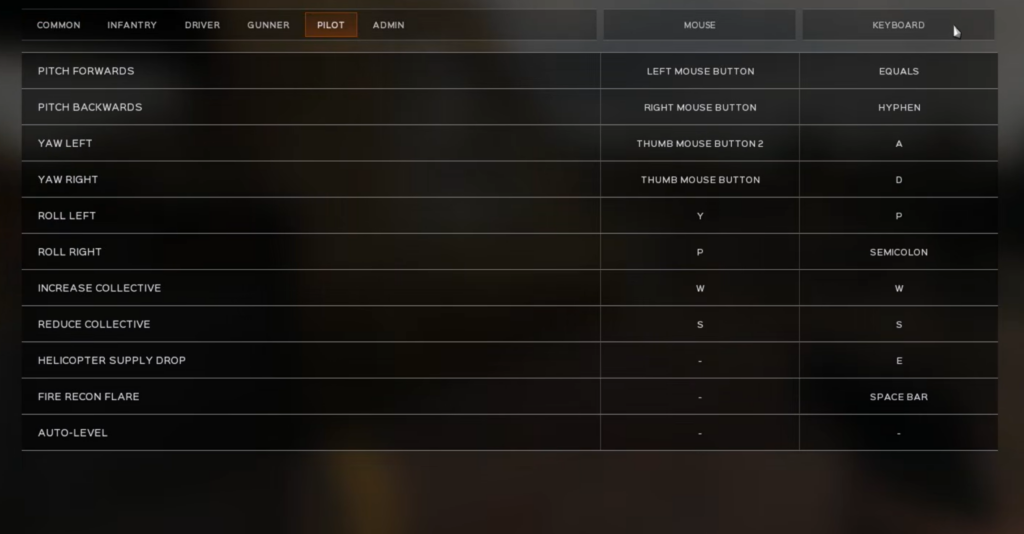
Helicopters map pitch and yaw to the mouse and use the keyboard for collective and roll. Before flying, open the CONTROLS tab and set CONTROL HELICOPTER WITH MOUSE to ON so the mouse handles pitch and roll directly.
With mouse control enabled, the inputs work like this. Pushing the mouse forward pitches the nose down and pulling it back pitches the nose up. Moving the mouse left rolls left and moving it right rolls right. Collective altitude runs on W to climb and S to descend, while yaw sits on A and D.
| Action | Default | Recommended |
|---|---|---|
| Pitch Forwards | W | Keep |
| Pitch Backwards | S | Keep |
| Yaw Left | Left Mouse Button | Keep |
| Yaw Right | Right Mouse Button | Keep |
| Roll Left | A | Keep |
| Roll Right | D | Keep |
| Increase Collective | Space Bar | Keep |
| Reduce Collective | Left Ctrl | Keep |
| Helicopter Supply Drop | E | Keep |
| Fire Recon Flare | Space Bar | F |
| Auto-Level | Left Shift | Keep |
To fly, walk up to the pilot side of the Huey until the vehicle prompt appears, then hold F to open the seat wheel and pick PILOT. Hold the engine start key to spin up the rotor before lifting off. Descend slowly on the collective, since dropping altitude too fast will damage or destroy the aircraft on touchdown.
Confirming your changes work
After you select APPLY SETTINGS, the new binds show next to each action in the Keybindings tab. To verify in play, load the practice range and test the exact keys you changed, since sensitivity and vehicle binds only apply once you spawn or enter a seat. If a key does nothing, reopen the correct role sub-tab and check for a duplicate bind, because two actions sharing the same key on a role is the usual reason a remap fails to fire.
Start with the sensitivity values and the infantry remaps, then adjust vehicle and pilot binds once you know which roles you play most. A clean layout that keeps sprint, crouch, and steady aim from overlapping will do more for your accuracy in the jungle than any single sensitivity tweak.