Virtual meetings can sometimes make it challenging for participants to interject without interrupting. Microsoft Teams offers a “Raise Hand” feature that allows you to signal your desire to speak without disrupting the flow of the meeting. Here’s how you can use this feature across different platforms.
Using the Raise Hand Feature on Desktop and Web App
Raise your hand button, which is represented by a hand icon. This action notifies everyone in the meeting, including presenters, that you wish to speak.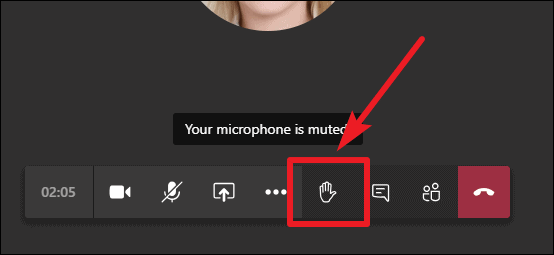
Using the Raise Hand Feature on Mobile App
More icon (three horizontal dots) located on the meeting controls toolbar.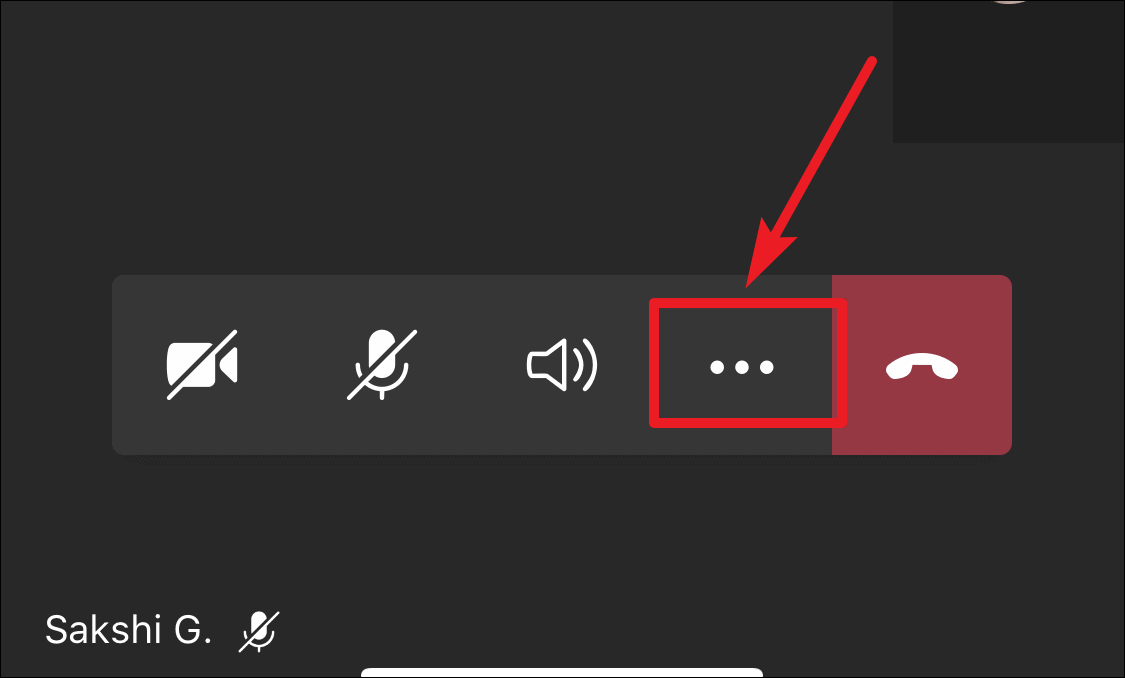
Raise my hand option. This will place a hand icon next to your name, indicating to all participants and presenters that you have raised your hand.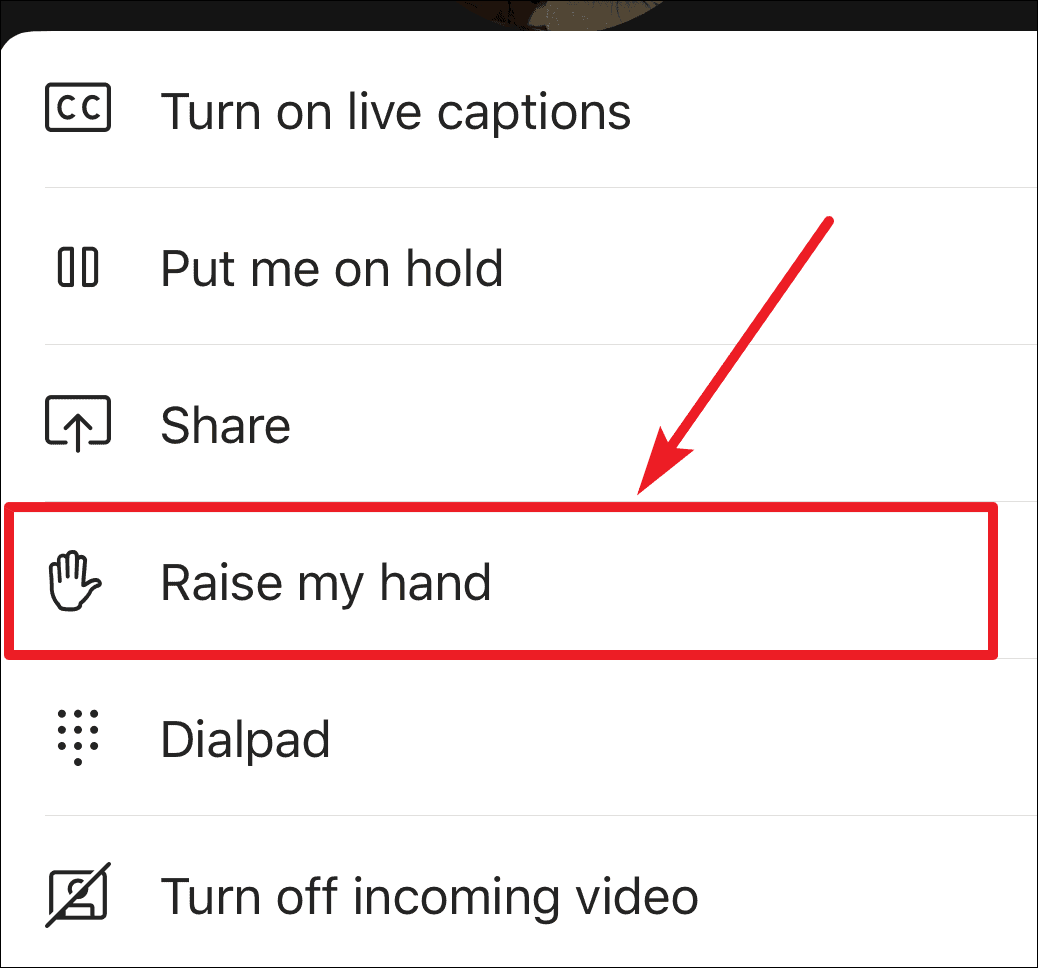
Viewing Who Has Raised Their Hand
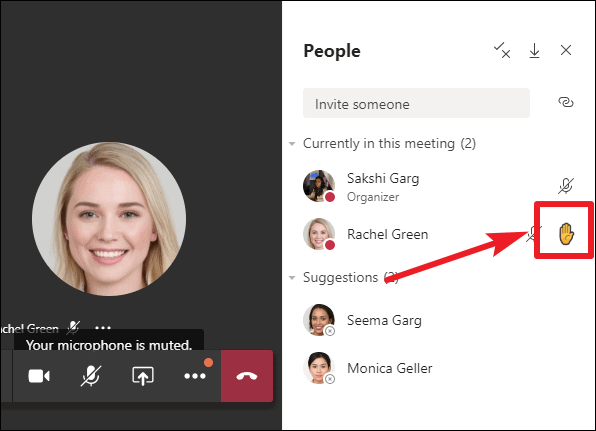
Participants icon on the meeting toolbar.Participants with raised hands will have a hand icon displayed next to their names. If multiple participants have raised their hands, they will appear in the order they raised them, ensuring a fair opportunity for everyone to speak.
Lowering Your Hand
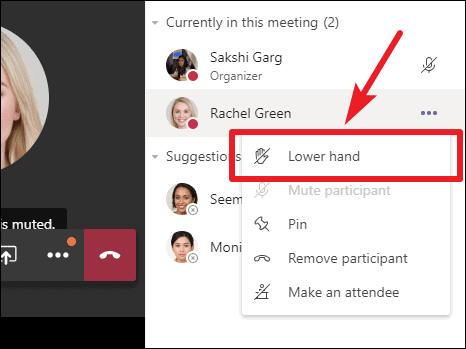
After you’ve had the chance to speak or no longer wish to, it’s important to lower your hand to keep the meeting organized.
As a meeting presenter, you can also lower a participant’s hand if needed.
Utilizing the Raise Hand feature is a courteous way to participate in meetings without causing interruptions. It helps maintain order and ensures that everyone’s voice can be heard at the appropriate time. By following these steps, you can contribute effectively and enhance the collaborative experience in your Microsoft Teams meetings.