Unexpected system crashes during Microsoft Teams meetings often trace back to graphics driver conflicts, hardware acceleration settings, or corrupted application data. These issues can disrupt calls, cause screen flickering or blue screens, and may even force a full system restart. Addressing these root causes directly can restore stability to both the Teams app and your overall PC experience.
Update or Reinstall Graphics Drivers
Outdated or incompatible graphics drivers are a frequent cause of Teams-related crashes, especially when sharing screens or using video features. Updating or reinstalling your display adapter drivers can resolve conflicts that lead to system instability.
Win + R, typing devmgmt.msc, and pressing Enter. Alternatively, right-click the Start button and select Device Manager from the menu.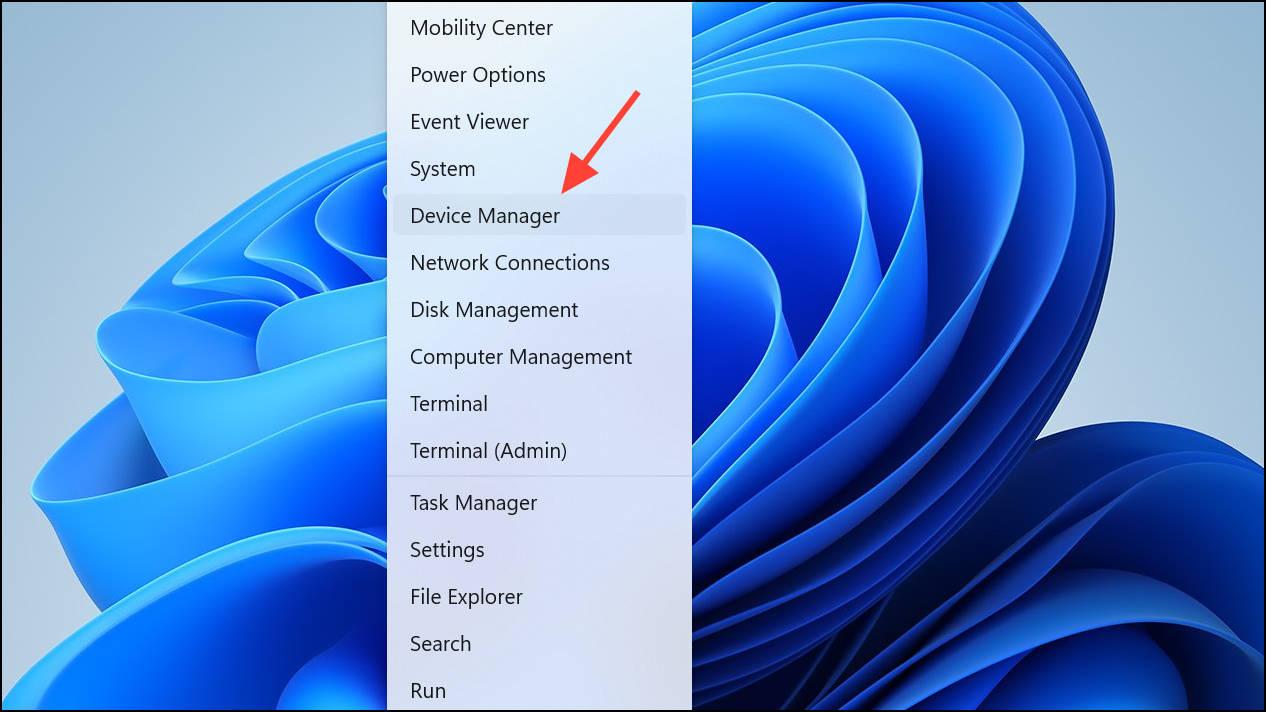
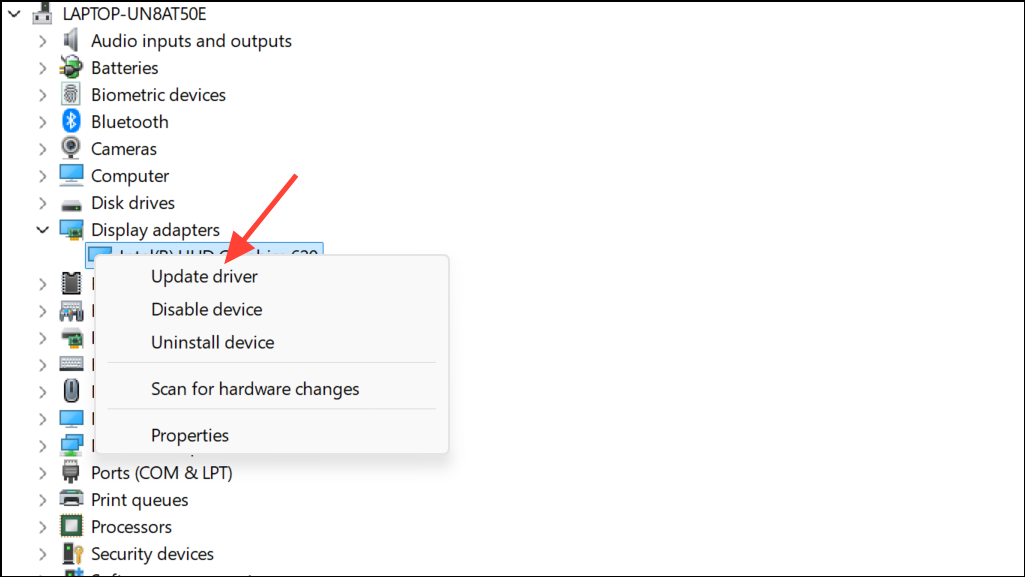
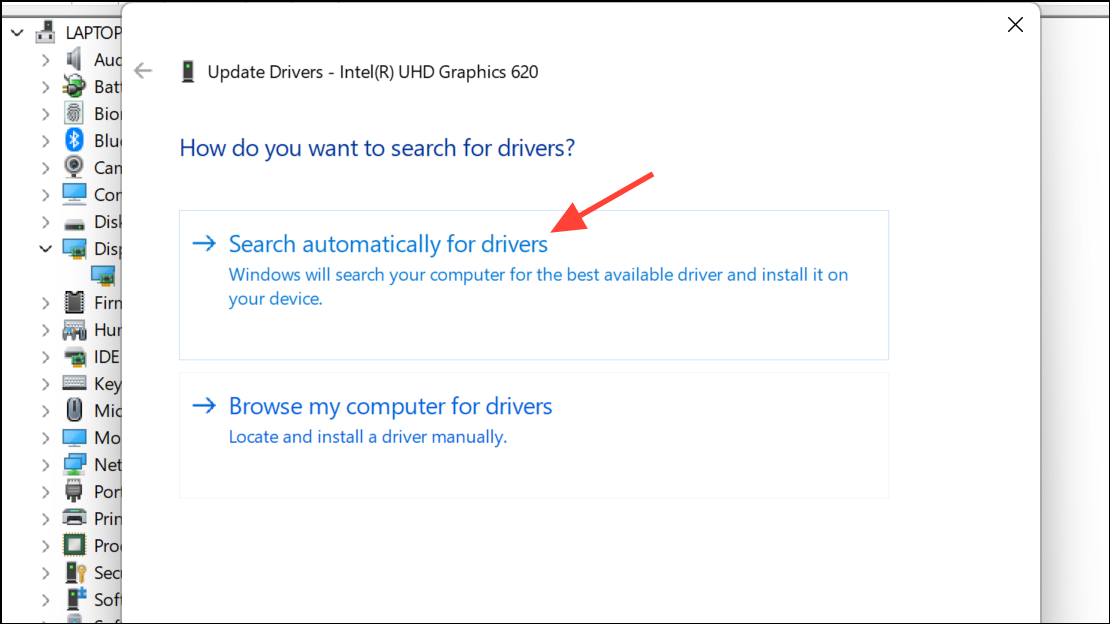
For computers with multiple GPUs (integrated and dedicated), use the GPU control panel (such as NVIDIA Control Panel) to assign Teams to run on the dedicated GPU, which can prevent crashes caused by integrated graphics limitations.
Disable Hardware Acceleration in Teams
Hardware acceleration allows Teams to offload graphical tasks to your GPU, but on some systems it can trigger crashes, flickering, or even blue screens, especially with certain driver/GPU combinations. Disabling this feature can resolve these issues.
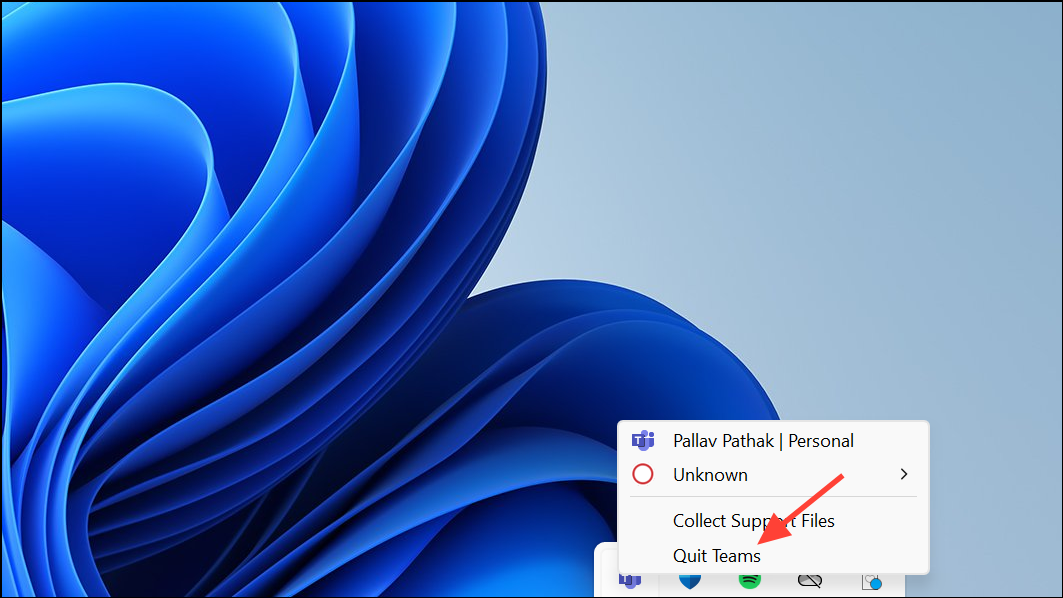
%APPDATA%\Microsoft\Teams\desktop-config.json using a text editor like Notepad.appPreferenceSettings section. Set "disableGpu": true. If this line doesn’t exist, add it within the appPreferenceSettings block.Clear Microsoft Teams Cache
Corrupted cache files can cause Teams to crash on launch, during meetings, or when sharing content. Clearing the cache forces Teams to rebuild these files, often resolving persistent crashes.
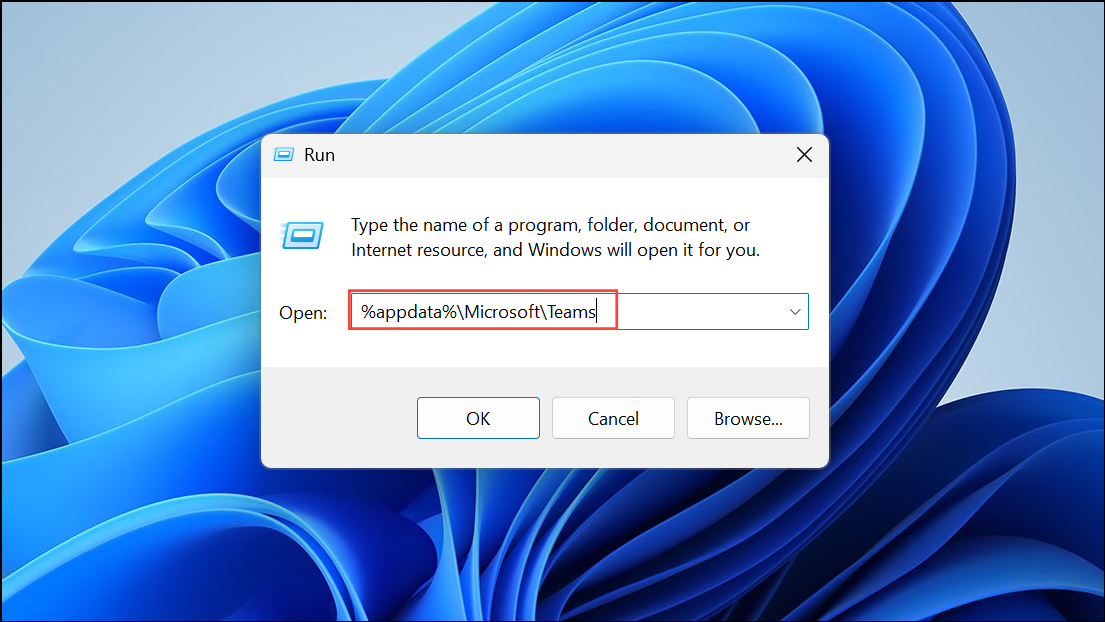
Run Teams in Compatibility Mode
Some Windows 10 and 11 users report improved Teams stability by running the app in compatibility mode for an earlier Windows version. This can resolve issues with newer OS builds or hardware configurations.
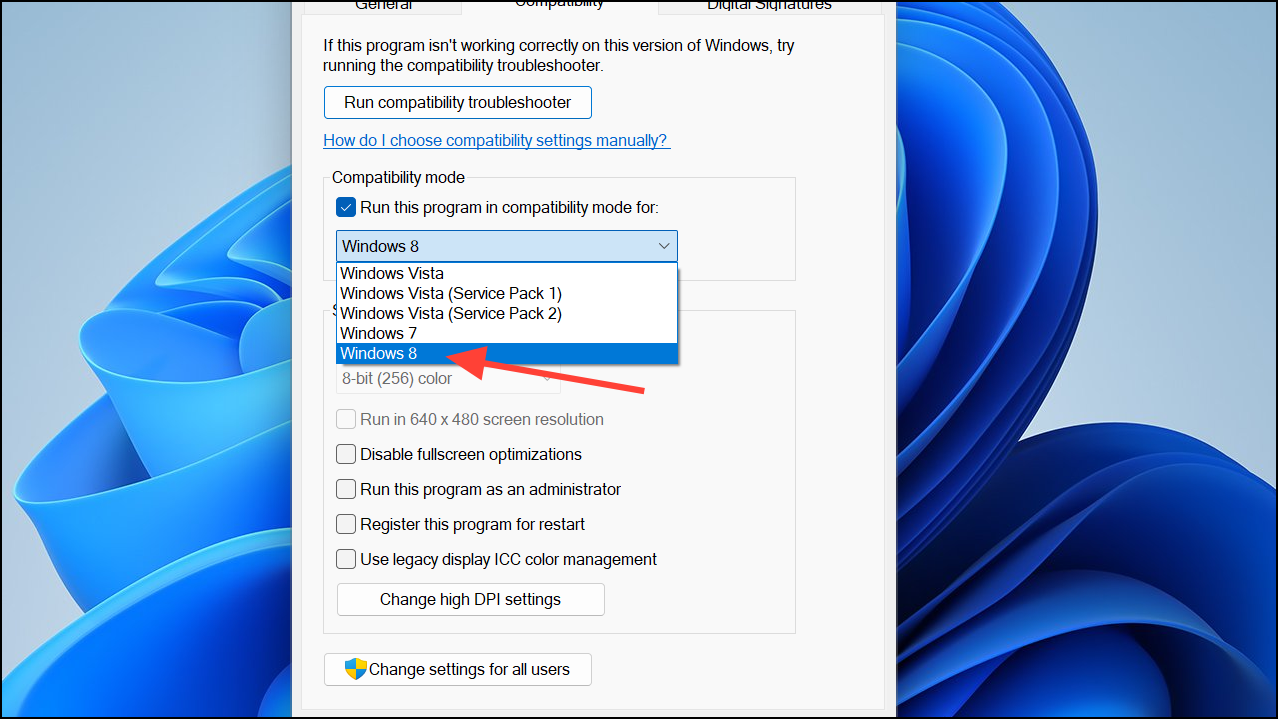
Address High Refresh Rate Monitor Issues
Teams can crash or freeze when screen sharing or during meetings on systems with monitors set above 60Hz refresh rates. Lowering the refresh rate has resolved crashes for some users.
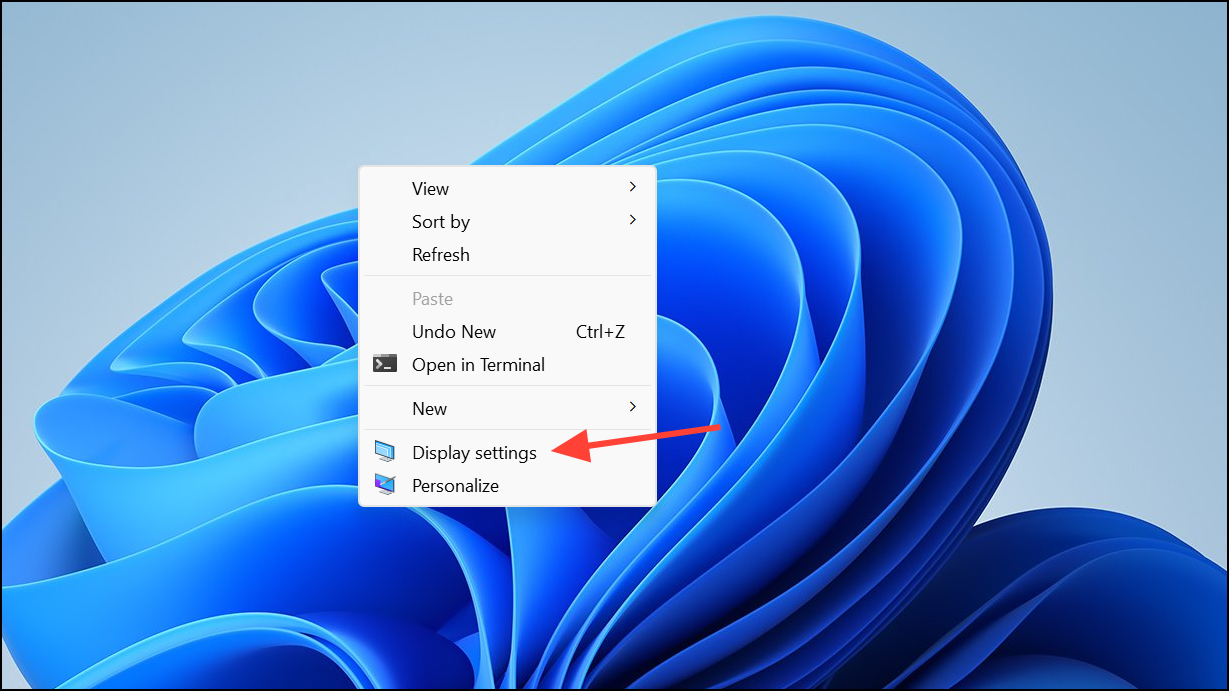
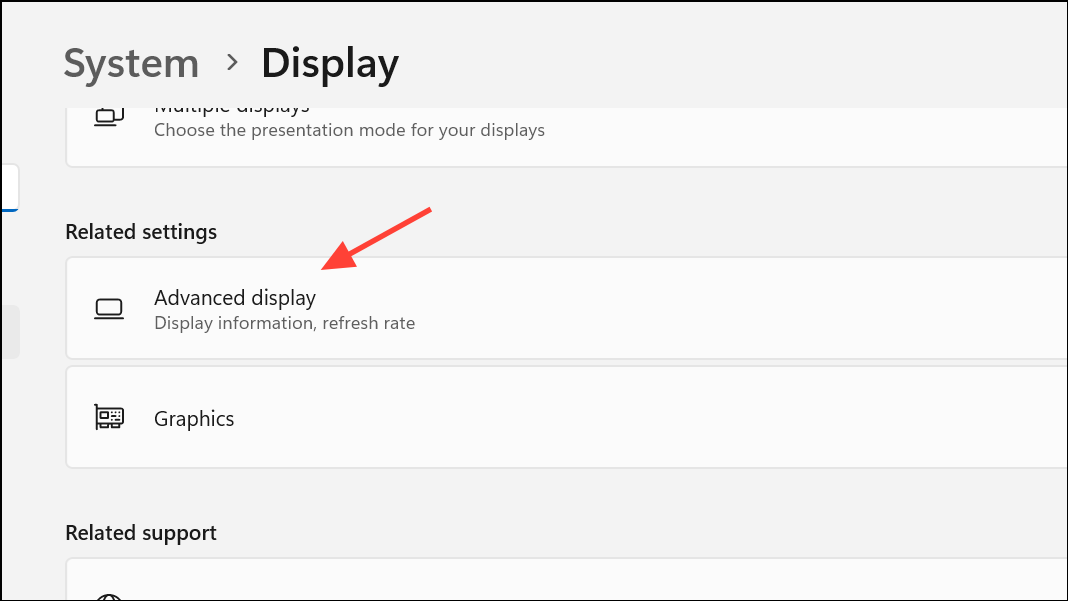
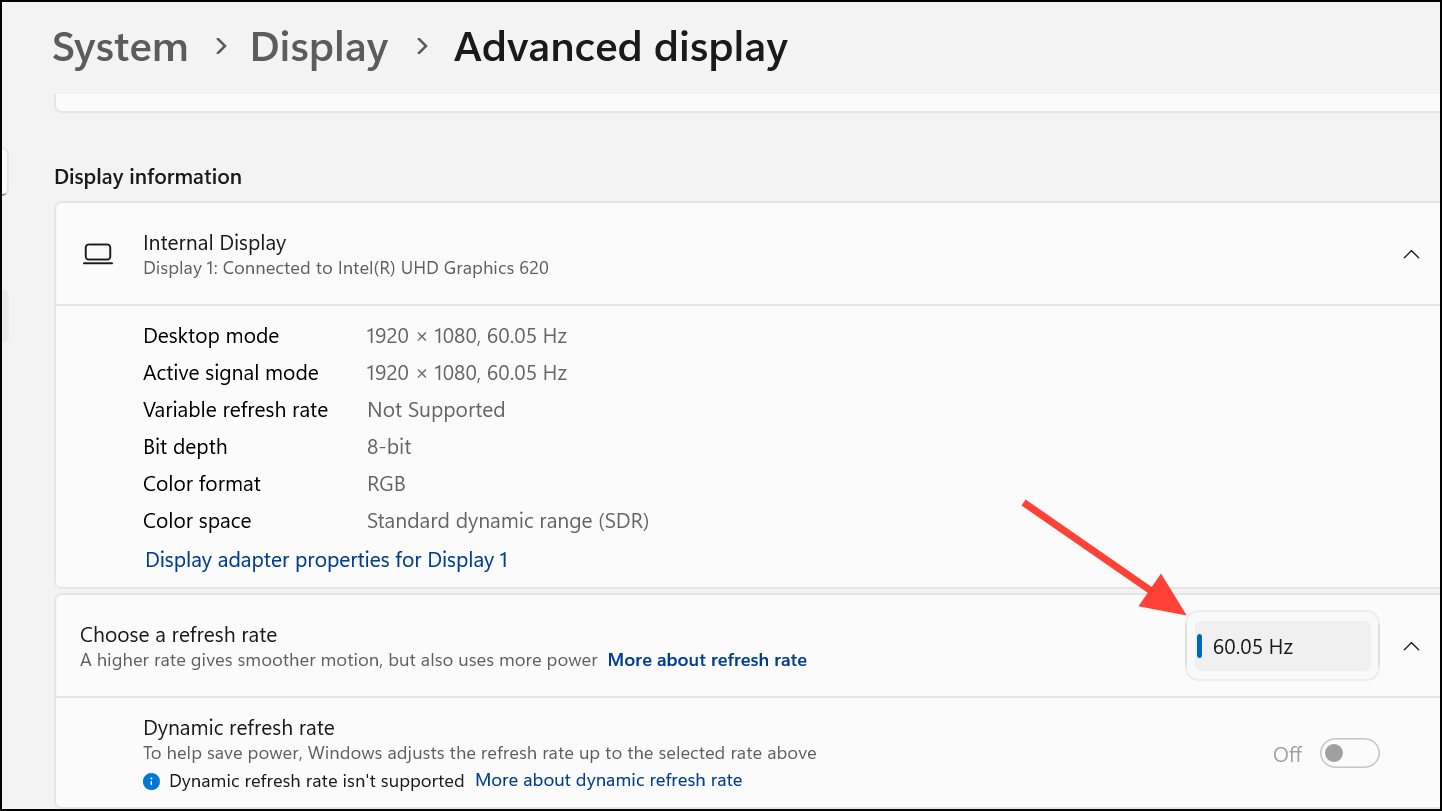
If Teams works after this change, the issue is likely related to how Teams interacts with higher refresh rates or GPU drivers.
Update Teams and Windows
Running outdated versions of Teams or Windows can introduce compatibility problems that lead to crashes. Ensuring both are fully updated can resolve known bugs and improve stability.
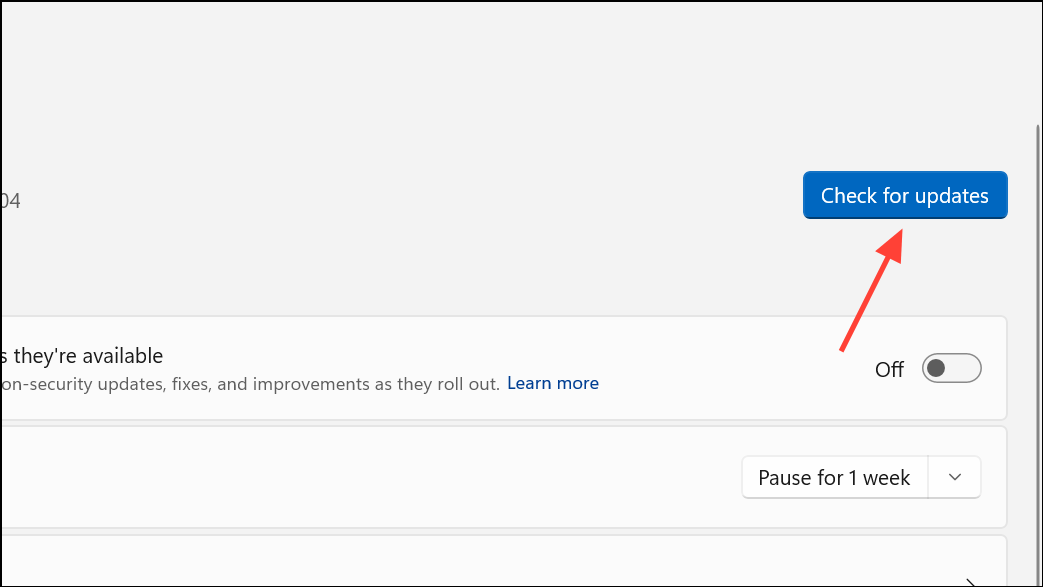
Repair or Reinstall Microsoft Teams
If Teams continues to crash after trying the above methods, repairing or reinstalling the app can fix issues caused by corrupted installation files.
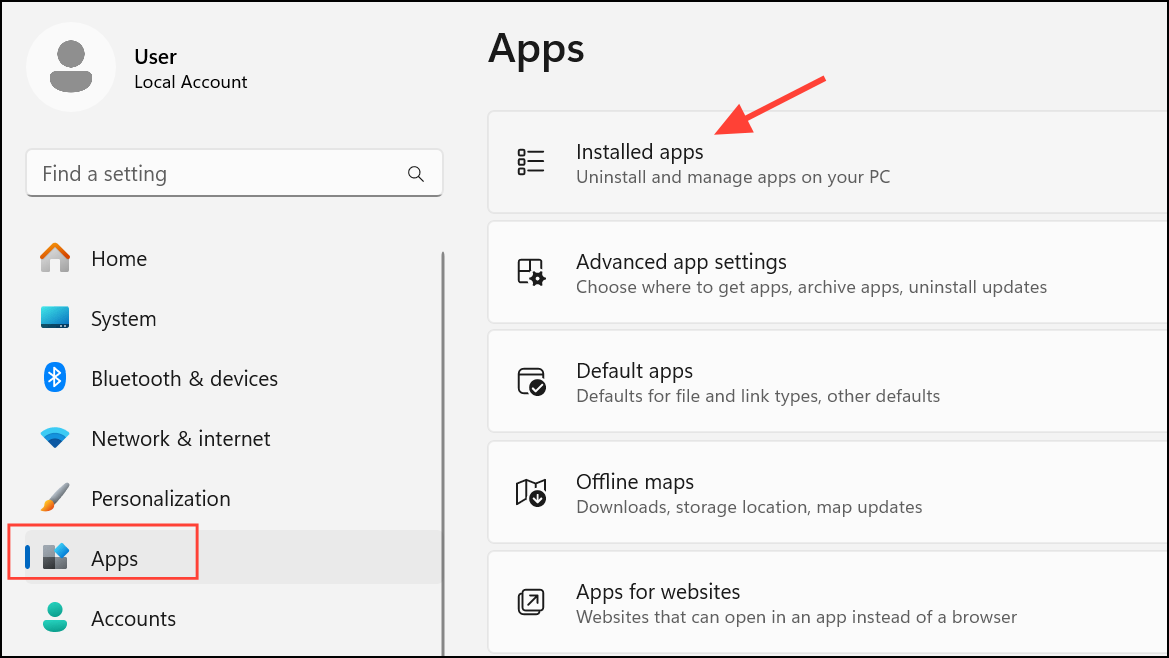
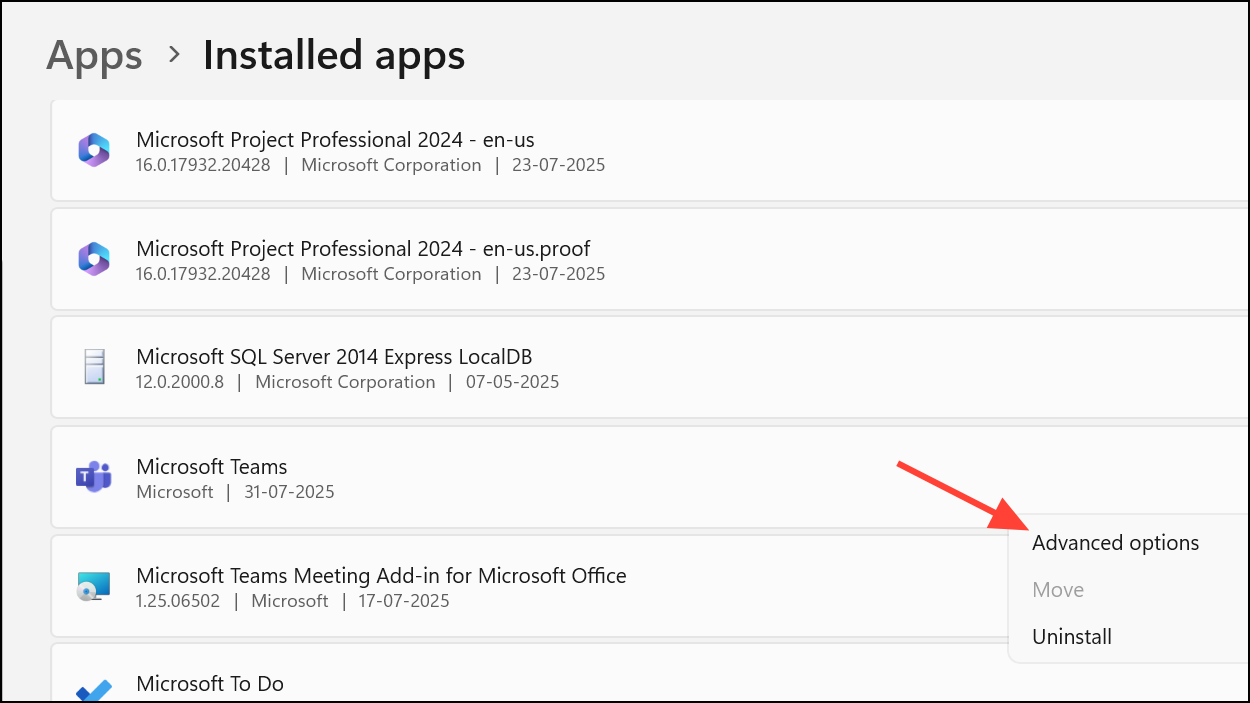
Check for VPN or Docking Station Conflicts
Some users report Teams crashes when connected to certain VPNs or using specific docking stations (especially with Lenovo docks). Disabling the VPN or updating dock firmware can resolve these conflicts.
- Temporarily disconnect from your VPN and join a Teams call to test if the issue persists.
- Check for firmware updates for your docking station from the manufacturer’s support site.
- If using multiple displays through a dock, try connecting via HDMI instead of DisplayPort or vice versa, as this has resolved crashes for some users.
Run System File Checker
Corrupted Windows system files can prevent Teams from running properly. Running the System File Checker scans and repairs these files.
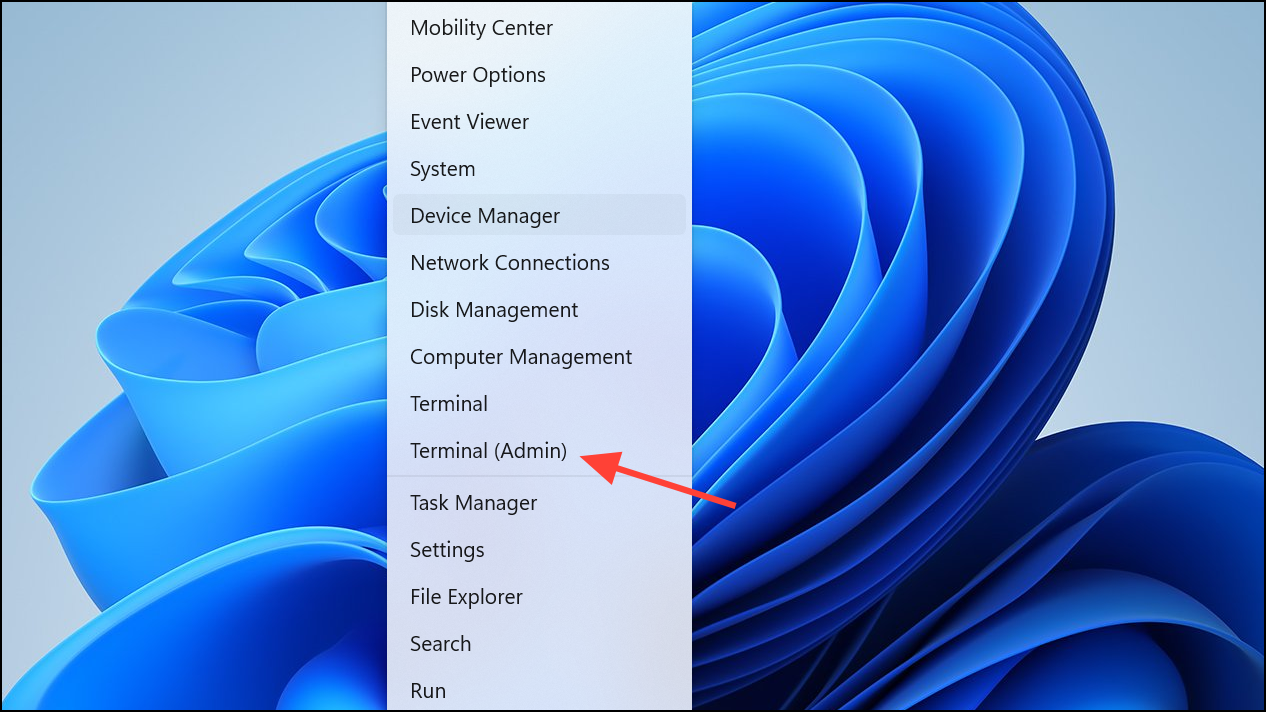
sfc /scannow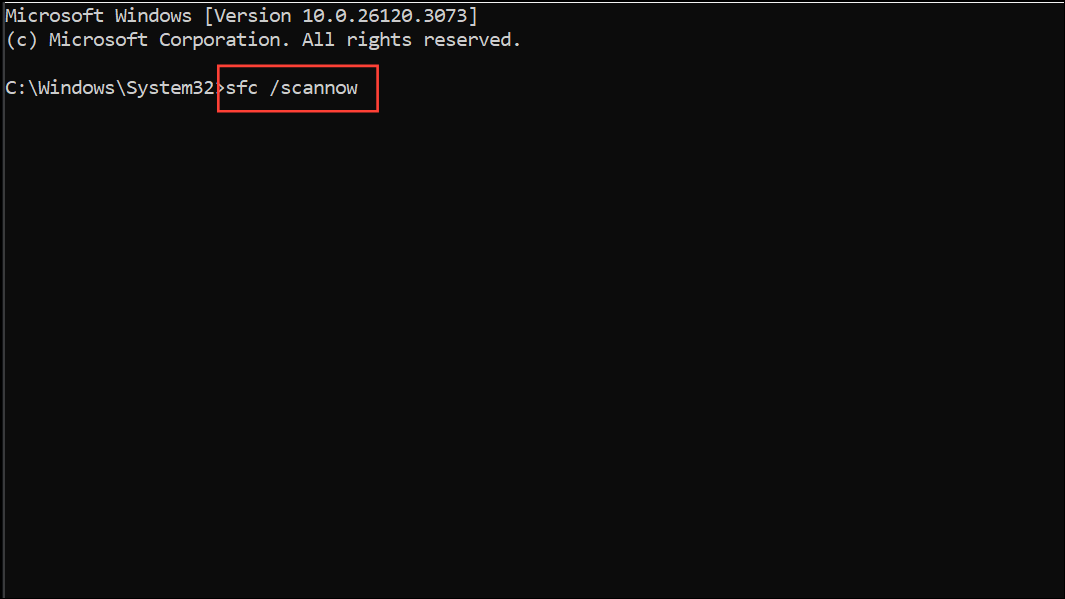
Consistently stable Teams performance depends on up-to-date drivers, correct hardware acceleration settings, and a clean application cache. Addressing these areas directly can eliminate most crash scenarios, whether you’re in a call, sharing your screen, or simply running Teams in the background. If issues remain, using the web version of Teams in a browser can provide a temporary workaround while further troubleshooting.