Microsoft Teams error code CAA5009D frequently blocks users from signing in to the Teams desktop app, often after password changes or updates to authentication settings. This error typically points to issues with account authentication, outdated app components, or local profile data conflicts. Addressing these underlying causes restores sign-in functionality and prevents workflow disruptions.
Update Microsoft App Installer
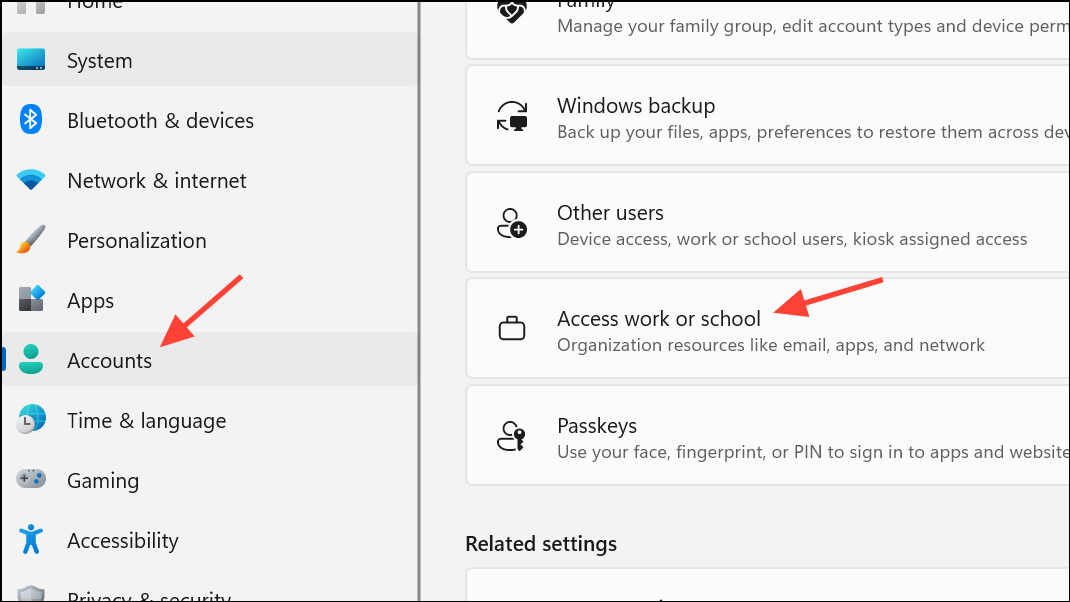
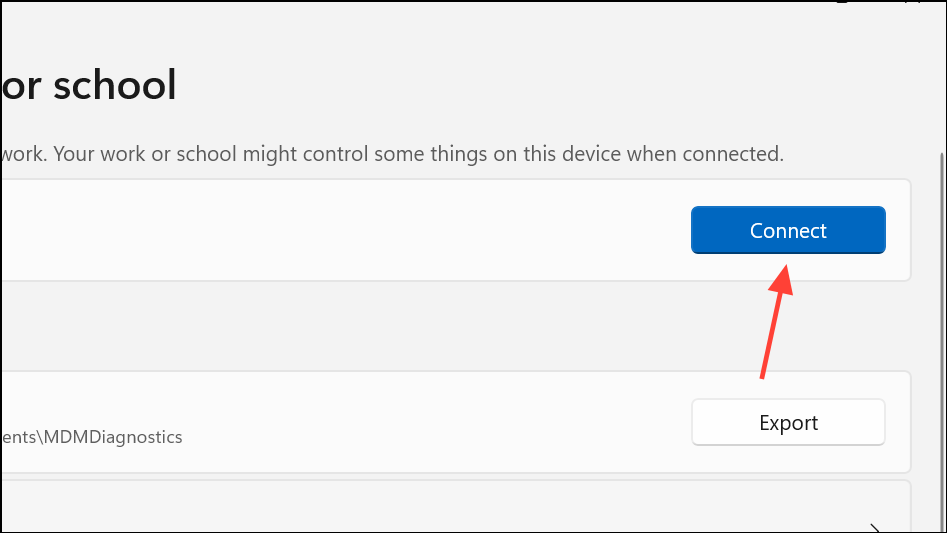
App Installer and locate the official Microsoft App Installer listing. If you cannot find it through search, use the direct link: App Installer in Microsoft Store.CAA5009D.Connect Your Microsoft Account in Windows Settings
Clear Teams Cache and Windows Credentials
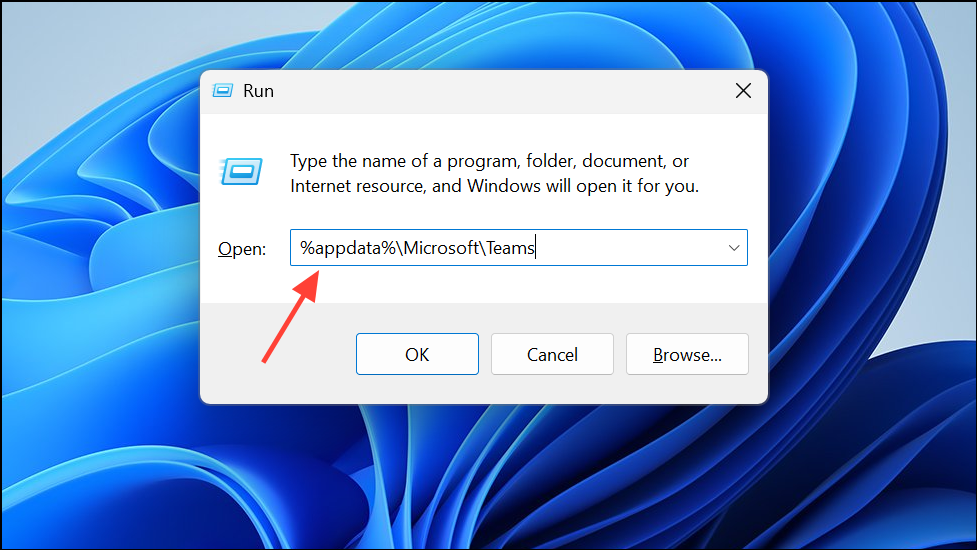
Windows key + R to open the Run dialog. Enter %appdata%\Microsoft\Teams and press Enter. Delete the following folders and their contents to remove cached data that may be causing authentication issues:application cache\cacheblob_storageCachedatabasesGPUcacheIndexedDBLocal Storagetmp
msteams_ or Microsoft Teams. Removing these credentials forces Teams to prompt for fresh authentication details during the next sign-in attempt.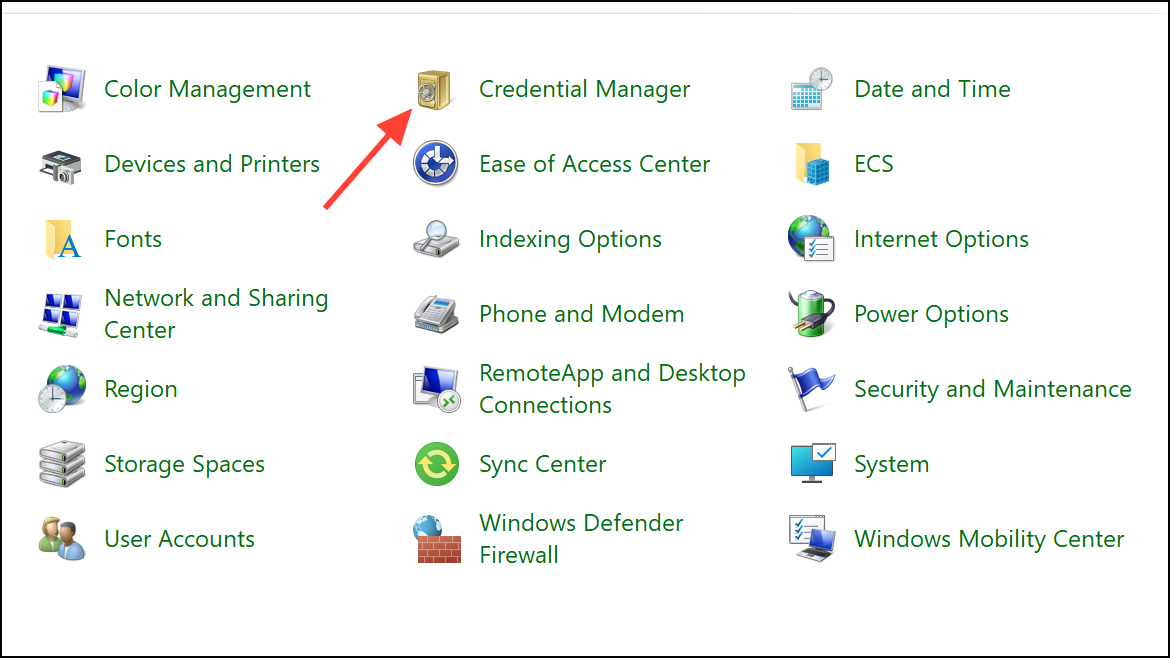
Install Teams Using PowerShell
.msix installer from the official Microsoft website.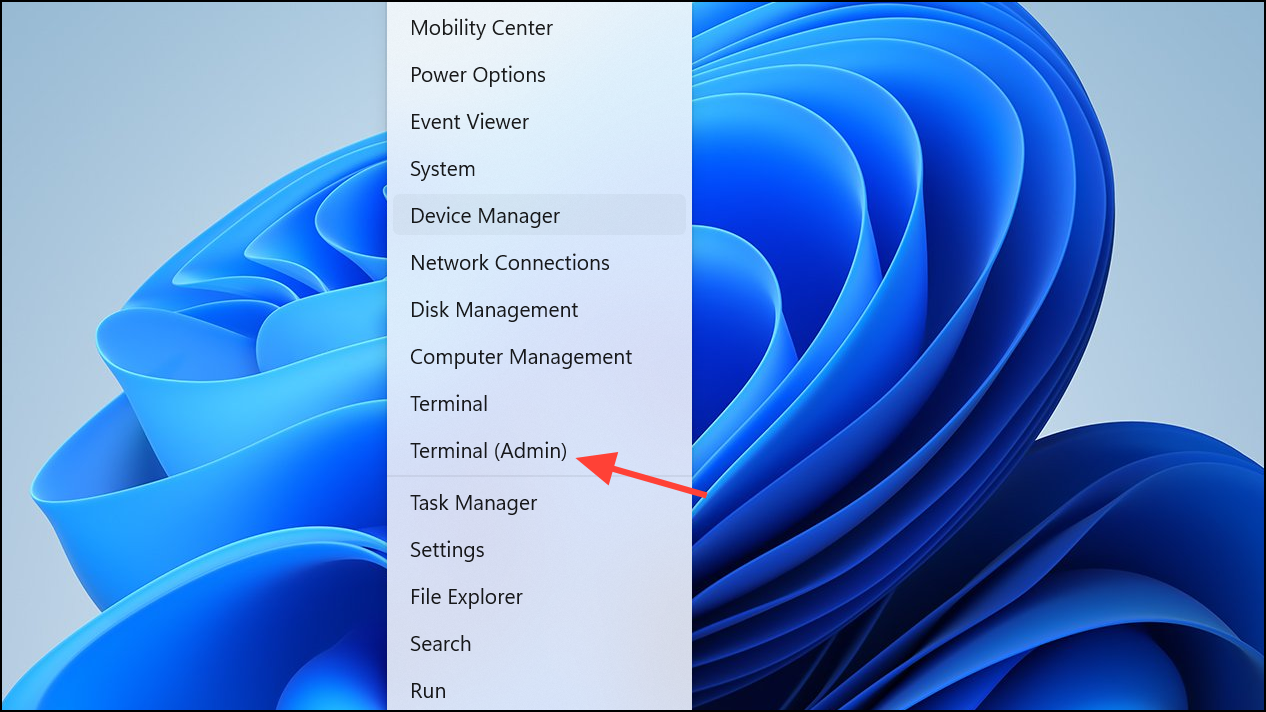
Add-AppxPackage -path "C:\Path\To\MSTeams-x64.msix"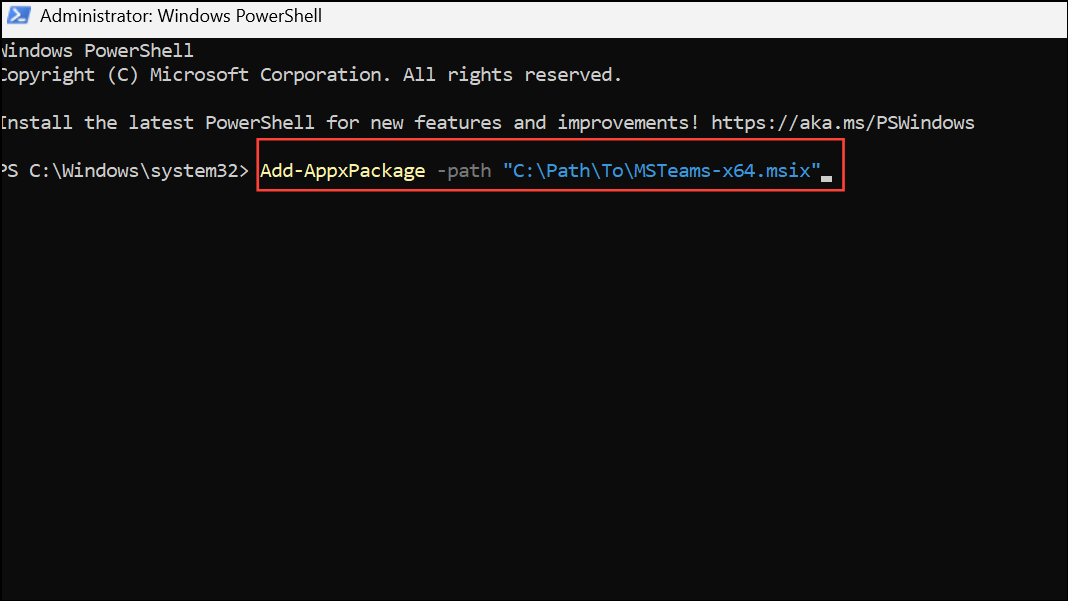
This method bypasses some installer issues and can resolve persistent sign-in or installation errors.
Run Teams in Compatibility Mode
Additional Troubleshooting Steps
If Teams continues to show error CAA5009D, try the following:
- Reset Internet Explorer or Edge settings, as Teams authentication depends on system web components.
- Temporarily disable any proxy settings or VPNs that may interfere with authentication.
- Check that your system date and time are set to update automatically to avoid certificate mismatches.
- Contact your IT administrator to verify if Conditional Access policies or duplicate account records are affecting your login.
Teams web access (https://teams.microsoft.com) is often unaffected by this error. If you can access Teams in your browser, but not in the desktop app, this confirms a local app or authentication issue rather than a broader account problem.
Applying these targeted fixes resolves Microsoft Teams error CAA5009D for most users, restoring seamless access and preventing repeated sign-in failures. If the problem persists after trying these solutions, contacting Microsoft support or your organization’s IT team is recommended for further troubleshooting.