Windows Subsystem for Linux runs a real Linux environment inside Windows, but WSL2 depends on several components working together: Windows optional features, hardware virtualization, and a separately maintained Linux kernel package. When one of these pieces is missing, disabled, or out of date, WSL2 stops with a specific error code or refuses to start at all.
Run wsl –install and wsl –update first
Before chasing an individual error code, run the unified WSL installer. It re-enables the required Windows features, installs the current WSL2 kernel, sets WSL2 as the default version, and repairs a broken installation in one pass.
wsl --install. This enables Virtual Machine Platform and Windows Subsystem for Linux, downloads the WSL2 kernel, and installs Ubuntu as the default distribution.wsl --update instead to refresh the kernel, then run wsl --shutdown to end any stuck session before relaunching your distro.wsl --install
wsl --update
wsl --shutdownwsl --install is not recognized, your Windows build is too old for the unified installer and you’ll need to enable features and the kernel manually, covered below.WSL2 error codes and what they mean
Most WSL2 failures surface as a hexadecimal error code. The table below maps the common ones to their cause and fix.
| Error code | Cause | Fix |
|---|---|---|
| 0x80370102 | The virtual machine couldn’t start because a required feature isn’t installed | Enable Hyper-V and hardware virtualization, or enable nested virtualization |
| 0x1bc | Occurs on wsl --set-default-version 2 when Display Language or System Locale isn’t set to English | Install the missing WSL2 kernel package |
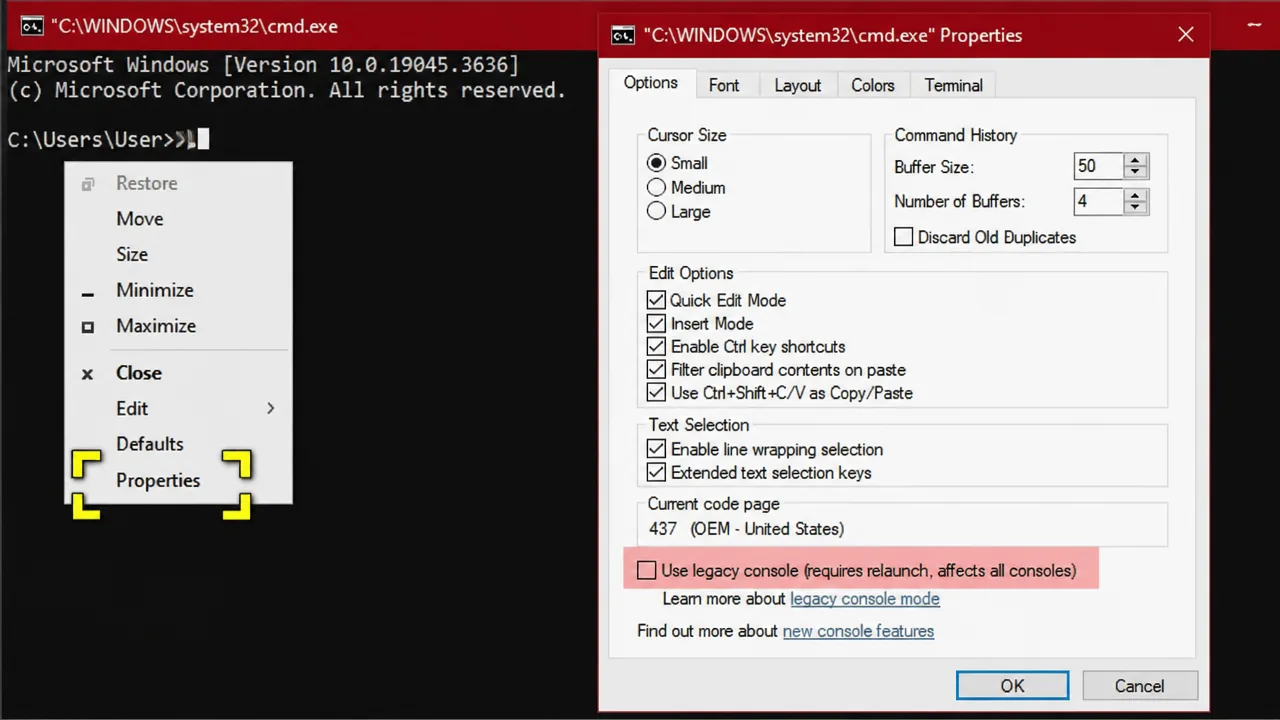
| 0x80040306 | Fails during installation | Disable “Use legacy console” in Command Prompt properties |
| 0x8007019e | WslRegisterDistribution failed | Enable the Windows Subsystem for Linux optional component |
| 0x80070003 | Installation fails, or a distro is stored off the system drive | Set new content to save to the system (C:) drive, then enable the WSL feature |
| 0x80040154 | Appears after a Windows update | A Windows update disabled the WSL feature; re-enable it |
For error 0x1bc, the actual message points to a missing kernel component. Download and run the kernel update package from aka.ms/wsl2kernel as Administrator to resolve it.
Enable Hyper-V and hardware virtualization for error 0x80370102
This error means WSL2’s lightweight virtual machine could not start. It usually traces back to a missing Windows feature or virtualization that’s turned off in the BIOS.
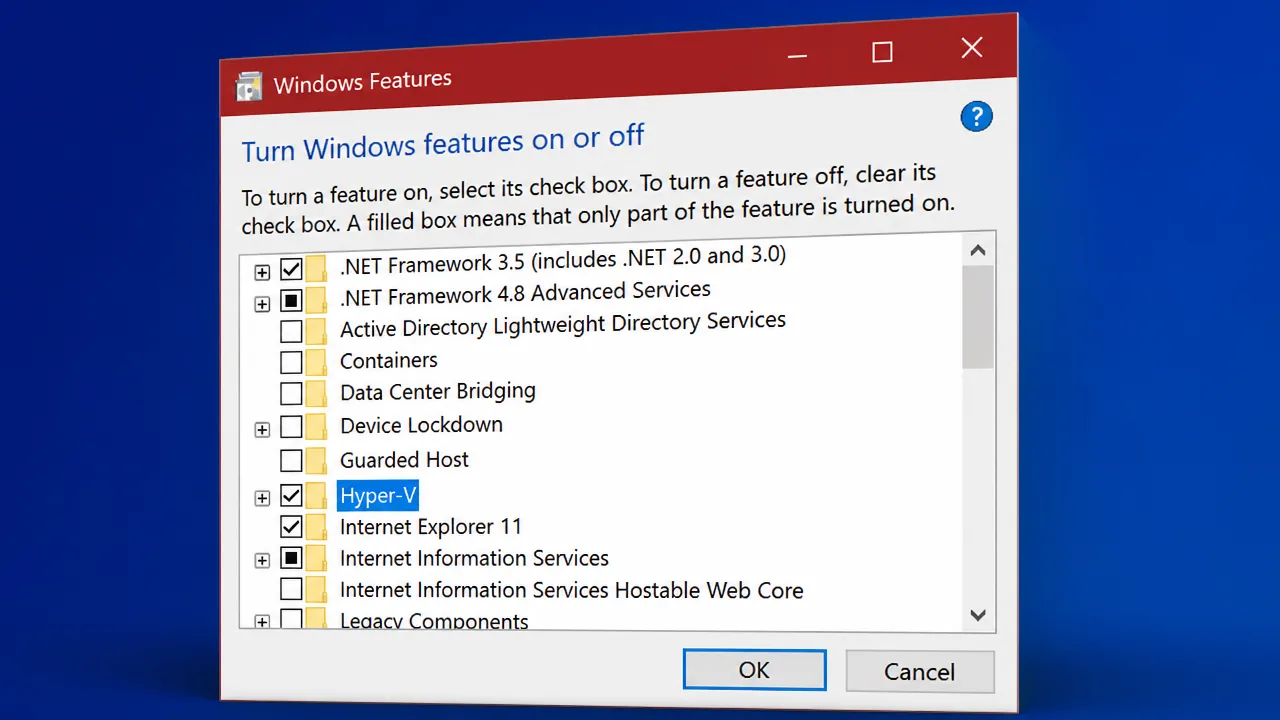
Set-VMProcessor -VMName -ExposeVirtualizationExtensions $true Note: WSL2 also requires a CPU with Second Level Address Translation, supported on Intel processors from the Nehalem generation onward and on AMD Opteron and later. Older CPUs such as the Intel Core 2 Duo cannot run WSL2 even with every feature enabled.
Fix error 0x80040306 during installation
This code appears when Command Prompt’s legacy console mode conflicts with the WSL installer.
Enable the WSL feature for errors 0x8007019e and 0x80040154
Both codes point to the same root cause: the Windows Subsystem for Linux optional component isn’t turned on, either because it was never enabled or because a Windows update reset it.
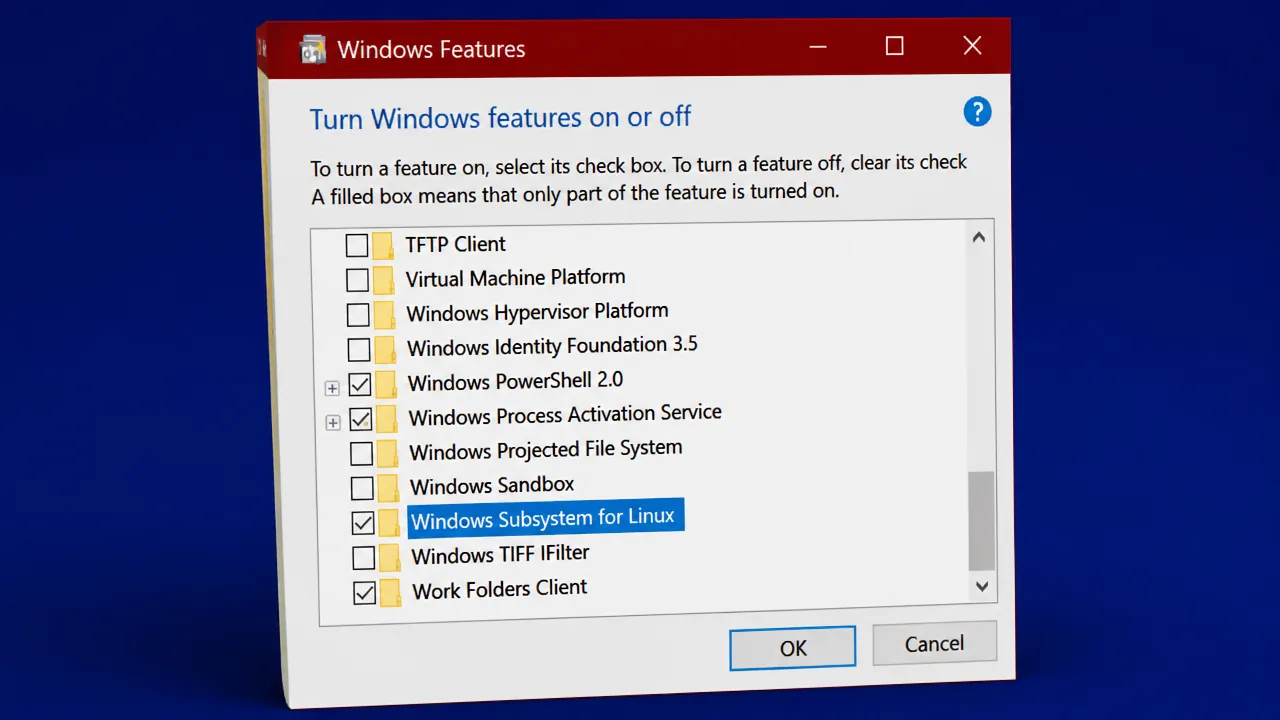
dism.exe /online /enable-feature /featurename:Microsoft-Windows-Subsystem-Linux /all /norestartFix “The Windows Subsystem for Linux instance has terminated”
This message shows up when an active WSL session dies unexpectedly rather than during install. It has a few distinct causes, so check them in order.
| Cause | Fix |
|---|---|
| WSL session is stuck | Run wsl --shutdown, wait, then start a new session |
| Outdated kernel | Run wsl --update as Administrator |
| Old Windows build | Check Windows Update and install available updates |
| A NAS share mounted through /etc/fstab fails | Remove the NAS entry from /etc/fstab |
| A folder mounted with SSHFS sits on a VPN network | Connect the VPN before mounting the folder |
Fix WSL2 network and file-sharing errors
WSL2 relies on a 9P file server for Windows-to-Linux file access and on Internet Connection Sharing for networking. Both can silently fail after an update or a driver change.
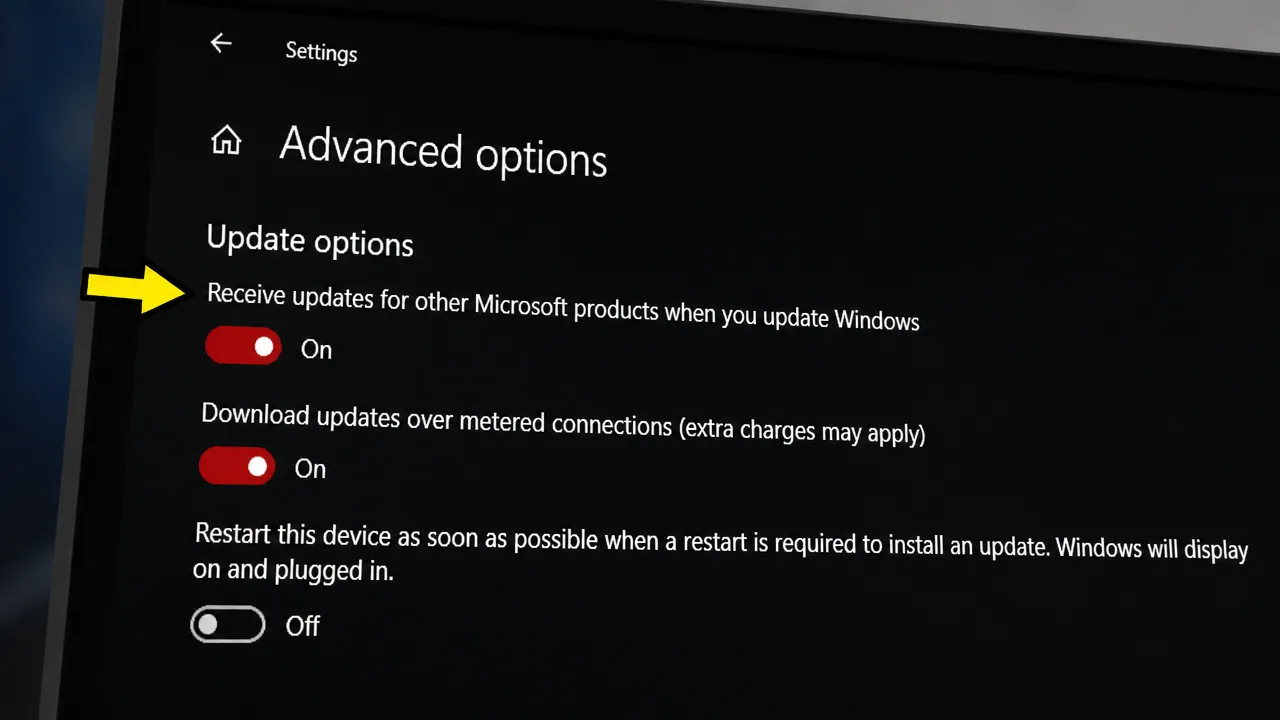
Cannot access WSL files through \\wsl$
If Windows can’t reach \\wsl$, the 9P protocol file server likely failed to start. Turning on updates for related Microsoft products often resolves it.
No internet access inside WSL
A third-party antivirus or firewall commonly blocks WSL’s virtual network adapter. Removing or reconfiguring the antivirus restores connectivity. If DNS specifically fails while the network otherwise works, check /etc/resolv.conf for valid nameserver entries such as 8.8.8.8 or 1.1.1.1.
Permission denied when using ping
This means the distro lacks administrative privileges. Run your Linux distribution, or Bash.exe, with administrator rights.
Internet Connection Sharing is disabled
WSL2 needs Internet Connection Sharing (ICS) to build the virtual network that handles NAT, DNS, and DHCP. Open Services from the Start menu, double-click Internet Connection Sharing (ICS), click Start if it’s stopped, then click Apply and OK. In Group Policy Editor, under Computer Configuration, Administrative Templates, Network, Network Connections, make sure policies that prohibit Network Bridge, Internet Connection Firewall, and Internet Connection Sharing on the domain network are disabled.
Fix WSL2 command-line and locale issues
Windows .exe commands report “command not found”
This happens when $PATH inside the distro can’t find the Windows executable. Run the following command in the terminal.
export PATH=$PATH:/usr/sbinpowershell.exe or other Windows commands still not found
cat /etc/profile and check whether a path assignment line starts with #. If it does, comment out that block instead.wsl.conf exists and make sure it does not contain appendWindowsPath=false. Comment that line out if present.Display language keeps changing
WSL matches the Ubuntu locale to Windows’ language by default. Set it manually with the following command.
sudo update-locale LANG=en_US.UTF8Fix SSH connection and permission errors in WSL2
OpenSSH server won’t connect
sudo service ssh stop and start it in debug mode with sudo /usr/sbin/sshd -d to see what’s failing.“UNPROTECTED PRIVATE KEY FILE” warning
This appears when a private key file’s permissions are too open, often because Windows mounts drives with permissive defaults. Edit /etc/wsl.conf and add the following.
[automount]
enabled = true
options = metadata,uid=1000,gid=1000,umask=0022
Save the file and restart WSL with wsl --shutdown for the new mount options to apply.
Reset or reinstall a broken distribution
If only one distribution misbehaves while others work fine, the problem is local to that distro’s file system rather than WSL itself.
\\wsl$\DistroName in File Explorer and copying them to a Windows folder.wsl --unregister to delete it entirely, then reinstall with wsl --install -d .Once a distribution launches to a normal Linux prompt without an error code, and commands like ls or echo $PATH return expected output, WSL2 is working correctly again.