
Windows How-To

How to Save a File in Vim or Vi and Quit the Editor on Linux

Vim is a widely used text editor in the Linux environment, favored by developers and power users for its efficiency and powerful command-line capabilities. Effectively navigating vim's modes can significantly enhance your productivity when editing files.

This guide details how to save a file and exit the vim editor using command-line mode.

When you open a file in vim, you're typically in 'Insert' mode, allowing you to edit the file's content. This is indicated by the — INSERT — message at th

Vim is a widely used text editor in the Linux environment, favored by developers and power users for its efficiency and powerful command-line capabilities. Effectively navigating vim’s modes can significantly enhance your productivity when editing files.…

Vim is a widely used text editor in the Linux environment, favored by developers and power users for its efficiency and powerful command-line capabilities. Effectively navigating vim’s modes can significantly enhance your productivity when editing files.

This guide details how to save a file and exit the vim editor using command-line mode.

When you open a file in vim, you’re typically in ‘Insert’ mode, allowing you to edit the file’s content. This is indicated by the -- INSERT -- message at the bottom of the terminal window.
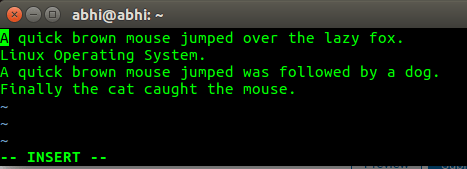
To prepare for saving, switch to ‘Command’ mode by pressing the Escape key on your keyboard. Exiting ‘Insert’ mode enables you to enter vim commands.
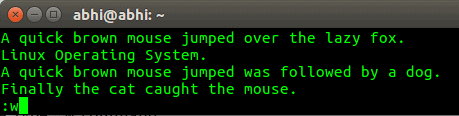
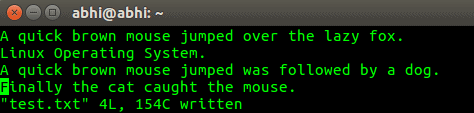
To save the file, type :w and press Enter. This command writes your current changes to the disk.

After saving, vim displays a message indicating the number of lines and characters written to the file.
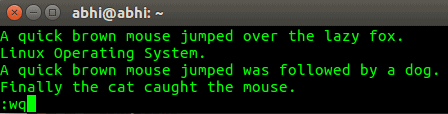
To exit vim without saving any changes, type :q and press Enter. This command quits the editor.
To save your changes and exit vim simultaneously, use the command :wq and press Enter.

By mastering these basic vim commands, you can efficiently manage your files directly from the command line.





