The WARDOGS beta runs on Unreal Engine 5 across huge Control Zones, and that combination punishes two things in particular: dynamic lighting and long sightlines. Dropping every slider to Low fixes the first problem and creates a new one, because the settings that cost the most frames are not the settings that let you see a prone player 300 meters out. The fastest path is to fix the display layer, kill the expensive lighting, and leave the visibility settings alone.
Quick answer: Run native resolution with VSync off, NVIDIA Reflex enabled, and DLAA or DLSS/FSR Quality. Then set Global Illumination to Disabled, Shadows, Reflections, Post-Processing and Particle Spawn Rate to Low, Effects and Shading to Medium, and keep Mesh Detail, View Distance, and Textures on High.
Display settings to fix before anything else
Everything under the Video tab’s Display section decides how frames get delivered, and it matters more than any quality preset. Stay at your monitor’s native resolution — 1440p or 1080p, whatever the panel is — because dropping resolution to chase frames makes distant infantry harder to resolve than any upscaler does.
| Setting | Value |
|---|---|
| Display Mode | Fullscreen or Borderless Fullscreen |
| Resolution | Native |
| Brightness | 100% (raise until dark interiors read clearly) |
| Sharpness | Around 1.20 |
| Frame Limit | Cap at your refresh rate, or Unlimited if the frame time stays flat |
| VSync | Disabled |
| NVIDIA Reflex | Enabled |
| Main Menu FPS Limit | Enabled |
| Anti-Aliasing Method | DLSS (RTX) or FSR (AMD) |
| DLSS / FSR Mode | DLAA if you have headroom, otherwise Quality |
Start at DLAA and step down through Quality, Balanced, and Performance only until you hold your target frame rate. A Quality upscaler typically renders at roughly two-thirds resolution and gives back a large chunk of GPU time while keeping the image cleaner than a preset drop would. Performance mode is a last resort at 1080p, where it visibly softens foliage and distant player models.
Leave VSync off unless tearing bothers you more than the added latency. If your monitor supports G-Sync or FreeSync, a frame cap slightly under the refresh rate gives more even pacing than an uncapped 95-to-140 swing.
Best WARDOGS graphics quality settings
Set Overall Quality to Custom before you change anything else. The Overkill preset locks several options at maximum and stops you from tuning individual costs, which makes it useless as a starting point. Potato Mode, the low-end preset, goes the other way and strips detail you may want back.
| Setting | Value | Why |
|---|---|---|
| Mesh Detail | High | Player shapes stay readable at distance |
| View Distance | High | The single most important visibility option |
| Shading | Medium | Quality falls off noticeably below this |
| Global Illumination | Disabled | Largest single frame cost, no combat benefit |
| Shadows | Low | Expensive, and clears up dark interiors |
| Reflections | Low | Screen-space cost with little gameplay value |
| Effects | Medium | Keeps explosions and destruction legible |
| Particle Spawn Rate | Low | Less smoke and debris between you and a target |
| Post-Processing | Low | Cheap frames, no information lost |
| Motion Blur | Disabled | Hurts tracking during fast camera movement |
| Depth of Field | Disabled | Blurs the distance you are trying to read |
| Lens Flare | Disabled | Obscures sightlines into the sun |
| Bloom | Disabled | Washes out contrast on bright surfaces |
| Textures (World / Character) | High | Limited by VRAM, not frame rate |
| Texture Effects | Medium to High | Lower only under VRAM pressure |
| Texture Streaming | High | Reduce if you get asset-streaming hitches |
| Texture Filtering | High | Surface clarity at very little cost |
Global Illumination is the first thing to switch off when the GPU is saturated. In one closed beta test scene it was worth around a 20 percent gain, which tells you the option is expensive on this engine — it does not promise the same number on your machine. Turn it back on later if you finish tuning with frames to spare.
If your system already holds a stable frame rate in a busy Control Zone, Shadows and Reflections at Medium are a reasonable upgrade. Test in a real firefight, not standing alone at spawn.
The settings you should not lower
Textures are the classic mistake. Texture quality and streaming are bound by video memory and storage behavior, not by GPU time, so cutting them rarely returns frames — it just makes surfaces mushy. Keep World and Character textures on High as long as VRAM is not maxed out, and only lower them if you see stutter that lines up with new areas loading in.
View Distance is the other one. WARDOGS builds its Control Zones around long sightlines, and lowering draw distance is how you lose fights to players you never rendered properly. If you need frames, take them from Shadows, Reflections, and Effects first. Foliage detail deserves the same protection, since low settings change what actually reads as cover.
FOV and gameplay settings
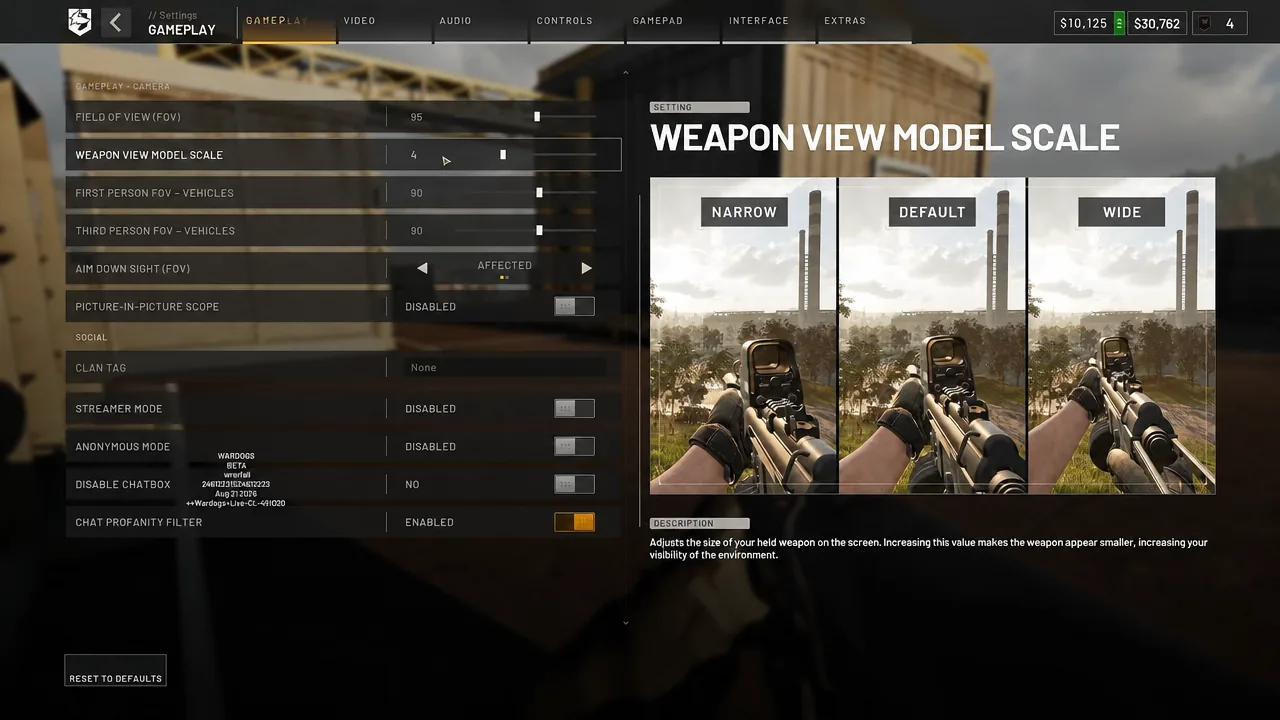
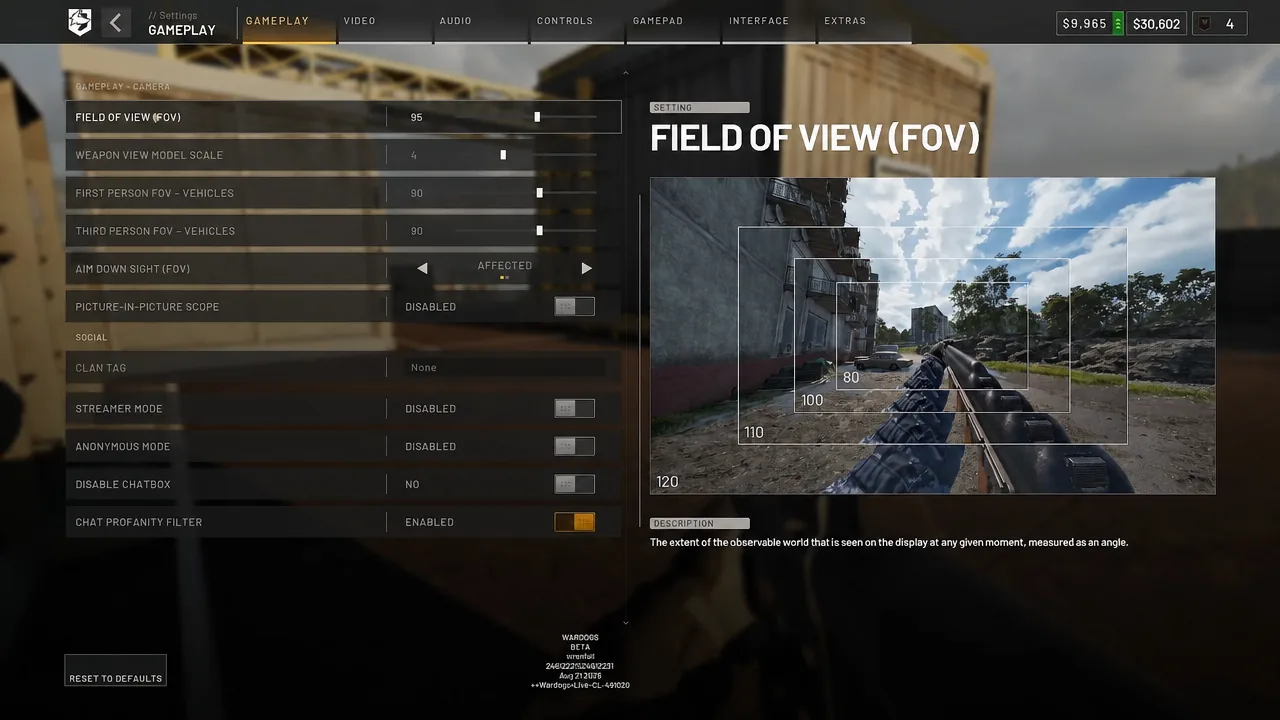
Field of View sits at 95 for most players. It widens peripheral vision without shrinking distant targets the way the maximum value does, which matters in a game where you are identifying infantry across open ground. Set Aim Down Sight (FOV) to Affected so low-magnification optics scale with that number instead of snapping to a different zoom feel.
| Gameplay setting | Value |
|---|---|
| Field of View | 95 |
| Weapon View Model Scale | 4 |
| First Person FOV – Vehicles | 60 to 90 |
| Third Person FOV – Vehicles | 90 |
| Aim Down Sight (FOV) | Affected |
| Picture-in-Picture Scope | Disabled |
Picture-in-Picture Scope renders a second view inside your optic, and disabling it costs you nothing in a fight while returning frames. Weapon View Model Scale at 4 pulls the gun model down slightly so it blocks less of the lower screen.
Mouse sensitivity and action behaviors
Sensitivity is personal, but the advanced options underneath it are not. Mouse Acceleration off, Relative scaling, 100% monitor matching, and an Instant transition give you a camera that turns the same amount for the same hand movement every single time.
| Control setting | Value |
|---|---|
| Mouse DPI | 800 |
| Sensitivity | 0.70 |
| ADS Multiplier | 1.00 |
| Mouse Acceleration | Disabled (0.00) |
| Sensitivity Scaling Mode | Relative |
| Monitor Matching Distance | 100% |
| Sensitivity Scaling Transition Type | Instant |
| Invert Y Axis – Infantry | Disabled |
| Invert Y Axis – Air Vehicle | Enabled |
| Rotary Vehicle Mouse Control | Enabled |
The 0.70 value is a reference point at 800 DPI, not a rule. Adjust it around your mousepad size and whatever muscle memory you already have, and lower the ADS Multiplier later if long-range tracking feels twitchy.
Under Action Behaviors, ADS and Slow Walk work best on Hold, while Steady Aim, Crouch, Prone, Lean, and Sprint are cleaner on Toggle — holding a lean while strafing and shooting is a lot of fingers otherwise. Set Bipod Deployment to Automatic so it snaps on when you go prone behind cover.
Keybinds worth changing
WASD, Space to jump, C to crouch, and X to prone can stay as they are. Two changes make a real difference on foot, and three more make helicopters flyable with a mouse.
| Action | Bind | Reason |
|---|---|---|
| Lean Left | E | Frees A and D so you can strafe while leaning |
| Lean Right | Q | Matches the swapped lean layout |
| Sprint | Caps Lock | Keeps Shift available for vehicle controls |
| Focus / Hold Breath | Mouse thumb button | Reachable mid-aim without moving fingers |
| Melee Bash | Second thumb button | Faster than a keyboard reach at close range |
| Interact | F | Standard, no reason to move it |
| Ping | Middle mouse button | Fast callouts without leaving the mouse |
| Collective (Raise) | Space | Intuitive climb input for rotary aircraft |
| Collective (Lower) | Left Shift | Pairs with Space for altitude control |
| Yaw Left / Yaw Right | A / D | Steers the helicopter while the mouse handles pitch and roll |
Leave the helicopter mouse swipe pitch and roll defaults alone until you have flown a few sorties. Rotary Vehicle Mouse Control plus A/D yaw is the combination that makes the aircraft feel like a first-person camera rather than a flight sim.
Audio and HUD settings
Turn on 3D Spatial Audio and disable Enable Sound in Background so the game is not mixing audio while you are alt-tabbed. Music volume can come down as far as you like; effects volume is what tells you where footsteps and vehicles are.
On the Interface tab, enable Adaptive Crosshair and Display All Quick Slots On Item Switch. Set the HUD Visibility Preset so Cash, Central HUD Reward, Compass, Equipped Item, Health, and Killfeed are Always On, and leave Location Context and the Chatbox on Dynamic so they fade out when they are not doing anything.
Official WARDOGS performance targets
BULKHEAD attaches a specific frame rate target to each hardware tier rather than a vague “recommended” label, which is a useful sanity check before you blame your settings. Both tiers list 16GB of RAM and 50GB of storage.
| Tier | GPU | Target |
|---|---|---|
| Minimum | GTX 1660 / RX 590 | 1080p Low, 60 FPS, upscaled |
| Recommended | RTX 3070 / RX 6700 XT | 1440p Medium, 70+ FPS native |
| Recommended (4K) | RTX 3070 / RX 6700 XT | 4K Medium, 60+ FPS upscaled |
Those numbers are targets, not guarantees, and they are the baseline the game’s Steam store listing quotes. If you want 120 FPS on the recommended tier at 1440p, you are asking for roughly a 1.7x uplift, and a Quality upscaler is the single biggest step toward it.
If the frame rate is still unstable
If every graphics change produces roughly the same frame rate, the GPU is not your limit. CPU load, shader compilation on first launch, network conditions, or the beta build itself are the likelier causes. Skip third-party optimizer tools, replacement DLLs, and downloaded config packs entirely — WARDOGS uses Easy Anti-Cheat, and modifying game files is a fast way to create a compatibility problem instead of fixing a performance one.
One last thing worth accounting for: WARDOGS enters Steam Early Access on September 10th, 2026, and BULKHEAD expects roughly one to two years in that window. Presets, defaults, upscaler support, and the values behind Potato Mode are all things a studio moves during Early Access, so treat any settings table as a starting profile and re-test it after each major patch rather than assuming it still holds.