How to Redeem Arc Raiders Discord code (Quest rewards on PC/console)
Accept the Quest, play 15 minutes with Discord open, then claim the Hiker Backpack: Sky Ice.
Accept the Quest, play 15 minutes with Discord open, then claim the Hiker Backpack: Sky Ice.
by Pallav Pathak
Discord rewards for Arc Raiders are delivered through Discord Quests. There’s no manual code entry—the item is granted after you accept the Quest, log playtime with Discord running, and claim the reward in Discord. Follow the steps below to complete the Quest and fix common tracking issues.
Claim Arc Raiders Discord Quest reward (no code entry)
Select Accept Quest, then choose the platform option that matches where you’ll play (Desktop or Console). This setting directs Discord to track the correct environment.
Confirm the Quest platform matches how you’re playing. If you accepted the Console option but you’re on PC (or vice versa), re‑accept the Quest with the correct choice.
Keep Discord open the entire time. Closing or minimizing Discord in a way that suspends it can stop tracking; switch back to the app to confirm it’s running.
Restart both Discord and Arc Raiders, then press Check For Launches again. This clears stale sessions and refreshes the handshake.
Redeem other Arc Raiders codes (NVIDIA bundle example)
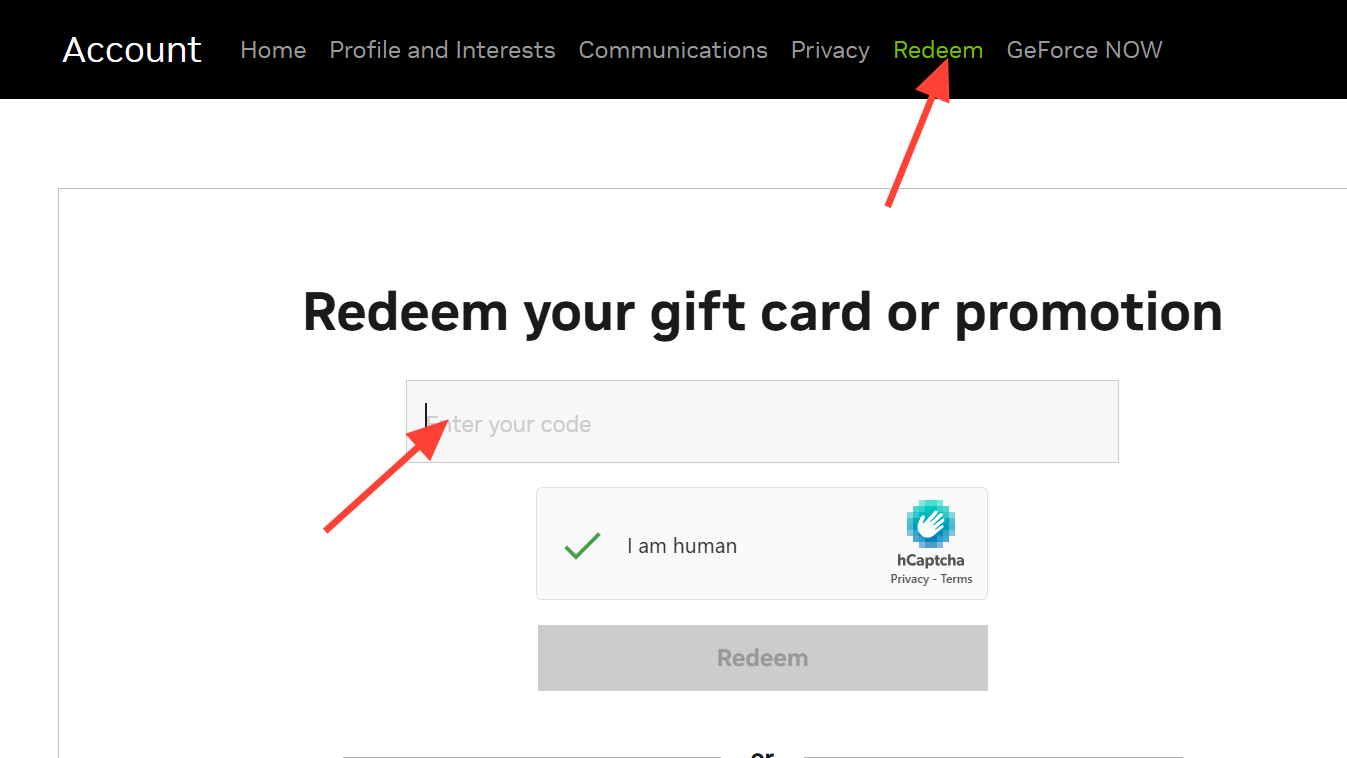
If you received a hardware bundle code (for example, from a GeForce RTX promotion), redeem it through NVIDIA and link to your Steam account for delivery. See the official instructions at nvidia.com.
Select REDEEM to add Arc Raiders Deluxe Edition to your Steam account. You’ll see it in your Steam library once redemption completes.
That’s all you need to secure Arc Raiders rewards through Discord Quests. Keep Discord open while you play, and use Check For Launches if tracking stalls.