When you send a custom emoji with the FakeNitro plugin and it disappears on your screen, the emoji is not actually failing to send. Everyone else in the channel can still see it. The problem is limited to how your own client renders it, and it comes down to a single setting inside the plugin.
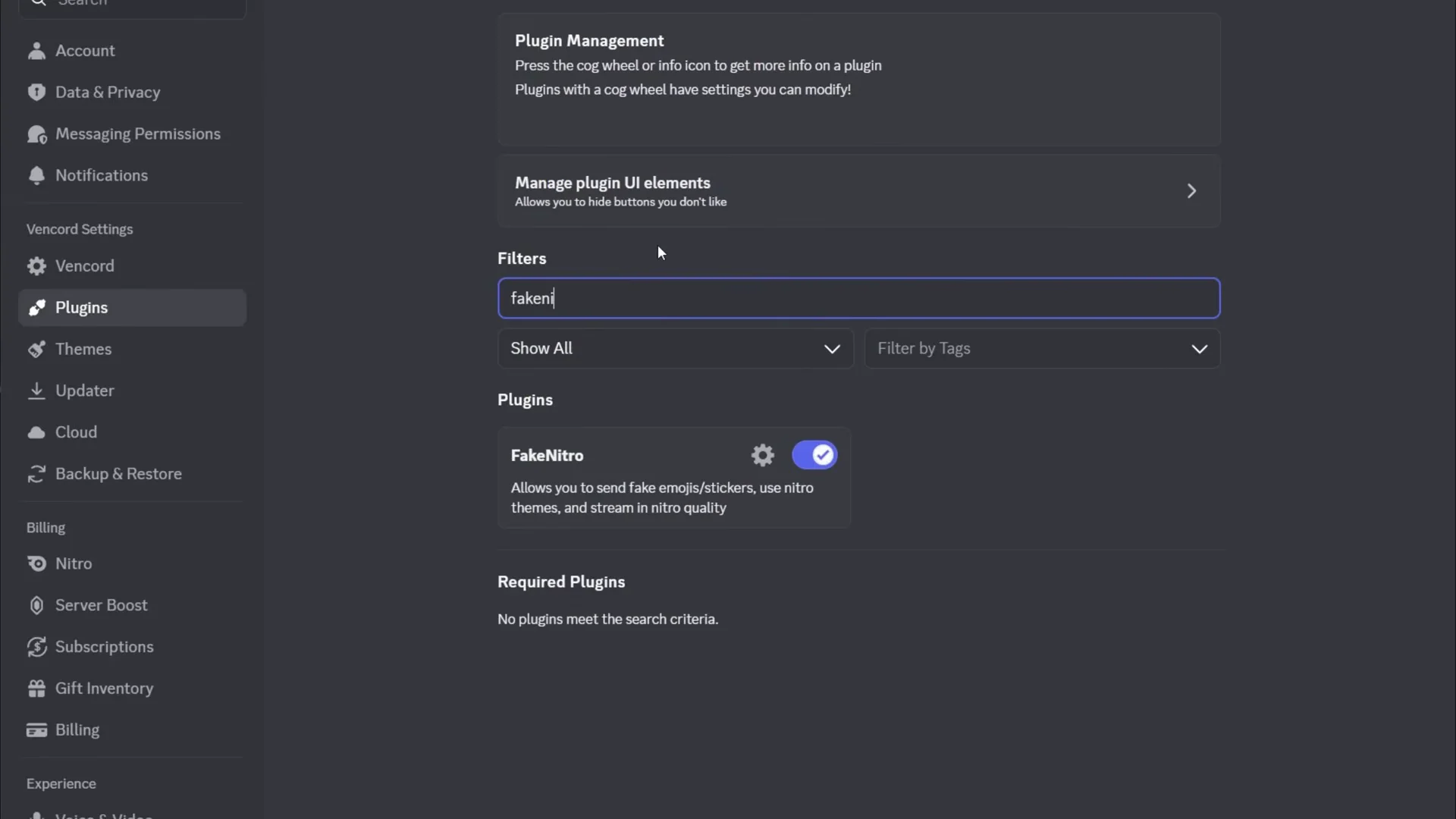
Quick answer: Open Vencord Settings, go to Plugins, open the FakeNitro settings, and turn off Transform Emojis. Restart Discord if the change does not apply right away.
Why FakeNitro emojis disappear only for the sender
FakeNitro lets you send custom emojis you would normally need Nitro for by posting them as image or GIF links. With the Transform Emojis option enabled, your client tries to convert those links back into native-looking emotes when they appear in chat. That transform step is where things break on the sending side.
The result is that other people in the channel still see the transformed emote as intended, but your own view either shows nothing or just the raw emoji name. The message went through fine. Your client simply failed to redraw it as an emote for you.
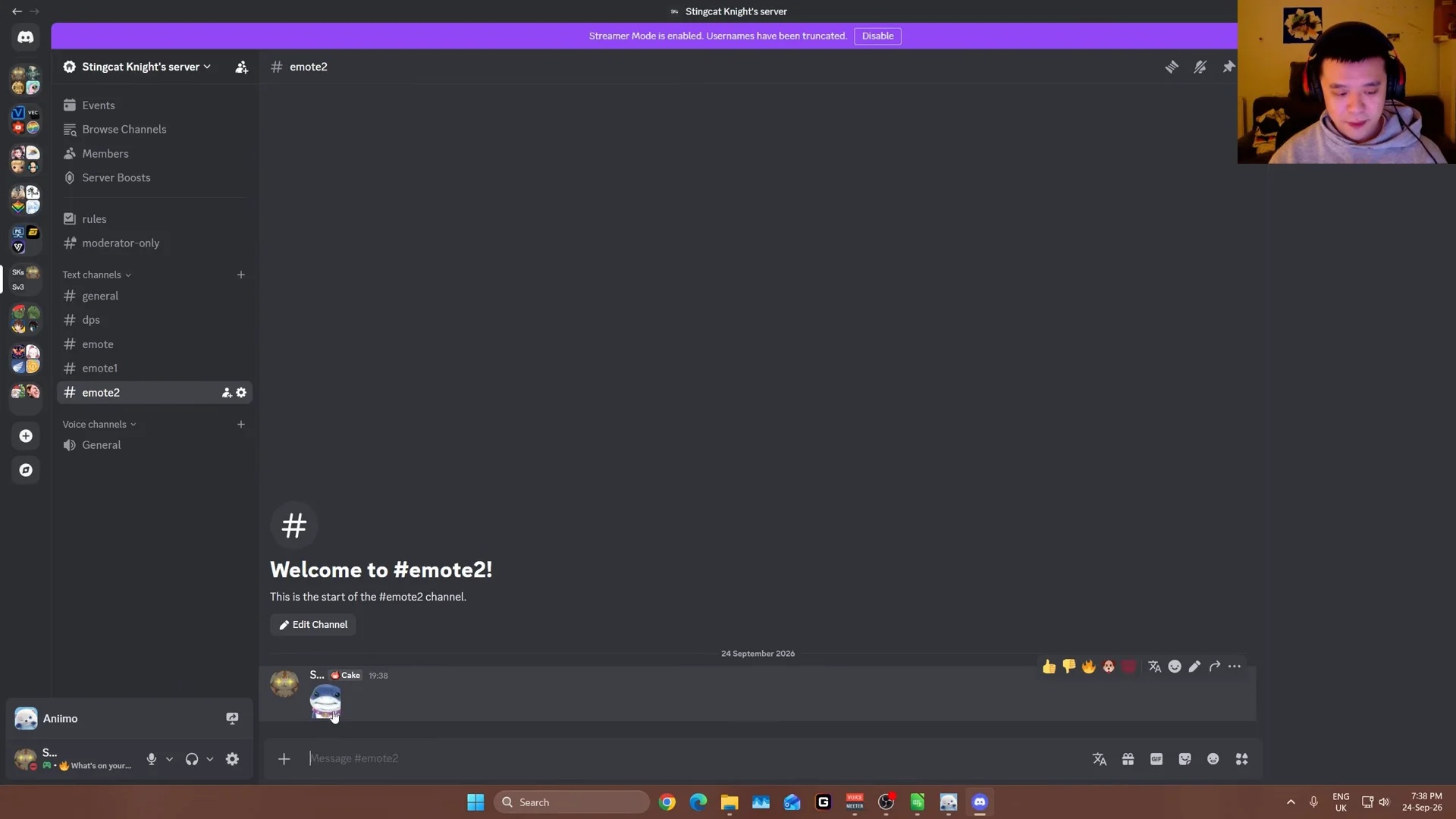
This is a common complaint among Vencord users, and the same fix keeps coming up in help threads across the community.
Before you start: make sure FakeNitro is installed
You need Vencord running with the FakeNitro plugin enabled. If you have not set up the client mod yet, install it first, then open the Plugins section, search for FakeNitro, and switch it on.
Keep the Enable Emoji Bypass option turned on. That is the setting that actually lets you send custom emojis, while Transform Emojis only controls how they are drawn afterward.
Turn off Transform Emojis in the FakeNitro settings
Confirm the emojis now show for you
Send a custom emoji, and a GIF emote too, into any channel. With Transform Emojis off, they post as regular image or GIF embeds, which your client can render without the transform step. You should now see each emote appear in the chat instead of a blank space or a plain name.
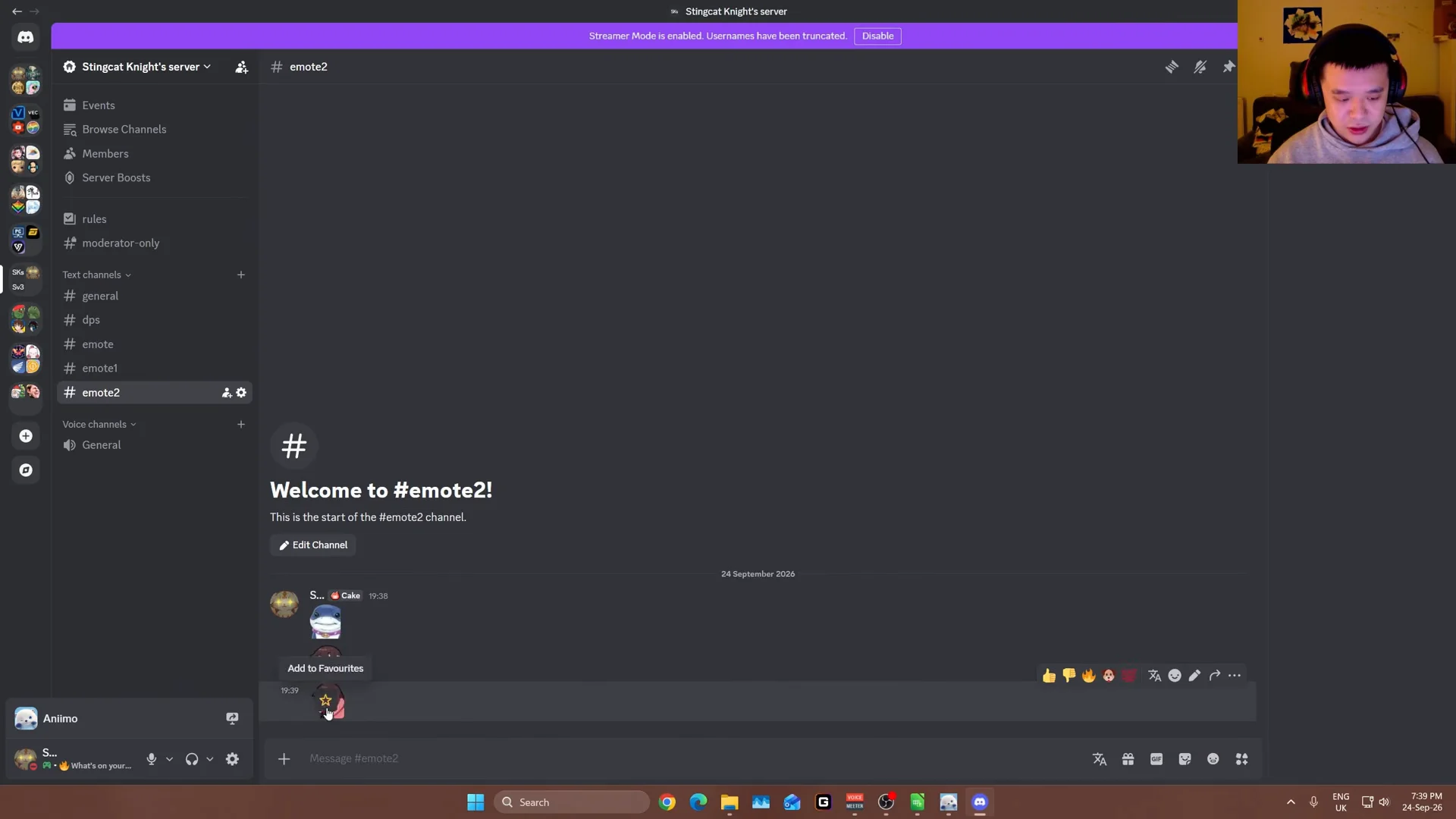
The trade-off is small. Your emojis now appear as image or GIF embeds rather than compact inline emotes, but they are visible to you and to everyone else. That is the whole point of turning the setting off, and for most people it is the fastest way to get FakeNitro emojis showing again on your own screen.