AION 2 splits its camera and combat controls across two separate menu tabs, which is why players often struggle to find where to switch between the action-style reticle and the classic MMO cursor. Camera framing, view distance, and shake sit under Graphics, while the control scheme and targeting behavior live under Combat. Once you know which tab holds which option, the setup takes only a minute.
Quick answer: Camera perspective, view distance, shake, and move speed are under Graphics > Camera / Direction. The AION 2 vs AION 1 control scheme is under Combat > Controls at [PC] Control Mode.
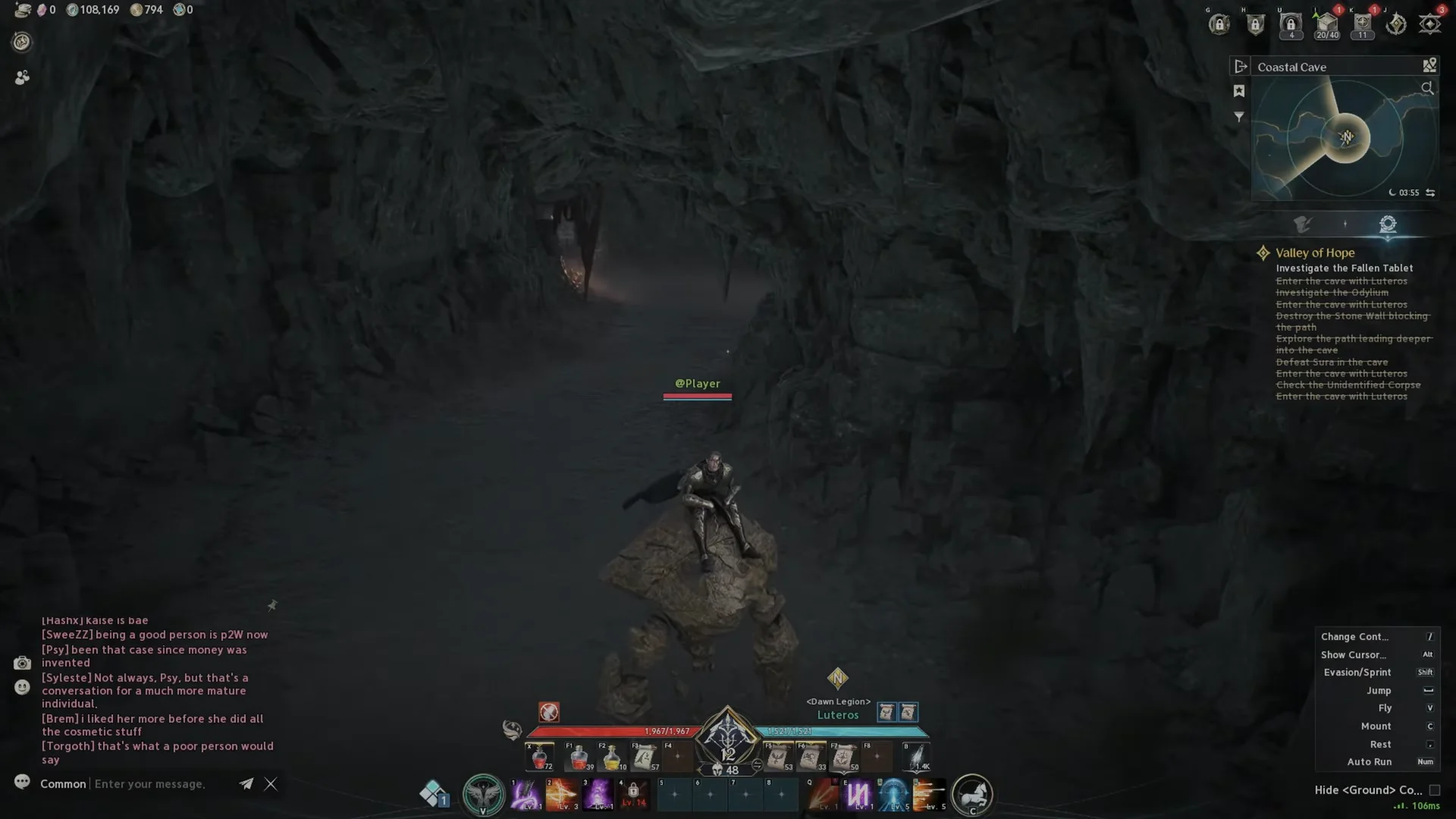
Open the settings menu
Camera settings under Graphics > Camera / Direction
Open the Graphics tab and select the Camera / Direction sub-tab. This page holds every camera framing and movement option, separate from the graphics quality controls under Optimize.
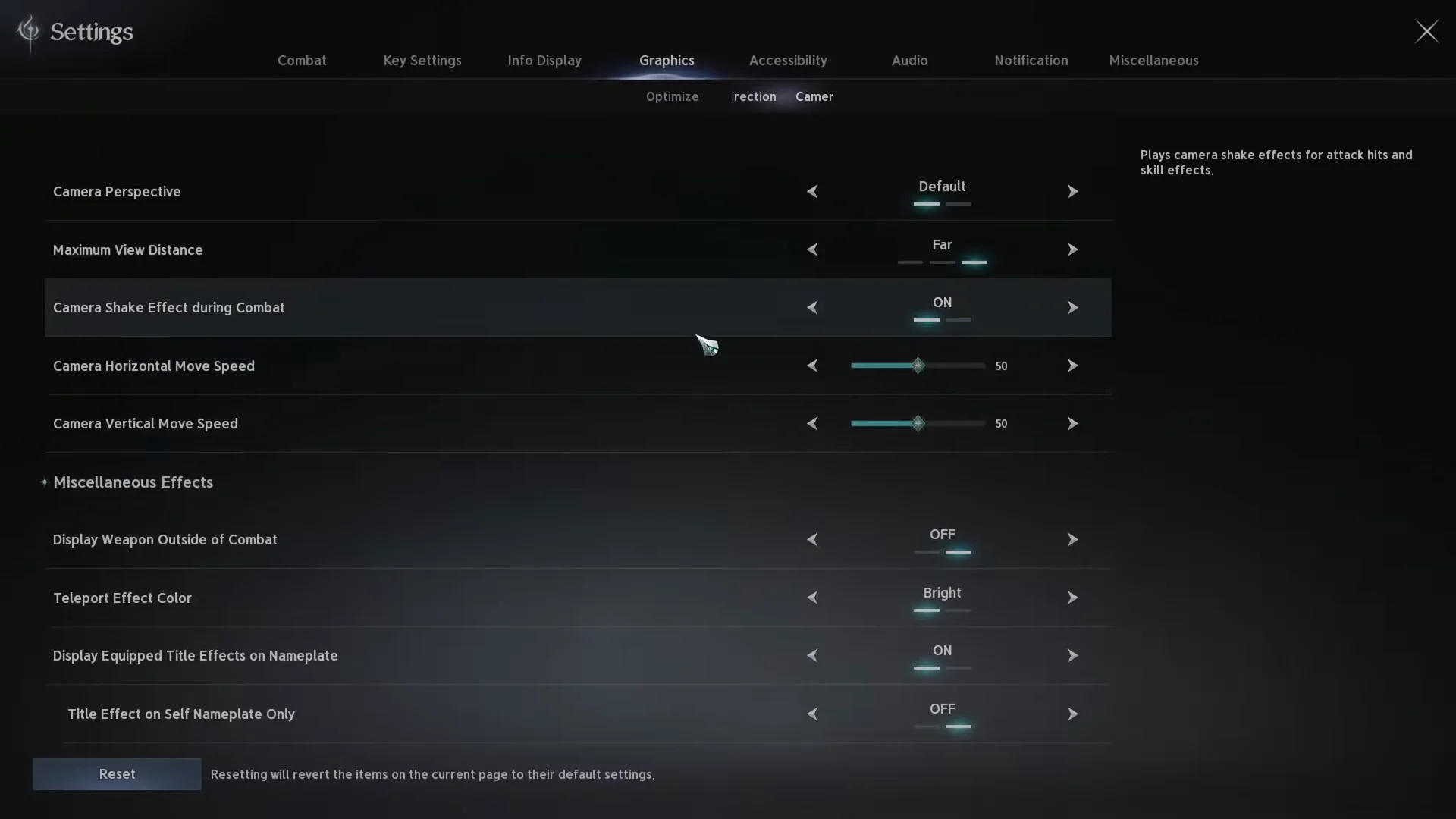
Camera Perspective: Default vs Over-the-Shoulder View
Camera Perspective determines your character’s placement in the view. Default keeps the character at screen center, as in classic MMOs. Select Over-the-Shoulder View to place the character toward the left edge, like in modern third-person action games.
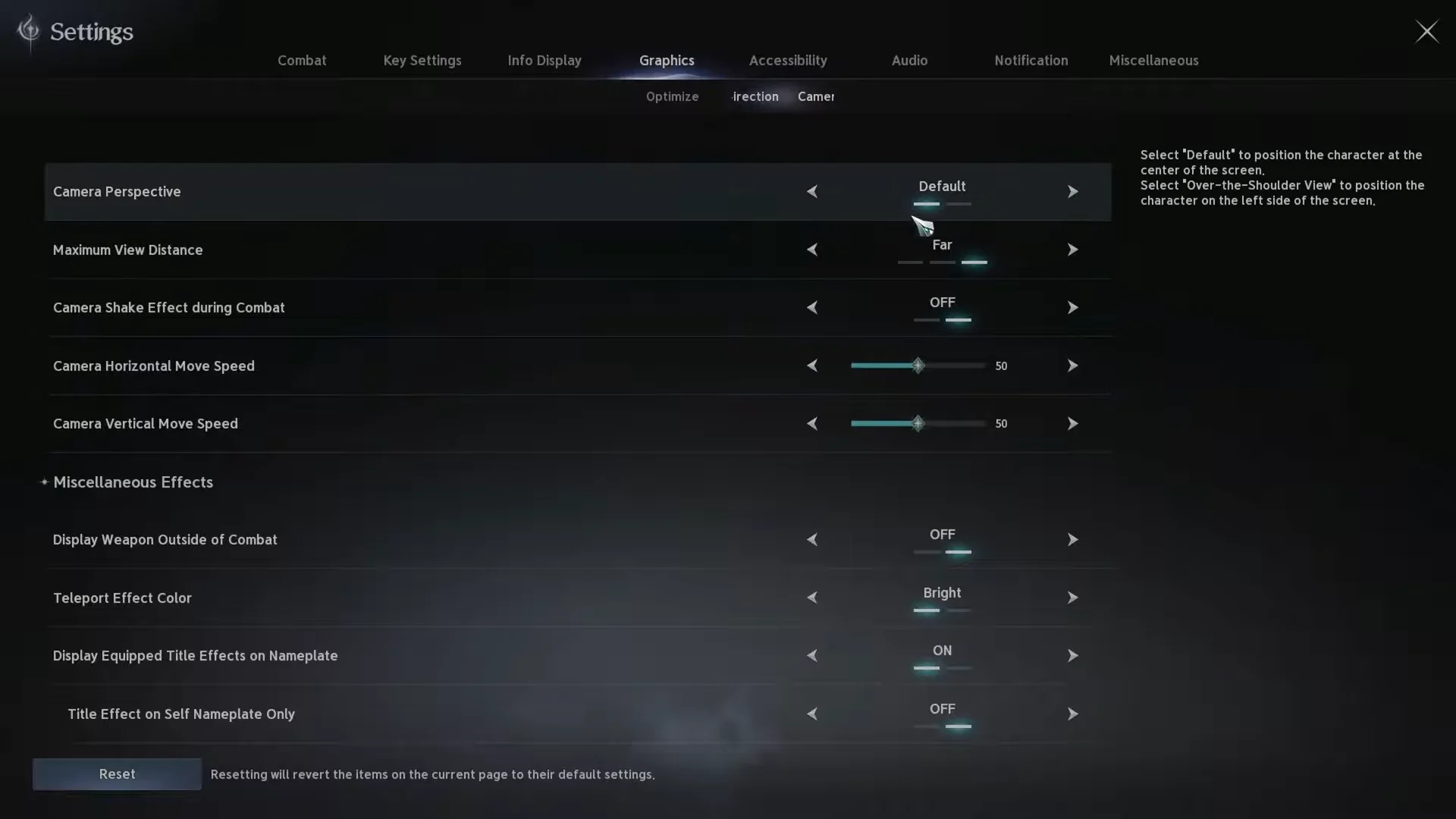
View distance, shake, and move speed
The same page carries a few more camera controls worth setting before you play. Each one changes a single, visible behavior.
- Maximum View Distance — how far the camera can see; set to Far for exploration and open-world visibility.
- Camera Shake Effect during Combat — switch this setting ON or OFF. When disabled, the screen stays steady through hits and skills.
- Camera Horizontal Move Speed — numeric slider, default 50, controls left–right pan speed.
- Camera Vertical Move Speed — numeric slider, default 50, controls up–down pan speed.
Turning off combat camera shake makes it easier to track enemies and read attack telegraphs during dense fights.
Zoom with the mouse wheel
Zoom is handled in-game rather than through a slider. Scroll the mouse wheel forward to zoom in close to the character, near a first-person view. Scroll backward to pull the camera out to the maximum view distance.
Control modes under Combat > Controls
Switch to the Combat tab and open the Controls sub-tab. The first option at the top is [PC] Control Mode, which toggles between AION 2 and AION 1. This single setting changes how the cursor, camera, and targeting all behave.
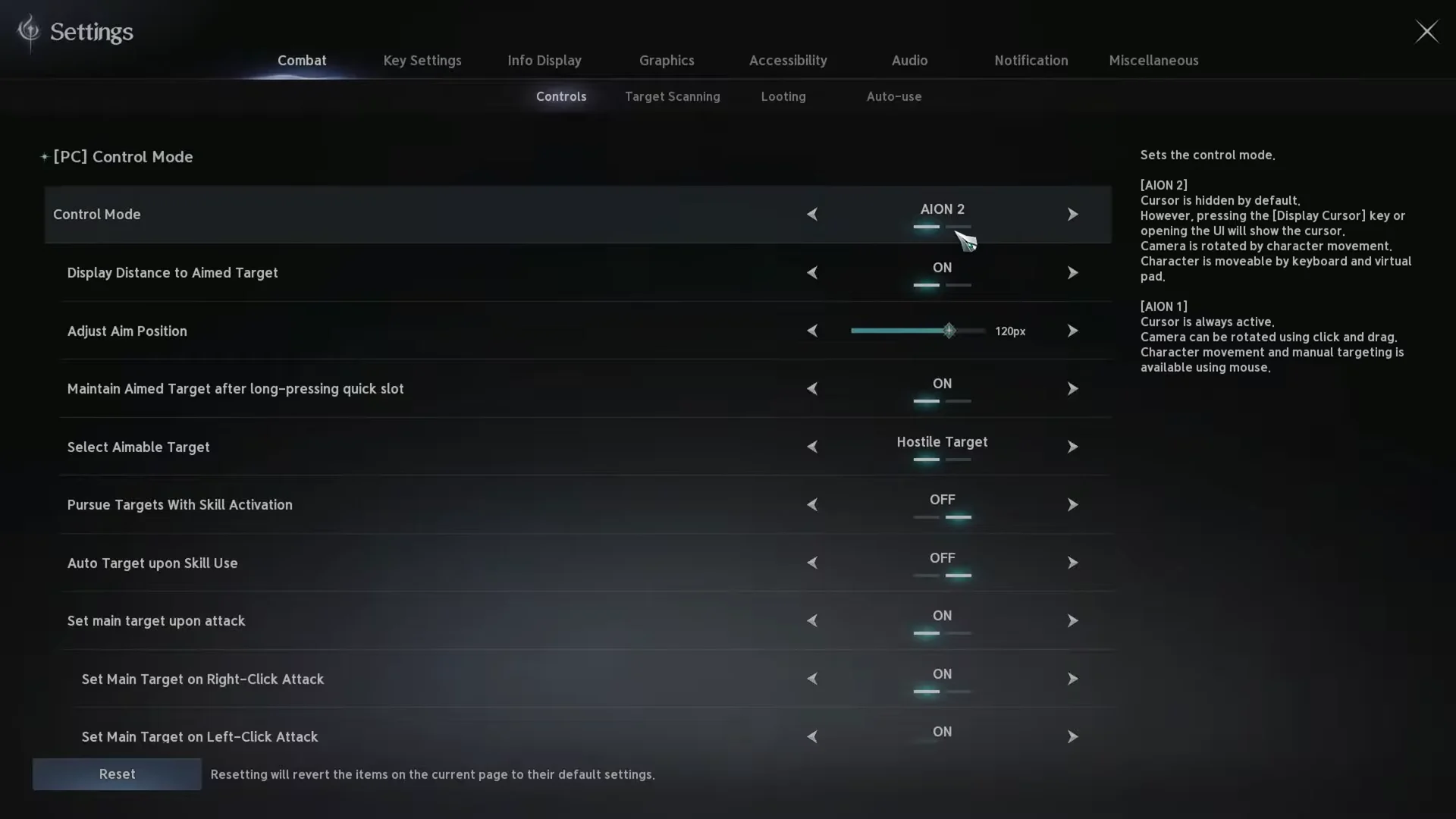
| Behavior | AION 2 | AION 1 |
|---|---|---|
| Cursor | Hidden by default | Always active |
| Camera | Rotated by character movement | Rotated by click and drag |
| Movement | Keyboard | Mouse |
| Targeting | Center reticle / virtual target | Manual mouse targeting |
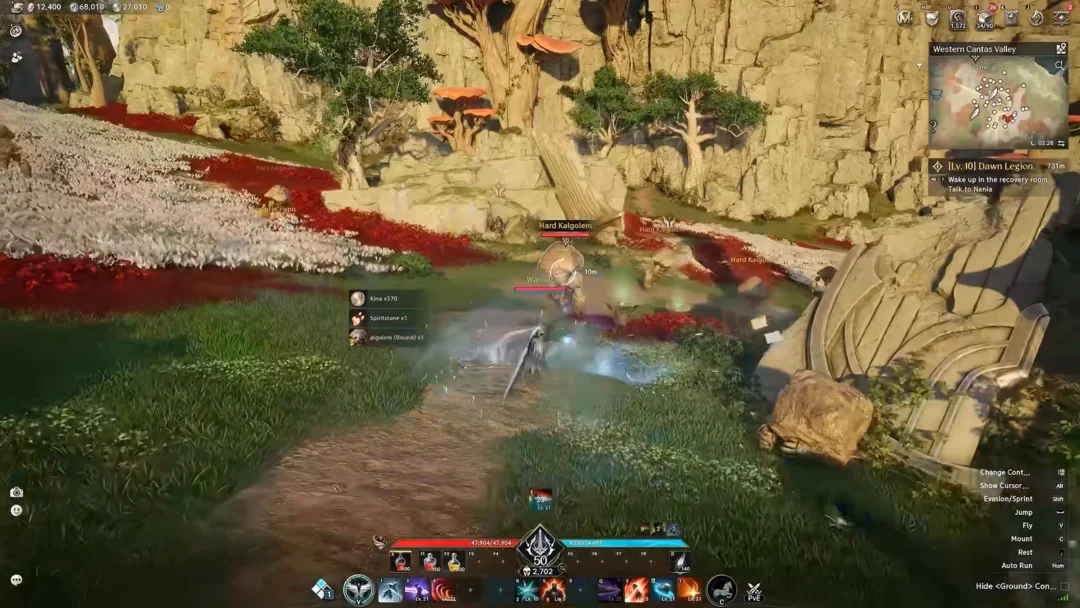
In AION 2 mode the cursor stays hidden, but pressing the Display Cursor key or opening any UI panel brings it back. A central aiming point handles target acquisition, and mouse movement pans the camera directly. This suits third-person action combat, quick direction changes, and PvP.
With AION 1 mode, the cursor stays visible, as it does in classic tab-target MMOs. Hold either the left or right mouse button to rotate the camera; press both together to move forward. This mode suits players who target with the cursor, healers picking party members, and anyone using an MMO mouse.
Fine-tune targeting and aim in the Controls sub-tab
After choosing a control mode, the same Controls page exposes granular sub-settings for aim and targeting. These apply on top of your chosen mode, so you can keep the AION 2 reticle while adjusting exactly how it locks onto enemies.
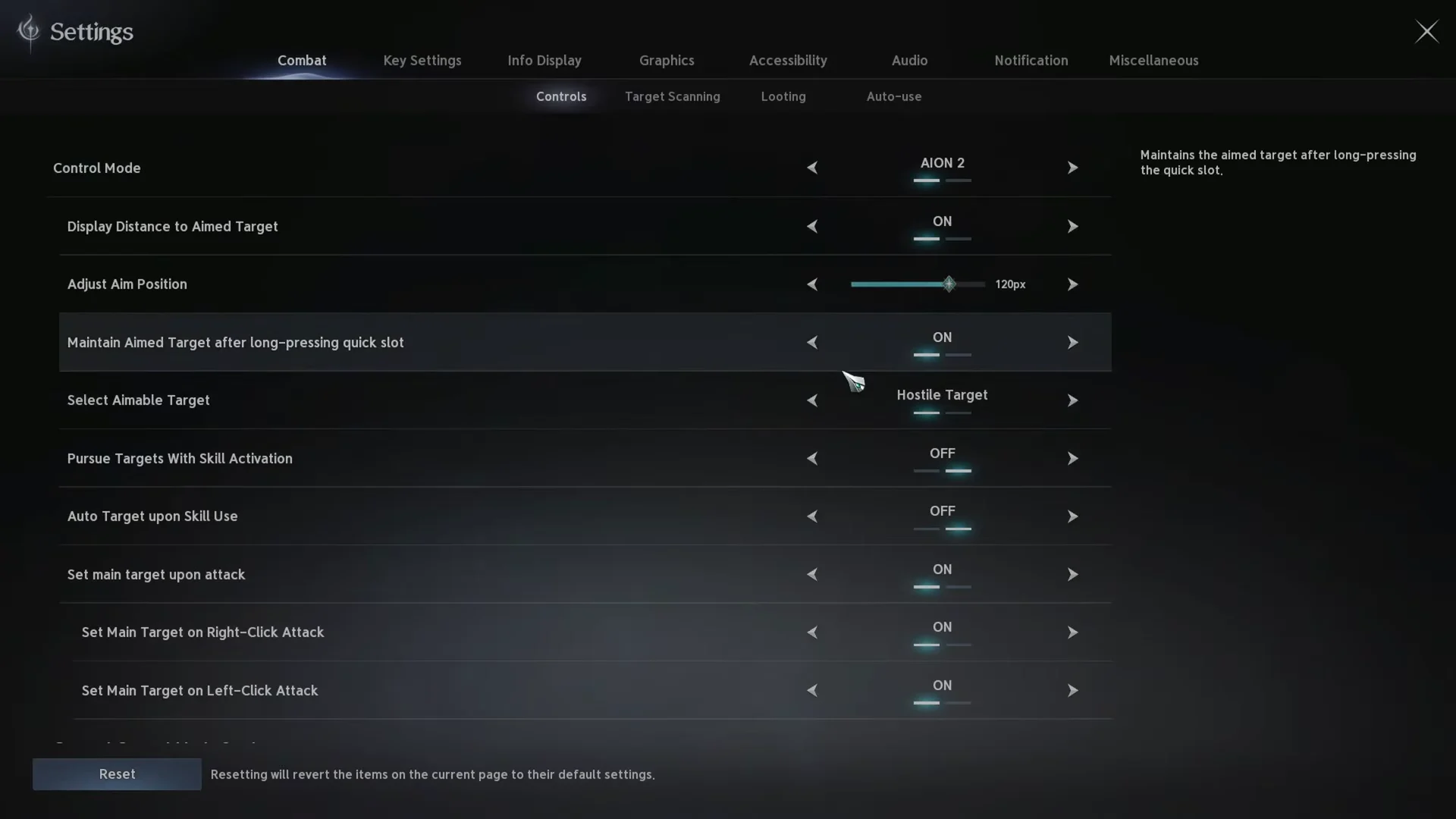
- Display Distance to Aimed Target — shows how far your reticle target sits.
- Adjust Aim Position — offsets the aim point, defaulting to 120px.
- Maintain Aimed Target after long-pressing quick slot — keeps your lock through held skills.
- Select Aimable Target — restricts the reticle to Hostile Target by default.
- Pursue Targets With Skill Activation — auto-closes distance to enemies; usually kept off for PvP.
- Camera Lock-On to Target and Left-click Only to Rotate the Camera — control how the camera follows and rotates.
- Fix Mouse Cursor and Skill Queue — pin the cursor and buffer queued skills.
You can also set Click Ground to Move and Click on the target to attack or perform actions, both defaulting to Allow Both Sides, plus toggles for setting the main target on left-click and right-click attacks.
Confirm your changes are active
Each option shows its current value directly in the menu, so a change registers the moment the label updates. Camera perspective and shake changes are visible in gameplay right away, and switching control mode changes cursor and camera behavior the next time you move. If you want to start over, use the Reset button, then Close to return to the game with your setup applied.