AION 2 lets you move a complete HUD layout between characters, between machines, or straight from a community post into your own game. Everything happens inside the Edit HUD menu, where you can save up to six layouts and then pass them around as a short text code or as a file on your PC.
Quick answer: Open the main menu, click Edit HUD, pick a free preset slot, then use Export (Copy as Code or Export as file) to share a layout and Load (Import Code or Import File) to bring one in.
Open the Edit HUD menu
Every preset action starts from the same screen. Open the main menu and click the Edit HUD button, which sits on the far right of the menu panel. The editor opens over a grid preview of your current layout, with the preset controls grouped on one side.
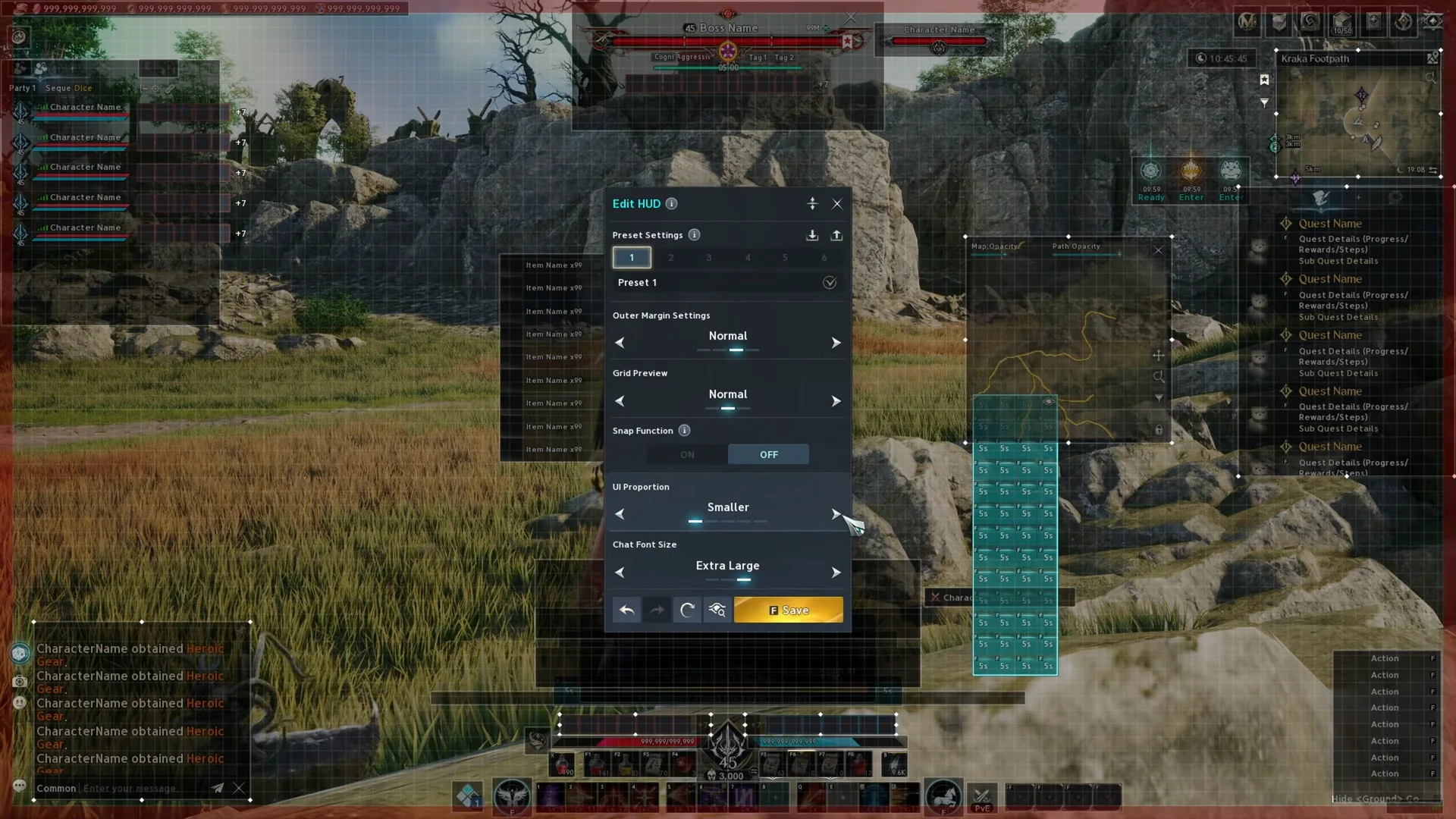
From here you can drag individual modules such as party frames, the chat box, health bars, target info, the minimap, and your action hotbars anywhere on the screen. A grid overlay and a snap option help you line elements up cleanly while you work.
Save a layout to a preset slot
You need a saved layout in a slot before you can export it, and you need a free slot before you import one. There are six preset slots, numbered Preset 1 through Preset 6, and each holds a distinct arrangement.
Moving any HUD element switches the Save button on. Select the slot you want to write to, arrange your elements, then click Save to store that arrangement in the active slot. The layout is now kept and can be exported.
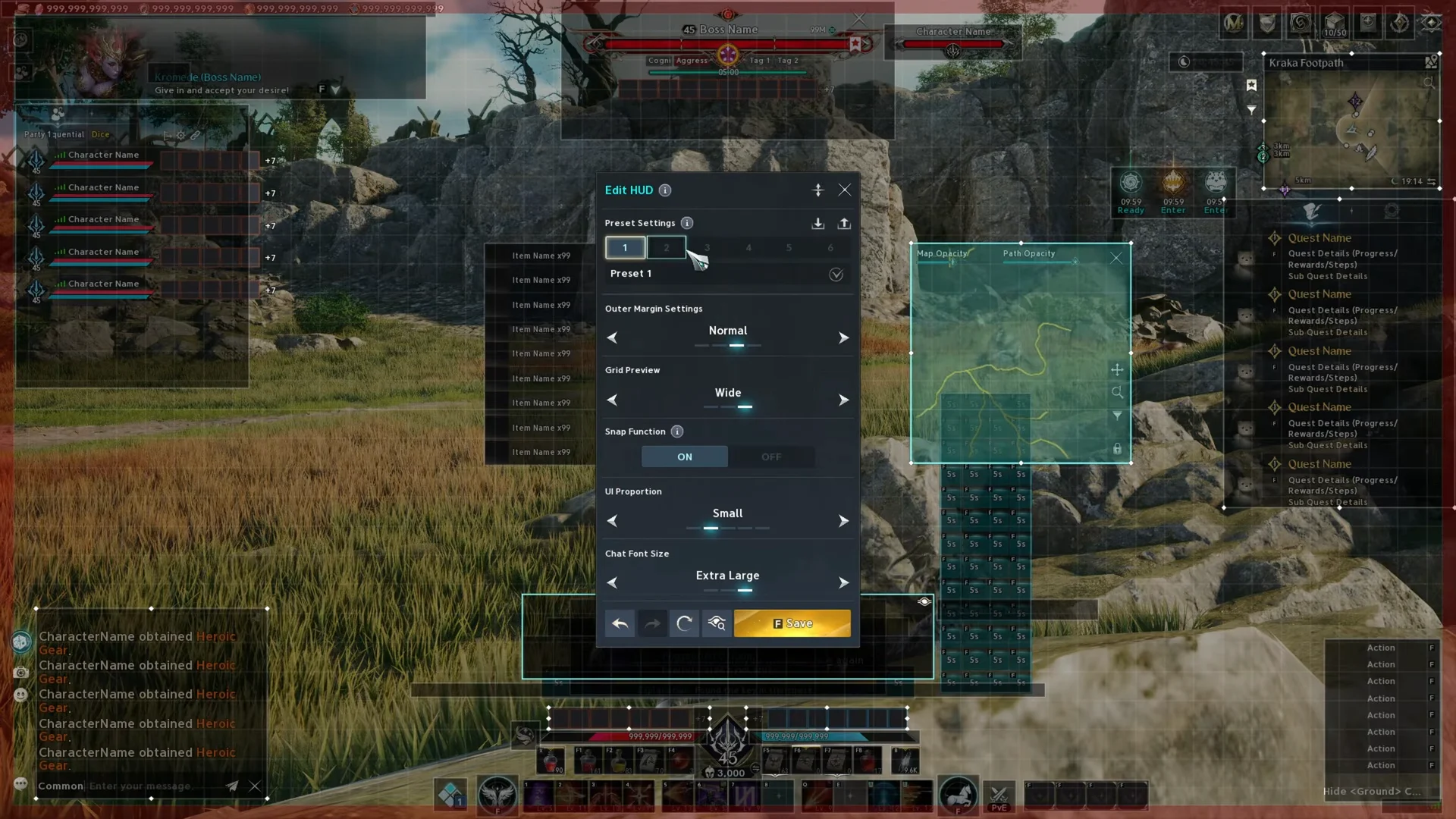
Export a preset as a code or a file
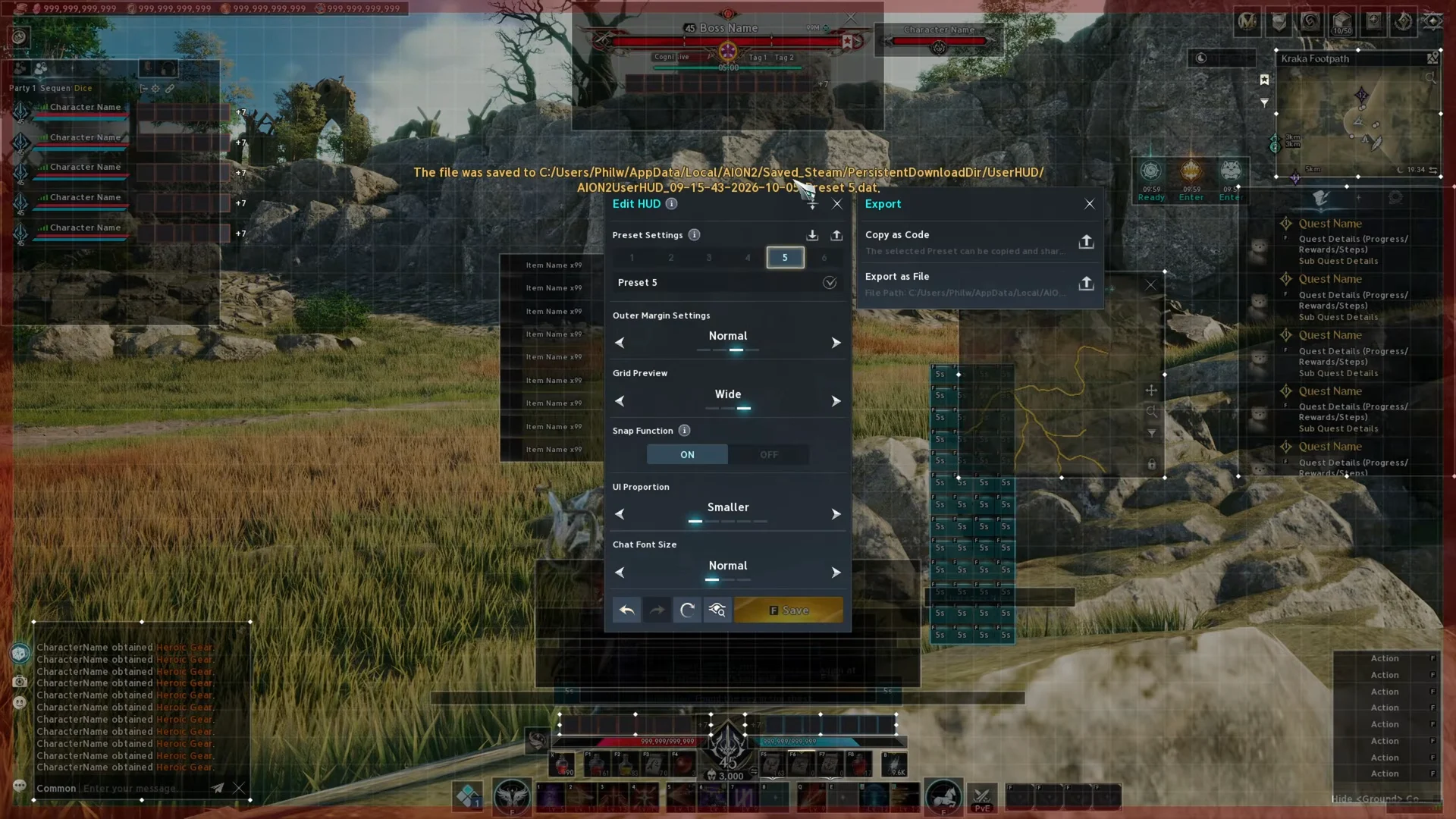
With a saved layout selected, click Export. You get two formats, and they suit different situations. A code is quick to paste into a chat or a Discord post, while a file is better for a backup you want to keep on disk.
- Copy as Code — copies the layout as a text string to your clipboard, ready to paste anywhere.
- Export as file — writes a
.datpreset file to your local user directory.
When you choose Export as file, the game confirms the save with a banner showing the full path, for example AION2UserHUD_09-01-2024-18-09-00_Preset 1.dat. The timestamp in the name is added automatically.
Import a preset from a code
Pasting a code is the fastest way to use a layout someone shared. Make sure you have the string copied to your clipboard first.
Import a preset from a file
If you have a .dat file instead of a code, drop it into the game’s HUD folder and load it from the Import File tab. Click Load, open Import File, and the game lists any preset files it finds in that folder. Select the one you want and confirm.
Renaming a file in Windows changes how it appears in the Import File list. After you rename a .dat file, refresh the list and the new name shows up in place of the old one, which makes a library of layouts easier to tell apart.
Where preset files are stored on your PC
Exported files live inside the AION2 folder in your user AppData directory. The folder depends on which launcher you use.
C:\Users\<Username>\AppData\Local\AION2\Saved_Steam\PersistentDownloadDir\UserHUD\On the Purple launcher, the Saved_Steam part of the path is Saved_Purple instead. Everything after that stays the same. A fresh install also includes a Default.dat file alongside any you export.
The AppData folder is hidden by default. In File Explorer, enable it under View > Show > Hidden items, or you will not see the folder in the path above.
Settings that carry across every preset
Most controls in the editor are stored per preset, but two are not. UI Proportion and Chat Font Size are global, so changing either one changes it for all of your presets at once. Keep that in mind when you build a layout around a specific scale, because switching presets will not switch those two values back.
| Control | What it does | Scope |
|---|---|---|
| Outer Margin Settings | Padding around the screen edge | Per preset |
| Grid Preview | Overlay density (Normal, Wide, Dense) | Per preset |
| Snap Function | Aligns elements to the grid (ON/OFF) | Per preset |
| UI Proportion | Overall HUD scale (Smaller to Extra Large) | Global |
| Chat Font Size | Size of chat text | Global |
A note on class-specific layouts
Layouts shared online are often tuned for a particular class or playstyle, such as a PvP arrangement built around a centralized minimap for target inspection or a top-aligned bar setup. A code works regardless of who made it, but a layout built for a class you cannot play yet will still load onto whatever character you import it to.
The Brawler, a Fist-wielding Dealer with 36 skills, is not playable at global launch, so a preset labelled for a Brawler is something you would apply to another class in the meantime. The Templar, a Longsword Tank also with 36 skills, is available, and a top-aligned health and mana layout suits its frontline role well.
Once a code or file loads into a free slot and the editor confirms the change, the preset is yours to tweak further and save. Because layouts move so easily between slots and machines, keeping one clean backup file per setup is the simplest way to avoid rebuilding a layout from scratch later.