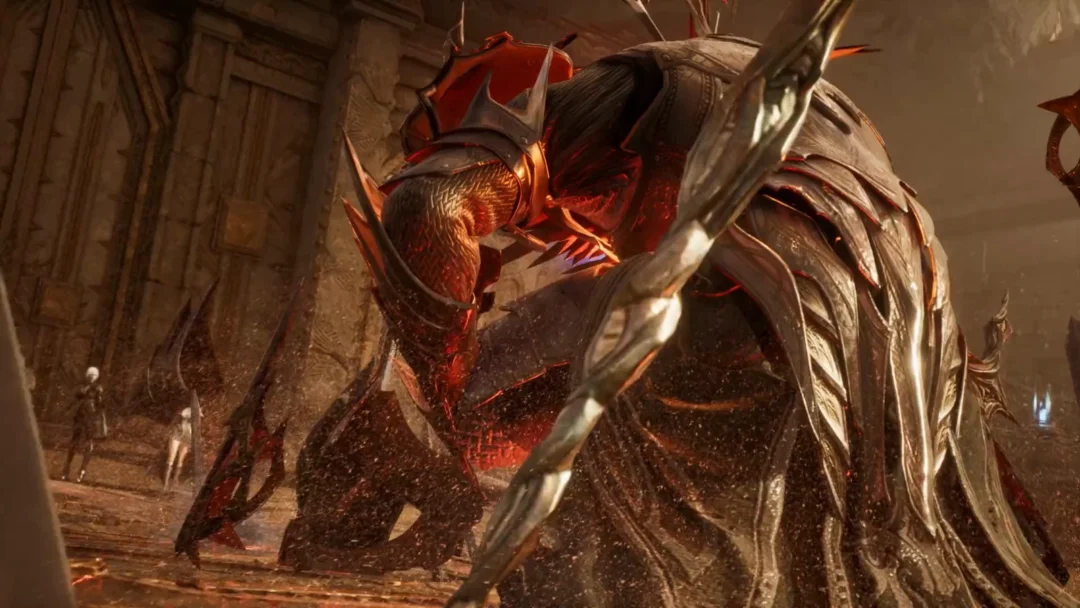
Final Fantasy XVI runs well on a capable Windows machine, but plenty of players hit hard stutters during cinematic transitions, frame drops in large fights, and full crashes when fast traveling or loading checkpoints. The game is demanding on both the CPU and GPU, so most of these problems trace back to drivers, corrupted files, overclocking conflicts, or graphics options that push your hardware past what it can sustain.
Confirm your PC meets the Final Fantasy XVI requirements
Before changing settings, make sure the hardware can actually handle the game. FF16 is CPU-intensive, and a dual-core chip will not run it. Even a quad-core i3 can stutter while CPU usage spikes past 80 percent, so an i5 with eight threads is a sensible floor. If your system sits well below the targets below, stuttering and freezing are expected rather than a bug.
| Component | Recommended for smooth high settings |
|---|---|
| OS | Windows 11/10 (64-bit) |
| CPU | AMD Ryzen 7 5700X / Intel Core i7-10700 |
| RAM | 16 GB |
| GPU | AMD Radeon RX 6700 XT / NVIDIA GeForce RTX 2080 |
| VRAM | 8 GB dedicated |
| Storage | 170 GB available space |
| DirectX | Version 12 |
Running the game far below these specs, such as on an unsupported Steam Deck, produces heavy lag in open areas and a 30 fps experience that looks like an older console generation. A controller is also strongly recommended over keyboard and mouse on lower-end setups.
Update your graphics drivers
Outdated GPU drivers are the most common cause of crashes and stutters in graphically heavy games. A fresh driver fixes compatibility problems and often includes specific optimizations for demanding titles.
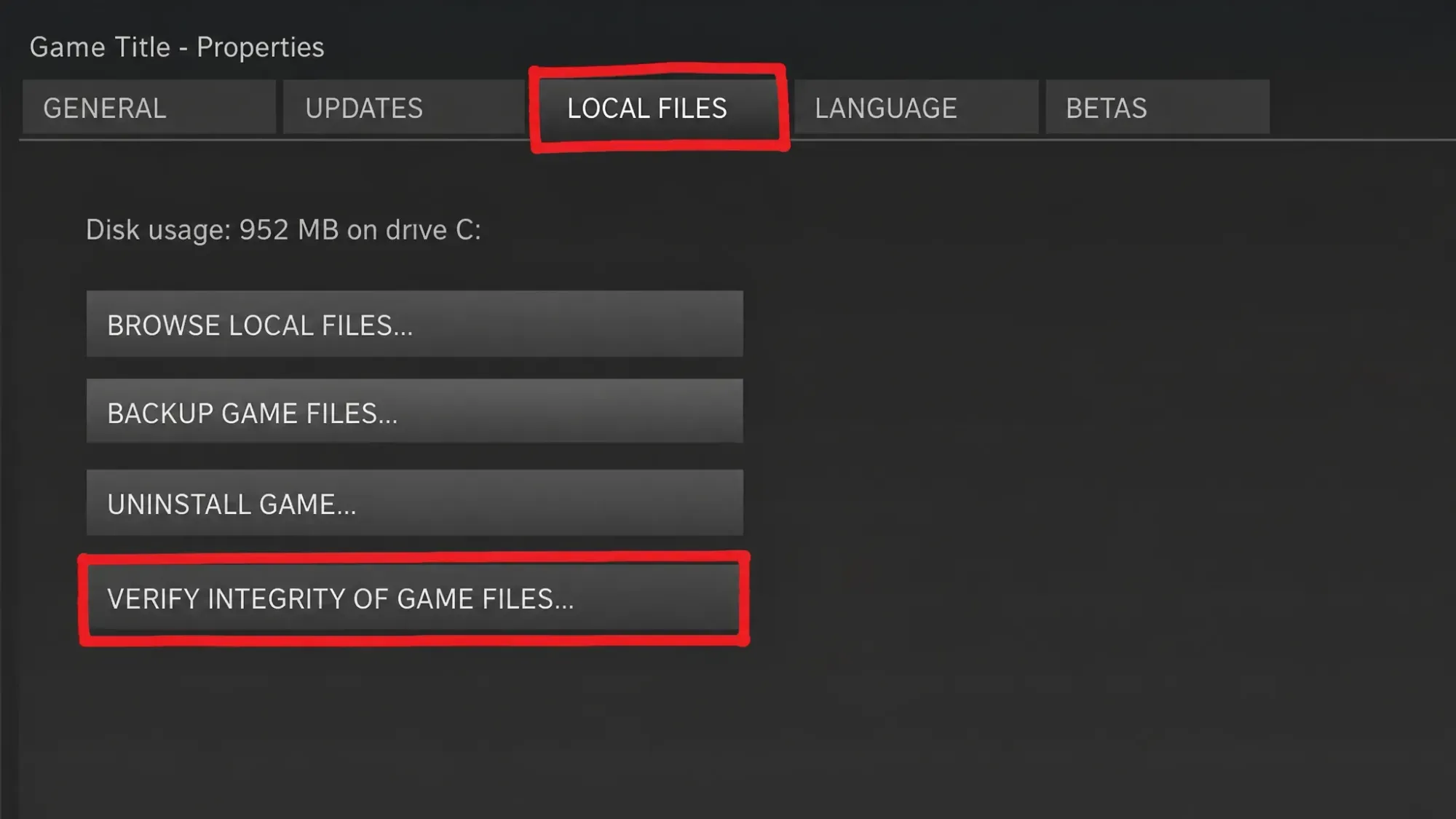
Verify the game files in Steam
Corrupted or missing files cause crashes during loads and fast travel. Steam can scan the installation and re-download anything that is damaged without removing your saves or progress.
Disable overclocking apps
FF16 does not get along with overclocking utilities, and an active overclock is a frequent source of sudden crashes and freezes. Shut these tools down completely before launching the game. You may lose a little peak performance, but stability comes first.
Close any CPU or GPU overclocking software, return clock speeds to stock, and test the game. If crashes stop, keep the overclock off while you play. This includes auto-overclock features built into some motherboard and GPU control panels.
Turn off VRS and lower heavy graphics settings
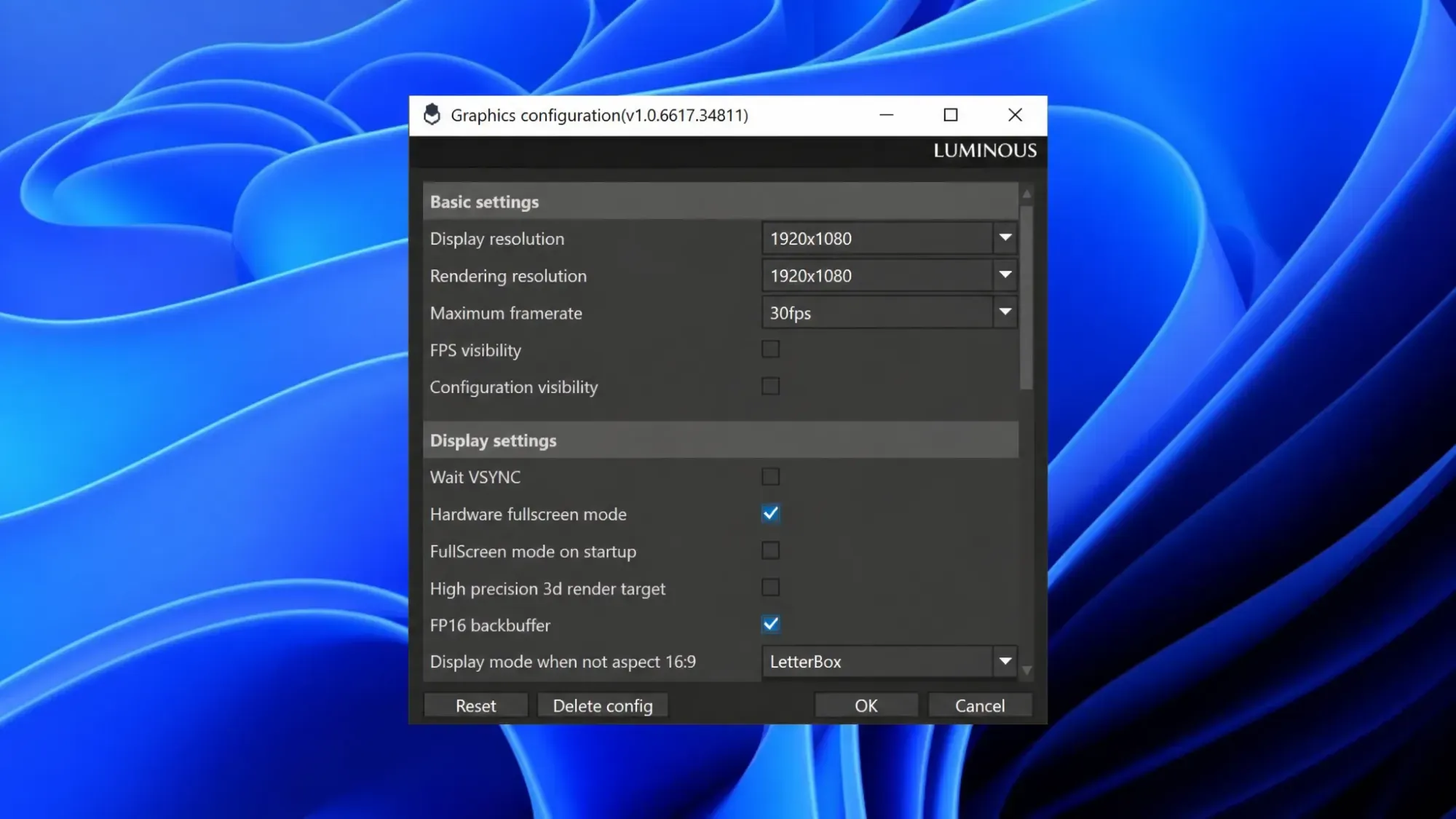
Variable Rate Shading (VRS) has been linked to stutters for some players, and turning it off in the graphics menu can smooth traversal. Beyond that, the settings that strain the GPU most are texture quality, reflections, ambient occlusion, anti-aliasing, and shadow quality.
Disable the Steam overlay
The Steam overlay lets you message friends and check the store mid-game, but it can introduce lag and lower average frame rates in FF16. Turning it off frees those resources.
Close background tasks and run on the dedicated GPU
Too many background apps eat RAM and CPU time, which shows up as stutter and low FPS. On laptops, the game may also default to the weaker integrated GPU.
C:\Program Files\Steam\steamapps\common\FINAL FANTASY XVI\FINAL FANTASY XVI.exe.Update Windows, DirectX, and Visual C++
FF16 needs DirectX 12 and the Visual C++ runtimes to launch and run correctly. Missing or outdated versions cause crashes on startup and to the desktop.
Keep the game updated and use Clean Boot for stubborn crashes
Square Enix ships patches that fix reported performance bugs, so always run the latest version of FF16. If crashes continue after every other fix, a third-party app is likely interfering.
Perform a Clean Boot to start Windows with only essential services running. If the game is stable in that state, re-enable startup programs and services in small groups until the crash returns, which identifies the conflicting app. Remove or disable that program while playing.
Finally, watch your temperatures. Overheating forces the CPU or GPU to throttle, which surfaces as sudden frame drops or freezes. Clear dust from your fans and heatsinks and confirm temperatures stay within safe limits during long sessions. Work through these fixes in order, testing after each one, and you should land on a stable, smooth run through Valisthea.