
GTA 6 puts your guns, gadgets and clothes on one loadout wheel. You open it by holding a single button, and the game teaches it early with an on-screen tip that reads “Hold L1 to open your loadout”. The controls below are the PS5 defaults.
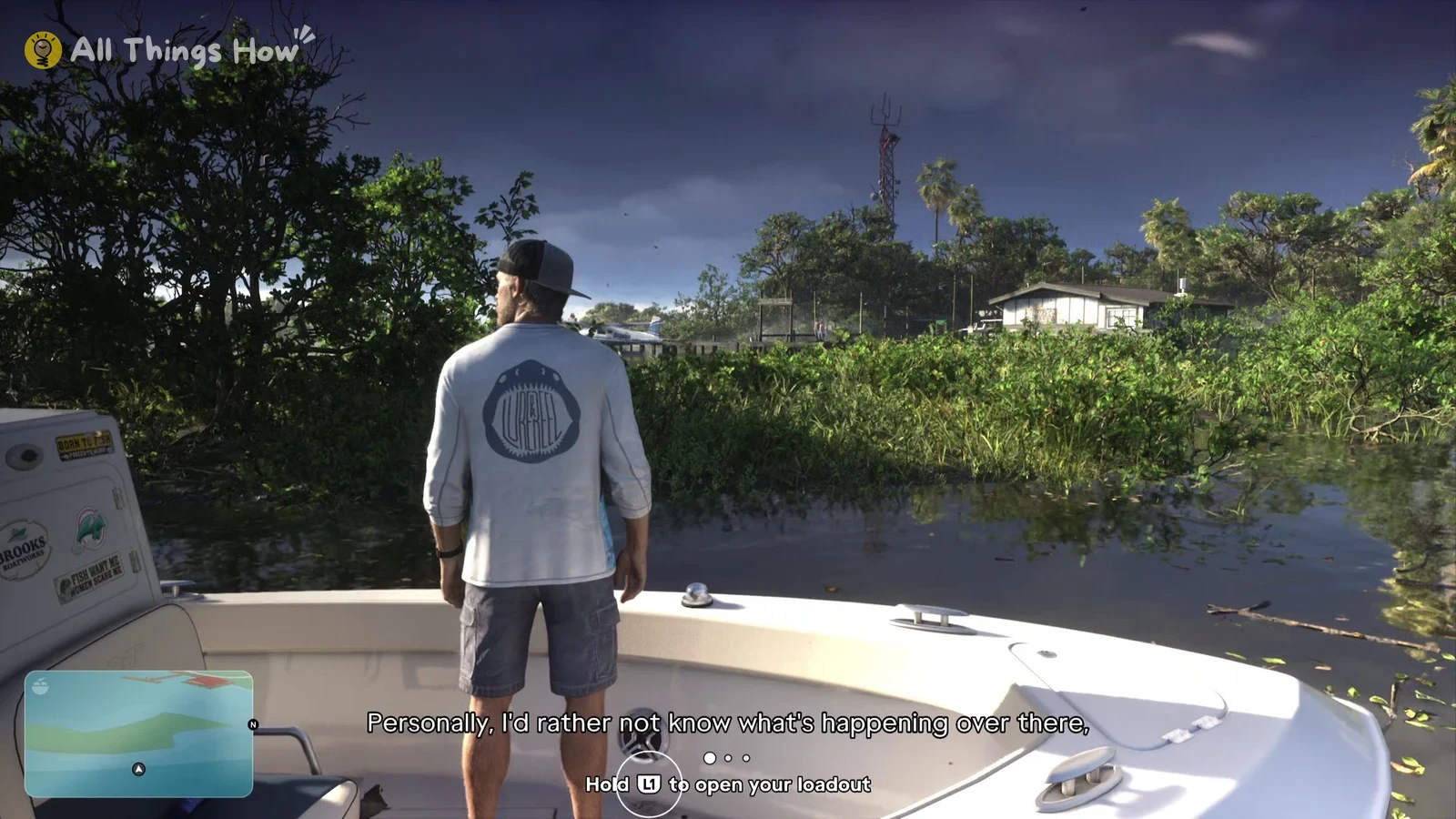
Quick answer: Keep L1 held and use the right stick to point at a slot. Release L1 to equip what’s there. With the wheel open, press R1 to move between the WEAPONS and ITEMS tabs.
How to open the loadout wheel and equip a weapon or equipment
You don’t need the wheel just to draw or put away your gun. A quick tap of L1 equips or holsters it, and the game shows a tip for this too: “Press L1 to quickly equip or holster your gun.”
Change or take off clothing in the ITEMS tab
Clothing sits on a second page of the same wheel. With L1 held, press R1 to switch from WEAPONS to ITEMS. The slots change to things Jason is wearing, each marked ON or OFF. A baseball cap that’s being worn shows as “BASEBALL CAP – HEADWEAR”, sunglasses that aren’t being worn show OFF, and there’s also a slot with a clothes-hanger icon and a tick.
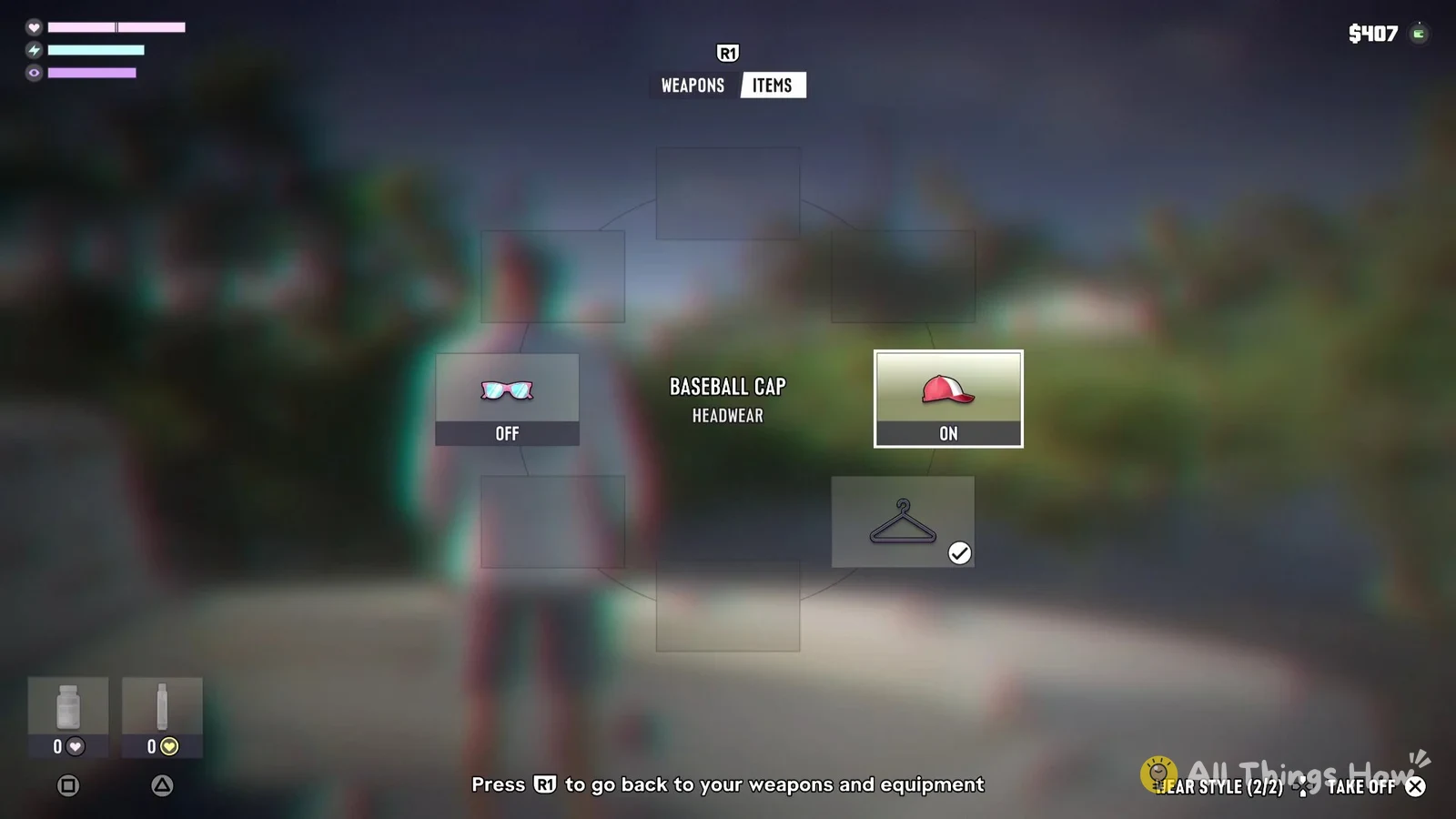
Highlight a clothing slot with the right stick, then use the prompts at the bottom right of the wheel:
- Cross: TAKE OFF
- D-pad: WEAR STYLE, shown with a count such as (2/2)
- R1: back to the WEAPONS tab, as the prompt at the bottom centre says: “Press R1 to go back to your weapons and equipment”
Other things the loadout wheel shows
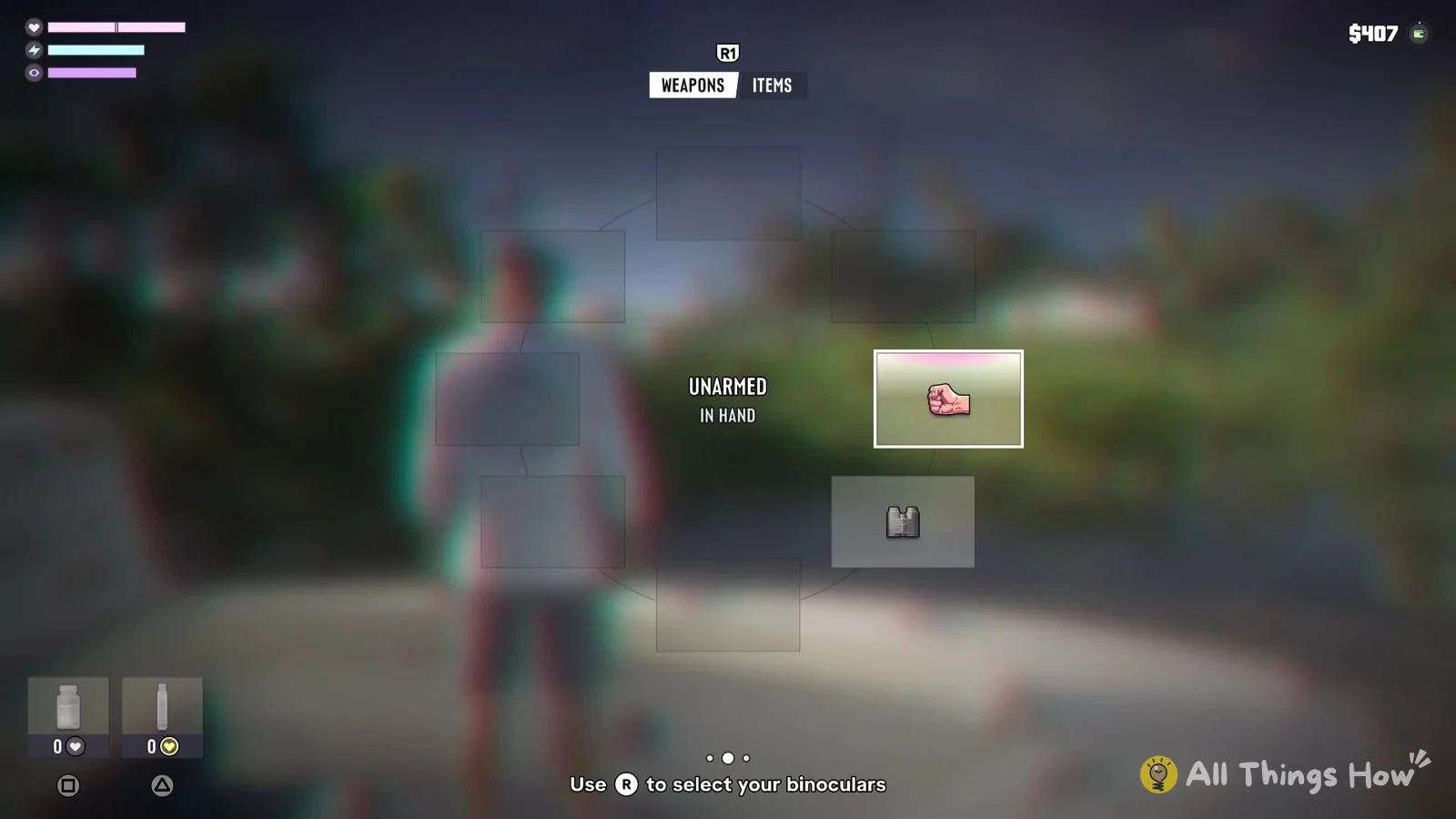
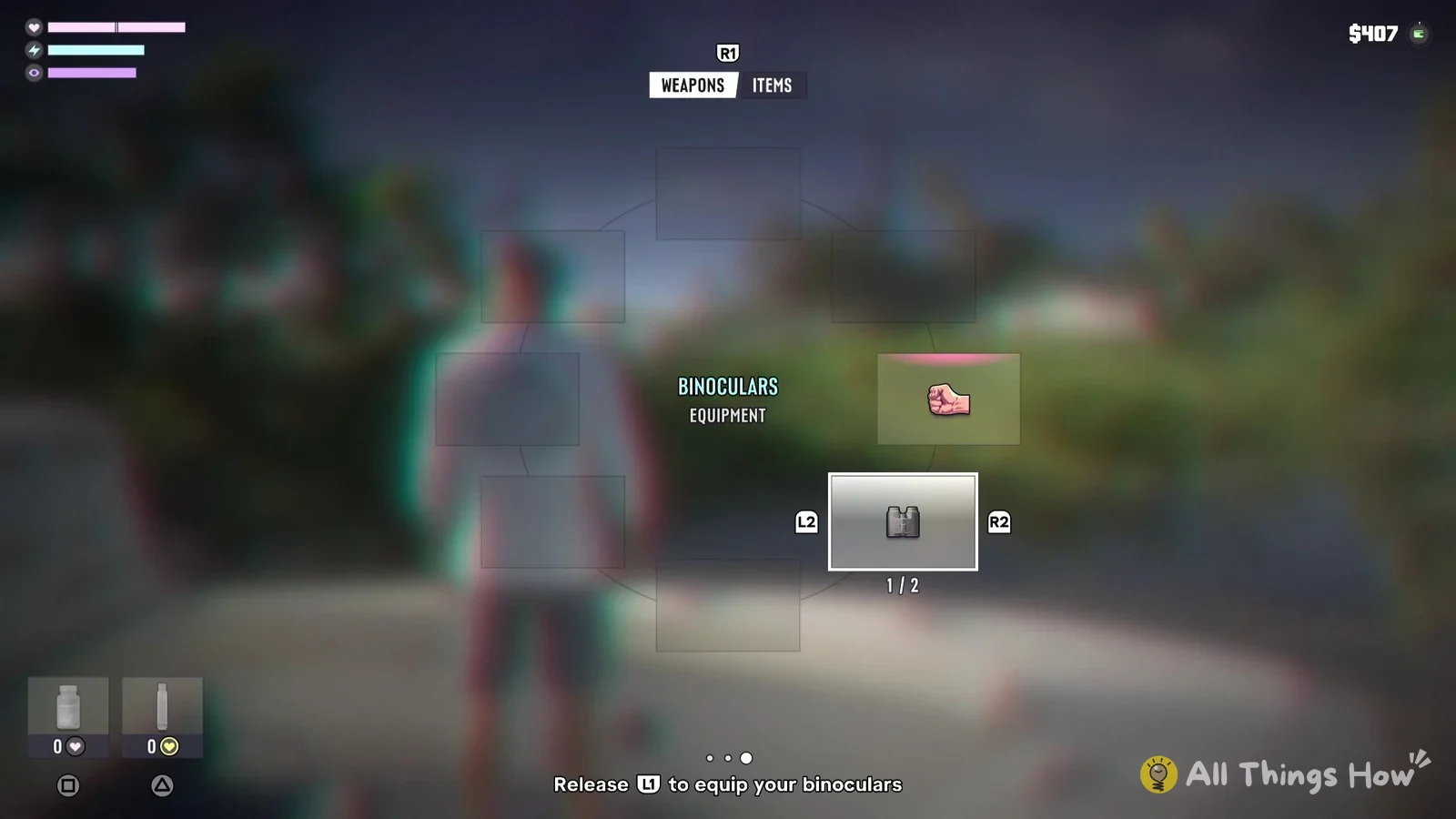
At the wheel’s bottom-left corner on either tab, you’ll see two consumable slots. Square is a pill bottle marked with a heart, and Triangle is a drink bottle showing a yellow symbol. Each slot displays how many you’re carrying; both showed 0 early in the story.
While the wheel is open you’ll also see three bars at the top left, marked with a heart, a lightning bolt and an eye, and your cash at the top right.
Using the binoculars from the loadout wheel
The binoculars are one of the first things the game asks you to pick from the wheel. When you open it at that point, the tip at the bottom reads “Use (right stick) to select your binoculars.” Once you highlight them, it changes to “Release L1 to equip your binoculars.”
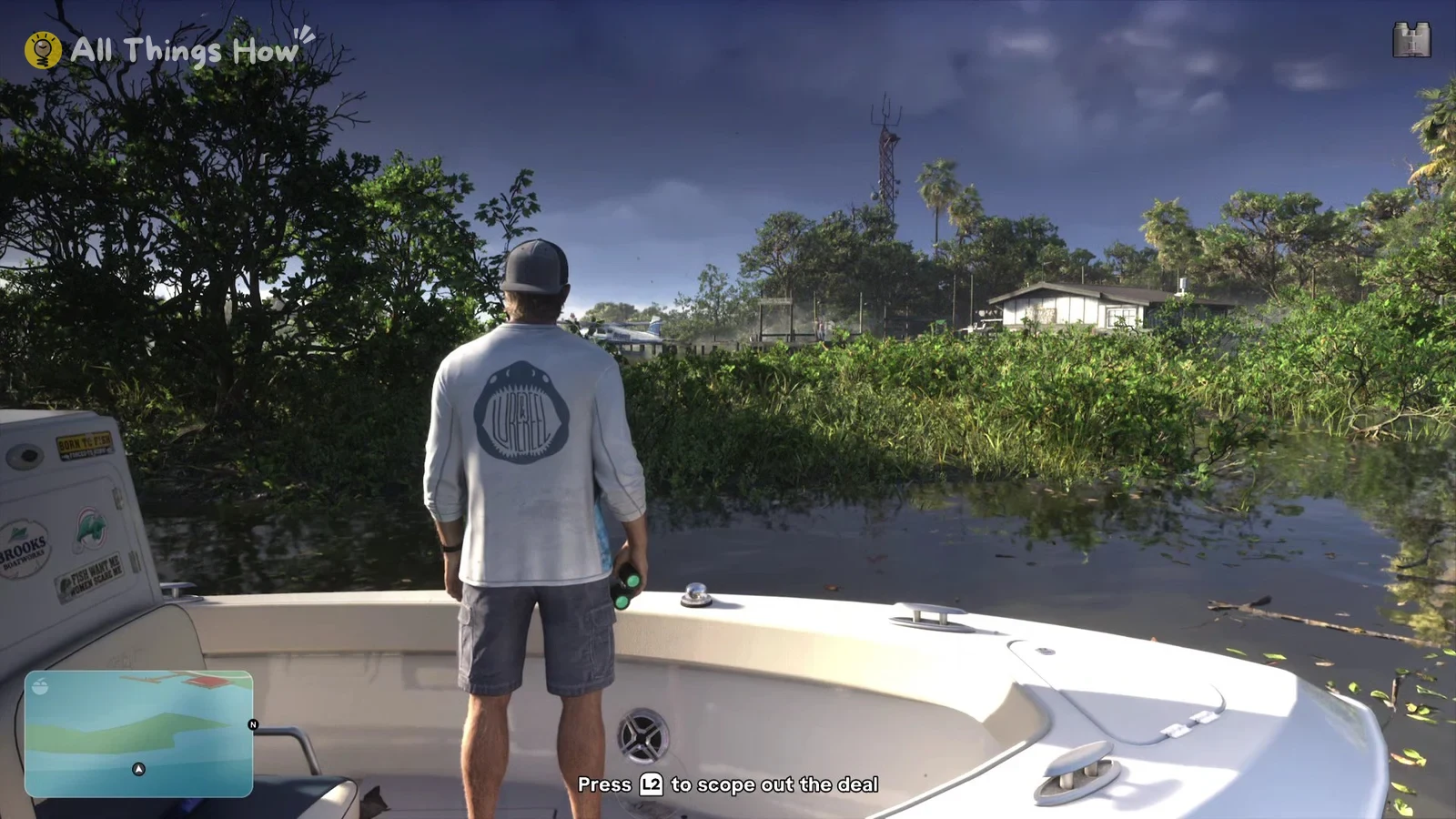
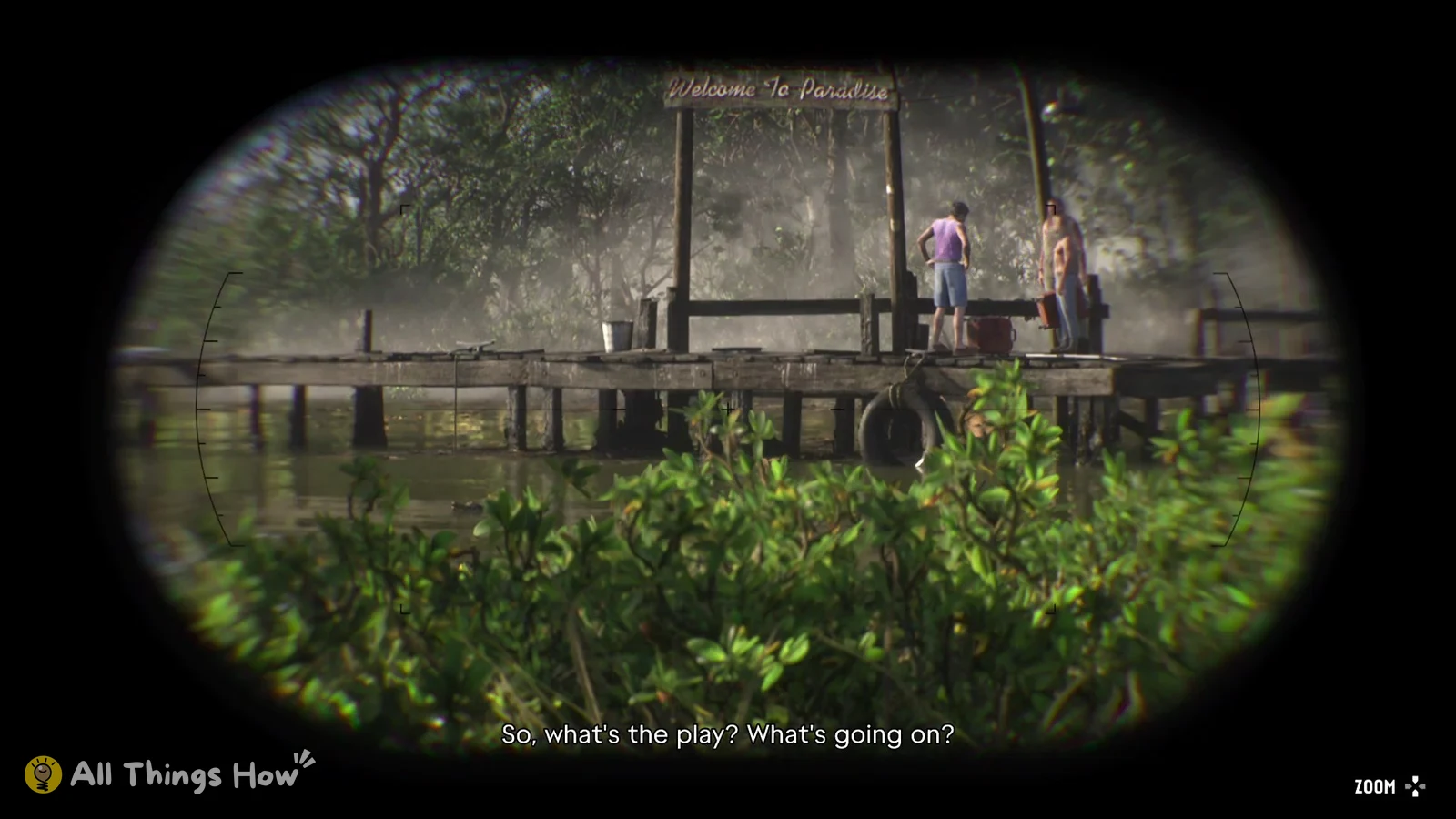
With the binoculars in Jason’s hand, hold L2 to look through them. “ZOOM” appears at the bottom right next to the D-pad icon, and pressing up on the D-pad zooms in. You’ll know you’ve equipped them when you see a tip that reads “Press L2 to scope out the deal” right after the wheel closes.