
Jason’s phone in Grand Theft Auto VI is a small window into Leonida. It’s where local news stories, social accounts and messages from the people in his life all show up, usually stacked in the same list. Most of it is there to flesh out the world, and some of it is very funny if you stop to read it.
Quick answer: From the iFruit home screen, press [Square] to open Reminders. Its feed combines texts, calls, “Breaking News!” stories, and accounts such as @THE_DONDIDDLER. For headlines from the Vice City Horn, CYNIC, and VCN, check the News app.
Jason’s iFruit and its home screen
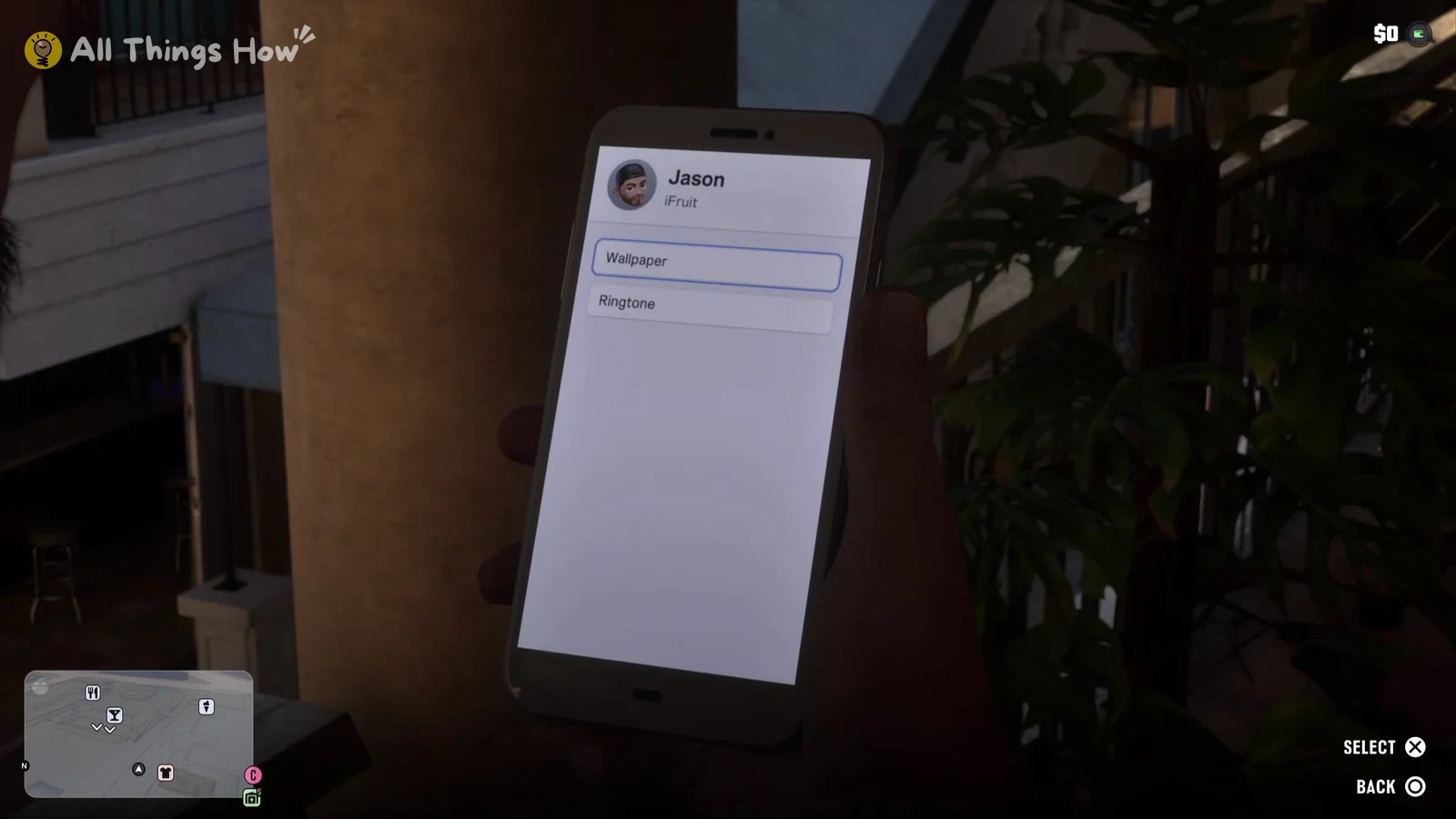
The phone’s settings page lists “Jason” and “iFruit,” so that’s the brand he’s carrying. Settings has rows for “Wallpaper” and “Ringtone” if you want to change how it looks or sounds.
The home screen shows the time, the weather in degrees, a “Reminders” widget with a running count (for example, “6 Notifications”) and the app icons. When you move the cursor over an icon, its name appears underneath, like “WhatUp” or “Snapmatic”. These buttons do the work on the home screen:
- [Square] opens Reminders (the prompt reads “REMINDERS”)
- [Cross] opens the highlighted app
- [Circle] puts the phone away
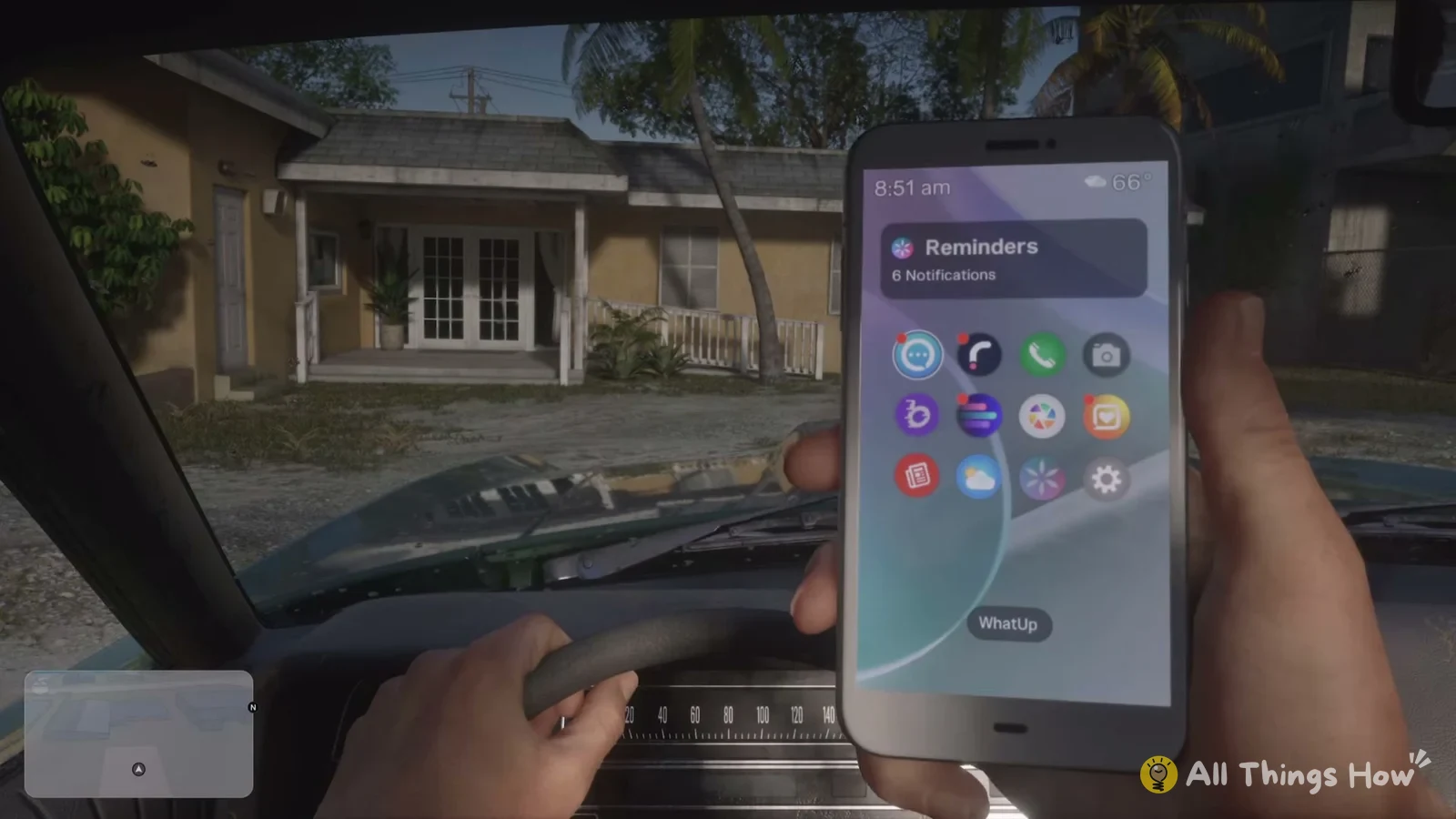
Reminders: texts, calls, news and social feeds in one list
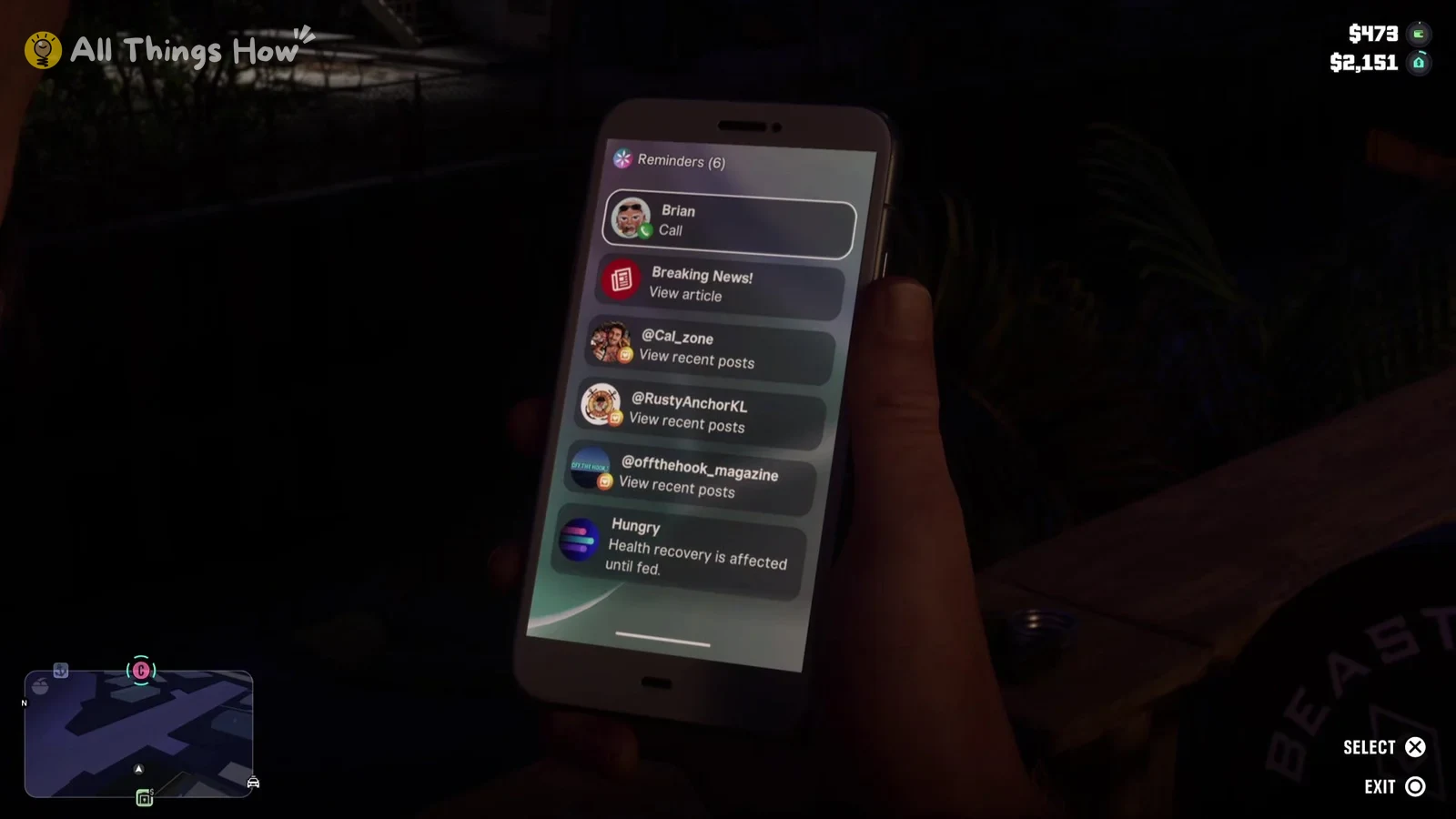
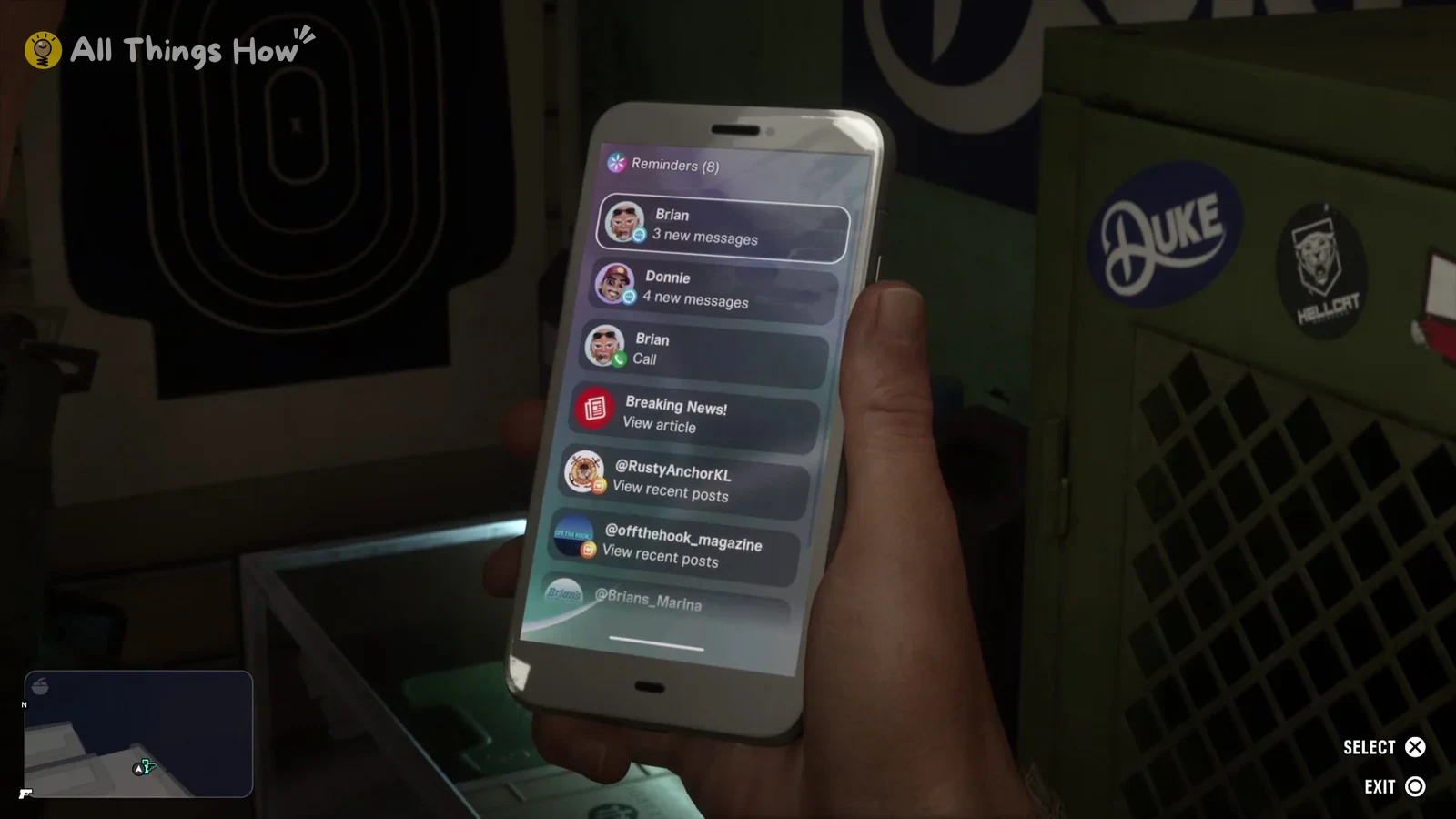
Reminders is the phone’s catch-all. Unread texts sit next to missed calls, news alerts and social accounts, so you can check everything without opening separate apps. Each entry type looks a little different:
- Texts show the sender and a count, such as “Brian 3 new messages”, “Donnie 4 new messages” or “Kenton 6 new messages”
- Missed calls appear as entries like “Brian Call”
- News stories are tagged “Breaking News!” with a “View article” option
- Social accounts come with a “View recent posts” option
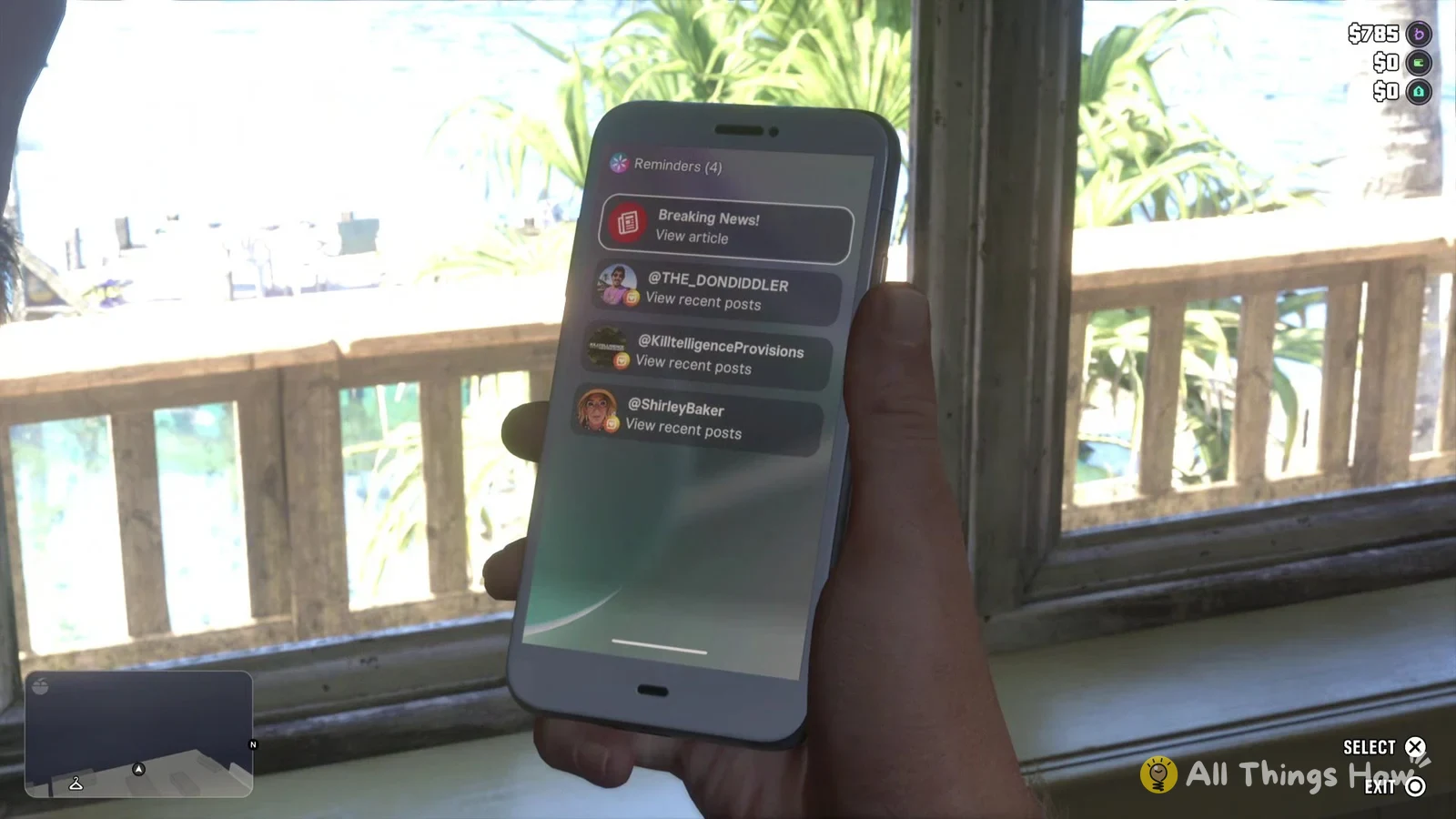
The handles are half the fun. You’ll see “@THE_DONDIDDLER”, “@KilltelligenceProvisions” and “@ShirleyBaker”, along with “@RustyAnchorKL”, “@offthehook_magazine”, “@Brians_Marina” and “@Cal_zone”. An account with Mattia’s picture also turns up in the list.
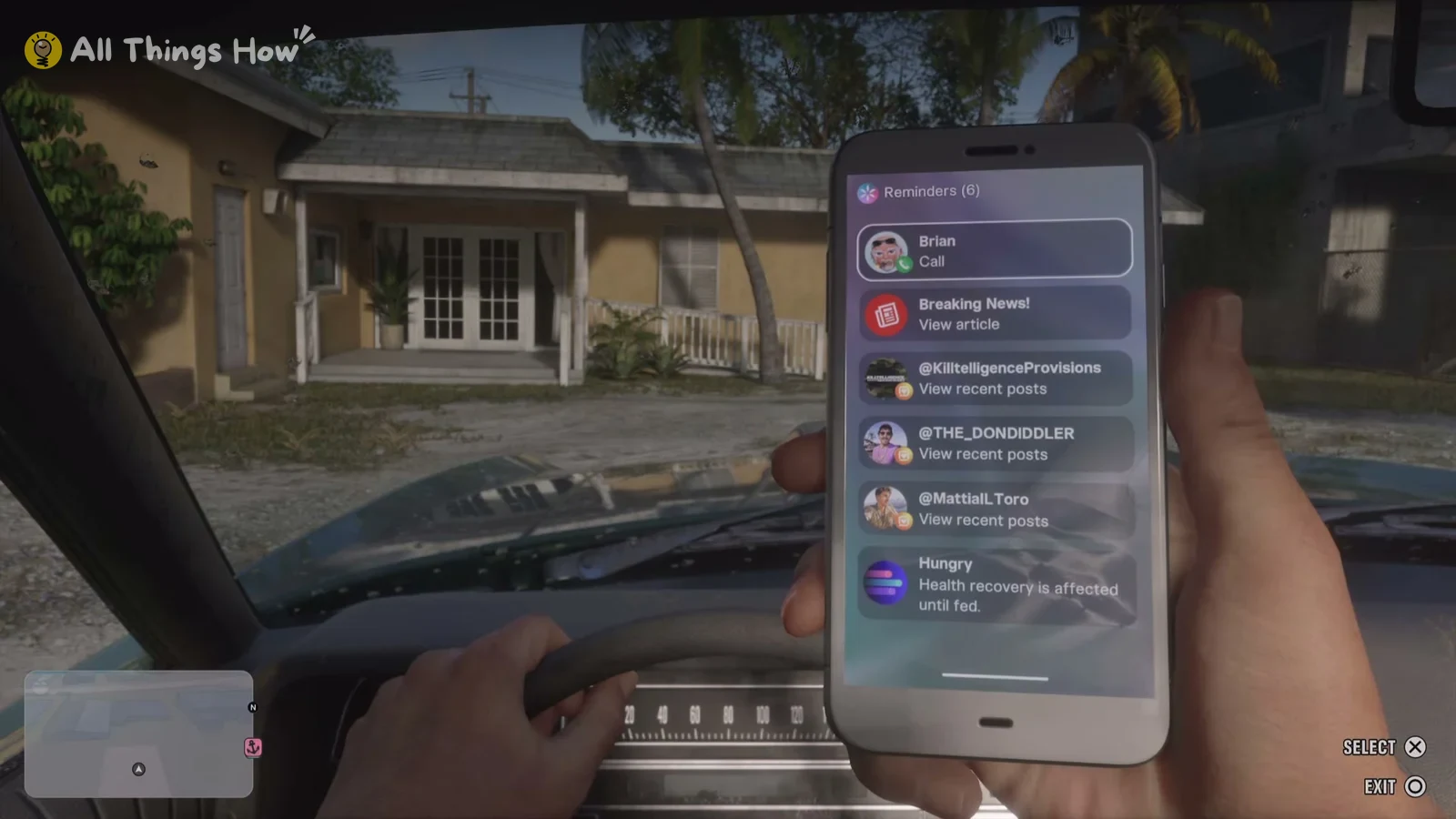
Reminders also tracks Jason’s condition. When he needs food, a “Hungry” alert appears with the line “Health recovery is affected until fed.” If you’re not sure where to get a meal, here’s how to eat.
The headlines in the News app
The News app lists each story with its headline, the outlet that ran it and a picture. Longer headlines get cut off with “…” in the list, which is how they appear below.
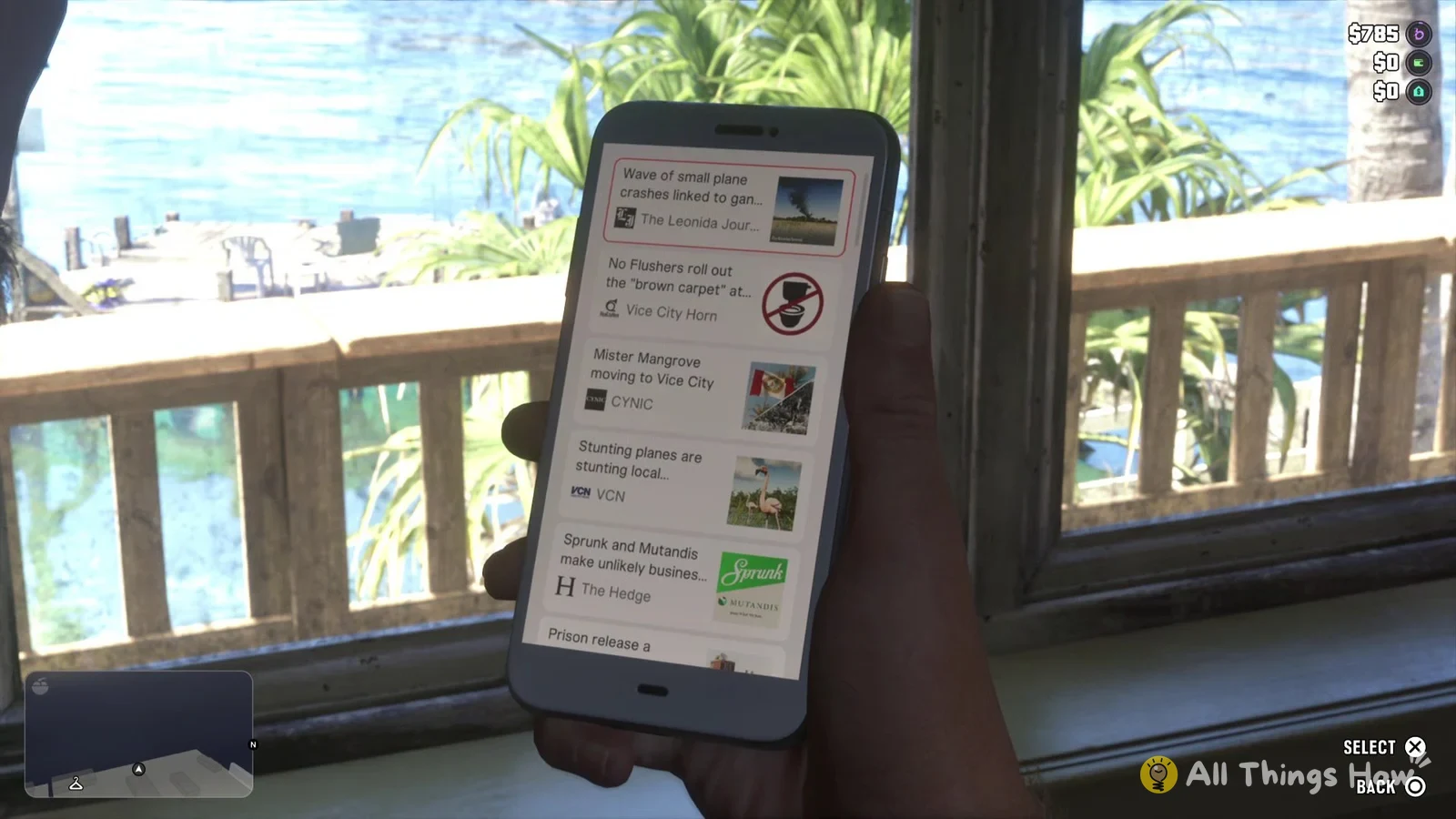
| Headline as shown | Outlet |
|---|---|
| “Wave of small plane crashes linked to gan…” | “The Leonida Jour…” |
| “No Flushers roll out the “brown carpet” at…” | “Vice City Horn” |
| “Mister Mangrove moving to Vice City” | “CYNIC” |
| “Stunting planes are stunting local…” | “VCN” |
| “Sprunk and Mutandis make unlikely busines…” | “The Hedge” |
The pictures are worth a look too. The Vice City Horn’s No Flushers story runs with a crossed-out toilet, VCN’s stunting planes piece uses flamingos, and The Hedge puts the Sprunk and MUTANDIS logos side by side. Further down, another story starts with “Prison release a…”
To read a full story, tap a “Breaking News!” entry in Reminders and pick “View article”.
Texts worth reading
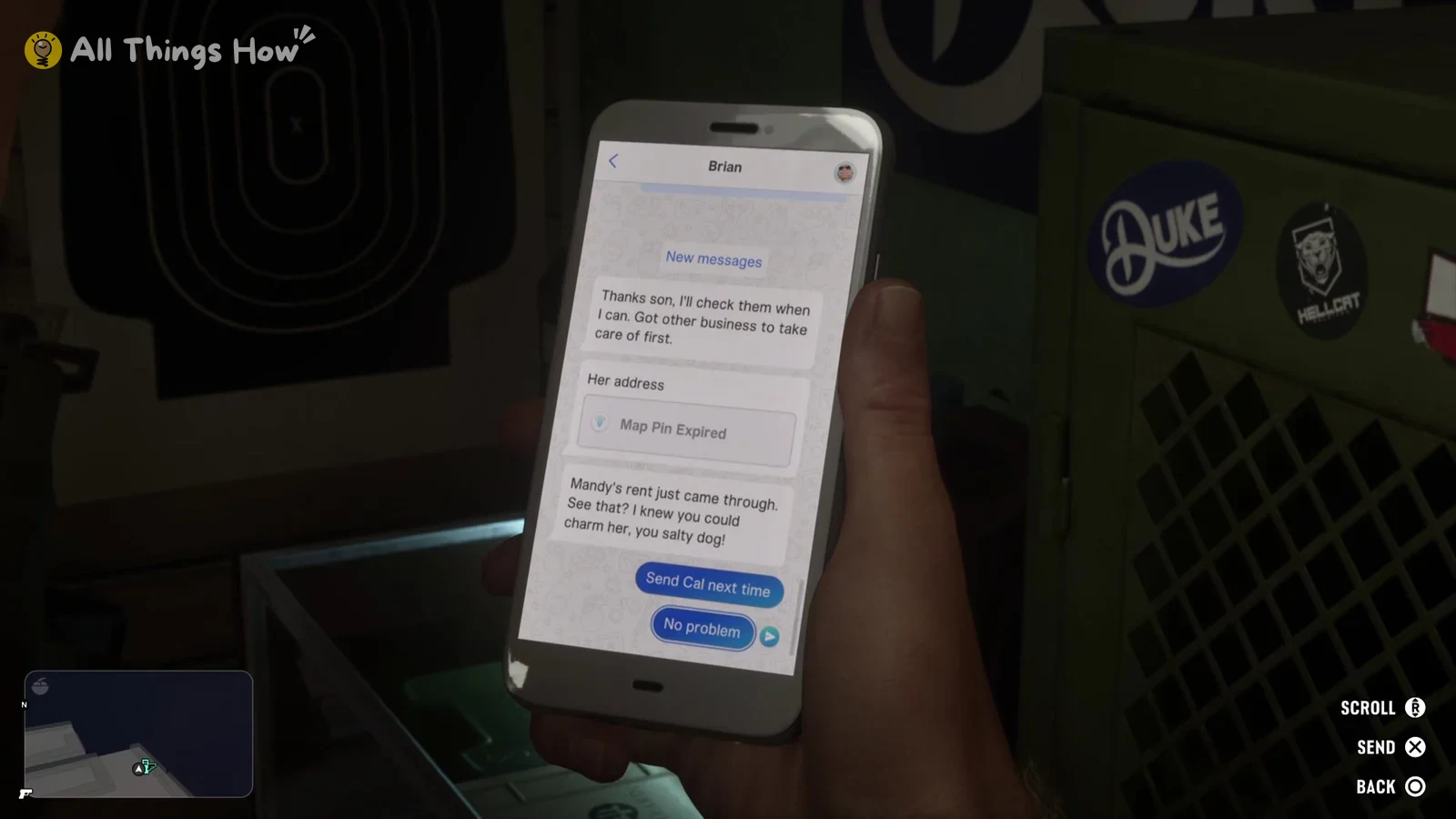
Texts often come with reply choices, so it’s worth opening them instead of letting the count pile up. Brian, for one, is pleased about a rent payment: “Mandy’s rent just came through. See that? I knew you could charm her, you salty dog!” You can answer with “Send Cal next time” or “No problem”.
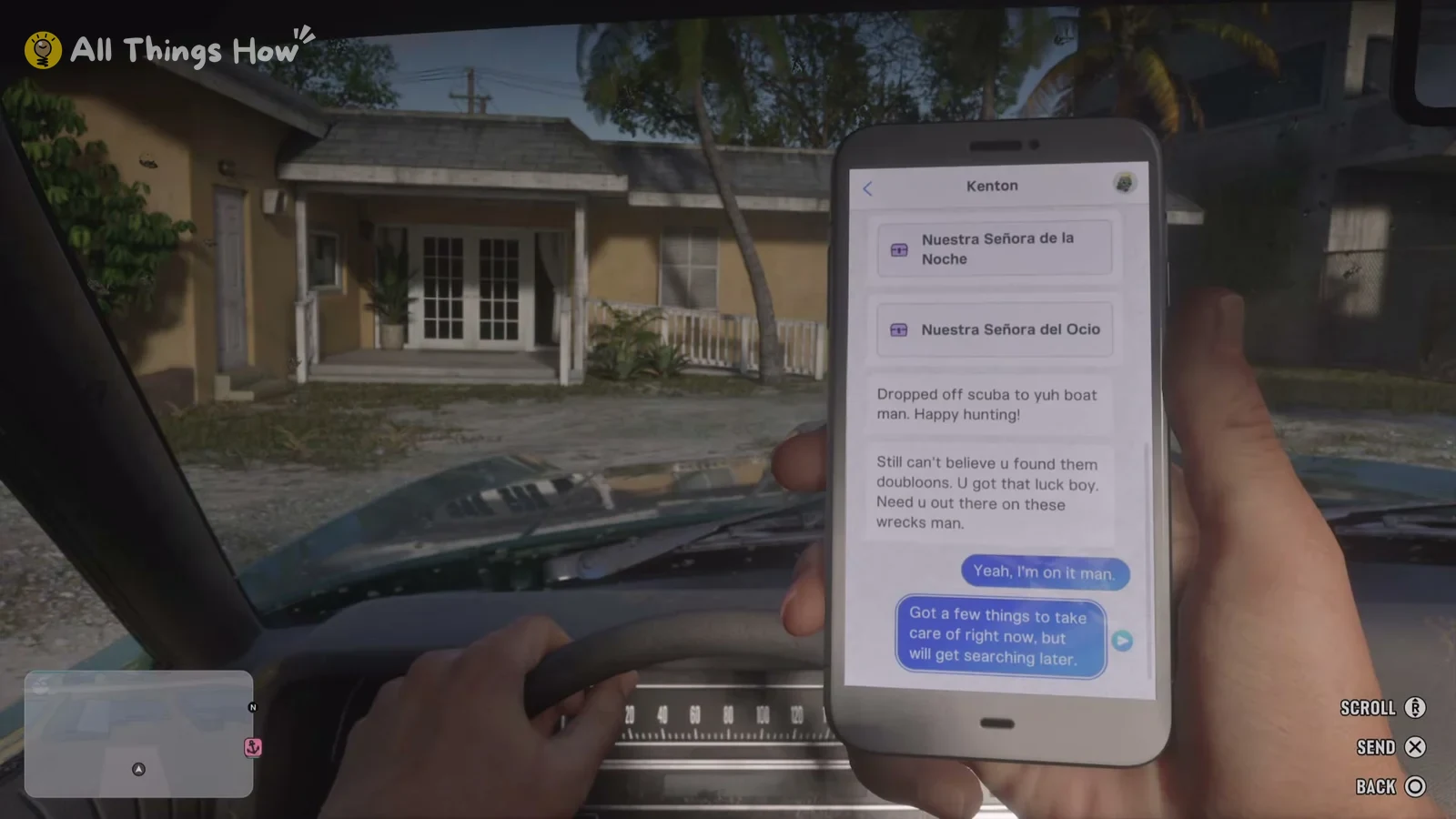
Kenton’s thread starts with two cards, “Nuestra Señora de la Noche” and “Nuestra Señora del Ocio”, followed by “Dropped off scuba to yuh boat man. Happy hunting!” and “Still can’t believe u found them doubloons. U got that luck boy. Need u out there on these wrecks man.” If you’re heading out to dive, the shipwreck dive sites are listed separately.
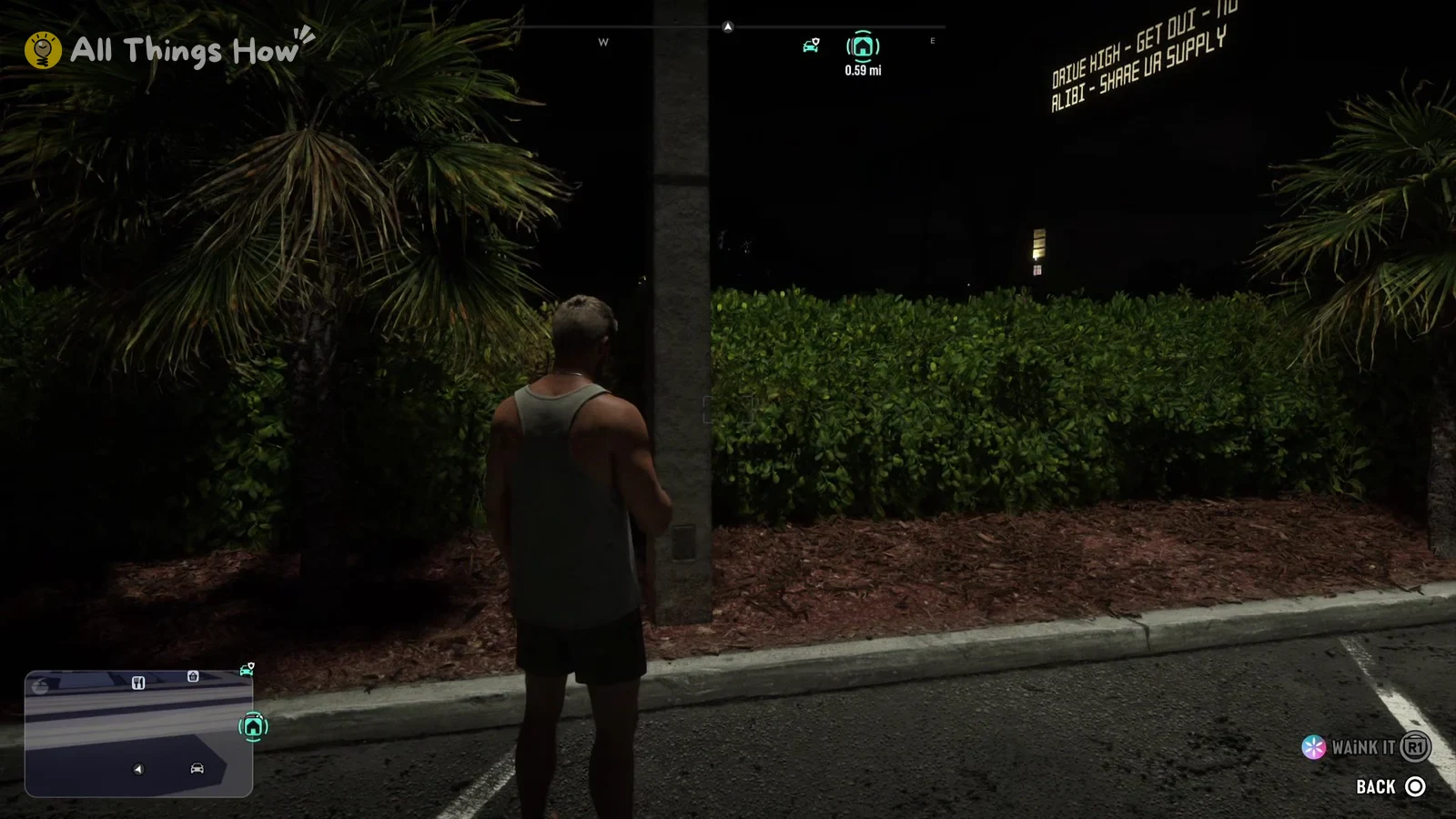
WAiNK at billboards
Jason’s phone responds to things in the world around him. By a lit roadside billboard, raise the phone to bring up “WAiNK IT” [R1] and “BACK” [Circle]. Press [R1] to use WAiNK or [Circle] to leave the prompt. See the WAiNK app guide for how scanning works.