Esp-Dist-001 is a connection error that stops Fortnite from loading you into the game, even when your internet looks completely fine. It usually appears right after an update, when your system still holds onto cached data from an older version of the game and trips over a version mismatch with the Epic Games servers.
Quick answer: Clear your console or PC cache for the platform you play on, then relaunch Fortnite. If the error sticks around, switch your DNS to Google’s public servers (8.8.8.8 and 8.8.4.4).
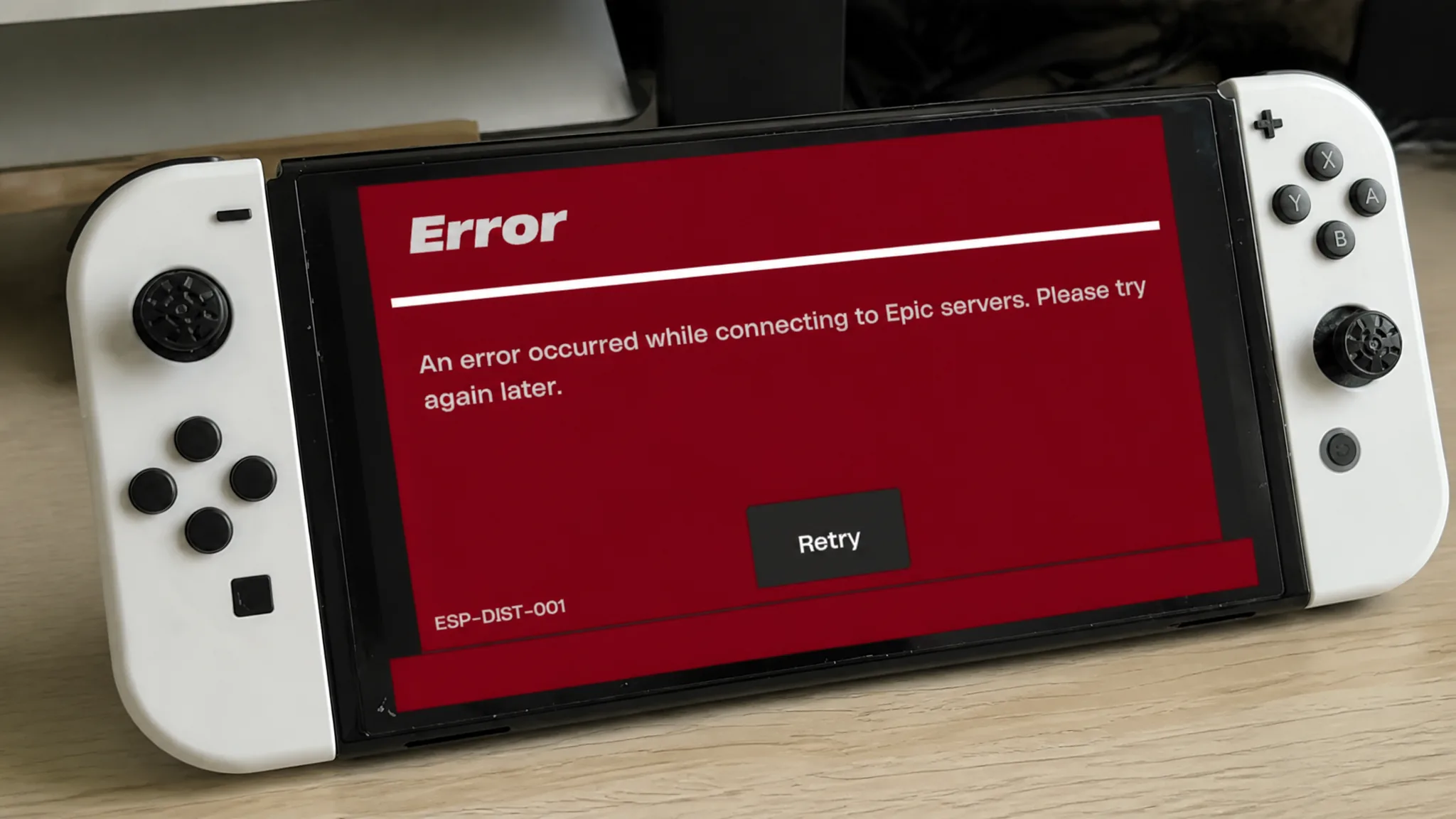
What causes the Esp-Dist-001 error in Fortnite
Epic Games classes ESP codes as connection errors. The catch is that they can show up even when nothing has changed with your home network. The most common trigger is outdated cache data sitting on your device after a Fortnite update has rolled out.
When you launch the game, your system tries to validate your login, pull your account data, and sync your inventory. If the cache still references the previous version, your device thinks it is running an incompatible build and the server blocks access. Clearing that cache resets the temporary login data without touching your locker, V-Bucks balance, or Battle Pass progress.
Note: Esp-Dist-001 is purely a connectivity issue. It is not caused by a ban.
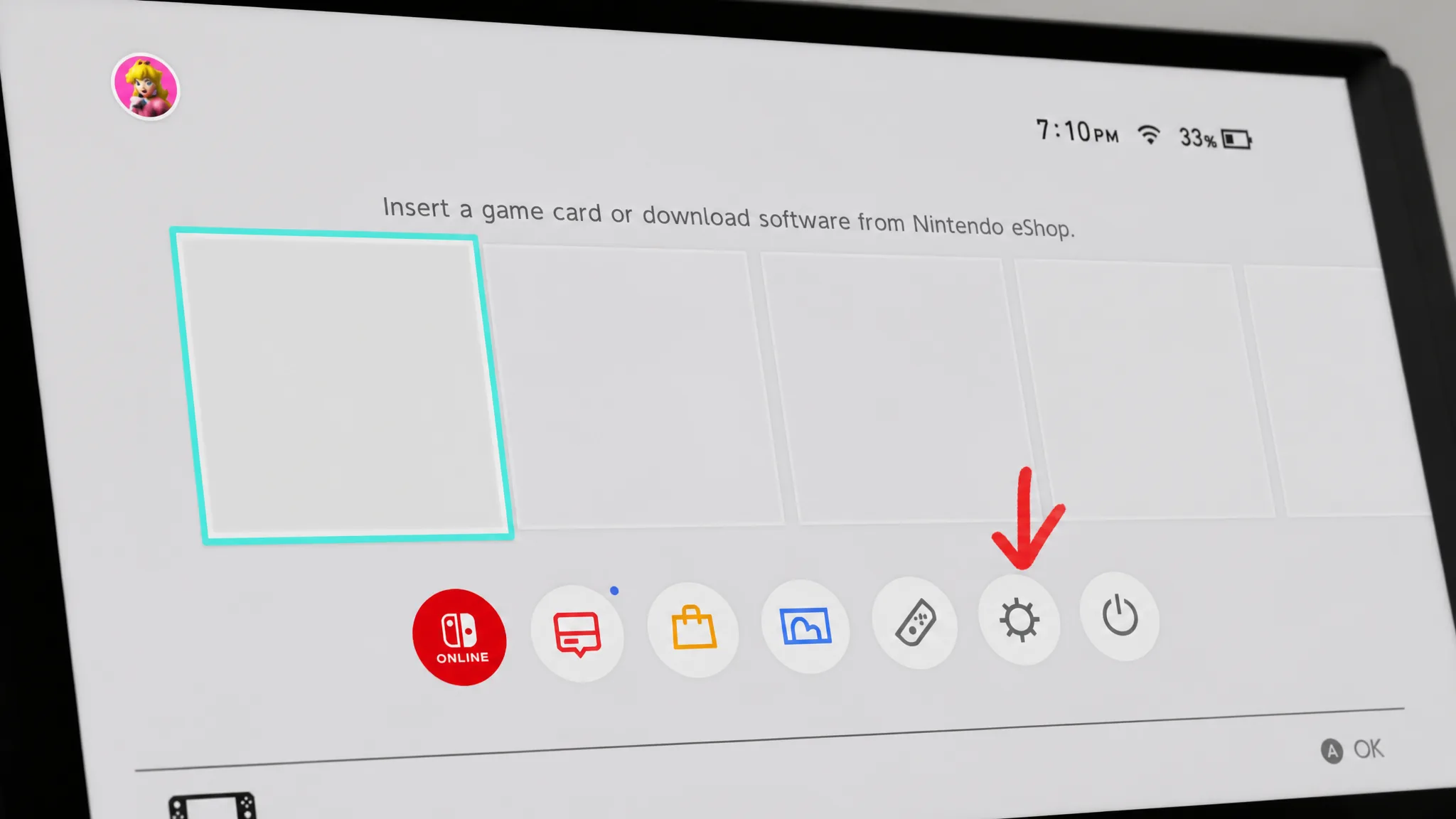
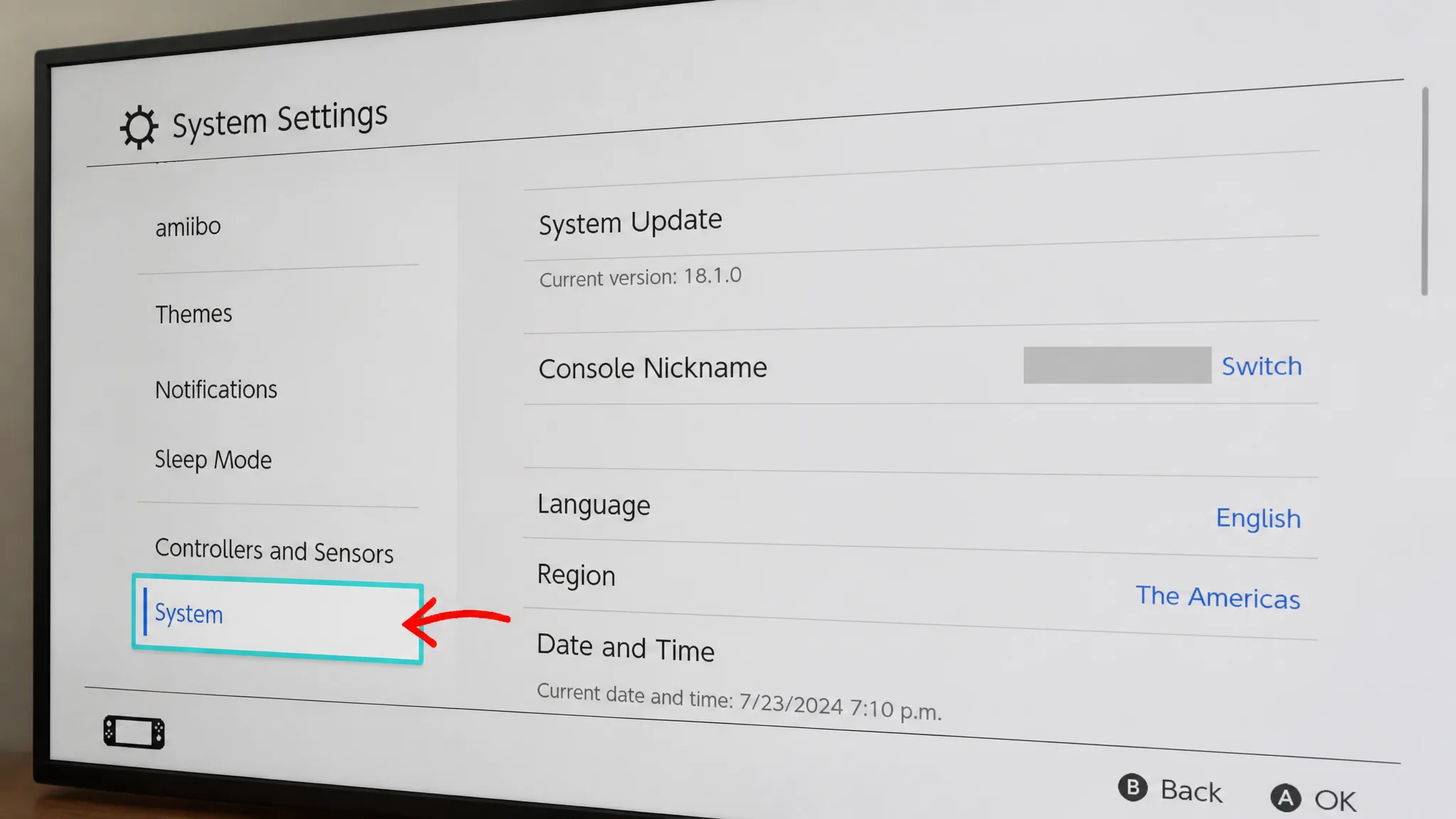
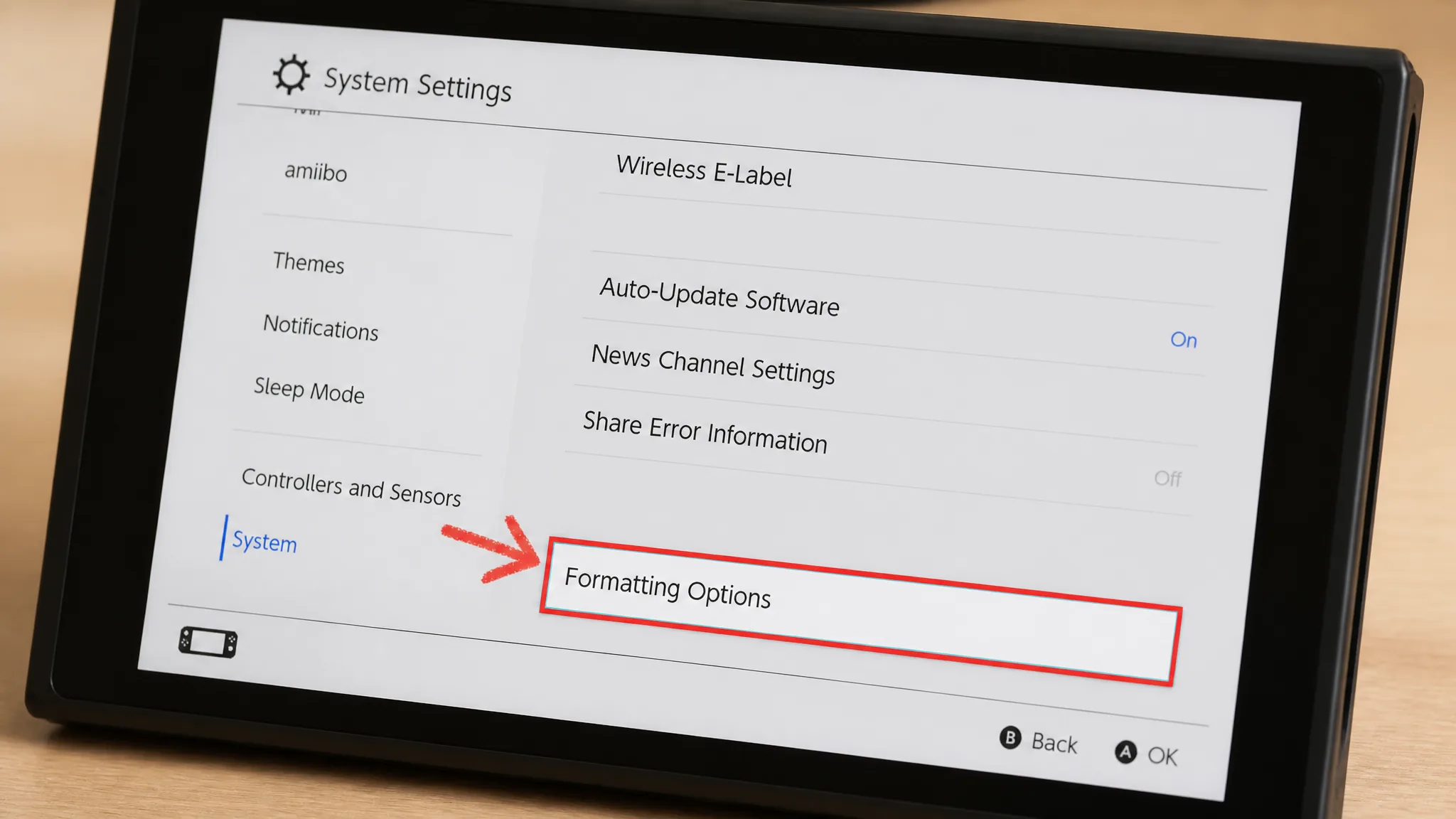
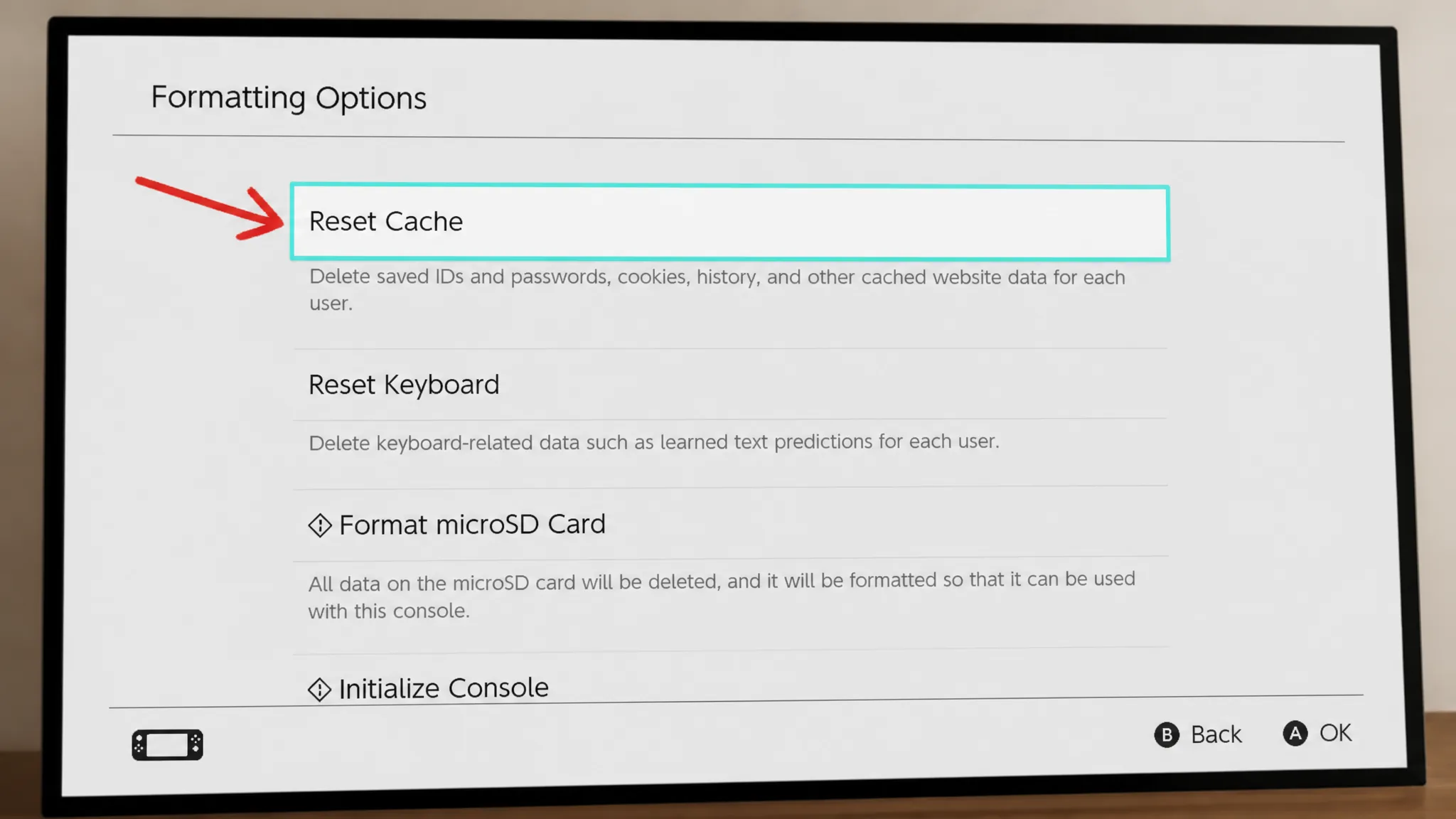
Clear the cache on Nintendo Switch
Clear the cache on PS5
Power cycle PS4, Xbox Series X|S, and Xbox One
On PS4 and Xbox consoles, a full power cycle clears the cache and almost always resolves the error. Shut the console down completely first, and never use Rest or Sleep mode for these steps.
| Console | What to do |
|---|---|
| PS4 | Fully power off, wait for the top light to go dark, unplug the power cable for 1–2 minutes, then plug back in and start Fortnite. |
| Xbox Series X|S | Turn off and unplug the console, remove any accessories, hold the power button for 5–10 seconds while unplugged, wait two minutes, reconnect everything, and boot up. |
| Xbox One | Power off and wait for the console and power-brick lights to go out, unplug the cable for 30 seconds, plug it back in, and turn the console on. |
Clear the cache and verify files on PC
Switch to Google DNS if the error continues
If clearing the cache does not fix the connection, changing your DNS to Google’s public servers often clears stubborn cases. This step helps most on PlayStation and PC, where the error tends to be more persistent than on Xbox or Switch. The primary address is 8.8.8.8 and the secondary is 8.8.4.4.
PlayStation DNS settings
Windows 10 and Windows 11 DNS settings
| System | Steps |
|---|---|
| Windows 10 | Open Network and Sharing Center, click Change adapter settings, right-click your connection and pick Properties, select Internet Protocol Version 4, click Properties, choose Use the following DNS server addresses, then enter 8.8.8.8 and 8.8.4.4. |
| Windows 11 | Go to Settings, Network & Internet, Ethernet, click Edit next to DNS server assignment, set it to Manual, enable IPv4 (8.8.8.8 and 8.8.4.4) or IPv6 (2001:4860:4860::8888 and 2001:4860:4860::8844), then save. |
Tip: Before you replace any existing DNS entries on PC, write down the originals so you can restore them later if needed.
Check Epic’s servers and restart your router
Sometimes the error is not on your end. If Fortnite or Epic Online Services are down, your platform can throw an ESP error too. Check the official Epic Games server status page before changing anything on your network. If services show degraded performance, wait for Epic to deploy a fix.
If Epic’s services are healthy and the cache reset did not help, your router may have a DNS or IP glitch. Unplug your modem and router, leave them off for 30 seconds, then plug them back in and wait for the lights to stabilize before launching the game again.
How to confirm the fix worked
You know the fix worked when Fortnite loads past the connection screen and logs you in without the Esp-Dist-001 message. In most cases, clearing the cache for your platform is enough, and the error turns out to be a temporary inconvenience. If it persists after that, switching to Google DNS is the next step that resolves the lingering connection problem on PlayStation and PC.