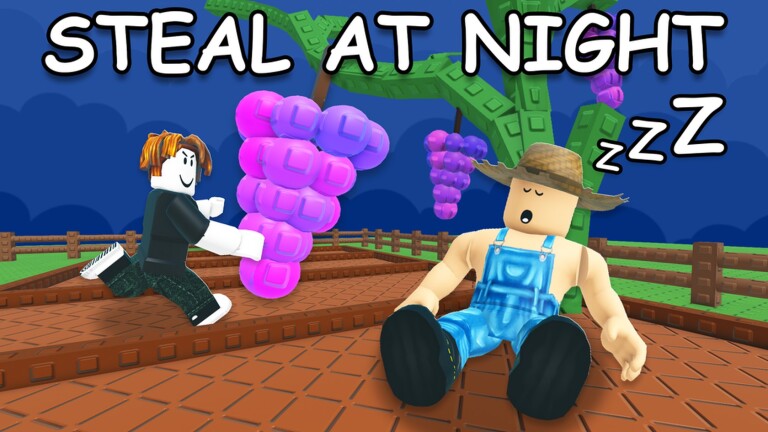
The Megaphone is a rare gear item in Grow a Garden 2 that plays music out loud across the whole server. It accepts any Roblox sound ID, never goes out of stock, and stays in your inventory permanently after a single purchase — making it one of the better value gear picks for players who want to add atmosphere to their garden sessions.
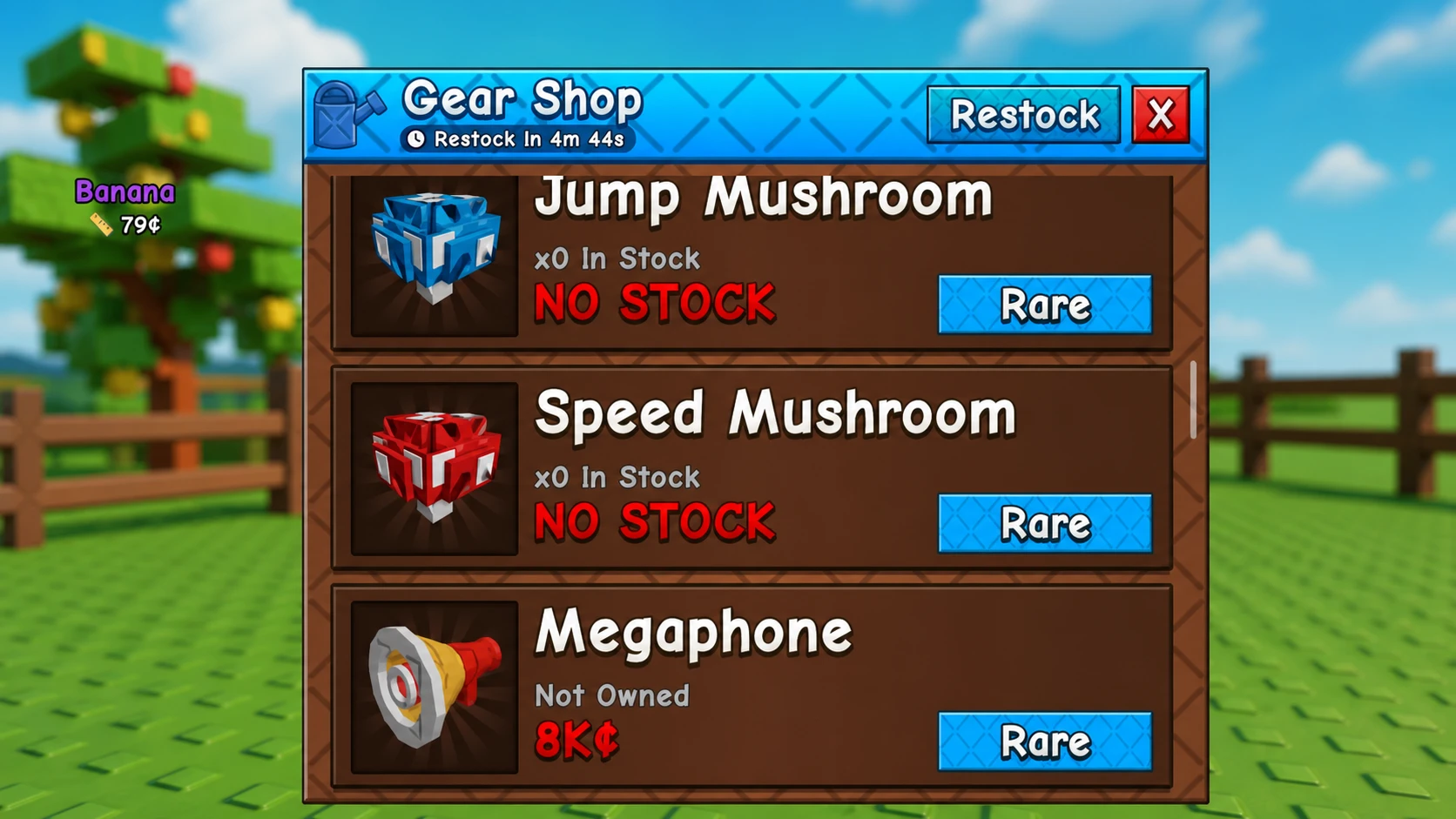
Quick answer: Travel to the central lobby, talk to George at the Gears counter, and buy the Megaphone for 8,000 Sheckles or 49 Robux. Equip it, click the gear icon on screen, type a Roblox sound ID into the song ID field, and press Enter to start playing.
Megaphone stats
| Detail | Info |
|---|---|
| Rarity | Rare |
| Price | 8,000 Sheckles or 49 Robux |
| Stock | Always available — does not rotate out |
| Effect | Broadcasts Roblox sound IDs across the server |
| Ownership | Permanent after purchase |
How to buy the Megaphone in Grow a Garden 2
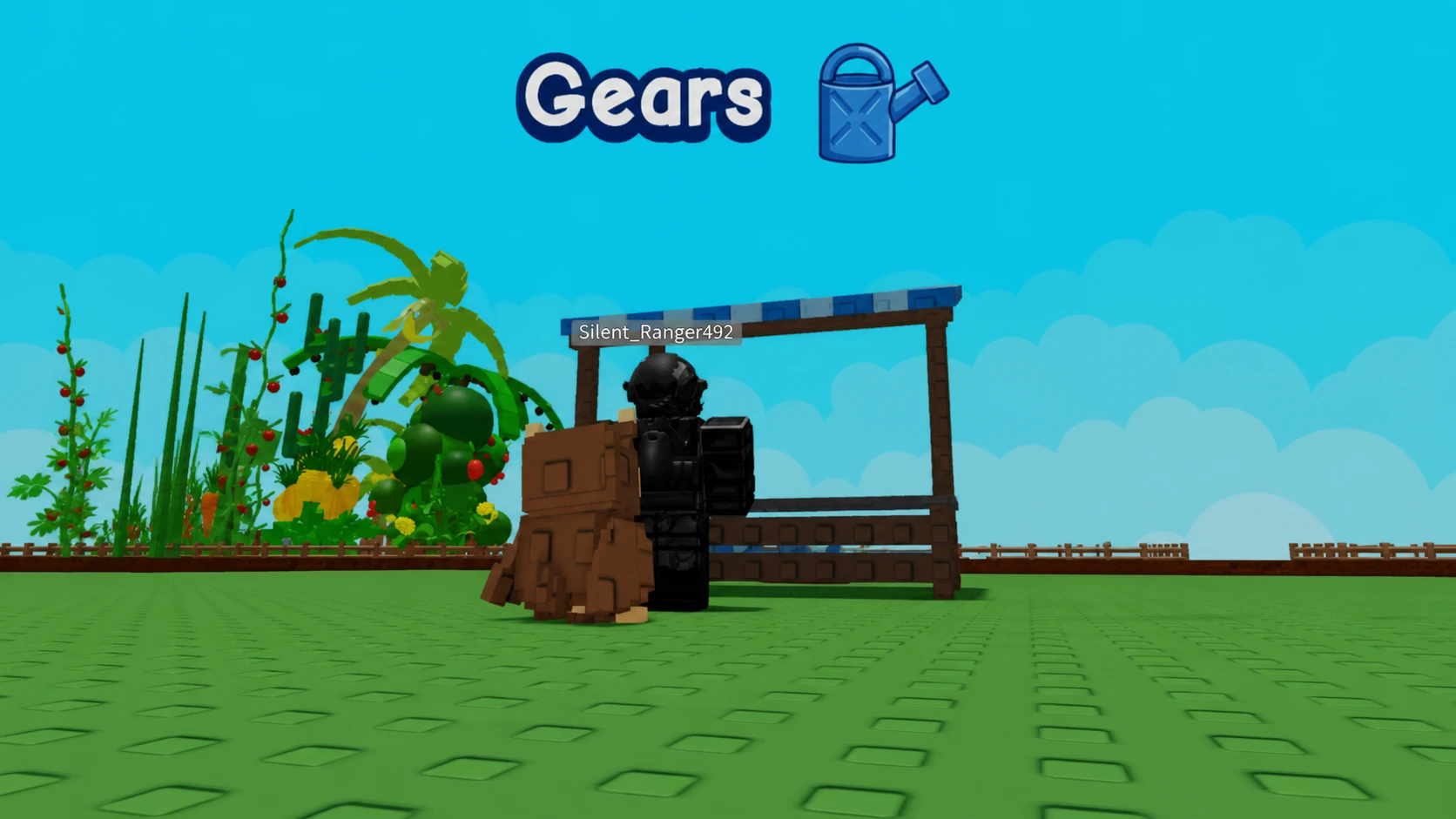
The Megaphone is stocked by George at the Gear Shop around the clock. There is no restock timer or limited availability window — it is always there whenever you decide to pick it up.
How to equip and configure the Megaphone
The Megaphone does nothing while it sits in your inventory. You must equip it before the sound controls become available, then enter a sound ID through its settings menu.
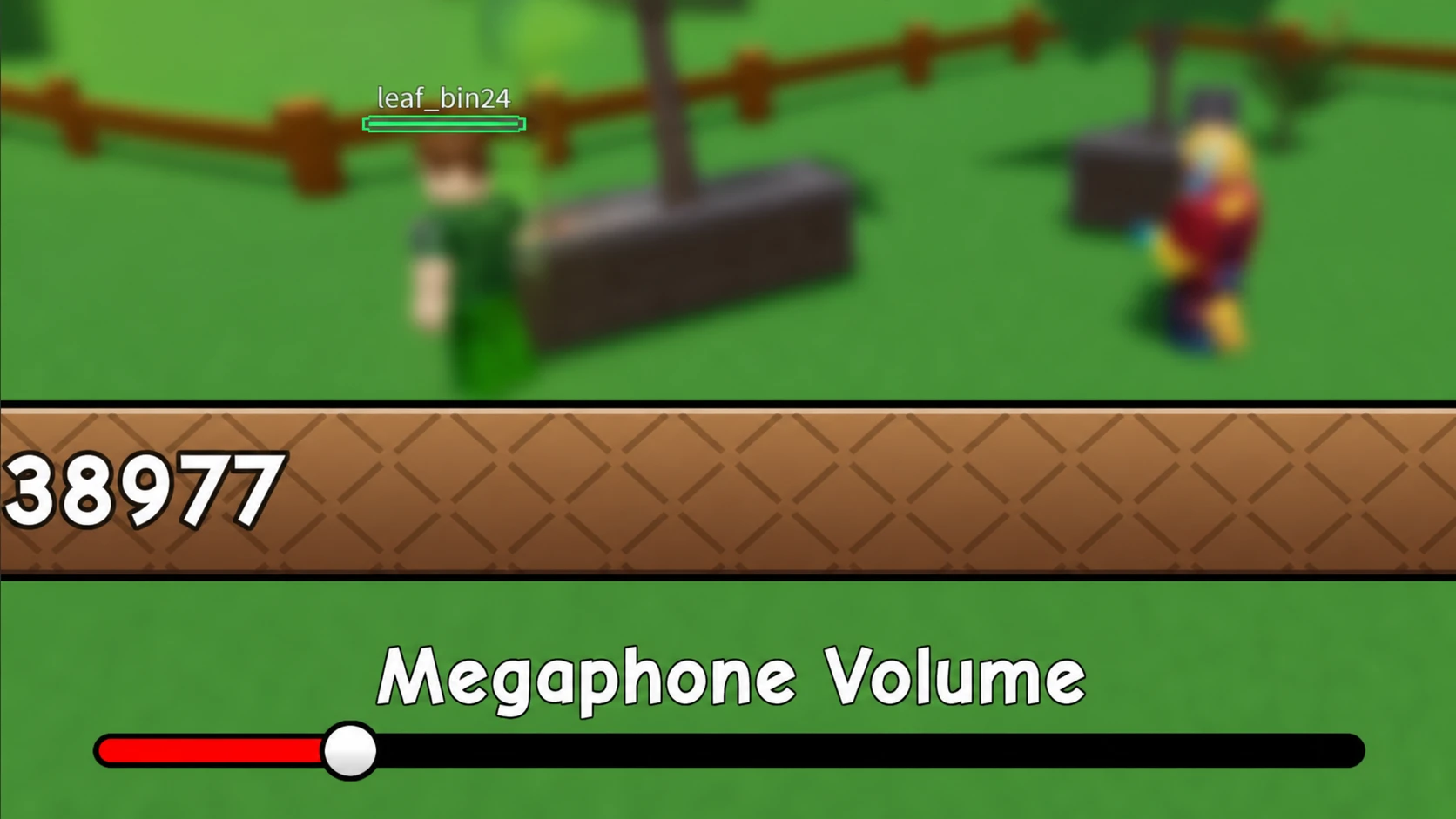
To switch tracks at any point, reopen the gear menu and replace the current ID with a different one.
Roblox sound IDs to use with the Megaphone
Any valid Roblox sound ID works in the Megaphone’s song ID field. The table below covers a range of styles — ambient and classical pieces alongside viral tracks and meme sounds — to suit any farming session.
| Sound ID | Track |
|---|---|
| 1846088038 | Morning Mood (Peer Gynt Suite) |
| 9045766074 | The Four Seasons – Spring |
| 5410086218 | Noisestorm – Crab Rave |
| 1837879082 | Paradise Falls |
| 1845341094 | Chill Jazz |
| 9045766377 | Gymnopedie No. 1 |
| 9043887091 | Lo-fi Chill A |
| 5409360995 | Dion Timmer – Shiawase |
| 1846315693 | Clair de Lune |
| 1843404009 | Happy Song |
| 9039981149 | Horror |
| 1837258874 | La Cucaracha |
| 9044545570 | Night Run |
| 1840684529 | Cool Vibes |
| 1845497774 | Into The Forest |
| 142376088 | Raining Tacos |
| 1837015626 | Tokyo Drift |
| 1626996526 | Windows XP Theme |
| 168208965 | Whatcha Say |
| 1846368080 | Stadium Rave (SpongeBob SquarePants) |
| 515669032 | Spooky Scary Skeletons |
| 7363412529 | You’ve Been Rick Rolled |
| 9106904975 | Better Call Saul Theme |
| 9119119619 | Elevator Music |
Sound IDs on Roblox stay valid as long as the track remains live on the platform. If none of these match your taste, searching by song name in a Roblox music ID directory will turn up additional options you can paste straight into the Megaphone’s song ID field.