Error Code 220 in Marvel Rivals is a connection failure between your game client and NetEase’s servers. It shows up as “Unknown Error. Error Code: 220,” usually at login, right before matchmaking, after a mid-game disconnect, or while a launch screen sits stuck at 0%. The message is vague, but the root cause is almost always a broken handshake with the servers, and most players can clear it without contacting support.
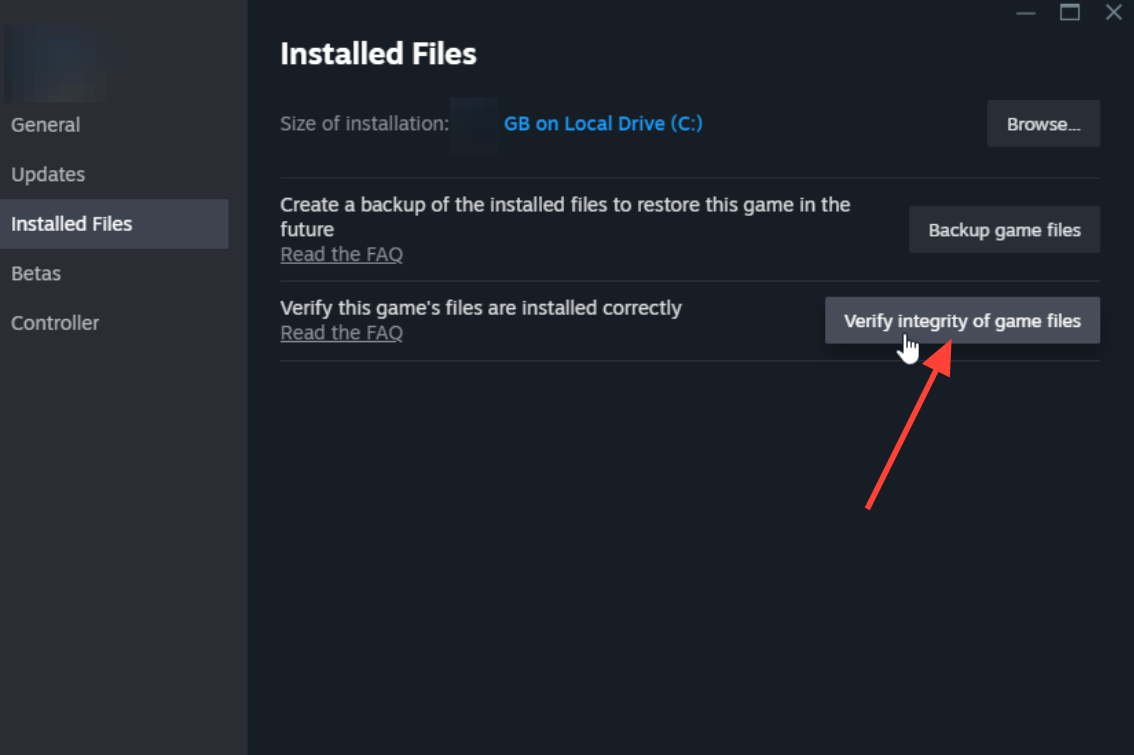
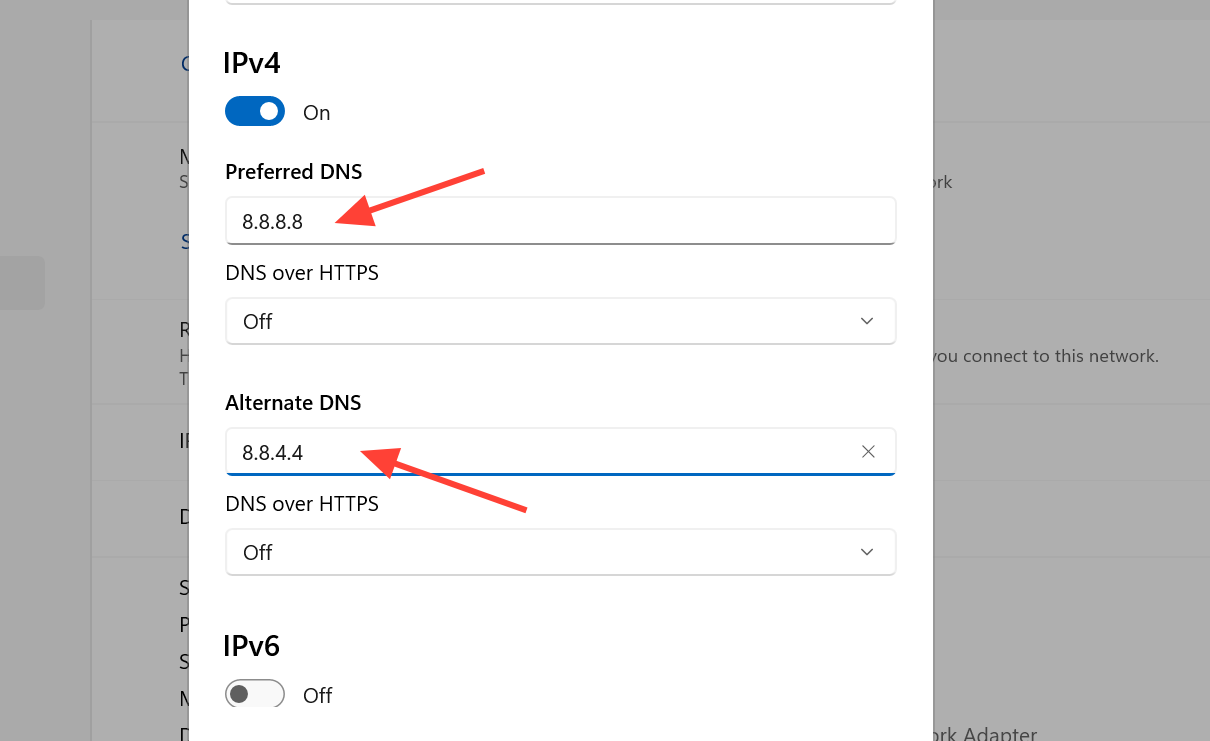
Quick answer: Restart the game and launcher, confirm the servers are online, then power-cycle your router, flush your DNS, and switch to a public DNS such as 8.8.8.8 / 8.8.4.4. If it persists, verify the game files in Steam and temporarily disable your firewall to test. You are back in when the login completes and you reach the main menu without the 220 message.
What triggers Error Code 220
The error fires when the client cannot communicate cleanly with the game servers. Several things break that connection, and they often overlap. Knowing which one applies to you decides which fix works first.
| Cause | What happens |
|---|---|
| DNS resolution problems | Your PC fails to reach the correct server address |
| Server congestion or downtime | The backend rejects connections during peaks or maintenance |
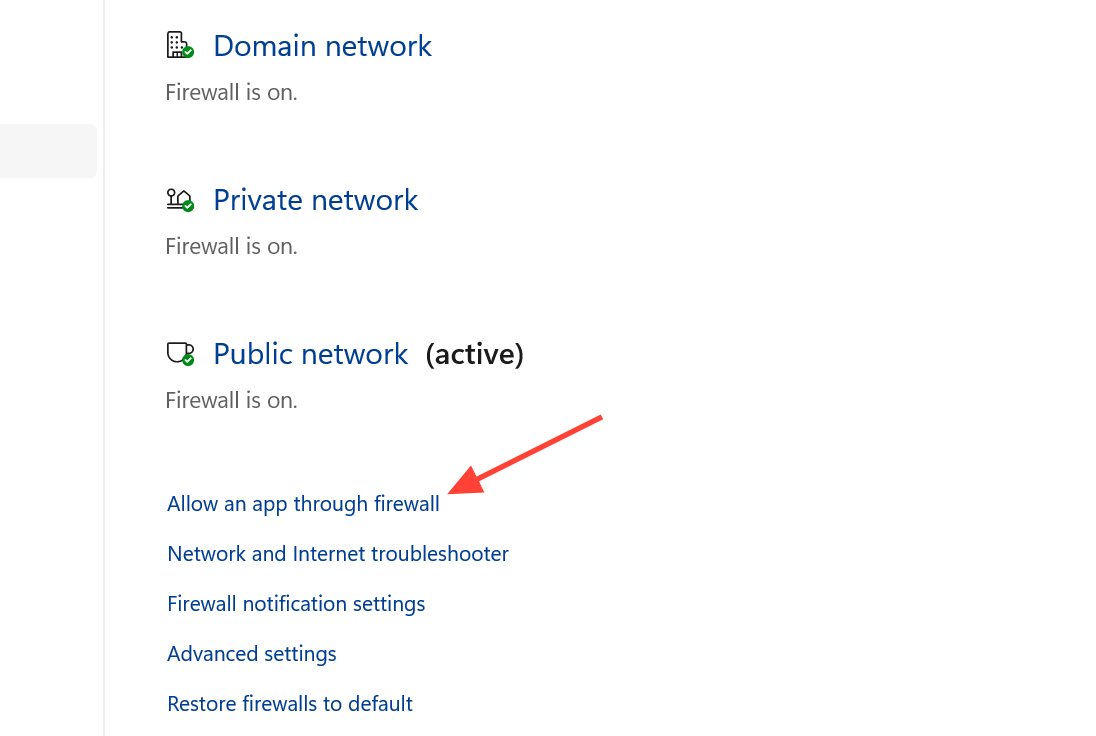
| Firewall or antivirus blocking | Security software treats the game’s traffic as a threat |
| VPN or proxy interference | Routing through extra hops disrupts the handshake |
| Region or server mismatch | Your account routes to a region that differs from your network location |
| Version mismatch | A hotfix dropped mid-session and your client is out of date |
Most reports come from PC players, but the error can appear on PlayStation 5 and Xbox Series X/S too. Marvel Rivals is cross-platform, so the underlying connection behavior is similar across systems, though consoles add their own network rules through NAT type and account permissions.
Run these quick checks first
Before changing any settings, rule out the simple causes. These take a couple of minutes and resolve a large share of 220 cases.
- Fully close Marvel Rivals and your launcher, then relaunch.
- Restart your PC or console.
- Power off your modem and router for about 30 seconds, then turn them back on.
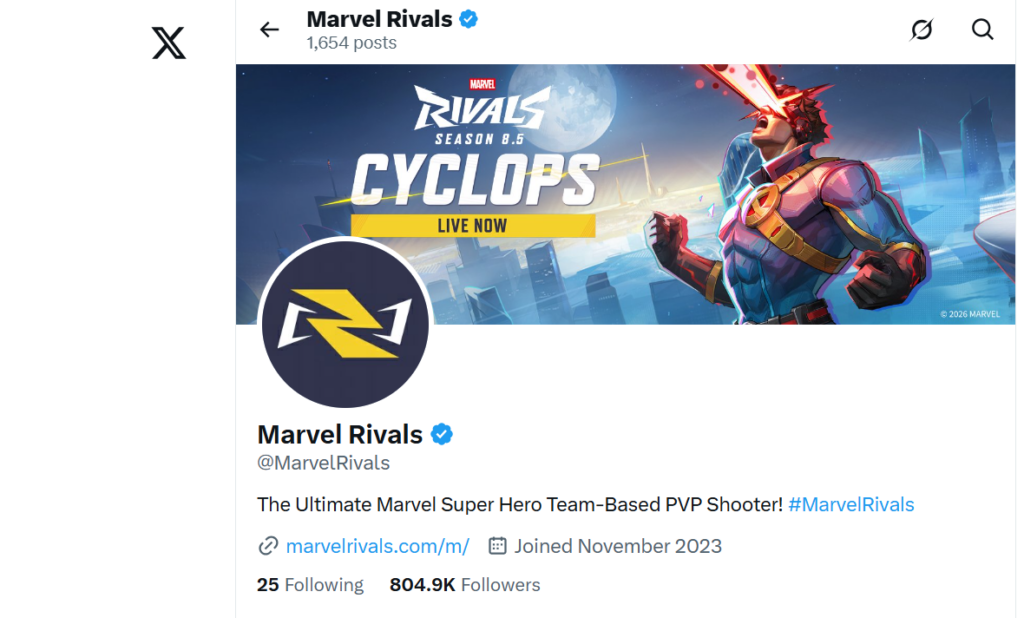
- Check the official Marvel Rivals Twitter/X and Discord for maintenance or outage notices. If the servers are down, waiting is the only fix.
- Test on a different network, such as a mobile hotspot, to see whether your home connection is the problem.
If the game connects on a hotspot but not on your home Wi-Fi, the issue is your router, ISP, or local network settings, and the fixes below target exactly that.
Fix Error Code 220 on PC
ipconfig /flushdns
ipconfig /release
ipconfig /renew
netsh winsock reset
netsh int ip reset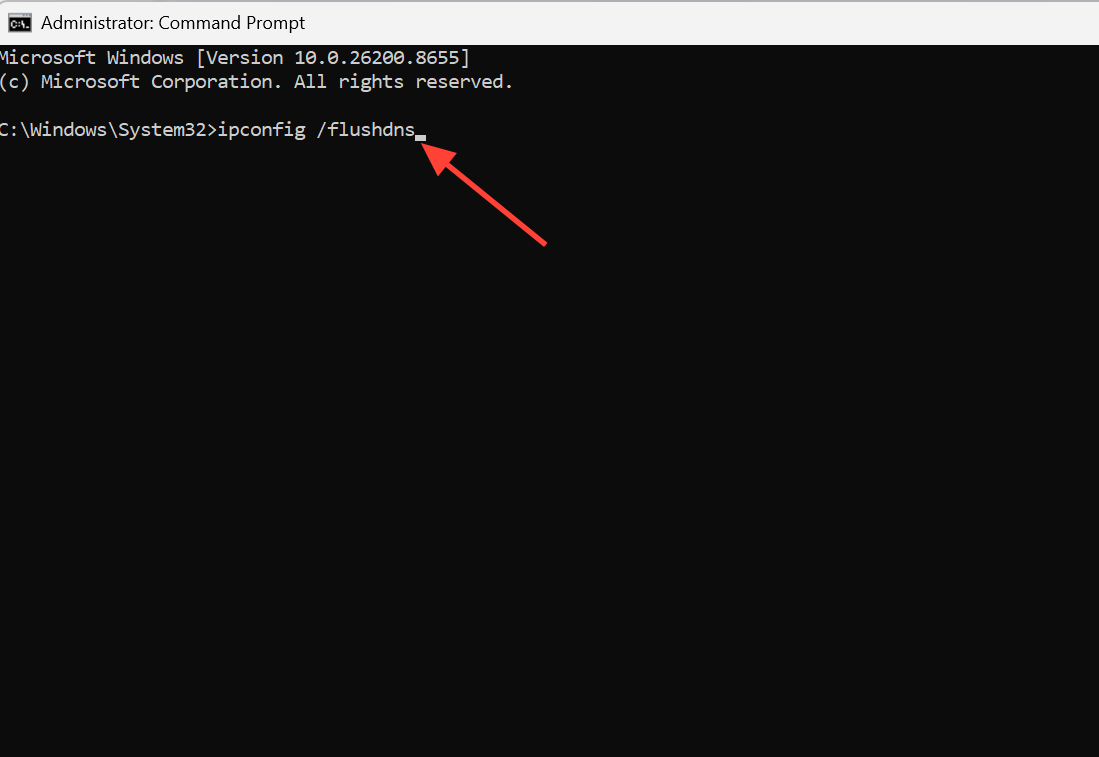
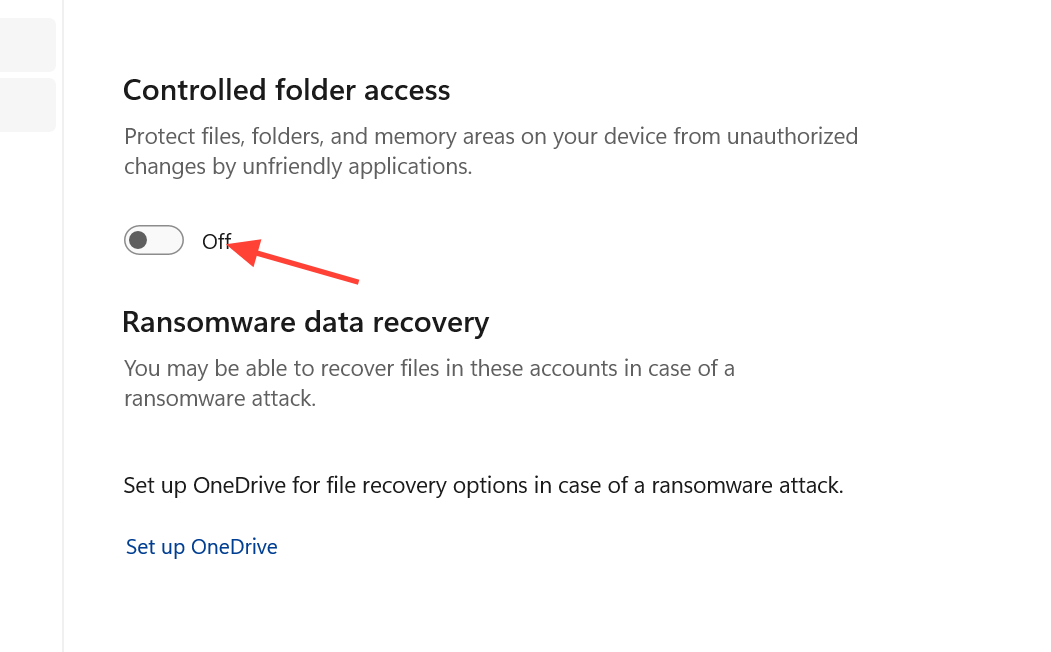
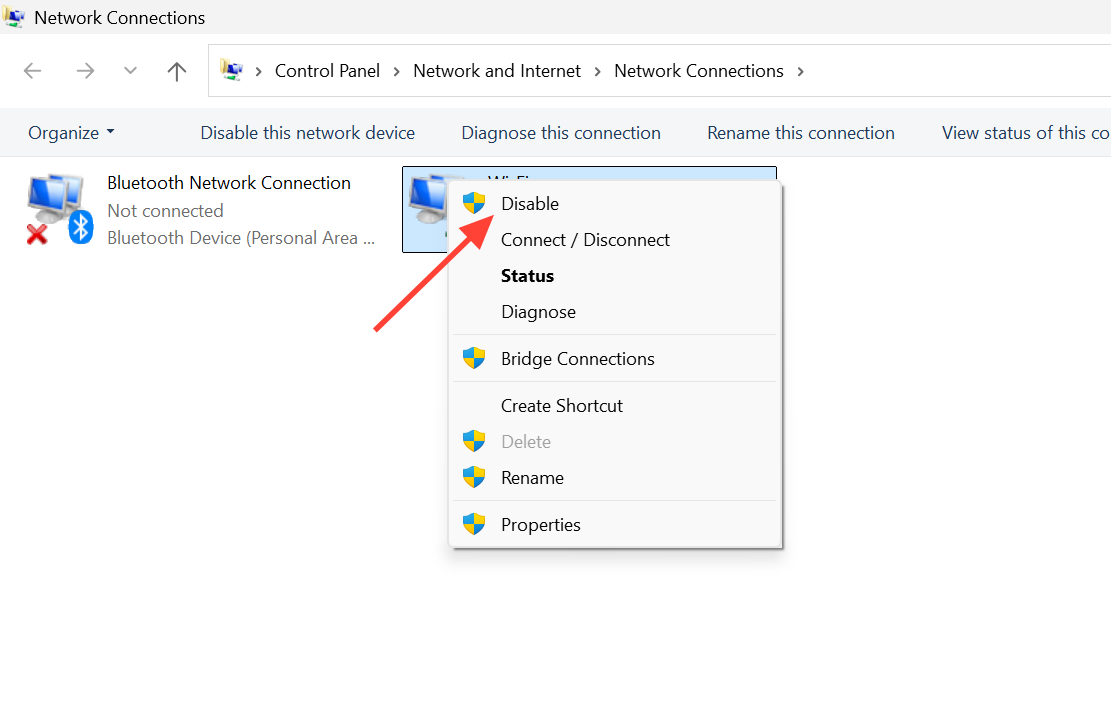
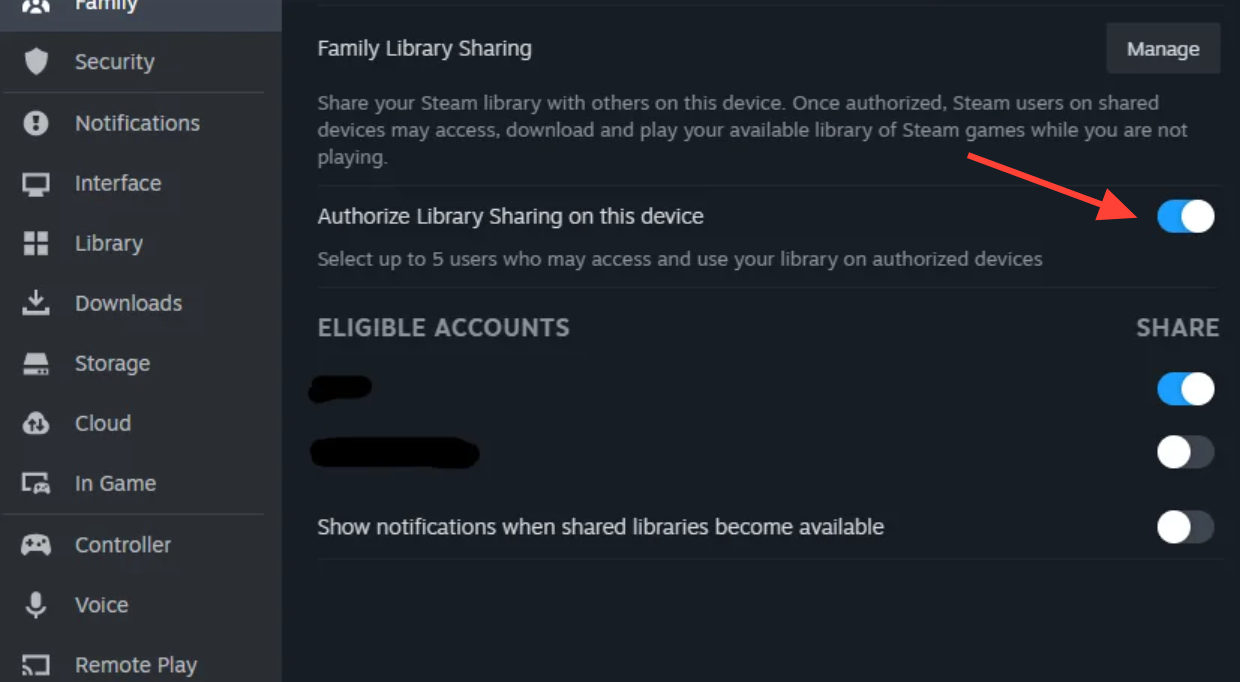
Wi-Fi drops more packets than a wired link during fast online play. Switching to an Ethernet cable alone has resolved 220 for many players.
Fix Error Code 220 on PS5 and Xbox Series X/S
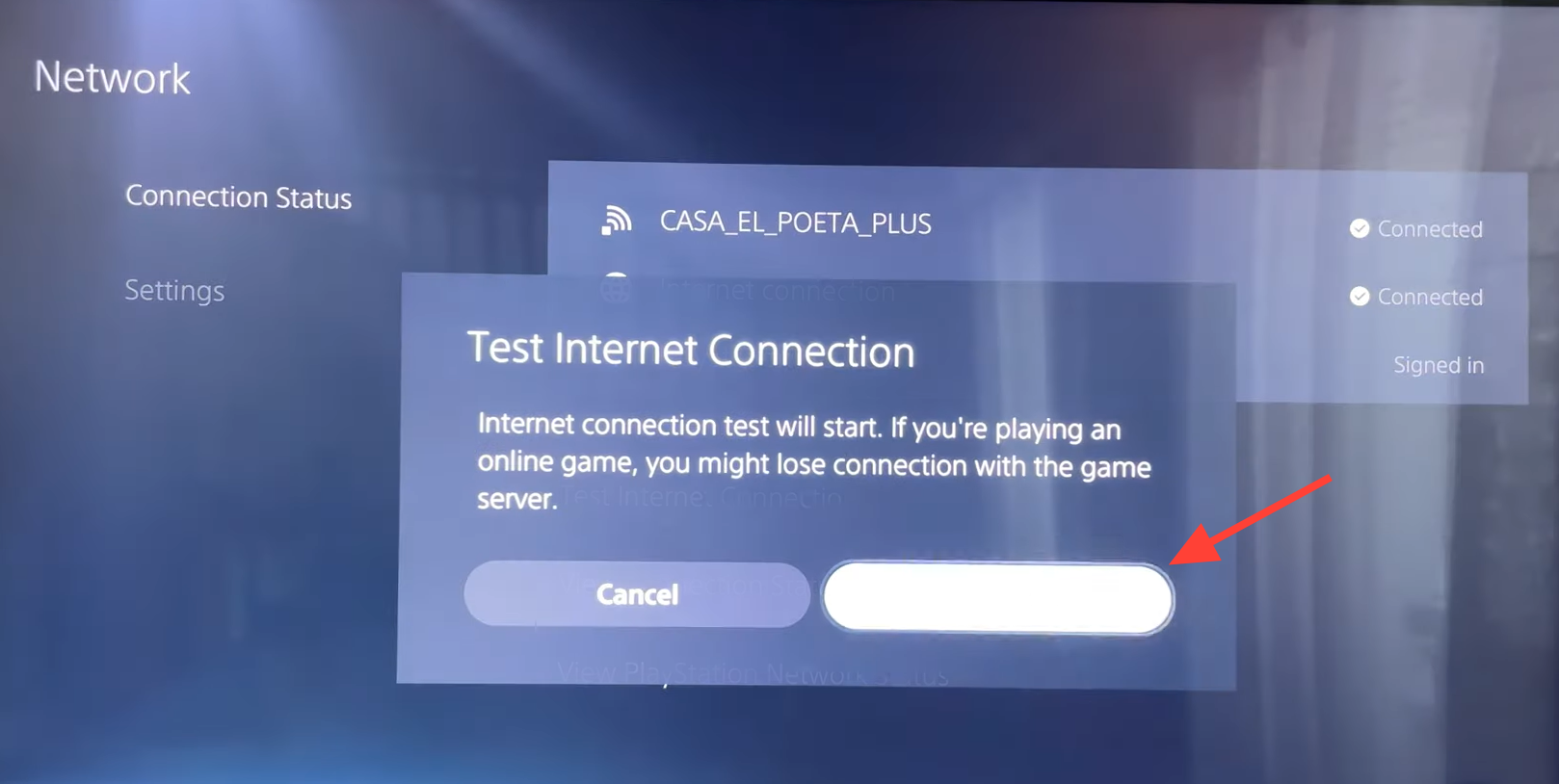
Consoles rely on NAT type and account-level permissions, so the checks differ from PC.
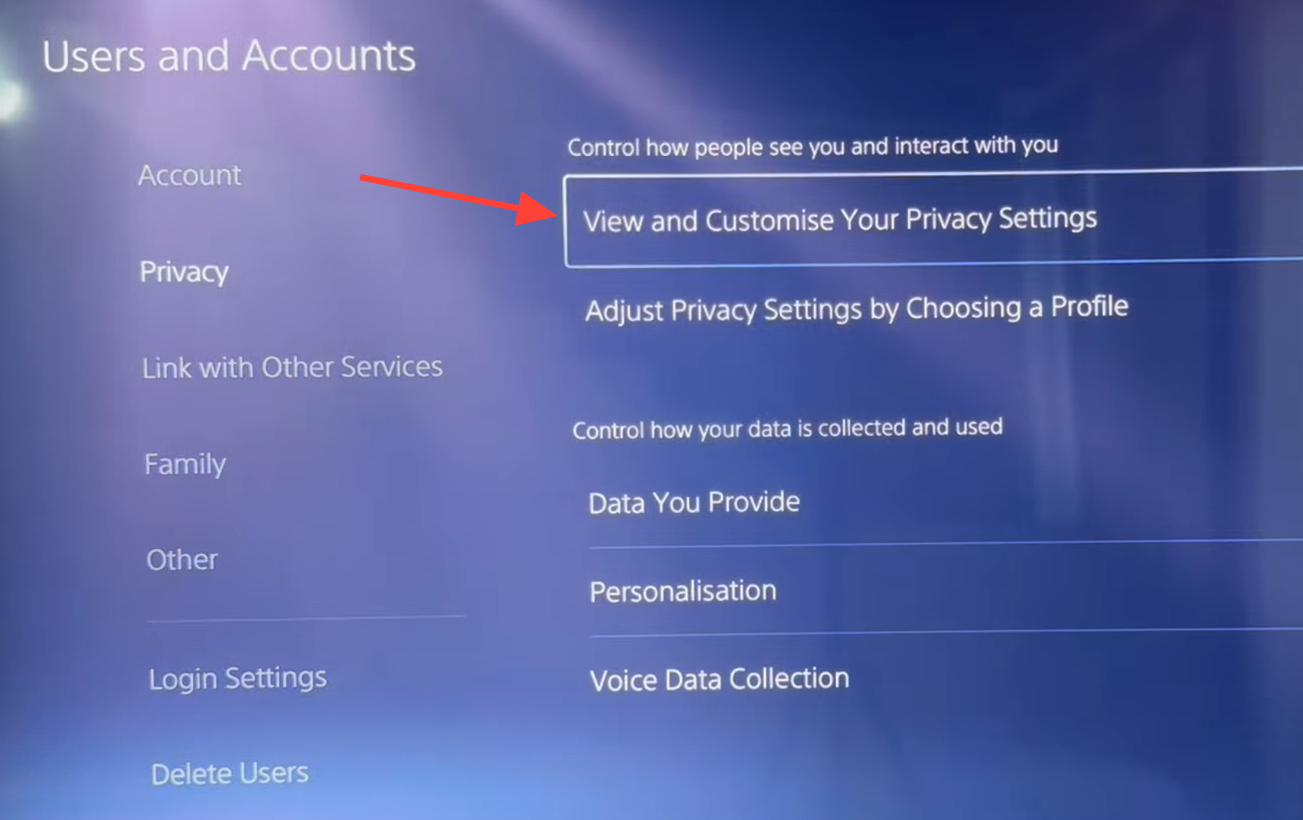
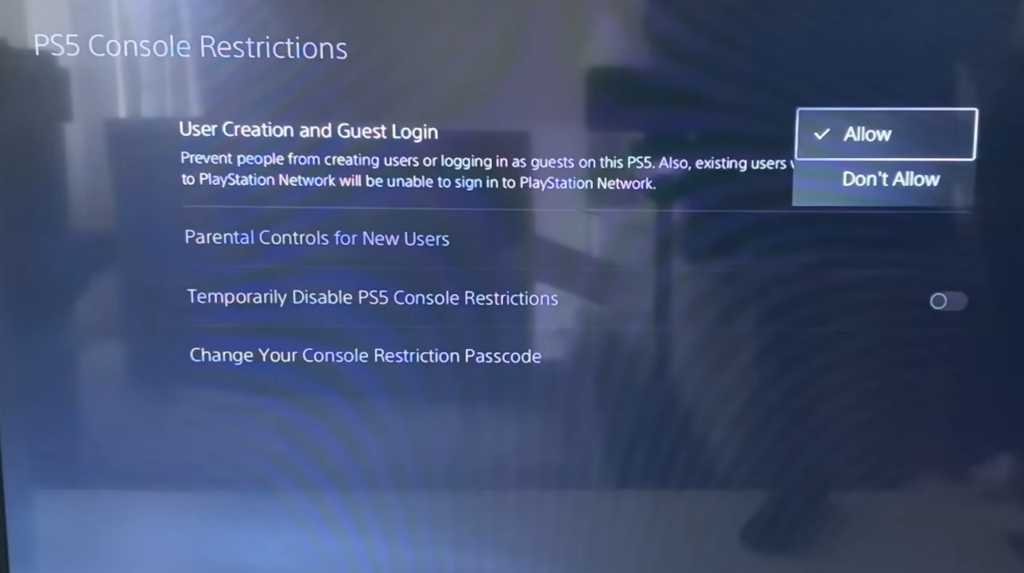
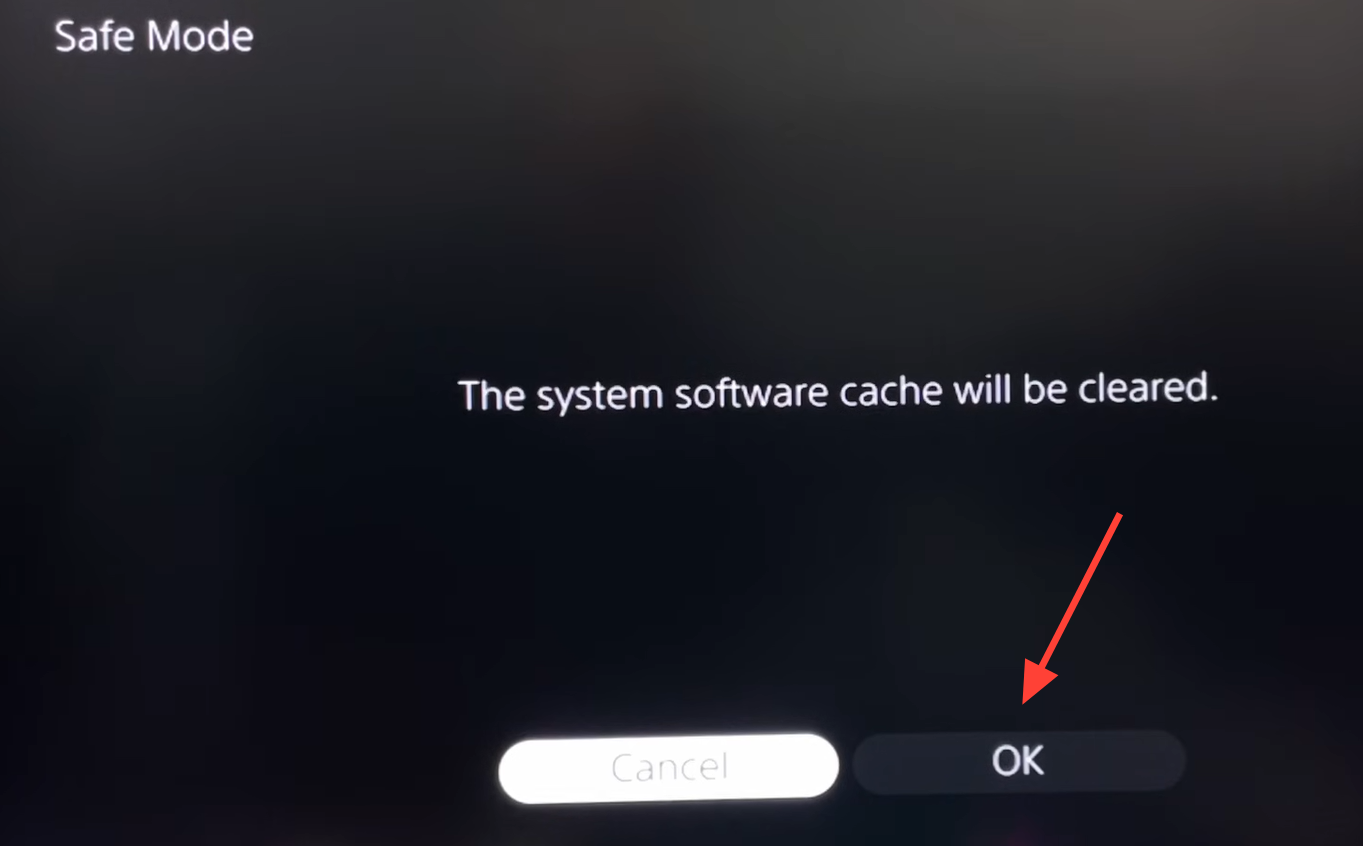
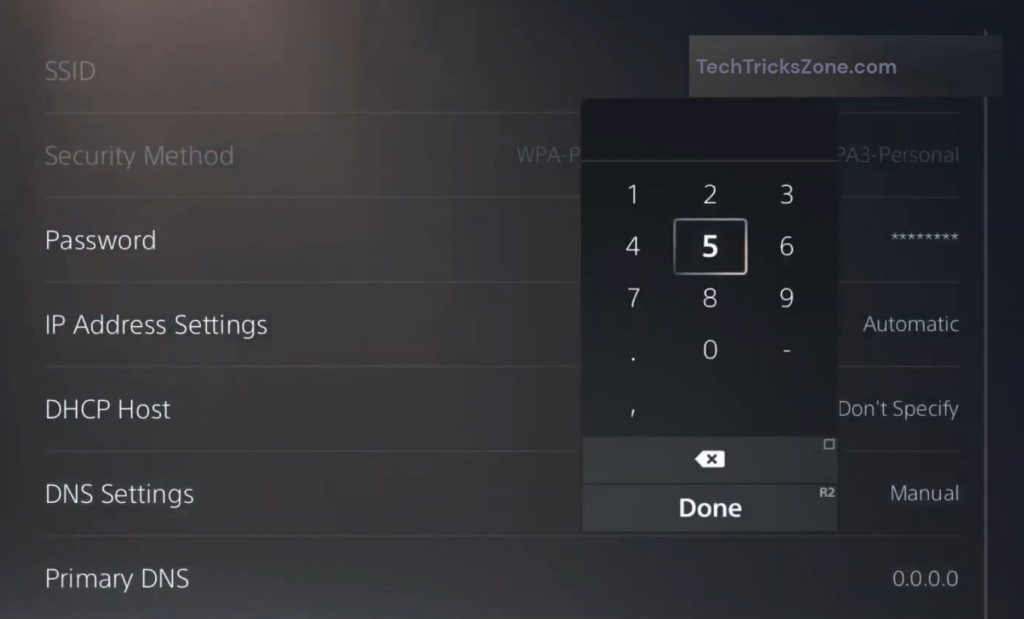
Router and port forwarding settings
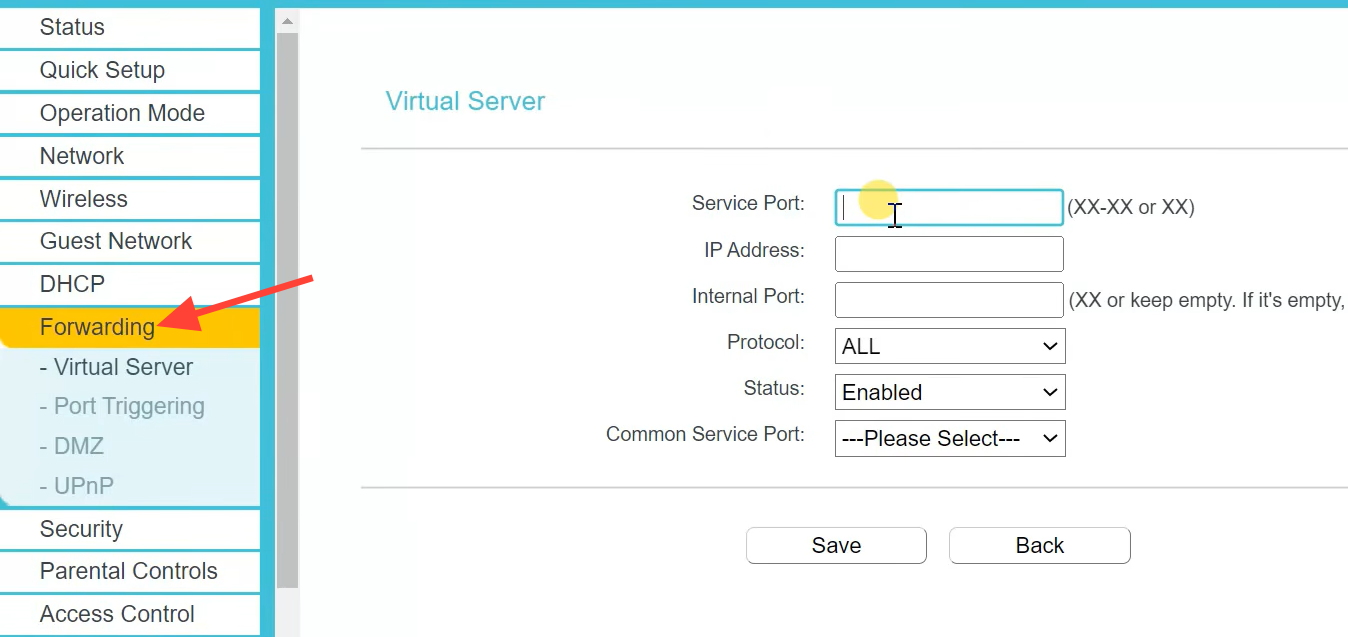
A restrictive router can sit between your client and the servers. If your network blocks the game’s traffic, opening the right ports or enabling UPnP usually restores the connection. The following TCP and UDP ports have been reported to help, though they are not officially published by the developer.
| Protocol | Ports |
|---|---|
| TCP | 80, 443, 5222, 8080 |
| UDP | 5060, 5062, 3478–3479, 27015–27030 |
Open your router’s admin page, find the Port Forwarding or NAT section, add the TCP and UDP ranges above, then save and reboot the router. If manual forwarding is too involved, enabling UPnP lets your PC or console request the ports it needs on its own.
How to confirm the fix worked
You know the error is cleared when the login completes and you reach the main menu without the “Unknown Error. Error Code: 220” message, and matchmaking starts instead of stalling. If the loading bar no longer freezes at 0%, the handshake is succeeding.
If 220 keeps returning after every fix, the cause is most likely server-side. That includes maintenance, regional routing problems, or a version mismatch that a new patch will correct. When that is the case, no local change will help and waiting for the servers to stabilize is the only option.
Prevent Error Code 220 from coming back
- Play on a stable wired connection where possible.
- Do not switch networks while you are logged into your account.
- Keep your firewall exceptions for the game current.
- Avoid logging in during patch rollouts and known peak hours.
- Keep your network drivers and game client up to date.
If you have worked through every step and 220 still blocks you, capture a screenshot of the error, note the fixes you already tried, and submit a support ticket with your platform, account, and network region. That gives the support team enough to confirm whether the failure is on your network or on the server side, and you avoid repeating checks that have already ruled out the simple causes.