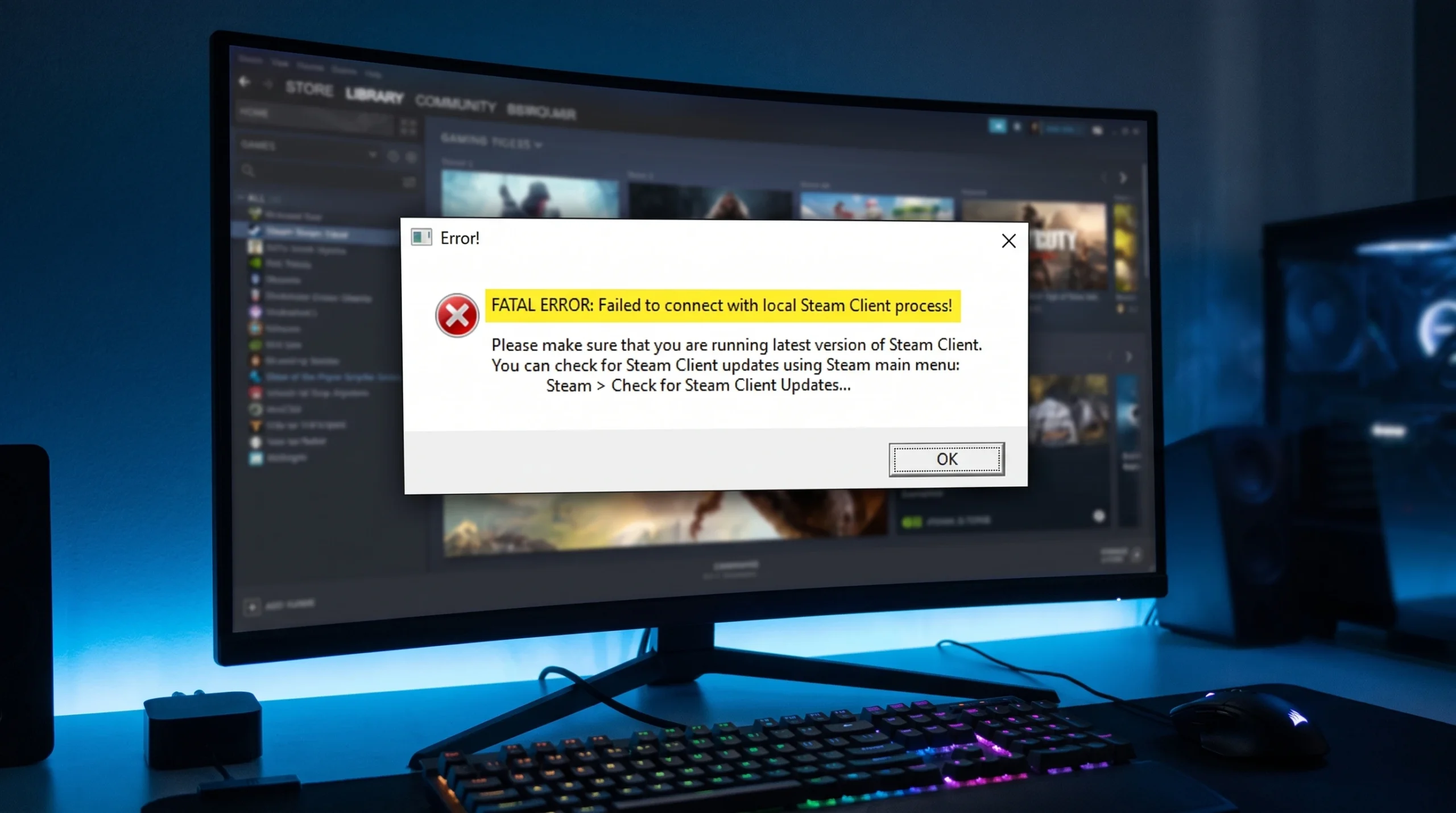
You hit Play on Counter-Strike 2, CS:GO, Team Fortress 2, or Half-Life, and instead of the game you get a launcher box reading “FATAL ERROR: Failed to connect with local Steam Client process!” The message tells you to update Steam, but running Steam Client updates on its own usually changes nothing. The real trigger is a permission mismatch between Steam and the game it is trying to start.
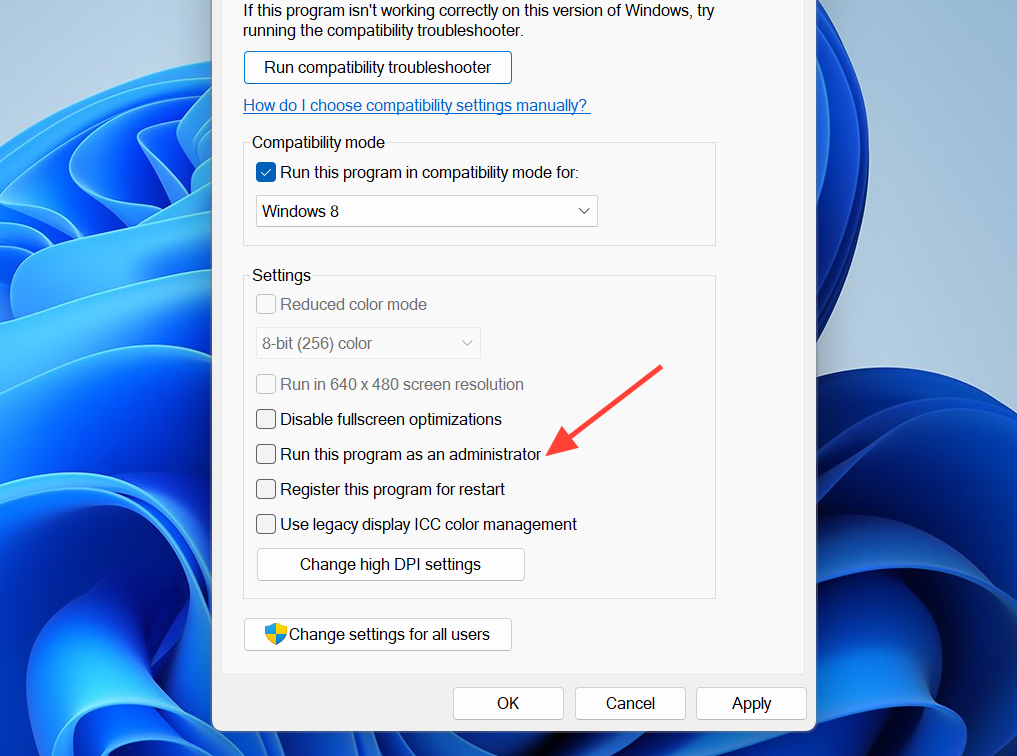
Quick answer: Close every Steam process, then relaunch Steam as administrator. If the error continues, do the opposite for the game and uncheck “Run this program as an administrator” on the game’s .exe (for example csgo.exe). Steam and the game must run at the same privilege level.
Why this error appears in Valve games
Steam launches the game as a child process and expects to keep a live connection to it. When the game runs with higher privileges than Steam, or when several Steam.exe instances are open at once, that connection never forms and the launcher aborts with the fatal error. Corrupt game files, an outdated Steam Client, blocked processes from antivirus software, and a stale application cache can produce the same result. Because the cause varies, the fixes below are ordered from the most common to the last resort.
Match Steam and game privileges (the main fix)
Most reports clear once Steam and the game are set to the same privilege level. Try running Steam as administrator first. If that fails, remove admin rights from the game executable instead. Do not leave both set to administrator.
taskkill /f /IM "steam.exe"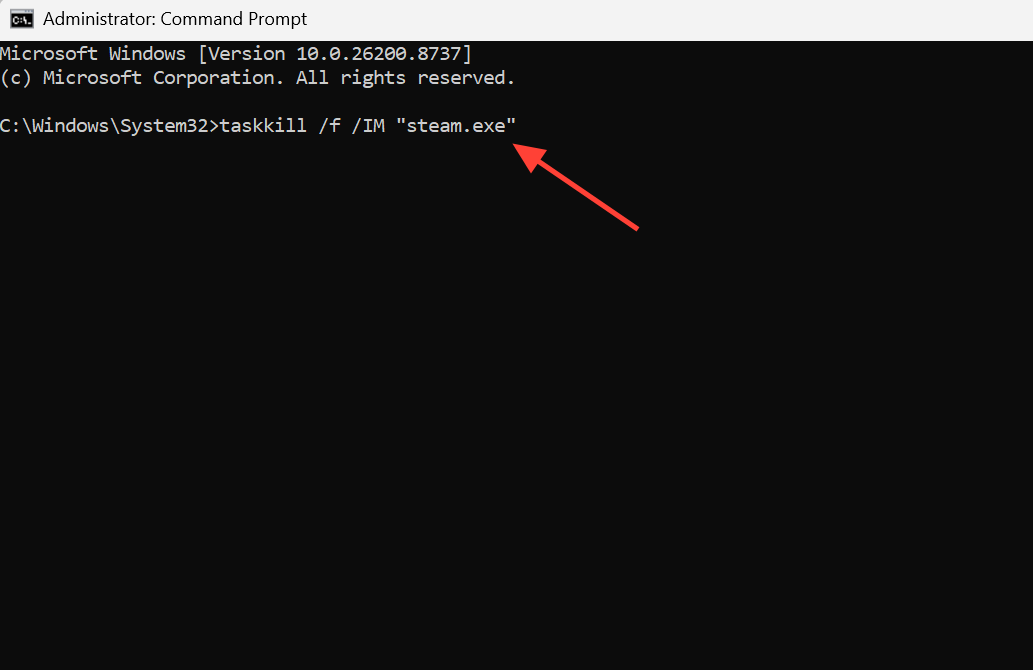
If the game only shows Play again after the fatal error disappears but never opens, the launch itself is being blocked. Continue with the file and cache fixes below.
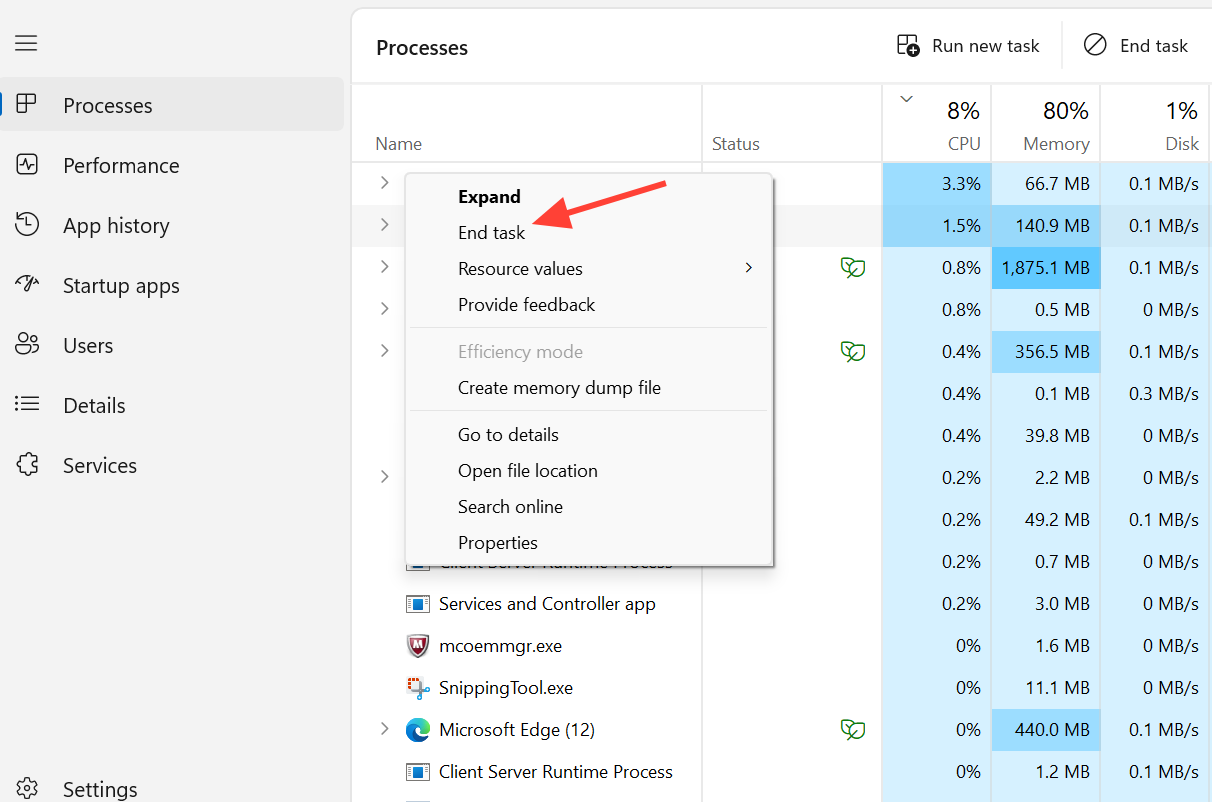
Fully restart Steam
Two or more Steam.exe processes running at once will produce this error. A complete restart forces a single clean instance and often lets Steam finish any pending self-update.
Log out and back in
When the problem is tied to your account session rather than the install, a quick re-login resolves it faster than a full restart. From the top menu, click Steam, then Change Account, and confirm the logout. Sign back in with your username or email and password, then relaunch the game.
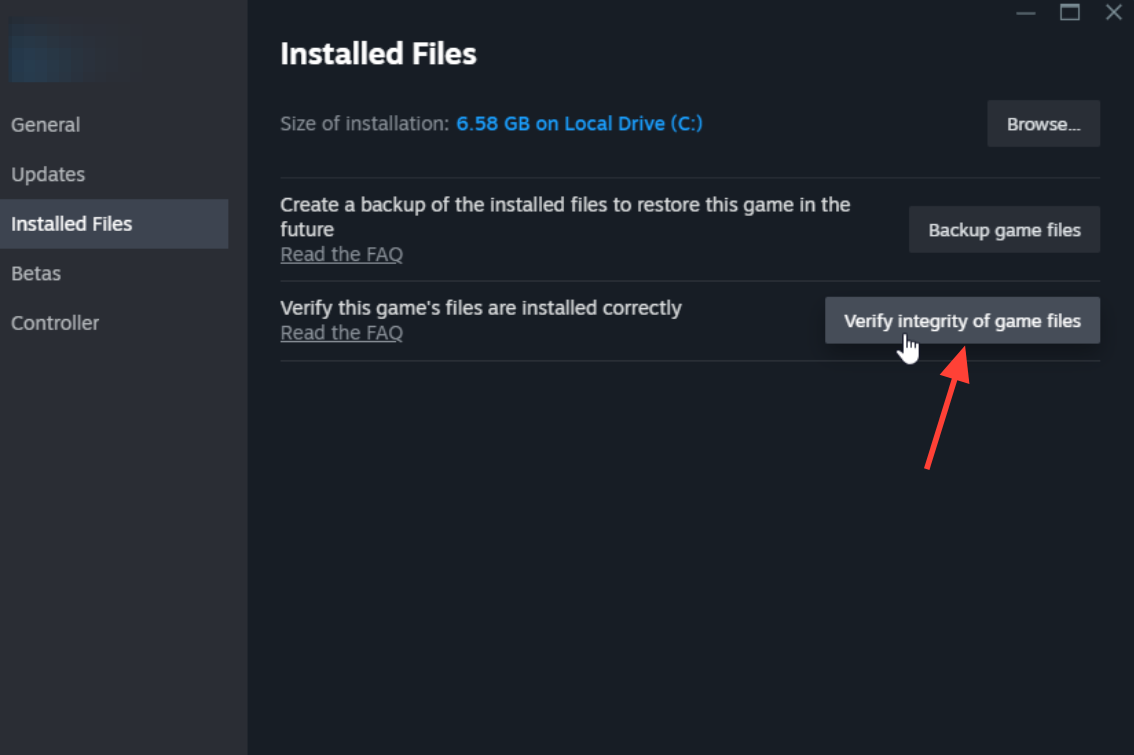
Verify integrity of game files
Missing or corrupt game files can break the handshake with Steam. Verifying compares your local files against Steam’s servers and re-downloads anything that is damaged.
Other fixes worth trying
If the privilege change and file checks do not help, work through the remaining causes below. Each targets a different failure point.
| Fix | What to do | When it helps |
|---|---|---|
| Update device drivers | Press Windows + X, open Device Manager, and update anything marked with a yellow exclamation mark. | Outdated or wrong drivers block the launch. |
| Compatibility mode | In the game’s .exe Properties, on the Compatibility tab, tick “Run this program in compatibility mode for” and select Windows 8. | The game predates your Windows version. |
| Check for updates | Update both Steam and the game to the latest version. Some builds carry an unresolved bug fixed in a later release. | The error was a known bug in an older version. |
| Antivirus | Turn off Windows Defender real-time protection or close third-party antivirus processes in Task Manager. McAfee may need a temporary uninstall using its official removal tool. | Security software kills Steam child processes. |
| Delete appcache | Open Steam’s install folder, delete the appcache folder, then reopen Steam. | A stale application cache is corrupting the session. |
| Reinstall the game | Right-click the game in Library, choose Uninstall, then reinstall it from the same Library entry. | The game install itself is broken. |
Reinstall Steam as a last resort
If nothing else works, a clean Steam reinstall clears out every file and service that could be causing the fault. Back up your games first so you do not have to re-download them.
C:\Program Files (x86)\Steam into the address bar, and press Enter. Copy the steamapps folder somewhere safe.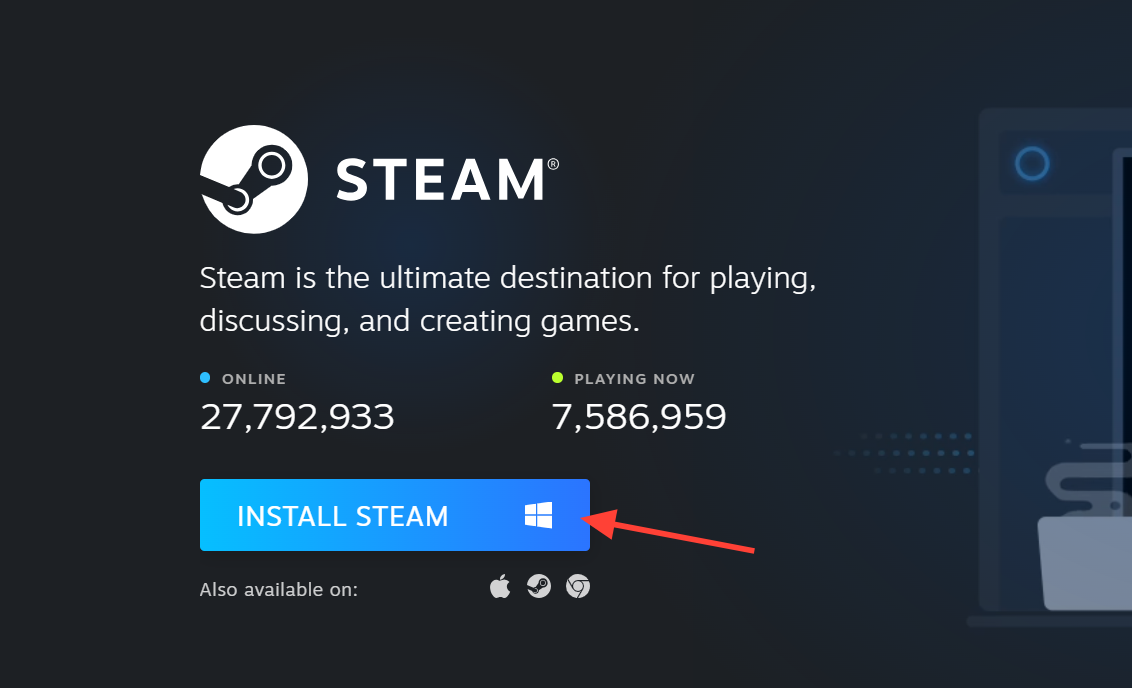
You will know the problem is solved when the game boots straight to its main menu with no launcher error box in between. Since the crash almost always comes down to a privilege mismatch or a clashing background process, start with the administrator setting and a full Steam restart before spending time on the heavier fixes.