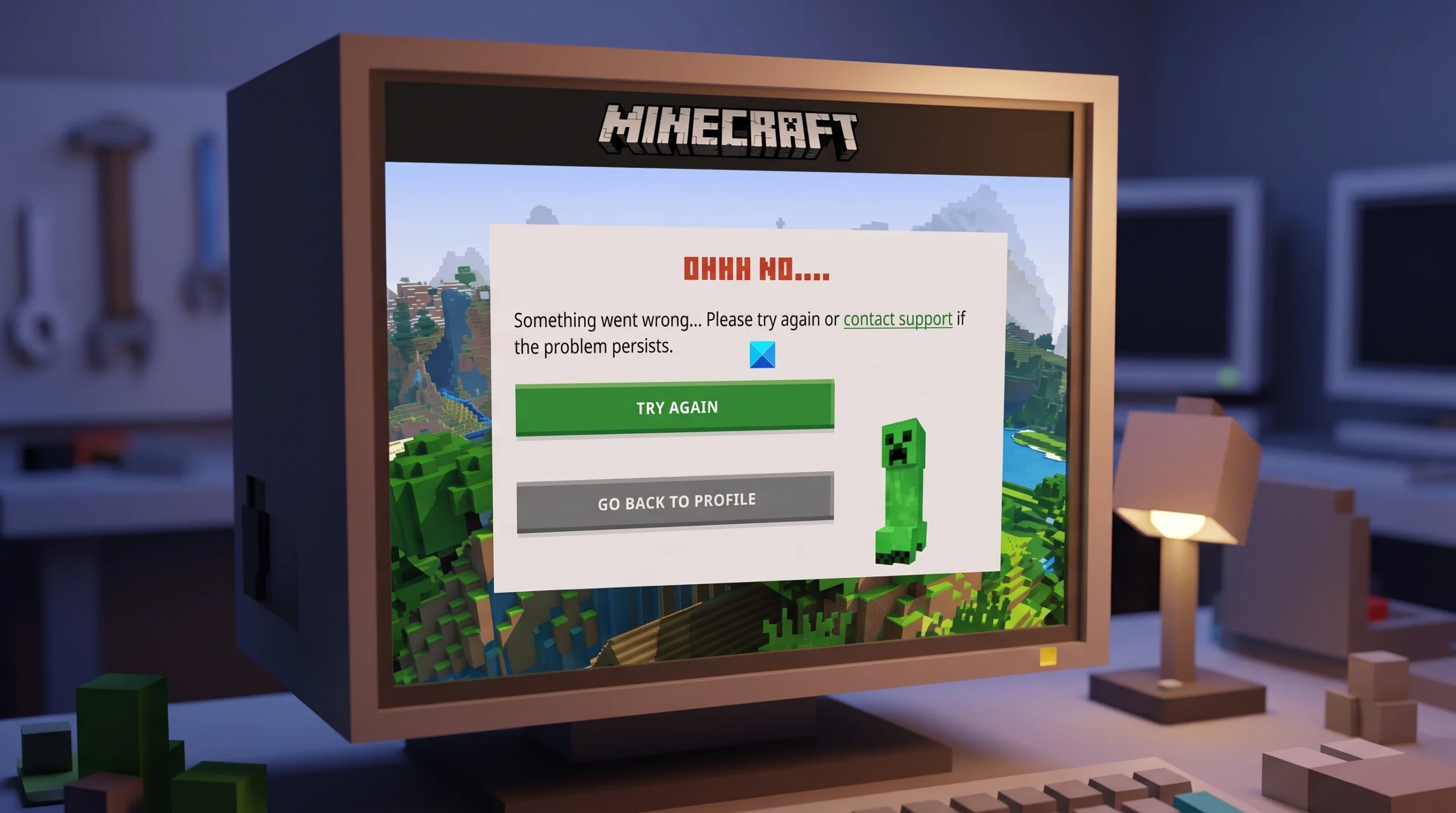
The message “Oh no! Something went wrong, and we couldn’t connect to the Minecraft services” appears when the launcher cannot reach the systems that confirm your account and let you play. It shows up most often on PC through the Minecraft Launcher, and it blocks Java and Bedrock alike until the connection is restored.
Quick answer: First confirm the outage is not on Mojang’s side. If many players report the same error at once, wait for services to recover. If it is only you, fully close the launcher, restart your PC, sign out and back into the Microsoft account that owns Minecraft, then repair the launcher before reinstalling.
Check whether Minecraft services are down first
Before changing any settings, rule out a service outage. When authentication is down, the same connection error hits many players at once, and no local fix will bypass it.
You are likely looking at a wider outage when all of these line up at the same time.
- Websites, Discord, Steam, and Xbox work normally on the same connection.
- The launcher cannot connect to Minecraft services or cannot verify what products you own.
- Realms, servers, multiplayer, or Marketplace fail together.
- Third-party launchers such as Prism, MultiMC, Modrinth, and CurseForge also fail to authenticate.
- Other players in different regions report the same error within the same hour.
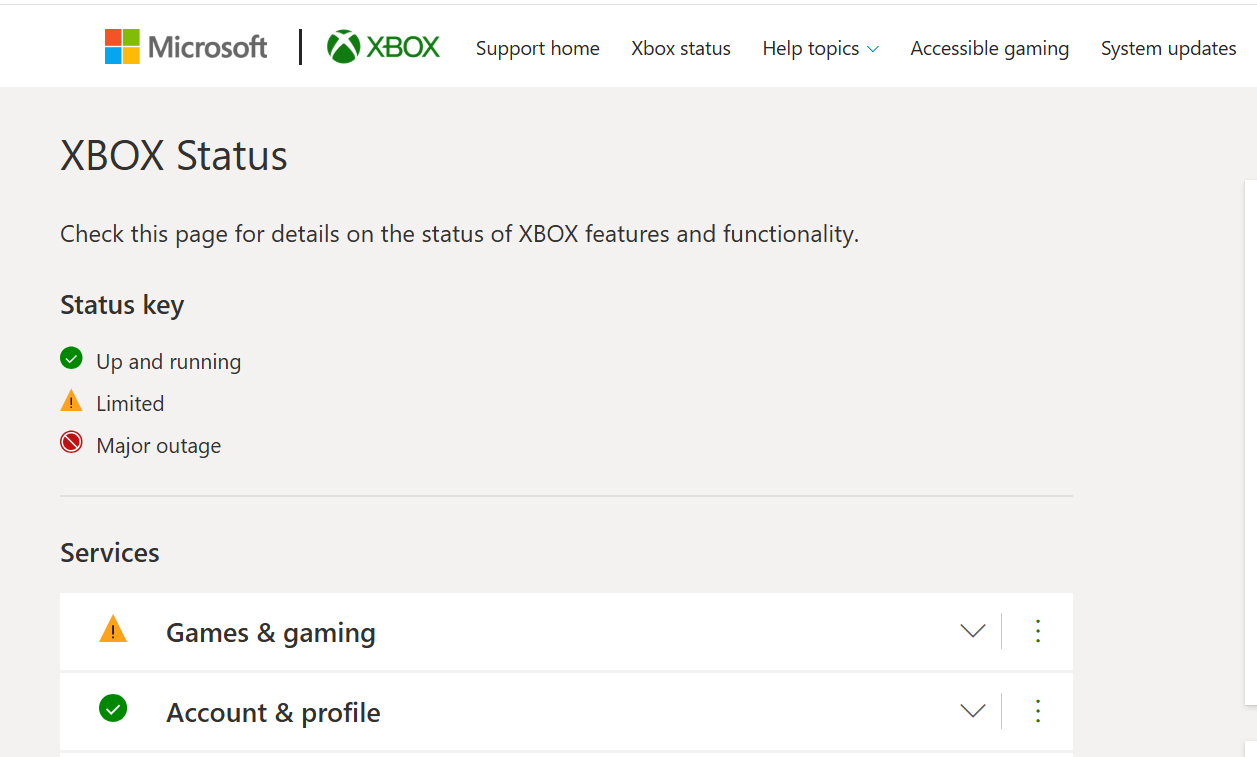
Temporary outages are posted on the PlayFab and Xbox Live status pages. Once an incident is marked resolved there, you should be able to sign in again. If the signs above match, the fastest fix is simply to wait rather than reinstall anything.
If the launcher acts as though you need to buy Minecraft again, do not repurchase it. During an authentication problem, the launcher cannot confirm your license for a moment; ownership returns once services recover.
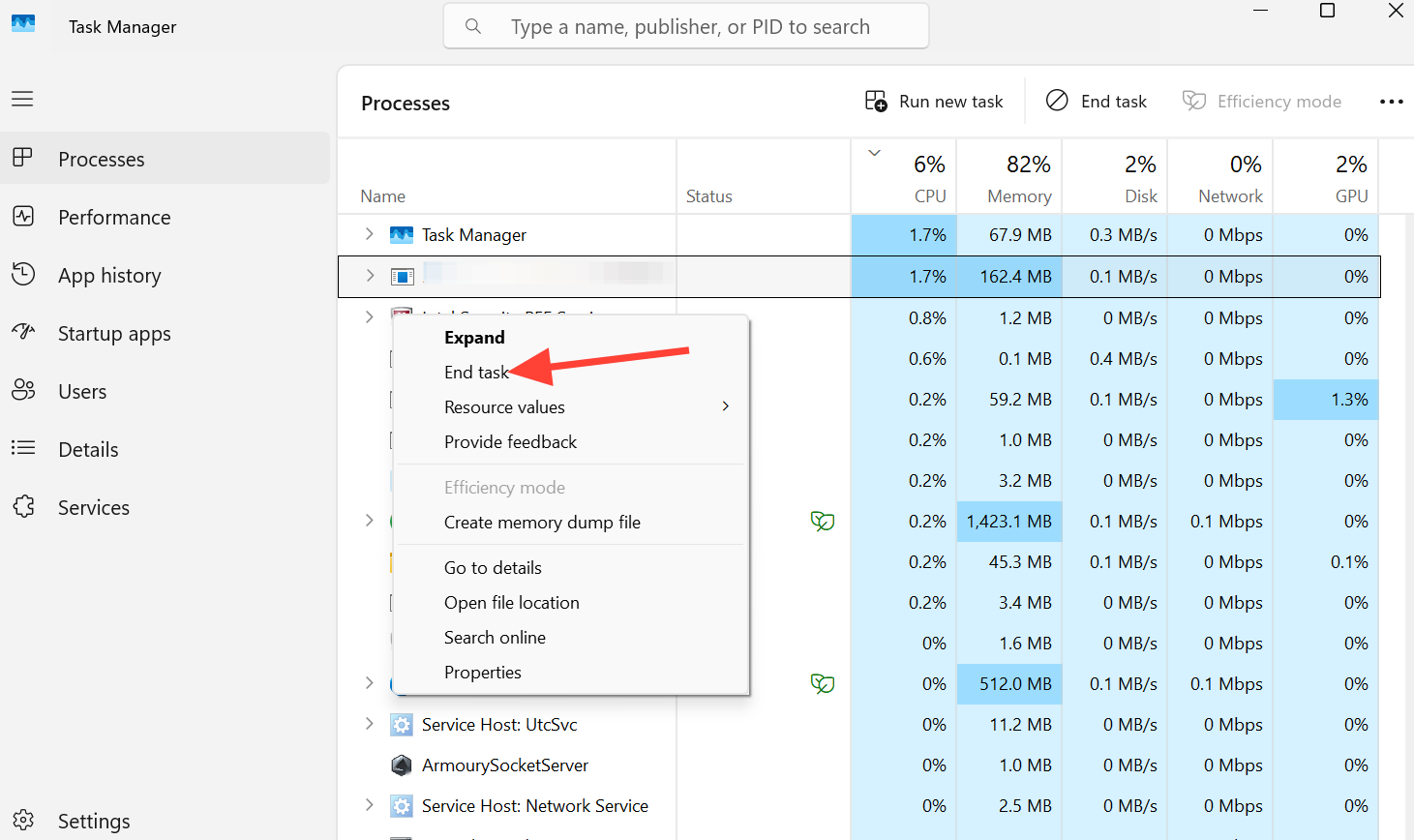
Restart the launcher and your PC
A stuck sign-in session is the most common cause when only your machine is affected. Clearing it takes two short steps.
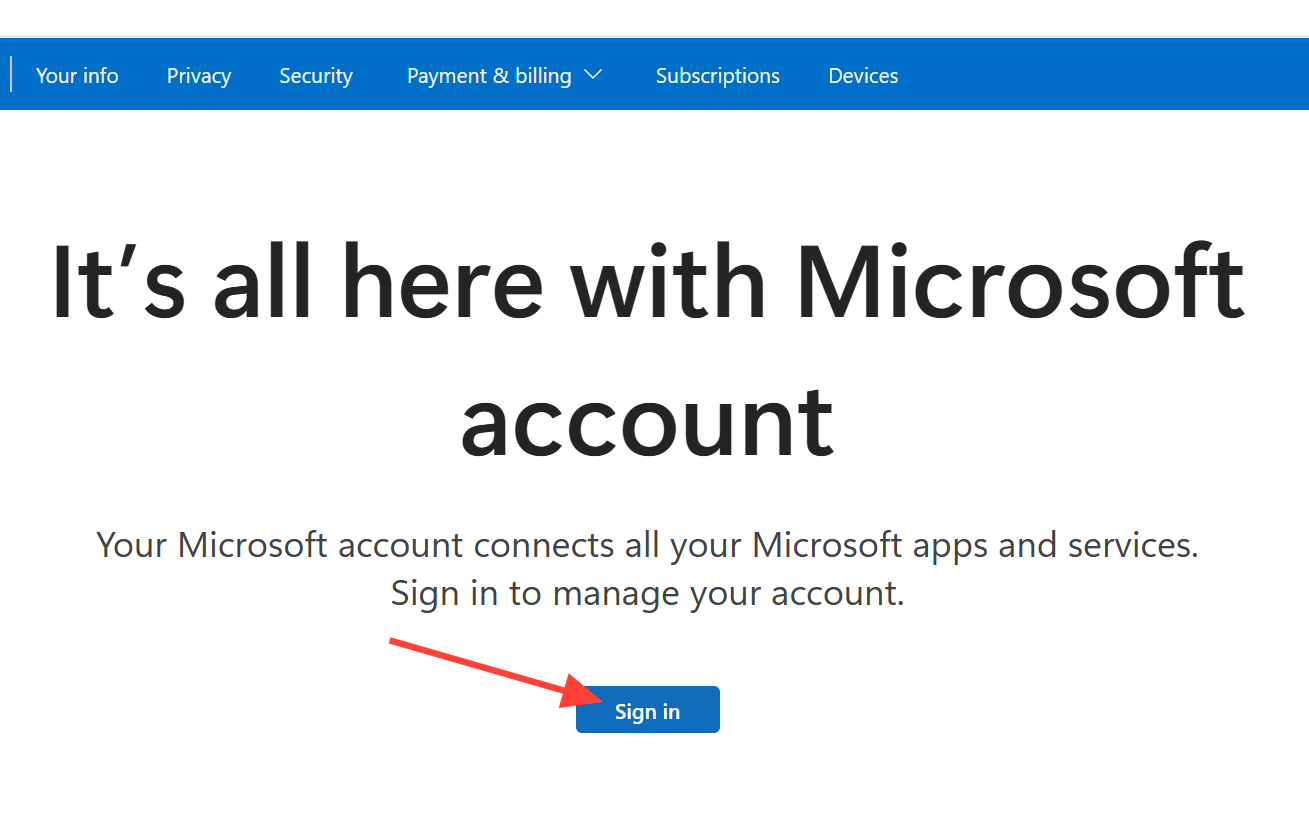
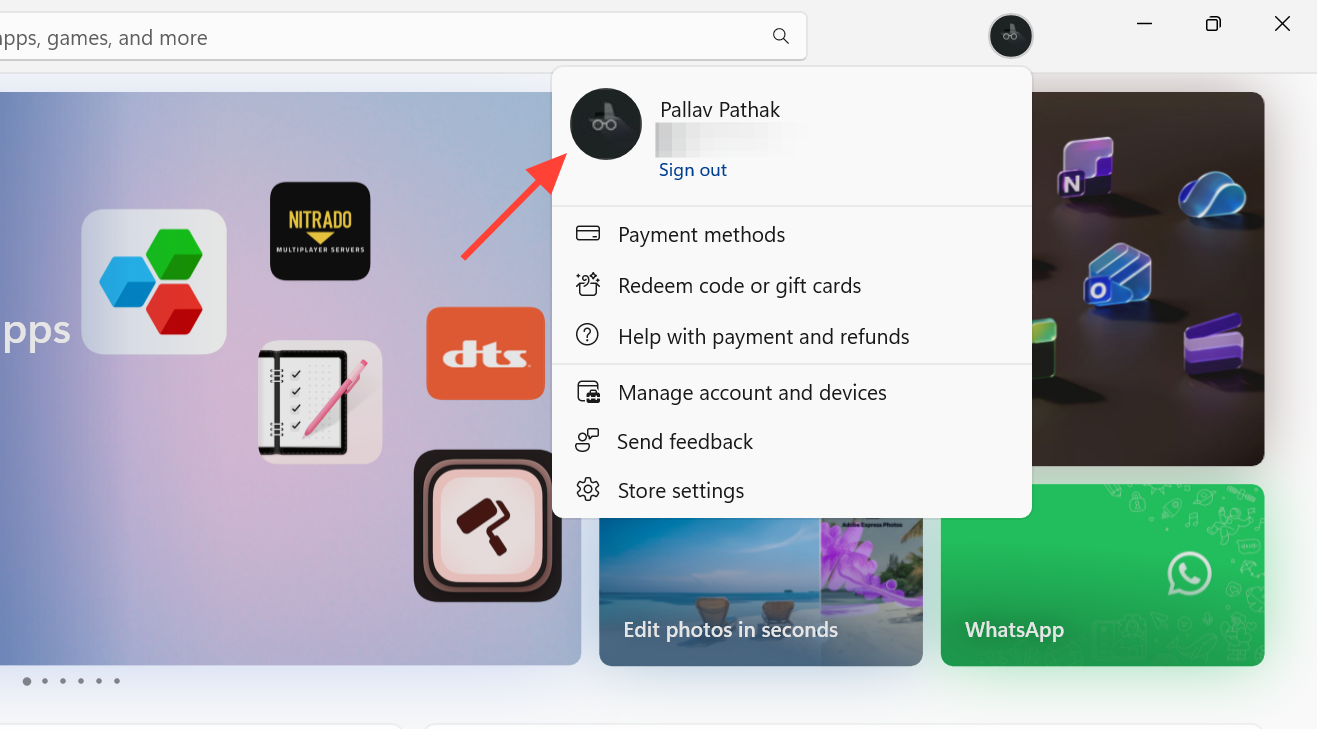
Sign out and back into the Microsoft account
The connection error often clears once the launcher refreshes its account session. Use the Microsoft account that actually owns Minecraft. If you migrated from an old Mojang account, the owning account is the Microsoft account you used during migration.
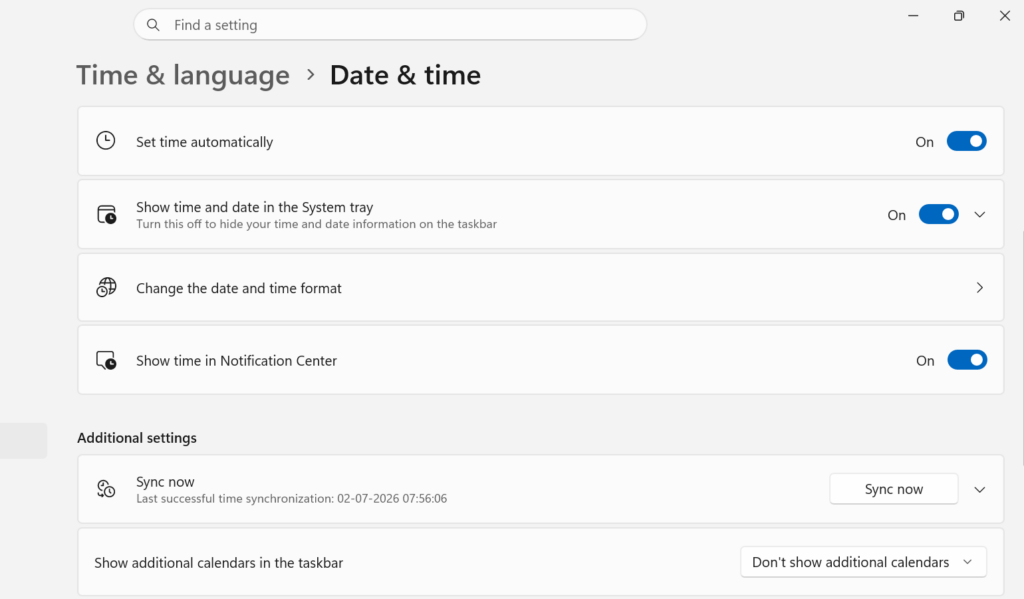
Verify your Game Pass license (Xbox app)
If you play through Game Pass, the launcher needs a valid license from the Xbox app. Without it, the launcher searches for an entitlement it cannot find and stops at the connection error.
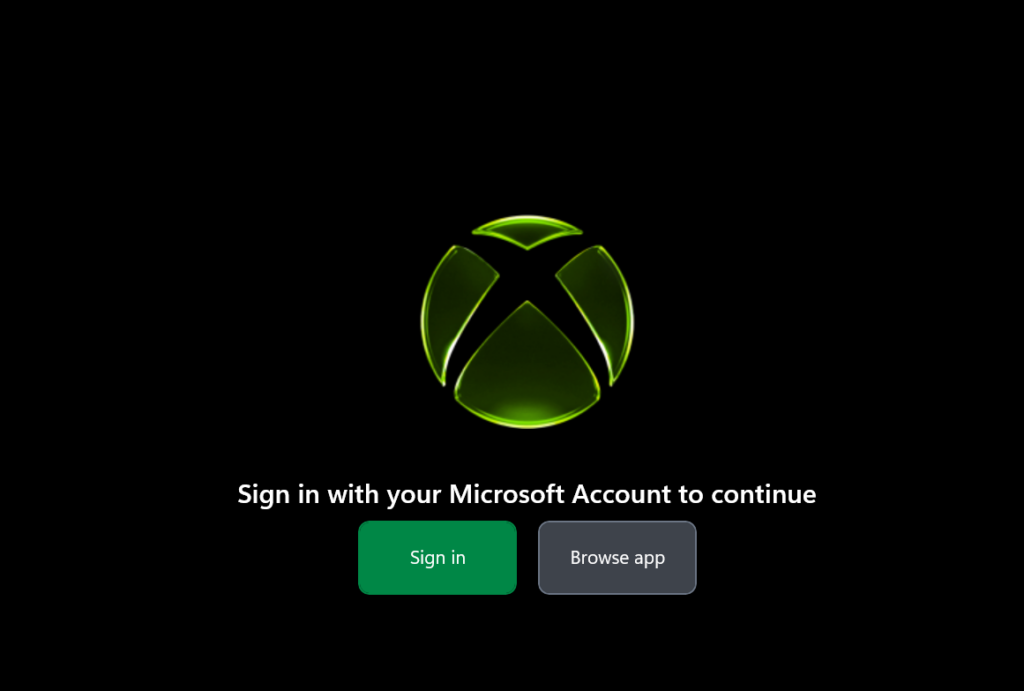
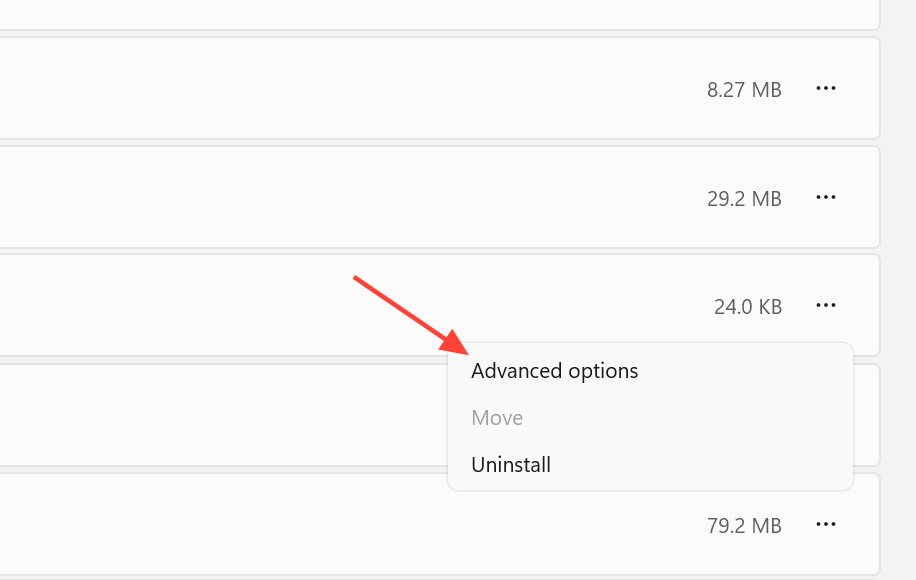
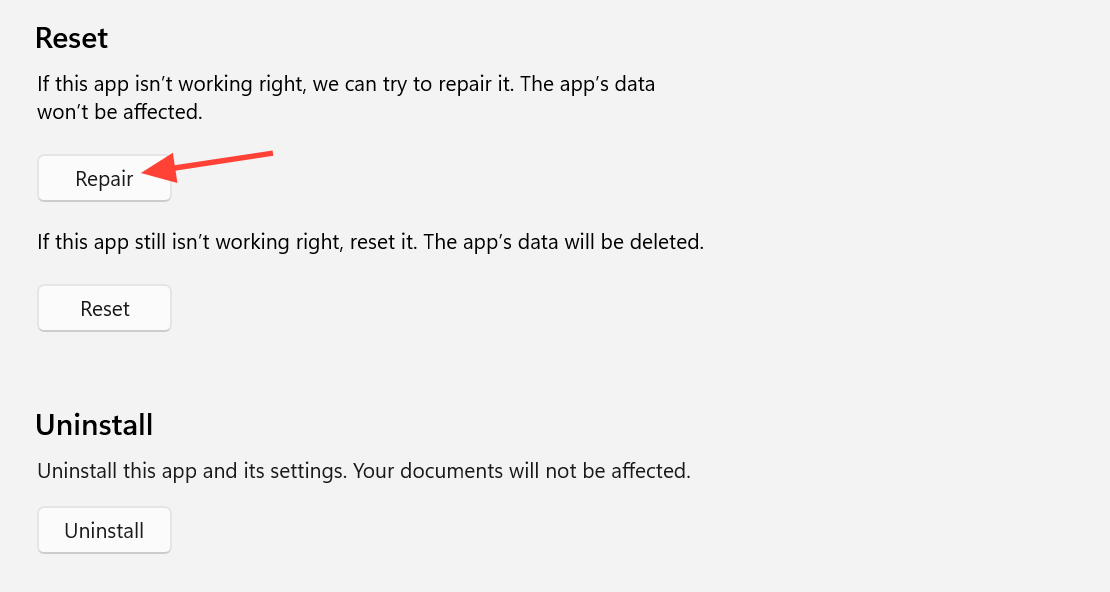
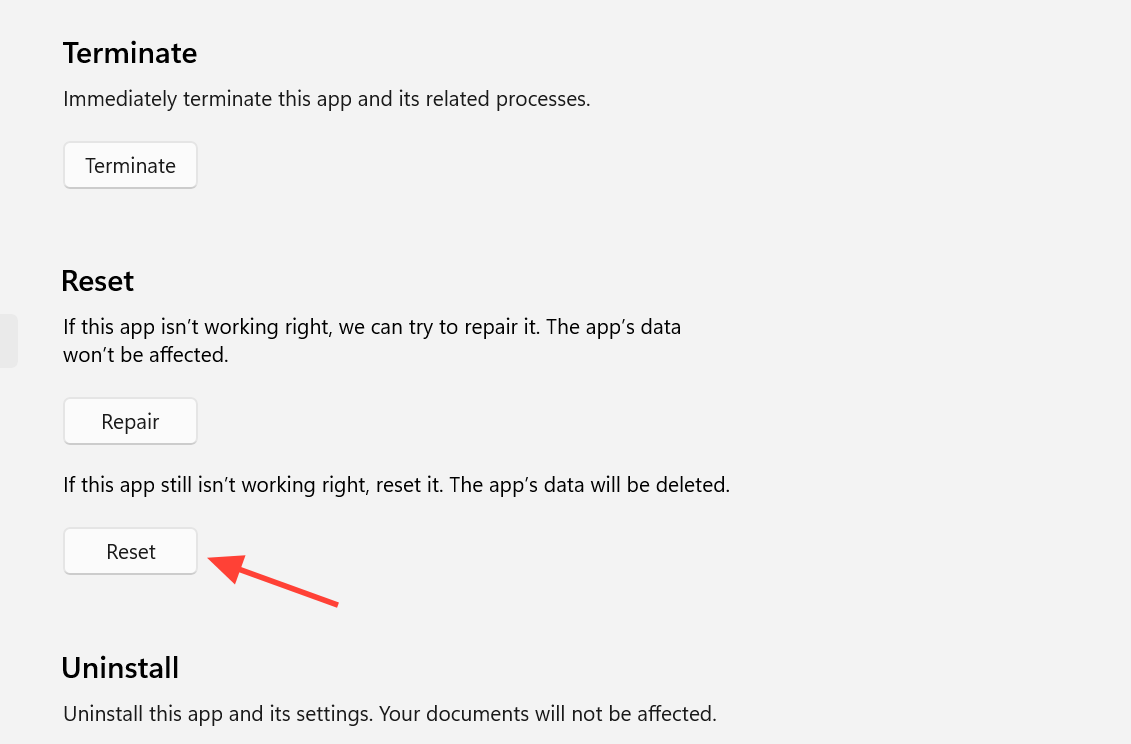
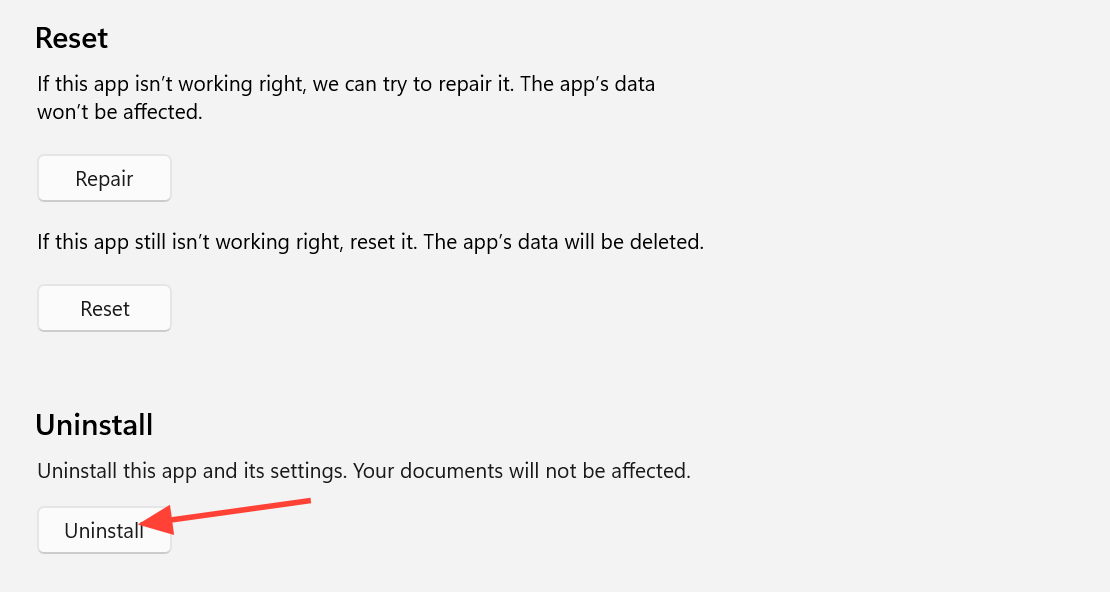
Repair or reset the Minecraft Launcher on Windows
A corrupted launcher file can produce the error even when your account and connection are fine. Windows can rebuild those files without a full reinstall.
Reinstall the launcher and Minecraft
When repair and reset do not help, and services are confirmed online, a clean install is the strongest remaining fix. Back up your worlds and save data before you start.
Related error messages that point to the same cause
Different launchers and editions word the same authentication failure in different ways. If you see any of these alongside a spike in player reports, treat it as a service-side issue rather than a broken account.
| Message | What it means |
|---|---|
| Authentication services unavailable | The launcher tried to confirm your account and got no valid response. |
| We were unable to verify what products you own | An ownership check failed; your license is not confirmed at that moment. |
| Oh no! Something went wrong, and we couldn’t connect to the Minecraft services | A connection failure between the launcher and Minecraft’s online services. |
| Error Code: 0x89245111, code: Swamp | The launcher failed during Microsoft or Minecraft account sign-in; not a ban. |
| Third-party launcher access token errors | Prism, MultiMC, Modrinth, and CurseForge cannot fetch valid tokens while official services are down. |
How to confirm the fix worked
The error is resolved when the launcher signs you in without the “couldn’t connect to the Minecraft services” screen and lets you reach the Play button, load a world, or connect to a server or Realm. If online play, Marketplace, and Realms all work again, the connection to Minecraft services has been restored.
If every step above still fails and services are not reporting an outage, open a ticket with Minecraft Support. Include the exact error text and list the troubleshooting you have already tried so they can pick up from where you left off.