Moving a shared folder in Google Drive to another account is a common need—especially when consolidating files, switching accounts, or freeing up storage on an old profile. Google Drive doesn’t offer a direct, one-click solution for migrating entire folders (including nested subfolders and files) between accounts, particularly when the accounts are in different domains or organizations. However, several methods can streamline the process, each with its own advantages and limitations.
Method 1: Using Google Takeout Transfer (Best for Workspace/Education Accounts)
Google Takeout Transfer is designed for users who need to migrate Drive content from a school or work account to a personal Google account. This tool copies Drive files (and optionally Gmail) directly to another Google account, preserving folder structure where possible and avoiding manual downloads. Not all organizations enable Takeout Transfer, so check with your administrator if the option is unavailable.
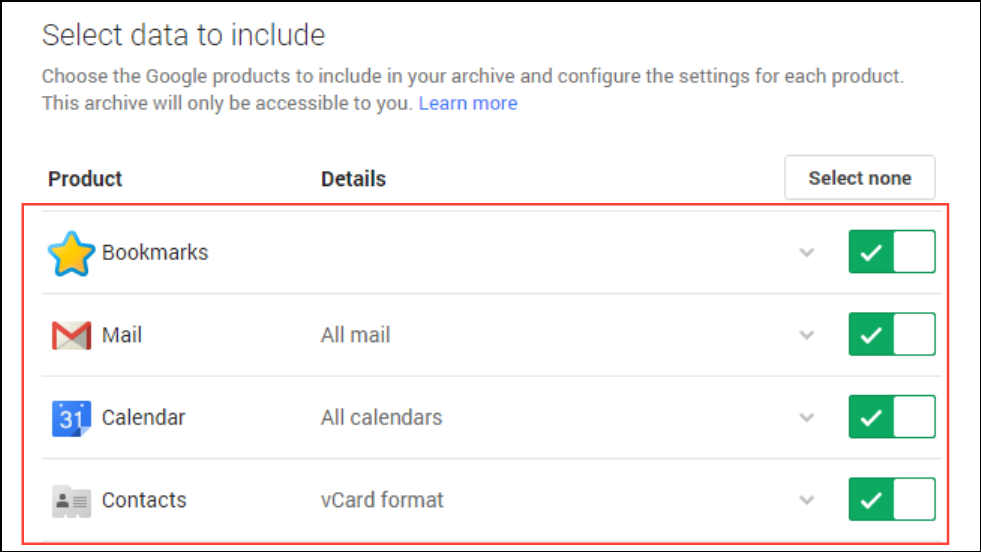
This method avoids local downloads and uploads, which is especially useful for large data sets or users with limited storage on their devices.
Method 2: Manual Download and Upload (Works for Any Account Type)
When Google Takeout Transfer isn’t available or you need more granular control, manually downloading and uploading folders is a reliable approach. While this method is straightforward, it requires enough local storage to temporarily hold your files.
Download. Google Drive will compress the folder into a ZIP file and download it to your computer.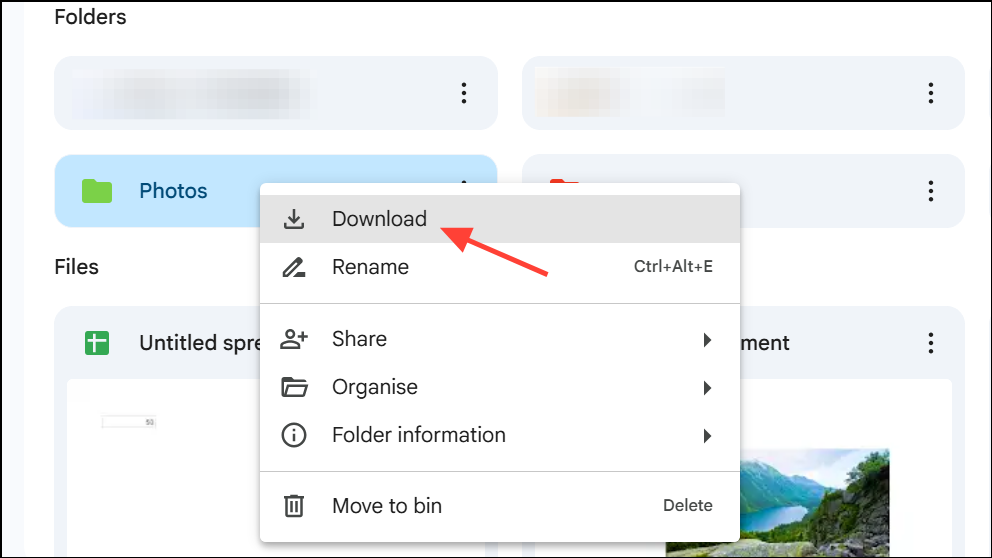
New > Folder to create a new folder, then drag and drop the extracted files and folders into this location. Alternatively, use the Folder Upload option.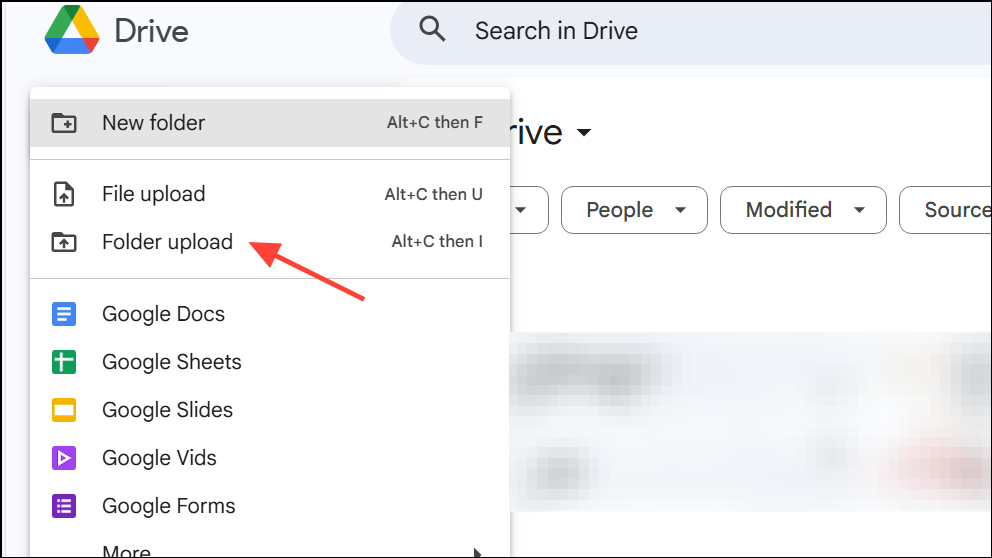
Open with > the appropriate Google app (Docs, Sheets, Slides) to convert them back to Google format. Rename and organize as needed.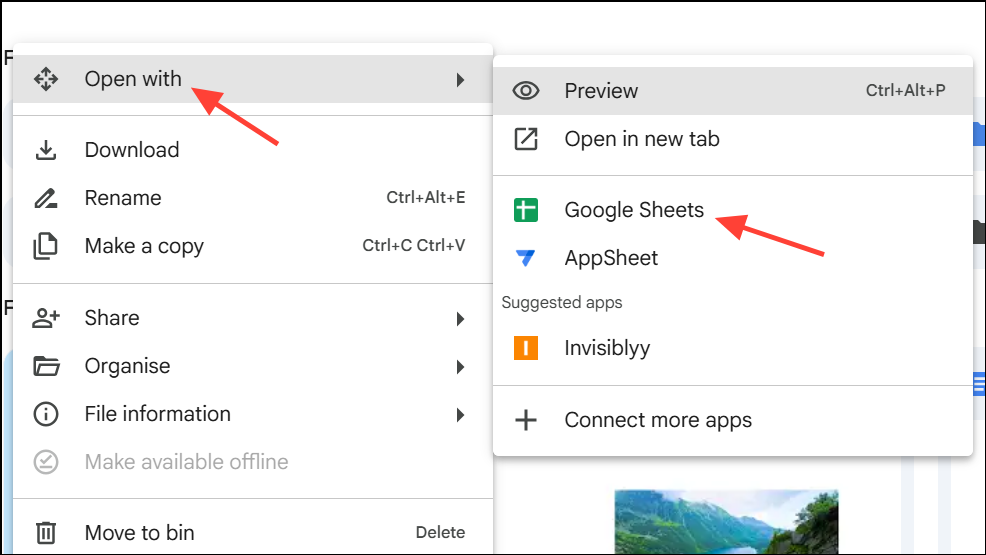
This approach gives you full control over what gets moved, but can be time-consuming for large or complex folder structures. Always verify that all files uploaded successfully before deleting them from the original account.
Method 3: Sharing and Changing Ownership (Same-Domain Accounts Only)
For users within the same Google Workspace or domain, you can transfer folder ownership directly—though this method doesn’t work across personal and institutional accounts or between different organizations due to Google’s restrictions.
Share. Enter the email address of the destination account and grant Editor access.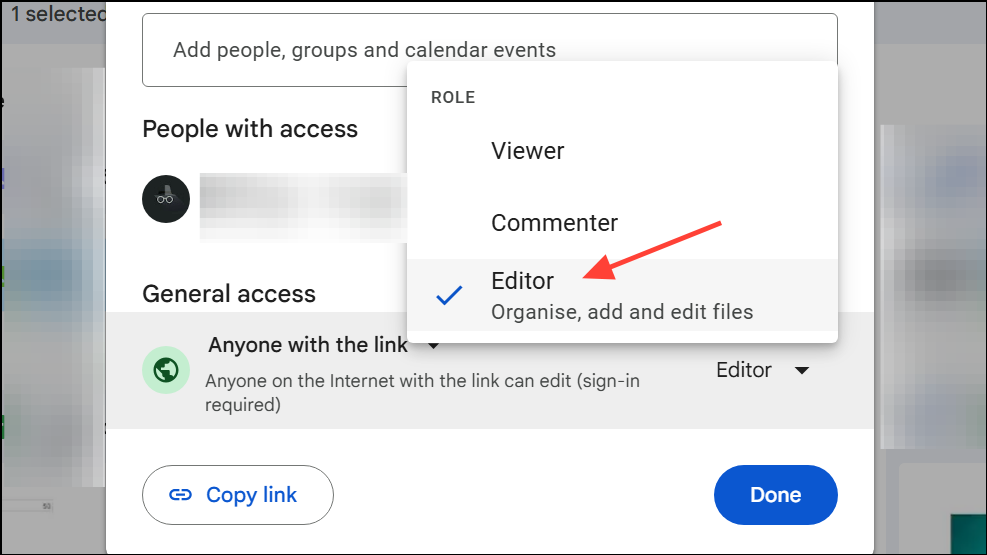
Share again, then select Advanced. Next to the destination account, click Is owner to transfer ownership. Alternatively, use the Transfer ownership option if it is available. Confirm the change. The folder and its files will now belong to the destination account, but subfolder ownership may not transfer recursively—manual adjustments may be needed for nested folders.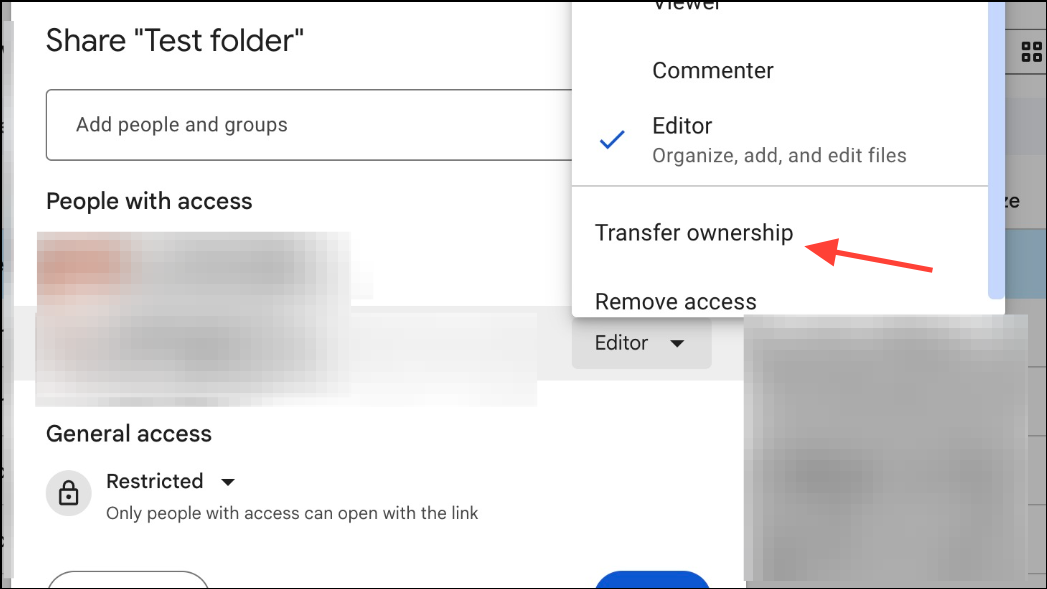
Transferring ownership is fast and keeps files in place, but strict domain policies often limit this method. Check with your administrator if you encounter errors.
Method 4: Using Shared Drives (Google Workspace Only)
Shared Drives (formerly Team Drives) allow multiple users to co-manage files. If both accounts are in the same organization and have access to Shared Drives, this method can simplify moving large sets of data.
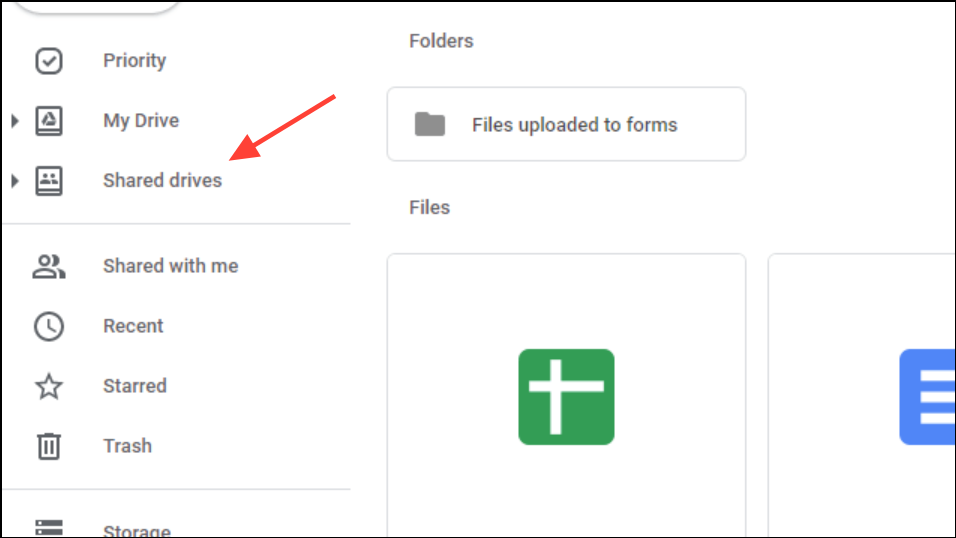
This method is efficient for collaborative environments, but Shared Drives are not available to personal (free) Google accounts.
Method 5: Third-Party Tools and Add-ons
If the above options are insufficient, several third-party apps and add-ons can automate or streamline file and folder transfers between Google Drive accounts. Some tools support cross-domain transfers and can preserve folder hierarchies, but may require administrative permissions or paid subscriptions. Always review privacy policies and organizational policies before granting access to your Drive data.
- Apps like MoveFiles or Transfer Files Ownership can help automate ownership transfer and copying.
- Some tools allow bulk copying, scheduled transfers, and advanced filtering.
- Check with your IT administrator before using third-party solutions in a work or school environment.
After transferring your shared folder, double-check that all files and subfolders are accessible and in the correct format on the new account. Always keep a backup until you’ve confirmed a successful migration.