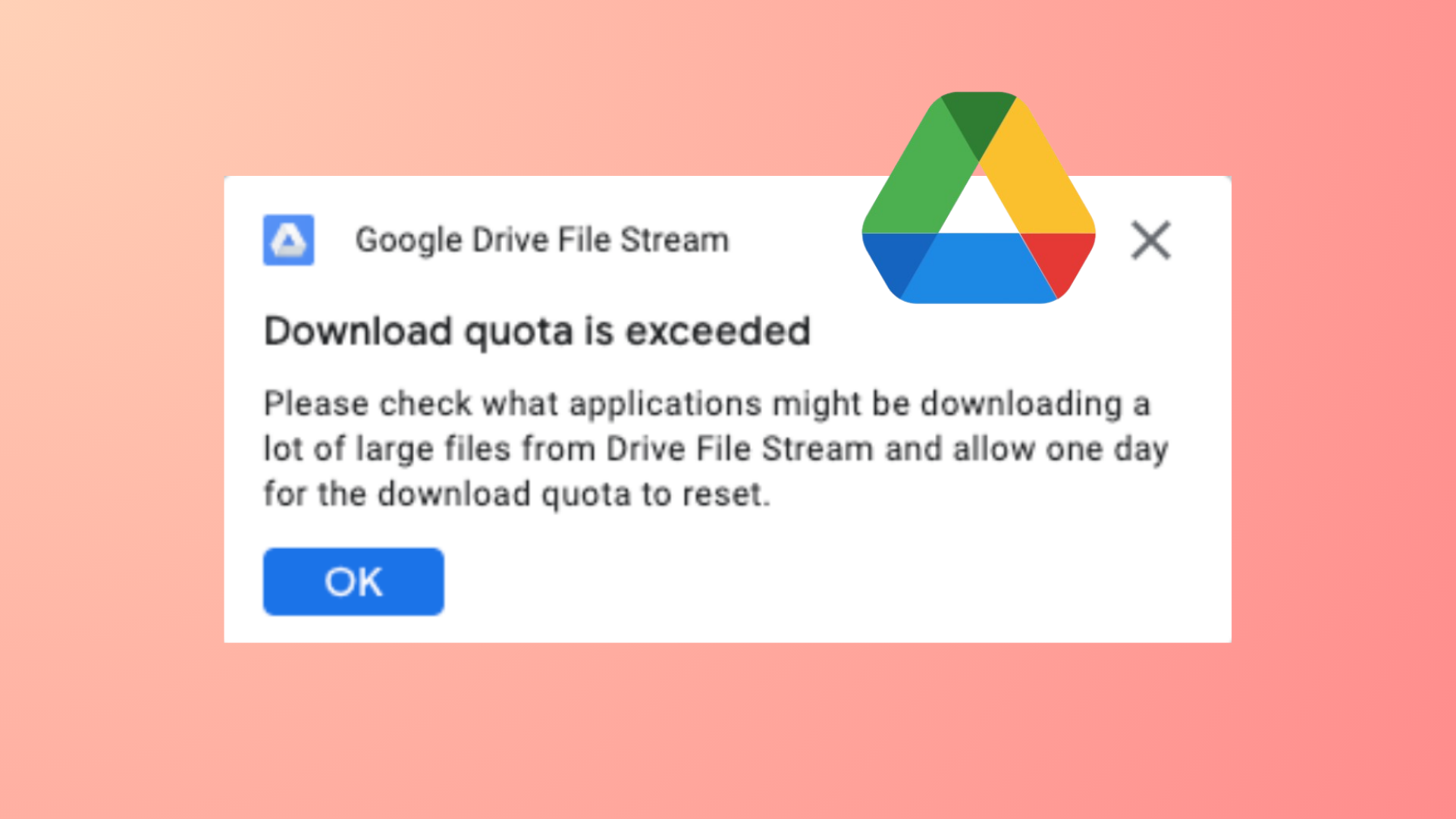
Receiving the message “Download quota exceeded for this file” or “Sorry, you can’t view or download this file at this time” means Google Drive has temporarily blocked downloads due to high traffic on a specific file. This restriction is triggered when a file is accessed or downloaded by too many users in a short period, often locking the file for up to 24 hours. However, several effective workarounds allow you to access these files without waiting for the quota to reset.
Method 1: Add a Shortcut to a Folder and Download the Folder
This approach leverages Google Drive’s shortcut and folder download functionality to bypass the quota lock. It is widely reported as the most reliable fix for the quota exceeded error.
Organize > Add shortcut from the context menu.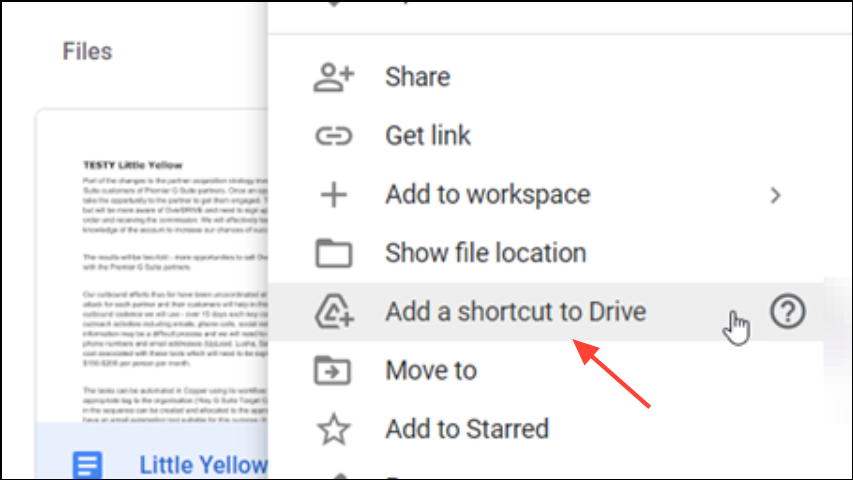
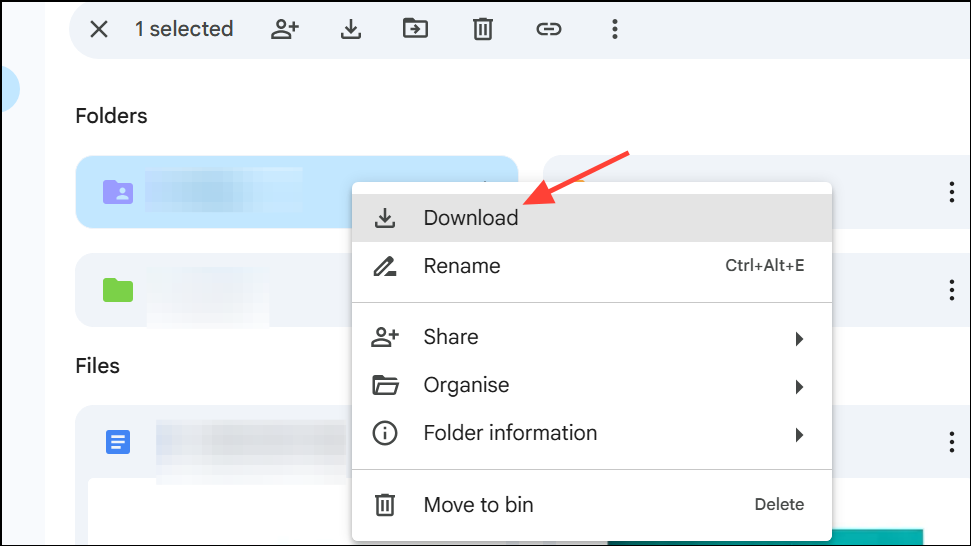
This method works because downloading a folder containing a shortcut triggers Google Drive to package the actual file, sidestepping the direct download restriction. If you receive a “zip failed” or timeout error for very large files, try downloading individual files inside the folder, or wait for a few minutes and attempt again.
Method 2: Make a Copy of the File in Your Own Google Drive
If the shortcut method fails due to shortcut limits or other errors, creating a personal copy of the file can also allow you to download it without quota restrictions. This method requires sufficient free space in your Google Drive account to store the copy.
Make a copy. If you are viewing a document, you can also use the menu: File > Make a copy.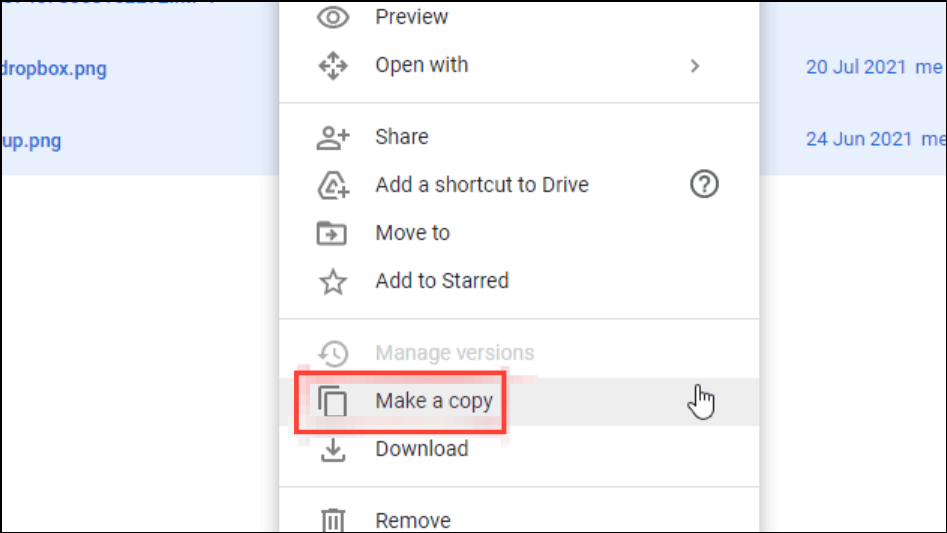
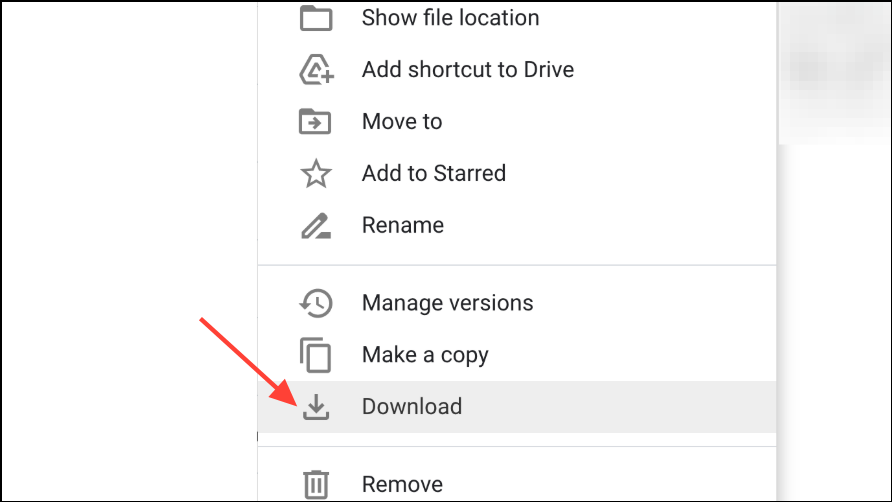
This method is especially effective for files shared directly (not as folders) and avoids the shortcut quota limitations. If your Drive is full, you will need to free up space before making a copy.
Method 3: Download Multiple Files Together Using “Starred” or “Recent”
When Google Drive blocks shortcut creation due to quota limits, you can sometimes force a download by selecting the target file along with another random file in your Drive and downloading both at once. This triggers Google Drive to zip multiple files, bypassing some restrictions.
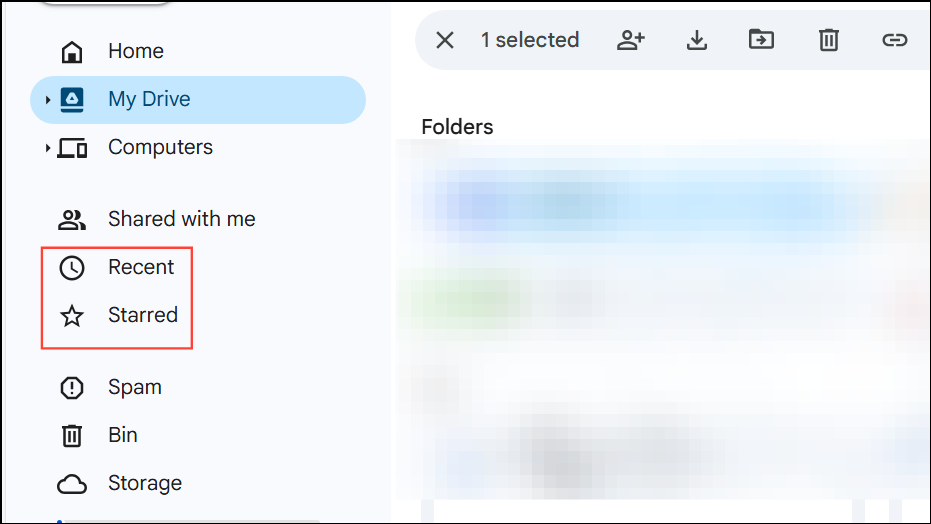
Shift and select both the target file and any other file (you can create a dummy file if needed).If this does not work, try different combinations or wait for the quota to reset after 24 hours.
Method 4: Use a Third-Party Cloud Management Service
Cloud management platforms such as MultCloud allow you to connect your Google Drive account and download files through their interface, sometimes avoiding Google’s direct download restrictions. These services may require you to sign up and grant access to your Drive.
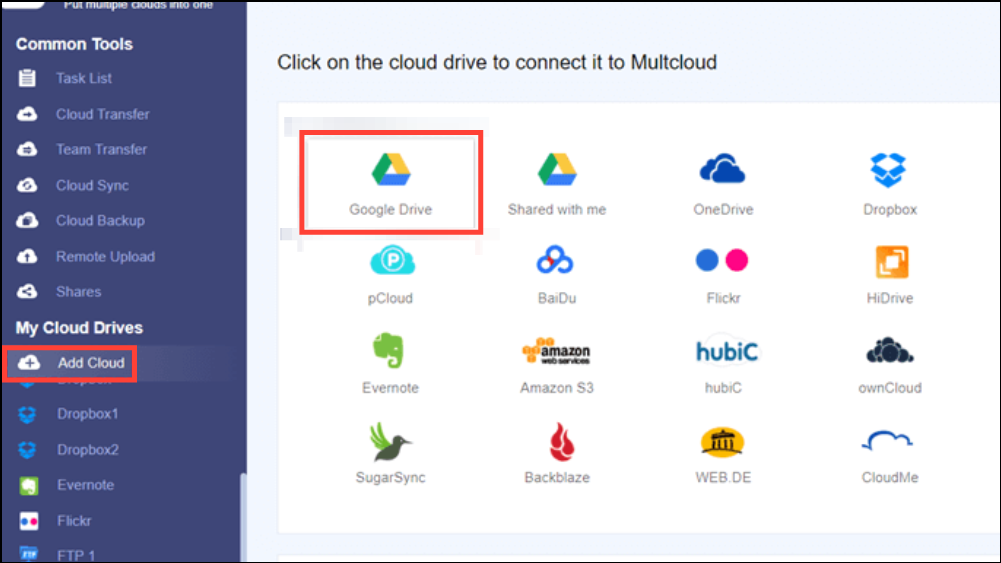
This method is useful if Google Drive’s own interface continues to block downloads, but it may have limitations for very large files or require a paid subscription for extended use.
Additional Tips and Cautions
Google Drive download quotas typically reset after 24 hours. If none of the above methods work, waiting until the next day is often the only remaining option. For files shared with very large groups or made public, consider requesting the uploader to share the file privately or use restricted sharing to reduce the likelihood of hitting quota limits in the future. Always ensure you have enough free space in your Google Drive account when making copies of large files.
If you are the owner of a file that frequently hits the download quota, making a copy and sharing the new copy with a smaller group can reduce future blocks. For persistent issues, consider using alternative file-sharing platforms that do not impose similar download limits.
By following these steps, you can reliably work around Google Drive’s download quota errors and keep your downloads moving without unnecessary delays.