Google Drive sometimes zips selected files or folders but fails to start the actual download, leaving users without access to their data. This issue can occur across browsers like Chrome, Safari, Firefox, and Edge, and often relates to browser privacy settings or cookie handling. The following methods address the most effective solutions first, providing step-by-step guidance to restore normal download functionality.
Allow Third-Party Cookies in Your Browser
Google Drive relies on third-party cookies to initiate downloads, especially after compressing files into a zip archive. Blocking these cookies can prevent the download from starting, even after the zipping process completes.
Settings. In Firefox, select the hamburger menu and then Settings.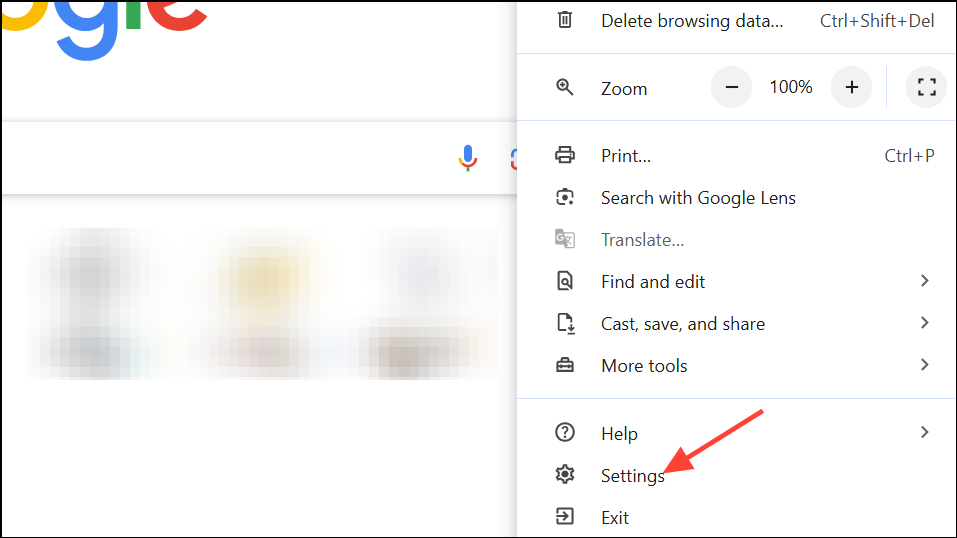
Privacy and security > Third-party cookies. In Firefox, look under Privacy & Security.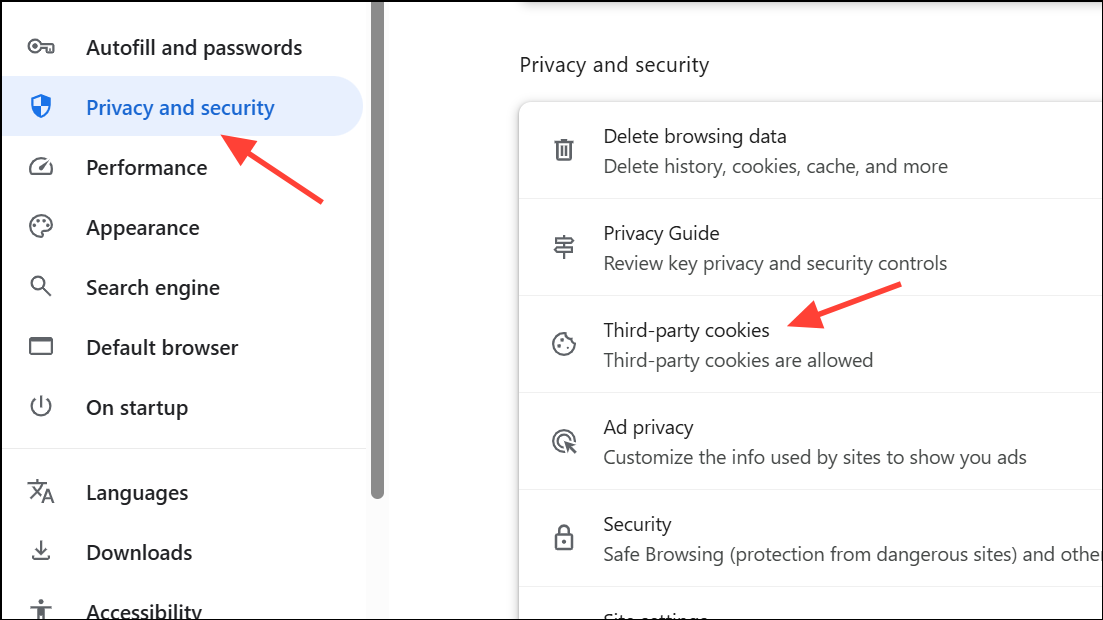
Allow third-party cookies is selected, or add an exception for drive.google.com and [*.]googleusercontent.com. This adjustment allows Google Drive to communicate with its download servers and trigger the file transfer.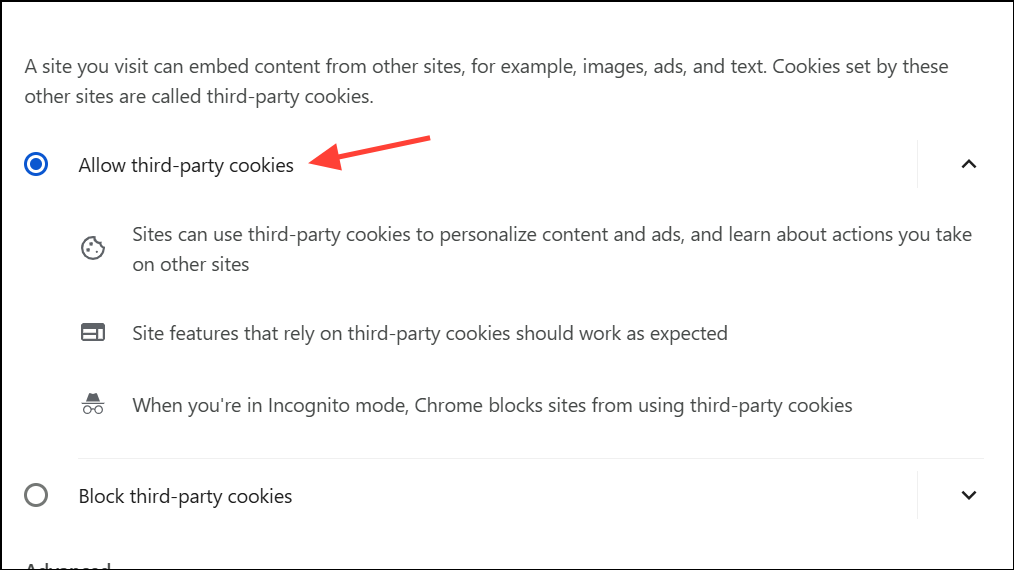
Enable Pop-Ups for Google Drive
During the download process, Google Drive may open a new window or tab to start the file transfer. If your browser blocks pop-ups, the download may silently fail after zipping.
Settings > Privacy and security > Site Settings > Pop-ups and redirects, then add https://drive.google.com to the allowed list.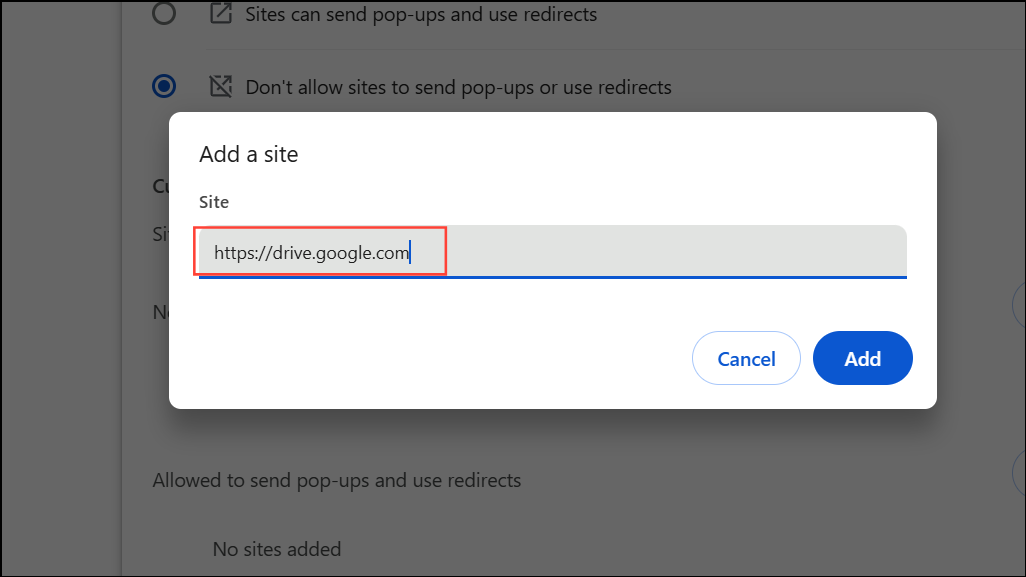
Respond to “Leave Site?” or Download Prompts
After zipping, Google Drive may display a prompt asking if you want to leave the page. Selecting “Yes” or “Leave” is necessary to start the download. Ignoring or canceling this dialog will prevent the download from proceeding.
Switch to a Different Browser
Some browsers, particularly Safari and privacy-focused browsers like Brave, can interfere with Google Drive’s download process due to strict privacy defaults or aggressive pop-up blocking. Chrome is generally the most compatible, but Edge and Firefox may also work if configured correctly.
Clear Browser Cache and Cookies
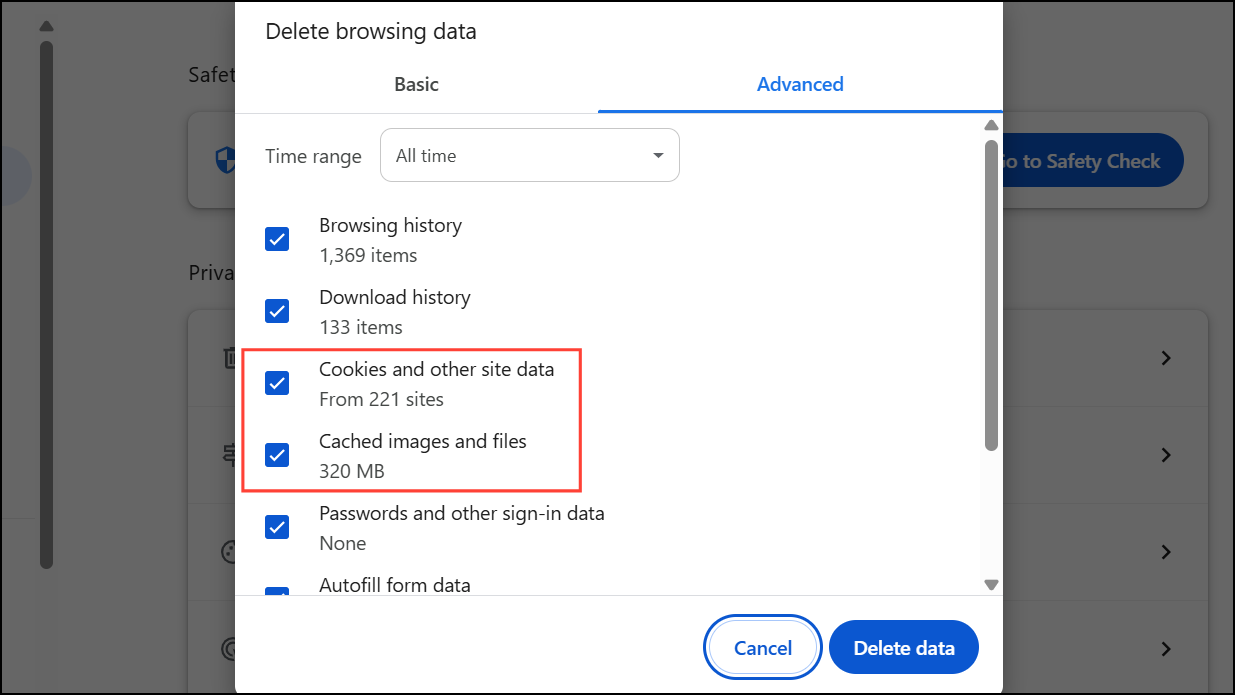
Corrupted or outdated cache and cookies can disrupt the download process, causing the zipping or download to fail or hang indefinitely.
Delete browsing data. In Firefox, go to Settings > Privacy & Security > Cookies and Site Data.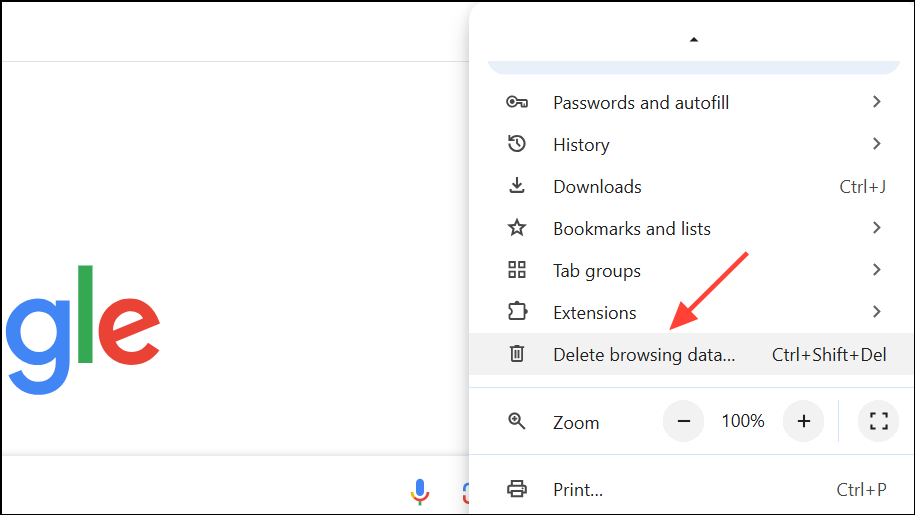
Check File and Folder Size Limits
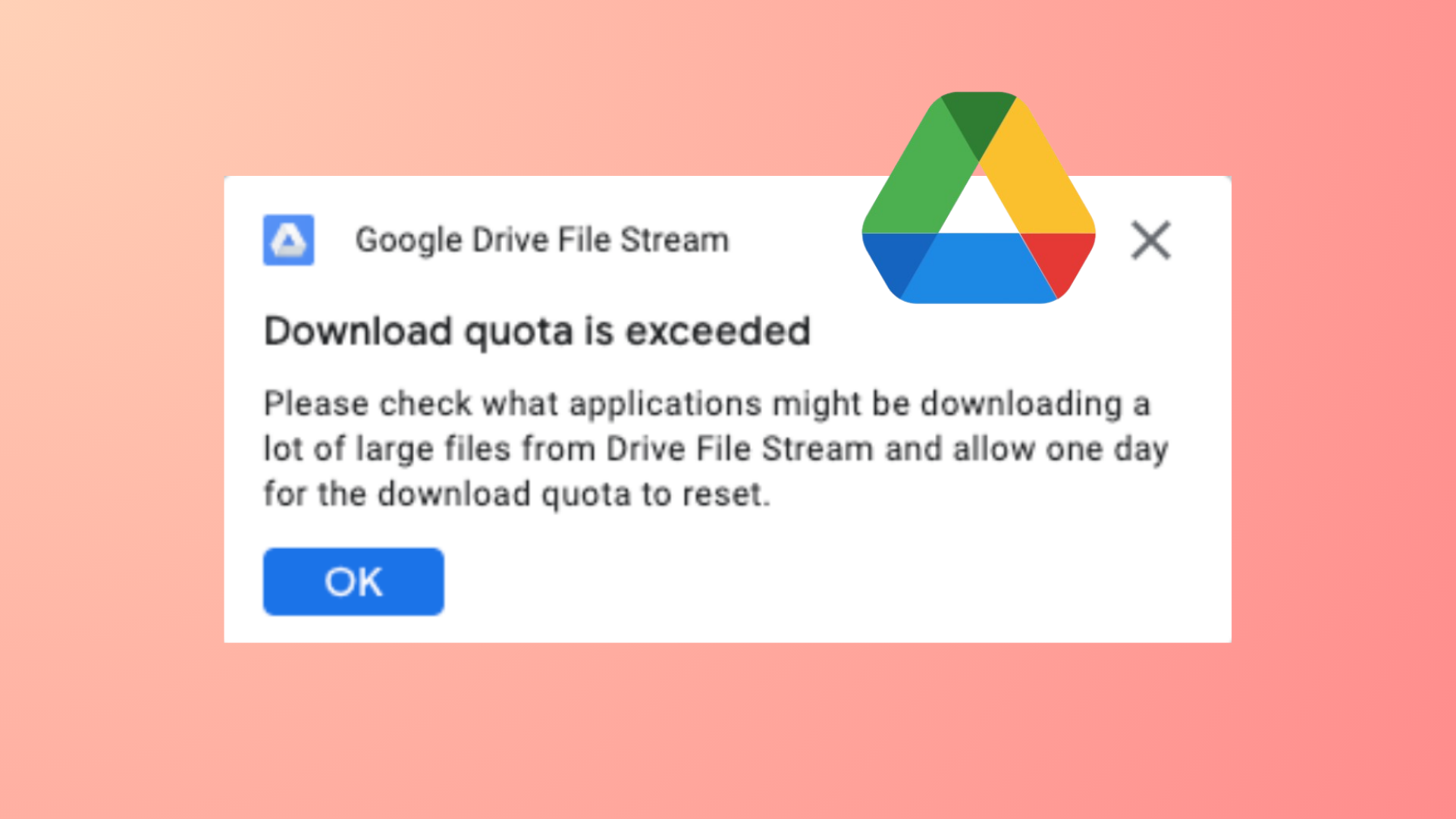
Google Drive imposes limits on zip file size (typically 2GB) and the number of files per download (usually 500). Exceeding these limits may cause the zipping process to fail or never complete.
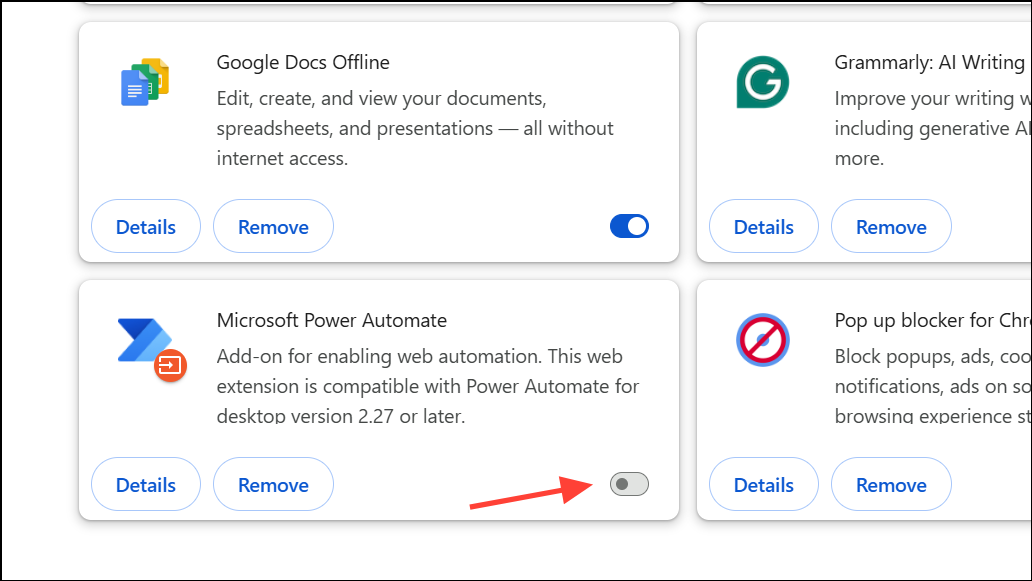
Disable Browser Extensions and Privacy Features
Extensions such as ad blockers, privacy shields, or security plugins can block cookies, pop-ups, or scripts required for Google Drive downloads.
Use Google Drive for Desktop or Alternative Tools
If browser-based solutions fail, the Google Drive for Desktop app (formerly Backup and Sync) allows file downloads without zipping. Alternatively, third-party tools like Rclone or JDownloader can fetch files directly, though they may require additional setup.
Consistently allowing third-party cookies and pop-ups for Google Drive resolves most cases of failed downloads after zipping. If problems persist, switching browsers or using the desktop app ensures reliable access to your files.