
PowerPoint displays the error “Can’t open this type of file” when it encounters issues with file format compatibility, file corruption, or security restrictions. This problem can disrupt workflows, especially when you need to access or present critical information. Here are the most effective ways to resolve this error and restore access to your PowerPoint files.
Unblock the PowerPoint File in Windows
Windows security features may block files downloaded from the internet or received as email attachments, preventing PowerPoint from opening them. Unblocking the file removes this restriction.
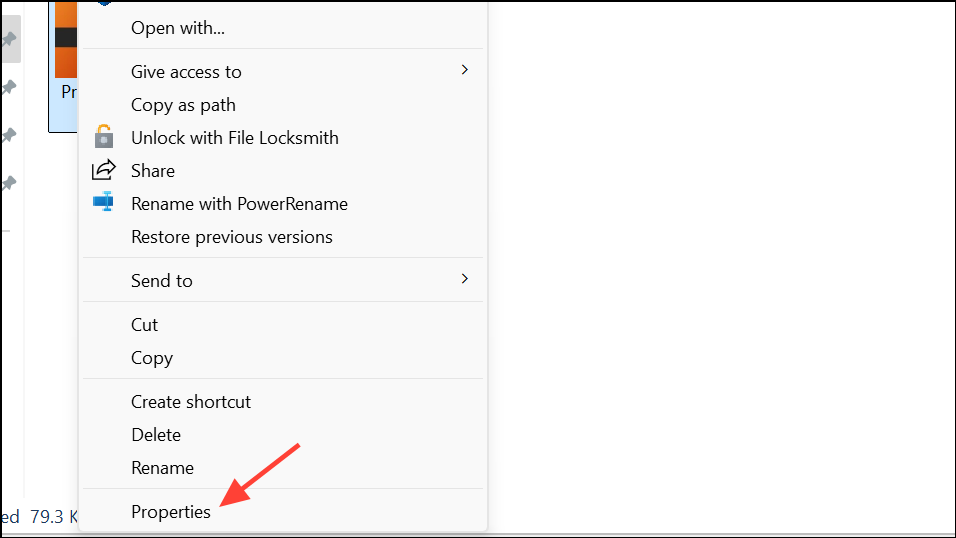
Unblock checkbox or button near the bottom right. If present, check it and click Apply, then OK.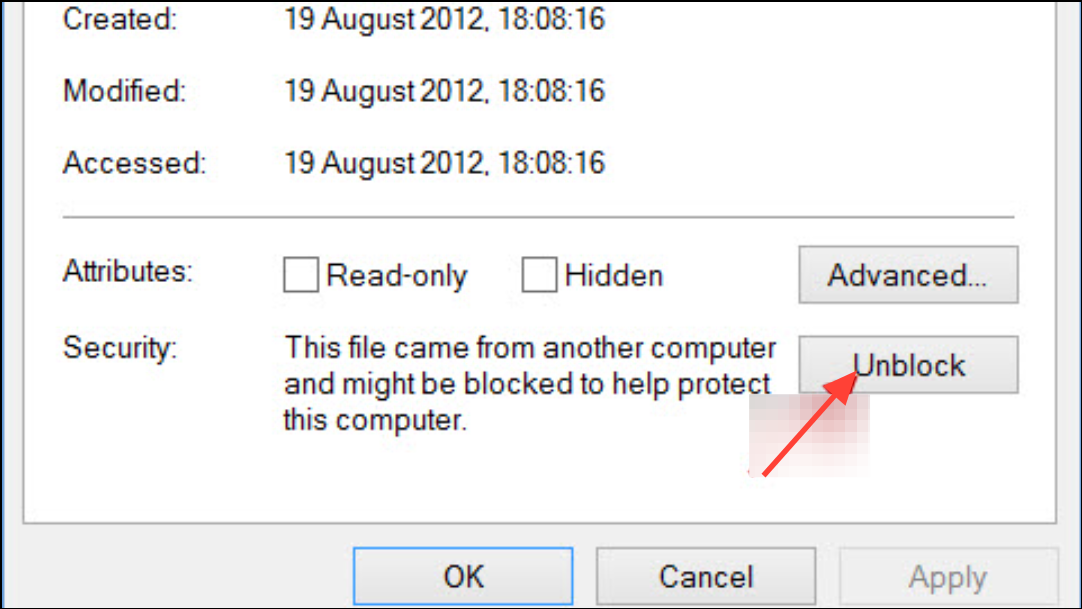
Disable Protected View in PowerPoint
Protected View is a security feature that opens files from potentially unsafe locations in read-only mode. Sometimes, this setting can prevent files from opening at all. Disabling Protected View (temporarily) can resolve the issue, but only do this for files you trust.
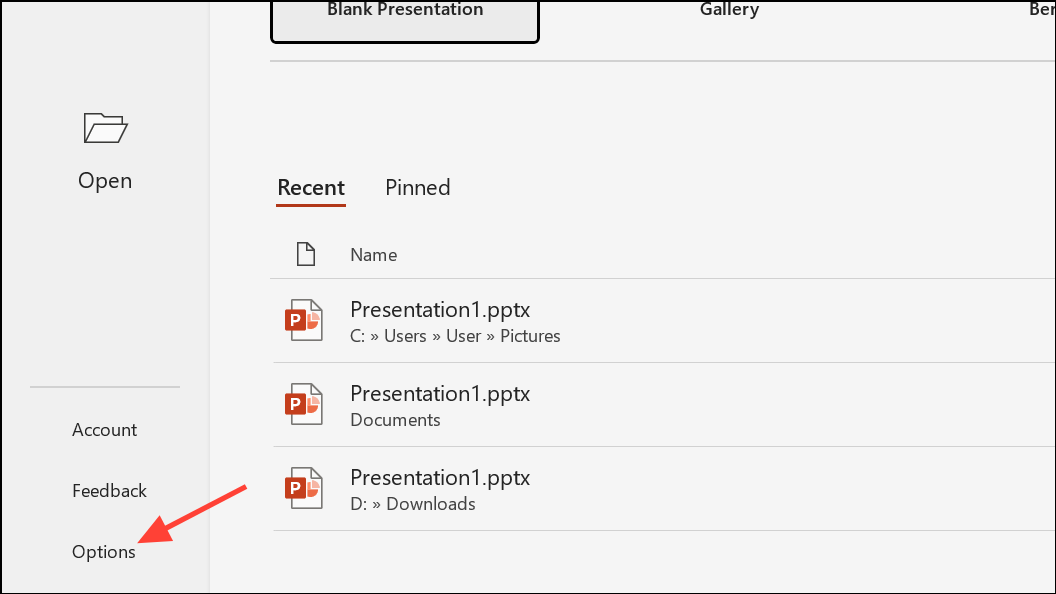
Trust Center from the left menu, then click Trust Center Settings on the right.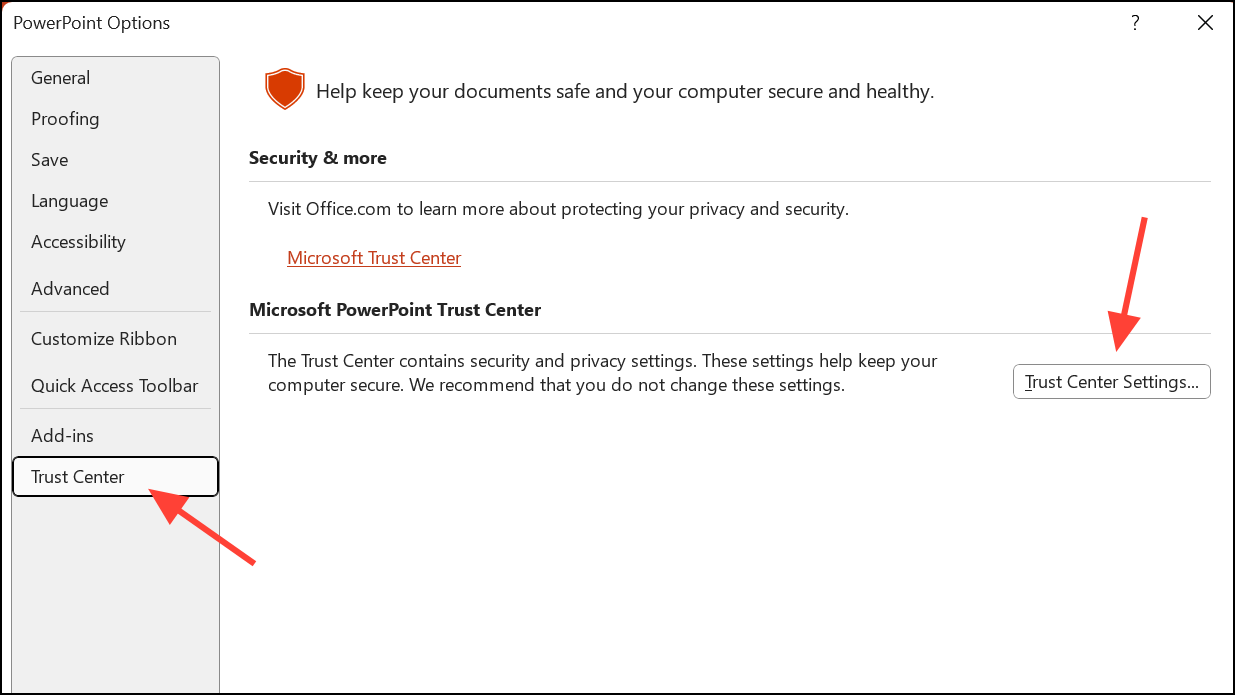
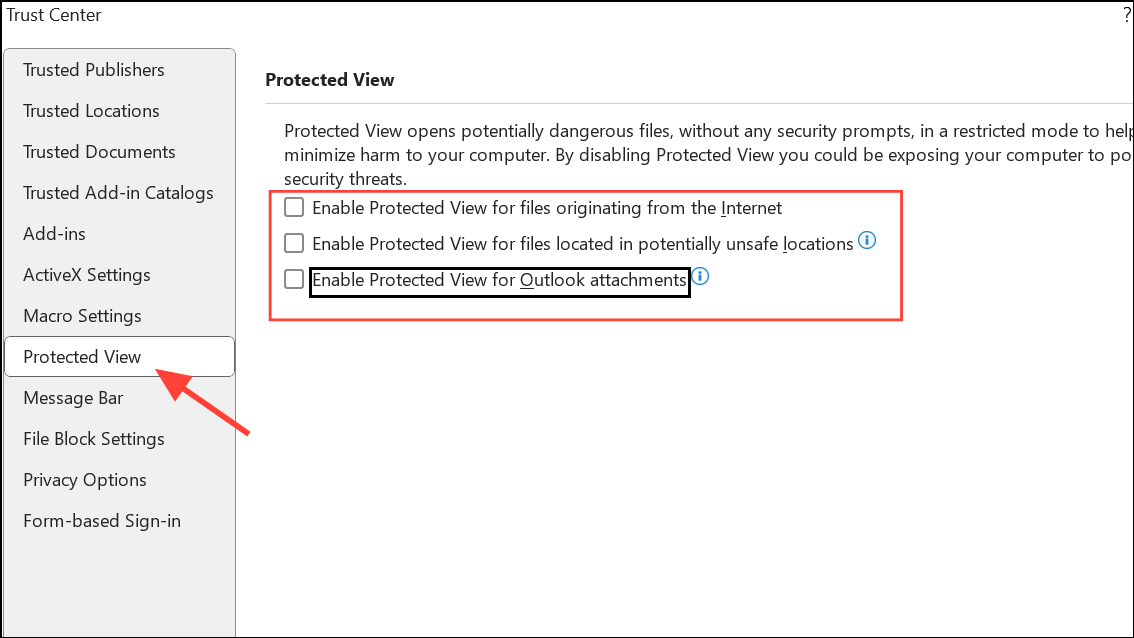
Remember to re-enable Protected View after resolving the issue to maintain security for future files.
Start PowerPoint in Safe Mode
PowerPoint add-ins or extensions can cause compatibility problems or prevent files from opening. Launching PowerPoint in Safe Mode disables these extras and can help identify the root cause.
File > Options > Add-ins, then manage and uncheck unnecessary add-ins.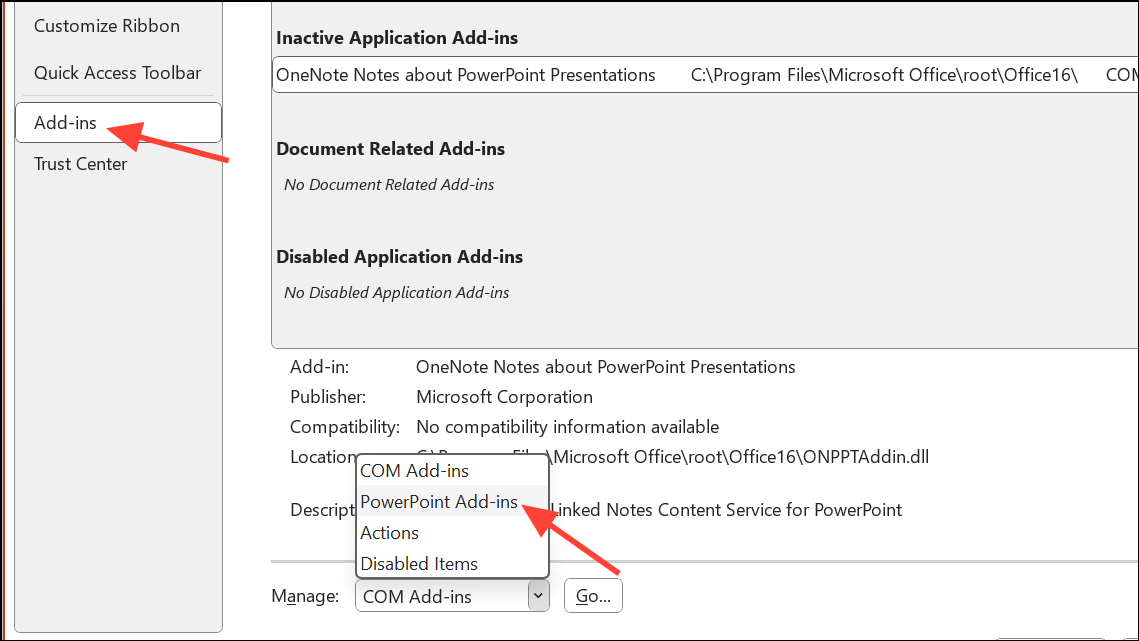
Repair Microsoft Office Installation
Corrupted Office installations can interfere with file compatibility and prevent PowerPoint from opening files correctly. Repairing the Office suite can resolve underlying software issues.
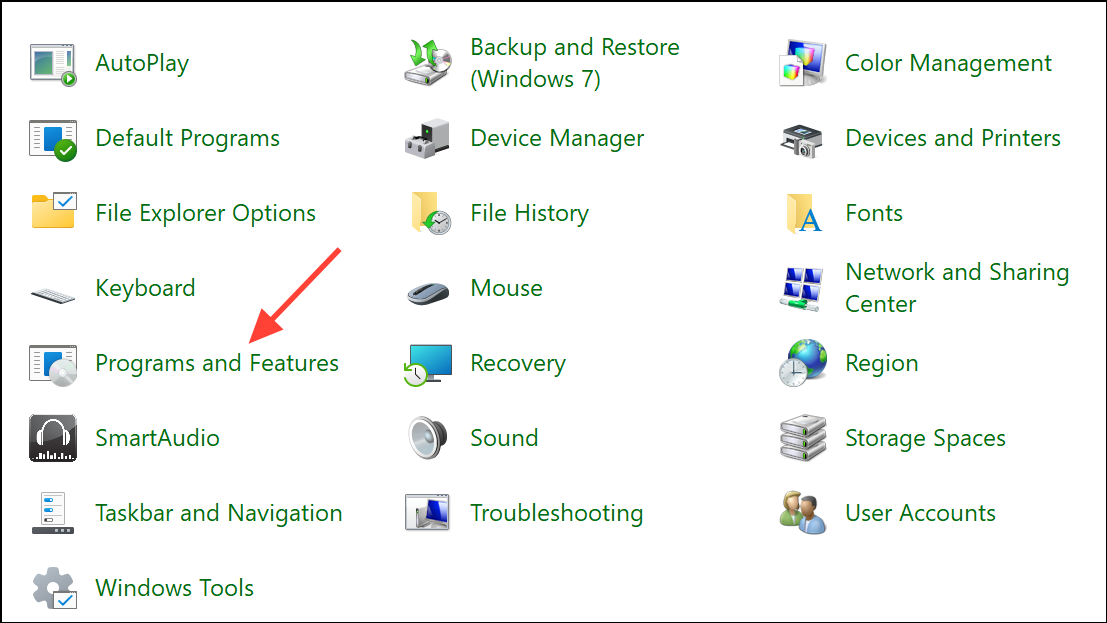
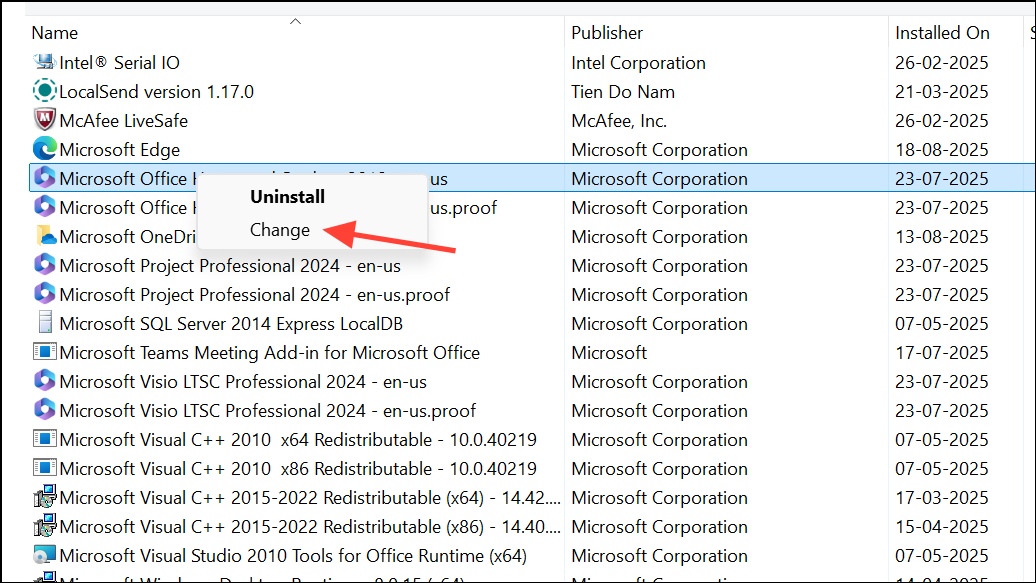
Repair and follow the on-screen instructions. After the repair completes, restart your computer and try opening the PowerPoint file again.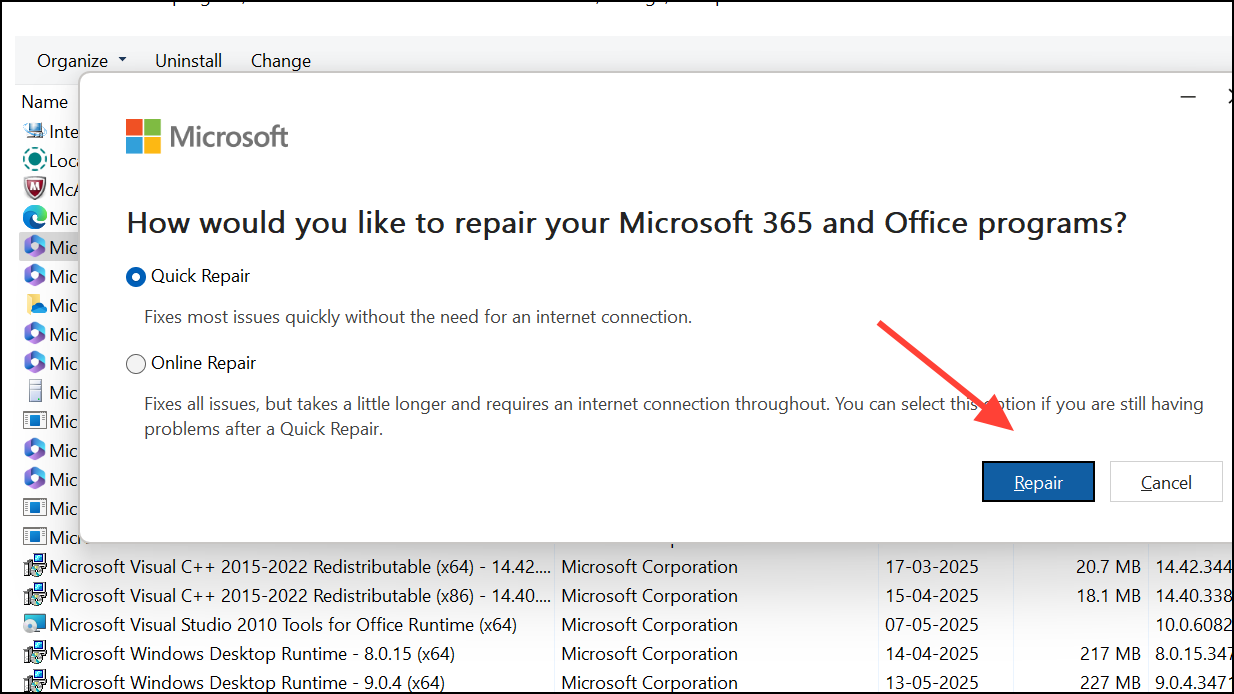
Convert or Restore the File Format
Older PowerPoint formats or files saved with incorrect extensions may not open in newer versions. Converting the file to a supported format can resolve compatibility issues.
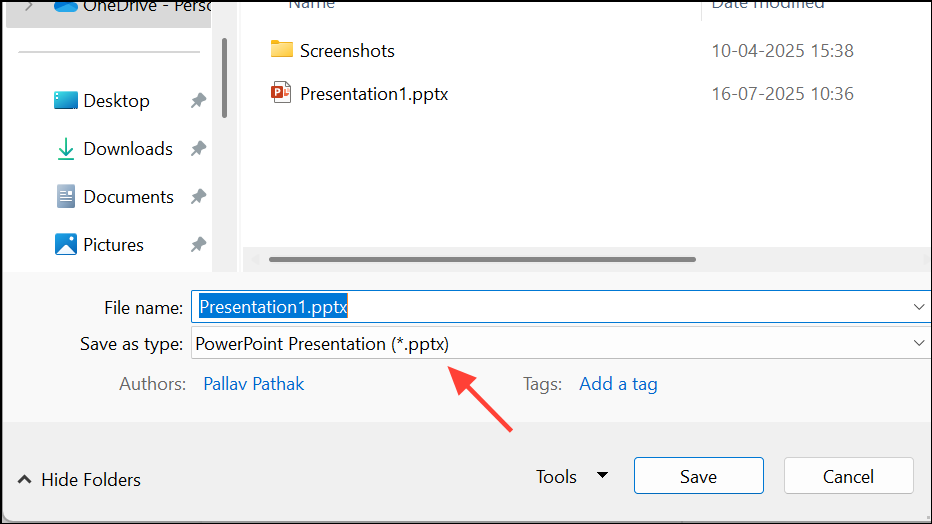
If the file extension is missing or incorrect, right-click and rename the file to include .ppt or .pptx as appropriate, then try opening it again.
Try PowerPoint Online or Another Device
If local troubleshooting fails, uploading the file to OneDrive and opening it with PowerPoint Online can sometimes bypass local software issues. Alternatively, test the file on a different computer to determine if the problem is device-specific.
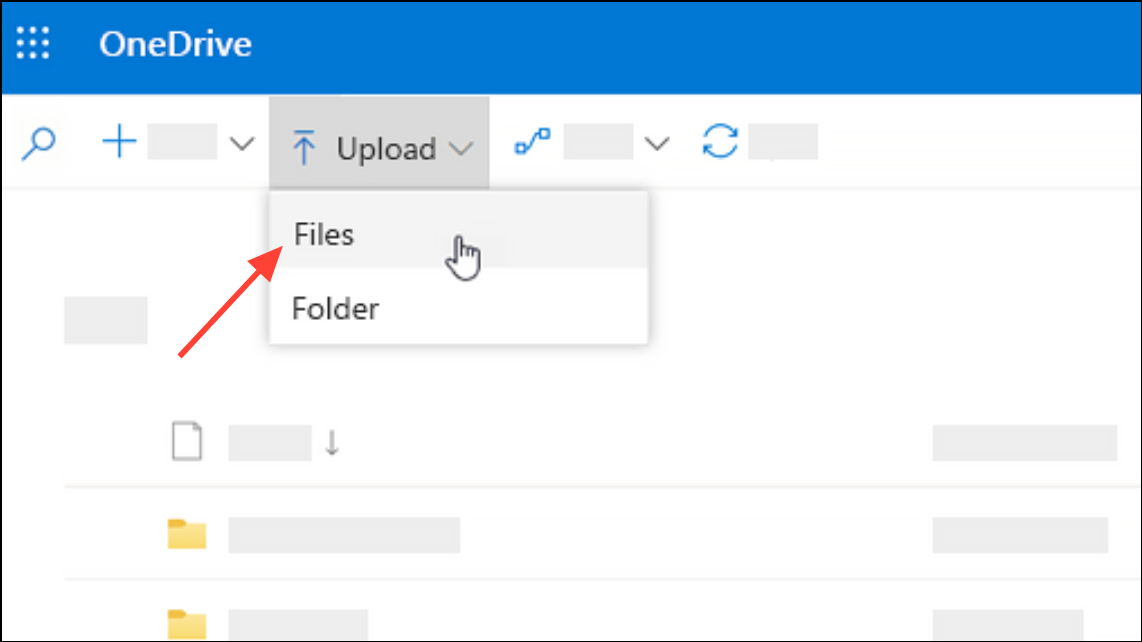
This method can also help recover files that are only partially corrupted or inaccessible due to local settings.
Repair the PowerPoint File with a Document Repair Tool
File corruption is a leading cause of PowerPoint refusing to open certain files. Corruption can result from improper shutdowns, storage device errors, or failed transfers. Specialized document repair tools can analyze and fix damaged files, restoring them to a usable state.
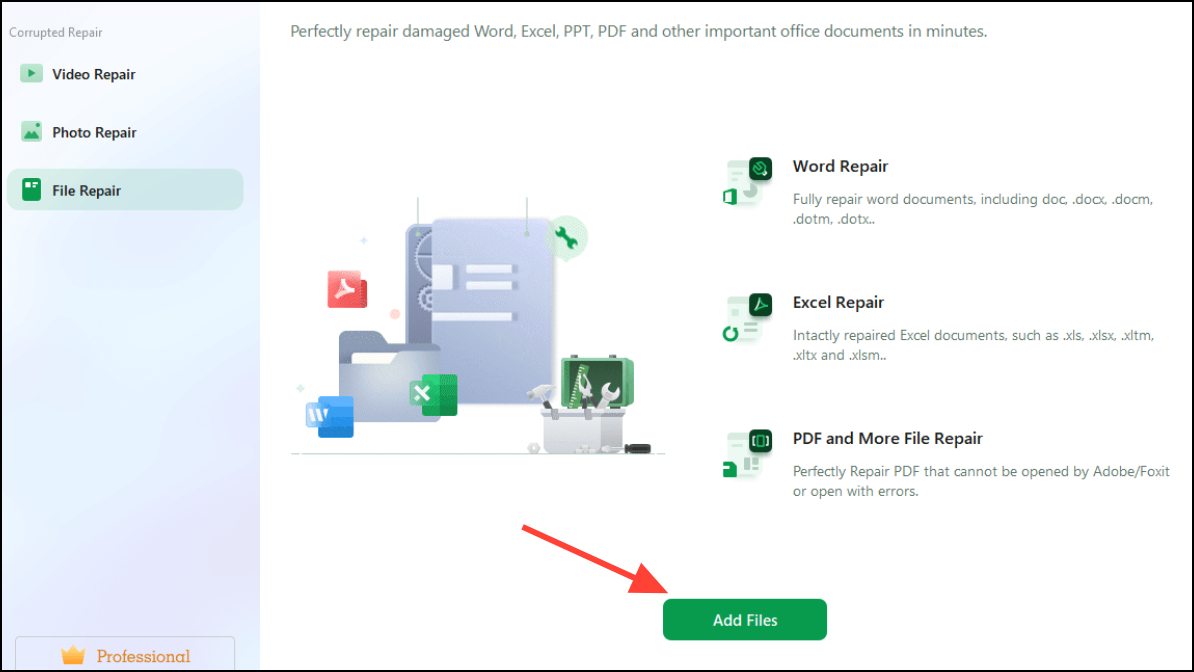
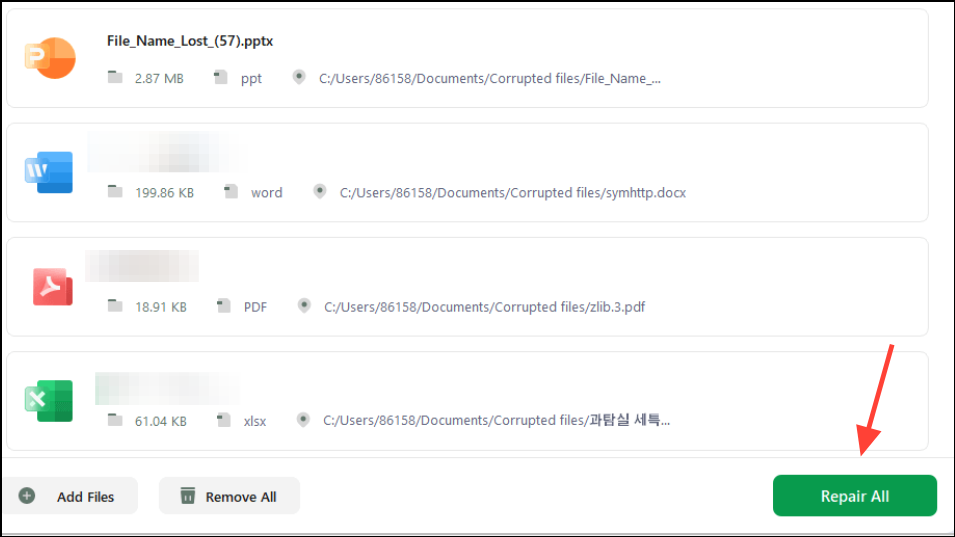
Using a dedicated repair tool is especially effective for files that display garbled text, missing slides, or refuse to open altogether.
Additional Tips and Preventive Measures
- Always maintain backup copies of important presentations to avoid data loss.
- Regularly update PowerPoint and Office for improved compatibility and security.
- Safely eject external drives before disconnecting to prevent file corruption.
- Be cautious when renaming files; ensure the correct extension remains intact.
- Scan your system for malware or viruses that may corrupt files.
Following these targeted steps restores access to PowerPoint files in most cases. Keeping your software updated and making regular backups reduces the risk of future errors.





