Audio and video files in PowerPoint sometimes fail to play due to incompatible formats, missing codecs, or system-specific settings. These playback problems can disrupt meetings, lectures, or recorded presentations, making it critical to identify the source and apply the right fix. Below you’ll find practical, detailed solutions to restore full multimedia functionality in your PowerPoint presentations.
Check Media File Format Compatibility
Unsupported audio or video formats are a leading cause of playback errors in PowerPoint. The application supports specific media formats—using anything else can result in errors like “Cannot Play Media” or missing sound and video.
.mp4 (H.264 video, AAC audio), .wmv, and .avi. For audio, supported formats include .mp3, .wav, and .wma..mp4 for video or .mp3 for audio) to ensure compatibility.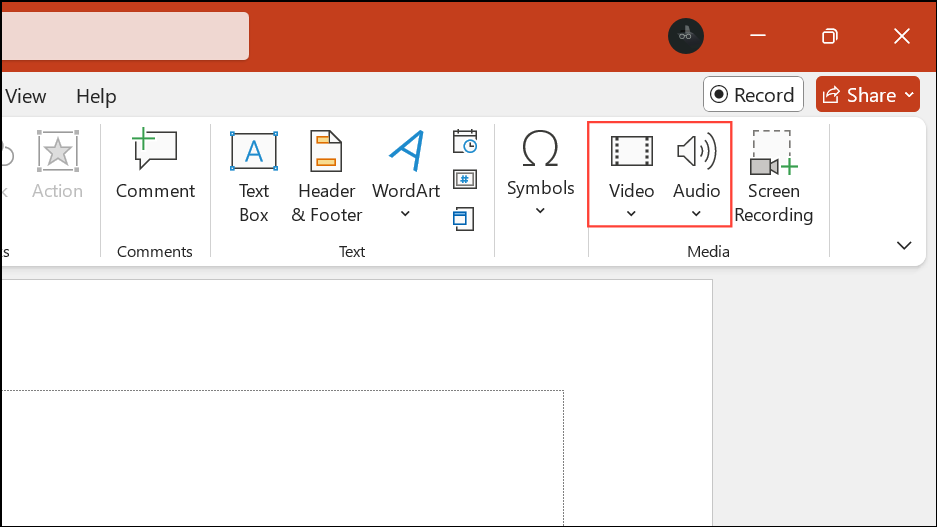
Update PowerPoint and Windows
Outdated software can introduce compatibility issues with modern media codecs and cause playback failures.
File > Account > Update Options > Update Now to check for and install the latest updates.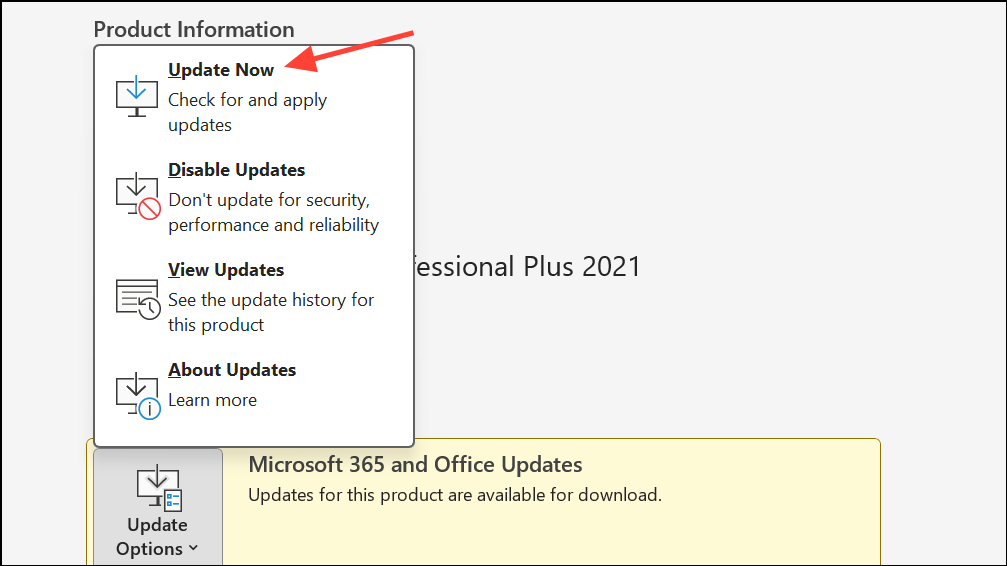
Settings > Update & Security > Windows Update and install any available updates.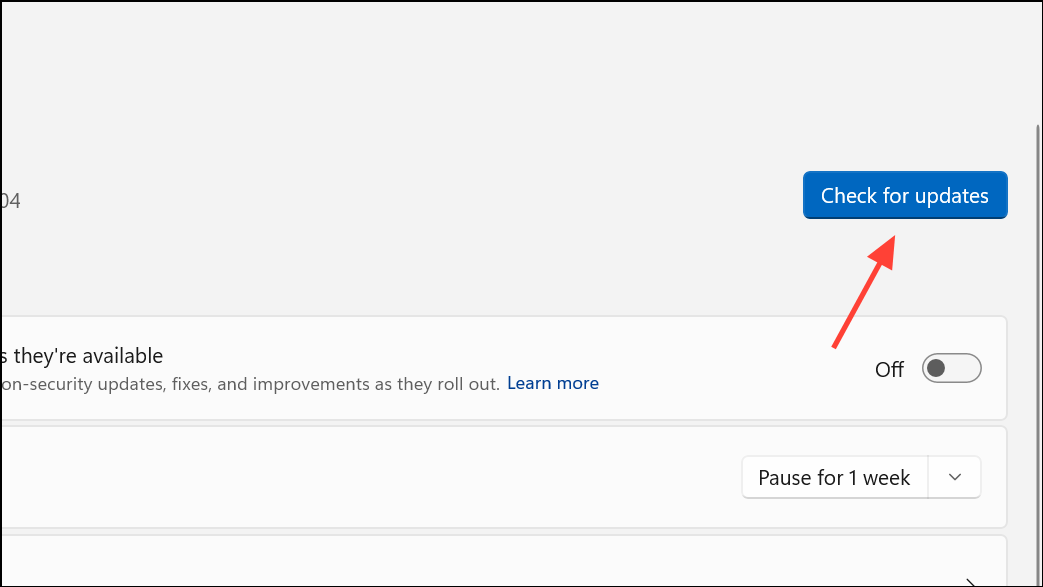
Updating both PowerPoint and Windows improves codec support and addresses bugs that may prevent media playback.
Repair Office Installation
Corrupted Office files or incomplete installations can disrupt media playback in PowerPoint.
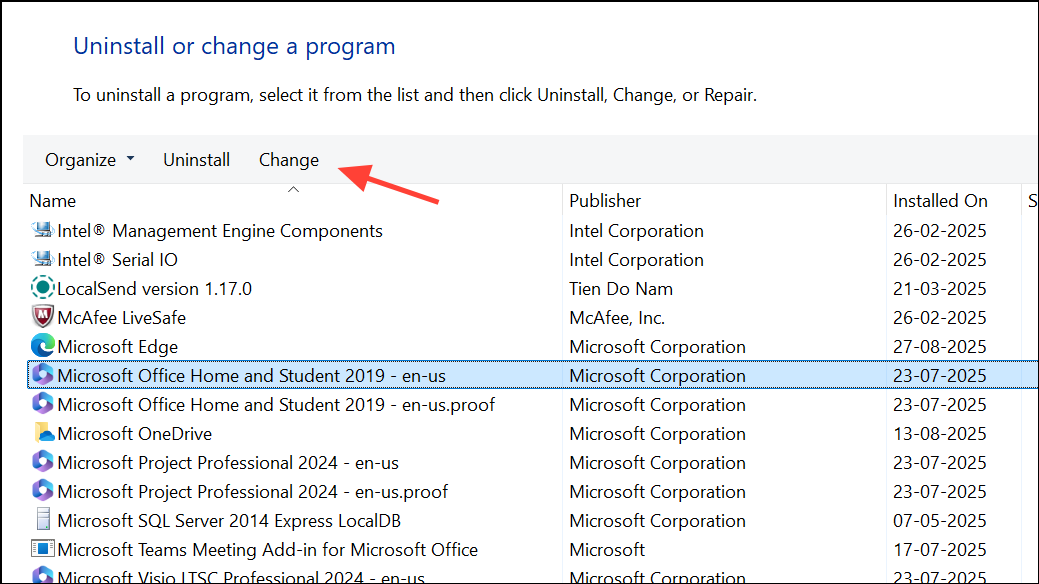
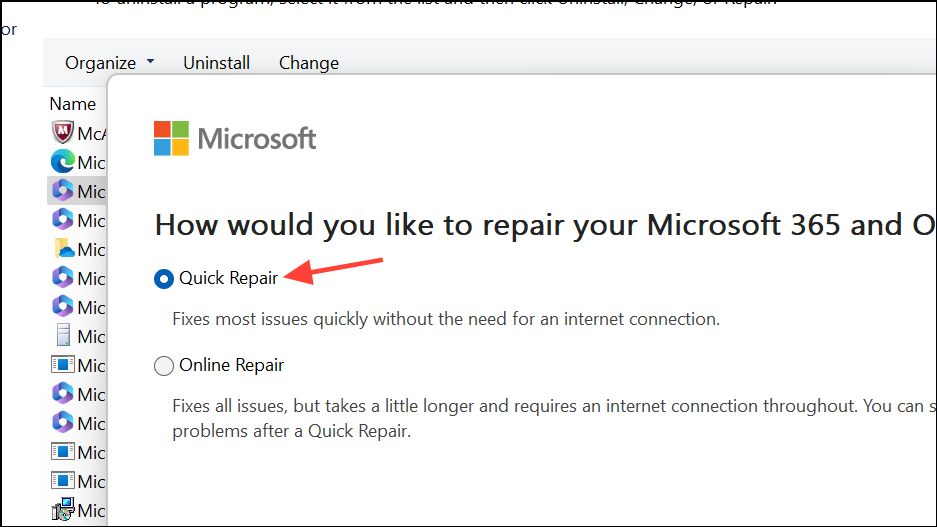
This process restores missing or damaged Office components essential for media playback.
Check Audio and Video Volume Settings
Muted application or system audio settings can make it seem like media isn’t playing, even when files are working correctly.
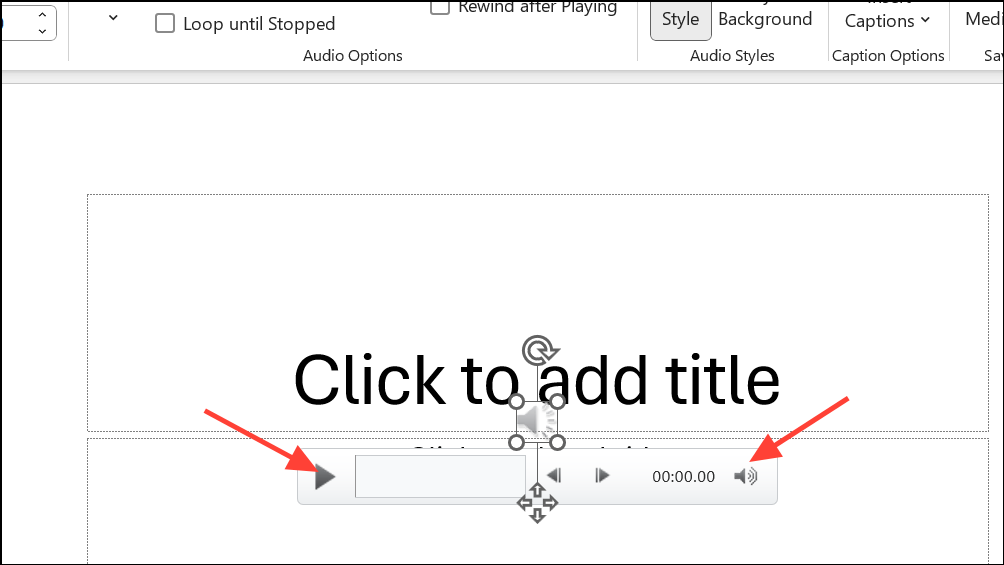

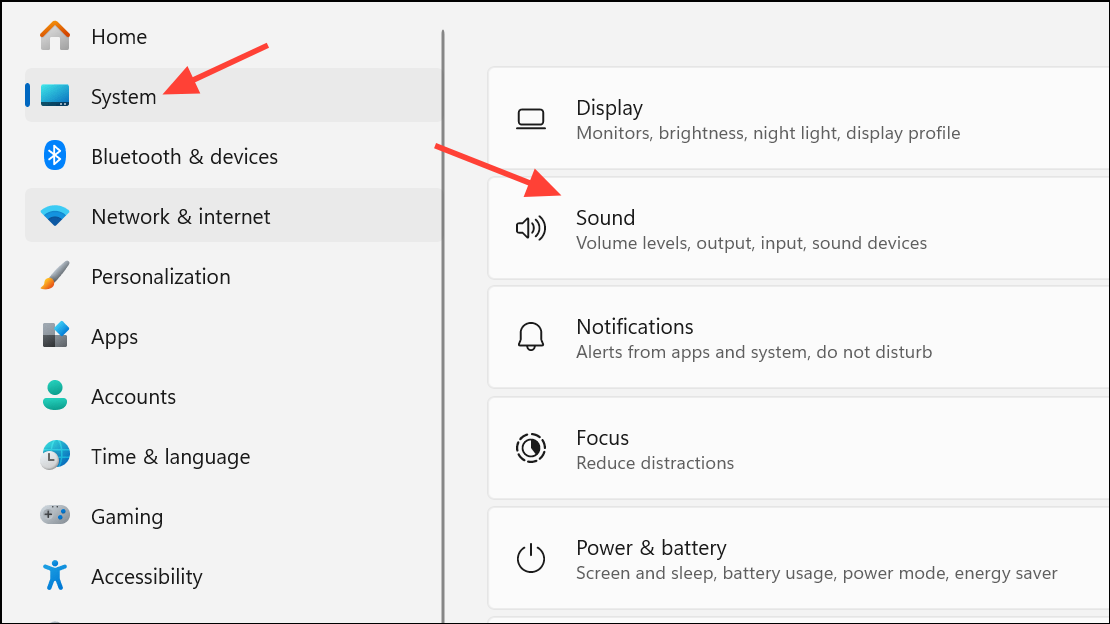
Reinsert Media Files
Sometimes, PowerPoint fails to play media due to file corruption or broken links, especially if files were moved or renamed after insertion.
Reinserting refreshes the link and can resolve issues caused by path changes or minor file corruption.
Disable Hardware Graphics Acceleration
Hardware acceleration uses your computer’s graphics card to improve playback performance. However, if the graphics driver is incompatible or outdated, this setting can cause videos to stutter or fail to play.
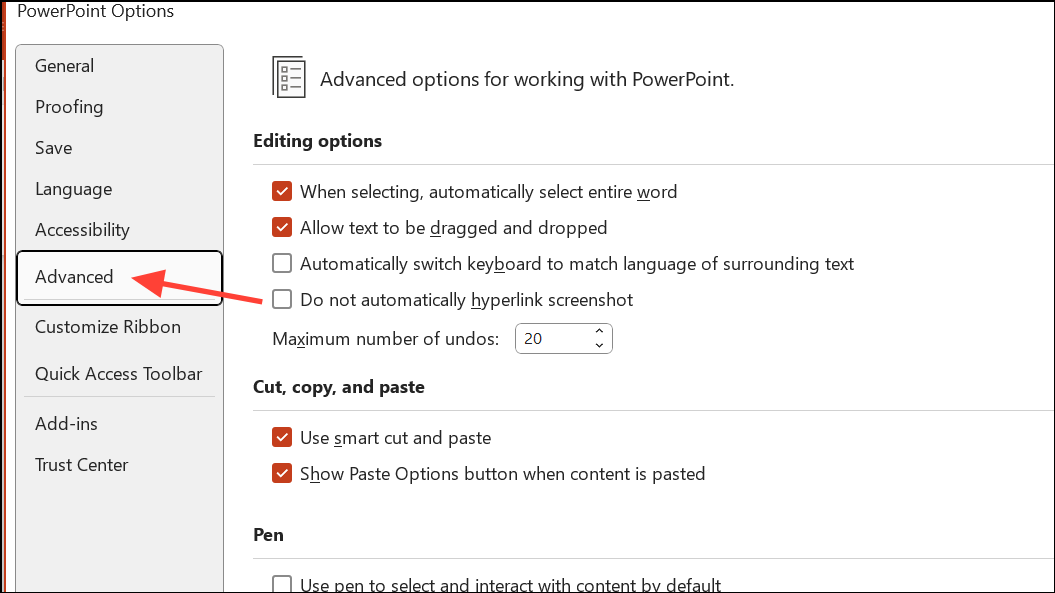
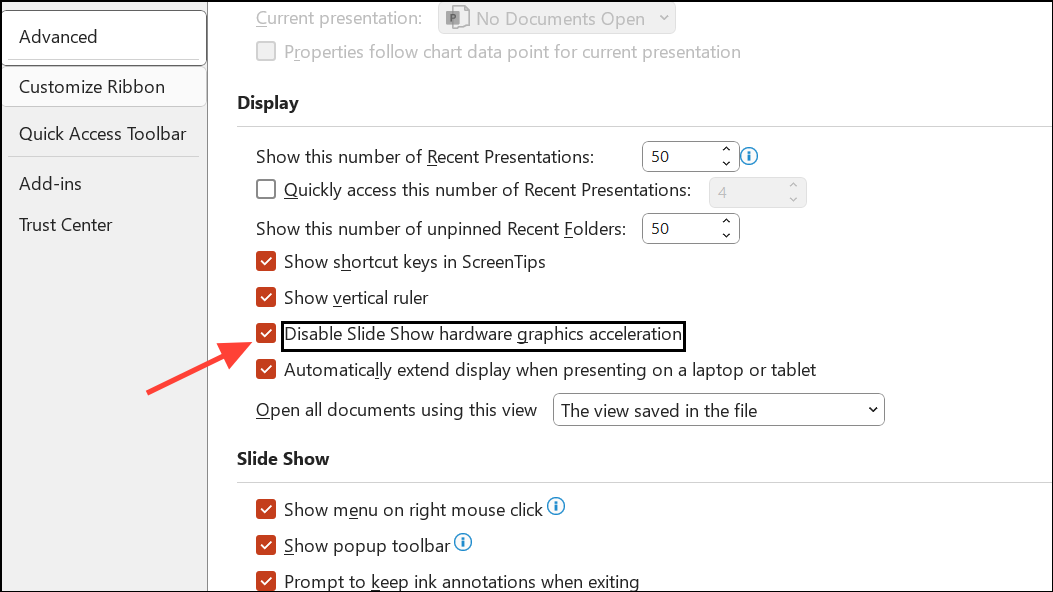
This adjustment often resolves black screens, missing video, or playback lag.
Verify Codec Installation and Update
Codecs are software that encode and decode audio and video files. Missing or outdated codecs prevent PowerPoint from playing certain media types, especially with older installations or after Windows upgrades.
Adjust Video Playback Settings in PowerPoint
Incorrect video playback settings can stop media from starting automatically or playing as expected during a slideshow.
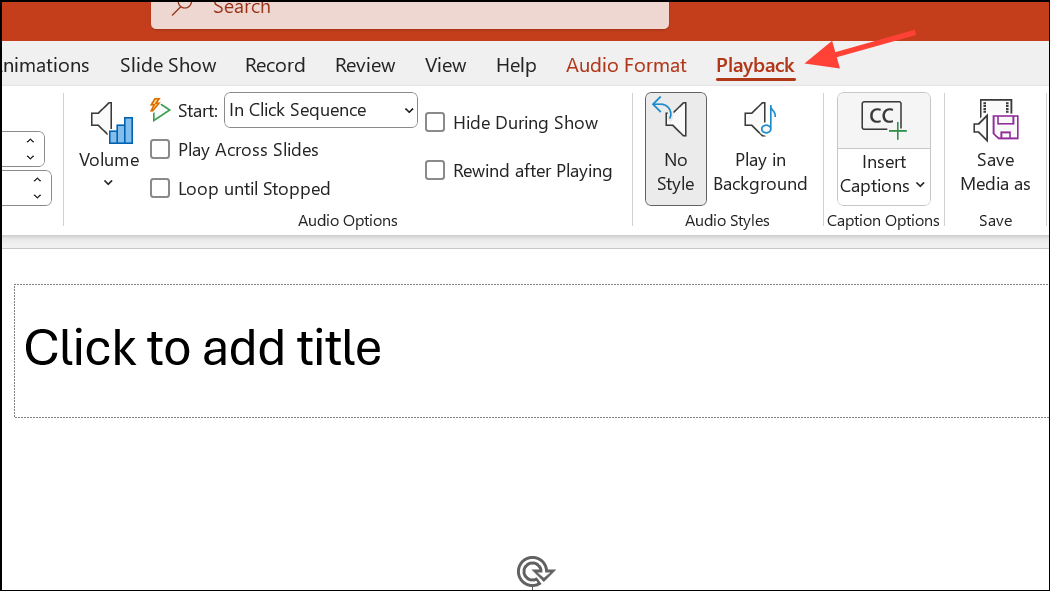
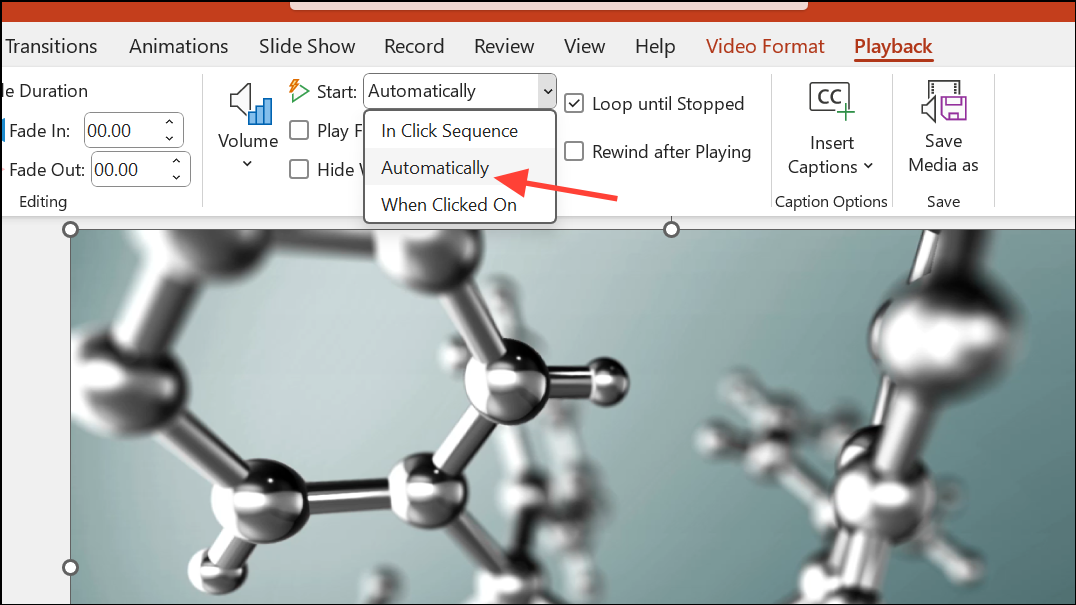
Proper configuration of these options streamlines video playback during your presentation.
Clear Temporary Files
Accumulated temporary files on your computer can interfere with PowerPoint’s performance, including media playback.
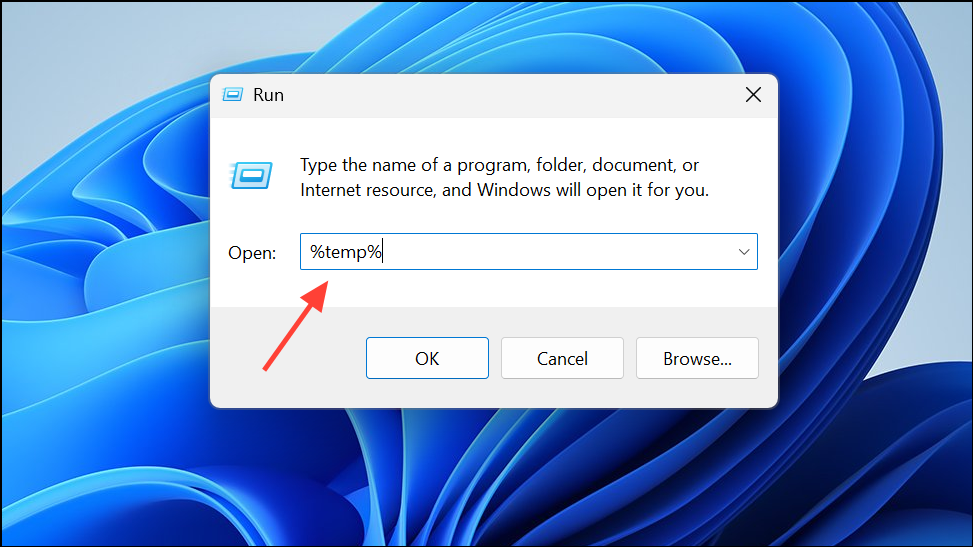
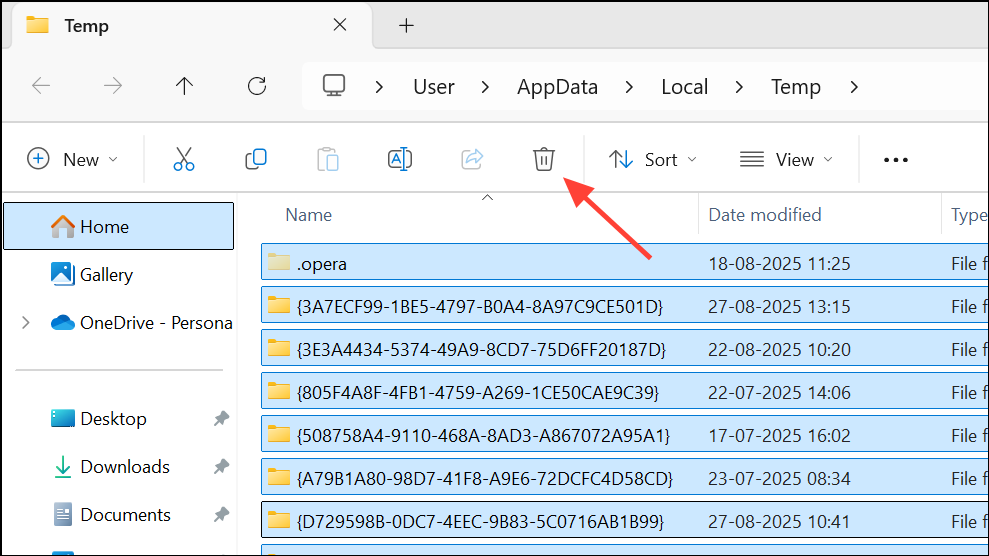
This process frees up resources and can resolve unexplained performance issues.
Troubleshoot Recording Issues with Cameo or Live Video
When recording presentations with PowerPoint’s Cameo feature, missing video or audio is often due to device permissions or software conflicts.
System Preferences > Security & Privacy > Privacy and ensure PowerPoint has permission to access your camera and microphone.File > Options > Add-ins > Manage: COM Add-ins > Go and unchecking all add-ins.These steps help restore full recording functionality for live video and audio in your presentations.
Check File Paths and Locations
Linked (rather than embedded) media files require the original file path to remain unchanged. Moving or renaming media files after insertion will break playback links.
Applying these targeted troubleshooting steps restores reliable audio and video playback in PowerPoint, so your presentations run smoothly every time.