Grouping objects in Microsoft PowerPoint allows you to move, resize, and animate several elements as a single unit, which simplifies slide management and saves time when applying consistent effects. When multiple shapes, images, or text boxes need to share the same animation, grouping them first ensures the animation runs uniformly. This approach is especially effective for creating coordinated entrances, emphasis, or exit effects. However, PowerPoint’s grouping and animation features have some limitations—such as not allowing individual animations within a group—so understanding the process and available workarounds is important.
Group Objects and Apply a Single Animation
Ctrl key (or Cmd on Mac) and click each object. Objects do not need to be adjacent, and you can select any combination of shapes, images, or text boxes.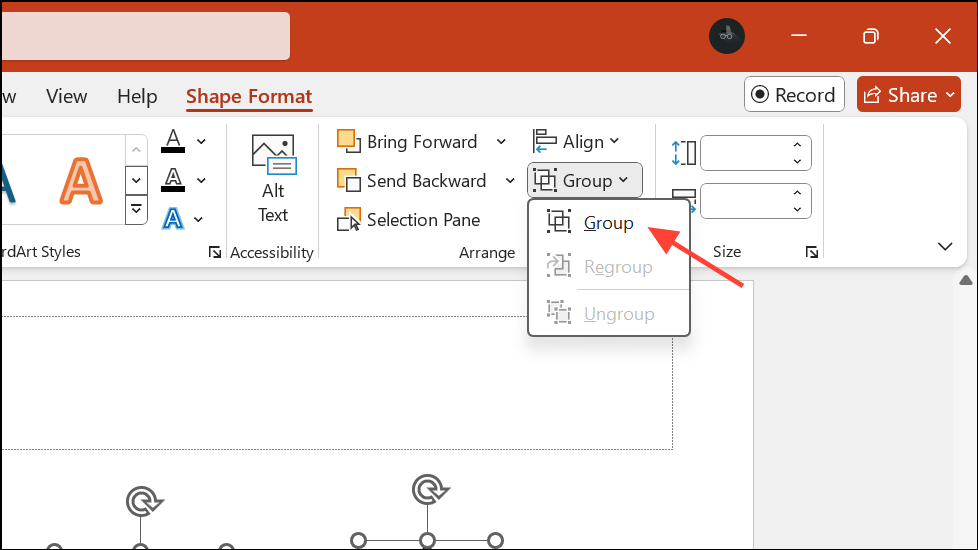
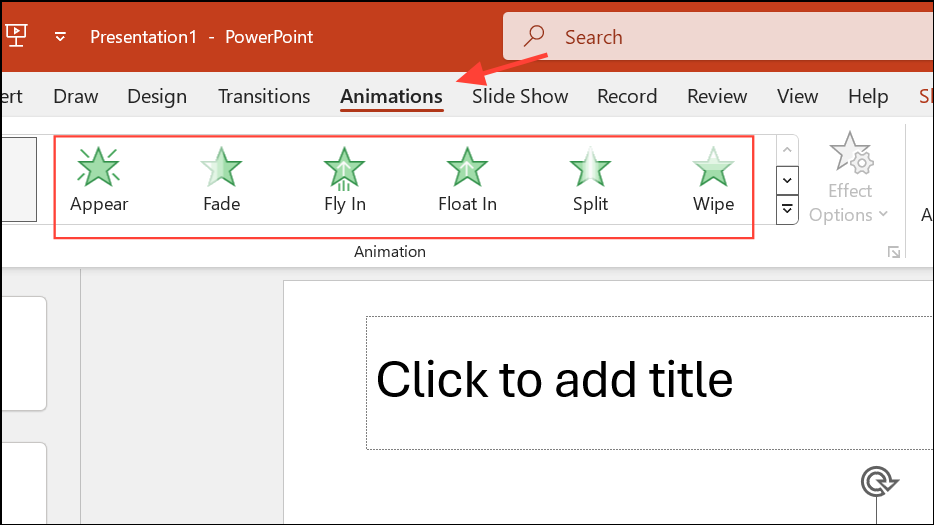
When you preview the slide, the grouped items will move, appear, or disappear as a single entity, streamlining the animation process and ensuring consistency across your presentation.
Apply Animations to Individual Objects Without Grouping
PowerPoint does not support animating individual objects separately within a group. If you need different animations on items that would otherwise be grouped, you must animate each object individually. This approach is necessary for scenarios where objects need to move independently or require distinct effects.
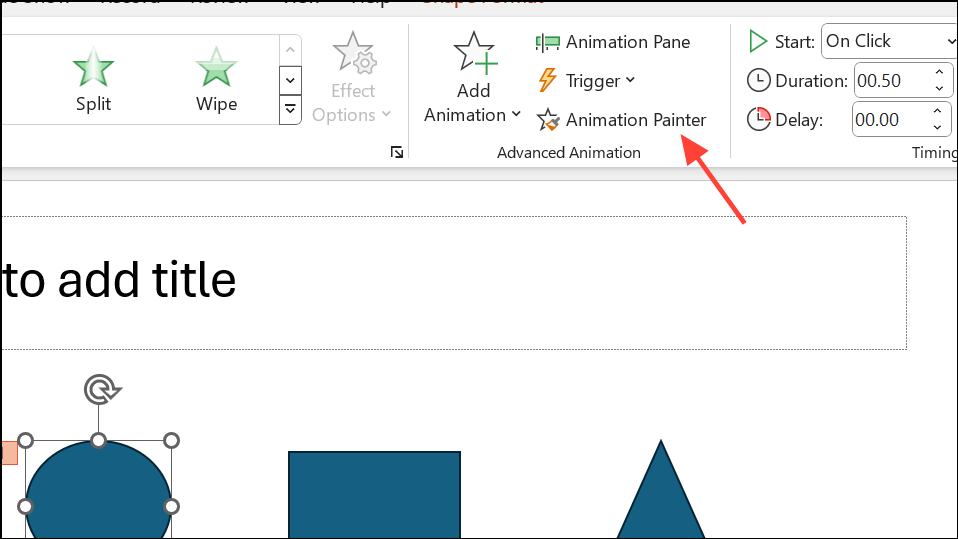
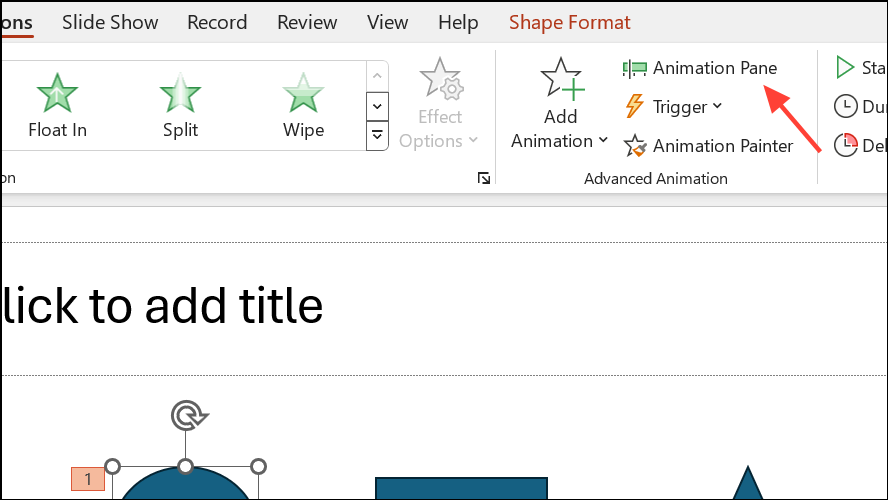
This method gives you granular control over the animation sequence, allowing each object to move or appear according to your specific requirements. However, it requires more manual setup compared to grouping.
Workarounds for Animating Parts of a Group
When you want both group-level and individual object animations—such as moving a group together while also animating an individual object within that group—PowerPoint’s built-in features do not support this directly. There are creative workarounds:
- Duplicate and Overlay: Place a duplicate of the object you want to animate separately over the group. Make the original object within the group invisible (by setting its fill and outline to none), then animate the overlay independently. This creates the illusion that an object within the group is animated differently.
- Slide Cloning for Complex Effects: For advanced scenarios, such as animating subgroups or combining group and individual animations, duplicate the slide and make incremental changes between slides. Set slide transitions to none for a seamless effect. This method is useful for simulating complex motion paths or layered animations, but requires precise alignment and careful planning.
These approaches are not as straightforward as using groups but can achieve more complex animation sequences when needed.
Adding Objects to an Existing Group with Animations
PowerPoint does not allow you to add new objects to an existing group without losing applied animations. If you need to include an additional item in a group that already has animations, follow these steps to preserve your animation settings:
Ctrl+D. Add the new object to this duplicated group.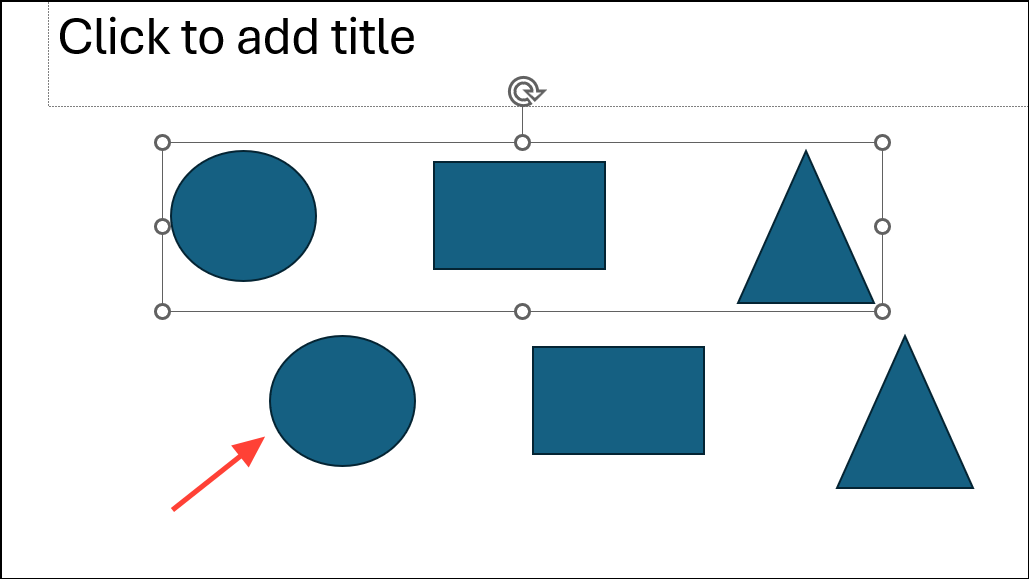
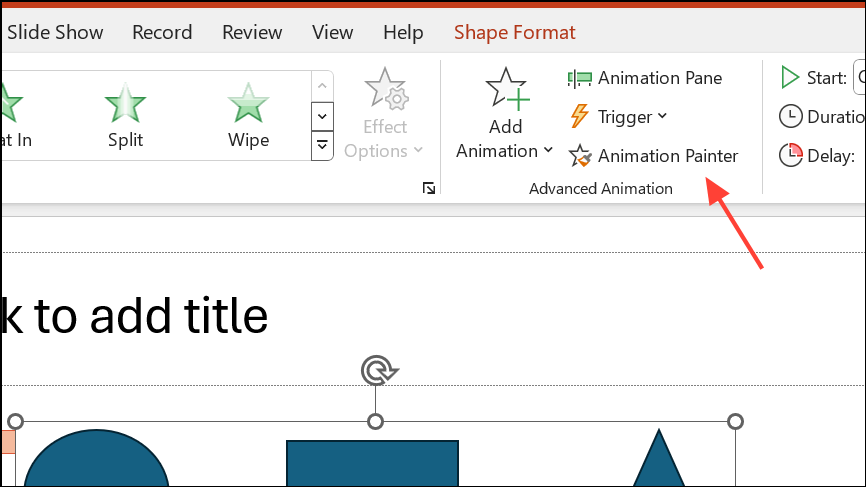
This process preserves your animation work and saves time compared to recreating complex animations from scratch.
Organizing and animating groups in PowerPoint streamlines your workflow and keeps presentations visually consistent. For more intricate effects, use individual animations or creative workarounds to achieve the desired results.