
Embedding documents in presentations streamlines the viewing process and keeps all necessary materials in one place. Adding a PDF to your PowerPoint presentation can display important information directly on your slides, allow you to open supporting documents during a slideshow, or let you share multi-page content without switching between apps. The best approach depends on your presentation goals, the version of PowerPoint you use, and whether you want to show a single page, the entire PDF, or enable interactive access. Below, you’ll find several effective methods for inserting a PDF into PowerPoint, along with step-by-step instructions and tips for common scenarios.
Insert a PDF as an Embedded Object
Embedding a PDF as an object allows you to include the entire file in your presentation. This method is ideal when you want to keep the PDF accessible for reference or allow viewers to open it during your slideshow.
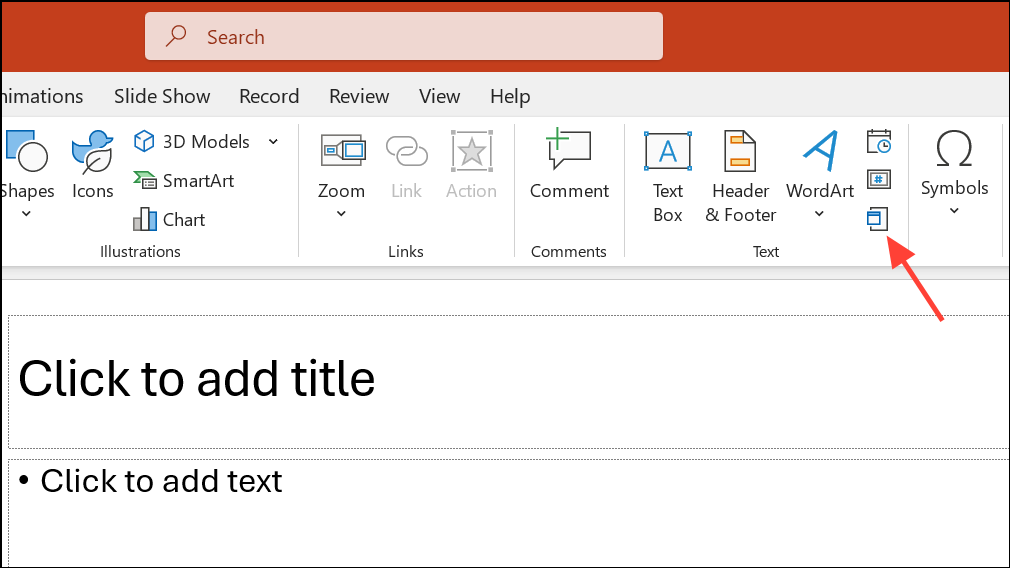
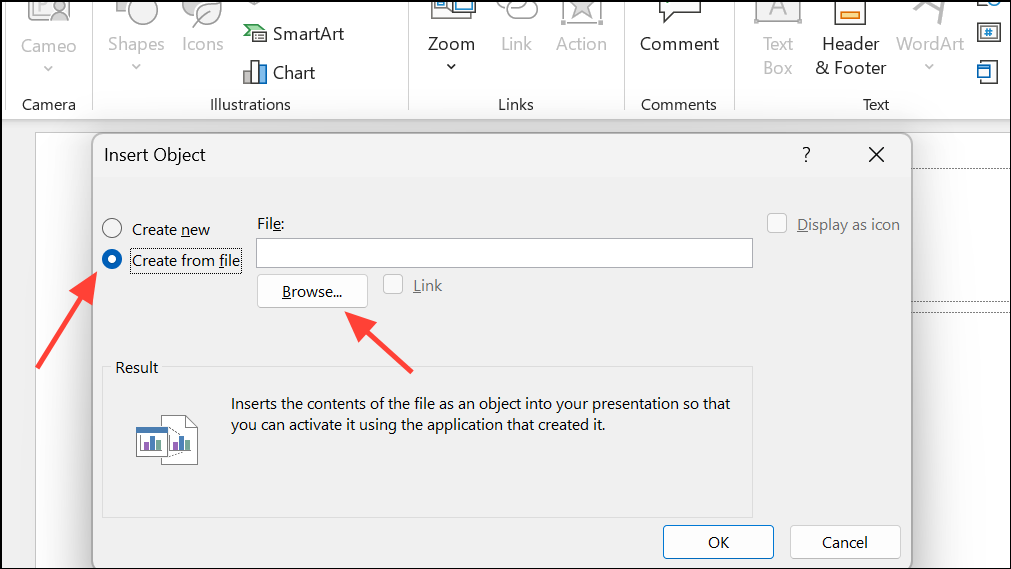
OK. The PDF will appear as an icon or a preview of the first page on your slide. You can resize or reposition it as needed.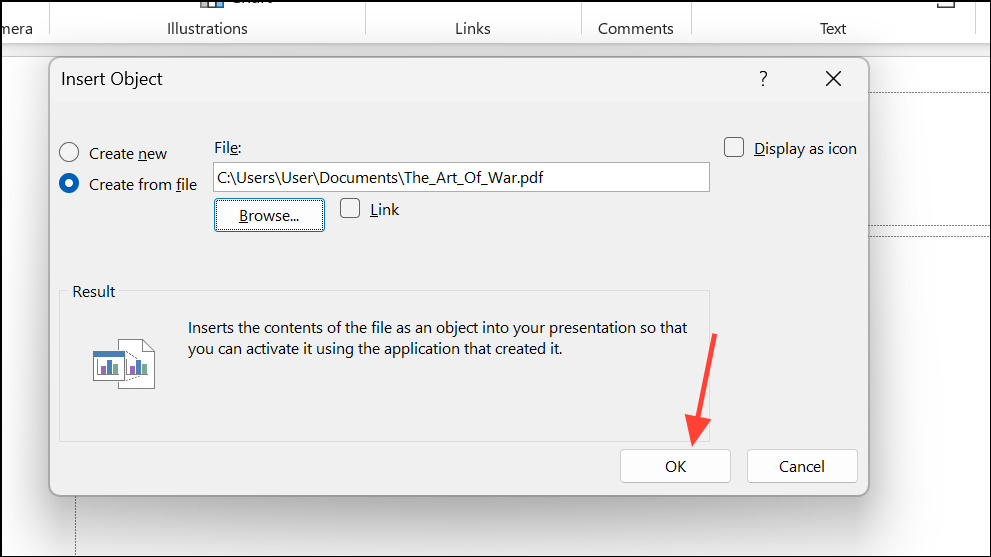
Insert > Links > Action.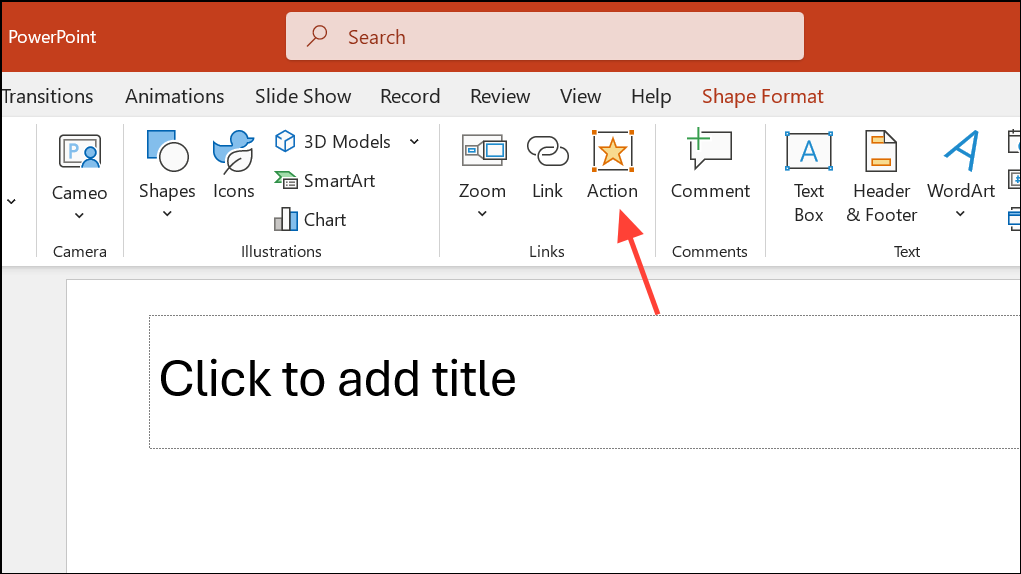
Action Settings window, choose Object Action and set it to Open or Activate Contents, whichever is available. Now, clicking the icon during your slideshow will launch the PDF in your default PDF reader.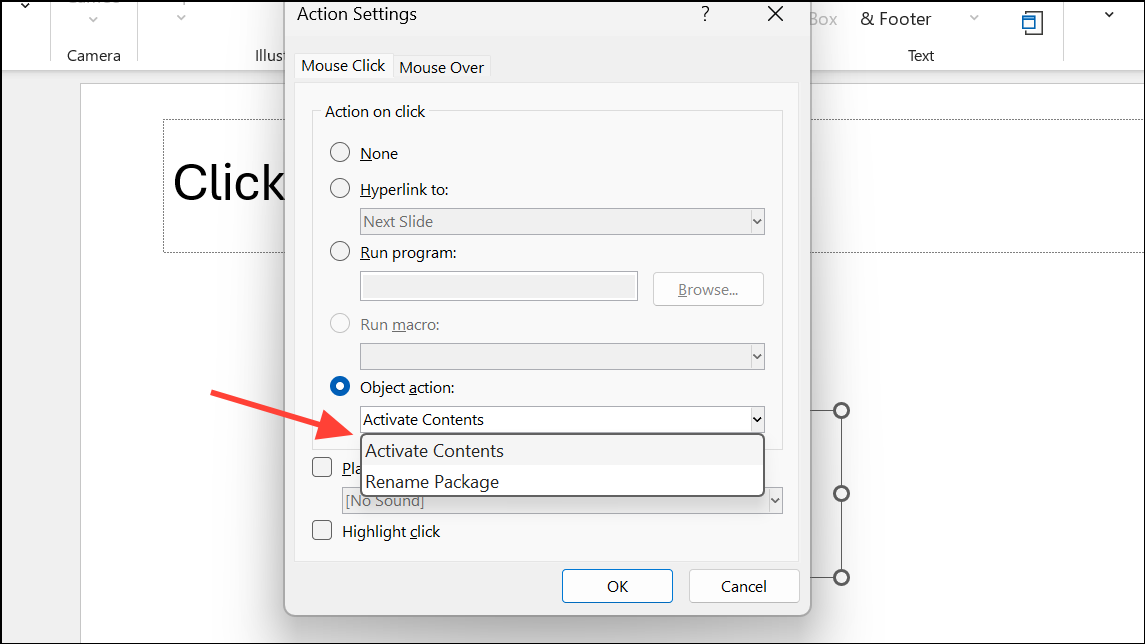
This approach embeds the full PDF in your file, but only the first page is visible as a preview. Double-clicking or clicking the icon (with the action set) opens the entire PDF.
Insert a PDF as an Image or Screenshot
When you want to display a specific section or page from a PDF directly on a slide, inserting it as an image is efficient. This method is especially useful for highlighting charts, tables, or excerpts without requiring viewers to open the full document.

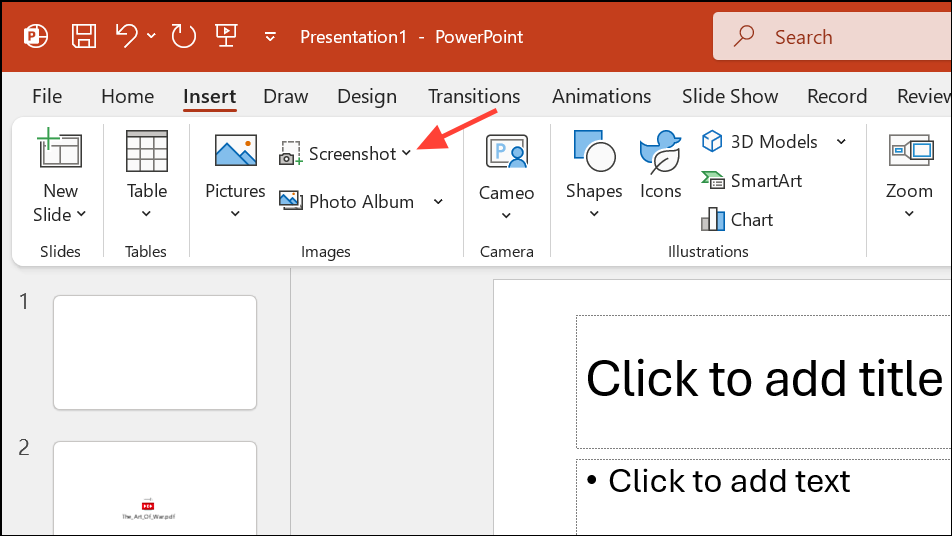
Screen Clipping. Your screen will dim, and your cursor will change to crosshairs.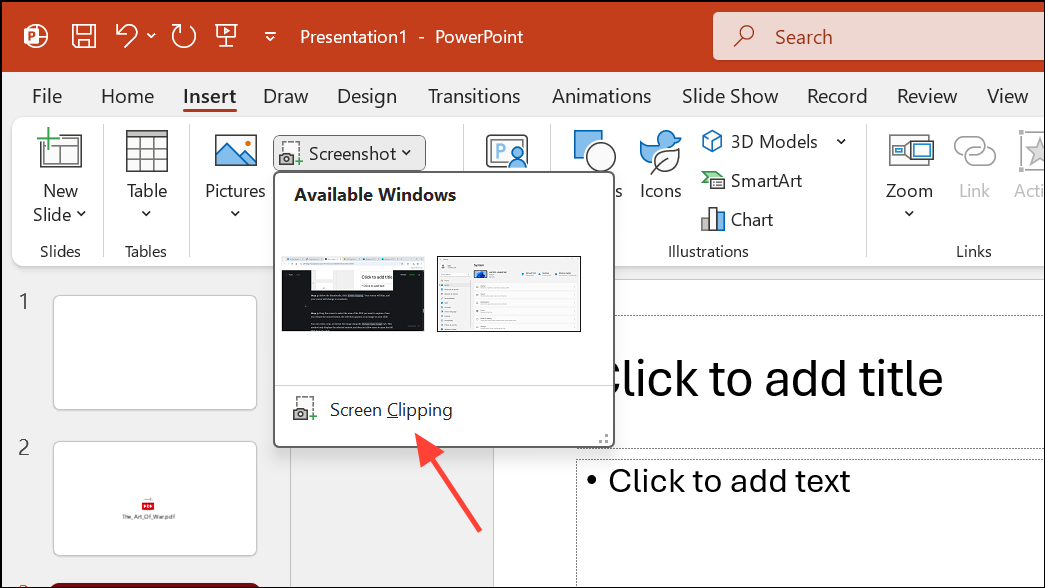
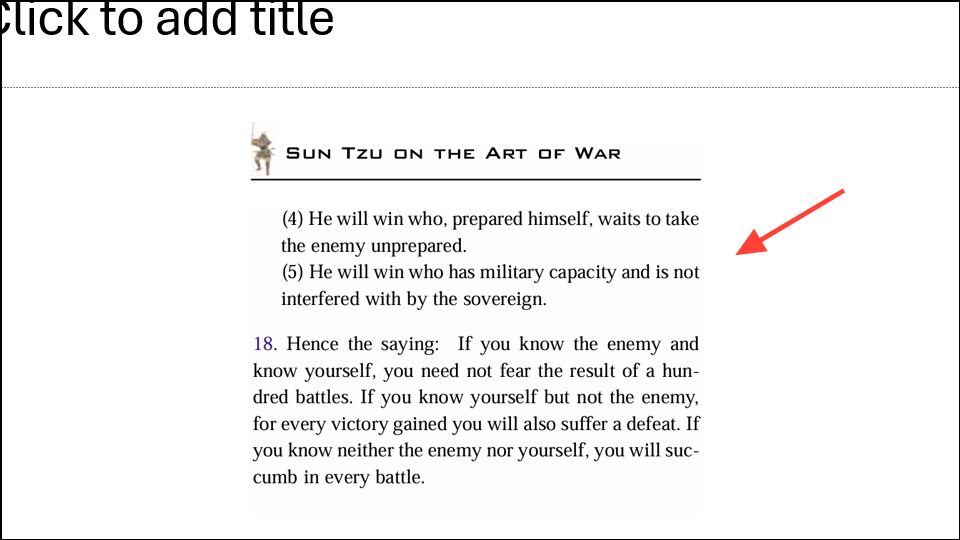
You can resize, crop, or format the image using the Picture Tools Format tab. This method only displays the selected content and does not allow users to open the full PDF from the slide.
Convert PDF to PowerPoint Slides
For multi-page PDFs or when you need to integrate entire documents into your presentation, converting the PDF to PowerPoint format is practical. This approach creates editable slides from your PDF pages, allowing for more customization and seamless integration.
Home > New Slide > Reuse Slides, and select the converted file. Choose the slides you want to import.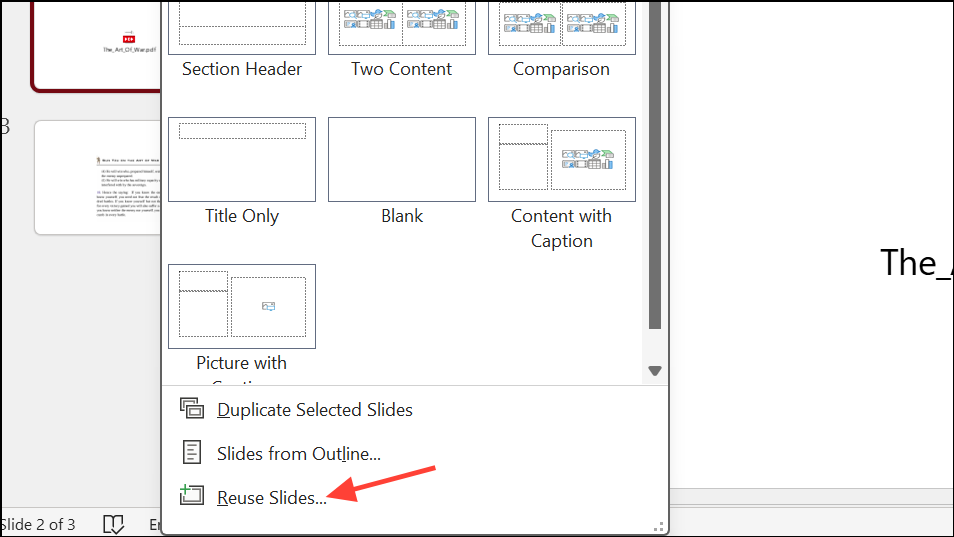
This method is especially effective for multi-page PDFs, as it preserves each page as a separate slide and allows for further editing within PowerPoint.
Link to an External PDF File
When your goal is to provide access to a PDF without embedding it (to keep file sizes manageable or ensure compatibility across devices), linking to the file is a flexible solution. This can be a local file or a web-hosted PDF.
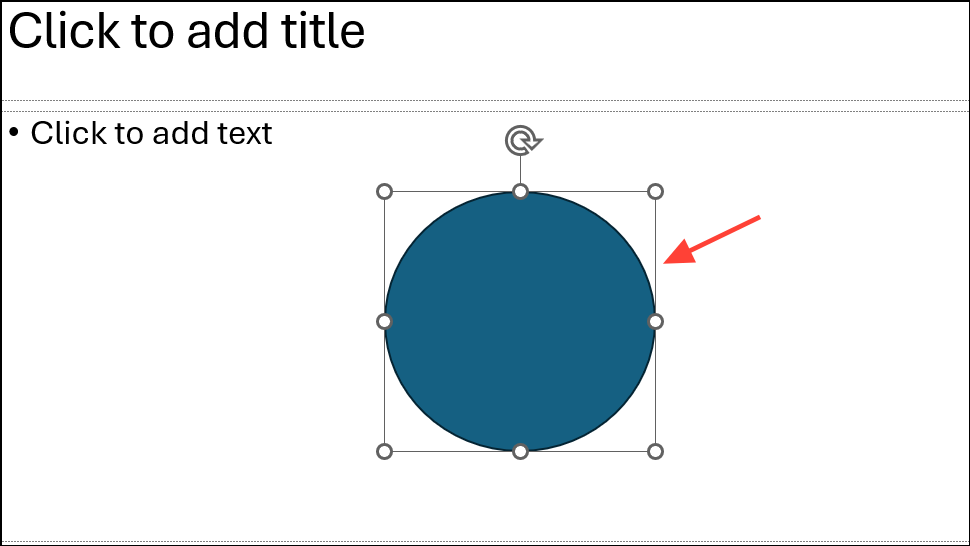
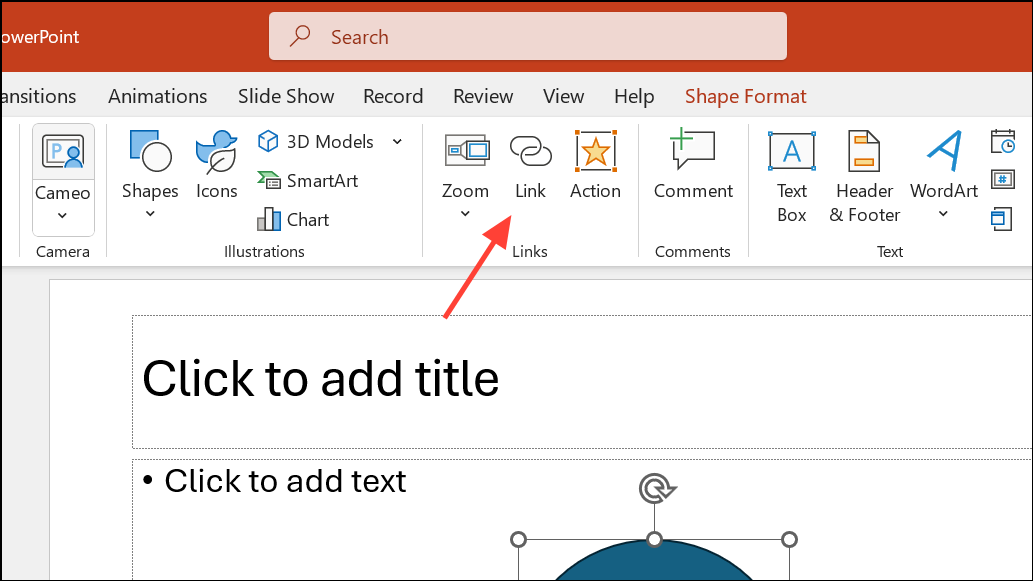
Existing File or Web Page. Browse to your PDF file or paste the URL of the PDF if it’s hosted online (such as on OneDrive, Google Drive, Dropbox, or your company’s website).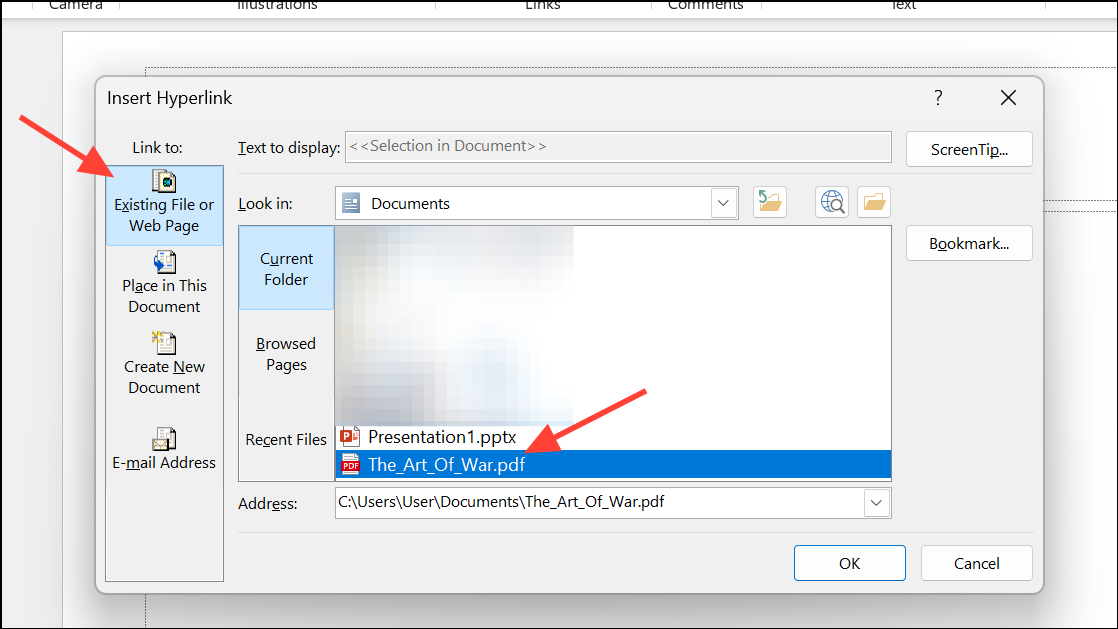
OK to create the link. When presenting, clicking the linked item will open the PDF in the default viewer or browser.This method keeps your presentation file size smaller and is recommended when sharing presentations via email or when recipients may use different devices or platforms.
Handling Multi-Page PDFs and Platform Differences
PowerPoint’s built-in features typically display only the first page of a multi-page PDF when embedded as an object or image. To display multiple pages, convert the PDF to images (one per page) using a PDF tool, then insert each image onto separate slides. Alternatively, convert the PDF to a PowerPoint file as described above and import the resulting slides.
It’s important to note that embedding PDFs as objects with interactive features works best on Windows. On Mac, PowerPoint may restrict embedding to Word or Excel files, and embedded PDFs might not open as expected. In such cases, linking to the PDF or converting it to images or slides is more reliable.
Choosing the right method for inserting a PDF into PowerPoint depends on your specific needs—whether you want to display static content, offer interactive access, or integrate multi-page documents. Testing your chosen method on your device and version of PowerPoint ensures smooth results for your audience.





