

Radial lists in PowerPoint transform standard bullet points into compelling visuals that clarify relationships and focus attention on key ideas. When you need to display items radiating from a central concept—such as categories, process steps, or related themes—a radial list offers a clean, memorable format that’s easy for audiences to interpret. PowerPoint provides several effective methods for making radial lists, ranging from SmartArt graphics to custom shape construction. Here’s how to create a radial list using the most effective approaches.
Method 1: Using SmartArt Graphics for Radial Lists
PowerPoint’s SmartArt feature streamlines the process of building radial lists, leveraging built-in templates that automatically arrange your items around a central point. This method is the fastest way to achieve a polished, consistent radial design with minimal manual adjustment.
Insert tab, then click SmartArt in the Illustrations section. This opens the SmartArt Graphic gallery.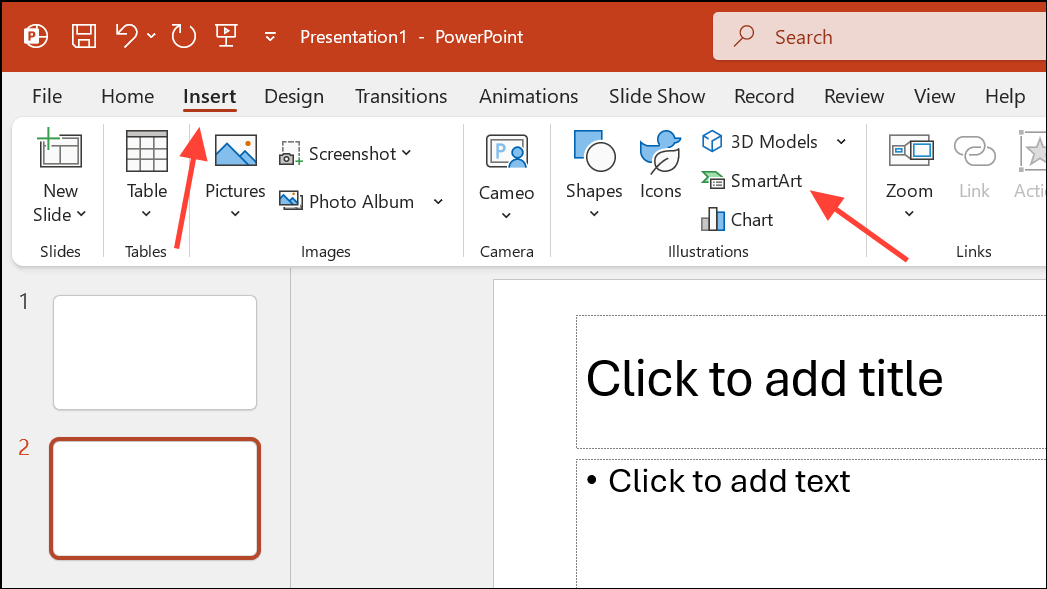
Relationship from the left-hand menu. Scroll to find Radial List or similar layouts like Basic Radial, Radial Cycle, or Radial Cluster. Click your preferred option and select OK.
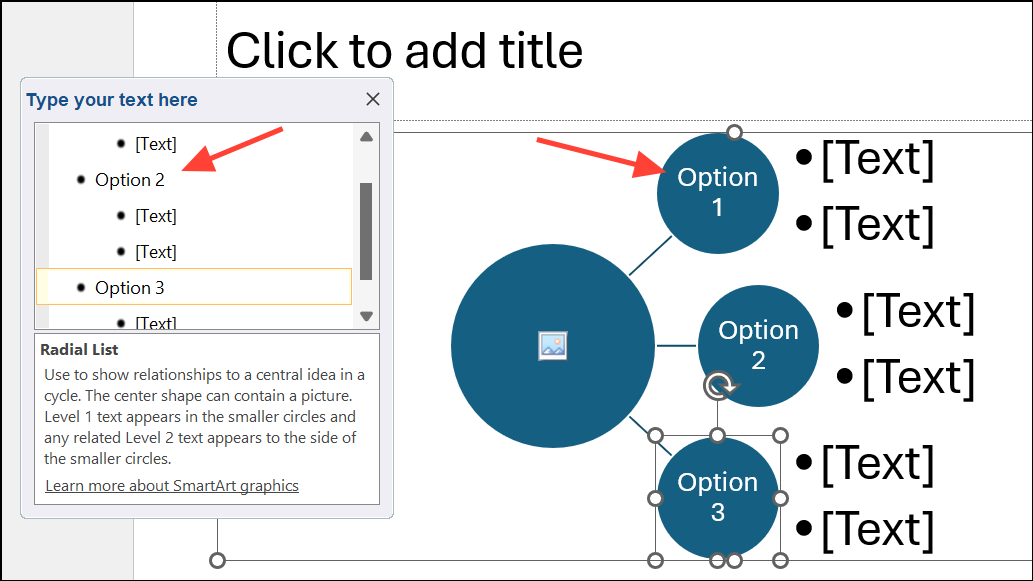
SmartArt Design and Format tabs. Here, you can change colors, adjust layouts, and apply styles for a tailored look.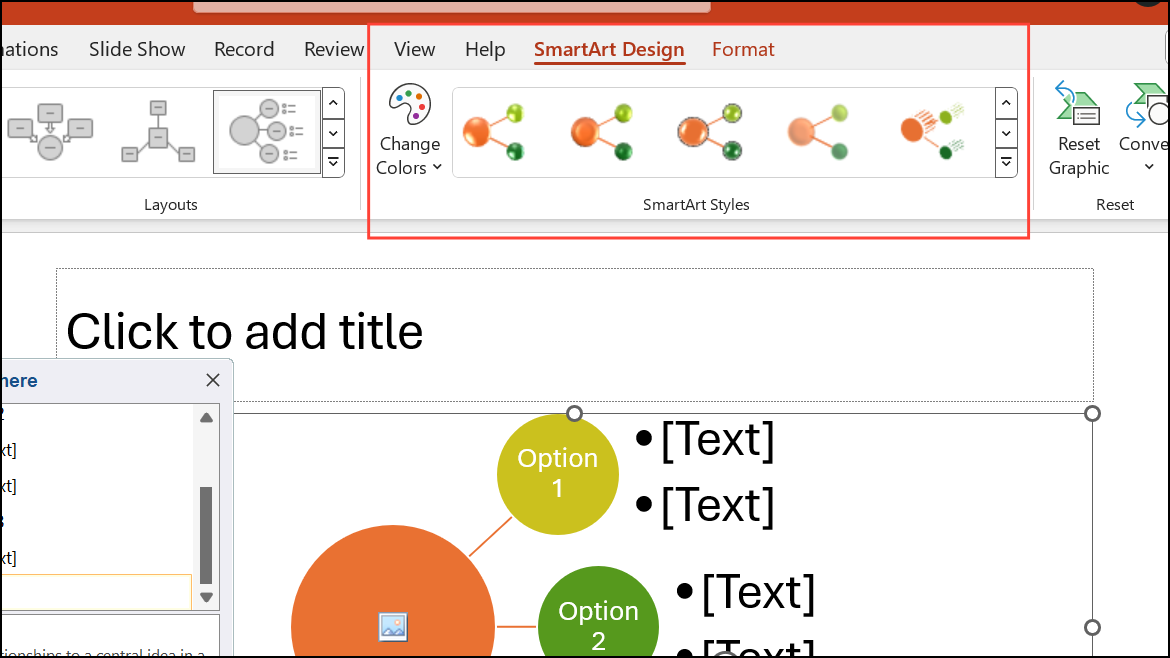
Change Shape. This allows you to manipulate each piece as a standard PowerPoint shape, giving you more flexibility for advanced customizations.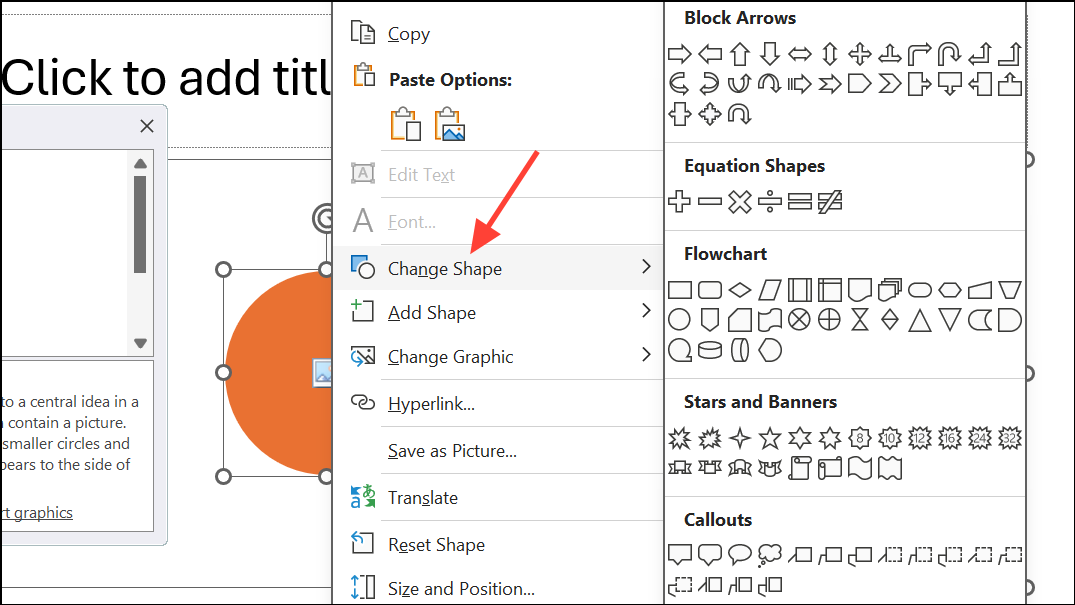
SmartArt’s radial list templates are ideal for most use cases, offering a balance of speed and flexibility. However, there are some limitations—such as restricted options for removing picture placeholders in certain layouts or customizing the center bubble’s content. If you need more granular control, consider the manual shape method below.
Method 2: Building a Custom Radial List with Shapes
For unique visual effects or when SmartArt doesn’t meet your needs, constructing a radial list manually using PowerPoint’s shape tools provides maximum creative control. This approach is especially useful for complex diagrams or when you need precise placement or styling.
Insert tab. Choose Shapes, then select Oval for the central item. Hold Shift while dragging to create a perfect circle.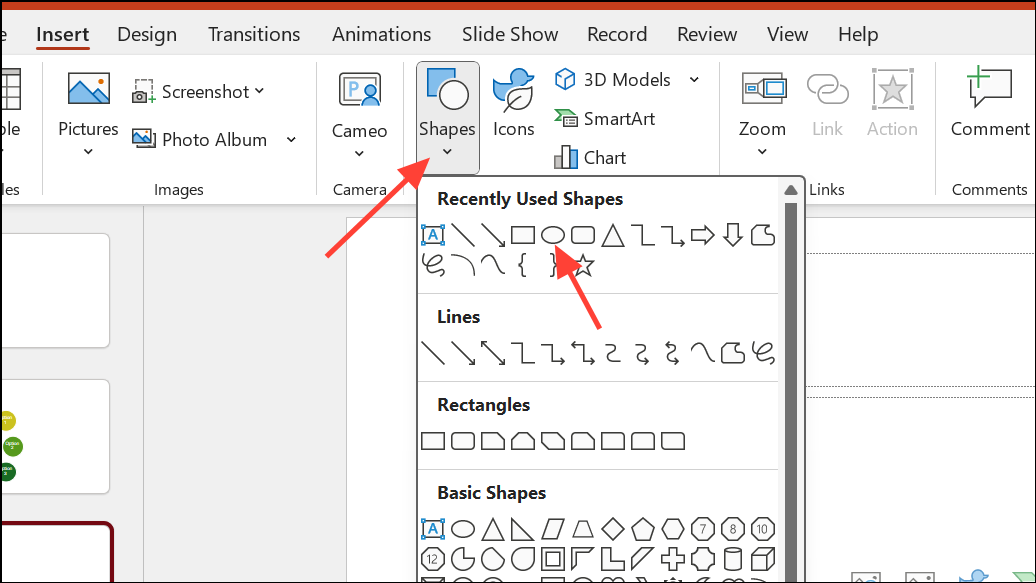
Edit Text. Adjust font size and style as needed for visibility.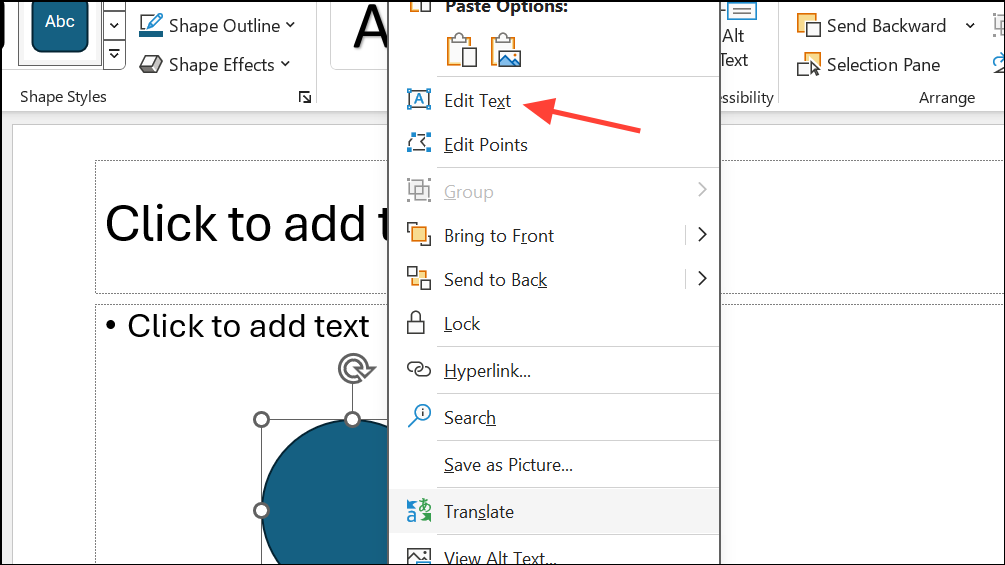
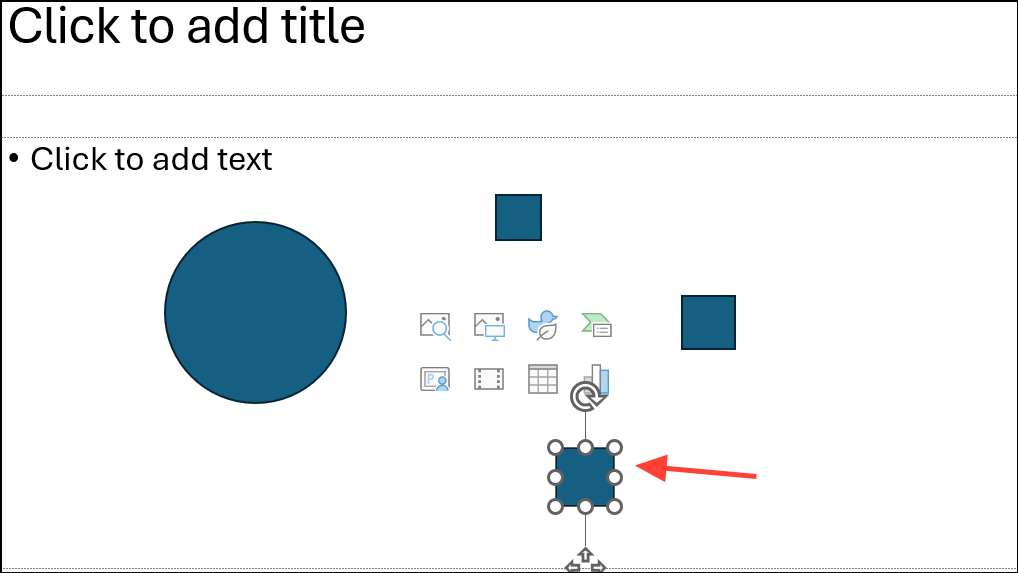
Insert > Shapes > Line or Connector. Hold Shift for straight lines. Attach one end to the center and the other to a list item shape.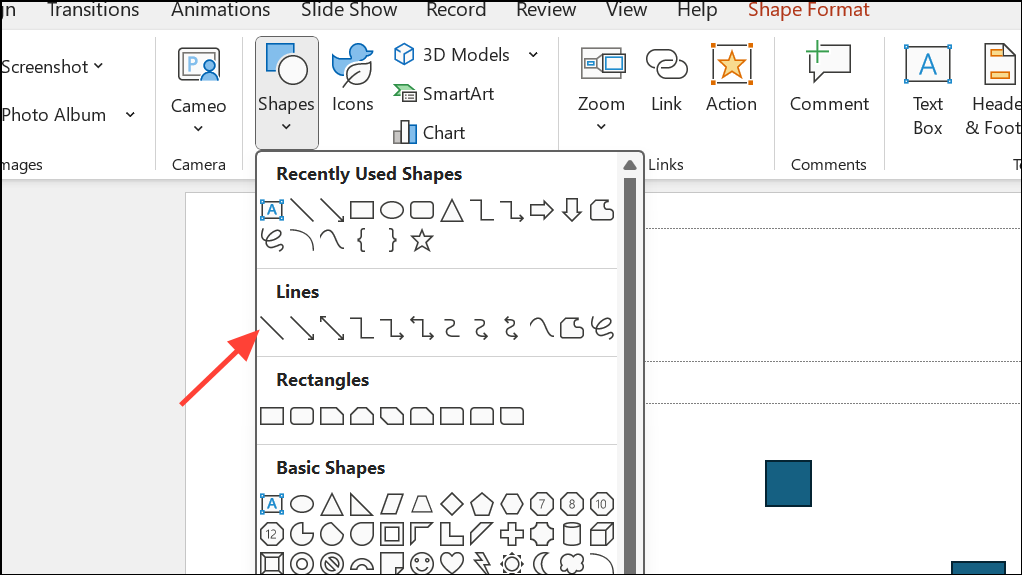
Edit Text. Adjust colors, outlines, and effects for clarity and visual separation.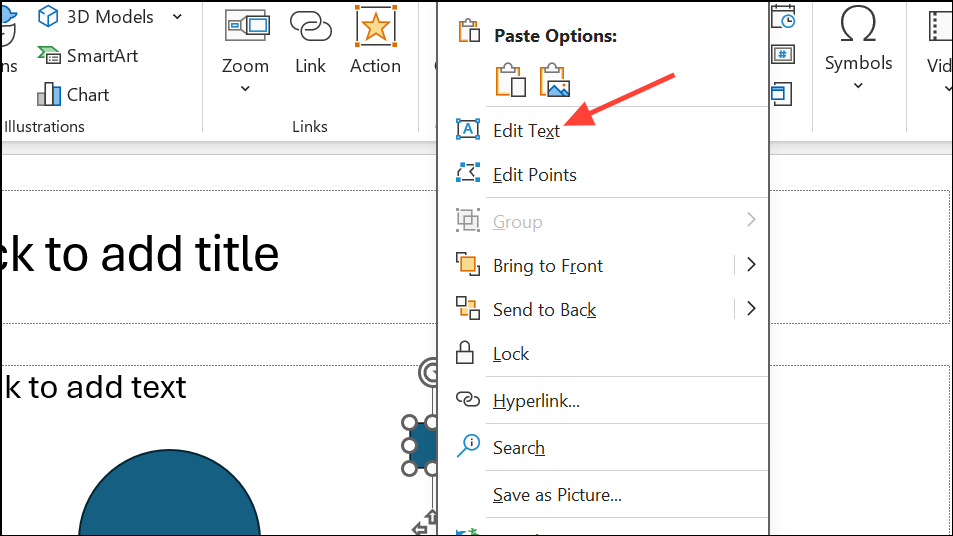
Insert > WordArt, then apply Text Effects > Transform > Follow Path to curve the text along a circular path. This method helps when creating more advanced radial diagrams, such as annual cycles or timelines.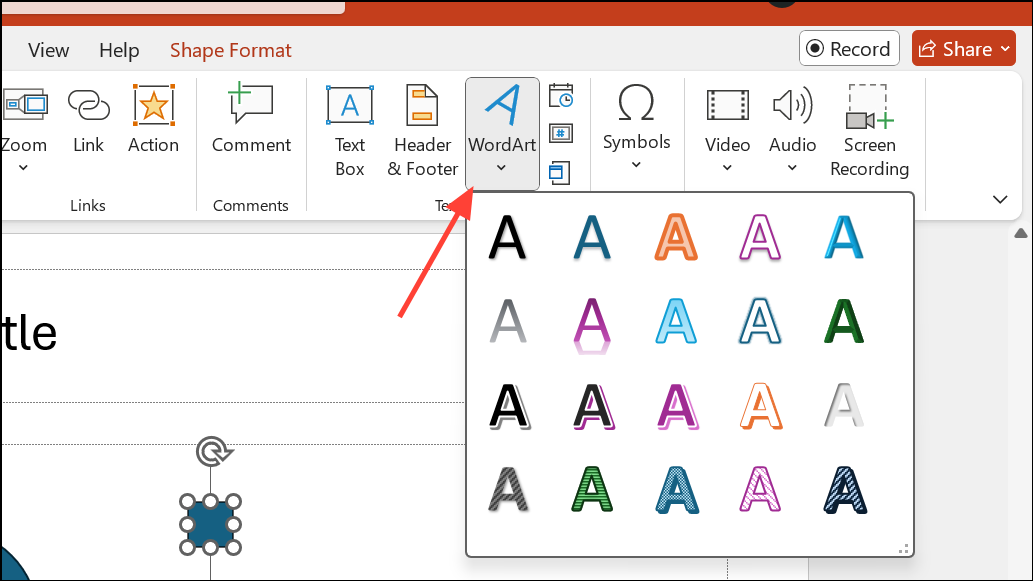
Ctrl + G. This ensures the entire radial list moves as a single unit when repositioning or copying.Manual shape construction is more time-consuming but allows for infinite customization, including unique iconography, advanced color schemes, and creative layouts that go beyond SmartArt’s built-in options.
Method 3: Converting Text Lists to SmartArt
When you already have a bullet list in your slide, PowerPoint allows you to instantly convert it into a SmartArt radial list, streamlining the upgrade from plain text to a visually organized diagram.
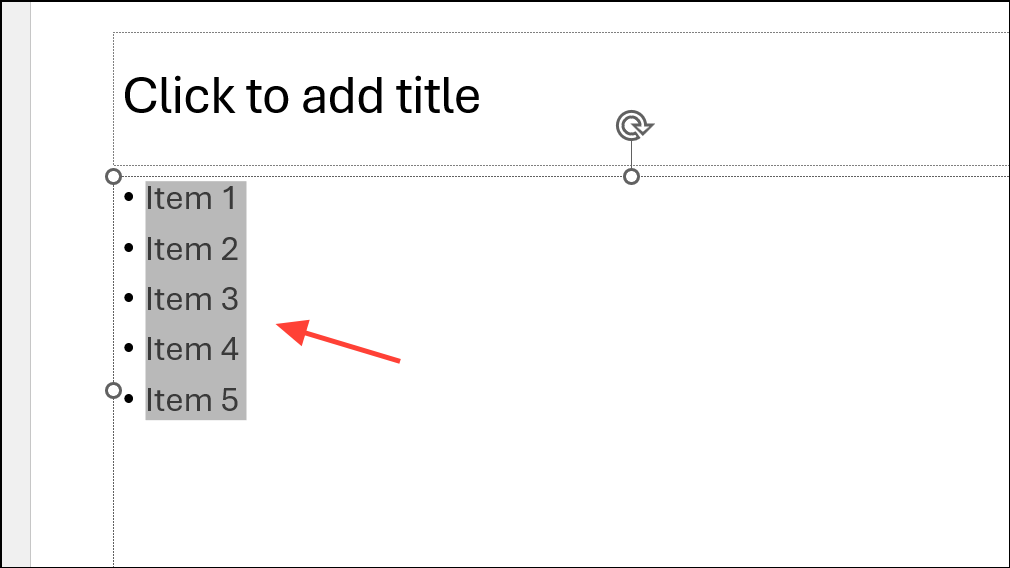
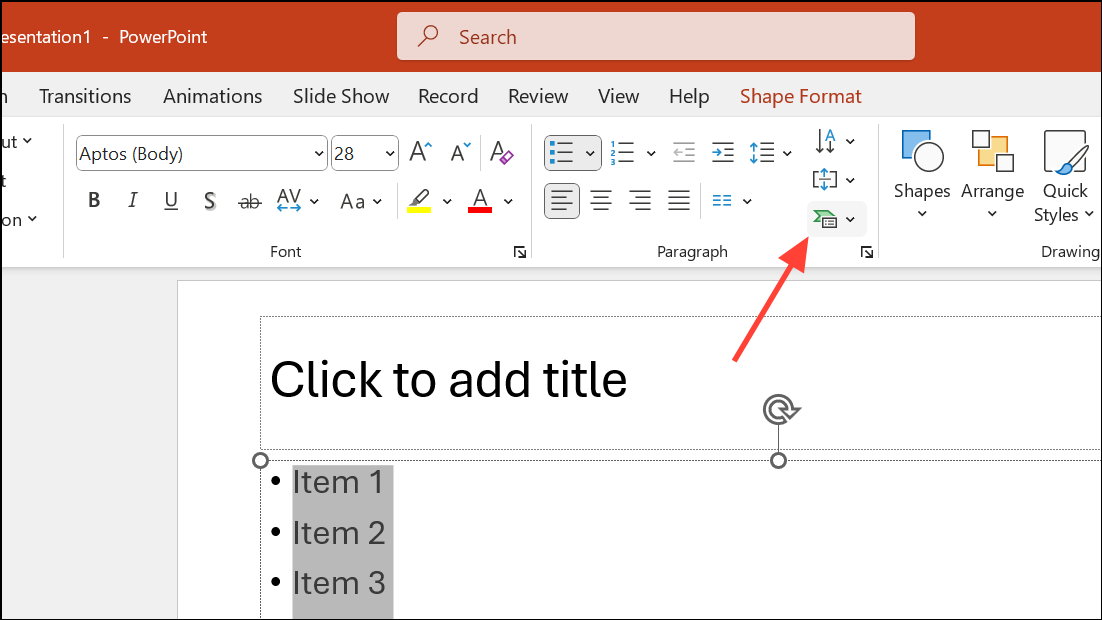
Radial List, Basic Radial, or Radial Cycle—and apply it. Your list items will automatically arrange around a central shape.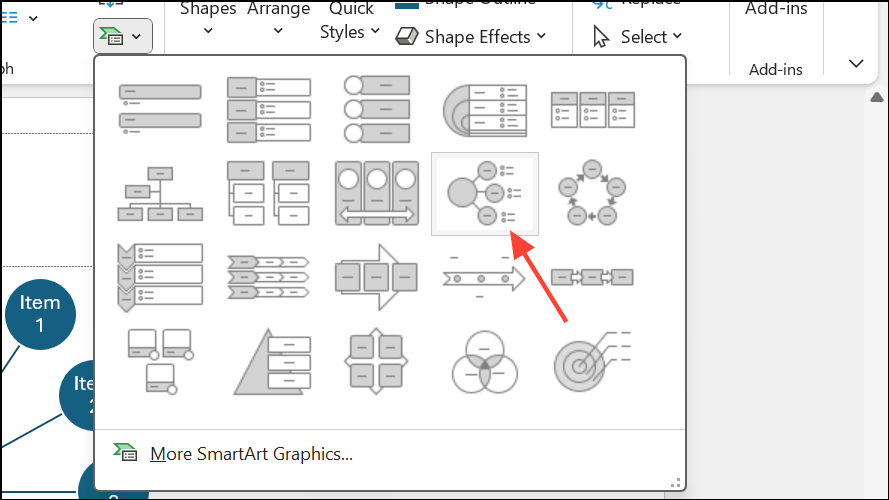
This approach rapidly transforms existing content into a radial format, saving time for quick presentation upgrades.
Troubleshooting and Customization Tips
Some SmartArt radial templates, like the default Radial List, place a picture placeholder in the central bubble. If you want to remove this, there are a few workarounds:
- Set the fill and outline of the central shape to
None, then overlay your own text or shape. - Convert the SmartArt to shapes by right-clicking and choosing
Convert to Shapes, then delete or modify the unwanted parts.
For advanced radial diagrams (such as annual cycles with curved boxes), combine concentric circles and lines using shapes, and use WordArt with Transform effects to curve text along paths. This manual approach is more involved but supports detailed, custom layouts.
Switching from plain lists to radial diagrams in PowerPoint clarifies relationships and draws attention to your main ideas. Whether you use SmartArt for speed or build from shapes for flexibility, these methods help you create professional, visually engaging radial lists that make your message stand out.





