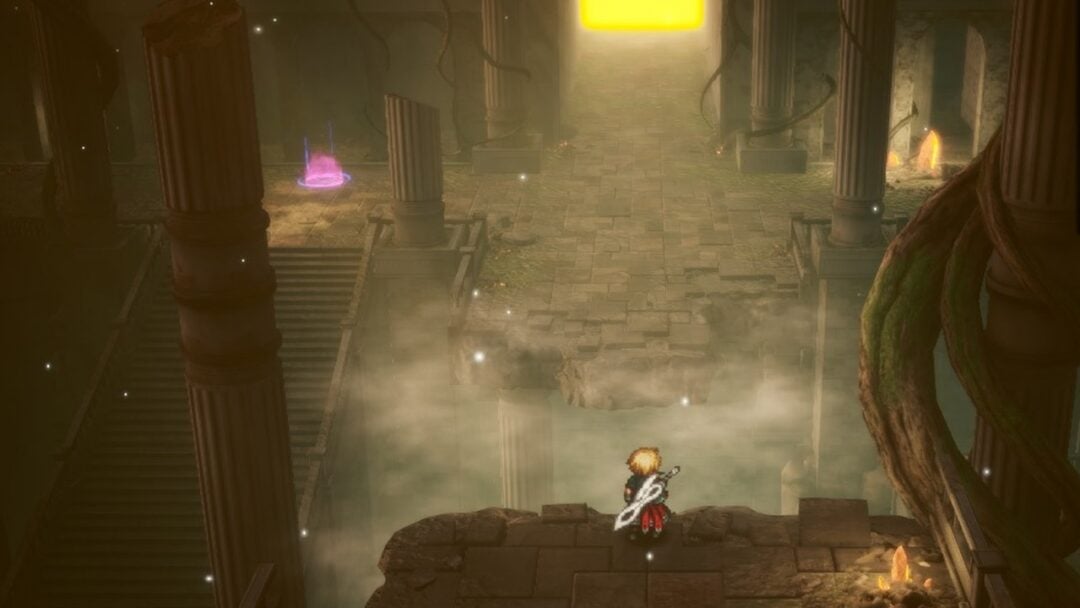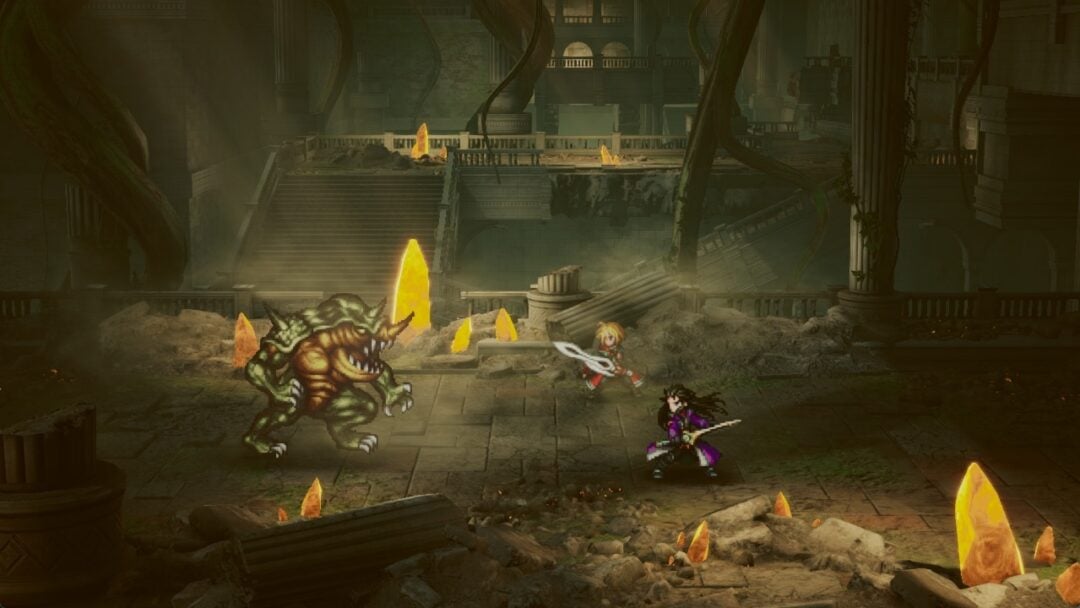
Echoes of Aincrad runs on Unreal Engine 5 and leans on a small, console-style settings menu instead of a long list of sliders. That means most of your performance comes from a handful of choices: the Game Performance preset, model and texture detail, your anti-aliasing method, and a frame rate cap. Dial those in correctly and you can hold a steady 60 FPS even on hardware close to the minimum spec.
Quick answer: Set Game Performance to Prioritize Performance, turn V-Sync Off, drop Model Detail to Low, set Texture Quality to Medium with Texture Filtering 2x, and cap the Frame Rate Limit at 60. This combination removes most stutter during fights on lower-end and mid-range PCs.
Best Echoes of Aincrad graphics settings
The game is not especially heavy to render, so the goal is stable frame pacing rather than squeezing out extreme numbers. Combat is where dropped frames hurt, so favor consistency over raw visual quality. These values give a strong baseline on a weaker or mid-tier system, and you can raise individual options afterward if you still have headroom.
| Setting | Value | Why |
|---|---|---|
| Resolution | Match your display (or 1920×1080) | Keeps the image sharp; only drop it if frames are still unstable. |
| Window Mode | Full Screen | Best for consistent frame delivery. |
| V-Sync | Off | Lowers input delay; turn it on only if screen tearing bothers you more than a small FPS loss. |
| Game Performance | Prioritize Performance (or Equilibrium) | The single biggest performance lever. Equilibrium looks better if you have spare power. |
| Texture Quality | Medium | Retains detail with a light impact on frame rate. |
| Texture Filtering | 2x | Sharpens surfaces at an angle with almost no cost. |
| Model Detail | Low | One of the clearest gains in busy areas like the Town of Beginnings. |
| Anti-Aliasing | Off until you see jagged edges (FSR on AMD, FXAA on Nvidia) | Keeps the picture sharp; add AA only if edges look rough. |
| Anti-Aliasing Level | 2 | A middle value once AA is enabled. |
| Frame Rate Limit | 60 | Unlimited introduces stutter; a fixed 60 cap smooths pacing. |
You can grab the game and check its current build on the official Steam listing.
How the Game Performance presets change things
Instead of an “Ultra to Low” preset bar, Echoes of Aincrad uses three tiers that shift the overall balance between speed and looks. This is the setting to change first, because it moves the biggest chunk of your frame rate.
| Preset | Best for |
|---|---|
| Prioritize Performance | Weaker PCs and anyone chasing a locked 60 FPS. Lowest visual load. |
| Equilibrium | Mid-range systems that want a cleaner image while staying smooth. |
| Image Quality Priority | Stronger GPUs that can spend frames on sharper visuals. |
Start on Prioritize Performance. If your frame rate sits comfortably above 60 with room to spare, step up to Equilibrium and retest in a crowded town before committing.
Frame rate limit and V-Sync
The frame rate menu offers 60 FPS or Unlimited. Unlimited sounds appealing, but it tends to produce noticeable stutters because the engine has to react to constant frame-time swings. Since this is an action RPG and not a competitive shooter, a fixed 60 cap gives cleaner, more predictable pacing during combat.
Leave V-Sync off by default to keep input lag low and avoid the game locking your frame rate. Only switch it on if you see screen tearing and find it more distracting than the small performance cost.
Turn off motion blur with an Engine.ini edit
The in-game menu does not include a toggle for motion blur, but because the game is built on Unreal Engine 5 you can disable it with a one-line config change. This removes the smearing effect during fast camera movement without touching any other setting.
Win + R to open the Run box, then paste the config path below and press Enter to open the file in your text editor.%localappdata%\EchoesofAincrad\Saved\Config\WindowsClient\Engine.ini[SystemSettings]
r.MotionBlurQuality=0[SystemSettings] header and that the file saved without a .txt extension.Fix stutter and frame drops beyond the settings menu
Stutter is usually more disruptive than a slightly lower average frame rate because it interrupts combat timing. Most of it comes from asset streaming, shader compilation, or background load rather than your graphics options. Work through these fixes if the recommended settings alone do not smooth things out.
- Install on an SSD. The game requires an SSD, and running it from a slow drive causes hitching and texture pop-in as new areas load.
- Update your GPU drivers. Current Nvidia, AMD, or Intel drivers often include optimizations for new releases and remove launch-time warnings.
- Let shaders finish compiling. The game compiles shaders on first launch and verifies them afterward. Early stutter often clears once this completes.
- Close background apps. Browsers, recording tools, and other programs eat CPU, RAM, and GPU time that the game needs.
- Disable overlays. Steam, Discord, and Xbox Game Bar overlays can cause hitches; turn them off one at a time to test.
- Set Windows to High Performance. This stops the CPU from downclocking mid-session.
- Disable fullscreen optimizations. Right-click the game’s executable, open Properties, go to Compatibility, and tick “Disable fullscreen optimizations.”
- Verify game files. Corrupted files produce unpredictable performance; use Steam’s integrity check to repair them.
- Watch temperatures. Overheating throttles the CPU or GPU. Confirm your cooling is keeping clocks stable under load.
Note: The Town of Beginnings is the heaviest area to render because of its NPC density and detailed models. If frames only dip there, lower Model Detail and Texture Quality another step rather than changing your whole preset.
System requirements to check first
Before tweaking anything, confirm your PC clears the target you are aiming for. An SSD, Windows 11, DirectX 12, and at least 8GB of RAM are shared across every tier, and the game needs 30GB of storage. The processor and graphics card requirements scale with the frame rate and quality you want.
| Tier | CPU | GPU |
|---|---|---|
| Minimum (1080p, 30 FPS, Performance) | Core i5-8400 / Ryzen 3 3300X | GTX 1060 6GB / RX Vega 56 / Arc A750 |
| Minimum (1080p, 60 FPS, Performance) | Core i7-9700K / Ryzen 3 3300X | RTX 2060 8GB / RX 5700 / Arc B580 |
| Recommended (1080p, 60 FPS, Balanced) | Core i7-10700K / Ryzen 5 5600G | RTX 2070 8GB / RX 6700 XT |
| Recommended (1080p, 60 FPS, Quality) | Core i7-10700K / Ryzen 5 5600G | RTX 3060 Ti / RX 6800 |
Steam Deck is not supported at launch, and even on handhelds like the ROG Ally the game holds up better than on the Deck, where a stable 30 FPS is hard to reach. If you meet the minimum but not the recommended tier, stay on Prioritize Performance and the settings above.
How to confirm it worked
Apply the settings, then run into the Town of Beginnings and a combat-heavy open zone back to back, since those are the two spots most likely to drop frames. A smooth result means the frame rate holds near your 60 cap without sudden hitches when new enemies or areas load. If it still stutters in only one place, lower Model Detail or Texture Quality one more notch rather than dropping the entire preset, and keep the frame limit at 60 so pacing stays even.