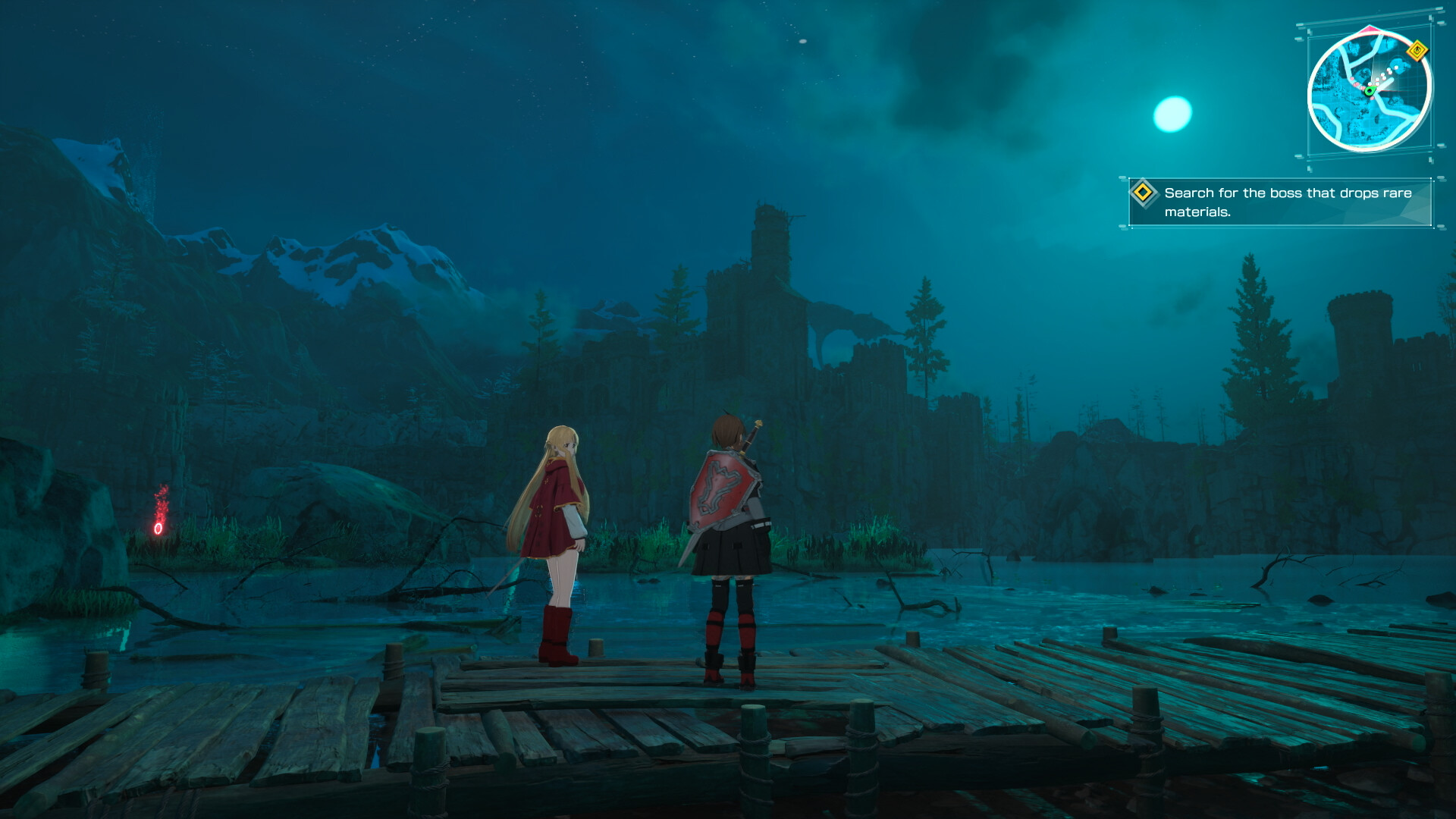
Saving in Echoes of Aincrad mixes a manual menu save with frequent auto-saves, and there is no dedicated quick-save button. The system is straightforward once you know where the save command sits, but one optional mode can erase your entire character if you die, so it pays to understand how each piece works before you get deep into the floating castle.
Quick answer: Open your in-game menu, go to Settings, and select “Log out (Save)” to record your progress manually. Auto-saves also fire when you enter safe zones, complete quests, and travel between areas. Dying in Death Game Mode permanently deletes that save slot.
Manual save: the “Log out (Save)” command
The game gives you three save slots and one deliberate way to write to them by hand. Do this before you shut down your console or PC so you never lose a session.
There is no Inn-based save prompt. The Town of Beginnings Inn matters for a different reason, since it is where you commit Growth Points to permanently raise stats like Strength and Agility. Spend those points and then run the menu save so nothing sits unconfirmed if the game closes.
Auto-saves and Safety Area checkpoints
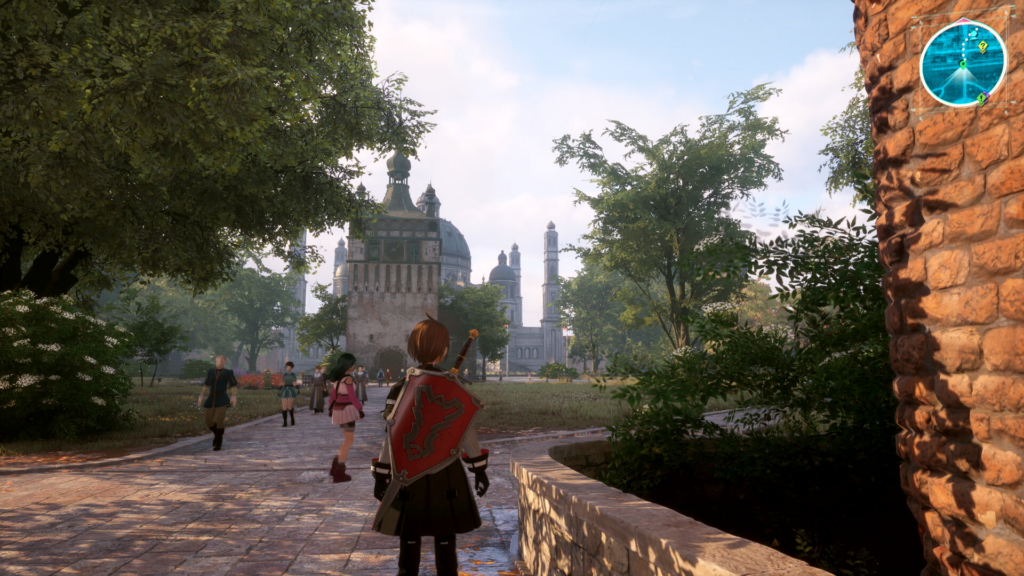
The game backs up progress on its own at set moments, so an unexpected exit rarely costs you everything. Watch for the glowing blue digital sword icon in the corner, which confirms an auto-save just happened.
| Save type | What triggers it | Where |
|---|---|---|
| Auto-save | Entering a safe area, map transitions, quest completion, rare loot | Field and hub transitions |
| Safety Area checkpoint | Interacting with the terminal | Before boss rooms, mid-labyrinth |
| Manual save | You choose “Log out (Save)” | Settings menu |
Safety Areas work like the bonfires in Dark Souls. Interacting with one locks your checkpoint progress and refills resources such as Healing Crystals and Stamina, which makes them the natural spot to prepare before a floor boss. Returning to the city hub between quests also forces an auto-save during the transition.
Death Game Mode: how permadeath erases your save
Death Game Mode is the game’s high-stakes challenge, and it changes the consequences of failure rather than the way you save. Saving still works normally, but a defeat is final.
If your Health Points hit zero, the game runs a Game Over sequence and performs a final save that marks the character as “Deceased.” That effectively wipes the playable data, drops you back to the title screen, and resets the slot to empty. Your character, gear, and full progress are gone in one moment.
Note: A crash or power loss does not trigger the wipe, and exiting through the menu is safe. Only an in-game defeat causes the erasure. Because this mode uses a single save slot, keep it separate from your main file.
| Feature | Normal Mode | Death Game Mode |
|---|---|---|
| Defeat consequence | Return to last checkpoint | Save slot erased |
| Auto-save and manual save | Enabled | Enabled |
| Save slots | Multiple | Single slot only |
| Early unlock | No | Yes (Deluxe/Ultimate) |
You unlock Death Game Mode by clearing the main story once. Owners of the Deluxe Edition or Ultimate Edition get it from the start. One important limit applies to save creation, covered below.
Transfer demo save data to the full game
Progress from the five-mission demo carries over to the full release, so you can skip the tutorial phases. The transfer only works within the same platform, which means Steam demo data cannot move to a PS5 copy or vice versa.
If you pick “Do not carry over” and confirm, the prompt will not appear again on later launches. To redo it, delete every slot in the full version’s save selection screen and start a new file, but do not delete the demo save from your device.
| Transferable item | Status |
|---|---|
| Avatar appearance | Yes (re-editable later) |
| Weapon mastery (six types) | Yes |
| Story progress | Yes (skips first five missions) |
| Col (currency) | Yes |
| Inventory items | Partial (consumables yes, some event items no) |
One catch matters if you want the permadeath challenge. A carried-over demo file cannot be switched into Death Game Mode. You must start a fresh save for that mode, and it can be selected when creating a second or later save file once the mode is unlocked.
Cloud saves and platform limits
Saves stay tied to the platform you play on, and there is no cross-progression between PS5, Xbox Series X|S, and Steam. A PS5 file cannot be loaded on the Steam version.
| Platform | Cloud service | Manual backup |
|---|---|---|
| PS5 | PS Plus Cloud Storage | USB (save data only) |
| Xbox Series X|S | Xbox Live cloud save | Not supported |
| Steam | Steam Cloud | Local folder |
On PS5, enable Auto-Sync so a replaced console keeps your file. On Xbox, saves sync whenever you are connected to Xbox Live. On Steam, cloud sync helps if you move between a desktop and a Steam Deck. Whatever platform you are on, the safest routine is simple: hit “Log out (Save)” before you quit, confirm the blue sword icon after big fights, and keep Death Game Mode on its own slot so a single defeat never touches your main run.