
PowerPoint files that include embedded media or complex animations often trigger sudden crashes, especially on Windows 11 systems. These interruptions can cause data loss, disrupt workflow, and undermine your confidence during presentations. Addressing the root causes—such as file corruption, excessive file size, outdated software, or incompatible add-ins—can restore stability and prevent future issues.
Use a PowerPoint File Repair Tool
Corrupted PowerPoint files frequently cause repeated crashes, particularly when media or animations are involved. Specialized repair tools can scan and fix damaged PowerPoint files, restoring access to your content and stabilizing the application.
+Add button to upload one or more problematic PowerPoint files. The tool will analyze each file for damage.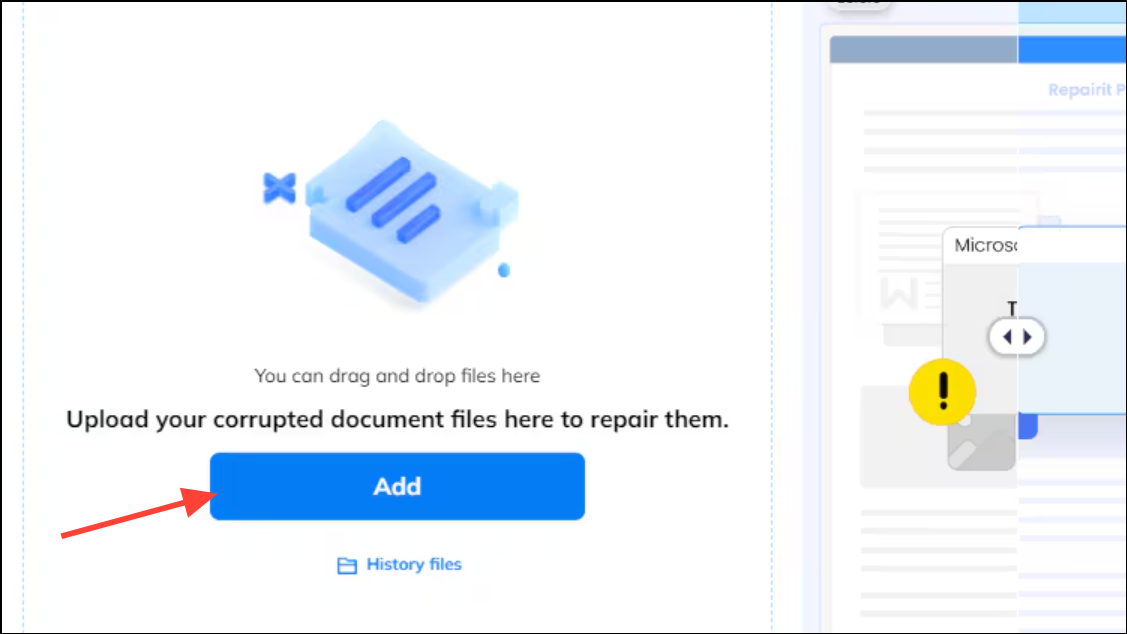
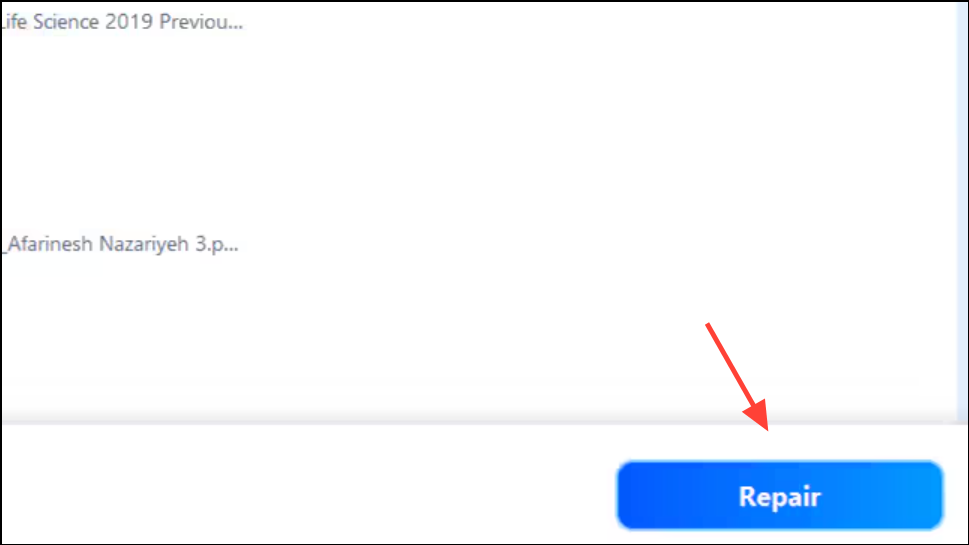
This approach quickly resolves file-level corruption, especially if crashes consistently occur after adding or playing embedded videos, audio, or animated transitions.
Reduce File Size and Optimize Media
Large PowerPoint files with high-resolution images or lengthy videos can overwhelm system resources, leading to freezing or crashing. Optimizing file size improves reliability and playback performance.
Properties to view its size. Aim to keep presentations under 10 MB when possible. Files exceeding 50 MB are much more likely to crash, especially when media is embedded.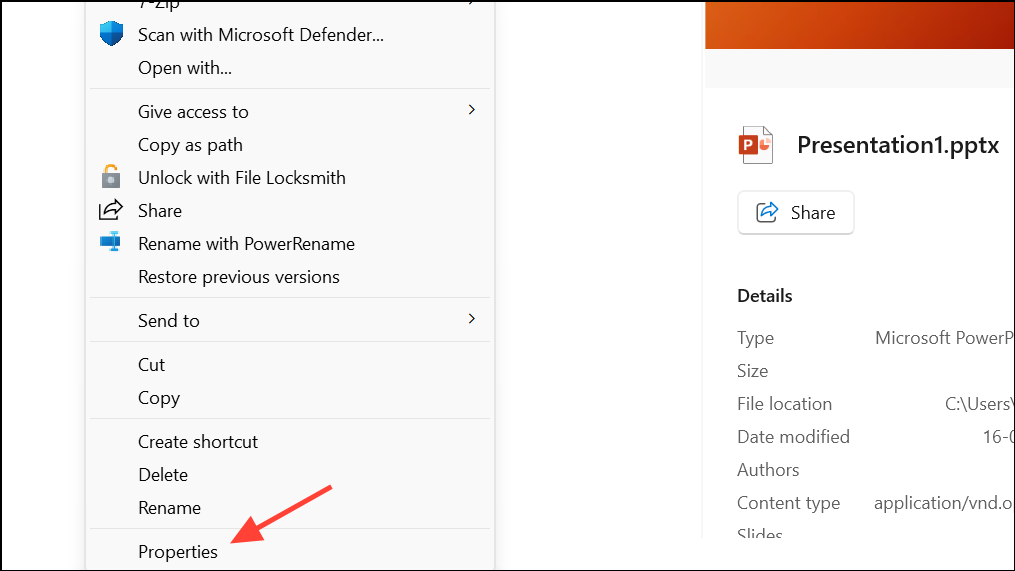
Compress Pictures feature under the Picture Format tab.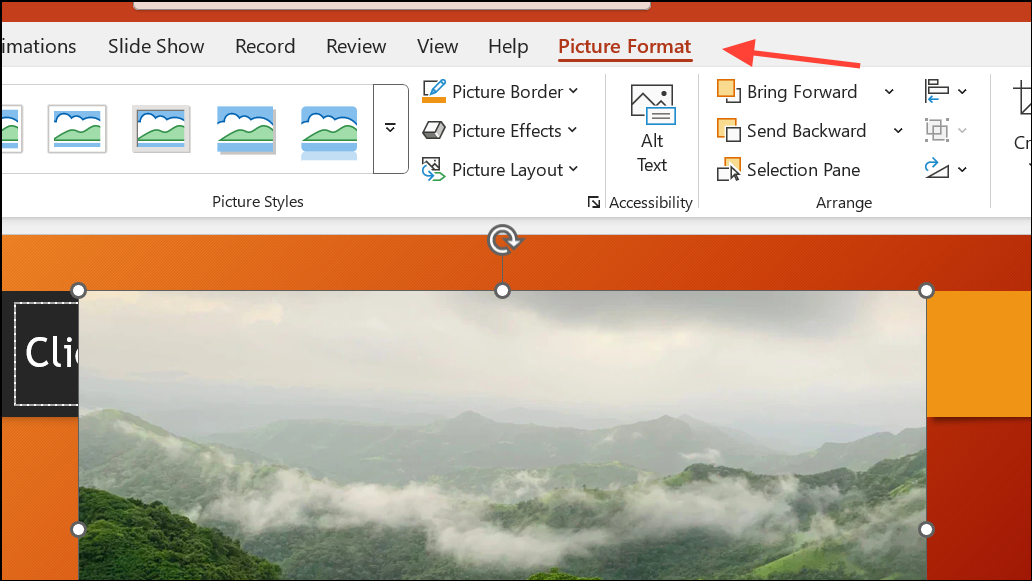
Insert > Video > This Device menu, and keep video file sizes moderate. If possible, link to external video files instead of embedding them directly.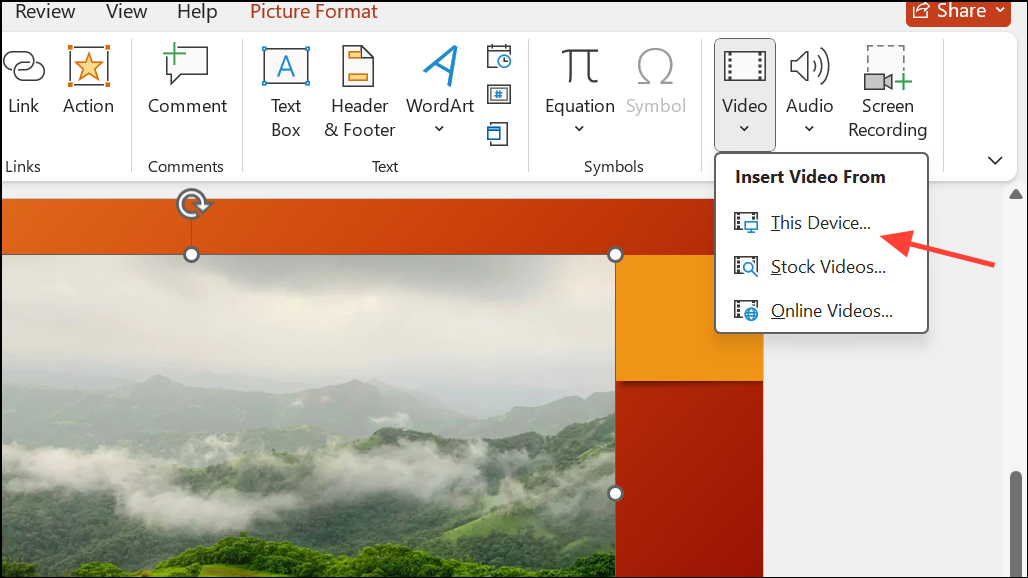
Update PowerPoint and Windows 11
Outdated software often contains bugs or compatibility issues that cause PowerPoint to crash when handling new media formats or advanced animations.
File menu, select Account, then click Update Options > Update Now. This will check for and install the latest PowerPoint updates.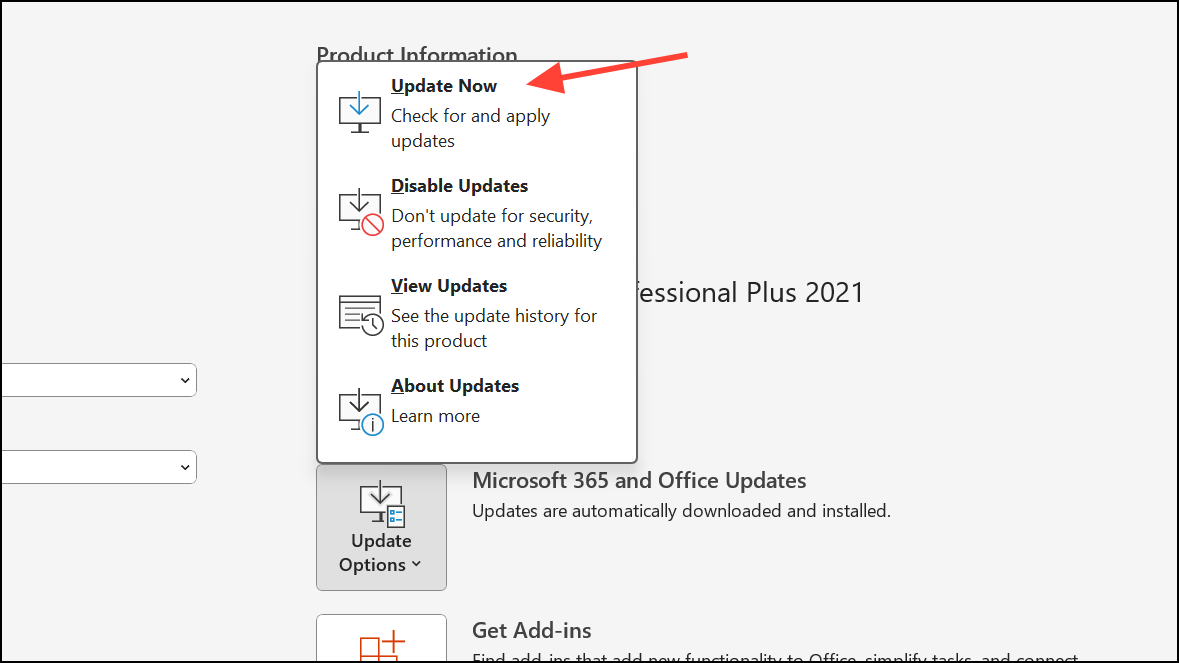
Settings > Windows Update and click Check for updates. Restart your PC after updates are installed.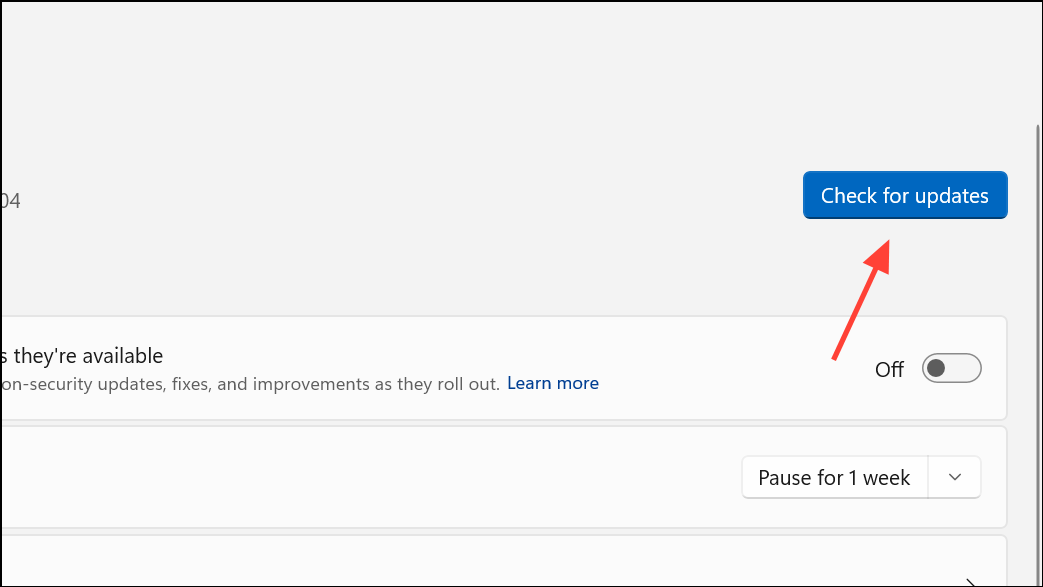
Updates often resolve compatibility problems with media playback and animation rendering, reducing the risk of unexpected crashes.
Check and Remove Problematic Add-ins
Third-party add-ins can conflict with PowerPoint’s core functions, especially when manipulating media or animations. Disabling or removing these add-ins can restore normal operation.
File > Options > Add-ins. At the bottom, set the Manage dropdown to COM Add-ins and click Go.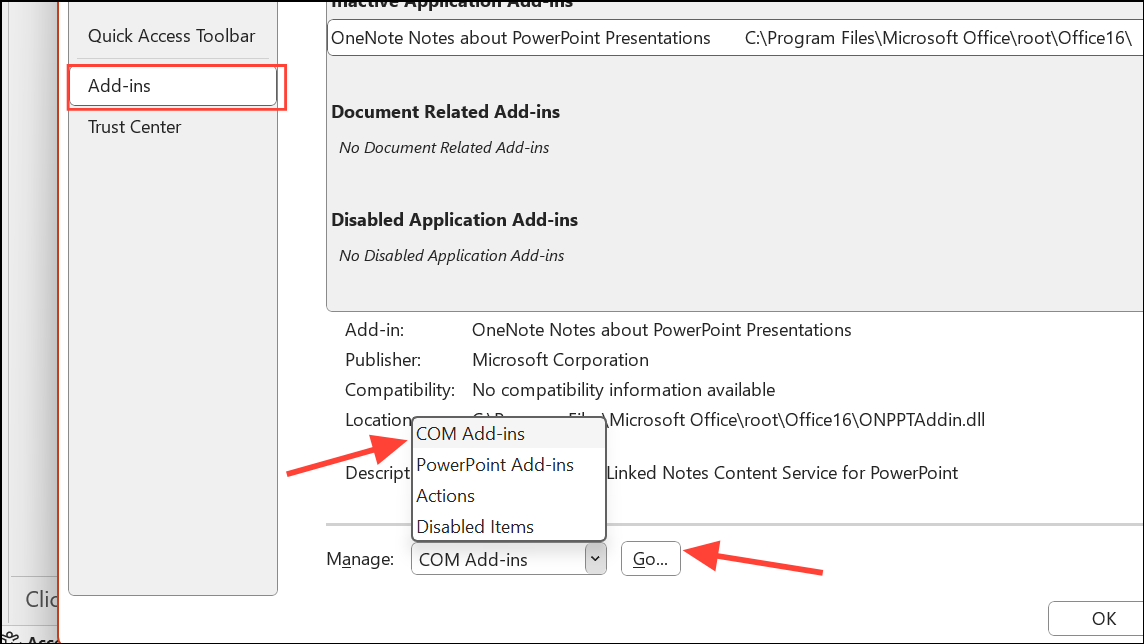
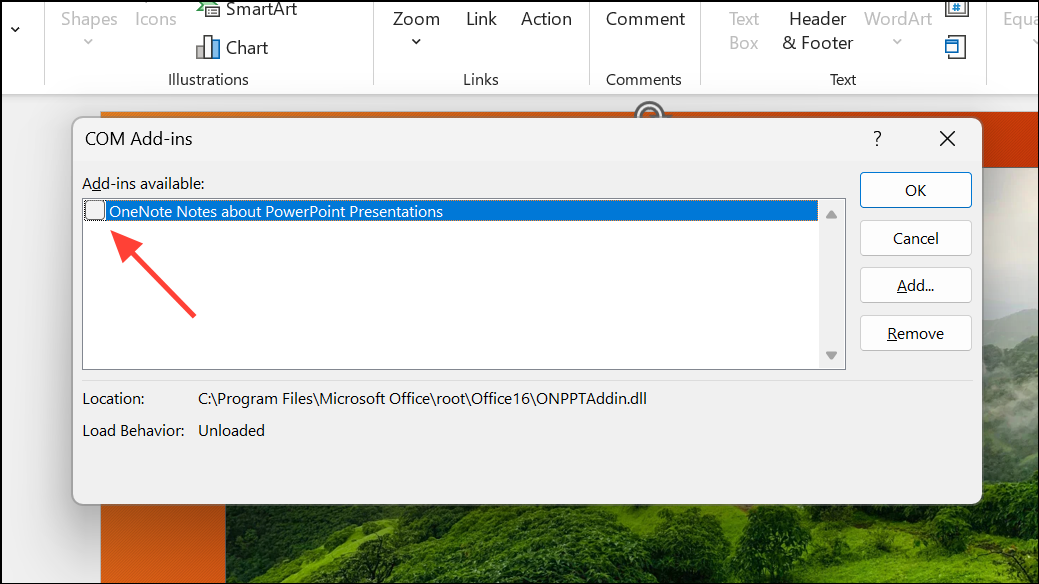
Removing or updating problematic add-ins can prevent crashes triggered by advanced media or animation features.
Repair Microsoft Office Installation
Corrupted Office installations can cause persistent crashing across PowerPoint and other apps. Repairing Office restores default settings and repairs damaged components.
Settings > Apps > Installed apps (or Control Panel > Programs and Features),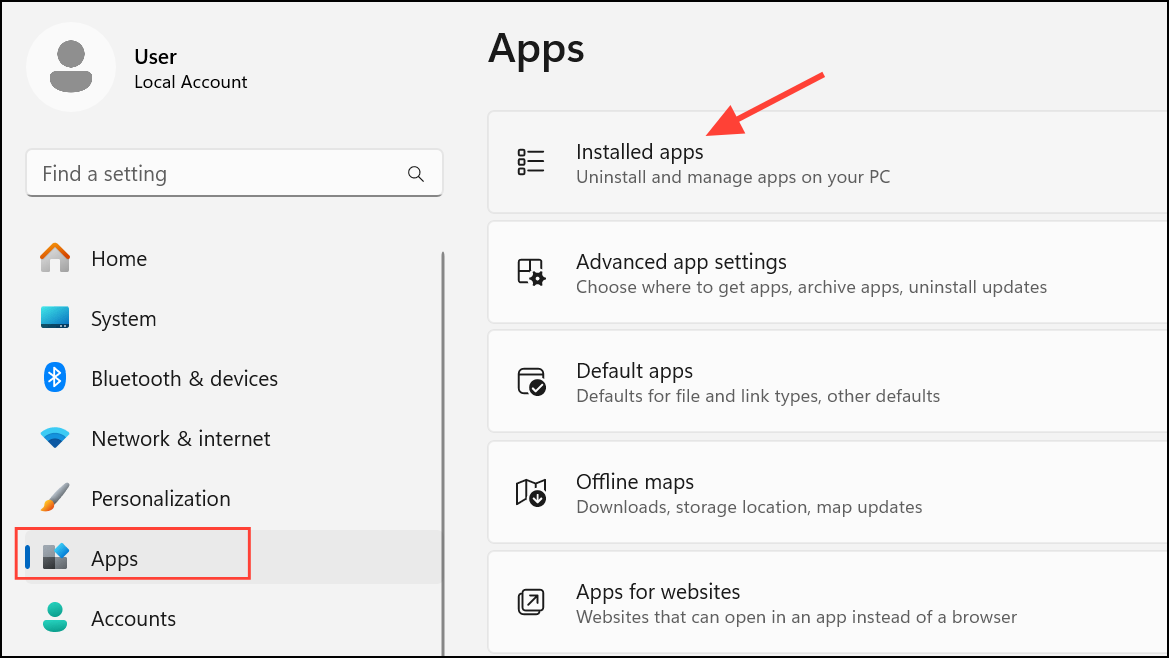
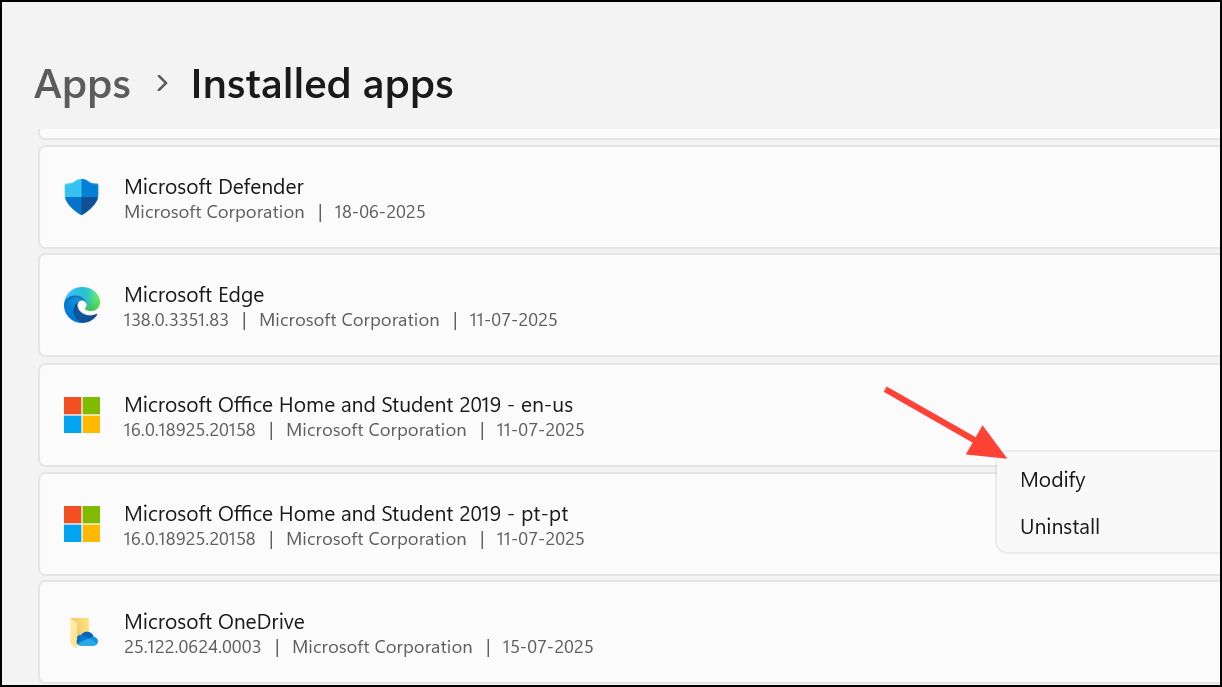
Quick Repair first. If issues persist, repeat the process and select Online Repair for a more thorough fix. Restart your computer and test PowerPoint again.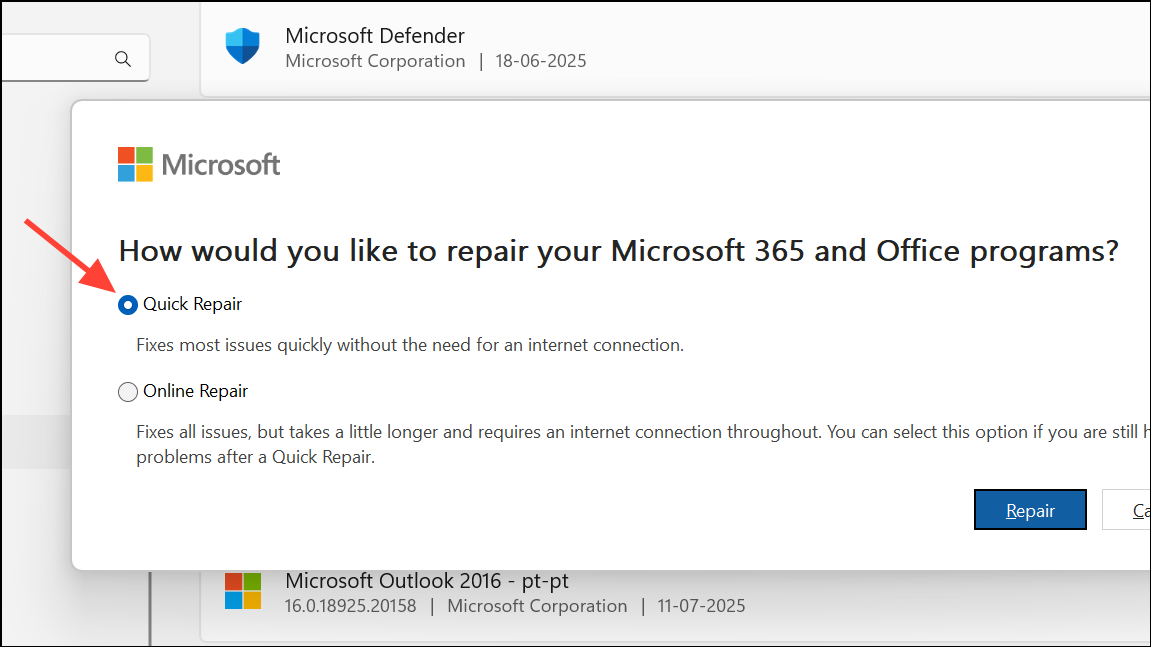
Optimize System Resources and Hardware
Running multiple applications, having too many browser tabs open, or using outdated hardware can deplete available memory and processing power, causing PowerPoint to crash during media playback or animation rendering.
Ctrl + Alt + Del and open Task Manager. Check for applications using significant CPU or memory. Right-click and select End Task for any unnecessary processes.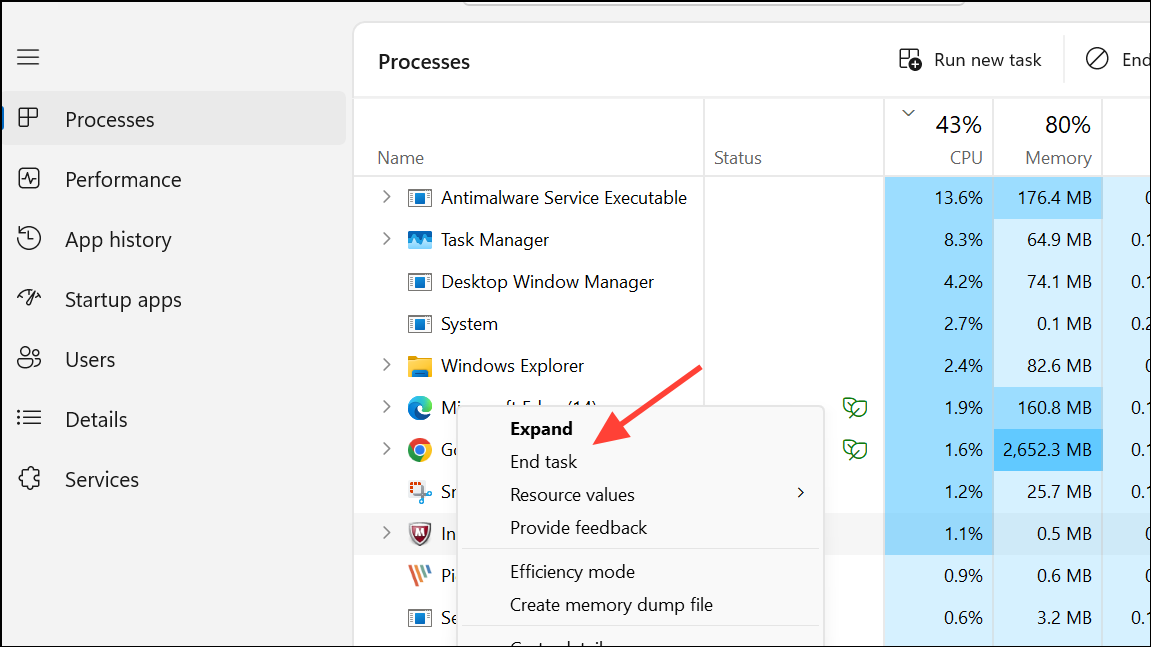
Check Video and Audio File Compatibility
PowerPoint supports specific video and audio formats. Incompatible files may cause the application to crash when inserted or played.
Improve Internet Connectivity for Cloud Features
Features like Design Ideas, online images, and collaborative editing require a stable internet connection. Unstable connections can cause PowerPoint to hang or crash, particularly when working with cloud-synced files or add-ins.
Additional Maintenance Tips
- Save your work frequently and enable AutoSave to minimize data loss.
- Keep antivirus software updated and check that it does not interfere with PowerPoint. Add PowerPoint to the exception list if necessary.
- Report persistent crash issues to Microsoft using the built-in Feedback tool under the
Filemenu. - Back up your presentations regularly, especially before adding new media or complex animations.
Applying these methods will significantly reduce PowerPoint crashes caused by media or animation issues, letting you focus on delivering strong presentations without technical setbacks.





