Resolve Microsoft Teams login failures on Windows 11 by clearing credentials, removing cached data, adjusting firewall settings, and applying advanced troubleshooting steps.
Resolve Microsoft Teams login failures on Windows 11 by clearing credentials, removing cached data, adjusting firewall settings, and applying advanced troubleshooting steps.
by Pallav Pathak
Microsoft Teams displays the error code CAA301F7 when login attempts fail due to cached credentials, profile issues, or network blocks. This error prevents access to Teams features, disrupts collaboration, and may also affect Outlook sign-in on the same device. Addressing this problem requires a series of targeted troubleshooting steps to restore connectivity and account access.
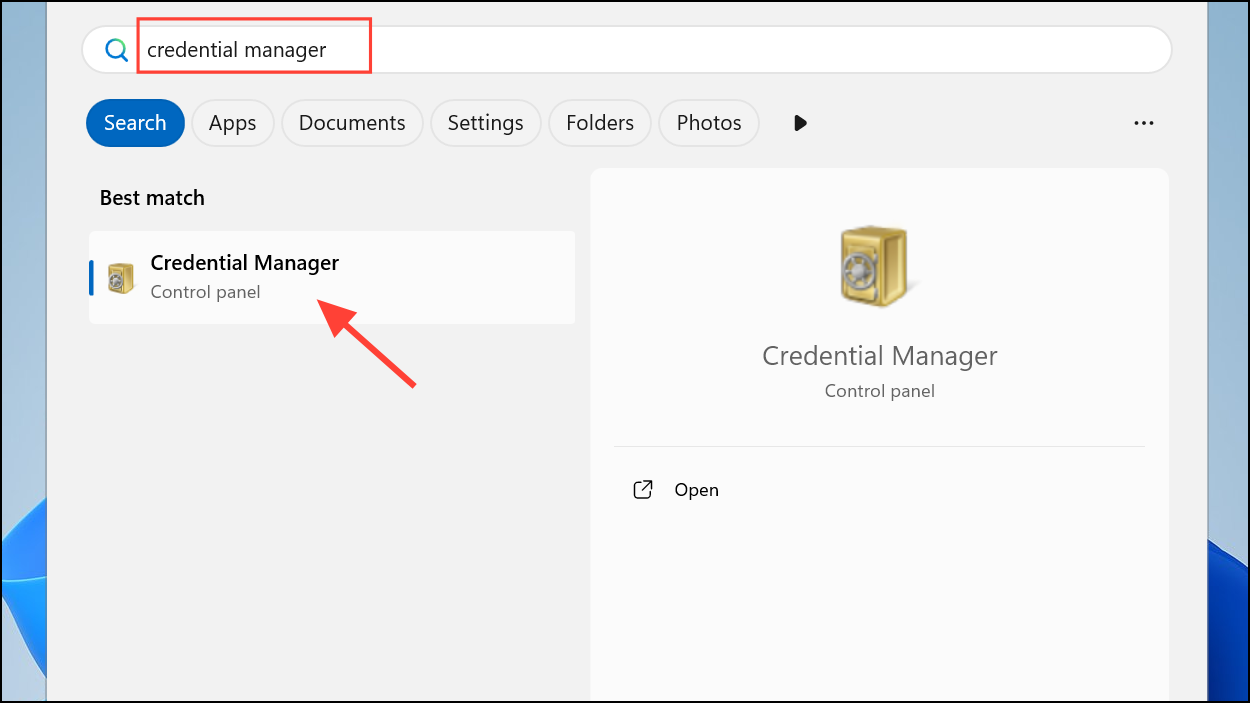
Delete Microsoft Teams Credentials in Windows Credential Manager
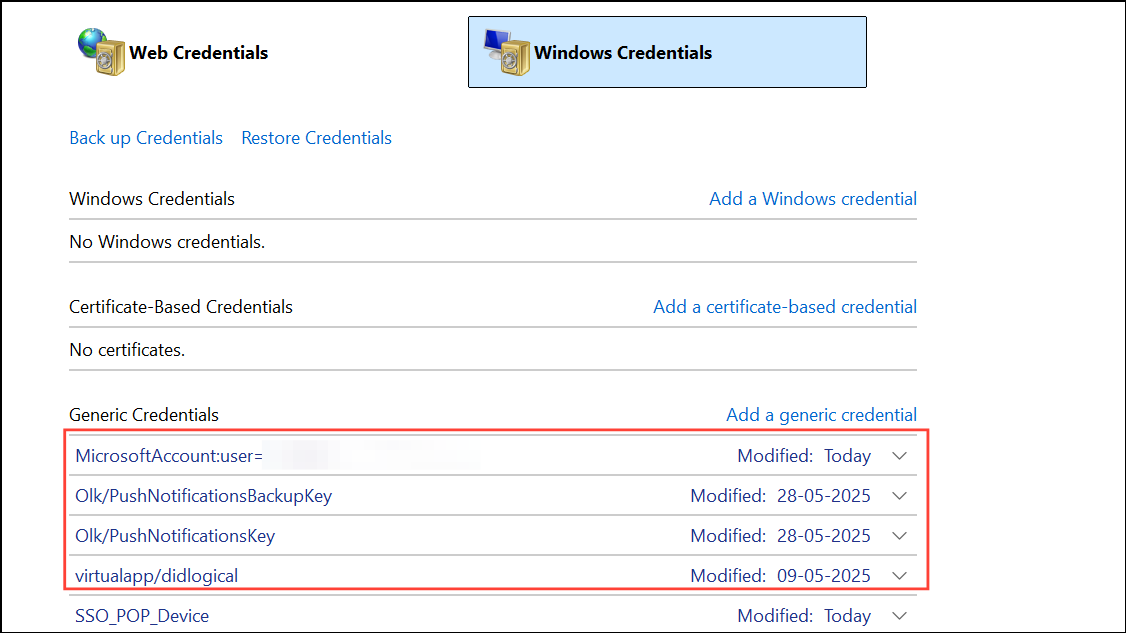
Click on Windows Credentials. Locate any entries related to Microsoft Teams, Office, or Microsoft 365. Expand each entry and select Remove to delete these credentials. Removing outdated or corrupt credentials forces Teams to prompt for fresh login data.
Open Microsoft Teams and attempt to sign in with your account. If prompted, enter your credentials again. Deleting stored credentials often resolves authentication errors by eliminating conflicts from previous sessions or password changes.
Select all files and folders within this directory and delete them. Cached files can become corrupted, leading to persistent sign-in errors or outdated session data.
Restart Microsoft Teams. The app will recreate necessary cache files, and you should be prompted to sign in again. Clearing the cache removes temporary files that may block successful authentication.
Click on your active network profile. Use the toggle to temporarily turn off Windows Defender Firewall. This step helps determine if firewall rules are blocking Teams’ network access.
Re-enable the firewall immediately after testing. Leaving the firewall off reduces system security. If disabling the firewall resolves the problem, review your firewall rules and allow Teams through the firewall permanently.
Right-click the shortcut and choose Run as administrator. Running Teams with elevated permissions can resolve issues caused by restricted access to system resources or profile data.
Try logging in again. If this works, consider adjusting user permissions or always running Teams as administrator for affected users, especially after password changes.
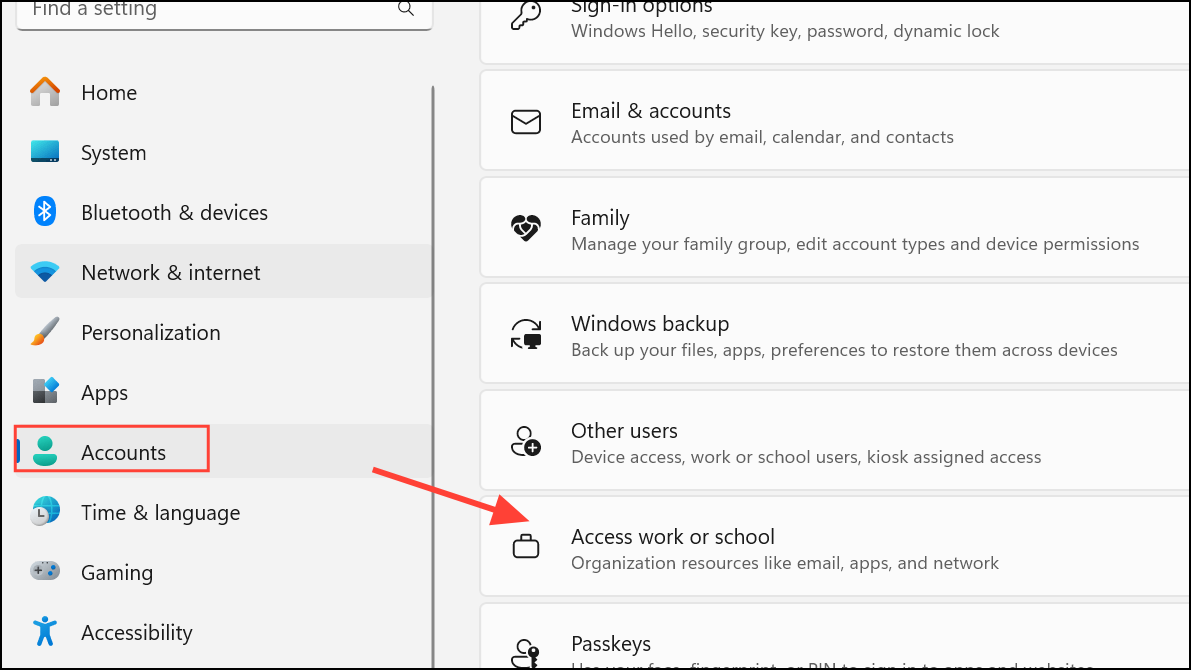
Restart your computer. After rebooting, return to the same settings page and use Connect to re-add your work or school account. Enter your credentials and complete the device registration process.
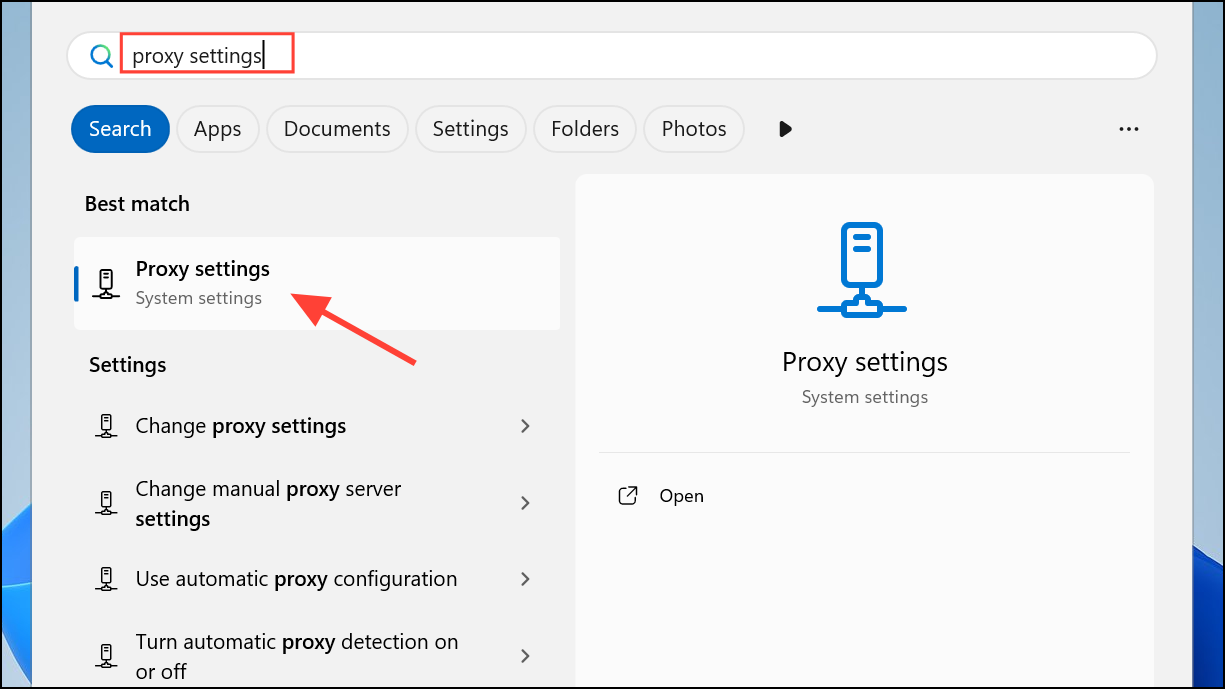
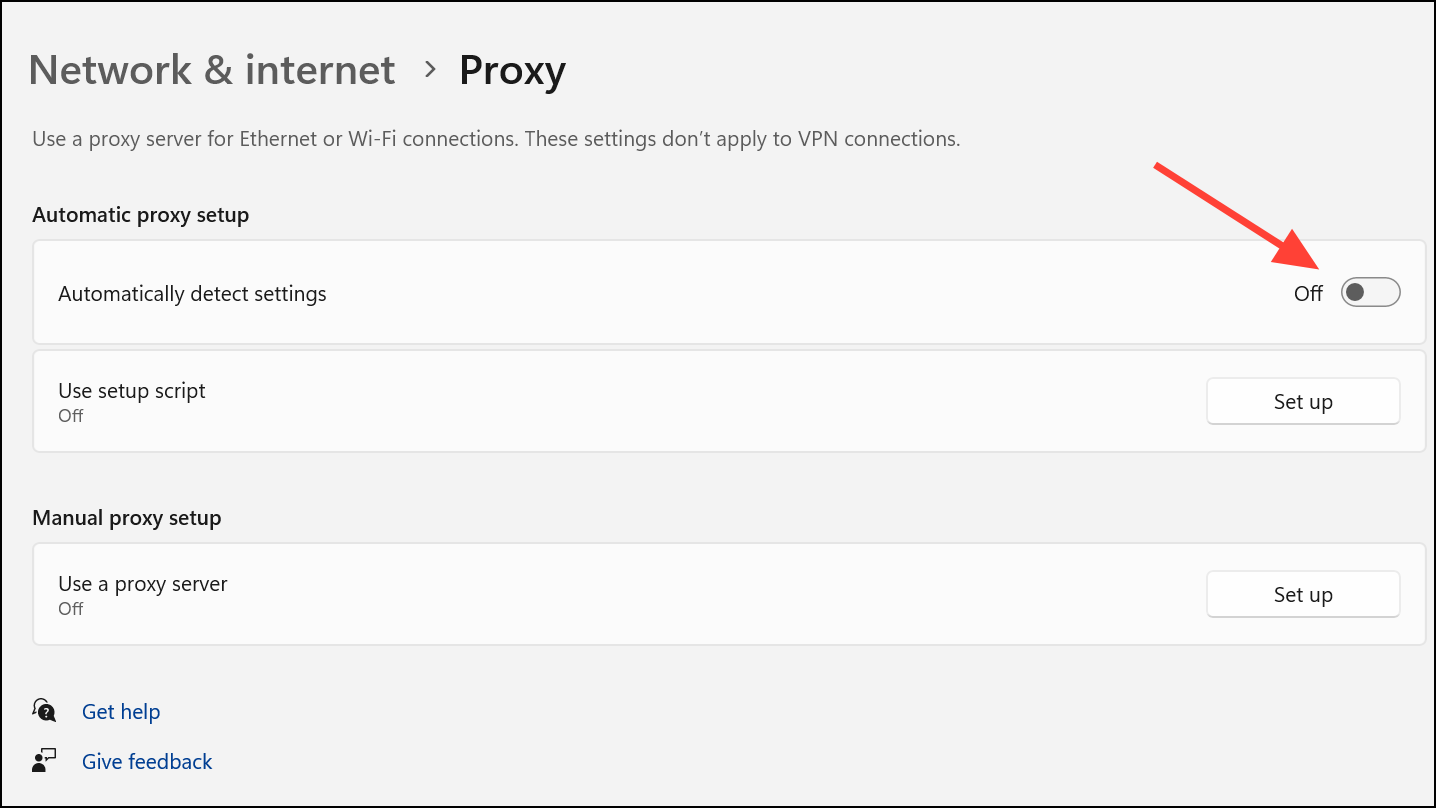
Toggle the Automatically detect settings option on for a few seconds, then turn it back off. Some organizations have reported that this action refreshes Windows’ network configuration and resolves sign-in blocks for Teams and Outlook.
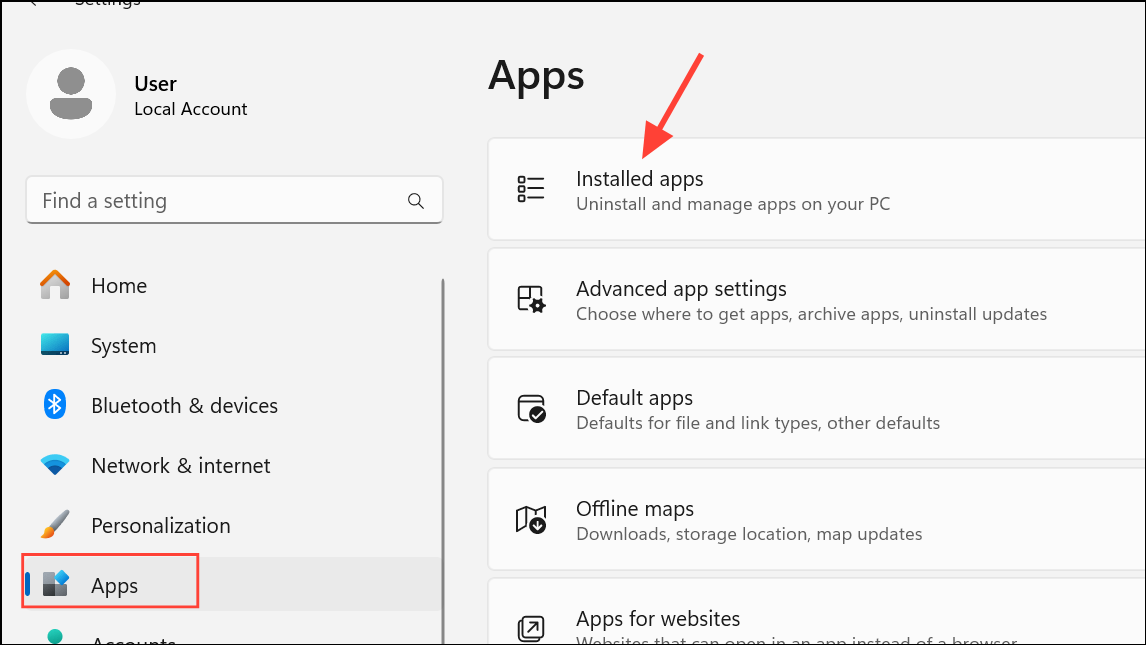
Open Teams, sign in with your account, and check if the error persists. Reinstalling ensures you have the latest version and removes any corrupt application files.
Advanced: Purge Windows Local Profile
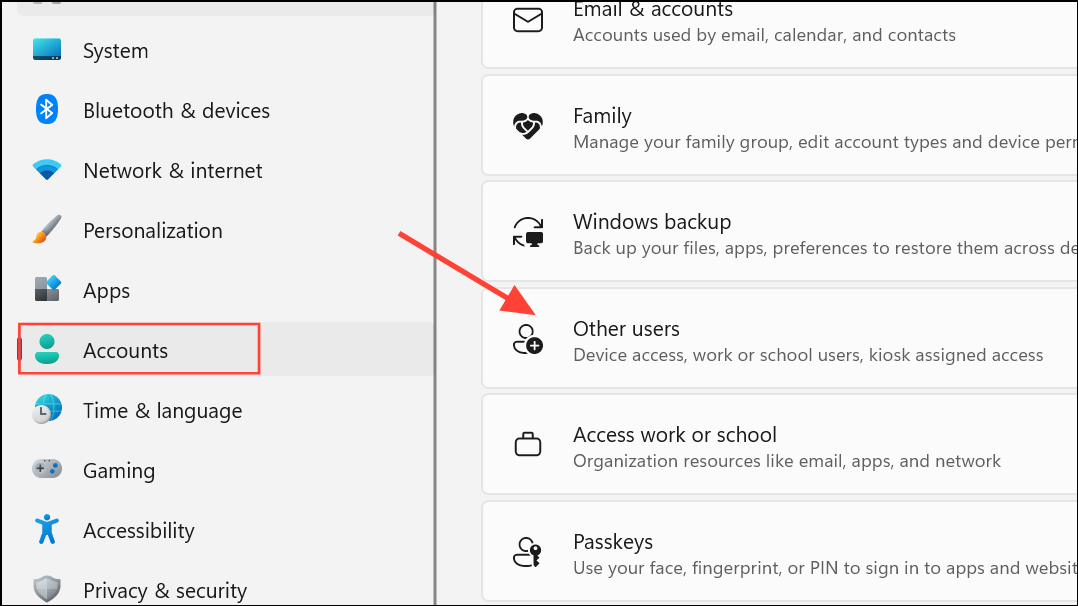
If all other methods fail and the issue affects only a specific user profile, consider creating a new Windows local profile for the user. Profile corruption can block authentication for Teams and Outlook, even when admin accounts work normally.
Log in with the new account, set up Teams, and sign in. If Teams works without error, migrate user data to the new profile.
Addressing Microsoft Teams error CAA301F7 on Windows 11 involves clearing credentials, deleting cache files, adjusting firewall and proxy settings, and, if necessary, repairing user profiles. Consistently applying these steps restores Teams sign-in and streamlines your workflow.