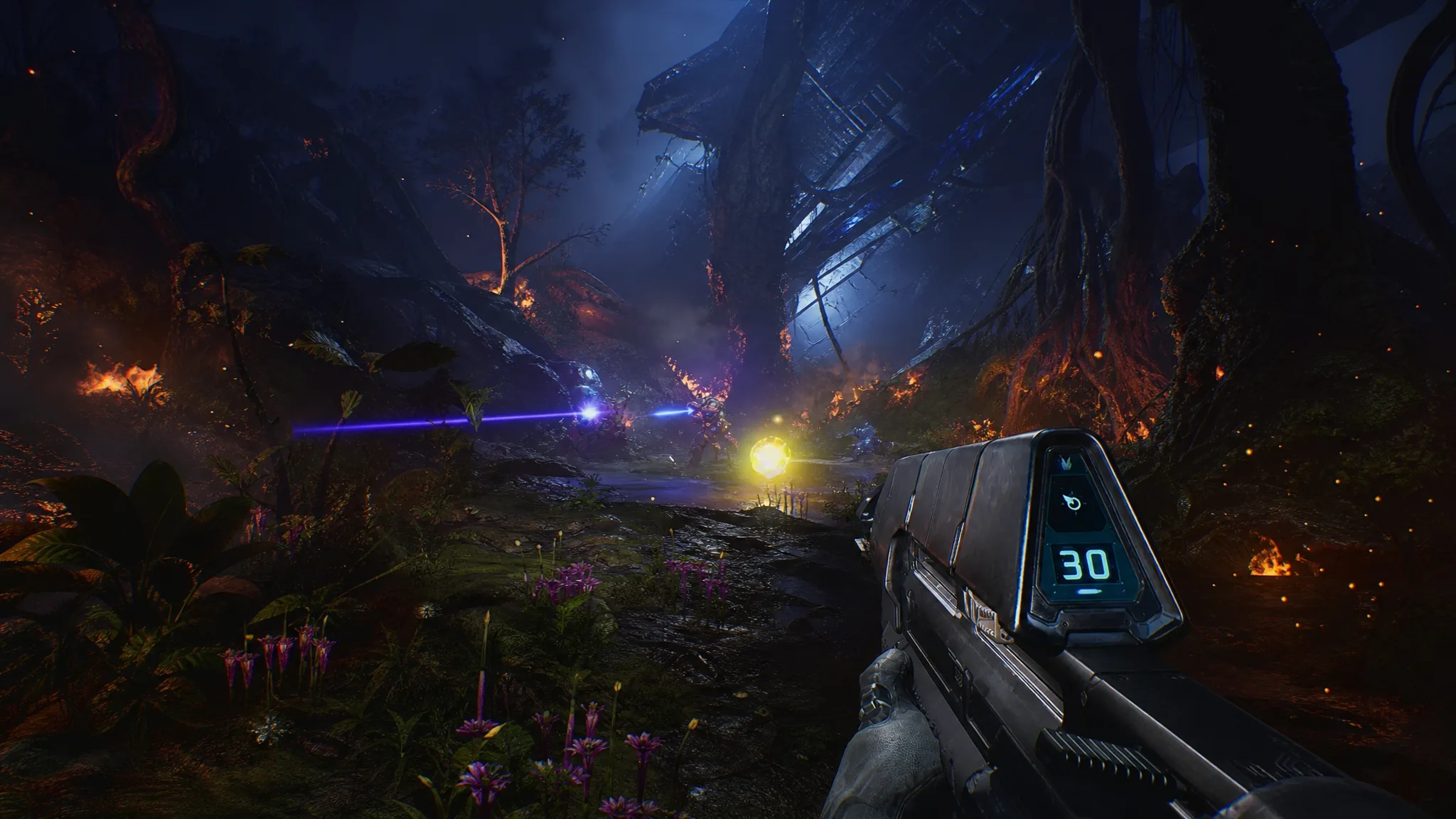
A well-tuned crosshair in Halo: Campaign Evolved does one job well. It makes targets easier to read and shots easier to land, whether you are picking up the Master Chief for the first time or returning to Alpha Halo after years away. The values below give you a neutral, low-clutter reticle that stays visible against bright skyboxes and dark interiors alike.
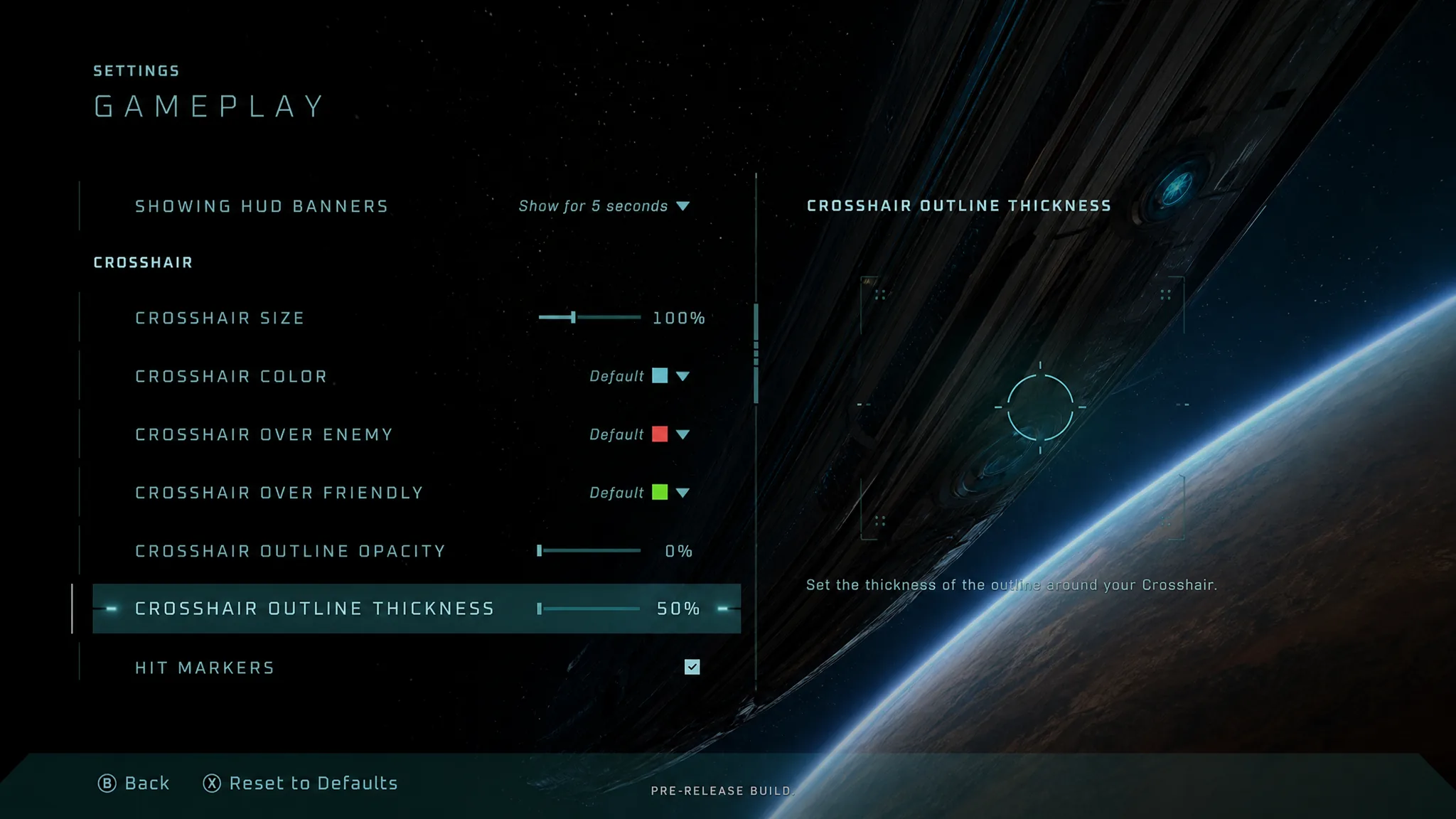
Quick answer: Open Settings → Gameplay, scroll to the crosshair section, and set Crosshair Size to 100%, Crosshair Color to Blue, Crosshair Over Enemy to Red, Crosshair Over Friendly to Blue, Crosshair Outline Opacity to 0%, Crosshair Outline Thickness to 50%, and Hit Markers Off.
Where to change the crosshair in Halo: Campaign Evolved
Recommended crosshair values
Use this as your baseline, then adjust once you have a few firefights under your belt. The goal is a reticle that reads instantly without covering the target.
| Setting | Value |
|---|---|
| Crosshair Size | 100% |
| Crosshair Color | Blue |
| Crosshair Over Enemy | Red |
| Crosshair Over Friendly | Blue |
| Crosshair Outline Opacity | 0% |
| Crosshair Outline Thickness | 50% |
| Hit Markers | Off |
Why these values work
Size at 100% keeps the crosshair large enough to track quickly but not so wide that it hides distant Covenant units. This is the size applied to every weapon, so you get consistent behavior across the Battle Rifle, Assault Rifle, and everything else in the arsenal.
Color set to Blue gives you a calm, neutral reticle when nothing is being targeted. The color only shifts when it matters. Crosshair Over Enemy set to Red flips the reticle the moment it passes over a hostile, so you get a clear go signal before you commit to a shot. Crosshair Over Friendly set to Blue keeps teammates matched to the neutral color, which removes any doubt about who you are aiming at during four-player co-op.
Outline Opacity at 0% with Thickness at 50% strips away the heavy border while keeping just enough definition for the reticle to hold up against mixed backgrounds. The result is a cleaner center-screen with less visual noise during heavy fights.
Hit Markers Off removes the pop-up feedback that appears when you deal damage. Some players prefer the quiet HUD because it keeps attention on aim and movement instead of on markers flashing mid-fight. If you rely on that feedback to confirm hits, leave it on.
Confirm the changes took effect
Back out of the menu and sweep your reticle across an enemy. If it snaps to red over hostiles and returns to blue over allies or empty space, the settings are live. The crosshair applies immediately, so there is no restart or reload needed.
Color and contrast read differently from person to person, and playstyle matters too. Treat these values as a strong starting point, then nudge size, outline, and color to whatever locks your eyes onto targets fastest on your display.